A personal habit tracker of any complexity in one evening
I run my whole week from one simple tracker: habits, content, focus. I built it in an evening, just by describing to the AI Claude what I wanted to see on the screen. Not a single line of code. In this article: how to make one for yourself – what words to say to the AI, how to open the finished tracker in your browser, fine-tune it to your tasks, and what to do if something goes wrong. It works even if you've never programmed anything in your life.
I have a single page with my whole week on it. At the top is a 25-minute focus timer. Below it, the content I'm shipping this week. Then a habit table: up before eight, Spanish, workout, blog post, in bed before midnight. Each day I check off the boxes, and on the side it counts the streak – how many days in a row I've kept a habit.
So you can see right now how it looks and works, I've published a live example: open the example tracker and click around – tick the boxes, switch between dark and light theme, start the timer. Everything is really clickable. And the main thing: I never opened a single code editor. I described to the AI what I wanted to see on the screen, and a couple of minutes later I had a finished page. Below is the whole path, step by step, so you can build your own.
Open the finished tracker and try it yourself before you read the instructions.
What's inside
- What this tracker is and why you'd want one
- What you'll need
- Step 1. Sign up for Claude
- Step 2. Open Claude
- Step 3. Describe the tracker in your own words
- Step 4. Publish the tracker at a link
- Step 5. Fine-tune it to your needs
- If something goes wrong
- Step 6. Keep the tracker within reach
- Where your data is saved
- What else you can build the same way
- Common mistakes
Section 01What this tracker is and why you'd want one
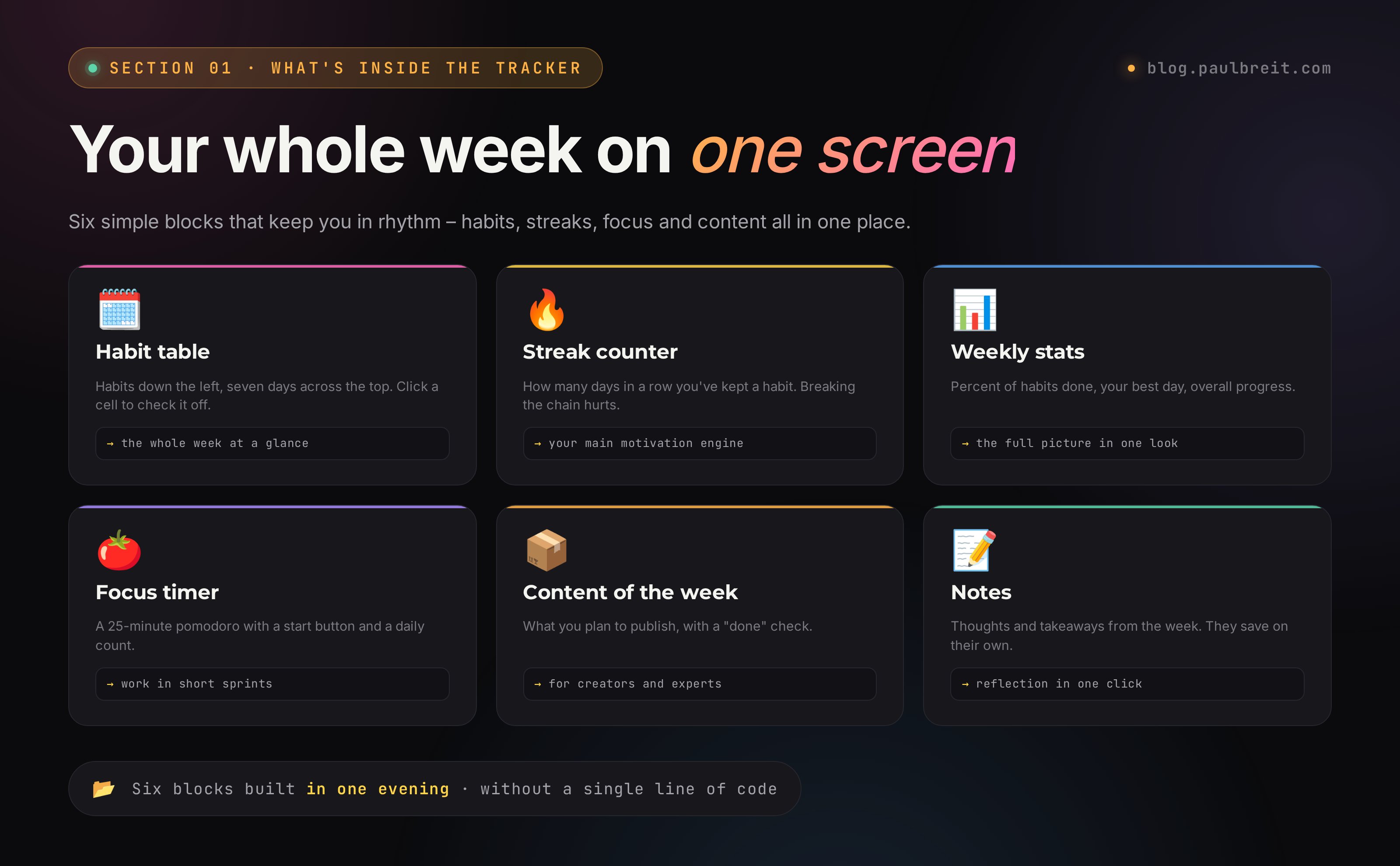
A tracker is a single page where your whole week is visible at a glance. Let's break it down piece by piece, using mine as the example.
👉 Open the example tracker in a separate tab and read on while glancing at it – it makes everything clearer.
On the left is the list of habits, across the top are the seven days of the week. Check a box and the cell lights up. Next to it the streak counts: keep "up before eight" five days in a row and you see the number 5 and you don't want to reset it. That's the real engine. The streak turns boring discipline into a small game where you don't want to break the chain.
At the top is a stats block: what percentage of your habits you've closed this week, which day was your best, which streak is currently the longest. It gives you the picture in a single glance, with no math in your head. Higher up still I keep a 25-minute pomodoro timer: hit start, work in focus, hear the chime. Then comes a "content this week" block – what I'm planning to ship, with a "done" check-mark. And at the bottom, a notes field where I dump my thoughts for the week, and it saves itself.
Why all of this matters. When your whole week is in front of you on one screen, you immediately see where you're slipping. I see three empty cells in a row on Tuesday, Thursday and Saturday and I understand the workouts fell off again. The check-mark gives a little hit of satisfaction, the streak turns into a thrill, and an empty row at the end of the week honestly shows where you ran out of steam. No "well, I'm sort of trying" self-deception.
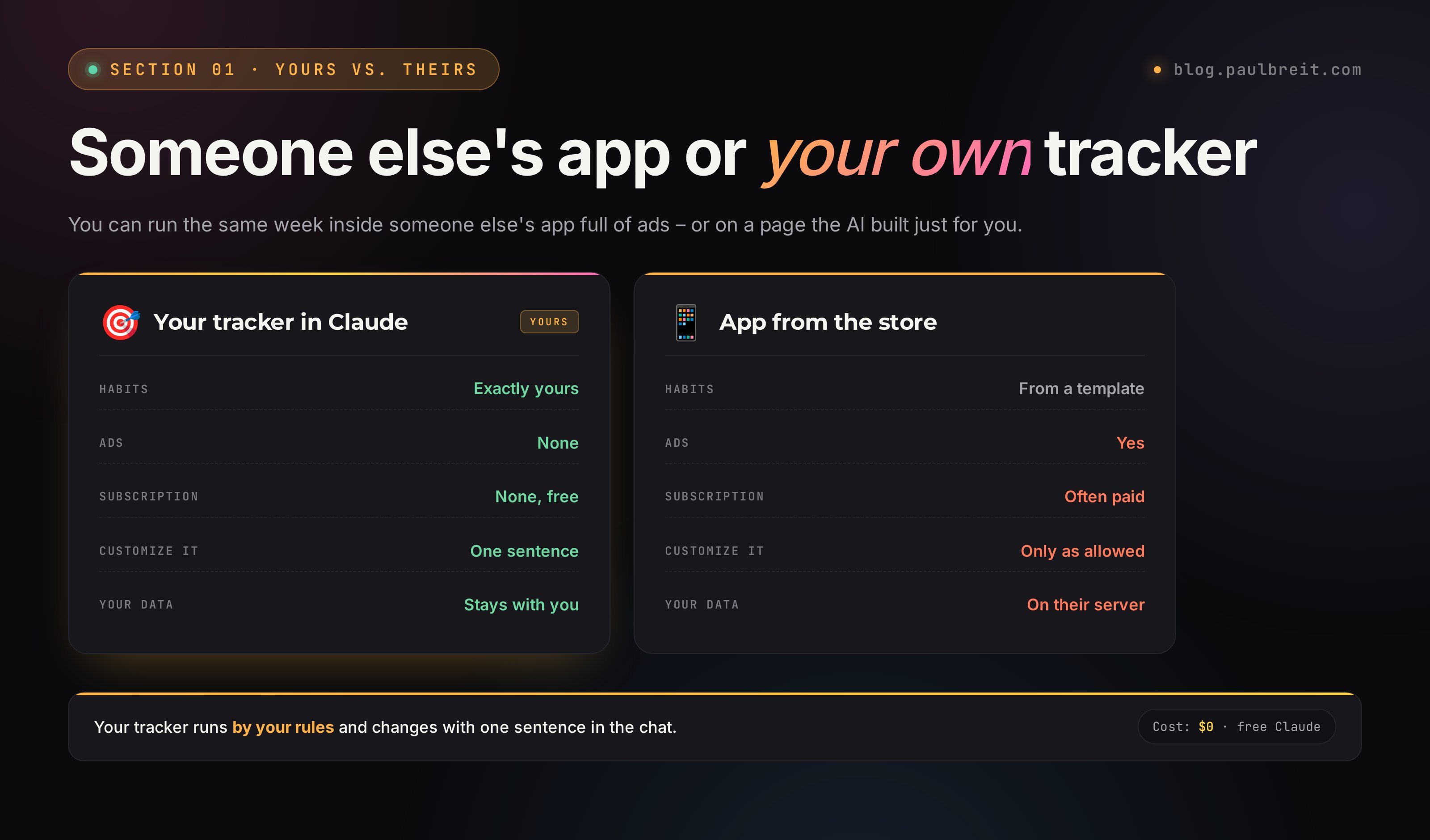
Let me say a separate word about the streak, because it's the heart of the tracker. When a habit racks up seven, ten, twenty days in a row, breaking the chain becomes physically painful. The brain clings to that counter harder than to any willpower. On a gloomy day when you don't feel like doing anything, it's exactly the unwillingness to reset the streak that gets you off the couch. That's how my "up before eight" holds. I'm not made of iron. I just spent a month growing that number and now I don't want to lose it over one lazy morning. A ready-made app from the store can do this too, but in it your chain lives among someone else's buttons and ads. In your own tracker it sits exactly where it's convenient for you to look at it.
Who this is for. An expert – to run both habits and content output in one place. A blogger – to keep a publishing rhythm. An entrepreneur – to see whether they're getting to what matters, not just the busywork. A student – to track studying and sport. The logic is the same everywhere, only the rows inside change.
You could install a ready-made app from the store. But it comes with someone else's logic, extra buttons, subscriptions and ads. Your own tracker you build exactly for yourself: the habits you need, the look you like. And it comes together in a single evening, in one conversation with the AI. No programming. I'll show you the whole path.
Section 02What you'll need
The list is short. You don't need to install anything on your computer.
- A Claude account – this is the AI from the company Anthropic, and it's what will build the tracker. The site is
claude.ai. The free plan is enough to build the page and tweak it a couple of times. - Any browser on your computer – Chrome, Safari, Edge, whatever you already have. A phone works too, but a computer is more comfortable at the start.
- 30–40 minutes of quiet time for the first build. After that, edits take minutes.
Free or paid
On Claude's free plan there's a message limit over a window of a few hours. To build a tracker and make a few edits, it's usually enough. If you hit the limit, wait a couple of hours or come back tomorrow – everything is saved in the same conversation. The paid plan removes the limit and gives you a smarter model, but for this task it isn't required.
Signing up is quick if you're in the US or EU: register with your email or a Google account and move on. If you're outside those regions, there's a small wrinkle with registration and a VPN. Don't worry, it takes about half an hour, and the whole path is broken down step by step in the next section.
The entire conversation with the AI happens in plain text, like chatting in a messenger. No commands and no code – you write in words what you want, and the AI does it.
Step 1Sign up for Claude
Claude is made by the company Anthropic. If you're in the US or EU, everything opens right away: register with your email or a Google account and move straight to the next step. If you're outside the supported regions, the site claude.ai may not open directly – Anthropic blocks certain countries' IPs. There's a working path, and it takes about half an hour. You need three things: a VPN, a virtual number for SMS, and an account on claude.ai.
Turn on a VPN with a European or US server
These work: Proton VPN, Mullvad, Windscribe, NordVPN. You need a country that Anthropic supports: any EU country, the US, the UK, Canada, Australia, Japan. Turkey, the UAE, India and Brazil don't work – Anthropic doesn't let them in.
If you're going to pay for the paid plan, the VPN country should match the country of your card. Anthropic catches the mismatch and flags the account as suspicious.
Get a virtual number for SMS
A service like 5sim.net. You register by email (with the VPN on), top up the balance with a card or crypto. In the service search, type "Claude AI" or "Anthropic." Pick a US or UK number – Anthropic is friendlier to those. The price is around $0.10–0.50 per number. Alternatives: OnlineSIM, GrizzlySMS.
Register on claude.ai
Open claude.ai on the VPN and hit Sign up. Registering with a Google account is faster than by email. Anthropic will ask for a number to verify – you paste in the virtual one, catch the code in your 5sim dashboard and enter it on claude.ai. Done, you're in.
To build the tracker and fine-tune it, Claude's free plan is enough. The paid Pro plan is only needed if you plan to work with the AI heavily: long dialogues without cut-offs, uploading big files, access to Projects. If you do need it, the upgrade is in the "Upgrade to Pro" section on claude.ai.
How much Claude Pro costs
The Pro subscription is $20 a month. You pay it directly in the "Upgrade to Pro" section on claude.ai with your regular card. If your card gets declined, the most common reasons are below.
VPN country doesn't match your card
If you signed up on a VPN, keep the VPN country the same as the country of your card when you pay. Anthropic checks for a mismatch and can block the payment or flag the account.
Some prepaid or virtual cards get declined
Not every prepaid or virtual card goes through on Anthropic's site. If one is declined, use a regular bank card or a different provider. Once a card works, it works reliably from then on.
Try again later
Payments sometimes fail for a transient reason. Wait an hour or two and try again, or switch to another card. There's no need to overthink it.
If you signed up on a VPN, never open Claude without it, not even for a minute to quickly glance at a chat. Don't switch VPN countries: pick one and stick with it. Don't use one number for several accounts. As of April 2026 Anthropic may ask suspicious accounts to verify their identity – register calmly, on a stable server, without rushing.
Step 2Open Claude
You're logged into your account. In front of you is a clean chat window: the input field at the bottom, your conversation history on the left. This is where you'll type what you need in plain words. Check that everything works – type "hello" and make sure the AI replies. Claude understands English fluently, so you don't need to switch anything.
What an artifact is
There's one thing worth knowing about Claude in advance; it'll make the rest clearer. It can do more than reply with text. When you ask it to build a page, the AI will open it in a separate little window right next to the conversation – that window is called an artifact. You don't need to look for it, it appears on its own as soon as Claude builds the tracker. The page in it is live straight away: buttons click, boxes check, the theme switches. If you don't like something, you write into the chat and the tracker in the window rebuilds before your eyes.
Step 3Describe the tracker in your own words
This is the most important step, and it's worth giving it a bit more attention. The clearer you describe what you want to see on the screen, the more accurately the AI builds it on the first try. No technical words needed. Picture explaining it to a friend who'll draw the page for you: this goes at the top, this as a table, here are the check-marks, a toggle in the corner.
So you don't have to invent it from scratch, take my prompt and change it to fit you. Copy it into the chat in full:
Build me a personal weekly tracker as a single HTML page.
I want to open it in my browser and check off boxes
every day.

What I need on the page:
1. A header with the current week and today's date.
2. A habit table: the list of habits on the left, the
   seven days of the week across the top. Clicking a cell
   adds a check-mark, clicking again removes it. My habits:
   – up before 8 a.m.
   – 15 minutes of exercise
   – 30 minutes of reading
   – no sweets
   – in bed before 11:00 p.m.
3. Next to each habit – a streak counter: how many
   days in a row I've kept it.
4. A short stats line at the top: the percentage of
   habits closed for the week.
5. A "content this week" block – what I plan to ship,
   with a "done" check-mark.
6. A notes field for the week that saves itself.
7. A dark and a light theme with a toggle in the corner.

Make it calm and nice on color. Save all my check-marks
right in the browser so that everything is there the next
time I come back. When it's ready, let me download the file
and tell me how to publish this page at a link for free,
so I can open it on both my phone and my computer.
Why the prompt is built this way
Every line here is intentional, and understanding the logic will let you change the prompt with confidence.
- "As a single HTML page" – so the AI builds the whole tracker into one page, without complex installs or separate programs.
- "Click to add, click again to remove" – you explain the behavior up front so you don't end up unable to uncheck a box.
- "Streak counter" – the very chain mechanic that keeps motivation alive.
- "Saved right in the browser" – the key phrase. Without it the page can come out pretty but forget your check-marks after you close it.
- "Publish at a link" – so the tracker opens like a normal site, saves your check-marks reliably, and works from a phone. I'll explain below why this matters more than just a file.
In the habits line, write in your own. Don't know where to start? Take three or four you've long wanted to lock in. Drop the content block if you don't need it, or swap it for your own: "a block with this week's tasks," "a block with my spending." The AI will get it.
Variations for different goals
The same prompt is easy to retune for yourself by changing a couple of lines:
| For whom | What to write instead of the habits |
|---|---|
| A blogger | channel post, reel, story warm-up, replying to comments, idea for tomorrow |
| An expert | content, sales touches, working the list, learning, guilt-free rest |
| A student | lectures, homework, English, sport, 8 hours of sleep |
| For health | 2 liters of water, 10,000 steps, no sugar, vitamins, lights out on time |
After you send it, the AI thinks for a minute and builds the page. A finished tracker appears on the right with your habits, theme and check-marks. In the chat text, Claude usually also explains what it did and how to use it. Click around right in the chat: tick a couple of boxes, switch the theme. If you like it overall, we move to the next step and grab the file for ourselves.
Three rules so the AI gets it on the first try
If you remember three simple rules, your prompts will hit the target almost every time. They work for the tracker and for any other page you ask it to build.
- Describe the picture, not the code. Say what you see on the screen, top to bottom: "a header at the top," "a table below," "a button in the corner." The AI will translate that into code itself. You don't need to know a single technical word.
- Give an example. Instead of "add habits," write out the actual habits as a list. Instead of "make it nice," say "calm pastel colors, like in an expensive planner." An example is always clearer than a general wish.
- Explain the behavior. Not just how it looks but what happens on a click: "click adds a check-mark, click again removes it." Then the page behaves the way you intended, not the way the AI guessed.
An example of a real conversation
To make it crystal clear, here's what a real conversation looks like from the first prompt to a finished tracker. Your words are ordinary, human words.
You: paste the prompt template above with your habits.
Claude: "I've built a weekly tracker. In the window on the right you can check boxes, switch the theme in the top right corner, and write notes at the bottom. Everything is saved in the browser." A finished page appears on the right.
You: "Great, only the check-marks are a bit small, and add a 25-minute timer at the top."
Claude: rebuilds the page, the check-marks are bigger, and a timer with a start button has appeared at the top.
You: "Perfect. Now help me publish this at a link."
Claude: hands over the file and shows you step by step how to upload it to a free host.
That's it. Three or four messages and you've got a working tracker in hand. No commands, no code, just a normal conversation.
How to choose habits to start with
The common snag here isn't even technical. The harder part is deciding what exactly to write in. The advice is simple: take three or four habits you've been putting off, and make sure one of them is easy. An easy habit (drinking a glass of water in the morning, say) almost always gets closed, gives you the first check-mark and kicks off a streak. That momentum pulls the rest along. You don't need to write in twenty items at once – you'll get to them once you're hooked.
Step 4Publish the tracker at a link
In the chat the tracker already works. For it to become your everyday tool and open from your phone, it needs its own address on the internet – an ordinary link, like any website has. It sounds harder than it is: it's free and takes a couple of minutes.
You can download the page as a file and open it with a double-click, sure. But there's a catch: the browser reliably remembers your check-marks only when the page has a proper address on the internet. A file on your computer has no such address, and some browsers (Firefox, for example) save nothing in that case – close the tab and you lose your marks. So there's one reliable path: publish the page at a link. That's how my tracker is set up too – it lives at an address, not as a file on a disk.
Right in the chat, write: "help me publish this page at a link for free, walk me through it step by step." Claude will hand over the finished file and point you to a simple free service where you drag it in with the mouse. In a minute you'll have a link like tracker-name.host.app – an ordinary address you can open on any device.
Open that link and there's your tracker. Check boxes, write notes. Everything you mark stays in place when you close the tab and come back. Add the link to your browser bookmarks so you don't have to search for it every time.
If the tracker doesn't look the way you wanted, don't dig into the code yourself. Go back to that same conversation in Claude and say it in words: "the check-marks are too small, make them bigger," "remove the content block," "put the days of the week across the top." The AI rebuilds the page, and you publish the updated file again at the same address. You can repeat this as many times as you like.
Step 5Fine-tune it to your needs
The tracker is alive. You can keep tuning it endlessly, just by describing in words what to change. The main rule: one edit at a time. Ask for ten changes at once and the AI may miss something. Change one thing, check the result, move on.
Phrases that work well
Here are working phrasings, grouped by meaning. Grab and paste:
- Features: "add a 25-minute pomodoro timer with a start button," "add a section above the week with monthly goals and check-marks," "make it so that when Monday comes a fresh clean week starts and the old ones are saved."
- Stats: "show my best day of the week at the top," "add an overall progress bar across all habits," "display my longest streak of all time."
- Look: "make a warm pastel palette," "make it a strict dark minimalism," "increase the font, it's too small for me," "remove the extra shadows, I want it cleaner."
- Convenience: "add a clear-week button," "highlight today," "add switching between weeks back and forward."
What it looks like in practice
Say you want to add a focus timer. You write: "add a 25-minute timer at the top with start and reset buttons, and have it count how many pomodoros I did today." The AI rebuilds the page and a timer appears in the window. You check – it works. You grab the updated file and publish it again at the same address; Claude will tell you how. That's it, you now have a tracker with a pomodoro. Took a couple of minutes.
That's how the tracker grows with you: no programmer, no rewriting, no extra steps. A month later you want a new habit – you add it with one line in the chat. Tired of the dark theme – you swap it with one phrase. That's the whole point: the tracker adapts to you and your life, and stays convenient week after week.
Section 07If something goes wrong
Four situations where people usually trip up. All of them are solved calmly, no panic.
Check-marks aren't saving
You ticked the boxes, came back, and everything reset. Two causes. The first, most common: you opened the page as a file from your computer, without a link. In that case some browsers don't remember the marks – you need to publish the tracker at a link, as described in step 4. The second: saving isn't set up in the page itself. Tell the AI: "the tracker doesn't remember the marks after closing, make it so everything saves in the browser and stays there on the next visit," and publish the updated file again.
Claude won't give you either the file or the link
Sometimes Claude shows the tracker in the window but doesn't offer to take it. Ask directly: "output the full page code in one block, I'll copy it" – a copy icon will appear above the code. Or, straight away: "help me publish this page at a free link" – and it'll walk you through it.
I shared the link and my friend sees nothing
That's normal and exactly how it should be. The link opens the tracker page itself, while your check-marks are stored only in your browser. Another person sees a clean tracker and runs their own week in it. Your marks don't leak anywhere.
You hit the message limit
On the free plan Claude limits the number of messages over a few hours. If the AI refuses to answer mid-work, nothing is lost. Wait a couple of hours or come back the next day, open the same conversation and continue from the same spot. The history and the built tracker are saved.
Step 6Keep the tracker within reach
The tracker already has a link, and that's the main convenience: you can open it anywhere. A couple of ways to keep it always within reach.
An icon on your phone
Open the tracker's link in your phone browser. In the browser menu choose "Add to Home Screen" (in Safari) or "Add to Home screen" (in Chrome). An icon appears on your home screen, like a regular app's, and the tracker opens with one tap. It looks and feels like a real app.
A bookmark on your computer
On your computer, add the link to your bookmarks or make the tracker your browser's start page – so it's in front of you every morning when you sit down to work.
Your check-marks are stored in the browser where you tick them. Open the tracker on your phone and there'll be its own, separate copy of marks, not the one on your computer. To have a single set of data across all devices at once, you need syncing through a server. That's already the next level, and it can be built with Claude too, but a beginner doesn't need it. To start, pick one device where you'll run your week, and don't get them mixed up.
Section 09Where your data is saved
Briefly and without the tech. The tracker page itself sits on a free host, while your check-marks and notes are stored separately – right in your browser, in its own memory. They don't go to outside servers, and there are no accounts or sign-ups.
Two things follow from this. The nice one: only you see your marks, no one collects or analyzes them. And the one worth knowing: the data is tied to a specific browser on a specific device. Clear your browser history and data and the marks are wiped. Open the tracker in another browser or on another device and it'll be blank there. So run your week in one place.
If you want the data to be unified across your phone and computer at once – that's solved with syncing through a server. It's built with Claude too, but it's the next level and not needed at all to get started. For most people, a tracker on one device is enough for years to come.
Section 10What else you can build the same way
The tracker is just the beginning. The same way, in one conversation with Claude, you can build small personal tools for your own tasks. The principle is the same everywhere: you describe in words what you want to see on the screen, the AI builds it, you open it in the browser. A few ideas with ready phrasings:
- A monthly content planner. "Build a monthly content calendar with check-marks for filmed, edited, published for each day."
- A calculator for your niche. "Make a page where I enter the cost of the work and the number of months, and it calculates an installment plan for the client."
- A launch checklist. "Build a 20-item launch-prep checklist that remembers what I've already checked off."
- A yearly goals dashboard. "Make a page with my five goals for the year and progress bars I drag by hand."
- A mini business card or landing page. "Build a simple page about me with a description, a button to message me, and my services."
If at this point you've caught the spark and want to go further – to build a whole system for attracting clients through AI and a blog – book a free consultation at the end of the article. Together with my team we'll dig into your niche and lay out a step-by-step plan.
Section 11Common mistakes
Mistake 1. Asking too vaguely
"Make me a tracker" – the AI will build something, but it's unlikely to match what's in your head. List the habits by name, say what goes where on the screen. The more specific the prompt, the closer the result on the first try and the fewer edits later.
Mistake 2. Fixing it by hand
You see something off and you're tempted to climb into the file and fix it yourself. Don't. Say it in words in the chat and the AI rebuilds it. A manual edit easily breaks things if you don't know the language the page is written in, and then it's hard to figure out what went wrong.
Mistake 3. Ten edits in one message
When you ask to change the color, add a timer, rearrange the blocks and set up stats all at once, the AI may miss something or break what was working. Change one thing at a time. Check that the new thing works, and only then the next edit.
Mistake 4. Running it on two devices at once
Until syncing is set up, the data on your phone and computer lives separately. Pick one place. Otherwise you'll be guessing where which check-marks are, get confused, and drop it.
Mistake 5. Opening Claude from a blocked region without a VPN
From an unsupported region, without a VPN set to a European or US location, Claude simply won't open. Turn it on before you go in, keep it on the whole time you're working, and check the location isn't Turkey or the UAE.
Mistake 6. Cramming in twenty habits at once
A long list weighs on you, and within a week the tracker gets abandoned. Start with three or four core ones. Once they stick, you add more with one phrase in the chat. The tracker should help, not scare you in the morning with a wall of tasks.
RecapThe whole path in a minute
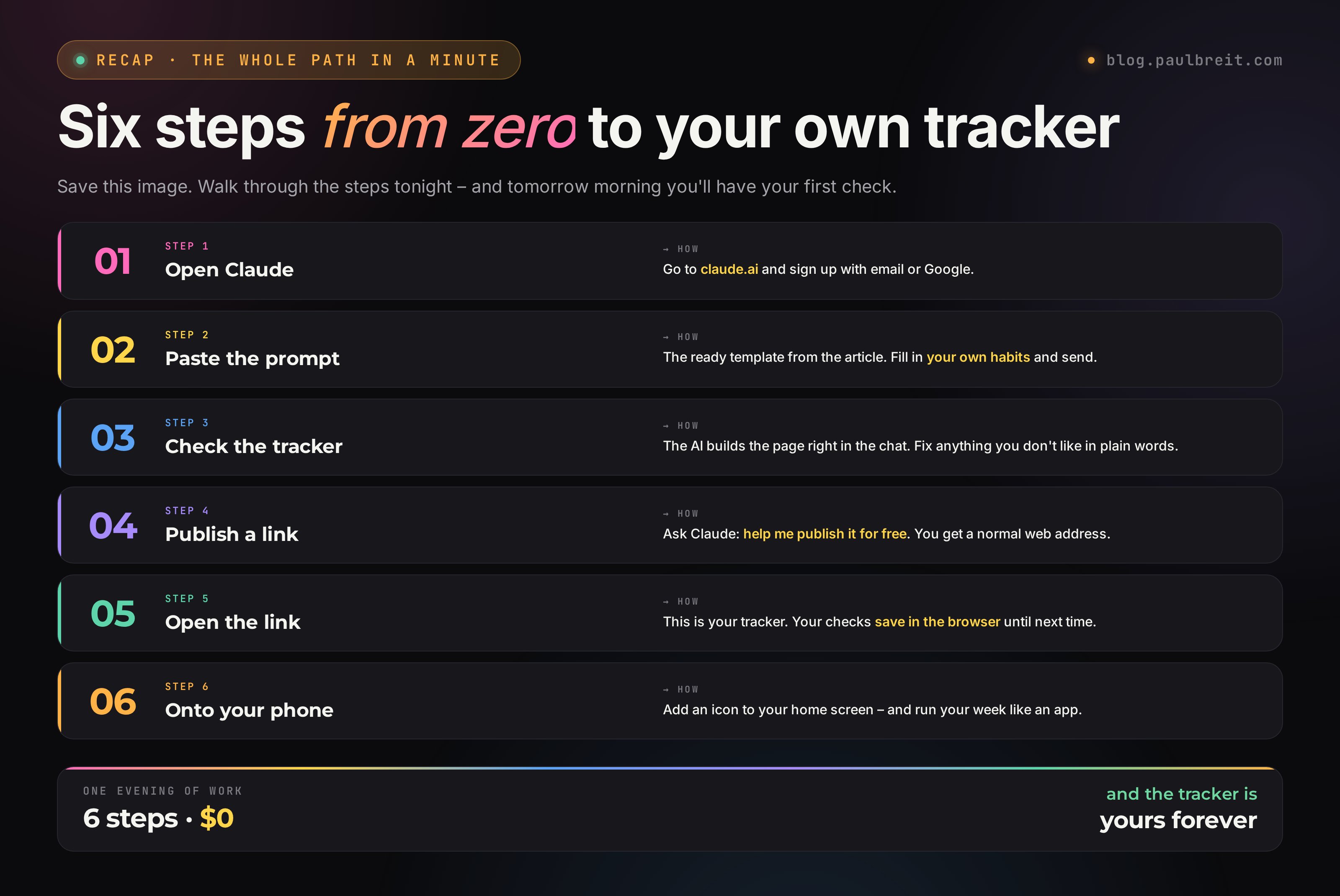
Strip away all the details and the instructions fit in six lines. Print this list or save it and follow it:
1. Went to claude.ai (from a blocked region – through a VPN set to an EU or US location).
2. Pasted the prompt template from step 3, wrote in your own habits.
3. Looked at the finished tracker in the window next to the chat, asked it to fix what you didn't like.
4. Asked Claude to help publish the page at a link for free.
5. Opened the link, checked some boxes – they save.
6. Added an icon to your phone – and you run your week.
That really is all. The hardest part here is deciding to open Claude and write the first sentence. After that the AI leads you by the hand: it builds, explains, fixes things on your word. And remember the main rule of this article: you don't write code, you describe in words what you want to see. The AI takes care of everything else. Build the tracker tonight, and tomorrow morning you'll have your first check-mark and your first streak.
FAQCommon questions
Do I need to know how to code?
No. You only describe in plain words what you want to see on the screen. The AI writes the code, and you don't even have to open it.
Is it free?
The tracker itself is free. Claude has a free plan that's enough to build the page and make a few edits. Publishing the tracker at a link is also free.
How long does the first build take?
Usually 30–40 minutes including sign-up and a couple of edits. After that any changes take minutes: you write a phrase, download the new file.
Will my check-marks be saved?
Yes. The tracker stores your check-marks and notes right in the browser. Close it, open it again – everything is still there. Just don't clear your browser data and keep it all in one place.
Can I sync the tracker between my phone and computer?
You can, but that's the next level: it needs a simple server. That can be built with Claude too. To get started, one device is enough.
What if I break something in the tracker?
No big deal. Go back to the conversation and ask the AI to put it back the way it was or rebuild it from scratch. The file on your computer can always be replaced with a new version.
Do I need to make a new tracker every week?
No. Ask the AI to make it so a clean week starts when Monday comes, while the past ones are saved and you can switch between them. Then the tracker runs itself, without your involvement.
Can I run the tracker on a phone without a computer?
Yes. Open Claude in your phone browser, build the tracker the same way in words, save the file and add an icon to the home screen. A computer is a touch more comfortable at the start because of the bigger screen, but it isn't required.
What if I'm outside the US or EU?
It works through a VPN with a location in Europe or the US. Anthropic supports those regions; some countries are blocked. Turkey and the UAE won't work.