Your AI Personal Assistant: Calendar, Meetings, and Reminders on Autopilot
A personal AI assistant you build from a plain chat with Claude in a single evening. It runs your calendar, preps you for calls, triages your inbox, writes the follow-up, and drops a plan on your desk each morning. No code, no developer, nothing to install. You just tell it in plain words, like a live assistant, and it gets it done.
An AI personal assistant is a helper you hand all the schedule-and-inbox routine to. You build it from a chat with Claude: once, you describe who you are, what you do, and how you like to run things, save that in Projects as memory, and from then on the assistant remembers context between conversations. The basic version lives right in the chat and runs on words: "book this meeting," "remind me an hour before," "pull a brief on this client before the call." The advanced version connects to your calendar and Telegram through MCP and starts sending you the day plan and reminders on its own. Building the first version takes one evening.
You sell services, courses, or consulting – coaching, law, tutoring, whatever it is. And half your day goes not to the work people pay for, but to the fuss around it. Lining up a call time across three messages. Remembering what you agreed with a client last time. Not forgetting to write the person you promised to "get back to next week." Skimming twenty unread to figure out what is urgent. Moving a meeting without losing anyone. By evening you were busy all day and did maybe two hours of real work.
I run four client projects and a channel of 20,000 people. With no human assistant. All that routine is held by an AI assistant I built out of Claude. This article is how to build the same one for yourself, with word-for-word chats and ready prompts.
You will read it in 22 minutes. Build it in an evening. A day later it is already triaging your inbox and prepping you for your first call. After that you are just tuning it to your habits.
Claude is not available everywhere. If you are outside the US or EU and it will not open, you need a VPN set to a European or US location. Some regions are on Anthropic's blocklist, so pick a supported country. Register with a mainstream email – Gmail or Apple/iCloud work fine; a provider that maps to a blocked region may not go through. Do not have one? Start a fresh inbox with the VPN already on, so the account is not tied to a blocked IP. How access to AI works from restricted regions I break down in detail in the piece on automating your routine with AI.
What is inside
Part 01What an AI assistant is and what it takes off you
An AI personal assistant is a helper you hand everything that swirls around meetings and messages. It is a concrete thing: a chat with Claude that knows who you are, remembers your clients, holds your schedule in its head, and does the boring part of the work for you. No magic from the ads, just a plain working tool you set up for yourself in one evening.
Look at how a day usually goes for someone who sells their services. You wake up, open your phone, and there are already twelve messages. Someone wants to move a call. Someone asks if you are free Thursday. Someone sent a long voice note with an important ask buried somewhere in the middle. While you dig through it all, the morning is gone. And you still have to remember what the last talk with your 3pm client was about, and not forget to write the woman you promised to answer "sometime this week."
That is exactly what the assistant takes. It triages your inbox and tells you what is urgent. It holds the calendar and warns you about clashes. An hour before a call it brings you a short brief: who this is, what you talked about last time, what they wanted. After the meeting it drafts the follow-up, and you just tweak it and send. And every morning it lays a day plan in front of you, everything already ranked by what matters.
And here is the part that matters most. It is not even the minutes saved, though they add up to an hour or an hour and a half a day. It is that your head stops being a warehouse of small obligations. When you hold twenty "don't forget to write," "call back," "line this up" in your mind, your brain is busy guarding that list and not working on the main thing. The assistant takes the list, and it frees up the part of your attention that actually earns you money. That is the quiet but most valuable effect.
A human assistant runs $500 a month and up, and you have to find, train, and manage them. An AI assistant costs a Claude subscription, gets built in an evening, and never quits. It does not replace your head on the big decisions. It takes the things it is a waste to spend a live person on: scheduling, reminders, drafts, sorting a pile of messages.
And one more important thing. An assistant like this is the first step toward what people call a digital twin: a system that knows you and your business and gradually takes on more and more of the routine. It all starts with an assistant. From there it grows new jobs.
Part 027 jobs it takes on
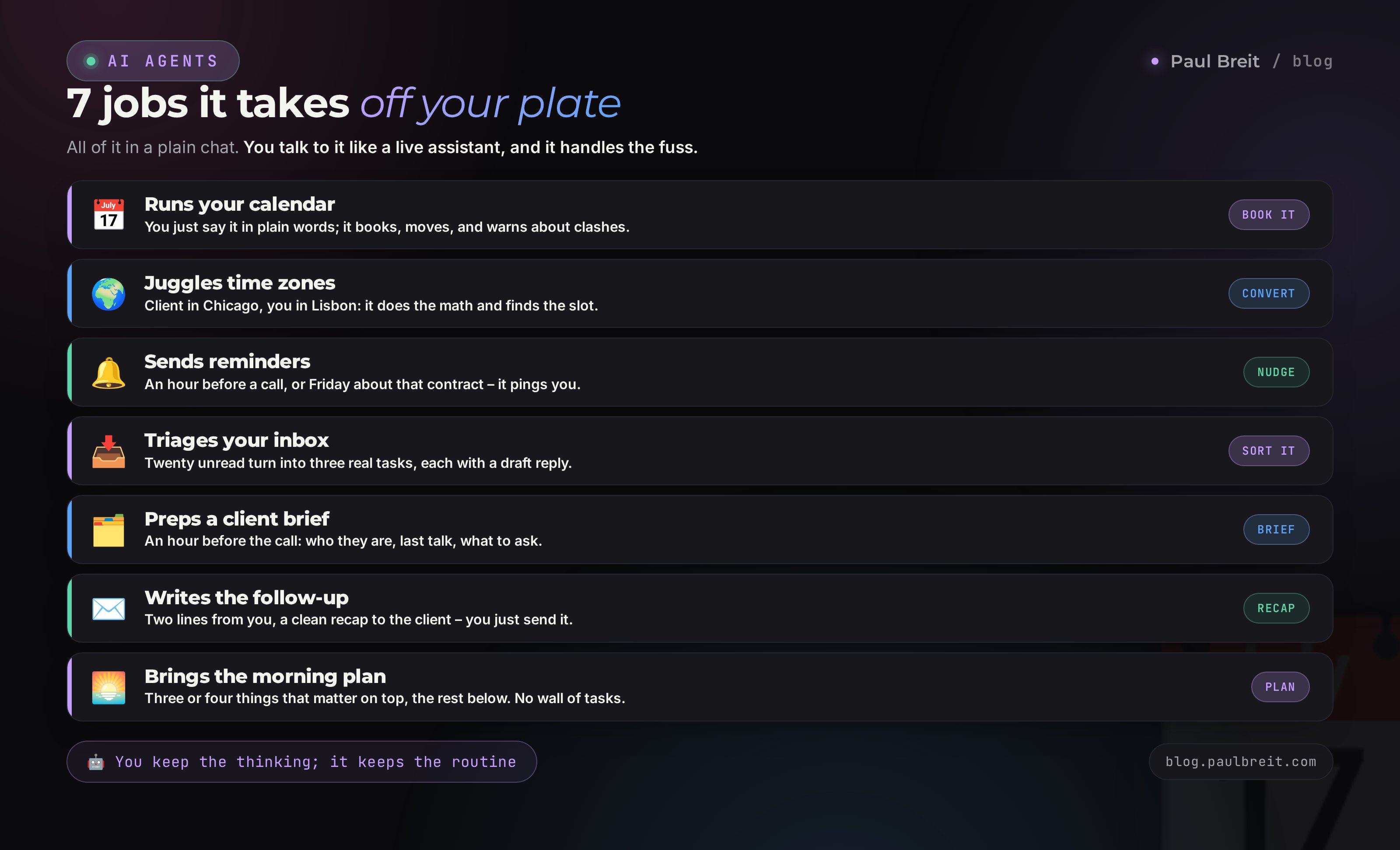
To keep it concrete, here are seven specific things the assistant takes off you from day one. For each one, a live example of how it looks in the chat.
1. Runs your calendar
You just write to it like a human, and it puts things in their place. "Book Marina for Tuesday at 3pm, one hour" – booked. "What do I have tomorrow?" – it hands you the list. "Clear my Friday afternoon" – it checks, warns you there is a call at 4pm, and asks whether to move it. You do not open the calendar and poke at cells; you talk.
2. Plans meetings and juggles time zones
Client in Chicago, you in Lisbon, a partner in Dubai. This used to be calculator hell. Now: "My client in Chicago wants to talk at 6pm their time – what is that for me, and does it clash with anything?" The assistant does the math, names your time, and tells you right away whether the slot is free.
3. Sends reminders
"Remind me an hour before the call with Marina" – and an hour before, the reminder drops. "Remind me on Friday to write Igor about the contract" – Friday it reminds you. When the assistant is connected to Telegram, reminders arrive on their own, without you asking.
4. Triages your inbox
You drop it a batch of messages or forward a thread, and it sorts: this is urgent, answer today; this can wait until tomorrow; this is spam and ads. For each important one it offers a short reply on the spot. Twenty unread turn into three real tasks.
5. Preps a client brief before a call
An hour before the meeting you say: "Pull me a brief on Nikolai before the call." The assistant digs out of memory who this is, what you agreed last time, what they wanted, where you left off, and adds a couple of questions worth asking. You walk into the call prepared instead of remembering on the fly.
6. Writes the follow-up after a meeting
The call ends. In a couple of words you tell the assistant what you agreed, and it puts together a clean message to the client: thanks for the talk, here is what we decided, here is the next step, here are the dates. You just glance at it and hit send. Follow-up is where most deals slip, because after a meeting everyone is tired and forgets to write. The assistant does not forget.
7. Brings the morning plan
Every morning it lays out the day for you: meetings by time, who to write, what is on fire, what can wait. Not a list of thirty items that makes your hands drop, but three or four main things and the rest below.
Not one of these jobs asks you to set anything up by hand, install programs, or write code. It is all done in words in the chat. That is the main idea: you talk to the assistant the way you would talk to a live helper.
Part 03What it is built from: chat, memory, connections
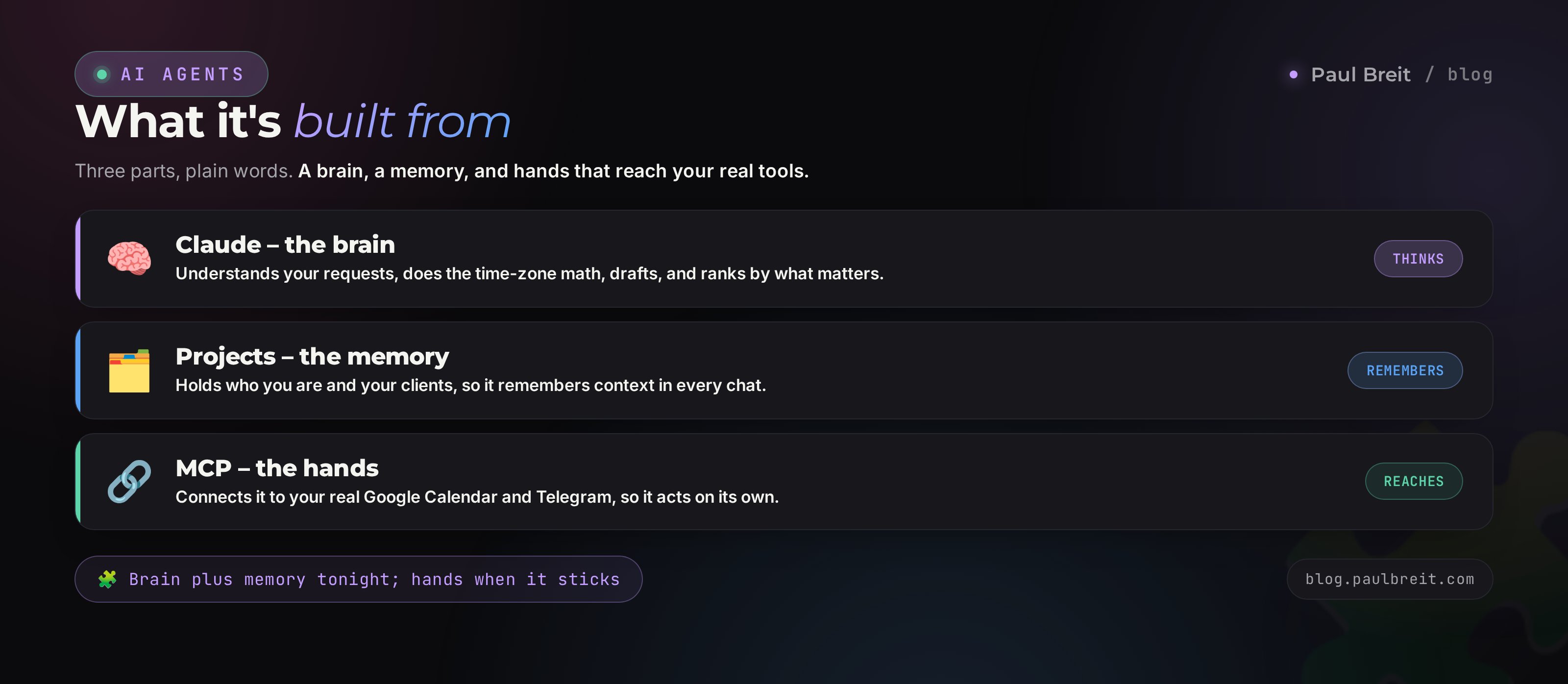
Let us break down the pieces an AI assistant is actually made of. There are three parts, and I will explain each one in plain words.
Part one – Claude itself, in the chat
This is the brain. Claude is an AI from the company Anthropic; you open it at claude.ai and talk to it in text. It is the thing that understands your requests, does the time-zone math, drafts messages, and ranks tasks by importance. Why Claude and not something else: it holds long context more carefully and invents less, which is critical for an assistant. An assistant that dreams up meetings that never happened is worse than none.
Part two – Projects, the memory
A plain chat forgets everything the moment you close it. That is no good for an assistant; it has to remember you and your clients. Claude has Projects for exactly this – a separate space where you put permanent context: who you are, what you do, your name, your client list, your rules of work. You put it in once, and in any conversation inside that project the assistant already knows all of it. The memory lives in the project as a whole and is available in every new conversation inside it.
Part three – connections through MCP
While the assistant lives only in the chat, you carry everything to it by hand: you ask about the calendar, you paste in the messages. To let it reach your real calendar and Telegram, there is a mechanism called MCP. It is a way to connect an AI to outside services so it reads and writes there itself. How MCP works and what plugs in through it I break down in detail in the piece on Claude and MCP. For an assistant, you connect the calendar and messenger through it, and then it starts working truly on its own.
Claude is the brain. Projects is its memory of you. MCP is the hands it reaches your calendar and messages with. A basic assistant is brain plus memory, built in an evening. An autonomous one is plus hands, added once the basic one has stuck.
Part 04Step by step: a basic assistant in one evening
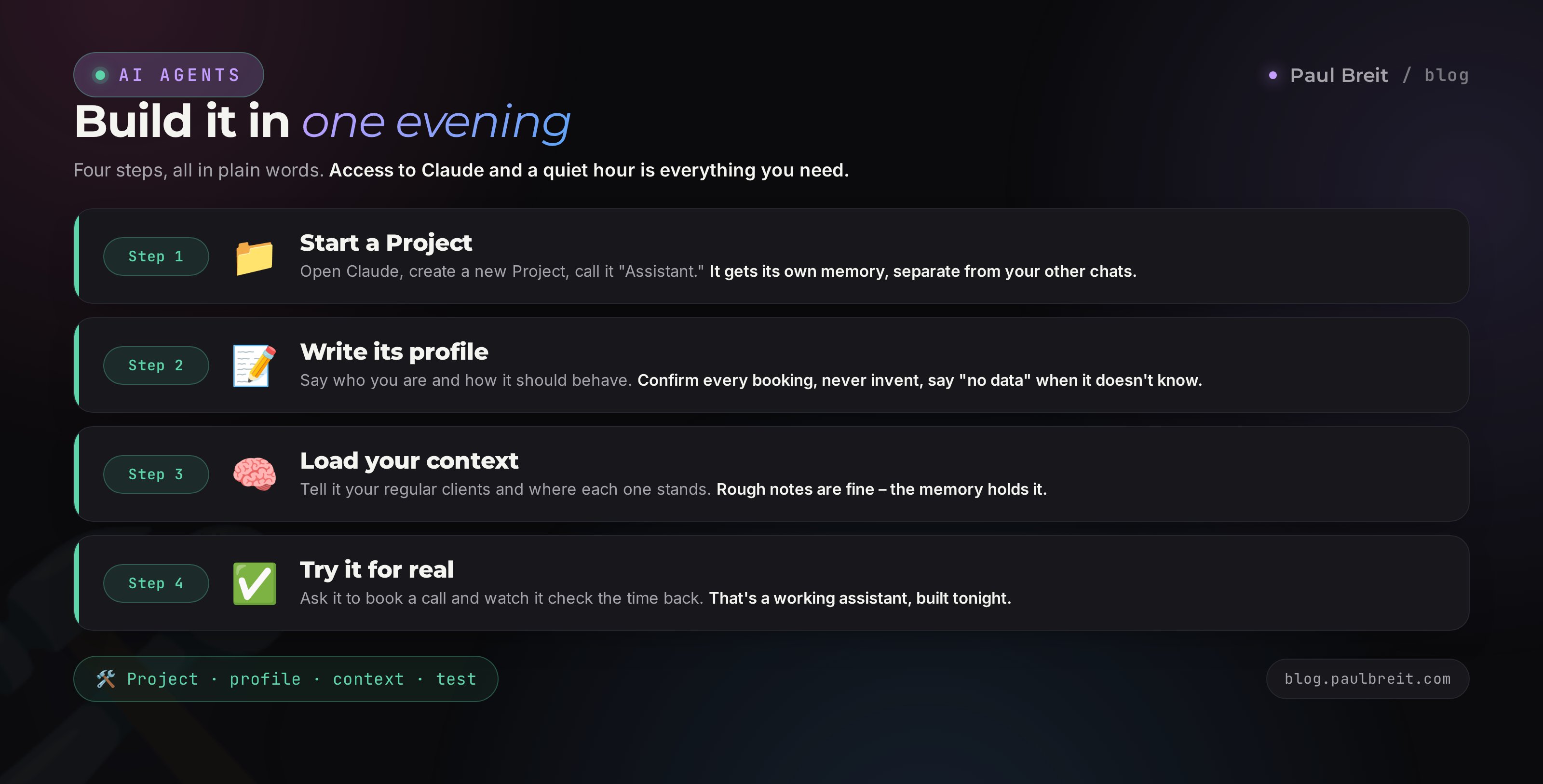
Now we build it. All you need is access to Claude and a quiet hour. No code. You literally agree with it in words, and I will show that conversation verbatim.
Step 1. Start a project
Open Claude, find Projects on the left, create a new one. Call it "Assistant." Inside the project the assistant gets its own memory, separate from your other chats. Everything you put there, it will remember in every conversation.
Step 2. Write the assistant's profile
This is the most important step. You explain what the assistant does and how to behave. Projects has a field for project instructions; that is where you paste it. Here, word for word, is what I put there – change it to fit you:
You are my personal assistant. My name is Paul, I run an online school
for AI marketing and I do calls with clients. I am on US Eastern time
and I travel a lot, so always confirm the time zone when a meeting is
with someone in another city or country.

How you work:
- Keep replies short and to the point, no long preambles.
- When I ask you to put something on the calendar, repeat the date,
  time, and length back to me so I can confirm.
- If I name a meeting without a time, ask for the time yourself,
  do not make one up.
- Give briefs and day plans as a list, most important on top.
- Never invent meetings or agreements. If you do not know something,
  say plainly that you have no data.

I will add my list of clients and agreements to the project memory.
Rely only on that.
Let us go over why it reads this way. The line about time zones is because AIs slip on zones more than anything else, and it is better to force it to ask up front. The "repeat the date and time" line is to catch an error before a meeting lands on the wrong day. And the hard "never invent" is protection against hallucinations, when the assistant blithely tells you about a call that never happened. That problem and how to finish it off get their own section below.
Step 3. Load the context
Now give the assistant what it should remember. Right in the project chat, write who your regular clients are and where each one stands. No need to make it pretty, write it as is:
You: Remember my regular clients. Nikolai – owns a coffee shop, we work on content, calls on Tuesdays. Marina – a psychologist, we are launching a funnel, last time we talked about the lead magnet, she is thinking over the format. Igor – a lawyer, waiting on my edits to a contract, promised to send his version.
Claude: Noted all three. Nikolai – coffee shop, content, Tuesdays. Marina – psychologist, funnel, on her: choosing the lead-magnet format. Igor – lawyer, edits on me, waiting for his version. Want me to flag when any of this comes up in our talks?
That is it, the memory is loaded. From here you just use it.
Step 4. Try it for real
Let us check that the assistant came alive. Here is how an ordinary "book a meeting" request looks:
You: Book a call with Marina for Thursday, one hour.
Claude: What time Thursday should I set it? And remind you some time before the call?
You: 3pm, remind me an hour before.
Claude: Booked: Thursday, 3:00–4:00pm, call with Marina about the funnel. Reminder at 2:00pm. Before the call I can pull a short brief on her so you walk in prepared. Want it?
Notice it asked for the time itself, because you taught it that in the profile. And it offered the brief on its own, because it understands what it is for. That is a working basic assistant. It lives in the chat, remembers your people, and runs things in words. You built it in an evening.
While the assistant lives in the chat, it holds the schedule inside the conversation and your project memory. Real syncing with Google Calendar and automatic reminders to your phone come with the next step, through connections. The basic version is enough to unload your head today, and you bolt on autonomy once you are used to it.
Part 05Automation: calendar and reminders
The basic assistant is good, but you are still carrying information to it by hand. The next level is when it sees your calendar itself and writes to you in Telegram itself. Here we plug in those hands, MCP.
Connecting the calendar
Claude has a connectors section (in settings). There you grant Claude access to your Google Calendar. It is done with a button, through a normal Google account sign-in, no code. After that the assistant reads and writes to your real calendar:
You: What do I have tomorrow on the calendar?
Claude: Tomorrow, three events: 11:00 call with Nikolai, 15:00 Marina, 18:30 podcast recording. Two and a half hours between Marina and the podcast. Nikolai has no reminder set – add one an hour before?
Now it leans on your real schedule instead of what you told it. If you are outside the US or EU, all of this works with a VPN on; the calendar needs no separate setup, and most people already have a Google account.
Connecting Telegram so reminders arrive on their own
To have the assistant message you in your messenger on its own initiative, you link it to a Telegram bot. Then reminders and the morning plan drop into your DMs by themselves, without you opening Claude. How to stand up a bot like this in Telegram and link it to the AI I walk through step by step in the piece on an AI agent in your Telegram DMs. It also covers how to keep it stable from restricted regions.
Before: you ask the assistant what you have today, and it answers. After: at 8am it writes you the day plan in Telegram on its own, an hour before every call it sends a reminder with a brief, and in the evening it asks how the meetings went so it can write the follow-up. You stop holding the schedule in your head at all.
From there you can keep growing it: connect email so it sorts your mail, connect your notes. The general logic is one and the same – through connections the assistant reaches the service it needs and works there itself. How to build a whole system of automatic tasks out of this I cover separately in the piece on automating your routine with AI.
Part 06Copy-paste prompts
Here are five prompts I use every day. Copy them, swap the names for yours, send them to the assistant. They work in the basic chat version and in the autonomous one.
Morning day plan
Put together my plan for today. Take the meetings from the calendar,
add the tasks I named for today, and rank them by importance. On top,
what is on fire and tied to money; below that, the rest.
Format: time - task - one line why. No more than five main items,
the rest as a separate short list.
Prep for a call
I have a call with [name] in an hour. Pull a brief:
- who they are and what they do;
- what we agreed last time;
- what they wanted and where we left off;
- 2-3 questions I should ask today;
- what to watch for to move us toward a result.
Keep it short, I am reading on the go.
Inbox triage
Here is a batch of messages that came in this morning [paste the text].
Sort into three groups:
- urgent, answer today;
- can wait until tomorrow;
- spam and ads, leave them.
For each urgent one, offer a short version of my reply,
in my tone: human, no corporate stiffness.
Follow-up after a meeting
Just finished a call with [name]. Briefly, what we agreed:
[two or three sentences in your own words].
Put together a message to the client: thank them for the talk, lock in
what we decided, name the next step and the date. Warm but to the point,
no fluff. Give me the finished text, I will tweak it and send.
Week review
Sum up the week. Go over the meetings and agreements we ran,
and tell me:
- where I promised to circle back and have not written yet;
- which deals are stuck and waiting on my move;
- what is worth planning for next week.
Finish with a short list: who to write first thing Monday.Keep these five prompts handy, in your phone notes. Over time the assistant gets so used to your style through the project memory that a short "make the plan" or "brief on Nikolai" is enough, and it delivers the whole thing. The long versions are for the start, to set the format.
Part 07Examples by niche
The assistant is one thing, but everyone's work is different. Here is how it looks tuned to specific niches. Find the one closest to you and set the profile to that scenario.
| Niche | What the assistant does for it |
|---|---|
| Coach | Holds the session schedule, an hour before brings a brief: the client's ask, what you talked about last time, the homework. After a session it writes the client a warm follow-up with the takeaway and the next step. Reminds you to reach out when the gap between sessions has dragged on. |
| Psychologist | Runs the grid of appointments, watches for clashes, reminds the client a day ahead to cut no-shows. Keeps only working notes, no personal health data. In the morning it gives the list: who is today, at what time, who needs a reschedule. |
| Tutor | Sorts lessons by student and time zone if you teach online across cities. Reminds you and the parents about the lesson. Tracks who is at what level and what you covered, so you are not flipping through notebooks before class. |
| Nutritionist | Holds the calendar of consultations and check-in calls, reminds clients about follow-up visits. Preps you for the appointment: what the person came in with, what the plan was, what to check today. Writes a follow-up with the agreements, no medical detail. |
| Lawyer | Watches the deadlines: when to file, when to respond, when a contract expires. Preps you for a client meeting with a case summary from your notes. Reminds you about deadlines ahead of time so nothing burns. Sends the client a short status on the case. |
| Freelancer | Runs calls with clients and time zones, tracks who is waiting on what and on which projects. Triages incoming inquiries and separates the real ones from "just asking." After a call it locks the scope and dates in the follow-up, so there is no arguing later about what you agreed. |
The logic is the same everywhere: the assistant takes the fuss around meetings, and you do the thing you get paid for. Only the vocabulary in the profile changes, the one you set in step four.
Part 08When something goes wrong
The assistant is a living helper and it slips sometimes. Here are four problems you will hit, and how to finish them off. All fixed in words, no tech at all.
It mixes up time zones
The most common trouble. You said "at their 6pm," and it booked it its own way. Two things fix it. First – in the assistant's profile, hard-code your main zone and a rule to always ask the other person's zone. Second – make it a habit: when it is about a person in another city, add "tell me what that is in my time." The assistant recalculates and names both times, and you catch the error right away.
It loses context
You said something a couple of days ago, and today it acts like it does not remember. Usually the cause is one: the important thing stayed in a plain chat, not in the project memory. The rule is simple – anything the assistant should remember long-term goes into Projects, not a one-off conversation. Clients, agreements, your rules. A one-off chat lives its own life and is forgotten; the project memory holds.
It invents hallucinated meetings
The assistant confidently reports a call that never happened. That is the hallucination, and for an assistant it is the most dangerous. Defense in three layers. In the profile – a direct ban on inventing and a rule to say "no data" when it does not know. In practice – the habit of making it repeat the date and time before booking, so you confirm. And third: if you connected the calendar through MCP, it leans on real events instead of guesses, and there is simply nothing left to make up.
It will not open from a restricted region
Claude stopped answering or will not let you in. Check the VPN: the location should be Europe or the US, and pick a country that is not on Anthropic's blocklist. If the account was created without a VPN or on an email that maps to a blocked region, it may have been locked – then start a new one on Gmail or iCloud with the VPN already on.
Almost any assistant glitch is cured by refining the profile. Hit a bug – add a line to the project instructions that closes it. After a week of edits like this the assistant becomes exactly yours, and the glitches all but disappear.
Part 09Security: what not to upload
The assistant remembers a lot about you and your clients, and here it is important to draw a line. There is data you must not hand to an AI, and there is data you can work with calmly.
What we do not upload
- Clients' personal data. Passports, full names with addresses, document numbers. For the work, the assistant only needs the name and the gist of the matter.
- Payment info and card details. Card numbers, bank details, access to registers and payment processing. There is no place for that in a chat.
- Medical data. Diagnoses, test results, health details. This especially applies to psychologists and nutritionists: keep notes in the form of tasks and agreements, without clinical specifics.
- Passwords and access. Logins, passwords, codes. The assistant has no use for them, and storing them in a chat is dangerous.
What you can upload
- Client names and the gist of the work: "Marina, psychologist, building a funnel."
- Agreements and statuses: what you talked about, what you decided, the next step.
- The schedule and reminders.
- Your working notes and questions for the meeting.
Before you hand anything to the assistant, ask yourself: if this text accidentally showed up on a screen in a cafe, would it hurt anyone? A client's name and "we are building a funnel" – fine. Their diagnosis, passport, or card details – no. Keep that test in your head and security stays in order. Separately, on protecting working data in AI, it is worth reading the piece on AI agents and their limits.
An AI personal assistant is a Claude-based helper that takes the schedule-and-inbox routine off you. You build it in an evening: start a project, write the assistant's profile, load your clients, try it in the chat. Then you connect the calendar and Telegram through MCP, and it starts working on its own – the morning plan, reminders, a brief before a call, the follow-up after. The five prompts from this article cover the daily jobs. Glitches are cured by refining the profile. Personal data, payment info, medical data, and passwords do not go into it. After a week living with the assistant, you stop holding the schedule in your head.
FAQFrequently asked questions
What is an AI personal assistant, in plain terms?
It is a Claude-based helper you hand the schedule-and-inbox routine to. It runs your calendar, sends reminders, preps you for calls, and writes the follow-up after meetings. You talk to it in text, like a live assistant.
Do I need to know how to code to build it?
No. The basic assistant is built right in the chat with Claude, without a single line of code. You start a project, describe in plain words who you are and how you run things, and it goes to work. It is all text.
How much does an AI personal assistant cost?
The basic version runs on a Claude subscription. A human assistant runs $500 a month and up, and you have to find and train them. The AI one is built in an evening and never quits.
How do I get reminders to arrive on their own?
Connect the assistant to Telegram through a bot. Then it messages you on its own: the day plan in the morning, a reminder with a brief an hour before a call. Without the connection it only reminds you when you ask in the chat.
Can I connect the assistant to my Google Calendar?
Yes. Claude has connectors, where you grant access to Google Calendar through a normal account sign-in. After that the assistant reads and writes to your real calendar. No code to write.
What if Claude will not open where I am?
Turn on a VPN set to a European or US location. Some regions are on Anthropic's blocklist, so pick a supported country. Register with a mainstream email like Gmail or iCloud, since a provider that maps to a blocked region may not go through.
Is it safe to load client data into an AI?
A client's name and the gist of the work – yes. Passports, card details, medical notes, and passwords – no. The assistant only needs the name, the agreements, and the schedule; it does not need personal data.
The assistant invents meetings that never happened. How do I stop it?
Put a direct ban on inventing in the profile, plus a rule to say "no data" when it does not know. Make it repeat the date and time before booking. A calendar connected through MCP gives it real events to lean on.