MCP in Claude: connect Telegram, Sheets, and your site to AI
Plain Claude can only think and write inside its own window. Everything else you carry to it by hand: paste in a spreadsheet, paste the answer back, move the text into Telegram yourself. MCP kills that copy-paste. Through it, AI reaches into your apps on its own – reads the spreadsheet, replies in DMs, updates the site. This piece, in plain words: what MCP is, what you can connect to it, and how to build it with no code, even if you've never opened anything harder than a chat.
MCP (Model Context Protocol) is an open standard from Anthropic that connects AI to outside apps and data. It works like a plug: connect a service once and Claude can read from it and write to it on its own, with no copy-paste through the chat window. Setup takes no code: ready connectors to Google Drive, Gmail, calendar, and Notion switch on in settings with one click; Telegram connects through a bot and a token; your own site or database is connected by Claude Code when you ask for it in words. Your first working MCP combo – say, AI answering your DMs or summing up a spreadsheet – comes together in a single evening.
You ask Claude to break down a sales spreadsheet. You open the sheet, select the rows, copy, paste into the chat. It answers. You copy the answer back into the document. Then you move it into a post. Then you send it to the client in DMs by hand. The AI is smart, but it's locked in its own window, and you spend the whole day playing courier, hauling data back and forth.
MCP breaks that wall down. I run four client projects and a channel of 20,000 followers, and I stopped hauling data by hand a long time ago: Claude pulls the numbers from the spreadsheet, writes the report to me in Telegram, and updates pages on the site – all on its own. It all runs on MCP. This article is about how to set the same thing up for yourself, without a single line of code.
MCP runs on Claude, and Claude isn't available everywhere. If you're outside the US and EU, you may need a VPN set to a US or EU location to reach it. Working ones in 2026: AmneziaVPN, Proton VPN, Hiddify. Turkey and the UAE won't do – they're on Anthropic's blocklist. You can sign up at claude.ai; a step-by-step guide, payment included, is in Claude from scratch for non-techies.
What's inside
Section 01What MCP is, in plain words
MCP stands for Model Context Protocol. Behind the scary name hides a simple thing: it's the standard by which AI connects to outside apps. Anthropic – the company that built Claude and invented MCP – explains it like this: it's a USB port for AI. Every app used to have its own tricky way to connect, and hooking it up to AI took a programmer. Now there's one shared plug that anything slots into.
To make it fully clear, compare it to a phone. A bare phone can call and text. But the moment you add apps – bank, maps, messenger, notes – it becomes a remote for your whole life. MCP does exactly that to AI. Bare Claude can think and write text. Connect your services through MCP and it becomes a remote for your work.
Who's talking to whom
MCP always has two sides. On one is the AI – for Anthropic, that's Claude. On the other is a small translator program called an MCP server, or connector. The connector knows how a specific service is built: how to pull a row from Google Sheets, how to send a message in Telegram, how to read an email in Gmail. Claude tells the connector what it needs in a shared language; the connector translates that into the service's language and does it.
You don't need to know how the connector works inside. For ready services these connectors are already written, and your job is to switch them on with a checkbox. It's like a video call: you hit the green button, and which protocols carry the picture and sound is none of your concern.
Why this matters right now
A year ago, for AI to do anything inside your services, you had to order an integration from a developer. Expensive, slow, and it broke on any change. MCP took the developer out of that chain for everyday tasks. Services now ship their own connectors, and you hook them up in a couple of clicks. That's exactly why there's so much noise around MCP: it opened up to an ordinary person what used to cost money and require code.
Here's a live example from my own work. Every morning I needed one number: how many leads came in yesterday and how many of them paid. I used to open the spreadsheet, count by eye, ballpark the conversion. Five minutes, but every day, and often wrong when I was half-awake. Now Claude checks that same spreadsheet through a connector and by seven a.m. drops three lines into my Telegram: leads, payments, what to watch today. I don't open that sheet for weeks. That's MCP in action: the spreadsheet is the same one, but the data now walks to the AI on its own, with no me in the middle.
MCP is the plug that turns AI from a smart conversationalist into an assistant with hands. One side of the plug is Claude, the other is your apps. Between them sits a ready-made connector you don't need to understand – you just switch it on.
Section 02What changes when AI has hands
The difference between a normal chat and Claude with MCP is like the difference between an advisor and an assistant. An advisor tells you what to do; you still do it. An assistant just does it. Let's take three everyday tasks so the difference gets tangible.
Before and after
- The sales report. Before: you open the spreadsheet, copy the rows, paste into the chat, get the breakdown, move the conclusion into your notes. After: you send Claude one sentence, it checks the spreadsheet itself, counts the numbers, and sends the takeaway. You never even open the sheet.
- A reply in DMs. Before: a client asks a question, you read it, go to the chat for the wording, copy the answer back into Telegram. After: Claude sees the message through the connector and answers the client itself, in your tone.
- An edit on the site. Before: you ask AI to rewrite the text on a page, copy it, dig into the site's admin panel, paste, save. After: you tell Claude to change the text, it opens the page and edits it itself.
Notice what all three left-hand columns share. In every one, you are the courier between the AI and the service. It's exactly that courier work MCP takes off you. AI stops being a picture in a window and starts reaching into the real world of your apps.
Two actions, not one
The key thing to grasp: MCP gives two abilities at once. First – reading. Claude can look into your spreadsheet, read an incoming email, see what a client wrote. Second – acting. It can write a row, send a message, update a page. Weak integrations usually only read. The power of MCP is that AI closes the loop: it saw, it understood, it did. From that grows everything else. A combo where AI both reads and acts is already almost an AI agent. It's only missing the autopilot – doing it on a schedule or on an event, without your command. How to take a combo all the way to full autopilot is covered in how to build an AI agent with no code.
Section 03What you can connect: the connector catalog
There are already hundreds of connectors, and more every month, because MCP is open and services build the connections themselves. Let me lay out the most useful ones for someone who sells services, courses, or consulting, grouped by type. Don't try to connect everything at once – the one-connector rule comes up later in the article.
| Group | What connects | Why it helps you |
|---|---|---|
| Spreadsheets & docs | Google Sheets, Google Docs, Notion | Crunch numbers, keep a lead base, write straight into a document |
| Mail & calendar | Gmail, Google Calendar | Sort your inbox, draft replies, schedule meetings |
| Messengers | Telegram through a bot | Answer DMs, send yourself reports and reminders |
| Files & drive | Google Drive, folders on your computer | Read your materials, search your documents, build a knowledge base |
| Your site | Your site, its admin panel and database | Update copy, add articles, pull out leads |
| The web | Web search, reading pages | Gather fresh data, keep an eye on competitors |
Three kinds of connectors
Connectors come in three kinds, and the kind decides how simple the setup is.
- Official, built-in. Built by the services themselves or by Anthropic. Google Drive, Gmail, and calendar usually already sit in Claude's settings, switch on with a checkbox, and only ask you to sign in. The simplest kind.
- From the catalog, ready-made. Written by the community and posted in open connector catalogs. Telegram, databases, and various niche services usually live here. They install as an extension and sometimes ask you to paste in a key or token from the service.
- Your own, for your task. If there's no ready connector for your unique site, Claude Code builds it – that's the version of Claude that can write and run code for you. You explain in words what you need; it writes the code. What this tool is and how to start is covered in Claude Code for non-coders.
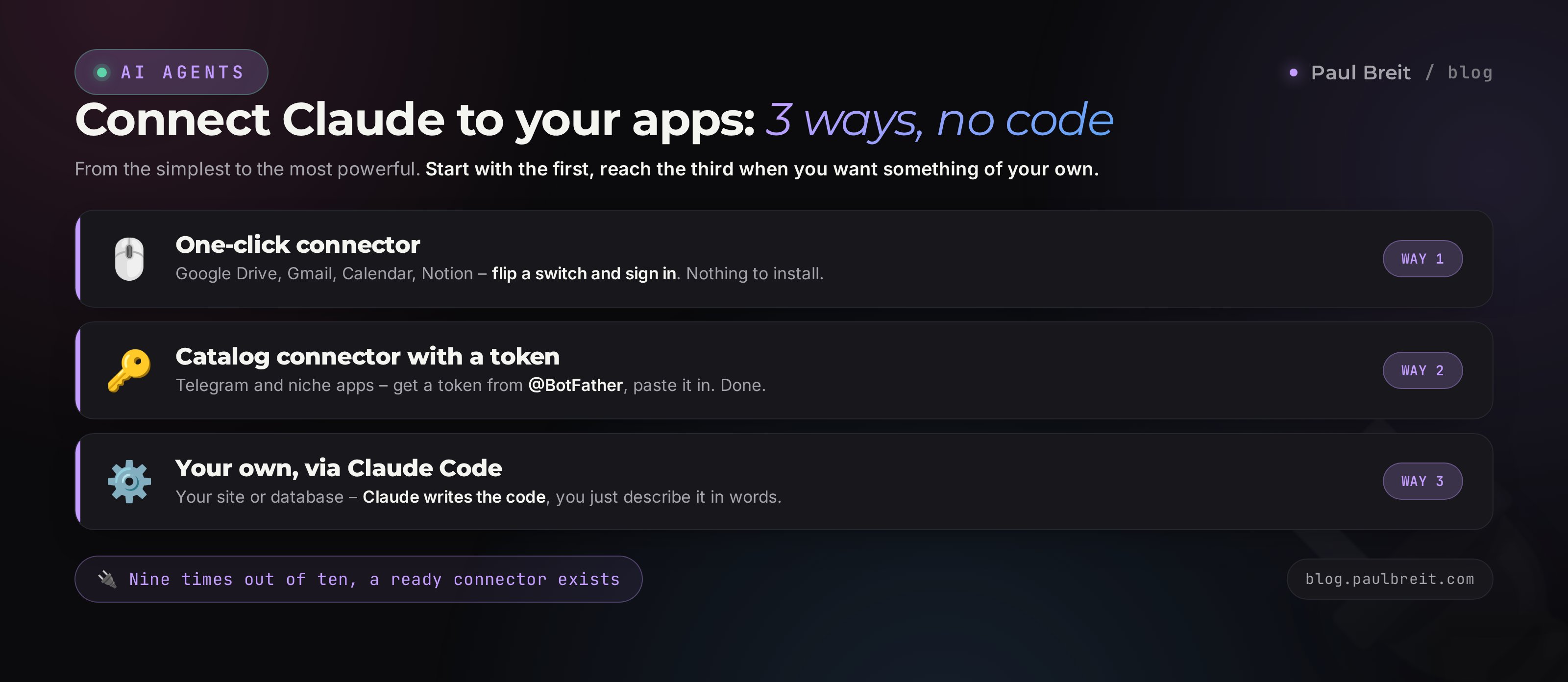
The rule is simple: first look for a ready connector from the first two kinds, and only if none exists do you go to the third, to Claude Code. Nine times out of ten, a ready one turns up.
Section 04How to connect with no code: three ways
Now, step by step, how it's done by hand. The ways run from simplest to most powerful. Start with the first; you'll get to the third when you want to connect something of your own.
Way 1. A ready connector in one click
Good for Google Drive, Gmail, calendar, Notion. Open Claude's settings, find the connections section, see the list of services. Hit connect on the one you want, sign in to your account for that service, allow access. That's it – Claude now sees your drive or mail. Zero code, no files to create; the whole setup is a couple of checkboxes and a sign-in.
Way 2. A catalog connector with a key
Good for Telegram and niche services. There's one extra step here: the service needs a key so Claude can get in. For Telegram it looks like this: inside Telegram you message the @BotFather bot, it sets up a bot for you in a minute and hands you a token – a long string. You paste that string into the Telegram connector. The token is like the key to your apartment that you hand your assistant: with it, they get in and work. No programming, just moving a key from one place to another.
Way 3. Your own connector through Claude Code
Good for your site, database, or a rare service. Here the catalog may not have a connector, so Claude Code builds it. You install Claude Code, open it in your project folder, and say in words: connect to my site, here are the credentials, learn to change the text on the pages. It writes the code itself; you only answer questions and forward credentials. If you're working from outside the US/EU, turn the VPN on before launching Claude Code, or the sign-in to Anthropic won't go through.
How long the first connection takes depends on the way. A ready Google connector is three minutes: found it, clicked it, signed in. Telegram through a token is about fifteen minutes, including setting up the bot. Your own connector to a site through Claude Code is more like an evening, because Claude first figures out how your particular site is built. But it's one-time work: connect it once and the combo lives on its own, taking no more of your time.
I want to connect you to Telegram through MCP so you answer my bot's messages. Walk me through it step by step: what to click in settings, where to get the bot token, where to paste it. Explain it as if I'm seeing this for the first time, and wait for my reply after each step before moving on.
Notice that even in the hardest, third way you don't write code. You talk to the AI in words and forward it credentials. It's the same principle as in every article on this blog about building assistants: the AI handles all the technical part; your part is to explain the task and confirm access.
Section 053 MCP combos for your work
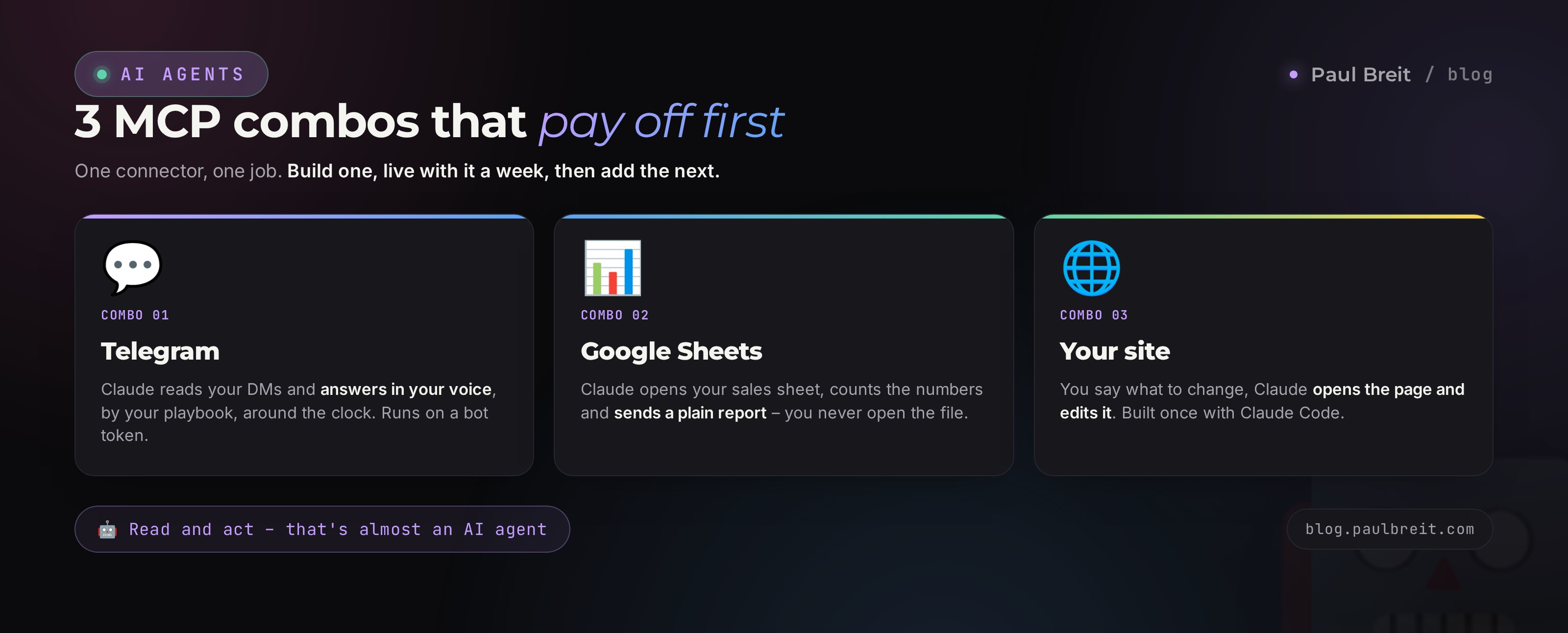
Let's take three combos that pay off first. Each is a connector plus a task. Pick one, build it, live with it a week, then add the next.
Combo 1. Telegram: AI answers your DMs itself
The most lucrative combo, because it's about sales. The same questions land in your DMs: how much, how to join, what's included, is there a payment plan. Through the Telegram connector, Claude sees those messages and answers them itself, in your tone, from your playbook. The moment someone's ready to talk or asks a question outside the playbook, the bot calls you in.
It's built through a bot and a token, like Way 2 above. You hand the AI a base of answers: prices, terms, common questions. From there it works off that base around the clock. How to take an assistant like this all the way from start to finish is covered in the AI agent in your Telegram DMs.
You're my assistant in direct messages. Answer in a warm, human tone, short, no corporate speak. Answer only from the facts in this base: [prices, terms, common questions]. If there's no exact answer in the base, don't make anything up – gently offer to book a free consultation and call me in. If you see the person is ready to buy or is hesitating on money, hand the conversation to me too.
What it gives you: DMs answer themselves, and you step in only where the deal is decided. One evening of setup takes hundreds of identical replies a month off your plate.
Combo 2. Sheets: a sales report without opening the spreadsheet
Everyone who sells has a spreadsheet with leads, payments, and ad spend. The data sits there, but the conclusions don't, because there's never time to look. Through the Google Sheets connector, Claude checks the sheet itself, counts the key numbers, and sends you a human takeaway.
It connects through the official Google connector – sign in and you're done. From there you just ask how sales are going, and Claude opens the spreadsheet and answers. On autopilot you can set it so the report arrives every morning by itself. How to read the numbers so they change your decisions is covered in the models for making money with AI.
Look into my sales spreadsheet for this week. Count: number of leads, number of payments, lead-to-payment conversion, average check, ad spend, cost per acquired client. Then in three sentences, in plain language, tell me what mattered and what to watch today. No filler, only the takeaways that change decisions.
What it gives you: you start seeing your numbers instead of fearing them. And it takes a minute, not an evening of reconciling rows.
Combo 3. Site: AI writes and updates pages
A blog and a site need constant edits: add an article, change the text on a page, update a price. Usually that means digging into the admin panel and doing it all by hand. Through a connector to the site, Claude does it itself: you say what to change, it opens the right page and edits it.
This is a third-kind combo, built by Claude Code for your specific site. Set up the access once and from there edits go by voice or text. How this tool is built and where to start is covered in Claude Code for non-coders, and how to build a whole site by talking to AI is in building a site by voice.
Open the pricing page on my site. Replace the old plan with the new one: [new price and terms]. Don't touch anything else on the page, keep the layout as is. Before you save, show me exactly what will change and wait for my confirmation.
What it gives you: the site stops being a place you're scared to touch. Edits that piled up for weeks get done in a five-minute conversation.
Section 06Security: what not to hand over
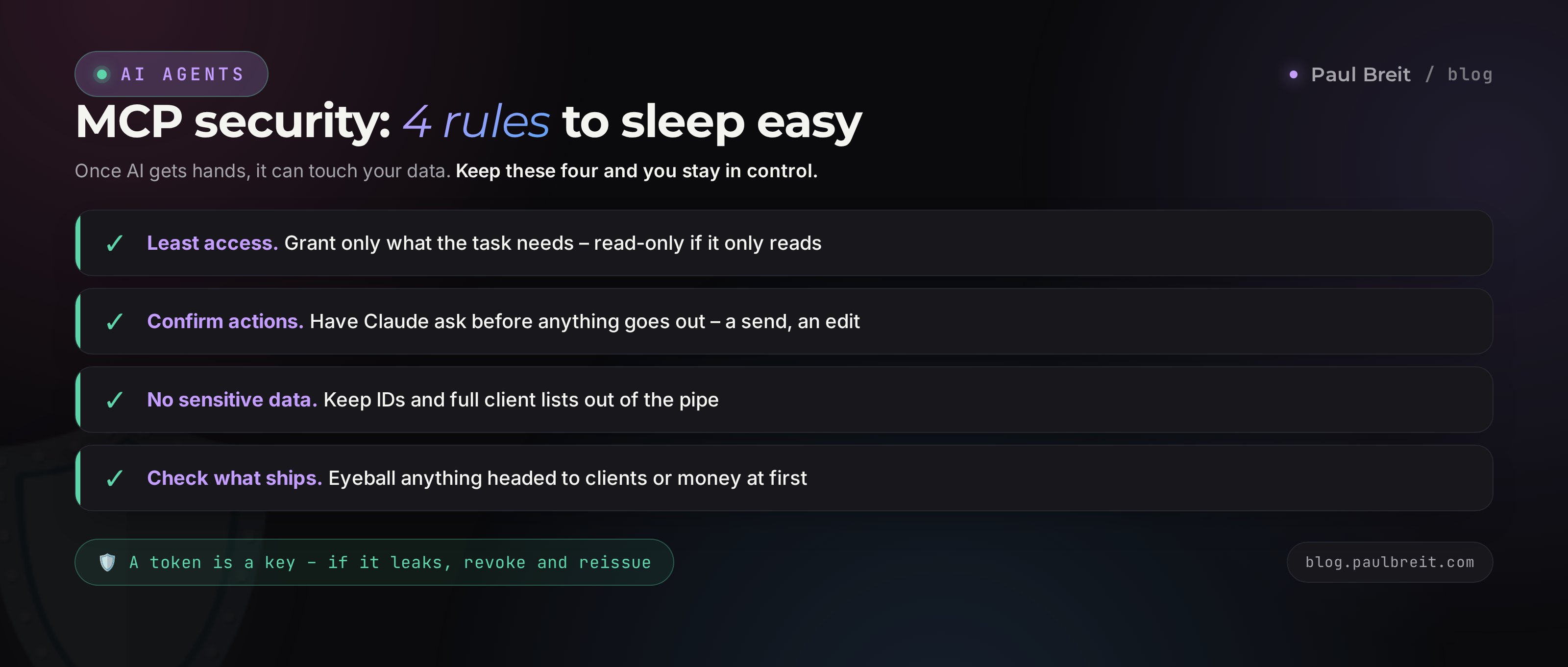
Once AI gets hands, it has access to your data and the ability to change it. That's not a reason to fear MCP; it's a reason to connect it with your head on. Keep four rules and everything stays calm.
- Least access. Give the connector exactly what the task needs, no more. If Claude only needs to read a spreadsheet, don't let it delete. Permissions are granted at connection, and you can always see there what you're allowing.
- Confirm actions. At first, keep the mode where Claude asks permission before every action that goes out: before sending an email, before an edit on the site. Once you're sure it doesn't slip, you can loosen it.
- No sensitive data. IDs, full client lists with phone numbers, trade secrets – don't run those through connectors. Anonymize: swap real names and numbers for labels.
- Check what goes out. Anything headed to clients or to money, eyeball yourself at first. AI sometimes states falsehoods with full confidence, and on the important stuff it's better to keep your own eye on it.
A separate word on tokens and keys. That bot token or service key is the key to your apartment. Don't forward it into open chats, don't post it in screenshots. If a key leaks, you can always revoke it and issue a new one. What you should never load into AI, ever, is covered in detail in protecting yourself from AI-driven hacks.
MCP is exactly as safe as the permissions you grant are narrow. Connect one service at a time, give the minimum access, keep action confirmation on until you're used to it. Caution here isn't a brake – it's what lets you sleep easy after handing AI the hands.
Section 075 connection mistakes
Almost everyone starting with MCP steps on these rakes. Knowing them ahead of time saves you a week of nerves.
Mistake 1. Connecting everything at once
The temptation is big: if you can connect ten services, connect ten at once. That gets you a mess Claude gets lost in and you can't tell what it pulled from where. Connect one connector at a time. Once you've got it and checked it works right, add the next.
Mistake 2. Granting full access on day one
When the connection asks you to pick permissions, it's easy to hit allow all just to skip the thinking. Do the opposite: start with the minimum. You can always widen access later, but rolling back an extra permission is usually remembered only after something got deleted.
Mistake 3. Expecting a miracle from the connector
A connector gives AI hands, but the head is the same one. If you haven't explained your rules and given Claude context, it'll act blind. The strength of a combo isn't in the connection. It's in how well the AI knows your voice and your tasks. How to set up that head through a knowledge base is covered in Claude Projects.
Mistake 4. Sending things out without checking
Letting Claude send emails and post right away, with no glance from you, means catching a blooper in front of a client one day. For the first few weeks, keep confirmation on before every action that goes out. Trust is earned through work, not one lucky answer.
Mistake 5. Building your own when a ready one exists
Sometimes you want to dive straight into Claude Code and build your own connector. Usually that's wasted effort. First check whether a ready one exists in settings or the catalog. Building your own only makes sense for what genuinely isn't there – your unique site or a rare database.
Section 08Connection checklist
Save this and run through the points as you connect a single connector. When all seven boxes are ticked, the combo works and takes real routine off you.
- Task named in words – you know exactly what the AI should do and in which service
- Connector chosen – found a ready one in settings or the catalog; go to your own site only if none exists
- Permissions granted at the minimum – only what the task needs, no more
- Key or token in place – if the service needs one, you got it and pasted the string in
- Context gathered – the AI knows your voice, prices, rules through a Project
- Action confirmation on – Claude asks permission before anything goes out
- Combo run in for a week – you've confirmed it really saves time, and only then loosened control
MCP is the moment AI stops being a smart conversationalist in a window and becomes an assistant that reaches into your apps on its own. It connects with no code: ready connectors by checkbox, Telegram through a token, your own site through Claude Code. One person, with no team and no developer, can link AI to their whole working kitchen and stop hauling data by hand. Start with one connector, give it the minimum access, and live with it a week. The system builds itself from there.
How this connects to the other articles
MCP is the hands of AI. The head is shared: the better Claude knows your voice and rules, the cleaner every connector runs. How to set up that head is covered in Claude Projects. When you want to take a combo to full autopilot so it runs on its own, start with the guide on how to build an AI agent with no code. And the wider view of which AI-and-service combos take routine off you is gathered in automating your routine with AI. Three articles, one system.
FAQFrequently asked questions
What is MCP in Claude, in plain English?
MCP is the shared plug that lets AI reach into your apps. Anthropic itself calls it a USB port for AI: one standard that anything connects to – Telegram, Google Sheets, your site, mail, calendar. Without MCP, Claude can only think and write inside the chat window. With MCP it gets hands and starts reading data from your services and taking actions inside them.
Do I need to know how to code to connect MCP?
For ready-made connectors, no. Claude's settings have a connections section where Google Drive, Gmail, calendar, and Notion install in a single click. Many connectors for messengers and spreadsheets sit in catalogs and install as an extension, also with no code. Coding only comes up when you connect your own unique site or database, and even there Claude Code writes the code for you – you just describe what you need in words.
What can you connect to Claude through MCP?
Almost everything you use daily. Google Sheets and Docs, Gmail and mail, calendar, Google Drive, Notion, databases, your own site and its admin panel, Telegram through a bot, web search, files on your computer. The list of connectors grows every month because MCP is an open standard and services build the connections themselves.
How do you connect Telegram to Claude?
Through a ready-made Telegram connector or a bot. First you create a bot with @BotFather inside Telegram and get a token – a long string. Then you install the Telegram connector in Claude and paste that token in. After that Claude can read the bot's messages and reply to them itself. Claude walks you through the whole setup step by step; your job is to hand it the token.
Is it safe to give AI access to my services?
Access is exactly as safe as the permissions you grant are narrow. Connect one service at a time and give the minimum rights: if it only needs to read a spreadsheet, don't let it delete. Keep sensitive material – IDs, full client lists with phone numbers, trade secrets – out of the pipe. Early on, keep manual confirmation on so Claude asks permission before every step that goes out.
Does MCP work outside the US and EU?
The protocol itself works, but everything runs on Claude, and Claude isn't available everywhere. If you're outside the US and EU you may need a VPN set to a US or EU location to reach it (AmneziaVPN, Proton VPN, Hiddify). Turkey and the UAE won't work – they're on Anthropic's blocklist. The services you connect – Telegram, spreadsheets – work as usual; the VPN is only for reaching the AI itself.
How is MCP different from a normal Claude chat and from an AI agent?
A normal chat lives in its own window: you copy data in and out by hand. MCP removes the copy-paste – Claude pulls data from the service and writes back to it itself. An AI agent is the next step: an MCP combo put on autopilot so it runs on a schedule or on an event without you. MCP is the hands; an AI agent is hands that move on their own.
How much does it cost to connect MCP?
MCP itself is free – it's an open standard. You only pay for the AI: Claude Pro is around $20 a month, and connections to services are available on paid plans. Ready connectors to Google, mail, and calendar cost nothing extra. Individual services you connect may have their own subscription, but most of the basics are free.