Claude from Scratch: A Complete Guide for Non-Techies
Step-by-step learning for anyone who has never opened an AI tool and does not want to touch code. How to sign up, understand the interface, write your first request, and get fluent with Claude in a week. Ready-made phrasings, real dialogues, common mistakes, and a 7-day plan.
Learning Claude from scratch takes about a week at 20-30 minutes a day. The path: sign up (email or Google), understand the interface in five minutes, write your first request in plain words, then practice one task a day - emails, text, document review, ideas, planning. No coding, everything runs in the browser through chat. After 7 days you phrase requests on autopilot and save an hour or two every day.
Most people assume AI is complicated, that you need to code, know secret commands, and generally be a "tech person." Because of that, they spend years avoiding a tool that saves an hour a day on routine. The truth is that talking to Claude is simpler than texting a friend. You write in human words, it answers in human words. That's it.
I run four client projects and a personal channel with 20,000 subscribers, without a marketing department. Half of my text routine is handled by Claude. This article is the exact path I walk every beginner through: from a blank screen to a confident user in a week. Without a single line of code.
You'll read it in 25 minutes. You'll start using it today. In a week you'll catch yourself opening Claude before you open a search engine.
Inside
Section 01What Claude is and what it can do
Claude is an AI you talk to in text. Anthropic built it so the conversation feels like working with a live assistant: you describe a task in ordinary words, it does the work and answers. No "pick a function" buttons, no settings. An empty box where you type, and an answer below it.
The easiest way to get it is by comparison with tools you already use. A search engine finds links to pages that might hold an answer - then you read them yourself. Claude gives you the finished answer, email, text, or breakdown right away. A calculator crunches numbers - Claude crunches them, explains why, and suggests what to do next. An assistant you pay by the hour gets tired and takes days off - Claude answers at three in the morning and on New Year's Eve with the same calm.
What Claude does well
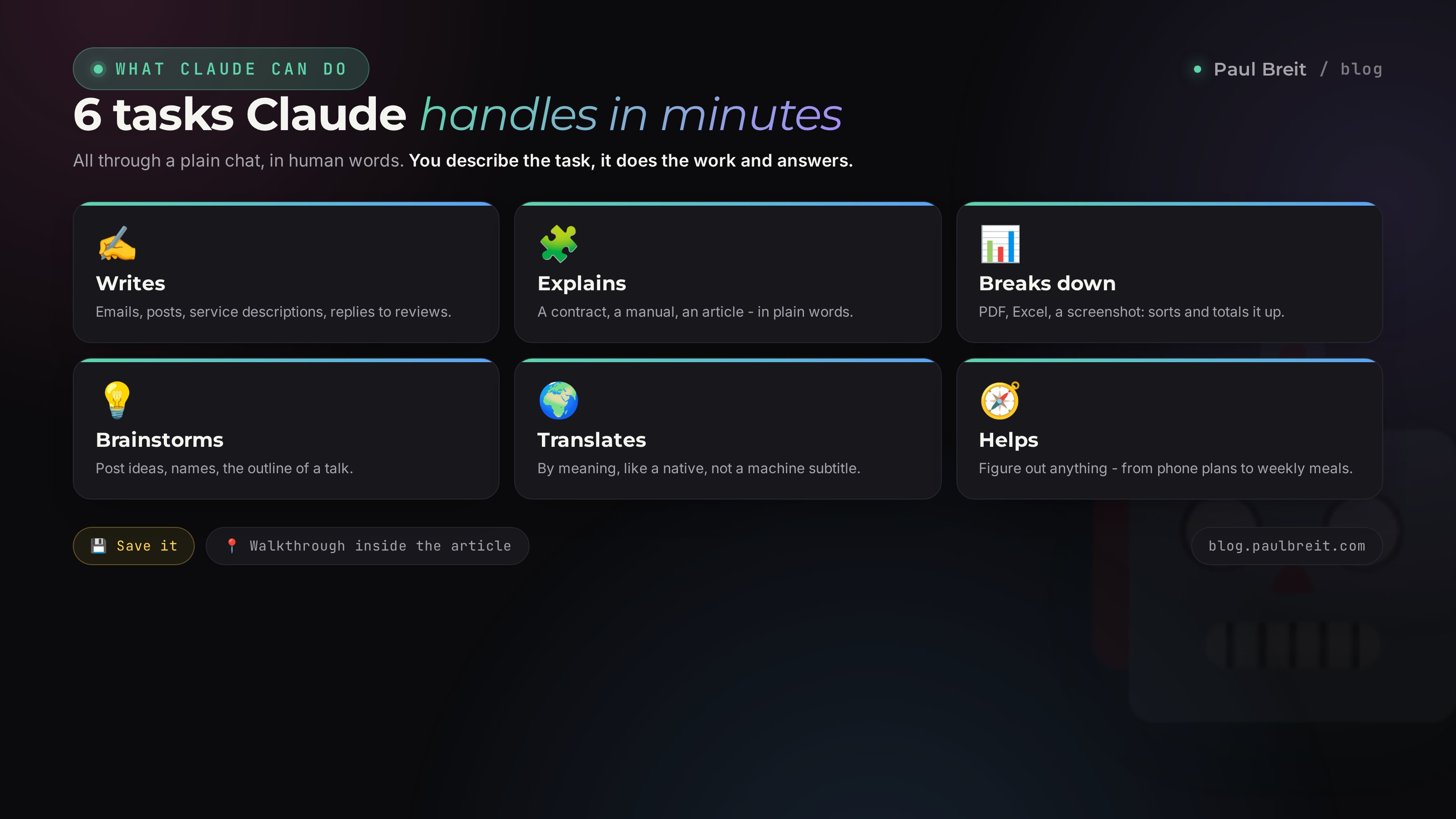
Claude's strength is text and meaning. Here's where it saves time every single day:
- Writes and rewrites. A client email, a social post, a service description, a job application, a birthday note, a reply to a bad review. You set the topic and tone, get a draft, tweak it to fit.
- Explains complex things simply. A contract, a medical note, an appliance manual, an article full of jargon. Paste the text, ask it to explain like you're in fifth grade.
- Breaks down documents and spreadsheets. Upload a PDF, Excel, or screenshot - Claude finds what you need, sorts it into a table, totals it up, answers questions about the content.
- Brainstorms and structures. Ideas for posts, an event plan, the outline of a talk, name options, a list of client objections and answers to them.
- Translates like a human. By meaning, the way a native speaker would put it, without the stiffness of a machine translator.
- Helps you figure out anything. How to register as self-employed, what to cook from five ingredients, how to write a resume, how two plans differ. Ask - get a clear, sorted answer.
It doesn't always know fresh news - its knowledge stops at a training date, so "what happened yesterday" is better asked elsewhere. It can confidently make up a fact that doesn't exist (more on that in the mistakes section). It doesn't log into your personal accounts or act on your behalf without special setup. And it doesn't replace a doctor, lawyer, or accountant where the cost of error is your money or health. Claude is a strong draft and a fast helper; the final call is always yours.
Claude vs ChatGPT and others
You've surely heard of other AIs too. In short: they're alike the way different messengers are alike. Claude stands out by handling long texts and big documents more carefully, inventing facts less often, and writing in a more natural, human voice. For text, documents, and meaning, it's usually the best pick. A detailed comparison with examples is in the separate piece on Claude vs ChatGPT. If you first want to see why you'd use AI in everyday work at all, start with what you can do with AI.
Section 02Signing up and getting in
Good news for most readers: getting into Claude takes a couple of minutes. This is the step people overthink, so let's keep it plain.
Step 1. Create an account
Open claude.ai and hit sign up. The fastest route is signing in with a Google account - one tap and you're in. Otherwise enter an email, set a password, and confirm through the link in the welcome email. That's it, you're inside, staring at a clean screen with an input box at the bottom.
Claude is available across the US, the UK, most of Europe, and many other countries. If you happen to be in a region Anthropic doesn't yet support, the fix is a VPN with a US or EU location (Proton VPN and similar work well). Turn it on before opening the site and keep it running through the session. Everyone else can skip this entirely.
Step 2. Decide on Pro (optional)
The free tier is plenty for your first weeks. There's one limit: after a few hours of active chatting you'll hit a message cap, then you wait a bit or upgrade. Paid Claude Pro is about $20 a month and gives you more messages, access to the smartest model, and work with large documents.
Paying is straightforward - a regular card handles it right on the site. While you're learning, stay on the free version with a clear conscience and move to Pro once you feel yourself hitting the limits every day. The deeper walkthrough of tools and setup lives in what you can do with AI.
You've cleared this section if you see the clean Claude screen with an input box at the bottom. If the page won't load and you're traveling outside a supported region, turn on a VPN with a US or EU location and refresh. For most readers, none of that applies.
Section 03The interface in five minutes
Claude's screen is deliberately simple so it won't intimidate you. Let's walk through what you see so nothing distracts you later.
The input box
The main element is the wide box at the bottom with a prompt like "How can I help?". This is where you type. Send with the arrow button or the Enter key. To add a line break inside a message without sending early, hold Shift and press Enter. Next to the box is a paperclip - that's how you attach a file, an image, or a PDF.
The conversation thread
Your messages and Claude's answers run top to bottom, like a messenger chat. Key detail: within one conversation Claude remembers everything above. You can add "make it shorter" or "now for a different audience," and it understands what you mean without repeating the task. Any answer can be copied with a button, and your own messages can be edited and resent.
The chat list on the left
On the left is your conversation history. Each new topic starts a separate chat, old ones stay, and you can return to them. Simple rule: one task, one chat. Keep a client email and a vacation plan in different chats, so Claude doesn't blend contexts and you can find things easily. The "New chat" button up top starts with a blank page.
Choosing a model
Somewhere near the top or by the input box is a model switcher. A model is Claude's "brain version." Some are faster and lighter, some slower and smarter. As a beginner you don't need to dig in: leave the default. Once you're comfortable, you'll pick the smartest model for hard tasks and a light one for quick trifles.
Projects and artifacts
You'll also spot the word "Projects" and, sometimes, a panel sliding in beside an answer - that's an "artifact." Projects are folders with memory; we'll come back to them. An artifact is a separate window where Claude shows a big finished result: a long text, a table, a simple app. It's handy to edit and copy whole. For now just know they exist, you'll get the hang of them as you go.
Claude on your phone and by voice
Everything works the same from a smartphone. There's a dedicated Claude app, or you can just open claude.ai in a mobile browser. Many people prefer learning on the phone: a line, a commute, a walk - pull it out, dictate a task, get the text.
Dictation instead of typing removes the last barrier for anyone who finds long requests annoying to type. In the input box on your phone, tap the microphone on the keyboard and say the task out loud in plain words. Claude understands speech just like writing. For someone who types slowly, that's often the exact moment AI becomes a daily habit: talking is always faster than typing.
Section 04Your first dialogue: how to talk to Claude
Now the important part. How you phrase a request decides 90% of the answer's quality. Good news: the rule is single and simple. Write to Claude the way you'd brief a sharp assistant who's meeting you for the first time. It's smart, but it doesn't read minds and doesn't know your context until you give it.
Compare two requests
Here's how a beginner writes on day one:
"Write a post"
Claude returns something generic and faceless, because you gave no topic, no audience, no tone. And here's the same request after five minutes of learning:
"You're a copywriter. Write a post for my Instagram promoting sign-ups to an online knitting course. Audience - women 35-55 who want a hobby for the soul. Tone warm and simple, no hype. Length up to 700 characters. End with a call to sign up and a link. Give me two versions."
The difference in output is the gap between a brush-off and a ready-to-publish text. The second one you tweak for a couple of minutes and post.
The formula for a good request
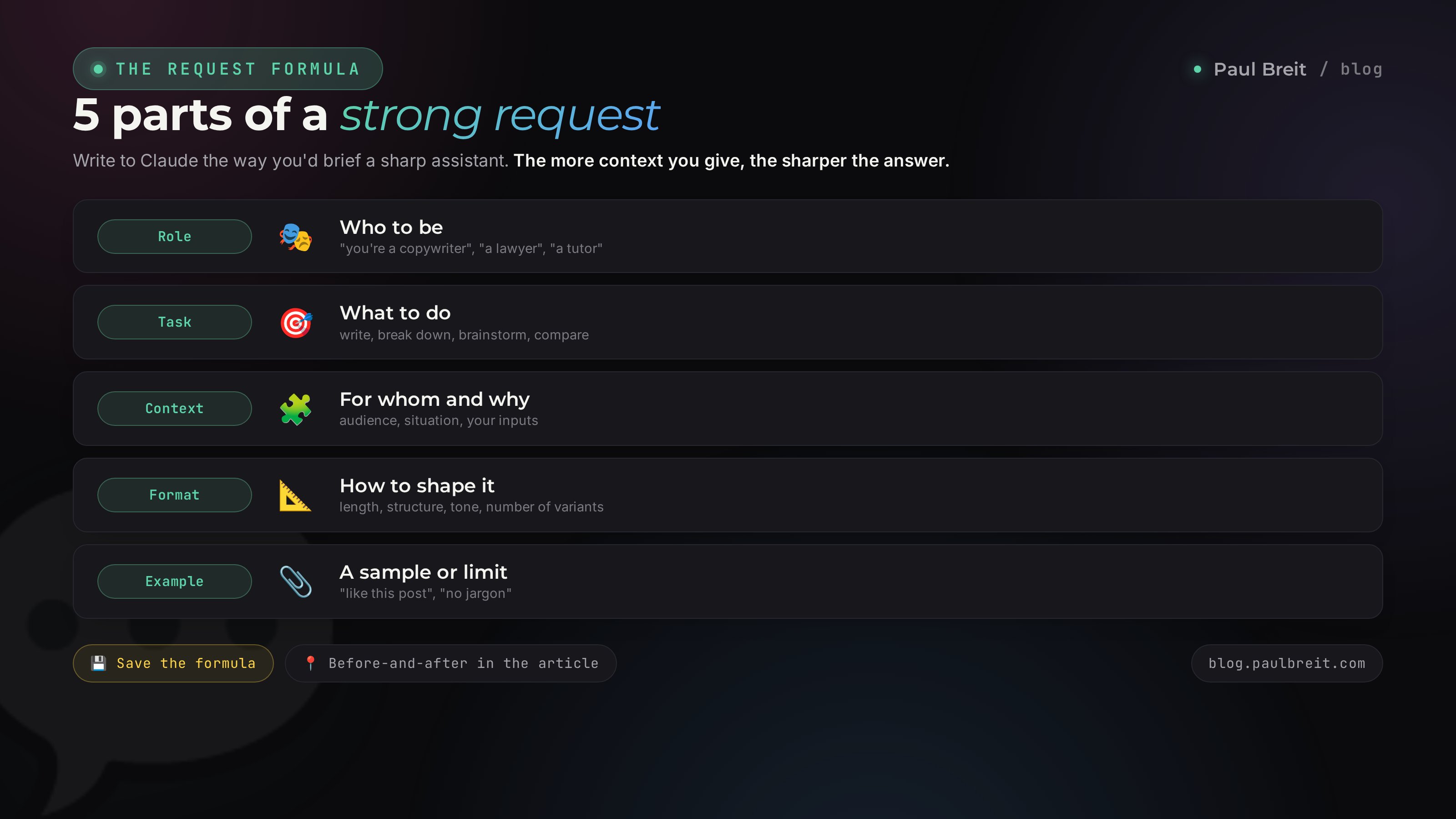
So you don't have to hold it in your head, remember five pieces. Not all at once, but the more you give, the sharper the answer:
- Role. "You're a copywriter," "you're a lawyer," "you're an English tutor." Claude tunes into the right style and depth.
- Task. What exactly to do: write, break down, brainstorm, explain, compare.
- Context. For whom, why, what already exists. Audience, situation, your inputs.
- Format. Length, structure, tone. "As a list," "in 500 characters," "friendly," "strictly to the point."
- Example or constraint. "Like this old post of mine," "no jargon," "give three versions."
A full breakdown of the formula with before-and-after examples is in the separate piece on how to write prompts. For now keep the main thing in mind: context is everything.
Keep going and refine
Claude's first answer is a draft, and the conversation with it is the actual work. Answer too long? Type "cut it in half." Too formal? "Make it warmer and simpler." Missing an example? "Add a real-life example." Went the wrong way? "Forget the last one, let's do it differently: ..." Don't be shy about pushing back and giving orders - Claude takes edits calmly, and each one moves you toward the result you want. A beginner writes one request and gives up. An experienced user runs a five-line dialogue and gets exactly what they wanted.
Not sure how to phrase it? Ask Claude to help: "I want to write a client an apology for a delay. Ask me clarifying questions so the letter comes out precise." It asks about the details, you answer, it writes. That's how you learn to phrase things using its own example.
Section 0510 tasks that will teach you
Theory without practice is gone by the next day. Below are 10 tasks from simple to harder. Go through them in order, one or two a day, and in a week the moves become a habit. Pull each one from your real life - that helps more.
1. The email you keep putting off
Start small. A reply to an awkward message, a note to your landlord, a "no" that's hard to word. Describe the situation and ask for a polite text. The very first finished task kills the fear of the blank screen.
2. A post or social text
Give the topic, audience, tone, and length. Ask for three versions. Pick the best, add "make it livelier" or "add a question at the end." That's the core work move for anyone who sells services, courses, and consulting.
3. Explain something complex simply
Take a contract, a manual, or a jargon-heavy article. Paste the text and ask: "Explain in plain words what this says and what I should watch for." Claude sorts it out and flags the traps.
4. Break down a spreadsheet or document
Attach an Excel, PDF, or screenshot with the paperclip. Ask: "Turn this into a table," "Total it by month," "Find the biggest expenses." This is where you feel AI save hours, not minutes.
5. Ideas and brainstorming
"Give me 20 post ideas for a therapist's channel," "Come up with 10 names for a photography course," "Throw out topics for a 15-minute talk." Claude is great at killing the blank-page fear - two or three of the 20 usually work.
6. A plan and a structure
Ask for an article outline, an event plan, a script for a client call, a packing checklist for a trip. Claude breaks a big job into clear steps, and it stops being scary.
7. Translation by meaning
Give a text and ask for a translation in living language, not word-for-word. Specify the tone - business or friendly. For messaging a foreign client or reading an overseas article, this saves you every time.
8. Answers to objections
"A client says it's too expensive. Give me five dignified replies with no pressure." For anyone who sells, this preps you for conversations in advance and removes the freeze in the moment.
9. Summarize a long text
Paste a long article, a thread, or a call transcript and ask: "Give me a 7-point summary and flag what needs my decision." An hour of material folds into a minute of reading.
10. A personal life assistant
A week's meals from what's in the fridge. A beginner workout plan. A comparison of two phone plans. A congratulations note. Claude is useful beyond work - the more you reach for it on small stuff, the faster the phrasings become second nature.
Every time you catch yourself thinking "I should write / break down / brainstorm this" - don't do it by hand, open Claude. The first week it takes willpower, then it becomes a reflex. It's repetition on real tasks, not reading manuals, that turns a beginner into a confident user.
Section 06Projects and memory: Claude remembers your context
Once you're comfortable with regular chats, discover Projects - the thing that turns Claude from a random helper into your personal one. A Project is a folder where you put information about yourself or your work once, and Claude then factors it into every conversation inside that folder.
Why you'd want this
Picture this: you run a channel and each time you explain to Claude what it's about, who your audience is, and what tone you use. Tiring. With a Project you describe that once - drop in a couple of your old posts, a short audience description, and your style rules. Now any post you ask for inside that Project comes out in your voice, no long preamble. Same for a client, a product, or a subject you teach.
How to build your first Project
- Hit "Projects," create a new one, name it - say, "My Instagram."
- In the project instructions, write in plain words: who you are, what the channel is about, who reads it, what tone to use, what to avoid.
- Attach 3-5 examples of your best texts - Claude learns your style from them.
- From then on, work inside the project. Every request already accounts for what you put there.
A separate powerful move is teaching Claude to write in your exact voice from a large set of your texts. It's laid out step by step in the piece on teaching AI to write in your voice. And a ready payoff is a lead magnet with AI in an hour: once the context is set, things like that get fast.
Feel free to add your own texts, service descriptions, de-identified materials. But don't upload other people's personal data, passwords, card or ID numbers, or clients' medical data - that's a privacy matter. Simple rule: don't add anything you wouldn't want seen outside your own computer.
Section 077 beginner mistakes
Almost everyone steps on these seven rakes. Knowing them ahead of time saves you a week of frustration.
1. A two-word request
"Write a post," "help with text." Little context, gray answer. Cured by the formula from Section 04: role, task, context, format, example.
2. Trusting every word
Claude sometimes confidently makes things up - invents a nonexistent law, date, quote, or number. That's called a hallucination. Anything important and checkable (facts, laws, numbers, links), verify in the original source. AI is the draft, you are the editor.
3. A new chat for every message
Many start a fresh chat for each line and lose the context. Keep one task in one chat: there Claude remembers the backstory and answers more precisely.
4. Everything in one pile
The opposite extreme: one chat with a client email, a soup recipe, and a vacation plan. Claude starts blending topics. Different tasks, different chats.
5. Giving up after the first answer
The first version is rarely perfect. A beginner gets upset and closes the tab. An experienced user adds "shorter," "warmer," "add an example" and lands it in three lines.
6. Asking for what AI can't do
"What's in the news today," "log into my inbox and reply." Fresh events Claude may not know, and it doesn't enter your accounts on its own. Keep its limits from Section 01 in mind.
7. Uploading too much
Passwords, card data, other people's personal documents. Privacy beats convenience. De-identify anything sensitive before uploading.
This is the beginner's most consequential mistake. Claude sounds equally confident when it's right and when it's inventing. The fix is simple: the more important the fact, the more mandatory the check. For text, ideas, and drafts it's not critical - you edit those to fit anyway. For legal, medical, and money questions, verify every number in a reliable source.
Section 08A 7-day learning plan
Let's put it all into a route. 20-30 minutes a day, every day - one real-life task at a time. By the end of the week, talking to Claude becomes a habit.
Day 1. Getting in
Create your account and write your first request - anything, even "explain what you can do in plain words." The day's goal is simply to be inside and not fear the screen.
Day 2. The first email
Take a real email or message you've been putting off. Describe the situation, get the text, send it for real. Feel that it works.
Day 3. Text with context
Write a post or service description using the Section 04 formula: role, audience, tone, length, two versions. Compare it to what "write a post" would have produced. You'll remember that difference for a long time.
Day 4. Working with a document
Attach a PDF, a spreadsheet, or a screenshot. Ask it to break down, sort, total. This is the day it becomes clear how much time the tool really saves.
Day 5. Brainstorm and structure
Ask for 20 ideas and a plan on any task of yours - content, a trip, an event, a talk. Learn to take raw material from Claude and pick the best.
Day 6. Your own Project
Create your first Project for yourself or your work. Drop in a description and examples. Write a couple of texts inside and feel the answers become "yours" without long preambles.
Day 7. Locking it in
Live a day handing Claude all your small text routine: emails, replies, ideas, breakdowns. In the evening, count how many tasks it took off you. That's your new normal.
After a week you're a confident user. From there, grow deeper: use smarter models for hard tasks, build a Project per area of work, teach Claude your voice. One person with this tool covers the workload that used to require hiring an assistant. No department, no contractors, no burnout on routine.
Section 09Checklist: you've got Claude
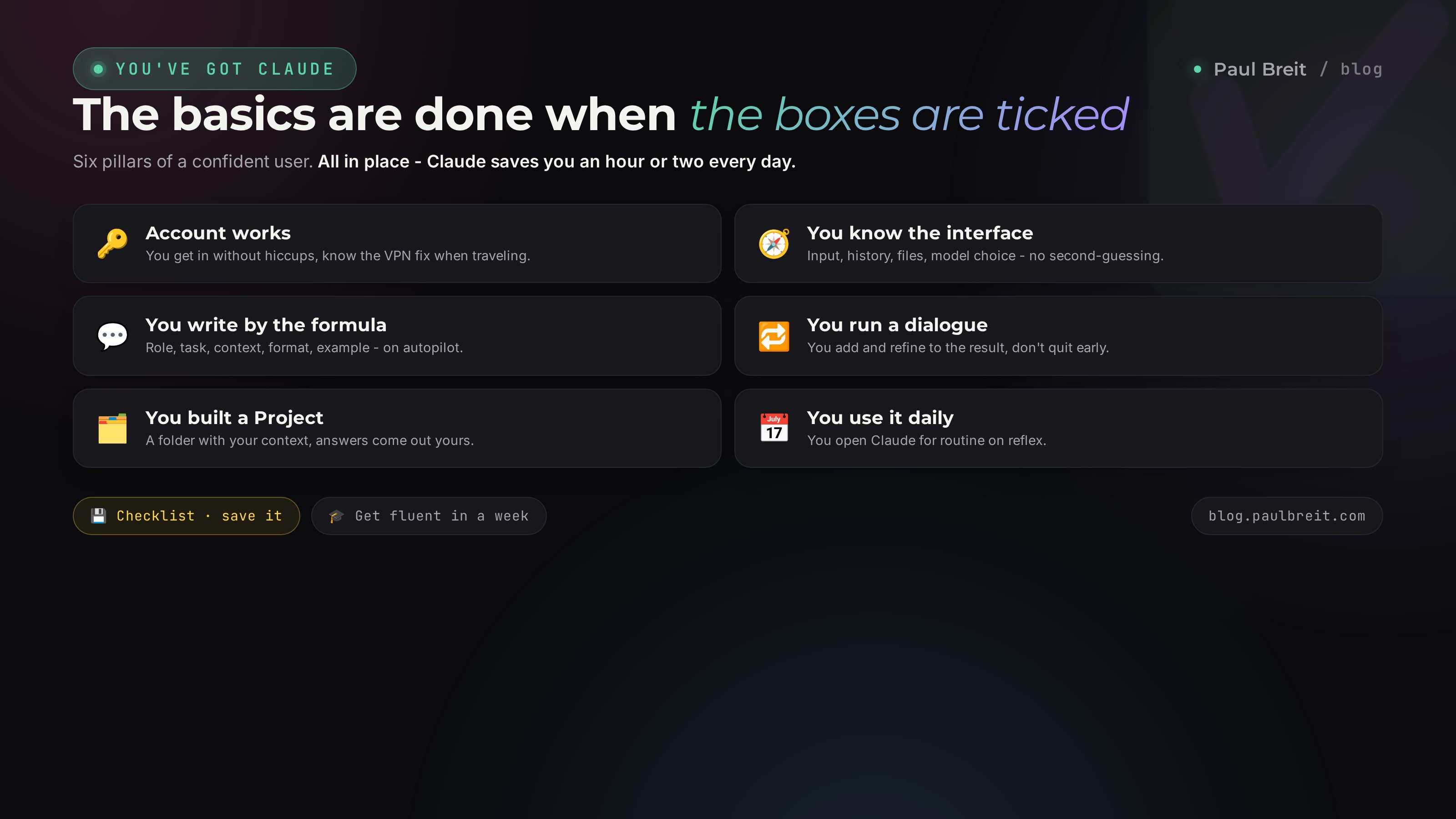
Tick the boxes. When all eight stand, the basics are done and you're a real Claude user.
- Account works. You get into Claude without hiccups and know the VPN fix if you ever travel out of a supported region.
- You know the interface. Input box, chat history, file attachment, model choice - no second-guessing.
- You write by the formula. Role, task, context, format, example - at least half of them come automatically.
- You run a dialogue. You don't quit after the first answer; you add and refine to the result.
- You keep order. One task, one chat, topics don't get tangled.
- You verify facts. You remember hallucinations and check the important stuff against a source.
- You built a Project. There's at least one folder with your context, and answers inside come out "yours."
- You use it daily. You open Claude for routine on reflex, without a special reason.
Learning Claude isn't about technical knowledge or memorizing commands. It's about a habit. The tool is built so that anyone who can write a message can talk to it. All that separates a beginner from a confident user is one week of practice on real tasks. Start today with a single email, and in seven days you won't remember working any other way.
The whole path in a minute
If we compress it, here's the full road from zero to a confident user:
- Signed up at claude.ai with an email or Google account (a VPN with a US or EU location if you're outside a supported region).
- Learned the interface: input box, history on the left, paperclip for files, model choice.
- Mastered the request formula: role, task, context, format, example.
- Went through 10 practical tasks - from an email to a spreadsheet breakdown.
- Learned to run a dialogue: add and refine to the result instead of quitting after the first answer.
- Built a Project with your context so answers come out yours.
- Remembered the 7 beginner mistakes, the biggest being blind trust in invented facts.
- Lived the 7-day plan and made Claude a daily habit.
How this connects to other articles
This guide is your entry point. From here by topic: how to write prompts deepens the core skill - phrasing requests. Claude vs ChatGPT helps you pick the tool for your tasks. what you can do with AI shows the everyday payoff. And teaching AI to write in your voice is the next level once the basics click.
FAQFrequently asked questions
How long does it take to learn Claude from scratch?
At 20-30 minutes a day, the basics take a week. By day seven you phrase requests on autopilot and hand your daily text routine to the AI. No coding is needed; everything runs in the browser.
Do I need to know how to code to use Claude?
No. Claude is driven by plain text, like a messenger chat: you write the task in human words, it answers. No code, no commands, no settings required.
Is Claude free, and is the free version enough?
The free tier is free and enough for your first weeks, with a cap on the number of messages. Claude Pro is about $20 a month and gives more messages, the smartest model, and work with large documents.
How do I sign up for Claude?
Open claude.ai and sign up with an email or a Google account - it takes a couple of minutes. If you're outside a supported region, use a VPN with a US or EU location. Payment for Pro works with a regular card on the site.
How is Claude different from ChatGPT and others?
Claude handles long texts and documents more carefully, invents facts less often, and writes in a more natural voice. For text, documents, and meaning it's often the best pick. A detailed comparison is in a separate article.
What should I do if Claude gives made-up answers?
Those are hallucinations - the AI sometimes confidently invents facts. Verify anything important and checkable (laws, numbers, dates, quotes) against the original source. For drafts, text, and ideas it's not critical, since you edit the result to fit anyway.
Can I talk to Claude on my phone?
Yes. There's a Claude app, and the site opens in a mobile browser. On a phone you can dictate requests by voice through the keyboard microphone - handy for learning on the go.
Where do I start if I've never used AI?
Start with one real email you've been putting off. Describe the situation, get the text, send it. That first finished task removes the fear of the blank screen; the 7-day plan in this guide takes you the rest of the way.