AI on your phone: a full workday from a smartphone
Five apps, a microphone button, and the habit of talking out loud. That's enough to run your whole day from a phone: writing posts, replying to clients, turning voice memos into text, making images, and planning. Here's which apps to install, how to set them up, and what a phone still can't do.
AI on a phone covers almost the whole workday: it writes and edits posts, answers inquiries, turns voice memos into text, makes images and covers, builds a day plan, and untangles your task list. You need a kit of 4-5 apps – ChatGPT, Claude, Gemini, an image app, and notes with dictation – plus the habit of talking out loud. A computer is still needed only for heavy video editing, big spreadsheets, and complex layout.
You sit down at the laptop to write one post, and two hours later you stand up with twenty tabs open and the post still unfinished. The phone sat there the whole time, fully charged. And it holds the very same AI apps your computer does. You've just been trained to believe that "work" means sitting at a desk.
I run four client projects and a personal channel of 20,000 followers. Over the past year I built most of my text, replies, and plans from a phone: in airports, in the car, on a walk. I open the computer when I need to edit video or build a site. Everything else lives in the phone. This article is how to copy that.
You'll read it in about 22 minutes. You'll set up a mobile office in one evening. And from the next morning you can start the day from your phone, without waiting until you're free and parked at a desk. The walkthrough goes from simple to hard: first which apps to install, then the core voice move, then specific tasks one by one, and the honest limits at the end.
What's inside
- What you can actually do from a phone
- The app kit: what to install
- The core move: dictate by voice
- Content from a phone: posts, reels, carousels
- DMs and inquiries: clearing the inbox
- Images and covers right on the phone
- Planning the day and untangling tasks
- A workday from a phone, hour by hour
- Where a phone taps out and you need a computer
- 5 beginner mistakes on a phone
- Checklist: a mobile office in one evening
In the US, Claude and ChatGPT open directly – no extra steps. If you're outside the US or EU, a few regions still have limits, and the cleanest fix is to sign up with a mainstream email (Gmail or Apple) rather than a local provider. When you register at claude.ai, keep it simple and you'll be through in minutes. If AI is brand new to you, start with what you can do with AI for the full showcase.
Section 01What you can actually do from a phone
Let me start with an honest split. A phone has a class of tasks where it gives up nothing to a computer, and a class where it loses. If you know the line up front, you won't sit there trying to build a landing page with your thumb on the subway.
From a phone with AI, anything tied to text and communication is easy. Write a post for your channel. Rewrite a weak headline fifteen ways. Answer ten inquiries in your DMs so each reply feels alive. Dictate a thought on a walk and get a finished article draft. Turn an hour-long stream into a set of notes. Build a plan for the week. Diagnose why a conversion rate dropped. Brainstorm twenty content topics a month out. All of it is text, and a phone handles text exactly like a computer, because the same AI runs on a server and the phone only shows the result.
Next come images. A cover for a post, a background for a story, a simple illustration – a phone makes those in a minute through an image app. The quality is good enough for social. Complex banner layout with exact text in an exact spot comes with caveats, more on that below.
Third is voice and audio. Dictate, transcribe someone else's voice memo, translate audio into another language, voice a piece of text. A phone is honestly more convenient than a computer here, because the mic is always in your hand and you speak naturally.
One more thing, about thinking. A lot of people keep AI on their phone as a sounding board they can think out loud with. You're stuck on a decision, unsure how to answer a hard client, second-guessing your price – you say it into the phone and get an outside view. It's not orders from above. You get a few angles and questions that help you finish the thought yourself. For someone who works alone and has nobody to bounce things off, that's a quiet support in your pocket all day.
If the task is about text, communication, or a quick image, the phone will handle it. If it needs a timeline, dozens of spreadsheet columns, or pixel-perfect layout, open the computer. Hold that line in your head and mobile work stops being annoying.
Section 02The app kit: what to install
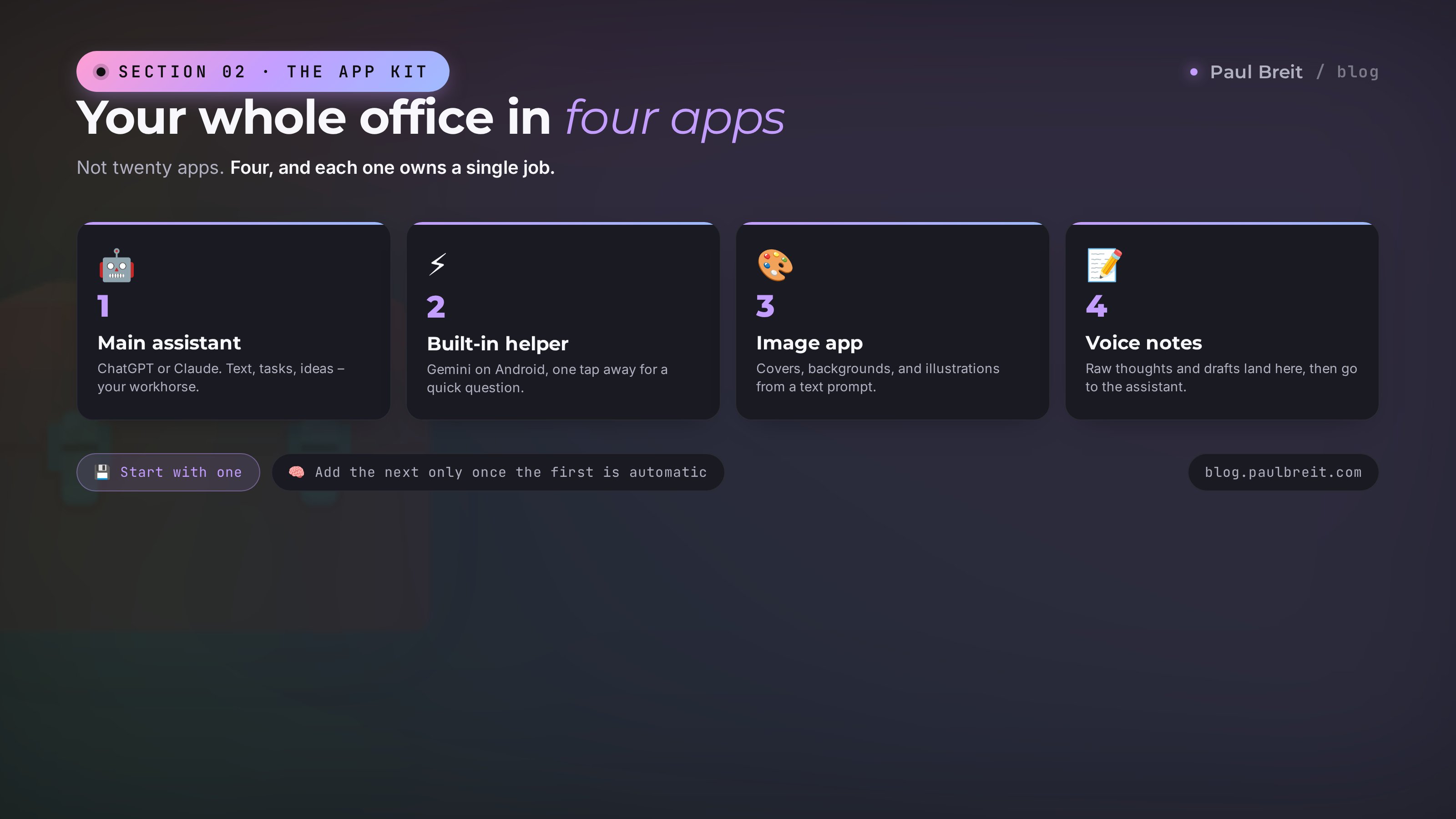
Don't install twenty apps. Too many and you'll thrash around, unsure where anything lives. The working minimum is four, and each one owns its zone.
ChatGPT or Claude – your core tool for text
This is the workhorse. It's where you dictate tasks, write posts, untangle backlogs, and brainstorm ideas. Claude is stronger for long text and a living voice; ChatGPT is handier for quick, short tasks and can search the web. Plenty of people keep both and switch. At the start, pick one, get comfortable, then decide whether you need the second. The free version covers a few dozen requests a day.
Gemini on Android, or a voice-input combo
On Android phones the AI is already built in: you call it with a button and it works without opening a separate app. Handy for a quick question on the move. On iPhone, voice input plus your main assistant app fills that role. The point is to have a button that's one gesture away, not five.
A separate image-generation app
Covers, backgrounds, illustrations for posts. You describe what you want in words and the app draws it. For social the result is solid even on the free tier. Keep it separate from your text assistant so you never wonder where the images are and where the text is.
A notes app where thoughts and drafts land
A simple notes app with good dictation. Raw thoughts, post ideas, chunks of future articles fall in here. Later you copy a chunk into the AI and ask it to finish the job. Without that holding pen, good thoughts get lost between errands.
A word on regional services. Some markets have local assistants that work without any extra setup and understand the local language. For quick everyday tasks they're fine. For serious work with text and a living voice they're still weaker than the leaders, so I'd still put Claude or ChatGPT as the expert's main tool. How to start from zero without getting lost in the choice – I covered that in what you can do with AI.
Section 03The core move: dictate by voice
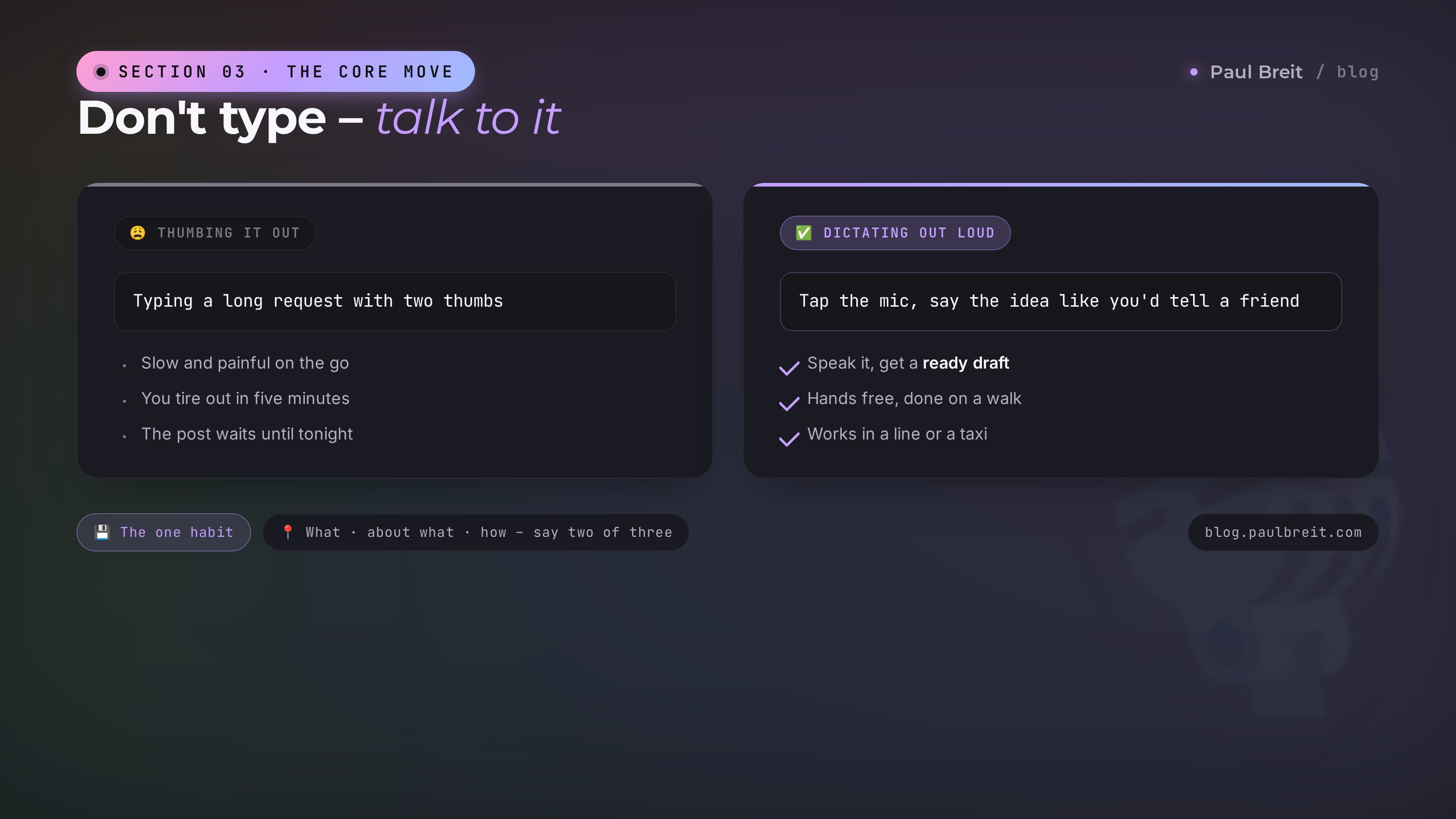
Here's the whole trick. Typing on a phone is slow and clumsy, and thumbing it out on the go is misery. So mobile AI work isn't built on typing. You talk. Every AI app has a microphone button: tap it, say the idea in plain words, let go. The AI turns your speech into text and runs the task right away.
Watch how it looks in real life. You're walking home and you say into the phone: write a post for my channel about how I built a client a whole sales funnel in two hours yesterday, keep the tone lively and a little self-deprecating, end with a question to readers. By the time you're home, the draft is done. Fix a couple of phrases and publish. Typing that same post with your thumbs, you'd have sat down in the evening, gotten tired, and put it off.
Dictate the way you'd tell a friend, not the way you'd write a formal letter. The AI understands casual speech. Don't build polished sentences out loud. Say it like you think it: okay, so I've got a client, a psychologist, no inquiries coming in even though she's run a channel for a year, I need a post that uses her as an example to show why that happens. That's enough to get a sensible draft.
Three parts worth saying out loud: what to do (a post, a reply, a plan), about what (topic, facts, numbers), and how (tone, length, for whom). Say even two of the three and the result lands. Skip all three and you get generic words you'll have to redo. On how to assemble these requests properly, there's a separate breakdown: how to write prompts.
Voice has a second power: transcription. A client sent you seven one-minute voice memos and you don't feel like listening. Forward the gist to the AI, or run a transcription, get the text, then ask for a short summary: who this person is, what they want, what to reply. You turn your own hour-long stream or webinar into notes the same way, then slice posts out of it. An hour of recording, five minutes of work.
Voice works the other way too. You wrote a text – the AI voices it in a pleasant voice, and you've got an audio post or a track for a reel. You have an international audience – dictate a thought in one language, get a translation into another, and its voiceover on the spot. All of it inside the phone, with no studio and no editor. Someone who used to be scared of the camera and the mic suddenly finds they can put out voice content without ever recording themselves live.
Section 04Content from a phone: posts, reels, carousels
Content is what most people sit down at the computer for in the first place. And it's exactly what moves to a phone best, because content is text, and text is mobile.
Posts for your channel and social
The scheme is simple. Dictate the gist, the AI builds a draft, you edit it into your voice and publish. Important catch: the first draft almost always comes out smooth and even, with that faint AI aftertaste. Don't leave it as is. Ask for a livelier rewrite: cut the corporate tone, add casual connectors, make it sound like I'm telling this across a table. A second or third pass gives text that already reads like yours. The moves that speed up that edit are collected in the expert prompt pipeline.
Reel scripts
A reel is shot on a phone, so it makes sense to build the script on a phone too. Dictate the idea: I want a reel about how AI takes the routine off an expert and gives them time for clients, 40 seconds, open with a hook that stops the scroll. You get the voiceover text. Read it to camera or lay it over footage from your travels. Editing and captions happen in a separate video app, also right on the phone.
Carousels for social
A carousel is a few slides of text. The AI writes the slide copy in a minute: ask it to break the idea into 7 slides, one complete thought per slide, the first a hook, the last a call to action. Then you assemble the slides in a design app. How to turn this into a system and stop drawing every carousel by hand – I covered that in Instagram carousel automation.
Someone who used to grind out two posts a week can, on a phone with dictation, get to a post a day without strain. And it's not that they started working more. The main barrier just fell: no more sitting down at a desk to get in the mood. A thought arrives on the go and five minutes later it's a post.
Section 05DMs and inquiries: clearing the inbox
Messages eat an hour or two of an expert's day, sometimes more. The same questions, inquiries you have to gently walk toward a sale, unhappy people you have to calm down. All of it works beautifully from a phone, because you're already sitting in the messenger on your phone anyway.
The move is this. An inquiry or a question comes in. You copy the person's message, drop it into the AI, and say: reply warmly and to the point, I'm an expert in such-and-such, I sell this, the goal is to softly steer toward booking a consultation, no pressure. You get a ready reply, read it, add a personal detail if needed, and send. Ten inquiries clear in fifteen minutes instead of an hour.
It matters not to turn your inbox into a conveyor of faceless replies. People feel a template. So the AI gives you the base, and you slot in the living part: a name, a callback to what the person wrote, one sincere line. Then the reply is both fast and human.
Separately – repeat questions. If ten times a week people ask you the same thing (how much, how to join, when it starts), build tidy reply templates with the AI and keep them in notes. A question comes in – copy the template, add a name, send. How to analyze whole batches of messages and audience questions to understand the real pain points, I showed in the expert prompt pipeline.
Section 06Images and covers right on the phone
Images for content used to mean either a designer or an evening in an editor. Now you make a post cover on your phone in a minute. Open the image app, write what you want in words: a warm cover for a post about a launch, soft pastel colors, no text, a cozy and calm mood. The app draws a few options and you pick one.
What a phone does well: backgrounds, mood illustrations, covers with no text or with a big simple headline, images for stories. For 90 percent of posts, that's enough.
Where the caveats begin: a complex banner where the text has to sit exactly in the right spot, with precise fonts and layout. Image generators still place small text badly, letters drift. That kind of banner is safer to build on a computer in a design app. If the banner is simple – a big word over a background – the phone will handle it.
Don't ask an image generator to write a long phrase or a price onto the banner. It'll draw something that looks like letters, but with errors, and you'll burn ten attempts. Let the AI draw the background and the mood, and add the text yourself in a simple editor. That's faster and comes with no surprises.
One more working scenario – shoot ideas. You describe what you want to film and ask the AI to suggest composition, light, props. You get a storyboard in words and shoot it on the same phone. A designer in your pocket that doesn't draw the final for you but tells you where to start.
Section 07Planning the day and untangling tasks
AI on a phone is also the command post where you bring order to your work. In the morning over coffee you dictate: here's what piled up for today, help me sort it by importance and figure out what I can realistically finish. You list the tasks as they are, all jumbled. The AI collects them into a clear plan, separates important from urgent, and flags what can wait.
The same move works on a backlog. When there are so many tasks that your hands drop and you don't know what to grab first, you just talk it all out into the phone. The AI hands back structure: here are the three things that move money, do those first, the rest can wait. Often half the imagined tasks turn out to be unnecessary after that sort.
Problem-solving is a value of its own. Conversion dropped, a client walked, a launch is stalling. You tell the AI the situation like a colleague and ask it to lay it out: where the mistake might be, what to check, where to start fixing. It won't replace your head, but it helps you see what got blurry. That out-loud conversation with your phone on the road saves weeks of going in circles.
A phone is also handy as a content command post. Once a week, in ten minutes, you dictate what you want to talk to your audience about, and the AI builds a content plan for the week: post topics, reel ideas, story prompts. Then each morning you just take the next item from the plan and dictate a post around it. The nagging "what do I write about today" – the thing that makes experts abandon a channel more than anything – disappears. The plan sits in your notes, and it's hard to skip a day when it's all been thought out for you.
Three minutes by voice: what I did yesterday, what matters most today, what's in the way. The AI builds a short plan out of that and keeps the focus on money rather than busywork. A week of that habit and you notice you've stopped drowning in small stuff and started finishing what matters.
Section 08A workday from a phone, hour by hour
To pull it all into one picture, let me show an ordinary day. Nothing staged, a real day, with the phone as the main tool. The numbers and errands are examples – swap in your own.
The day's plan by voice
Three minutes dictating what's on for today. The AI hands back a plan with priorities. You see the three main tasks and let the rest go. A start to the day without mush in your head.
A post for the channel
In a cab or on foot, you dictate a post idea. By the time you arrive, the draft is done. A couple of edits into your voice and it's in the scheduled queue. One of the day's main jobs closed before lunch.
Clearing the inbox
Ten inquiries and questions. You run each through the AI, add a living detail, send. Fifteen minutes instead of an hour. Not one inquiry left hanging until evening.
A cover and a carousel
For tomorrow's post you make a cover in the generator and the carousel copy in the assistant. You assemble the slides in a design app. Twenty minutes and tomorrow's visuals are ready.
Notes and a slice
You ran an hour-long live stream. You transcribe it with the AI, get a summary, and ask for three posts and one reel script sliced out of it. A week of content from a single stream.
Add up the time: real work on the phone here comes to about an hour and a half, spread across the day in chunks. The rest of the time you were living an ordinary life – meetings, driving, family. That's the point of mobile work. It fits into the gaps that used to just leak away, and it stops holding you at the desk.
Section 09Where a phone taps out and you need a computer
I promised to be honest, so here's where a phone gives up. Knowing this matters, so you don't bang your head against a wall and assume you're doing something wrong.
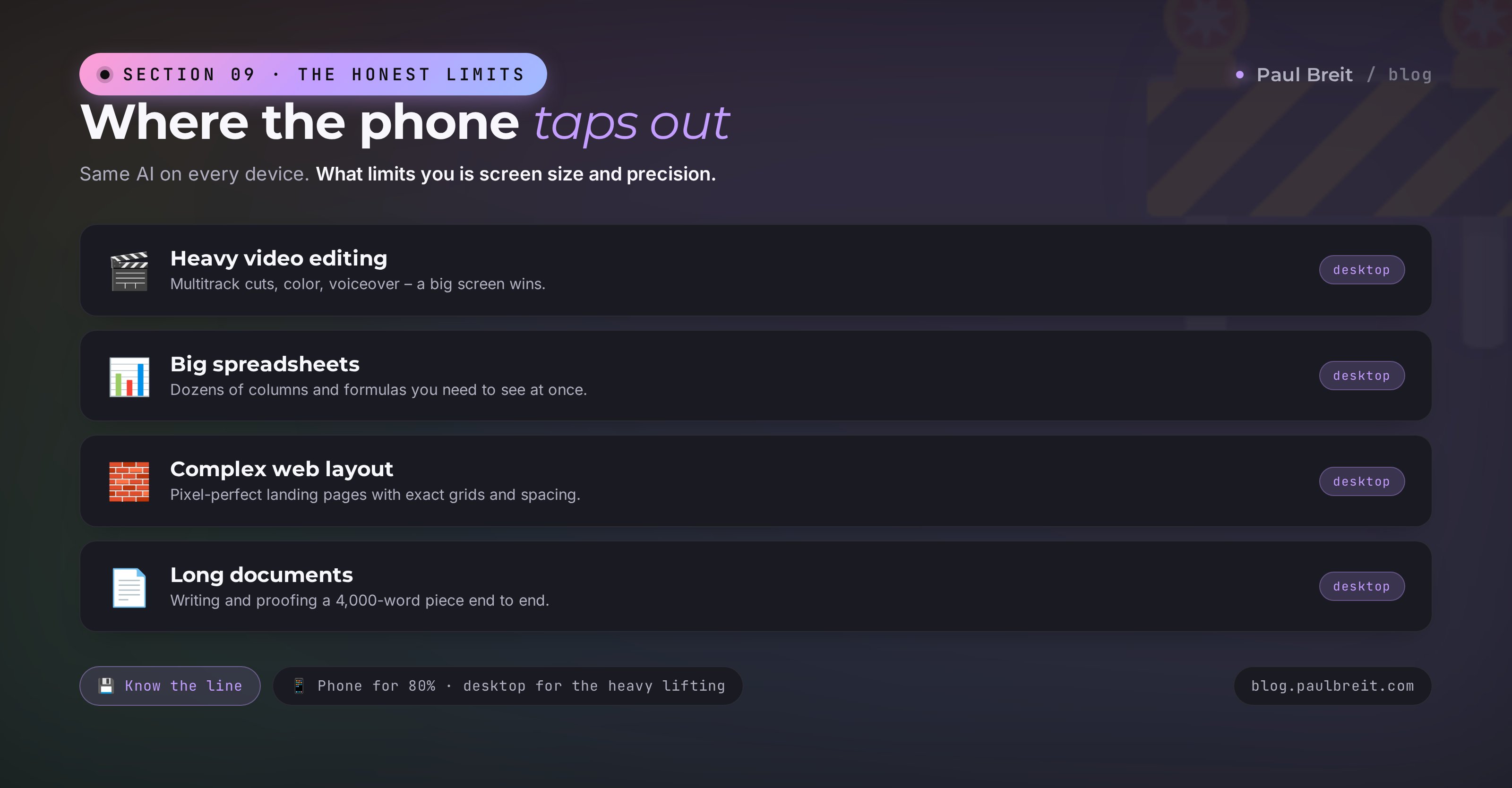
- Heavy video editing. A phone will cut a simple reel with captions. But a multilayer video with voiceover, inserts, color grading, and a dozen tracks is easier on a computer with a big screen. Dragging a finger across the timeline, you'll tire out and make mistakes.
- Big spreadsheets and math. Building a funnel with dozens of rows, formulas, and pivots is work for a wide screen. On a phone you won't see the whole picture and you'll get lost in the columns.
- Complex site and landing-page layout. Building a landing page with an exact grid, spacing, and responsive behavior is a computer job. A phone will show you how it turned out, but laying it out on one is misery.
- Long work with big documents. Writing and proofing a 4,000-word article where you have to jump between sections is easier at a desk. Dictate the draft – that's the phone; take it to a final – that's the computer.
Notice the common thread: everywhere a phone gives up, it comes down to screen size and control precision. The AI itself works the same on any device. What limits you is the physical size of the screen and the fact that a finger can't drop the cursor on an exact point. So the pairing comes out like this: the phone is your main tool for 80 percent of tasks, and you open the computer for specific heavy jobs.
Section 105 beginner mistakes on a phone
Typing instead of dictating
Someone installs the app and starts typing long requests with their thumbs. They tire out in five minutes and quit. All of mobile work rests on voice. Tap the mic and talk. Once that becomes a habit, your speed jumps several times over.
Publishing the first draft as is
The AI produced a smooth text, the person sent it straight to the channel. Readers feel the flat, lifeless tone. Always ask for a livelier rewrite and add your own details. One extra pass separates a rough draft from text that sounds like you.
Installing ten apps at once
Too many and it's mush in your head, with none of them mastered. Start with one text assistant. Once it's second nature, add the next. A tool works when you use it every day, not when it just sits on your screen.
Dumping sensitive data into the chat
Passwords, card numbers, IDs, private client messages – don't send those into the AI. Work text, ideas, and plans – no problem. In the app settings, turn off training on your data if there's a toggle. Simple hygiene that saves you from trouble.
Expecting what a phone can't give
Someone tries to lay out a complex banner or crunch a big spreadsheet with a finger and gets angry that it's clumsy. That's not a failure, it's simply not a phone task. Hold the line from the section above and the irritation goes away. The phone is for text, communication, and images; the heavy stuff goes to the computer.
Section 11Checklist: a mobile office in one evening
Set this up in a single evening, and from the next morning the phone becomes a working tool. Tick the boxes as you go.
- Main assistant installed for text: ChatGPT or Claude. Signed up with a mainstream email.
- Dictation tested: found the mic button, dictated a first request, got a reply.
- Image app installed, first trial cover made from a description.
- Notes with dictation ready, where raw thoughts and drafts land.
- First post built by voice: dictated the idea, edited into your voice, queued to publish.
- Inbox cleared through AI: at least one client reply built with the assistant.
- Morning set up: three minutes by voice for the day's plan, made a habit.
- The line is clear: you know what to leave to the phone and what to open on the computer.
The phone stopped being just a place for social a long time ago. With AI it's a full working office in your pocket that switches on in any free minute. The secret isn't expensive apps or complex settings. The secret is one habit – dictating by voice instead of waiting until you sit down at a desk. Start with one task tomorrow morning, and within a week you'll be surprised how much you get done in the gaps that used to just leak away.
How this connects to the other articles
The phone is where you work. What exactly to write and how to build content – that's in the expert prompt pipeline. If dictation still gives you rough drafts, how to write prompts makes your voice commands land. And the full list of what AI closes without a single line of code is in what you can do with AI. A few articles, one system of work that you carry in your pocket.
FAQFrequently asked questions
Can you really work from a phone alone, with no computer?
Yes, for most of the work a phone is enough: writing and editing posts, replying to clients, turning voice memos into text, making images, and planning your day. A computer is still needed for heavy video editing, large spreadsheets with formulas, and complex web layout. Everything else you can run from a phone, from anywhere.
Which AI apps should I install on my phone first?
A basic kit: ChatGPT and Claude for text and thinking through tasks, Gemini as a built-in helper on Android, a separate image app, and a notes app with good dictation. Three or four apps cover almost everything. More than that at the start just scatters your attention.
How do I dictate a task to AI by voice if typing is a pain?
Every AI app has a microphone button: tap it, say the idea in plain words, let go. The AI turns your speech into text and runs the task. That is how people build posts, client replies, and plans on the move, in a line or a taxi, without touching the keyboard.
Are free versions of these apps enough, or do I need a subscription?
At the start free versions are enough: they give a few dozen requests a day, plenty to run a day. A Claude Pro or ChatGPT Plus plan at $20 a month lifts the limits and unlocks a smarter model. Get it when you hit the ceiling of the free version, not before.
Can I make images and social covers right on my phone?
Yes. Image apps make covers, backgrounds, and illustrations from a text description in a minute. For simple posts and stories that is plenty. For banners with complex layout and exact text it is better to build on a computer, where a phone loses on precision.
Is it safe to send work data to AI from a phone?
Don't send passwords, ID numbers, card numbers, or private client messages into a chat. For work text, ideas, and plans, AI is safe. In the app settings, turn off training on your data if there's a toggle, and keep your phone on the latest updates.
Where do I start if I've never used AI at all?
Install one app, turn on the mic, and ask the AI in plain words to help with today's task: write a post, reply to a client, build a plan. The first result in five minutes kills the fear. Then add one task a day, and within a week the phone becomes a working tool.