Make a Presentation With AI in an Hour: Slides Without a Designer
The full route from a blank screen to a finished deck: structure and meaning, slide copy, design through a builder tool, images and icons, export to PowerPoint and PDF. With ready prompts for every step and a minute-by-minute plan. No designer, no agency, no all-nighter before the talk.
A presentation with AI comes together in an hour across five steps. Claude or ChatGPT give you the structure and slide copy from one unpacking prompt. The builder Gamma turns that finished plan into a designed deck and exports it to PowerPoint and PDF. Images and icons come from built-in generation or free stock. A 12 to 15 slide deck lands in 40 to 60 minutes, the budget starts at zero, and no designer or agency is required.
The talk or the call is two days out and the deck doesn't exist. You open PowerPoint, drop in the first slide, type a headline, delete it, type it again. Two hours later you have three slides and a solid feeling it all looks like a term paper from 2012. The designer is booked or costs half your speaking fee. Sound familiar?
I run several client projects and a personal channel with tens of thousands of subscribers, and I need presentations constantly: sales webinars, teardowns, teaching streams. I don't build a single one from scratch by hand anymore. AI makes the rough deck in an hour, and I spend my time on meaning and delivery. This article is the whole route, with prompts you can copy straight into your own chat.
You'll read it in 22 minutes. You'll build your first deck in an hour. After that, working from your own templates, an hour holds steady, instead of scrambling for a designer by tomorrow.
What's inside
- What AI actually does with your slides
- Three ways to build a presentation with AI
- Step 1. Structure and meaning
- Step 2. Slide copy: one idea per slide
- Step 3. Design without a designer
- Step 4. Images and icons
- Step 5. Export to PowerPoint and PDF
- Types of decks and what to change in the prompt
- A worked example: a coach's sales deck
- A deck in an hour: the minute-by-minute plan
- 6 mistakes and how AI closes them
- Build checklist
Section 01What AI actually does with your slides
First let's kill the inflated expectations so you're not let down on the very first slide. AI doesn't read your mind and doesn't know your niche from the inside. It won't set the goal of your talk for you and won't invent a unique case study you never had. All of that is still on you.
But AI is genuinely great at four things that eat the most time and nerves. First: it turns your stream of thoughts into a clear structure with logic flowing slide to slide. Second: it writes short headlines and points instead of walls of text. Third: it lays all of that out across slides with typography, fonts, and color. Fourth: it draws or picks images and icons for each idea.
The result is a division of labor. You bring the meaning, the experience, and the numbers. AI takes the layout and the busywork. That's exactly why the deck comes out in an hour instead of two days: the most tedious part goes to the machine, and you work only where a real human with expertise is needed.
Let's count where the time is saved. It used to take an hour of staring at a blank slide for structure, two more hours of rewriting for the copy, ten minutes to lay out each slide, all told a full workday, sometimes two with images. Now the structure is ready after five minutes of chat, the copy comes in a batch, and the whole layout is done by the builder in a minute. What's left is your part: check the meaning, add the cases, add the final polish. A full day becomes an hour, and that hour goes to what actually needs you, not to fighting with margins and hunting for fonts.
There are two kinds of tools, and they're easy to confuse. The text model (Claude, ChatGPT, Gemini) thinks and writes: it gives structure and copy. The builder service (Gamma, Tome, Beautiful.ai) designs: it takes finished text and lays it out with a design. The best result comes from pairing them: the text model gathers the meaning, then the builder makes it look good. One tool instead of a pair works too, just a little weaker.
Section 02Three ways to build a presentation with AI
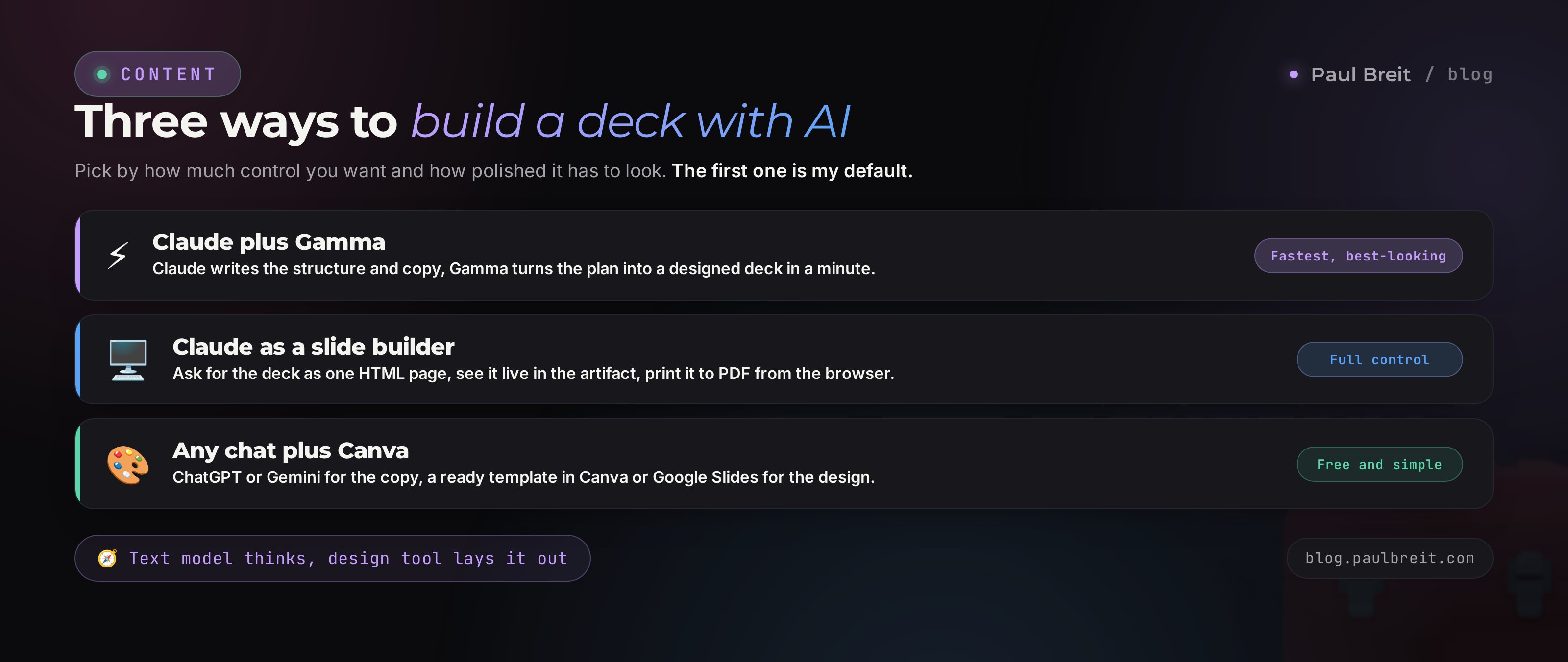
There are exactly three ways, and the choice comes down to how much control you want and how polished the final look has to be. Let's walk through each so you know which one is yours.
Way 1. Claude plus Gamma - my default
Claude builds the structure and writes the slide copy. You move that finished plan into Gamma - a service that turns a text plan into a designed presentation in about a minute. Gamma picks the layout, fonts, and colors and places the accents for you. What you get is a clean deck you can export to PowerPoint and PDF. This is the fastest path to a professional look. Claude opens directly at claude.ai; ChatGPT and Gemini work exactly the same way if you already live in one of those.
Way 2. Claude as a slide builder through HTML
Claude can assemble finished slides right in the answer window: you ask for the presentation as an HTML page, and it hands you a deck with layout you can see in the artifact immediately. This is handy when you want full control over the look and don't want to depend on someone else's service. You open the finished page in a browser and print to PDF through the normal print dialog. The downside: editing later is harder than in PowerPoint, because it's code.
Way 3. Any chat plus Canva - the free path
If you want to keep it free and simple, use ChatGPT or Gemini for the copy. The same prompts for structure and points work there too. You build the design in Canva or Google Slides from a ready template: paste the text into a fitting layout and change the color to match your brand. It's about 15 to 20 minutes slower than Gamma, but it's completely free.
Want speed and a polished look - Way 1. Want full control and don't mind fiddling in the browser - Way 2. Want to keep it free - Way 3. From here I run the main route on Way 1, and at the end of each step I show the free-path version. One note for readers outside the US and EU: if a tool is geo-blocked, regional models like GigaChat or YandexGPT can cover the text step, and the rest of the route is the same.
Step 01Structure and meaning
The most common mistake is to open the builder and start slapping slides together right away. That gets you a set of pretty cards with no logic. Structure first, design later. The structure is the skeleton everything else grows on.
For AI to build a good structure, it needs to understand three things: who the deck is for, why you're showing it, and what the person should do at the end. Give it that right in the prompt. Here's a working starter - copy it and fill in your own.
You are an experienced presentation methodologist. Help me build the structure.

Topic: [your topic]
Audience: [who's watching: warm followers / cold traffic / a client on a call]
Goal: [what the person should do after: book a call /
buy / understand the method]
Format: [15-minute talk / hour-long webinar / deck for a call]
About me: [niche, experience, 1-2 facts or numbers]

Build a structure of 12-15 slides. For each slide give:
number, role in the deck (hook, problem, solution, proof,
offer, call to action), headline, and one line on what's on the slide.
The logic should carry the person from attention to action.
Don't write the slide copy yet, just the skeleton.
Claude returns a ready skeleton. Read it as a viewer: where did you get bored, where is a transition unclear, where would you ask a question. Fix all of it with one line back: drop the company-history slide, add a slide handling the price objection, swap the proof and the offer. AI holds the context and rebuilds the skeleton in seconds.
Now the key move that separates a living deck from a templated one. Ask it to unpack your experience for this topic. A separate article on unpacking your expertise with AI covers this in depth, but the short prompt is this:
Ask me 7 questions whose answers will make this deck
concrete: my real cases, numbers, client names, failures,
and wins. Ask one at a time, wait for my answer, then the next.
You answer by voice or by typing, whichever is easier. AI pulls out the details you think are obvious and drops them into the right slides. Those details are exactly what kills the sense that a machine built the deck.
Step 02Slide copy: one idea per slide
The skeleton is ready, now we grow the copy on it. One iron rule applies here: one slide, one idea. The moment a second idea shows up on a slide, the person in the room gets lost and starts reading instead of listening to you. AI loves to cram eight-point lists onto a slide by default, so you have to state the rule out loud.
Using the finished structure, write the slide copy.

Rules:
- one slide = one idea
- slide headline under 7 words, hits the point exactly
- at most 3 short points or one number per slide
- write for the spoken word, plain language, no corporate filler
- no stock intros or throwaway cliches
- under each slide, give a speaker note: what I say out loud
  while the slide is up, 2-3 sentences

Return as: Slide N, Headline, Points, Speaker note.
Notice the speaker note. That's half the value. The slide keeps minimal text and all the meat moves into your spoken delivery. The viewer looks at a clean slide and listens to a live person. That's how strong talks work, and AI hands you both layers at once.
When the copy comes back, read it for generic lines. If you see a line that would fit any expert in any niche, demand specifics: swap in my case with the client named so-and-so, add a number from the unpacking, use an example from my practice. Generic words are the top tell that a machine wrote the slide, and they clear up in a single pass.
One more working move - ask for three headline options for the key slides. The hook at the start, the offer slide, the final call to action. For those three, pick the sharper wording. The logic is the same as in prompts for an expert's content: the headline decides whether the slide gets read or skipped.
Step 03Design without a designer
You have the copy, time to turn it into a deck. Open Gamma, choose to create a presentation from text, and paste in the finished slide plan. Gamma asks for a style - pick a fitting theme or describe it in words: minimalism, dark background, one accent color. A minute later you get a designed presentation where every slide is laid out, fonts are chosen, spacing is set.
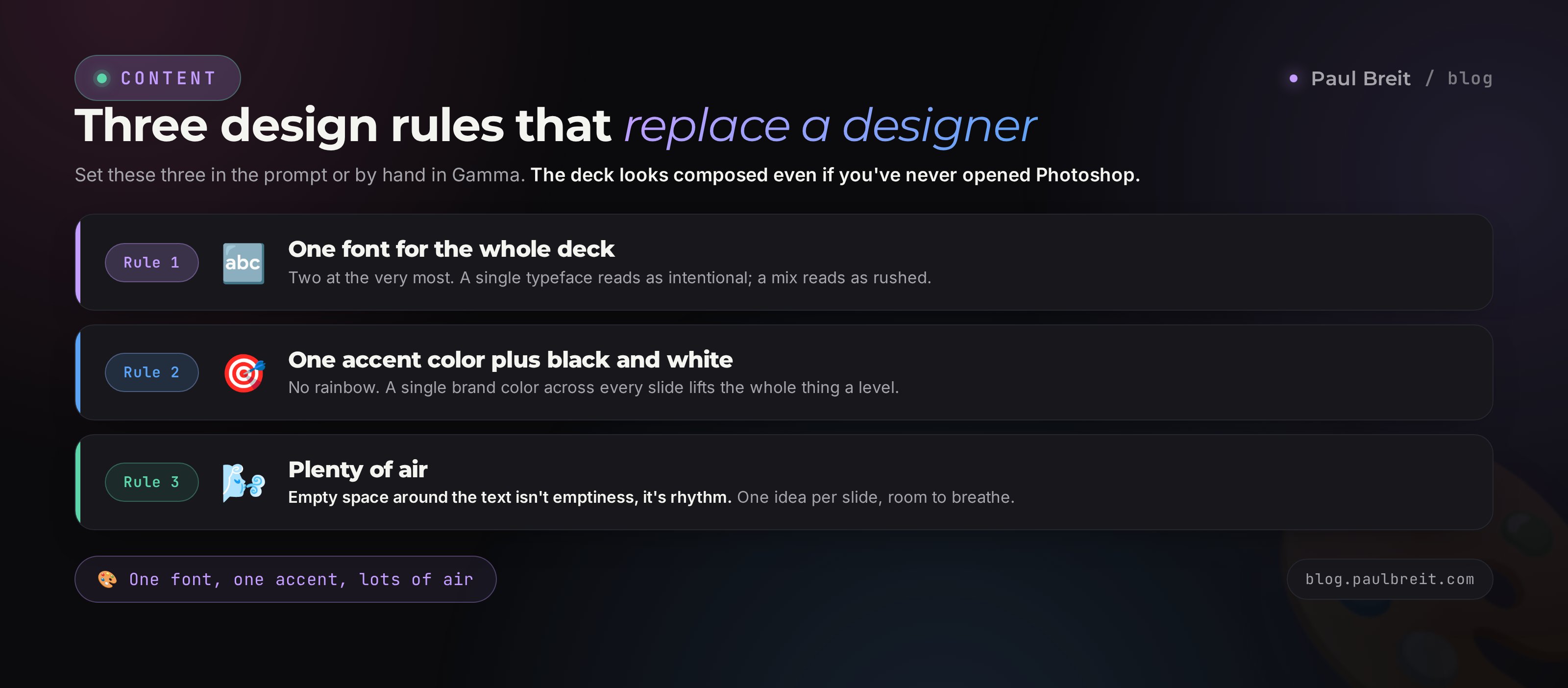
Then ten minutes of touch-up. Go through the slides and fix what grates: text crawling onto an image here, a headline that's too long there. Gamma edits on a click, no code. Set one accent color to match your brand - that matters more than any theme. One brand color across the whole deck instantly lifts the look a level above a motley rainbow of stock themes.
First: one font for the whole deck, two at most. Second: one accent color plus black and white, no rainbow. Third: plenty of air - empty space around the text isn't emptiness, it's rhythm. Set these three in the prompt or by hand in Gamma, and the deck reads as composed even if you've never opened Photoshop.
If you go the Claude-and-HTML route, the design prompt looks like this:
Assemble these slides as a presentation in one HTML file.
16:9 format, each slide full-screen, arrow-key navigation.
Style: dark background, one accent color [your color], large
headlines, plenty of air, one sans-serif font.
One idea per slide. Make it printable to PDF.
Claude hands back a finished page in the artifact, and you see it and page through it right away. Ask for edits in plain words: make the headlines bigger, drop the shadow, shift the accent to a different shade. It's the same approach as building sites by voice with Claude - you say what to change, the machine redraws.
Step 04Images and icons
Bare slides with text tire the eye. Images and icons set a rhythm and help hold attention. AI gives you three paths here, and each fits its own case.
Path one - built-in generation in Gamma. Right inside the service you can ask for an image for a slide, and it draws one in the deck's style. Handy when you need an abstract illustration: a growth metaphor, a process diagram, an atmospheric background. Just write: draw an illustration for the slide about saving time, minimalism, in my accent color.
Path two - a dedicated image generator when you need a specific visual in your style. Midjourney, DALL-E, any service you have access to. The finished image goes into the slide by hand. Tip: keep one consistent style across all images - a mix of photo and illustration looks scattered.
Path three - icons and free photos. For diagrams and lists, simple icons are often enough; grab them from Flaticon or Canva's built-in library. Photos of people and objects come from free stock like Unsplash and Pexels. AI helps here with advice: ask it to suggest 5 icons for your slides' ideas and name the search terms to find them.
Smiling people in suits shaking hands on a white background cheapen a deck instantly. Those shots scream that the visuals were picked on the run. Better no image at all than a hollow stock one. If you do place a photo, make it earn its spot: your real screen, a real client result, a real diagram.
Step 05Export to PowerPoint and PDF
The deck is ready; all that's left is to get it into a file that opens for anyone. Gamma exports to two formats: PPTX for PowerPoint and PDF. Choose PPTX if you plan to keep editing the slides by hand or pass them to a colleague. Choose PDF if the deck is final and you just need to show or send it.
After exporting to PowerPoint, open the file and page through it once more. Sometimes export nudges the spacing or swaps a font for a system one. Fixing that is two minutes of work. While you're there, drop your logo onto the title and closing slides if you have one, and check that the contact details and the call-to-action link didn't get lost.
For the Claude-and-HTML route, export is even simpler. Open the finished page in a browser, hit print, choose save to PDF, set landscape orientation, and remove the margins. You get a clean PDF with full-page slides. This path is nice because it doesn't depend on any account and works offline.
Before you show the deck, run it past three checks. Typos and awkward line breaks - AI slips on those sometimes. A consistent look: one font, one accent, even spacing. And the main test - page through the headlines only, no body text. If the logic is clear and the call to action is visible from the headlines alone, the deck is built right.
Section 03Types of decks and what to change in the prompt
The skeleton is shared across all decks, but the accents differ. A sales deck leans on results and clears objections. A teaching deck walks through steps and reinforces them. Here's what to plug into the structure prompt for a specific job.
| Type | Goal in the prompt | What to amplify |
|---|---|---|
| Sales | book a call or buy | pain, cases with numbers, an offer with a deadline, objection handling |
| Webinar | warm up and sell at the end | a hook for retention, value in the middle, a smooth move to the offer |
| Teaching | so the person understands and does it | steps in order, examples, a checklist, repeating the key point |
| For a call | move the client to a decision | short, conversational slides, room for questions, the next step |
| Investors and partners | convince with numbers | market, metrics, revenue model, team, the ask |
For a sales webinar, the delivery logic is broken down in detail in the article on running a sales webinar with Claude - same pairing, but tuned to hold an audience for a full hour. And if you need a video with voiceover instead of a live talk, see how AI turns text into video: the slides become a finished clip with no filming.
ExampleA worked example: a coach's sales deck
To put it all in place, let's run the route on a concrete case. Take a productivity coach who needs a 12-slide deck for a mini-webinar. The goal is to book people for a diagnostic session. I'll show the conversation with AI the way it actually goes.
You write: build the structure for a 12-slide mini-webinar. Audience - entrepreneurs drowning in tasks who work 12-hour days. Goal - book them for a free productivity diagnostic. I'm a coach, 6 years of practice, some clients are company founders. Format - a 30-minute webinar.
Claude answers with a skeleton: slide 1 - a hook about the pain of the 12-hour day, slide 2 - a promise to unpack the cause, slides 3-4 - three myths about productivity, slides 5-7 - a three-step method, slide 8 - a client case, slide 9 - common objections, slide 10 - the diagnostic offer, slide 11 - what the person gets on the diagnostic, slide 12 - the call to book.
You edit: drop the myths slide, too worn out, add a slide with my own burnout story instead. And move the client case closer to the start, let the proof come before the method.
The skeleton rebuilds in seconds. Then you run the unpacking. AI asks about your burnout story, about a specific client and their result, about numbers. You answer by voice: you tell how you worked until night and crashed, how a founder client cut their workday from 12 hours to 7 in two months without losing revenue. Those details drive straight into the slides.
The copy comes back like this: the story slide - a seven-word headline, three points, and under it a three-sentence speaker note where you unfold, out loud, the moment you realized it couldn't go on. The case slide - the number 12 hours became 7, the client's name, one line that revenue held. Nothing extra on screen, all the meat in your delivery.
You move the plan into Gamma, set an accent color - a calm blue for the focus theme. A minute later the deck is designed. You add a simple three-circle diagram to the method slide, and your own photo from a talk on the title instead of stock. You export to PDF. An hour hasn't passed, the diagnostic deck is ready, and it sounds like you, not like a template off the internet.
AI gave the skeleton and draft copy in ten minutes. Three things from you made the deck alive: the personal burnout story, the real case with a number, and your own photo instead of stock. The machine built the frame, you breathed life into it. That's the whole point of the approach.
Section 04A deck in an hour: the minute-by-minute plan
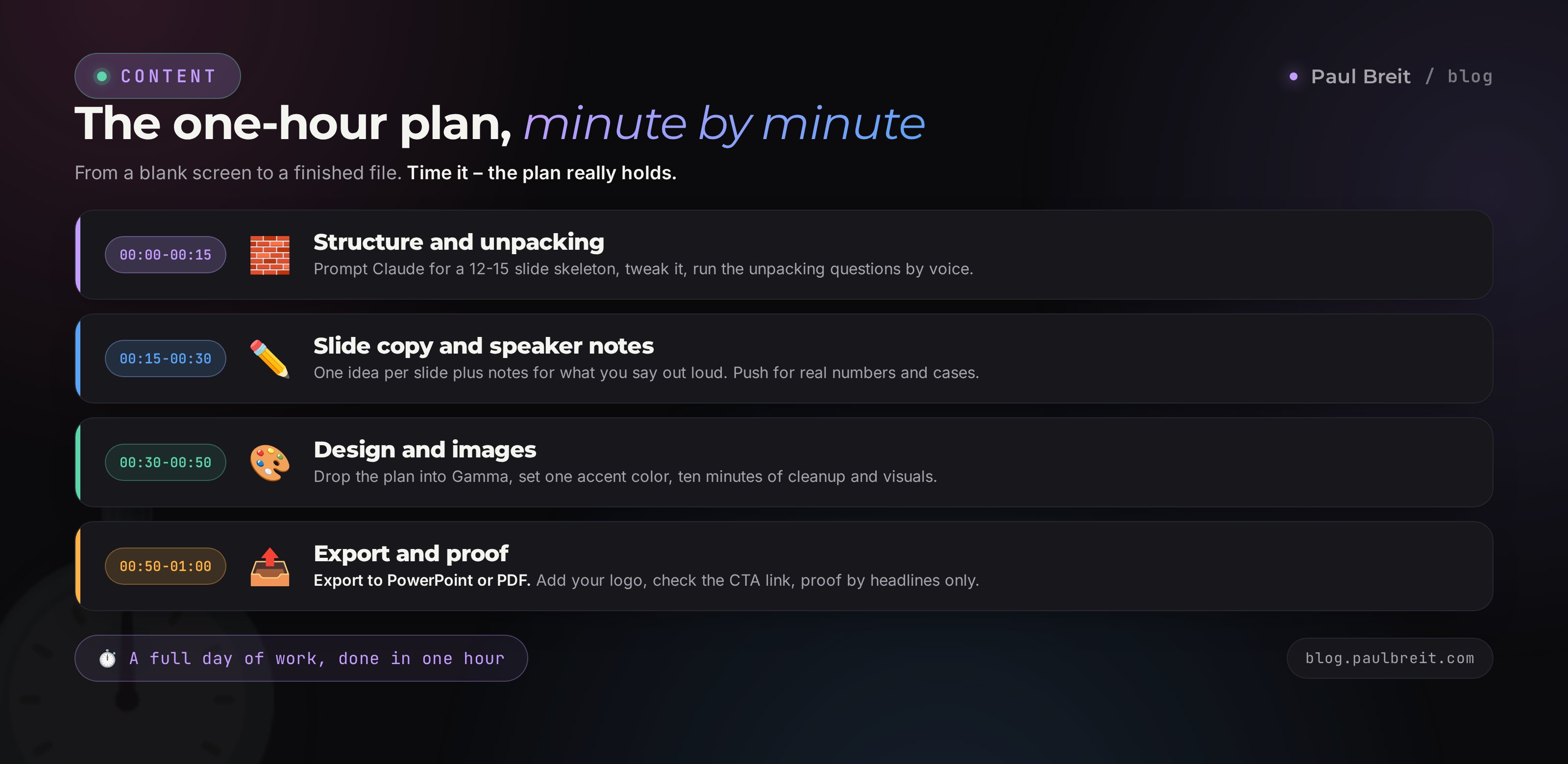
Now let's put it all together. Here's what the hour looks like from a blank screen to a finished file. Time it - the plan genuinely works.
Structure and unpacking
You give Claude the structure prompt and get a 12 to 15 slide skeleton. Tweak it to fit with a couple of lines. Run the unpacking questions, answer by voice, hand the answers back. What comes out is a frame with your details inside.
Slide copy and speaker notes
You ask for the copy under the one-idea-per-slide rule plus notes for the spoken delivery. Read it for generic lines, demand specifics and numbers from the unpacking. For the three key slides, take sharper headline options.
Design and images
You move the plan into Gamma and get a designed deck in a minute. Set one accent color to match your brand. Ten minutes to touch up the slides and add images and icons for the ideas. Cut the hollow stock shots.
Export and proof
You export to PowerPoint or PDF. Add the logo to the title and closing, check the call-to-action link. A final proof on three checks: typos, a consistent look, the headlines-only test. Done, the deck is in your hands.
Section 056 mistakes and how AI closes them
Almost everyone trips on these the first time they build a deck with AI. Run down the list ahead of time so you don't waste the time.
Mistake 1. Asking for design before structure
Pretty slides with no logic convince no one. Skeleton and copy first, design after. AI closes this with a single structure prompt at the very start.
Mistake 2. Leaving generic lines
Lines that would fit any expert give away a machine build. The cure is demanding specifics: your numbers, client names, examples from practice. Unpacking through questions supplies that material.
Mistake 3. Dense text on a slide
Eight points in small type is a document, not a slide. The one-idea-per-slide rule plus speaker notes moves the text into your spoken delivery and leaves the screen clean.
Mistake 4. A rainbow of colors and three fonts
Clutter cheapens the look more than anything. One font, one accent color, and the deck reads as composed. Set it right in the prompt or on a click in the builder.
Mistake 5. Stock smiles in suits
Those photos scream that the visuals were picked on the run. Better a blank slide or your real screen and result. AI will suggest a fitting illustration for the idea.
Mistake 6. Forgetting the call to action at the end
A deck with no final action works at half power. The person watched and left. In the structure prompt, always spell out the goal and a last slide with a concrete next step.
Section 06Build checklist
Print it or keep it nearby. While all eight boxes hold, the deck is ready to show.
- Goal set: it's clear what the person does after the deck
- Structure built by AI at 12 to 15 slides and read as a viewer
- Unpacking done: the slides carry your numbers, cases, and examples
- One idea per slide, the text moved into speaker notes
- Consistent look: one font, one accent color, plenty of air
- Images that earn it, no hollow stock, one consistent style
- A closing slide with a concrete call and your contacts
- Export ready: PPTX or PDF, proofed for typos and line breaks
A presentation with AI isn't about pressing a button and getting a finished thing. It's about a division of labor. The meaning, the experience, and the numbers stay with you, because nothing replaces them. The structure, the copy, the layout, and the images go to the machine, because that's the routine. You free up two days and spend them preparing for the talk itself, where everything is decided.
How this connects to the other articles
A presentation is the packaging of your meaning into slides. Prompts for an expert supply the material those meanings are born from every day. A content plan with AI decides what to speak about and when. And video from text turns a finished deck into a clip that works without you in the room. Four tools, one system around your content.
FAQFrequently asked questions
How long does an AI presentation really take?
A draft of 12 to 15 slides comes together in 40 to 60 minutes: 15 minutes on structure, 15 on copy, 20 on design and images, 10 on export and proofing. Your first deck takes longer while you tune the prompts to your style. After that, working from your own templates, an hour holds steady.
Which AI is best for presentations in 2026?
A pair: Claude builds the structure and slide copy, and Gamma turns the finished plan into a designed deck with export to PowerPoint and PDF. If you want a fully free path, ChatGPT or Gemini handle the copy and any template in Canva or Google Slides handles the design.
Can you make a presentation with AI for free?
Yes. Gamma gives you free credits for your first decks, and Claude, ChatGPT, and Gemini all have free tiers for the text model. You only pay for large volumes or to remove a watermark in some services. Canva and Google Slides cover the design at no cost.
What if I do not want to use Claude?
Any strong chat model works. Give ChatGPT or Gemini the same prompts for structure and slide copy. The wording may differ a little, but the workflow is identical, and you still build the deck in about an hour.
Does AI design the slides or only write the text?
Both, depending on the tool. Claude writes the copy and can even assemble slides as an HTML page. Gamma, Tome, and Beautiful.ai take your text and lay it out with typography and color. Full turnkey design comes from the builder services; the text model handles the meaning.
Can you export the slides to PowerPoint and edit them?
Yes. Gamma exports to PPTX for PowerPoint and to PDF. After export you edit any slide by hand: change text, move blocks, drop in your logo. That is handy when AI does 90 percent and you add the final touches yourself.
How do you get rid of the AI look in a presentation?
Cut the generic lines and swap in your own numbers, client names, and examples from practice. Set one brand color and one font across the whole deck. Drop the stock smiling faces and extra icons. One idea per slide instead of dense lists instantly makes the deck feel alive.