AI From a Photo, Screenshot, or Voice: Multimodality in Practice
AI used to read only text. Now you show it a picture, drop in a screenshot of your screen, or just say your question out loud, and you get an answer. Here's how that works in Claude, ChatGPT, and Gemini, twelve real tasks with ready prompts, the formula for asking about an image, and the privacy rules so you don't overshare.
AI from a photo means you attach an image to the chat and ask about it by text or voice, and the model answers: what's in the shot, what text it says, what a chart shows, where the error is in a screenshot, how to rewrite a sign or a label. Claude, ChatGPT, and Gemini all do this, and all three read images on their free tiers. Upload a photo with the paperclip or by dragging it in, and use the microphone button for voice. One limit: don't upload other people's documents, faces, or private data without permission, and double-check important facts off a picture, since the model sometimes fills in things that aren't there.
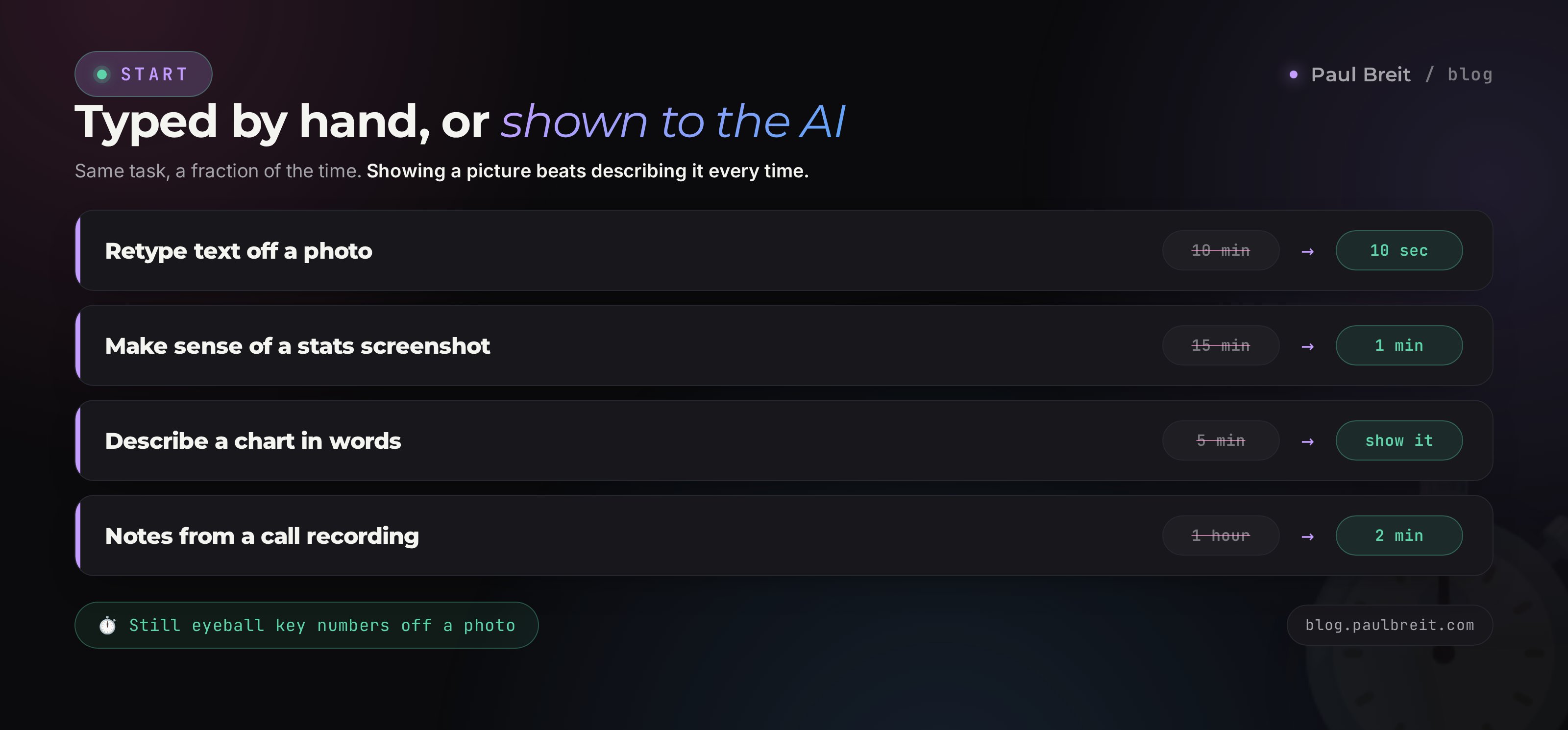
Picture explaining a table from a report to AI in words: columns, rows, numbers, labels. Five minutes of typing and you still mixed half of it up. Or you screenshot it and write one line: break down this table. Showing beats describing. That's the whole idea of multimodality.
I help people who sell services, courses, and consulting take routine off their plate with AI. And I keep seeing the same pattern: people spend years typing what they could have photographed or said out loud. Retyping text off someone's business card. Copying numbers from a screenshot. Trying to put into words what's wrong with a picture. Below is how to stop typing the extra and start showing.
You'll read it in 22 minutes. You can close the first task the moment you open any AI app on your phone. Within a week you'll get used to dropping photos into the chat and speaking your questions, and the keyboard becomes just one of three ways to talk to AI.
What's inside
- What multimodality means in plain words
- AI from a photo: what it sees and what to ask
- A screenshot instead of a long description
- Voice: dictate instead of typing
- Photo plus voice plus text in one request
- 12 tasks by photo, screenshot, and voice
- How to ask about a picture: the prompt formula
- Which AI to pick for photos and voice
- What not to upload: photo and voice privacy
- Where AI gets images wrong
- Your first day with photos and voice
- The whole path in a minute
Section 01What multimodality means in plain words
A modality is a way of delivering information. Text is one modality. An image is another. Sound is a third. When AI understands several of these at once, we call it multimodal. You give it not just letters, but a photo, a screenshot, your voice, and sometimes video, and it works with all of it together.
A couple of years ago, chatting with AI was like messaging someone in another room who only sees your texts. Want to show them something? Describe it in words. Now that person has moved to the seat across the table. You lay a page in front of them, turn your phone screen around, point with your finger: what's wrong here? And they look and answer.
Take an everyday example. A partner sends you a photo of a handwritten note, a to-do list scrawled by hand. The old way: sit down and retype it all, squinting at the handwriting. The new way: drop the photo into AI and write one line, turn this into a clean list. Ten seconds later you have text you can copy. You didn't type a single letter.
Multimodality is not a new AI or a separate program. It's the ability of an ordinary chat to take images and voice instead of text alone. The buttons for it are already in the app you probably use anyway.
One thing worth understanding about how AI looks at a photo. It doesn't see the picture the way you do. It breaks the image into features: a rectangle of text here, a face there, a chart with a line going up, a logo. From those features it concludes what it's looking at. So it does great with a crisp, bright, well-shot photo, and starts guessing with a blurry, dark, angled one. Simple rule: the clearer the picture is to a human, the more accurately AI reads it.
Section 02AI from a photo: what it sees and what to ask
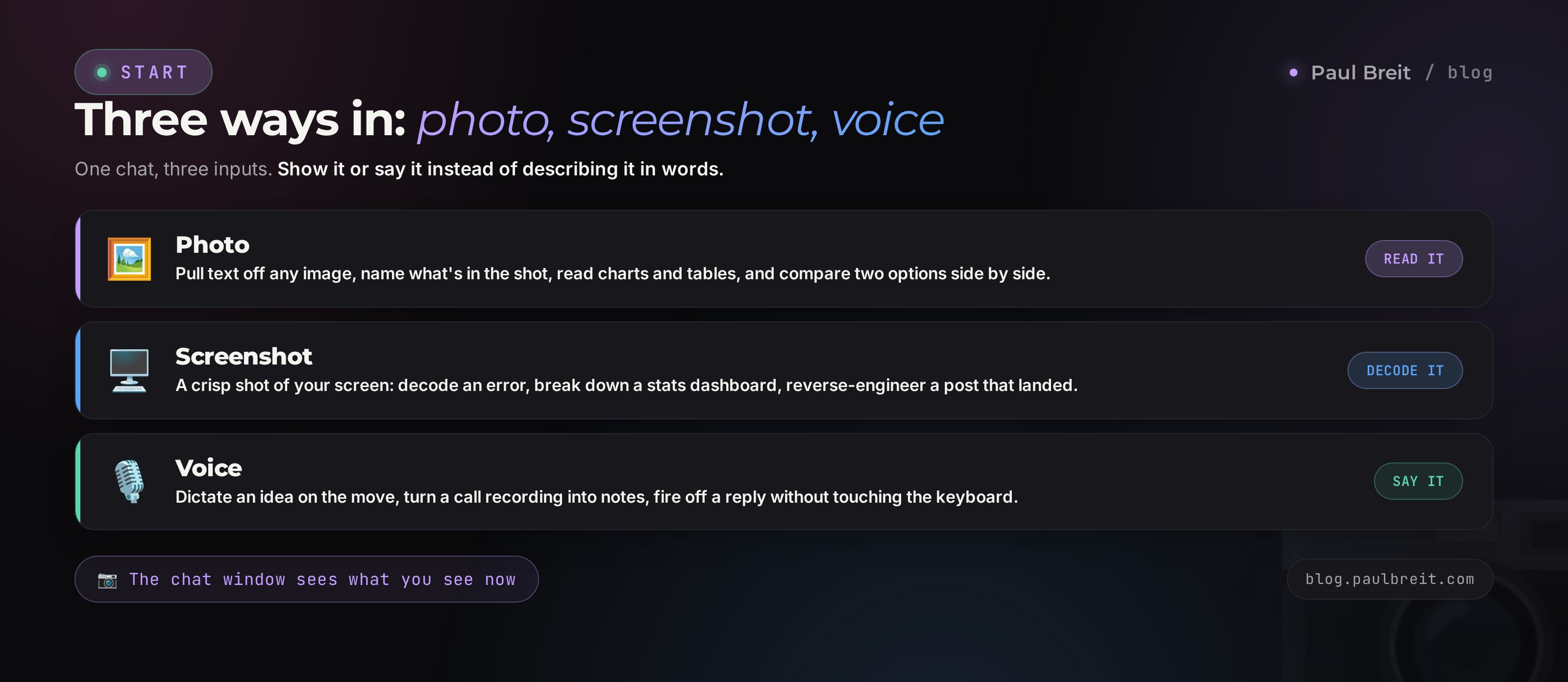
Let's start with photos, because "AI from a photo" is the most searched way in. Behind it sit very different jobs, and it helps to know which ones AI closes cleanly and which come with a caveat.
What AI does confidently from a photo
Reads and types out text from a picture. You shot a book page, a receipt, a business card, someone's phone screen, a sign on the wall, and AI pulls all the text out and hands it back so you can copy it. That kills the pain for anyone who has ever retyped account details off a scanned contract by hand.
Explains what's happening in the shot. You show a photo of a dish, a plant, a broken part, a diagram, a program's interface, and ask what it is and what to do about it. The model describes the contents and gives suggestions. It's accurate on common things and more cautious on rare ones, where it's worth a second check.
Breaks down charts, tables, and diagrams. A screenshot of a dashboard, a bar chart from a deck, a table from a report: AI reads the numbers, spots the trend, tells you where the dip and the growth are, and states the takeaway in plain language.
Compares options. Send two photos, two mockups, two packages, two versions of a profile layout, and ask which one is stronger and why. You get a reasoned breakdown instead of a plain "I like the left one."
You: attach a photo of a shelf of products and write, which product on this shelf stands out the least, and why, what to fix on the packaging.
AI: The second jar from the left reads weakest: dark type on a dark background blends in, and the name disappears from a distance. Its three neighbors use light text on a bright field for contrast. Raise the contrast on the name and bump up the size, and the product will start getting noticed on the shelf.
Where a photo hits a ceiling
AI is not a measuring instrument and doesn't make a diagnosis. It won't give the exact weight of a meal from a photo, won't make a medical call from a scan, and won't judge whether a bill or a signature is genuine. Anything that takes expertise and liability stays with a specialist. Treat AI here as a fast first look and leave the verdict to the professional.
The other ceiling is fine detail and poor quality. If the photo has microscopic type, glare, a shadow across the text, or is shot at an angle, the model starts filling in the gaps. It almost never says it couldn't read the shot. Instead it confidently serves a plausible version. So always eyeball important numbers and names from a bad photo.
Section 03A screenshot instead of a long description
A screenshot is its own superpower, and plenty of people forget about it. It's basically a photo, but taken straight from the screen, so it's always crisp, with no glare or shadows. AI reads these perfectly. Which means that rather than describing in words what's on your screen, you just show the screen.
Here's where a screenshot earns its keep every day.
A cryptic program error. A window popped up with text in tech-speak and a code, so screenshot it and ask what it means and what to click. AI translates it, explains the cause, and walks you through the steps. No retyping the error code letter by letter.
Channel or ad-account stats. A screenshot of reach, impressions, cost per lead, plus the question: what's good here, what's bad, where do I look first. The model breaks the numbers down and gives simple takeaways. Especially handy for anyone running their own blog and drowning in metrics. For how to read those numbers right, there's a separate breakdown in SEO for your blog.
Someone else's post that landed. A screenshot of a competitor's winning post, plus a request to break down why it worked: the hook, the structure, the call to action. You get a kit of moves you can reassemble into your own post on your own topic. It's fair and useful: you don't touch their text, you study the technique and build your own.
A long thread. A screenshot of a client conversation, plus the question: how do I best reply to close the objection without coming across as pushy. AI sees the whole context and offers wording.
On a phone a screenshot is two buttons, on a computer it's one key. Make it a habit: the moment you're about to describe at length what you can see on your screen, stop and take a screenshot. You'll save minutes on every request.
Section 04Voice: dictate instead of typing
The third way to talk to AI is your voice. The ChatGPT and Gemini apps have a microphone button. You tap it and speak in plain words, and AI turns your speech into text and answers. ChatGPT also has a voice mode where you talk to it out loud, like a phone call, and it answers out loud too.
Voice shines when your hands are busy or the thought is long. You're walking, driving, cooking, and you dictate a post idea, a plan for the day, a draft reply to a client. Talking through a free flow of thoughts is easier than typing it. AI then tidies it into structured text.
Here are three scenarios where voice beats the keyboard.
Unpacking a thought on the move. You speak everything you think about a topic, messy, with repeats, and then ask it to assemble a coherent post or script from that stream. Thoughts flow more freely when you don't have to type them. This method is worked through in detail in unpack your expertise with AI.
Transcribing a voice memo or a meeting. You recorded a voice message or audio from a call, hand it to AI, and ask for a short summary with the action items. An hour of talk becomes a list of points in a couple of minutes.
A reply when there's no time to type. A question comes in from a client while you're on the go. You dictate the gist of the answer in two sentences, ask it to expand politely and to the point, copy it, and send.
Voice input isn't perfect: it stumbles on names, terms, and numbers, especially in a noisy place. So skim the text after dictating. Even with the edit, it's faster than typing the whole thing by hand.
Section 05Photo plus voice plus text in one request
The best part starts when you combine formats in a single message. AI doesn't make you pick one. You can attach a picture and ask about it by voice or text in the same breath. This is exactly how multimodality saves the most time.
An example from a real workday. You photographed the whiteboard after a brainstorm, arrows, circles, half-finished phrases. You attach the photo and say out loud: this is where we were sketching the launch structure, turn it into a clear step-by-step plan. AI reads your board, hears your explanation, and produces a proper plan. You neither retyped the board nor typed the plan.
Another one. A client sends a screenshot of their landing page and complains there are no leads. You drop that screenshot into AI and add by voice: the audience is stay-at-home parents, the product is a crafting course, tell me what on the page is stopping people from signing up. It sees the page, knows the context from your remark, and gives a breakdown built for this exact situation.
When you give AI both the picture and the explanation, you remove the main reason for weak answers: missing context. The model doesn't guess what you meant. It sees what you see and hears why you're showing it. The answer comes out accurate on the first try.
Section 0612 tasks by photo, screenshot, and voice
Now to the point. Below are twelve tasks that a picture or your voice closes in minutes. Take whichever one is closest to your work and try it today.
Pull text off a photo
You photographed a document, a receipt, a page, a slide, and AI pulls all the text so you can copy and edit it. Prompt: retype all the text from this photo exactly, keep the paragraphs.
Translate a sign, menu, or label
A photo of text in another language, and an instant translation. Prompt: translate all the text in this image into English, and put the original next to it.
Break down a stats screenshot
A screenshot of reach, sales, or ad metrics, and AI reads the numbers and says what matters. Prompt: break down these stats in plain words, give three takeaways and one action.
Make sense of an error on screen
A cryptic error window popped up, and a screenshot solves it. Prompt: explain what this error means and tell me step by step what to do.
Turn a voice memo into a post
You spoke a thought out loud, and got finished text. Prompt: from this dictation of mine, build a post for Telegram, plain language, no filler.
Summarize audio or a meeting
A call recording into a list of decisions and tasks. Prompt: make a short summary of this recording, and list the agreements separately with who does what.
Rate a product or packaging photo
A shot of your product, and a breakdown of what to fix before you shoot the listing. Prompt: rate this product photo for a store, what's hurting sales, what to reshoot.
Reverse-engineer content that landed
A screenshot of a post that took off, turned into a kit of moves. Prompt: break down why this post worked, give me the structure so I can build my own on a different topic.
Digitize a handwritten list or note
A photo of a note by hand into clean text. Prompt: retype this handwritten list into a structured form, and group it by meaning.
Draft a reply from a chat screenshot
A conversation with a client, and polite wording. Prompt: look at this thread and suggest a reply that closes the objection and moves to the next step.
Build a table from a photo
A shot of a paper table or price list into a ready table you can copy. Prompt: move the data from this photo into a table, take the columns from the picture.
Get a fresh pair of eyes on a slide or layout
A screenshot of a presentation or a banner, and an honest breakdown. Prompt: look at this slide as someone seeing it for the first time, what's unclear and what's overloaded.
Twelve tasks are a start, not a ceiling. Once you get used to showing AI pictures and speaking your questions, you'll find another dozen scenarios in your own niche. If you haven't picked which AI to start with for these, take a look at how to choose an AI tool.
Section 07How to ask about a picture: the prompt formula
The same strong-prompt formula that works with text works with pictures, you just add the image itself. Let's break it into five parts. The full version with before-and-after examples is in how to write prompts; here it's tuned for photos and voice.
Part one, the picture and what it is. Attach the photo and say in one line what's in it and where it's from. This is a screenshot of my stats for the month. This is a photo of my product's packaging. The model reads the shot more accurately when it knows the context.
Part two, the role. Set the angle. Look at this as a marketer. Judge it as a designer. Break it down as a picky buyer. The same shot under different roles gives you different useful answers.
Part three, the task. Say specifically what you need: find three weak spots, retype the text from the photo, name the main trend in the chart. A vague "take a look at the picture" gets a vague answer back; a clear task gets a useful one.
Part four, the format. Describe how to serve the answer. As a five-point list. As a table. As one paragraph with no filler. Otherwise you get a wall of text you have to dig the point out of.
Part five, the limits. Set the boundaries. Only what's visible in the photo, don't invent anything. If something can't be read, say so. That one line sharply cuts the made-up parts, and the model starts admitting where it isn't sure.
This is a screenshot of my landing page (image attached).
Look at it as someone who arrived for the first time on a phone.
Find 5 reasons a visitor might leave without signing up.
Answer as a list: reason – what to do.
Judge only what's visible in the screenshot. If something can't be read, flag it separately.
A prompt like that gives you a breakdown you can use right away. Compare it with a lazy "what's wrong with my page," where AI answers in generalities because you gave it no role, no task, and no boundaries.
Section 08Which AI to pick for photos and voice
All the big models can work with photos, screenshots, and voice, but with different strengths. Here's a quick take on each so you can pick for your tasks.
| AI | Photo and screenshot | Voice | Free tier |
|---|---|---|---|
| Claude | Clean read-throughs of documents, charts, long screenshots | Dictation in the app | Reads images, plenty for these tasks |
| ChatGPT | Strong on photos and content | Full voice mode, spoken back-and-forth | Reads images and generates them |
| Gemini | Very strong on pictures and recognition | Dictation and voice | Reads images, tied into Google apps |
If you want to read long documents and screenshots cleanly, take Claude. If a live voice conversation and lots of content matter, take ChatGPT. If you need photo recognition and you're already in the Google ecosystem, take Gemini. All three read images on their free tiers, so the cheapest way to choose is to run the same photo through two of them and keep the one that reads your material better. A full rundown of the options is in the best AI tools of 2026.
Getting started without paying
You don't need a subscription to try any of this. The free tiers of Claude, ChatGPT, and Gemini all read images and take voice input, which covers every task in this article. Open claude.ai, sign in, attach a photo, and ask your first question. The paid plan (about $20/month) becomes worth it later, once you hit message limits or want a model that holds your context across chats. Start free, and upgrade when you feel the tool has taken root in your day.
Section 09What not to upload: photo and voice privacy
Photos and voice are convenient, and they carry more personal information than text does. A shot can accidentally catch faces, documents, addresses, screens with someone else's data. So the same caution applies here as with any sensitive data.
What you shouldn't upload to AI without cleaning it up first:
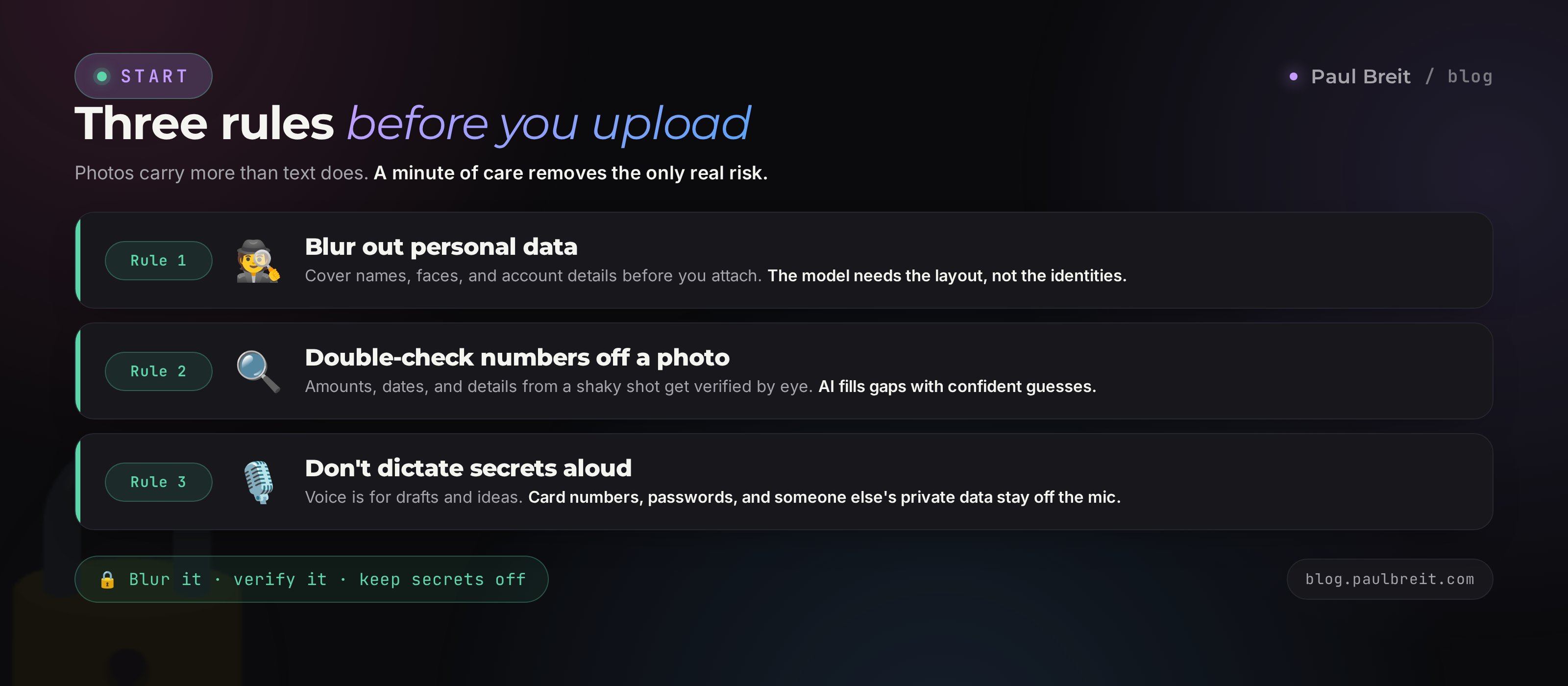
- Other people's IDs, documents, and contracts with real names and details. Blur the personal data or swap it for placeholders if you only need a structural review.
- Photos of people without their consent, especially clients and children. A face is personal data.
- Screenshots of private chats with names and contacts. For a review, cover anything that could identify the person.
- Medical and financial images with real data. An anonymized sample is enough to practice the wording.
Before you attach a photo or screenshot, ask yourself: would I show this to a stranger in a coffee shop? If not, cover the extra or strip the personal data. On paid tiers, Anthropic and OpenAI don't use your chats to train their models, which lowers the risk further, and cleaning the image up removes what's left.
Same logic with voice: don't say card numbers, passwords, and other people's personal data out loud. Dictation is for drafts and ideas, not for secrets.
Section 10Where AI gets images wrong
Multimodality is powerful, and it has its characteristic slips. Knowing them means catching mistakes before they reach your work.
It invents what isn't there. On a bad photo the model rarely says "I can't see." It serves a plausible version. It reads an 8 as a 3, makes up a word that wasn't on the label. The cure is one line in the prompt: use only what's actually visible, and flag anything you're unsure about.
It fumbles small text and handwriting. Tight type, bad handwriting, text at an angle: all sources of error. Always eyeball important data off shots like these, the account details, amounts, dates.
It counts roughly. Ask it to count something in a picture, the number of people in a photo, the sum of figures in a table, and double-check. AI is good at meaning and stumbles on exact counting from an image.
It doesn't know what's off-frame. The model only sees the shot you sent. If context matters, add it by text or voice. Otherwise it fills the picture in by guess, and the guess can miss.
Treat an answer from a picture as the work of a fast assistant, not an expert. For a draft, a breakdown, or an idea, take it right away. Where the cost of a mistake is high (numbers, documents, money, health), verify it with a person or in the original source. Then AI saves you time and never lets you down.
Section 11Your first day with photos and voice
To turn this from theory into practice, do three things today. Each takes a couple of minutes and shows how multimodality works on your own task.
Pull text off any photo
Open AI on your phone, shoot any page or receipt, attach it, and write: retype all the text from the photo. Confirm you got text you can copy. That's your first multimodal request.
Break down one screenshot
Take a screenshot of your stats, a post, or a screen with numbers. Attach it and ask: break it down in plain words, three takeaways and one action. Watch how fast a picture turns into a clear conclusion.
Speak it instead of typing it
Tap the microphone and dictate a post idea or a reply to a client in plain words. Ask it to assemble coherent text from that. Feel how speaking is faster than typing.
After these three steps, build the habit. Every time you're about to describe at length what you can see or are holding in your hands, stop. Photograph it or dictate it. In a week it lands in the hand, and you stop typing what you could show. For where to begin with AI step by step, there's what you can do with AI.
RecapThe whole path in a minute
Multimodality is AI's ability to understand more than text: a photo, a screenshot, your voice. Showing beats describing, so these formats save the one thing that matters most, the time spent explaining.
From a photo, AI pulls text, recognizes contents, breaks down charts, and compares options. A screenshot is a crisp shot of the screen, ideal for stats, errors, and other people's content. With voice you dictate ideas and replies on the move, and the model tidies them into text. Combine formats in one request, a picture plus an explanation, for an accurate answer on the first try.
Ask by the five-part formula: picture, role, task, format, limits. For clean document reads take Claude, for voice and content take ChatGPT, for recognition take Gemini, and all three read images on their free tiers. Don't upload other people's faces, documents, and personal data without cleaning them up. Double-check important numbers off a photo, since the model sometimes fills in the gaps. Do three things today: pull text off a photo, break down a screenshot, speak instead of type. From there the habit does the rest.
FAQFrequently asked questions
How do I upload a photo to AI?
In the app or on the website, tap the paperclip next to the message box and pick a photo, or just drag the image into the chat window on a computer. On a phone you can shoot a photo with the camera or pull one from your gallery. Then type or speak your question about the picture, and the model answers based on what it sees in it.
Which AI reads photos best?
Claude is handy for clean read-throughs of documents and long screenshots, Gemini is strong at recognizing objects and scenes, and ChatGPT is solid on photos and content. All three read images on their free tiers, so try the same photo in two and keep the one that reads your material better.
Can AI read text from an image?
Yes, it's one of the most reliable tasks. It pulls text off a photo of a document, receipt, page, slide, or sign and hands it back so you can copy and edit it. Accuracy is high on a crisp shot. Small type, glare, or bad handwriting can cause errors, so eyeball important numbers and names.
How do I talk to AI with my voice?
The ChatGPT and Gemini apps have a microphone button. Tap it, speak in plain words, and your speech turns into text. ChatGPT also has a full voice mode, a spoken back-and-forth where it answers out loud. After dictating, skim the text: voice input trips on names, terms, and numbers, especially in a noisy spot.
Do I have to pay to work from photos?
No. The free tiers of Claude, ChatGPT, and Gemini all read images and take voice input, which covers every task in this article while you learn. The paid plan (about $20/month) is worth it once you hit message limits or want a model to hold your context across chats.
What shouldn't I upload as a photo?
Someone else's IDs and documents with real data, photos of people without their consent, screenshots of private chats with names, and medical or financial images with real details. Before uploading, blur the personal parts or swap them for placeholders. When in doubt, share only what you'd show a stranger in a coffee shop.
Why does AI read my image wrong?
Usually it's the shot quality: blur, glare, shadow, tiny type, or a photo taken at an angle. The model rarely admits it couldn't read something and serves a plausible version instead. Reshoot flat and in good light, and add one line to the prompt: use only what's actually visible, and flag anything you're unsure about. Accuracy jumps.
Can AI break down a stats screenshot?
Yes. Attach a screenshot of your reach, sales, or ad metrics and ask it to break it down in plain words: three takeaways and one action. It reads the numbers, spots the trend, and tells you where to look first. Double-check exact arithmetic off the image, though, since AI is stronger on meaning than on math from a picture.