AI Santa Video: How to Make a Personalized One in 2026
A personalized AI Santa video takes one evening: Santa says your child's name and recalls their year, Grandma in an old family photo smiles and waves, snow falls outside. Below: which tool does what, Santa's lines tested in Claude, Gemini and Kling step by step, and 10 ready prompts.
To make a personalized AI Santa video, write Santa's line in Claude first: the child's name and three real details, up to 20 words. Then generate the talking clip in Gemini (3–10 seconds with sound, Google AI plan required) or in HeyGen from a photo. Bring a family photo to life for free in Kling and join the clips together.
What's inside
- Three types of AI Santa video
- Which tool to use: a table
- Claude writes Santa's lines
- A talking Santa in Gemini, step by step
- A family photo brought to life in Kling
- Santa from a photo in HeyGen
- The video prompt formula
- 10 ready prompts
- How to join the clips and send them
- If something goes wrong
- Someone else's face: what's okay
- Everything in a minute
- Sources
Section 01Three types of AI Santa video
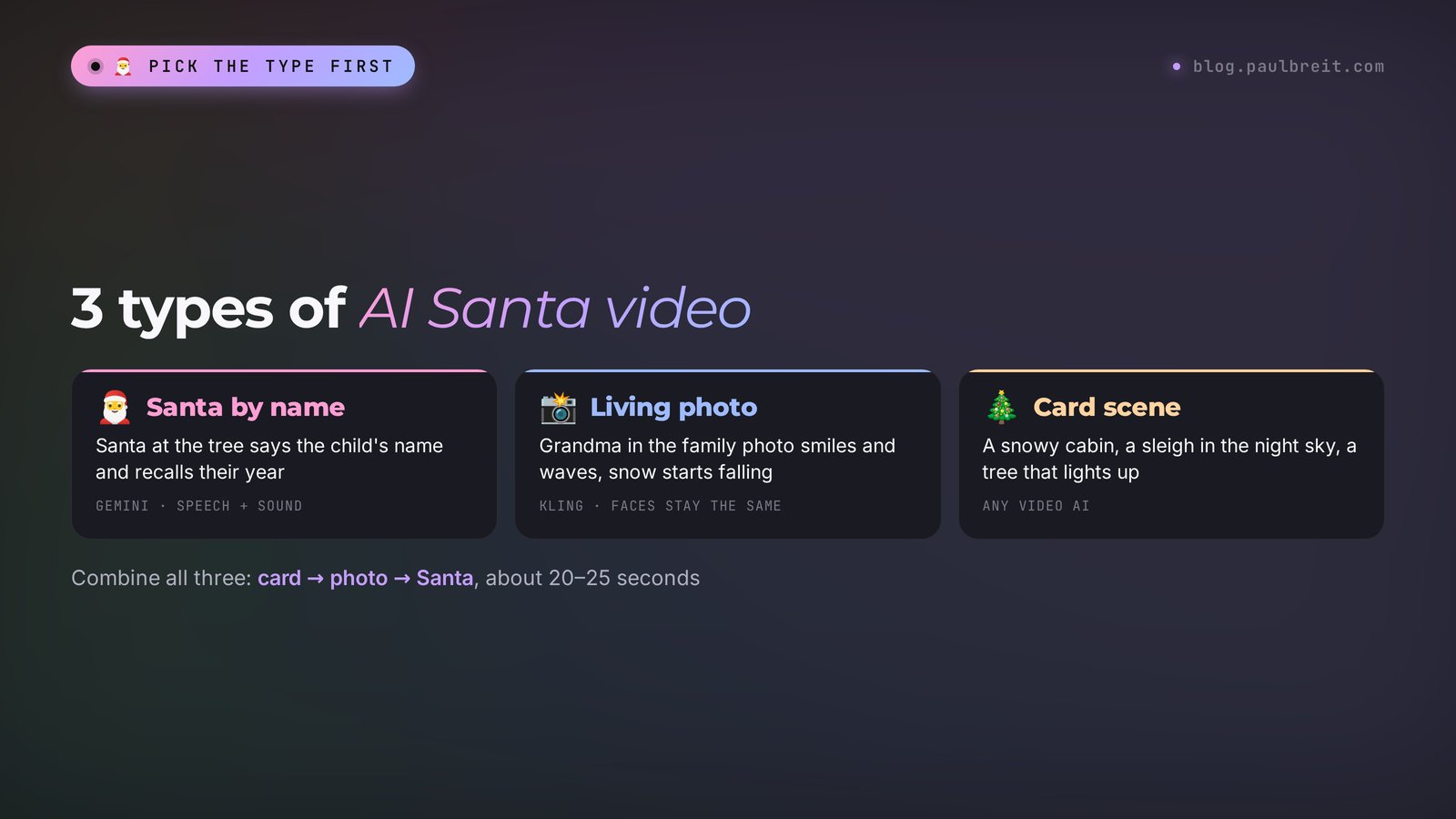
There are three kinds of clip, and the type decides the tool.
Santa says your child's name. Santa stands by the tree, looks into the camera and says: "Mia, hi! This year you rode your bike all by yourself." This needs an AI that generates speech with lip movement; in 2026 Gemini does it most simply.
A family photo brought to life. The family by the tree or Grandma with the grandkids turns into a short clip: people smile and wave, snow starts falling. Sound is optional.
A card scene. No real people: a snowy cabin, a reindeer sleigh, a tree that lights up by itself. Any video AI handles it, even a free one.
Combine all three – card scene, living photo, Santa with the name – and you get a 20–25 second clip for the big TV on Christmas Eve.
Section 02Which tool to use: a table
Prices from the official pages, checked November 23, 2026.
| Tool | Best at | Speech and sound | Free? |
|---|---|---|---|
| Gemini (Omni) | Santa says the name, edits in words | Yes, on request | No: Google AI plan from $4.99 a month |
| Kling | Photos to life, keeps faces | Via lip sync with your audio | 66 credits a day, watermark |
| HeyGen | Talking avatar from one photo | Yes, reads your script | 3 videos a month, 1 min, watermark |
How to choose. A talking Santa who says the name – Gemini. A photo brought to life for free – Kling. A Santa picture (or Grandpa in a Santa suit) reading a longer script – HeyGen. Paid Kling plans remove the watermark (prices change with promotions). Google AI Pro is $19.99 a month, but AI Plus is enough for a few clips.
Separate guides: Kling AI video from a photo or text, Veo 3 and Google's video tools, and HeyGen avatar videos.
Section 03Claude writes Santa's lines
Type "Santa wishes Mia a merry Christmas" into a video AI and you'll get "be good and listen to your parents". Start with the words instead. One line = one 8–10 second clip = 15–20 words; longer, and the AI rushes or cuts it.
Write down three details about the child's year: what they learned, what they're proud of, how they help at home. Then use this prompt in Claude (the free plan is enough):
Write Santa's speech for a personalized video message.
Child: Mia, 6 years old.
Three details from her year: learned to ride a bike without training wheels, started swimming lessons, helps grandma water the plants.
Format: 2 lines, each no longer than 20 words, so each can be said out loud in 8–10 seconds.
Tone: warm, storybook, no baby talk.
Don't use the words: magic, joy, wonder, good girl.
Don't invent facts beyond the ones I gave.
Model: Claude Opus 5.5, first try, no edits. The full reply:
Line 1: "Mia, hi! It's Santa. This year you rode your bike all by yourself, no training wheels. That took courage!"
Line 2: "And you started swimming and help Grandma with her plants. A helper like you gets her gift delivered personally!"
19 and 19 words, about 8 seconds each out loud. All three details are there, nothing invented, no banned words.
Keep the last line of the prompt. Without it, the AI may add that Mia "read ten books this year", and kids catch that instantly. More on holiday wishes: how to write an AI Christmas message.
Section 04A talking Santa in Gemini, step by step
In the Gemini app, video is made by the Omni model. Per Google's help page, a clip runs 3 to 10 seconds (up to 15 on AI Ultra), you can attach up to five reference images and edit the video with words in the same chat. Sound and speech come if you ask for them.
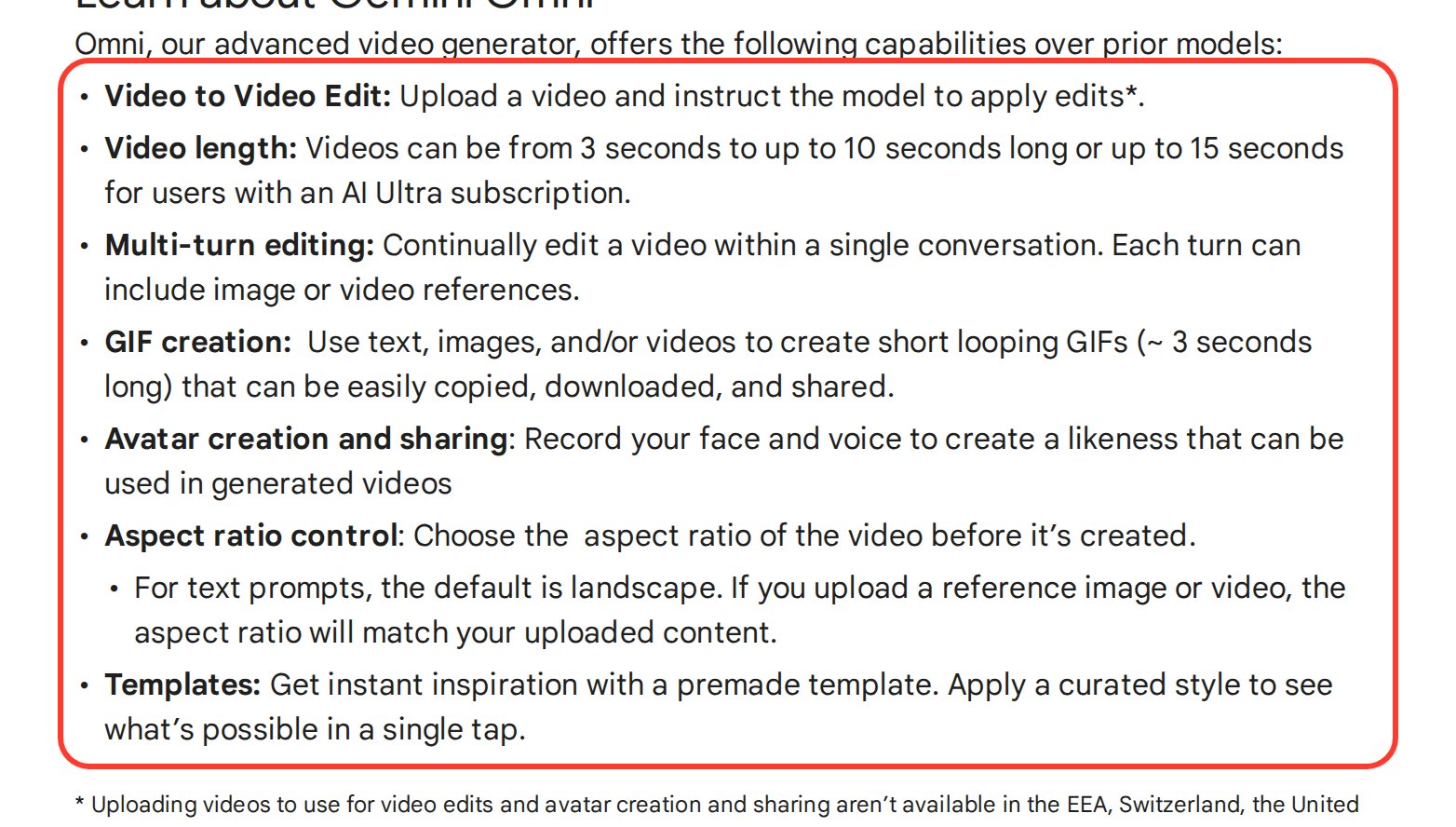
Three conditions from the help page: a personal account needs a Google AI plan, the feature isn't available to users under 18, and you may only upload images you have the rights to.
Step 1. Open video creation. At gemini.google.com or in the app, choose "Create video".
Step 2. Pick vertical. Text prompts default to landscape. For phones, set 9:16 before you generate.
Step 3. Paste the prompt with Claude's line in quotes and describe the voice:
Vertical video. Santa Claus in a red velvet suit with white fur trim, a long white beard and round glasses stands by a decorated tree in a log cabin, snow falling outside. He looks into the camera, smiles and says in a warm, deep voice: "Mia, hi! It's Santa. This year you rode your bike all by yourself, no training wheels. That took courage!" Slow push in. Warm string lights, a crackling fireplace. No subtitles or on-screen text.
Step 4. Watch with sound. Generation takes a few minutes; you can't type in that chat meanwhile. Check the name, the last words and the lip sync.
Step 5. Fix it with words in the same chat: "speak slower", "put him by the window". If a name comes out wrong, spell it as it sounds: "Siobhan" as "shi-VAWN".
Step 6. Second clip, same Santa. Attach a frame from the first video as a reference: "the same Santa, the same cabin, he keeps talking: …". Save each clip with the "Download video" button.
Section 05A family photo brought to life in Kling
Kling holds faces best: people move and stay themselves. A grandma whose nose "melts" won't move anyone.
Step 1. Pick the photo. Faces toward the camera, well lit, sharp. Two or three people come alive cleanly, ten come with glitches. Scan old prints or shoot them in daylight with no glare.
Step 2. Upload it in Image to Video. The free plan gives 66 credits a day, enough for a few tries.
Step 3. Describe what should move: one or two actions, a camera move, a detail for life.
The people in the photo smile and wave at the camera, snow starts falling outside, the tree lights twinkle. Slow push in. Natural movements, faces stay the same.
Step 4. Make 2–3 versions and keep the one without an extra finger.
Want the person to say the greeting? Kling's lip sync matches the mouth to an audio file you upload. More on old photos and talking pictures is in how to animate a photo with AI.
Section 06Santa from a photo in HeyGen
HeyGen takes a face and a script. Handy for a Santa picture, or Grandpa in a Santa suit, with a message longer than 10 seconds.
Open Avatars, create a photo avatar and upload the picture (face straight on, eyes open, mouth closed). Paste Claude's lines into the script, pick a warm, deep voice and click Generate. The free plan, as of November 23, 2026: 3 videos a month, up to 1 minute each, with a watermark. Paid plans start at $29 a month (Creator).
The trade-off: the background is whatever is in your picture. If the scene matters more than the speech length, stay with Gemini. Full walkthrough: the HeyGen guide.
Section 07The video prompt formula
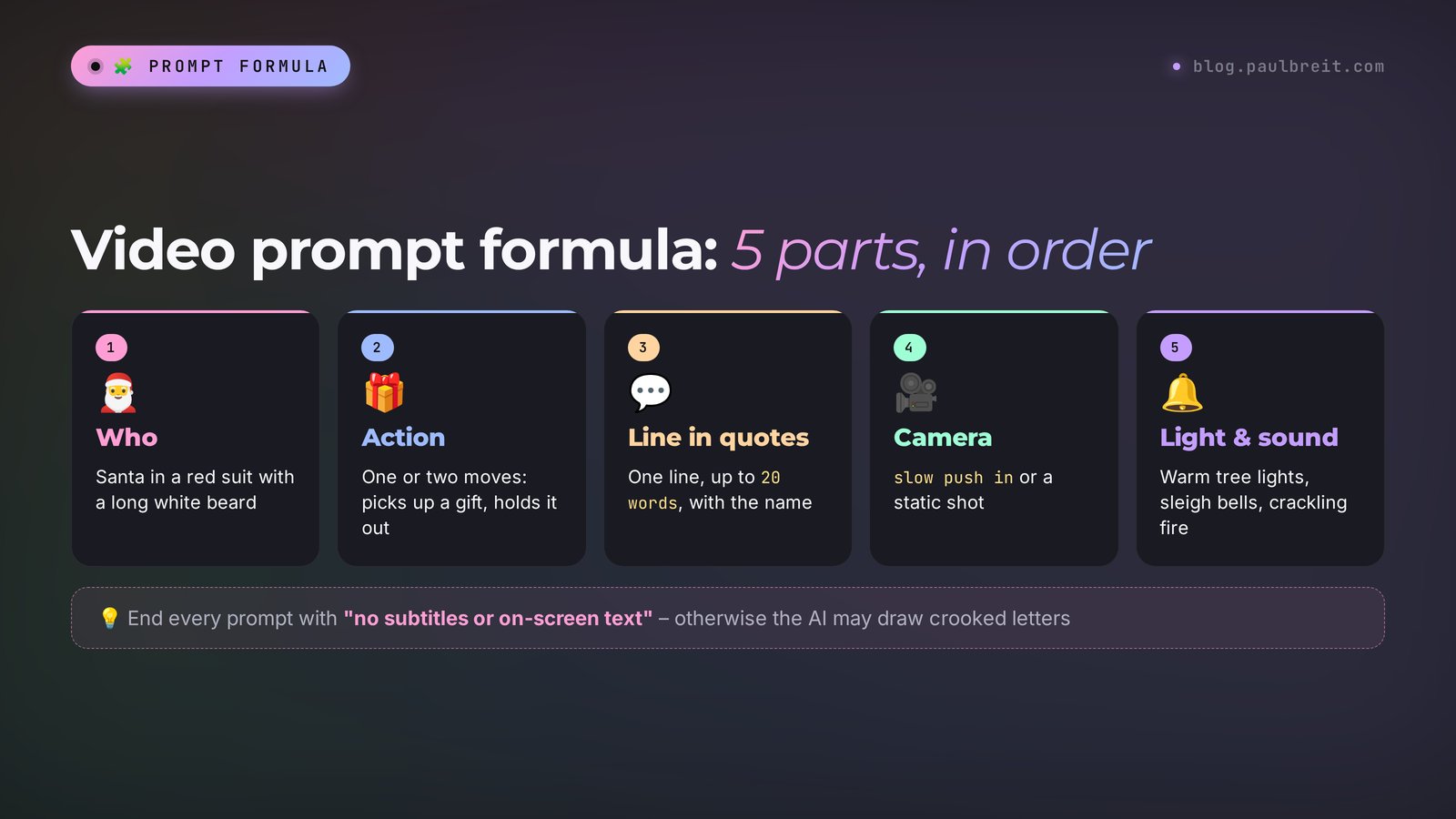
Five parts, in this order – the AI reads it as the script of one shot.
Who. "Santa Claus in a red velvet suit with white fur trim, a long white beard and round glasses."
Action. One or two: "takes a box out of his sack and holds it out."
Line in quotes. Up to 20 words, with the voice described. Only for tools with sound.
Camera. "Slow push in", "static camera". Without it the shot often shakes.
Light and sound. "Warm string lights", "sleigh bells jingle". End with "no subtitles or on-screen text" or you may get crooked letters. More camera moves: 40 AI video prompts.
Section 0810 ready prompts
Swap in your names and details. 1–4 need sound (Gemini), 5–7 are for photos (Kling), 8–10 work anywhere.
1. Santa by the tree says the name
Vertical video. Santa Claus in a red suit with white fur trim stands by a Christmas tree in a snowy forest. He looks into the camera and says in a kind, deep voice: "[Name], I know that this year you [detail]. I'm proud of you!" Slow push in. No subtitles or on-screen text.
2. Santa reads the child's letter
Santa sits by the fireplace holding a child's letter with a drawing. He looks up at the camera and says: "[Name], your letter made it to the North Pole. I know all about the [wish]!" Warm firelight. No on-screen text.
3. Santa wraps a gift
Santa's workshop. Santa ties a bow on a red box and says to the camera: "This one is for [Name]. It's on my sleigh tonight!" Smooth arc around him. Sleigh bells jingle. No on-screen text.
4. Mrs. Claus greets the family
Mrs. Claus in a red dress and white apron stands at the snowy door of a cottage. She waves and says brightly: "Merry Christmas, [Last name] family! Santa is already on his way to you!" Reindeer and a sleigh behind her. No on-screen text.
5. Family by the tree (photo to life)
The people in the photo smile at each other, then wave at the camera. Tree lights twinkle, snow falls. Faces stay the same.
6. An old family photo
The old black-and-white photo comes to life: people slightly turn their heads, smile and blink, snowflakes fall. Static camera. Faces and clothes stay as in the photo.
7. A child with a gift (photo to life)
The child in the photo opens a box, golden sparkles fly out, the child laughs. Slow push in. The face stays the same.
8. A cabin in the snow
A wooden cabin in a snowy forest at night. Warm light comes on in the windows, smoke rises from the chimney, snow falls. Slow push in. No on-screen text.
9. The tree lights up by itself
A dark living room. The tree lights switch on from bottom to top, the star on top flashes. Static camera, then a slow pull back. No on-screen text.
10. Santa's sleigh over the city
Santa's reindeer sleigh flies over a snowy town at night, leaving a trail of sparks. The camera flies alongside. Cinematic. No on-screen text.
Section 09How to join the clips and send them
Order that works: a 4–5 second card scene, the living photo, Santa with the name last – the end is what a child remembers. Any phone video editor will do; keep music quieter than Santa's voice and save vertical.
Send it in iMessage, WhatsApp or by email, or play it on the TV on Christmas Eve as Santa's "video letter". A picture card to go with it is in the AI Christmas card guide.
Section 10If something goes wrong
| Problem | Why it happens | What to do |
|---|---|---|
| The name sounds wrong | The AI guesses the pronunciation | Spell the name the way it sounds: "ZOH-ee", "shi-VAWN" |
| Santa rushes or cuts off the line | The line is longer than 20 words | Shorten it or split it into two clips |
| Santa looks like a plastic costume | The prompt is too short | Describe the suit, fur trim, beard length and glasses, add "cinematic" |
| A face in the living photo "melts" | Small faces, a blurry photo, too much motion | Use a larger photo, add "faces stay the same", remove extra actions |
| Crooked letters on screen | The AI tries to draw text | End the prompt with "no subtitles or on-screen text", add titles in the editor |
Section 11Someone else's face: what's okay
Your own and your family's photos for a home greeting are fine. For a coworker or friend, ask first. Google's help page says the same: upload only images you have the rights to and don't make videos to deceive anyone.
Outside the family, add "made with AI". And agree with older relatives: if a "video" or call in your voice asks for money urgently, it isn't you. The FTC warns that scammers use AI voice cloning in fake family emergencies; its advice is to call the person back on a number you know.
RecapEverything in a minute
The whole guide in one list:
Cheat sheet: an AI Santa video
1. Pick the type: Santa by name, a living photo, or a card scene.
2. Write down three details about the child and their year.
3. Santa's lines in Claude: 1 line up to 20 words = 1 clip of 8–10 seconds.
4. Talking Santa: Gemini, "Create video", 9:16 before generating, line in quotes.
5. Fix with words in the same chat; reuse a frame for clip two.
6. Photo to life: Kling, 66 free credits a day.
7. Longer speech from one picture: HeyGen.
8. End prompts with "no subtitles or on-screen text".
9. Join: card, photo, Santa. Others' faces only with consent.
SourcesSources
- Generate videos with Gemini Apps (official help), checked November 23, 2026
- Google AI plans (official US prices), checked November 23, 2026
- Kling AI (official site), checked November 23, 2026
- HeyGen Pricing, checked November 23, 2026
- FTC: Scammers use AI to enhance their family emergency schemes, checked November 23, 2026
FAQFrequently asked questions
What is the best AI Santa video generator?
For a talking Santa who says a child's name, Gemini with the Omni model is the simplest: 3 to 10 second clips with speech, a Google AI plan required. Kling is best for family photos, HeyGen for a talking avatar from one picture.
Can I make an AI Santa video for free?
Partly. Kling gives 66 free credits a day for bringing photos to life, with a watermark. HeyGen's free plan gives 3 videos a month up to 1 minute each, also watermarked. A talking Santa in Gemini isn't free: it needs a Google AI plan.
How do I make a personalized Santa video with AI that says my child's name?
Write the line with the name in quotes right in the prompt and describe the voice. Keep the line under 20 words or the AI will cut it. If the name sounds wrong, spell it the way it sounds and ask for a redo in the same chat.
What should Santa say in an AI video message for kids?
Three real details from the child's year: what they learned, what they're proud of, how they help. Ask Claude for two lines of up to 20 words, ban clichés and add "don't invent facts beyond the ones I gave".
Is it okay to use someone else's photo in an AI Santa video?
Your own and your family's photos for a home greeting are fine. For anyone else, ask first. Google's help page also requires that you only upload images you have the rights to and never use generated videos to deceive anyone.