HeyGen: AI Avatar Video and Video Translation – How to Use It in 2026
HeyGen is an AI tool that makes videos of a talking person without a camera and translates finished videos into other languages in your own voice. You type the text, and the avatar says it. Or you upload your video in English and a few minutes later get it in Spanish, with the lips moving to the new words. Here's how to use HeyGen in 2026: what you get for free, what the plans cost, how to sign up, how to build a digital twin, how to make a talking video from a photo, and how to translate a video.
To use HeyGen, sign up at heygen.com with your Google account. The free plan gives you 3 videos a month, up to a minute each, with a watermark. For an avatar video, open Create video, pick a stock presenter or create your own avatar, paste your script, and click Generate. To translate, open Video Translate, upload the video, choose the language, and turn on lip sync. The paid Creator plan costs $29 a month and gives you 600 credits, 1080p, and 175+ languages.
Everyone who sells services, courses, and consulting and is tired of recording video. A nutritionist records herself once for five minutes and then makes videos about breakfasts and snacks from text, even while she's on vacation. A therapist translates her best webinar into Spanish and shows it to Spanish-speaking clients and their families. An ESL tutor makes short grammar explainers in a native speaker's voice. An online school builds course lessons with the same presenter, who looks exactly the same in every lesson.
What's inside
- What HeyGen is and what it can do
- HeyGen for free: what you really get
- Plans and credits
- How to sign up
- Your first video with a stock avatar
- Digital twin: an avatar from your video
- A talking video from one photo
- Video translation in your voice
- Let Claude write the avatar's script
- Video ideas for different niches
- If something goes wrong
- HeyGen, ElevenLabs, and AI video tools
- The whole path in one minute
- FAQ
Section 01What HeyGen is and what it can do
HeyGen is an American service for videos with digital humans. When people talk about it, they usually mean one of two things. The first is the avatar: a person on screen looks into the camera and says any text you give it. The second is translation: you give it a finished video, and HeyGen re-voices it in another language, keeping the timbre of your voice and matching the lip movement. The viral clips where a creator suddenly speaks fluent Spanish spread across social media thanks to exactly this feature.
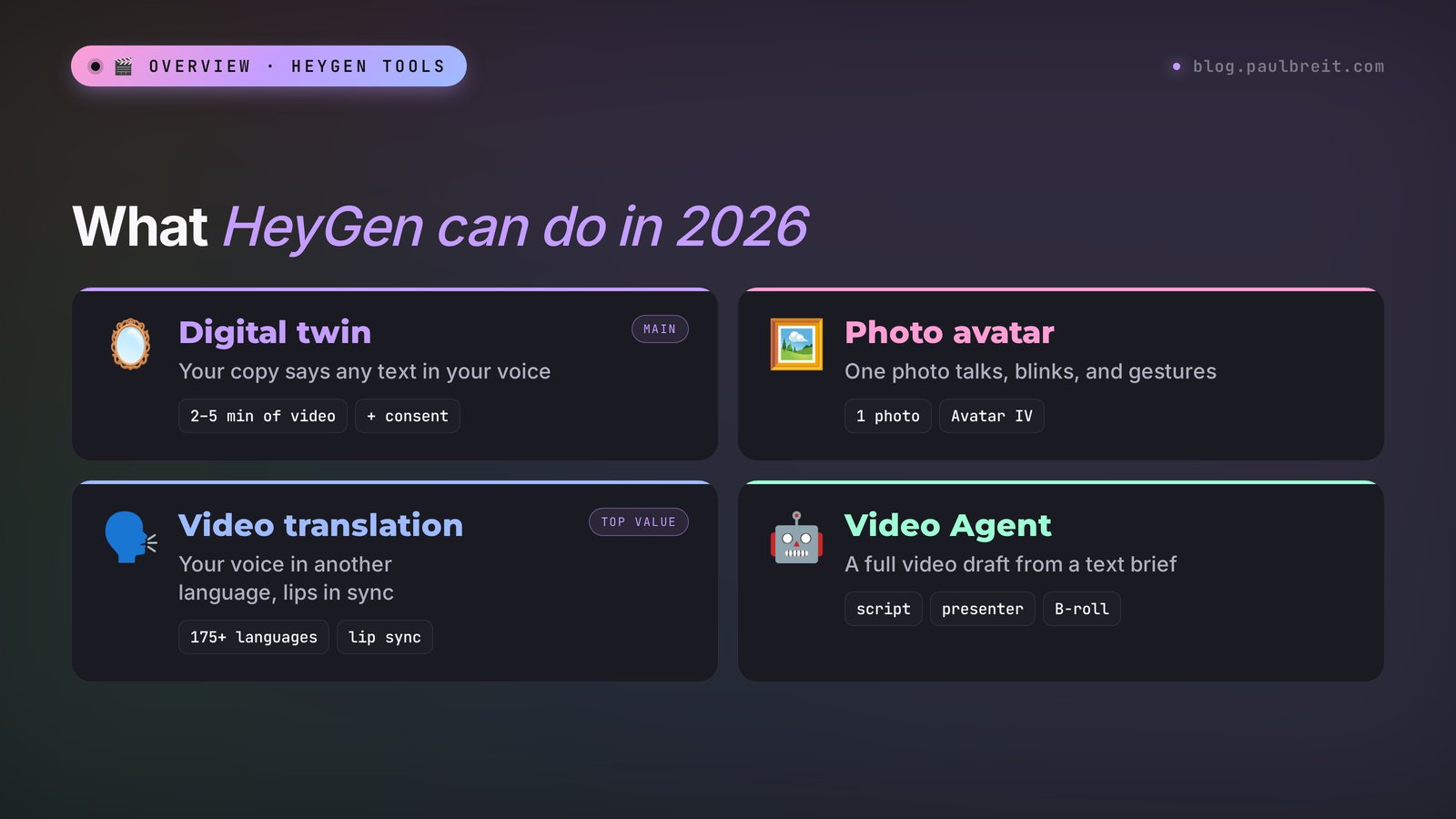
Over the last two years the service has grown a lot of tools. As of November 3, 2026, the pricing page lists the avatar engines Avatar III, Avatar IV, and Avatar V, HeyGen's own voice model HeyGen Voice, the video model HeyGen Video 1, and on the Pro plan also Seedance 2.5, Veo 3.1, and Nano Banana for regular video and image generation. Sounds like a zoo, but four things are enough to get started.
| Tool | What it does | What you need | When to use it |
|---|---|---|---|
| Digital twin | A copy of you that says any text in your voice | A 2–5 minute video of yourself and a consent recording | Regular videos, course lessons, answers to common questions |
| Photo avatar | Brings one photo to life: the person talks, blinks, moves their head and hands | One sharp photo and a script or audio | A quick video when you have no time to record yourself |
| Video translation | Re-voices a finished video in another language with your timbre and matches the lips | A finished video with good sound | Reaching a new audience with what you've already filmed |
| Video Agent | Builds a whole video from a text brief: script, presenter, B-roll | A couple of paragraphs describing the task | A first draft when you don't know where to start |
There are also stock presenters: 500+ ready-made avatars on the free plan and 700+ on paid plans – people of different ages and looks, in a studio, an office, or outdoors. They're handy for a first test before your own avatar is ready. For a personal brand, a stock presenter is a poor fit: your followers know your face and spot the swap right away.
HeyGen's interface is in English. Dozens of languages are available for voiceover and translation, so you can write the avatar's script in Spanish, French, or German, and the avatar will say it. Below I give the button names exactly as they appear on the site.
Section 02HeyGen for free: what you really get
HeyGen has a Free plan at $0, and it doesn't need a card. I checked the terms on the official page heygen.com/pricing on November 3, 2026:
- 3 videos a month. The counter resets once a month; unused videos don't roll over.
- Up to 1 minute each. That applies to both avatar videos and translations.
- With a watermark. The HeyGen logo sits in the frame, and only a paid plan removes it.
- One custom video avatar plus 500+ stock presenters, up to three photo avatars, and one voice clone.
- 30+ languages for voiceover and translation. Paid plans give you 175+ languages and dialects.
- Trial access to Avatar IV, Video Agent, and lip-synced translation. HeyGen's FAQ says plainly that access to these features on Free is limited and meant for trying the product before you buy.
What that means in practice. The free plan is enough to test three things: how close your twin looks to you, how your voice sounds in another language, and whether you like the result at all. For regular content it's too little: three minutes of video a month with a logo in the corner won't work for Reels.
First, translate a short piece of a real video of yours into another language, 30–40 seconds. You'll hear your cloned voice right away and see how lip sync works. Second, a 30-second video with your digital twin. Third, a photo avatar from your best portrait. After these three tests you'll know what you'd be paying for and whether it's worth it at all.
Section 03HeyGen plans and how credits work
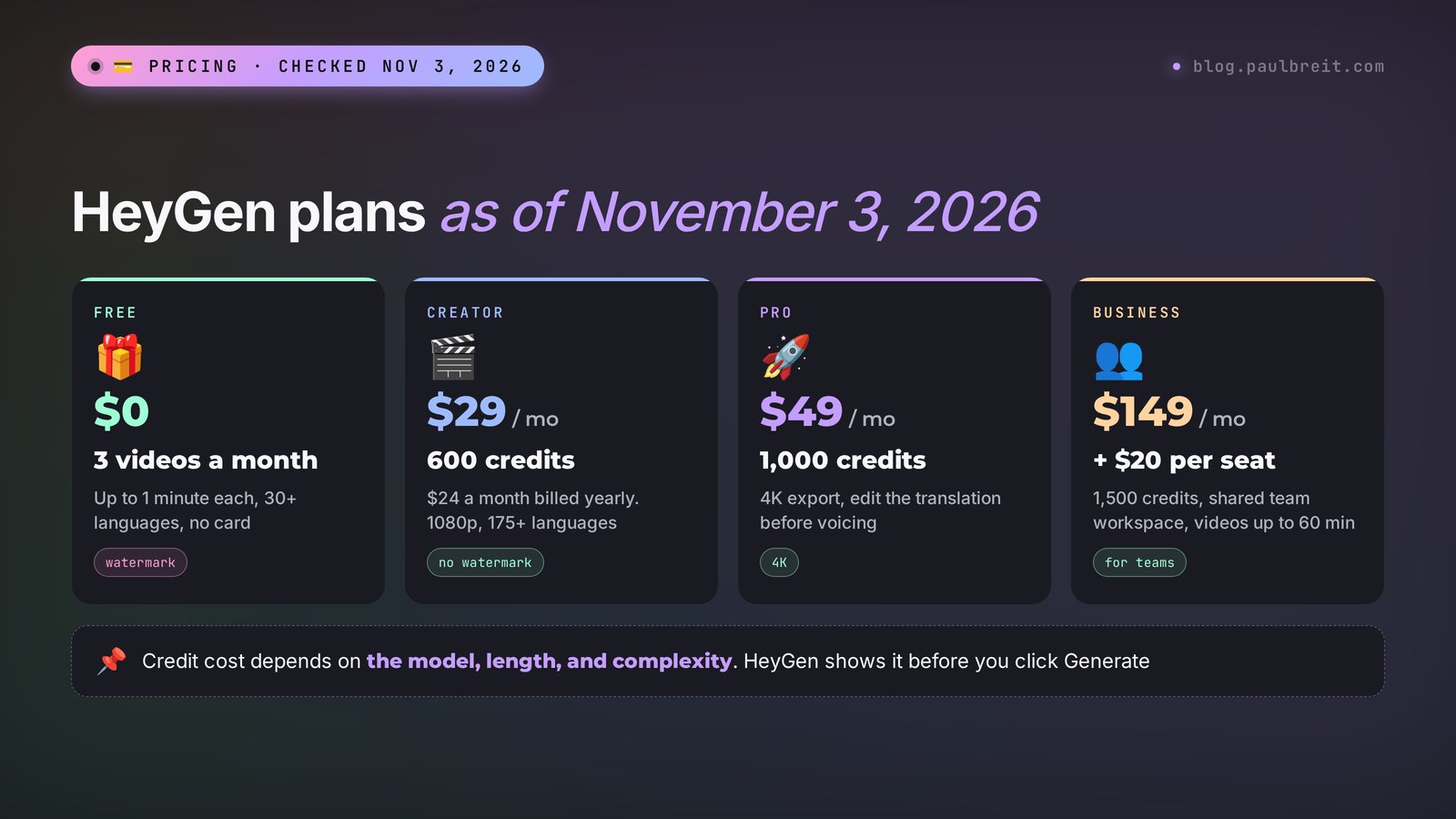
Since 2026, HeyGen's paid plans run on credits. Credits are a single in-app currency: you spend them on avatar videos, translation, and video and image generation. How many credits a given video takes depends on the model, the length, and the complexity of the task, and HeyGen shows the cost before you start. You can see it on the screenshot of the official page:
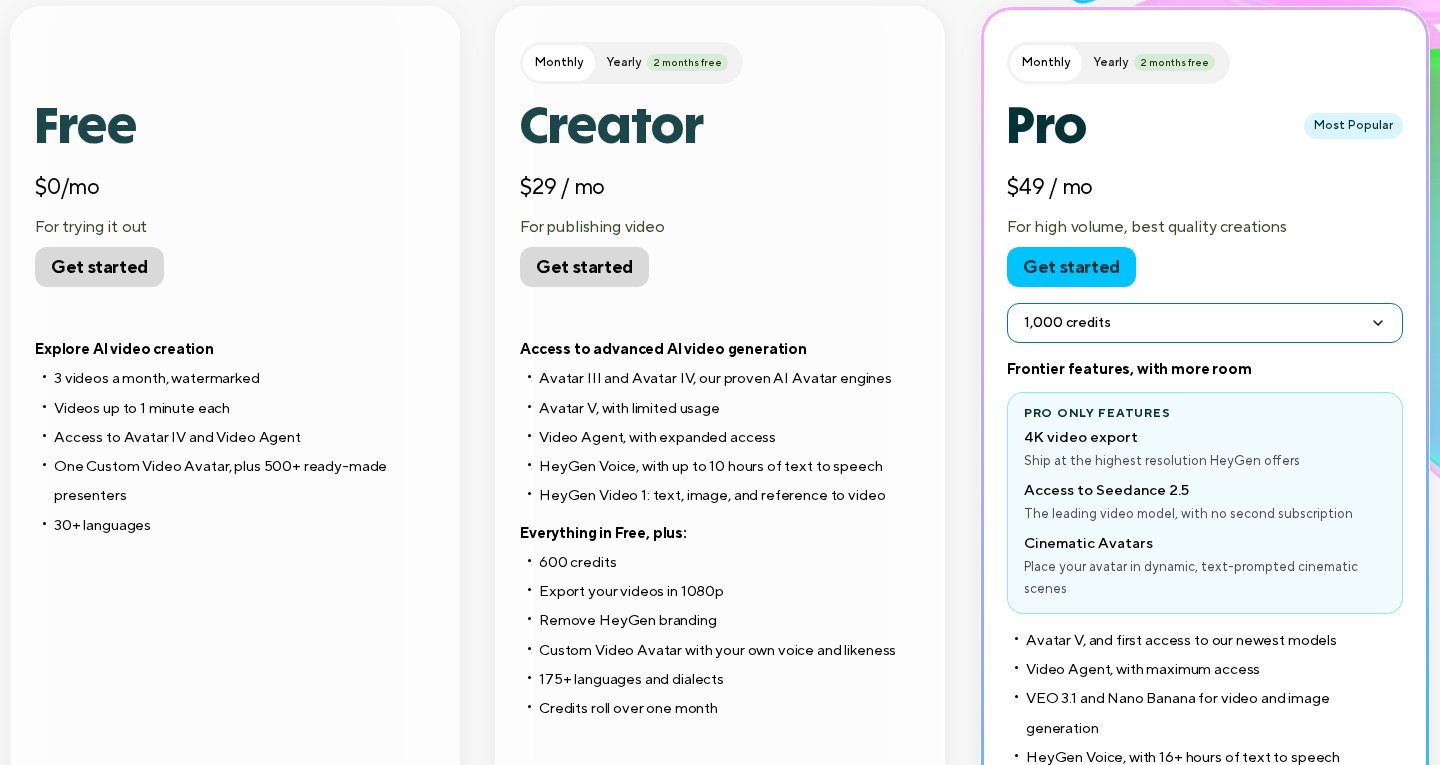
| Plan | Price | Credits a month | Video length | What matters |
|---|---|---|---|---|
| Free | $0 | – | up to 1 minute | 3 videos a month, watermark, 30+ languages |
| Creator | $29 a month, $24 billed yearly | 600 | up to 30 minutes | 1080p, no watermark, your own avatar with your voice, 175+ languages |
| Pro | from $49 a month | from 1,000 | up to 30 minutes | 4K, Avatar V, Seedance 2.5 and Veo 3.1, editing and proofreading of the translated script |
| Business | $149 a month + $20 per seat | 1,500 | up to 60 minutes | Shared team workspace, 5 custom avatars, integrations with Make, Zapier, and n8n |
| Enterprise | on request | by volume | no limit | Dedicated manager and contract |
A few details from the FAQ on the pricing page that save money:
- Credits roll over. On monthly billing, unused credits live one more month. On yearly billing they accumulate until the renewal date.
- Credits vanish after you cancel. The subscription runs until the end of the paid period, then the account drops to Free and the remaining credits disappear. Use them up before the period ends.
- Pro comes in tiers. The Pro plan has steps: from 1,000 credits for $49 up to 100,000 credits for $4,300 a month. The features are the same; only the number of credits changes.
- Yearly billing gives you two months free. For Creator, that's $24 a month instead of $29.
Which plan to choose. If you want to make 4–8 videos a month for social media and translate a video now and then, start with Creator. You need Pro in two cases: you translate long webinars and lessons and want to proofread the translated script before voicing, or 4K matters to you. Business is for online schools where several people work on the videos.
Section 04How to sign up for HeyGen
Signing up takes about a minute, and you don't need a card for the free plan. Here's the order that works.
Step 1. Sign up with Google
Open heygen.com, click Get started or Sign up, and choose to continue with Google. After you sign in, HeyGen asks a couple of questions about what you need videos for. The answers don't affect anything, and you can skip them.
Step 2. Pay for a plan when you need one
The free plan works without a card. For a paid plan, a regular credit or debit card is enough. Before paying, check whether the monthly or yearly toggle is on, and don't take a yearly plan until you've used the service for at least a month.
Step 3. Install the app if you work from your phone
HeyGen has apps for iPhone and Android. Recording the source video for your avatar on a phone is actually easier: most smartphone cameras beat a laptop webcam. Building the video, editing the script, and translating are more comfortable in a desktop browser, though: there are more settings, and you can see how many credits you're spending.
Section 05Your first video with a stock avatar: step by step
Start with a stock presenter. That way you'll learn the editor in ten minutes and see how HeyGen reads text, and only then spend time on your own twin.
1. Click Create video
The button is on the home page after you sign in. HeyGen offers a format: horizontal 16:9 for YouTube and lessons, or vertical 9:16 for Reels, Stories, and Shorts. Choose the format right away: you can turn a horizontal video into a vertical one later, but the presenter will end up cropped.
2. Choose a presenter
In the Avatars tab, open the library of stock avatars. Filter by gender, age, and setting. For a teaching video, pick a calm background: an office, a studio, a living room. A presenter on a beach looks great in a travel ad and wrong in a video about taxes.
3. Paste the script
Paste your script into the Script field. For the first try, 80–120 words is enough – roughly 40–50 seconds of speech, which fits the free plan's limit. Write the way you talk: short phrases, no parentheses, no abbreviations, no columns of numbers. The avatar will read abbreviations literally and stumble on them, so write words out in full.
4. Choose the voice and language
Every stock presenter has a default voice. If your script isn't in English, switch the voice to match: open the voice list, filter by your script's language, and listen to 2–3 options. If you leave an English voice on a Spanish script, you'll get speech with a heavy accent.
5. Add pauses and fix pronunciation
The script editor lets you insert a pause between phrases. Add one after every chunk of meaning, or the avatar rattles on without taking a breath. If the voice stresses a word wrong, respell it the way it sounds or swap it for a synonym. The most common slips are surnames, brand names, and foreign words inside your script.
6. Click Generate and check the result
Before you start, HeyGen shows the final length and the cost. A one-minute video is usually ready in a few minutes; long videos take longer. Watch it all the way through with the sound on, especially the first 3 seconds: if the avatar stumbles or stresses a word oddly at the start, viewers leave before they hear the point. Download the video with the Download button.
Section 06Digital twin: an avatar made from your video
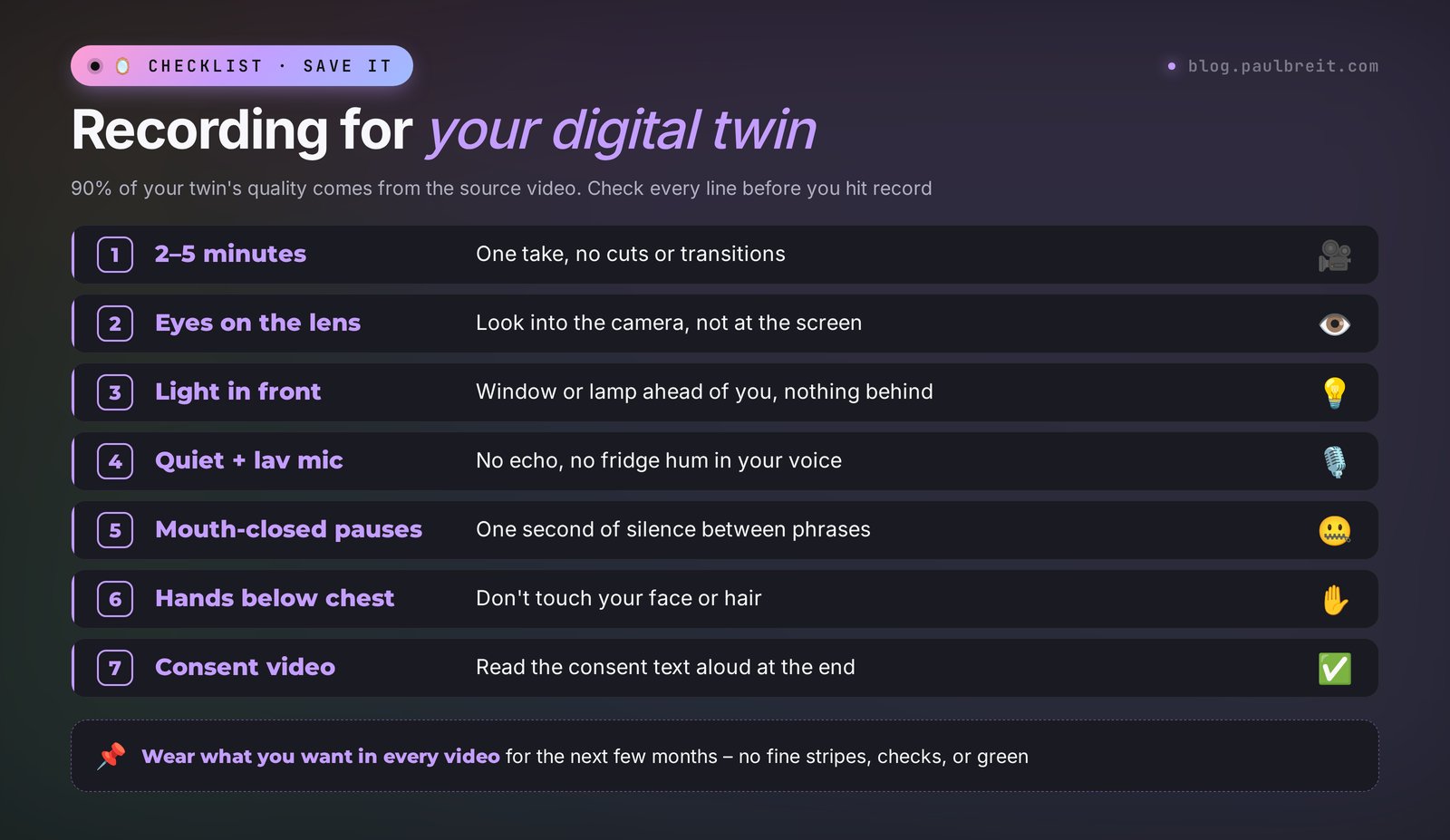
The digital twin is the main reason people who sell their knowledge come to HeyGen. You record yourself on video once, and then for months you publish videos from text. 90% of the twin's quality depends on the source recording, so I'll go through it in detail.
How to record the source video
- 2–5 minutes in one take. No cuts, edits, or transitions. Say anything: talk about your work or read any text. The model needs to see how your lips move on different sounds.
- Eyes on the lens. Look straight into the camera lens. If you look at the phone screen, your twin will look slightly past the viewer for the whole video.
- Light in front. The window or lamp is in front of you, with no light behind you. Shadows on half your face get carried into every future video.
- A quiet room and a lav mic. HeyGen takes your voice print from the same recording. The echo of an empty room and the hum of the fridge become part of your digital voice too.
- Pauses with your mouth closed. Between phrases, go quiet for a second and close your mouth. Then your twin can stay silent naturally instead of freezing with its mouth open.
- Calm hands. Keep your hands below your chest, and don't touch your face or hair. Gestures near the face cause artifacts: fingers blur and pass through the chin.
- Clothes and background without fine stripes or checks, and no green if you plan to replace the background. Wear what you want to appear in for every video over the next few months.
How to create your twin in HeyGen
Open Avatars, click Create avatar, and choose the video option. Upload the recording. Next, HeyGen asks for a consent video: you record yourself again and read a short text aloud saying you allow the avatar to be created. That's how the service guards against people who want to copy someone else's face. You can't make a twin of a well-known creator from their social videos, and that's the right call.
Processing takes anywhere from a few minutes to a couple of hours. Once the twin is ready, it shows up in your avatar list, and from there it works just like the stock presenter from the previous section: pick yourself, paste the script, click Generate. The free plan gives you one custom video avatar; on Creator you build an avatar with your own voice and look and export videos in 1080p with no watermark.
If your voice clone came out flat or metallic, record a separate 2–3 minute audio clip in a quiet room and upload it as the voice. Good sound for the voice matters more than a good picture for the face. If you want finer control over intonation, you can make a voice clone in ElevenLabs and add it to the video as an audio file. How to do that is covered in the guide to voiceover and voice cloning in ElevenLabs.
Section 07A talking video from one photo
A photo avatar is the fastest way to get a video with your face. You upload one portrait, add a script or audio, and HeyGen makes a video where the person in the photo talks, blinks, turns their head, and gestures. The Avatar IV engine handles this, and you can try it even on the free plan.
How to do it:
- Open Avatars and choose to create a photo avatar.
- Upload a photo: face straight on or at a three-quarter angle, eyes open, mouth closed, no sunglasses, no hands near the face. The larger the face and the less compressed the photo, the fewer artifacts.
- Paste the script and choose a voice. If you have a clone of your own voice, pick it. You can also upload ready audio, and the lips will follow the recording.
- For Avatar IV you can set gestures and mood with a short description, for example calm, friendly, small hand gestures. The free plan gives you 3 of these gesture controls a month, Creator gives you 20.
- Click Generate and check how the teeth, ears, and hair behave. Those are the places where a photo avatar gives itself away most often.
Where a photo avatar shines: short videos under a minute, answers to questions in Stories, live-stream announcements, a greeting in a chatbot. Where it loses to a twin: long lessons. By minute five, viewers notice the head cycling through the same few movements. For a course, record a video twin. If you just want an old photo to move without speech, see how to animate a photo with AI.
HeyGen forbids making avatars of people without their consent and bans accounts for videos with celebrities and other people's faces. For an ad featuring an "expert" you don't know, use stock presenters: HeyGen has permission for those.
Section 08Translating a video into another language in your voice
Translation is HeyGen's second star feature and, in my view, the best value. You don't reshoot anything. You take a webinar, lesson, or Reel that already worked in English and get it in Spanish, German, Portuguese, or another of 175+ languages. The voice keeps your timbre, and the lips move to the new words.
1. Open Video Translate
Find the video translation section on the home page. Upload a file from your computer or paste a link to the video. On the free plan the video must be under a minute; on Creator and Pro, up to 30 minutes; on Business, up to 60.
2. Choose the language and mode
Set the original language and the target language. Next comes a choice between translating audio only and translating with lip sync. Lip sync costs more and takes longer, but without it you can see the lips saying one thing while the audio says another. For a video with a close-up of a face, turn lip sync on. For a video where the speaker is small in the corner of the frame or the voice is off-screen, audio translation is enough.
3. Set the number of speakers
If there are two people in the video, such as an interview or a session with a client, set it to 2. Otherwise HeyGen will voice both of them with the same voice.
4. Proofread the translation before voicing
On the Pro plan you can open the translated script, fix it, and only then start the voiceover. That saves a lot of credits: a mistake in a product name or a term is easier to fix in text than by redoing the video. Creator doesn't have this editing step, so check in advance that the original has clear diction and no background music over the voice.
5. Run it and check
Watch the result with someone who speaks the language. Machine translation can be formally correct and still sound like a textbook. If you're translating into Spanish for a Latin American audience, ask a native speaker to check that it doesn't read like a word-for-word translation.
Three tips that make the translation sound alive
- Remove music under the voice. HeyGen separates the voice from the background, but loud music still creeps into the translation as crackle. If you have a version without music, translate that, and add the music back later in your editor.
- Speak shorter in the original. Spanish and German usually run longer than English. To fit the timing, HeyGen speeds up the speech, and on screen you start rattling. If you plan to translate, write the script in short phrases with pauses.
- Set up a glossary. Paid plans include a brand glossary: you add product names, people's names, and terms that must not be translated. For example, the name of your course.
Section 09Let Claude write the avatar's script
The weakest spot in avatar videos is the text. Paste a paragraph from a post into HeyGen, and the avatar will read it evenly and dully, like a train station announcer. A script for voiceover is written differently: short phrases, one thought per phrase, pauses, conversational words. This is an easy job to hand to Claude. If you haven't worked with it yet, start with Claude from scratch; you can sign up at claude.ai.
A prompt you can copy and adapt:
Write a 60-second video script for a HeyGen talking avatar. I'm a therapist who works with adults dealing with anxiety. Topic: why anxiety gets worse in the evening and what to do about it tonight. Speak in the first person and address the viewer as "you." Simple words, every phrase under 12 words, no jargon, parentheses, or abbreviations. The first 3 seconds are a hook so the viewer doesn't scroll past. At the end, invite them to send me the word "evening" in a direct message to get a free consultation. Mark pauses with "/". No more than 140 words in total.
You hold it together all day, but by evening it hits? / Nothing is wrong with you. / That's how the body works.
During the day, work, people, and calls keep you busy. / In the evening it gets quiet. / And everything you put off arrives at once. / Plus, you're tired: / a tired brain is worse at stopping anxious thoughts.
Here's what you can do tonight. / First: an hour before bed, write down everything spinning in your head. / Just a list. / Thoughts on paper get quieter. / Second: put away the news and work chats after 8 p.m. / Third: breathe out slowly. / In for a count of four, out for six. / Five times in a row.
If anxiety shows up every evening, / you can work with it. / Send me the word "evening" in a direct message. / I'll go through your situation in a free consultation.
What worked: the question hook in the first line, short phrases the avatar says without stumbling, and concrete actions instead of general advice. What I'd fix before loading it into HeyGen: "Plus, you're tired" is better split into two phrases with a pause, or the avatar swallows the transition. You don't need to paste the "/" marks into HeyGen; put a pause in the editor in their place. And time it yourself with a stopwatch: 140–150 words in English is roughly a minute of calm speech.
Two more prompts that come in handy:
- Prep for translation: "Here's the transcript of my video in English. Rewrite it 15% shorter, keep the meaning and my words, and split long sentences into short ones. The video will be translated into Spanish, and the speech must not speed up."
- A series of videos: "Here are 10 common questions from my clients. Turn each one into a 40-second avatar script: a hook, the answer in three steps, and an invitation to send me a direct message. One topic per video."
More ready prompts for video are collected in AI video prompts, and ideas for a whole month of videos are in AI for Reels: 30 scripts in one evening.
Section 10Avatar video ideas for different niches
An avatar shines wherever you need many similar videos with the same person in the frame. Here's where it saves the most time:
| Niche | What to make in HeyGen | Which tool |
|---|---|---|
| Therapist, coach | Answers to common client questions, one video per question, 40–60 seconds | Digital twin |
| Nutritionist, fitness trainer | Short daily tips: breakfast, workout of the day, a product breakdown | Twin or photo avatar |
| Tutor, language teacher | A rule explained in two languages, an exercise video | Twin + translation |
| Online school | Course lessons with the same presenter, updating outdated lessons without a reshoot | Twin, Business plan for the team |
| Lawyer, accountant | Law changes and filing deadlines; the videos can be updated with text | Digital twin |
| Anyone with an audience abroad | Your best webinars and Reels translated into Spanish and Portuguese | Video translation |
| Producer, marketer | A personal video greeting in a chatbot or after payment | Photo avatar |
Where you don't need an avatar: personal stories, behind the scenes, emotions, and arguments in the comments. There viewers want to see the real you, mistakes and laughter included. A good split: the avatar for useful and teaching videos, live video for everything personal. You can combine the avatar with live footage, graphics, and captions in any video editor. For other ways to make video from a text prompt, see AI video from text.
Section 11If something goes wrong
| Problem | Why | What to do |
|---|---|---|
| The twin looks past the camera | You looked at the screen in the source video | Re-record the source video looking into the lens |
| The lips move oddly, artifacts around the mouth | Poor light or gestures near the face in the source | Light in front, hands below the chest, pauses with the mouth closed |
| The voice sounds metallic or echoey | Room echo got into the voice print | Record a separate clean 2–3 minute audio clip on a lav mic |
| The script is read with an accent | The voice's language doesn't match the script | Filter voices by your script's language and pick another |
| Wrong stress or pronunciation | The model doesn't know the word | Respell the word the way it sounds or swap in a synonym |
| The translated speech is too fast | The translation is longer than the original | Cut the source text by 10–15% and translate again |
| HeyGen won't let you create an avatar | The consent video didn't pass | Re-record the consent in good light, reading the whole text into the camera |
| Credits ran out before the month ended | Lots of regenerations and long videos | Make a 15-second test first, then the full video |
Section 12HeyGen, ElevenLabs, and AI video tools: what's for what
HeyGen often gets compared with services that solve neighboring tasks. In practice they complement each other well.
| Service | Strength | When to use it |
|---|---|---|
| HeyGen | A talking person on screen, your own twin, video translation with lip sync | Teaching videos, lessons, translating finished videos |
| ElevenLabs | Voice: voiceover, voice cloning, audio-only dubbing | Podcasts, off-screen narration, a finely tuned voice for an avatar |
| Kling | Scenes and motion from text or a photo | B-roll, ad scenes, bringing a photo to life without speech |
| Hailuo | Short clips with sound built in | Atmospheric shots with sound for Reels |
| Veo 3 | Google's video with dialogue and sound | Story scenes with characters who talk |
A working combo looks like this: Claude writes the script, HeyGen makes the video with your twin, Kling or Hailuo provide 3–5 second B-roll shots, and you do the final cut with captions in your editor. One video like that comes together in 20–30 minutes, and you don't have to set up lights or sit in front of a camera.
Section 13The whole path in one minute
- Sign up at heygen.com with your Google account.
- Spend the 3 free videos on tests: a translation of your own video, a twin, a photo avatar.
- Record the source for your twin: 2–5 minutes, eyes on the lens, light in front, quiet, pauses with your mouth closed.
- Create the avatar and record the consent video.
- Ask Claude to write a 60-second script in short phrases with pauses.
- Create video → your avatar → script → voice in your script's language → pauses → Generate.
- For translation: Video Translate → language → lip sync → a check by a native speaker.
- More than three videos a month – the Creator plan at $29; for proofreading translations and 4K – Pro at $49.
FAQFrequently asked questions
Is HeyGen free?
HeyGen has a free plan, but with limits. The Free plan costs $0 and needs no card: 3 videos a month, up to 1 minute each, with a watermark, one custom video avatar, and 30+ languages. Avatar IV, Video Agent, and lip-synced translation are available on the free plan in a limited trial mode. Terms checked on heygen.com/pricing on November 3, 2026.
How do I sign up for HeyGen?
Open heygen.com, click Get started or Sign up, and continue with your Google account. The free plan works without a card. For a paid plan, a regular credit or debit card is enough. HeyGen also has apps for iPhone and Android.
How much does HeyGen cost?
As of November 3, 2026: Creator is $29 a month or $24 billed yearly, 600 credits; Pro is from $49 a month, 1,000 credits; Business is $149 a month plus $20 per seat, 1,500 credits. Credit cost depends on the model, length, and complexity of the video, and HeyGen shows it before you start.
What languages does HeyGen support?
The free plan covers 30+ languages for voiceover and translation, and paid plans cover 175+ languages and dialects. The avatar can say a script in Spanish, French, German, and dozens of other languages. The site interface is in English. For a script that isn't in English, pick a voice in that language, or you'll get an accent.
How do I translate a video into another language in my own voice?
Open Video Translate, upload the video, choose the original language and the target language, turn on lip sync, and run it. HeyGen keeps the timbre of your voice. For a clean result, use a video without music under the voice, and have someone who speaks the target language check the translation.
Can I make an avatar of another person?
Only with their consent. When you create a video avatar, HeyGen asks for a consent video where the person says out loud that they allow a copy of themselves. The service's rules forbid avatars of celebrities and people who haven't consented. For ads without your own face, use stock presenters.