Kling AI: video from a photo or text in 2026
Kling is an AI that turns a text description or a single photo into a video with sound, up to 15 seconds long. In 2026 it's one of the strongest video generators around: it holds faces better than most, motion comes out natural, and you get free credits every day. Below: how to sign up, what it costs, how to make your first video from text and from a photo, how to write prompts, and how to avoid burning credits for nothing. For everyone who sells services, courses, and coaching or consulting and wants reels, covers, and ad clips with no film crew and no editor.
Kling is an AI video generator from Kuaishou. Go to klingai.com, sign up with email or Google, open the video section, and pick a mode: text to video or photo to video. Describe one scene and one main movement, for example "a woman at a desk lifts a cup and smiles at the camera, the camera slowly pushes in, soft daylight," choose 5 seconds and 9:16, and hit Generate. A couple of minutes later the clip is in your history. You get 66 free credits a day; for clips without a watermark and for ads you need a paid plan from $6.99 a month.
Kling helps anyone who needs a short, lively clip without a shoot: a therapist making a calm, atmospheric reel, a nutritionist showing off dishes, a coach making a cover for a live session, a tutor animating a lesson intro, a service business running social ads. If you're still choosing a tool, start with the overview AI video from text, and if all you need is to bring a picture to life, there's a separate roundup on how to animate a photo with AI.
What's inside
- What Kling is in 2026
- What Kling costs: free and paid plans
- Signing up and paying
- The Kling interface in two minutes
- Your first video from text, step by step
- Video from a photo: bring a picture to life
- The prompt formula and 12 ready prompts
- Start and end frame, multi-shot, and extend
- Sound, speech, and lip sync
- Let Claude write your Kling prompts
- Where Kling clips pay off: 10 scenarios
- How not to burn your credits
- When something goes wrong
- Kling vs other AI video tools
- Pre-publish checklist
- The whole path in a minute
- FAQ
You know the feeling. A reel needs to go out, there's no time to film, the light outside is gray, and all you have ready are a couple of photos from your last shoot. You could hire a videographer and wait a week. You could stitch the photos into a slideshow nobody watches to the end.
Kling closes that gap in one evening. You upload a photo or describe a scene in words, and the AI makes a real clip: a person turns their head and smiles, steam rises over a cup, the camera glides around a desk with your materials on it. With sound and speech, if you need them. These clips look like an expensive shoot, and people watch them to the end in the feed.
I'll walk through Kling so you can make your first clip while you read. Inside: how to sign up and pay, what credits actually cost, step-by-step instructions for video from text and from a photo, a prompt formula and 12 ready prompts for different tasks, working with sound, 10 business scenarios, and a big section on common glitches. Read in order or jump to what you need from the table of contents.
Section 01What Kling is in 2026
Kling is an AI video generator from the Chinese company Kuaishou. It's the same company behind the Kuaishou video platform, China's second-largest short-video service after Douyin. They have huge experience with short vertical video, and it shows: Kling is especially good at exactly what reels need.
The first version came out in summer 2024. The model has been updated several times since, and Kling 3.0 launched in February 2026. Over the summer it gained a fast, cheaper Turbo version and an Omni mode that can edit a finished video from a text command.
What Kling can do as of fall 2026:
- Video from text. You write what should happen in the frame, and the AI films it from scratch.
- Video from a photo. You upload a picture and it comes alive: people move, fabric sways, the camera travels.
- 3 to 15 seconds per generation. After that you can extend the clip a few seconds at a time.
- Sound with the picture. Footsteps, café noise, splashing water, even a character's speech with lips moving in sync.
- Start and end frame. Give it two photos, and Kling makes a smooth transition from one to the other.
- Multi-shot. Several shots in one clip, following your storyboard, like real editing.
- Character references. Upload a photo of a person or an object, and it stays recognizable across different scenes.
- Motion transfer. Take a video with a dance or a gesture, and Kling repeats that movement on your character.
- Images. There's an image generator inside too, handy for making the starting frame of a future video.
Why people who make clips every day love Kling. It keeps the face from the source photo better than most competitors, facial expressions look natural, and hands and fingers break less often than a year ago. Price is another strength: a second of Kling video usually costs less than in Google Veo or Runway, at comparable quality.
It has weak spots too, and it's fair to name them. Scenes where many people move at once sometimes turn into mush. The physics of tricky objects, like juggling or pouring liquid from one container to another, comes out with mistakes. Kling draws text inside the video poorly, so add captions while editing. And the free tier is slow: at peak hours a clip can sit in the queue for dozens of minutes.
Section 02What Kling costs: free and paid plans
Everything in Kling runs on credits. Each clip deducts them from your balance, and the price depends on three things: which model, which resolution, and how many seconds. Sound and speech add to the price. One handy detail: Kling shows how many credits a generation will take right on the Generate button, before you run it. So there are no surprises.
| What | Free | Paid plans |
|---|---|---|
| Price | $0 | from $6.99 a month for the entry Standard plan; the higher Pro, Premier, and Ultra plans cost more |
| Credits | 66 a day, expire by the next day | a monthly bundle (about 660 on Standard), expires after 31 days |
| Quality | basic resolution | 1080p, up to 4K on higher plans |
| Watermark | yes | no |
| Commercial use | no | yes |
| Queue | slow at peak hours | priority |
| Extend and multi-shot | partly | yes |
Here's what that means in plain terms. On Kling 3.0 at 1080p, a second of video without sound costs about 8 credits, with sound about 12. So a 10-second clip with sound runs roughly 120 credits. At 720p it's cheaper: about 6 credits per second without sound. The Turbo version is cheaper still, which makes it handy for drafts. The numbers change with every update, so go by the Generate button.
Is the free tier enough? To try it out and see whether it's your tool, yes. 66 credits a day gets you a couple of short clips in basic quality. For steady work it falls short: there's a watermark in the corner, the resolution is weak for ads, and under the service's rules free clips can't be used commercially. If you plan to run a clip in ads or put it on a sales page, get a paid plan.
Kling often discounts the first month, and paying yearly brings the monthly price down noticeably. Start with a monthly Standard plan: within a month you'll see how many clips you actually make. Then decide whether you need a bigger plan. Free credits don't roll over: skip a day, and that day's 66 are gone.
Section 03Signing up and paying
Getting started takes three things: open the site, create an account, and pay if you need a plan. All three are straightforward.
The site. The official address is klingai.com. Bookmark it so you always land on the real thing.
Signing up. You can sign in with Google, Apple, or a regular email address. With email, you'll get a confirmation code; if it doesn't arrive within a few minutes, check your spam folder.
The app. Kling has apps for iPhone and Android in the App Store and Google Play. The account is shared: clips you make on your phone show up on the website and vice versa.
Paying. There are two simple ways:
- a regular bank card on the website;
- a subscription through the App Store or Google Play, billed to the card or balance already linked to your phone.
Search results are full of sites with names like "Kling AI online free, no sign-up." Some of them are honest aggregators that connect to Kling through its official developer access. Others take your money and hand you clips from older, cheaper models. If you use an aggregator, check that it says Kling 3.0 specifically and compare its price per second with the official one. There's only one official site: klingai.com.
Section 04The Kling interface in two minutes
The interface is simple once you know where things are. I'll use the button names exactly as they appear, so you can find them easily.
- Home – a feed of other people's clips. Useful for inspiration: on many of them you can open the prompt and see how the author described the scene.
- AI Video – the main section. Inside are the tabs Text to Video and Image to Video, plus access to frames, references, and extend.
- AI Images – the image generator. You need it to make a good-looking starting frame when you don't have a photo of your own.
- Assets – your history: every clip and image you've made. This is where you download finished work.
- Credit balance – top right. Click it to see how much is left and when it expires.
The generation window always has the same settings. Model (pick the latest, Kling 3.0, or Turbo for drafts). Quality mode. Clip length in seconds. Aspect ratio: 9:16 for reels and stories, 16:9 for YouTube and your website, 1:1 for the feed. A sound toggle. And the prompt field, where you describe the scene. Below it there's sometimes an extra Negative prompt field – that's where you list what should not appear in the frame.
Section 05Your first video from text, step by step
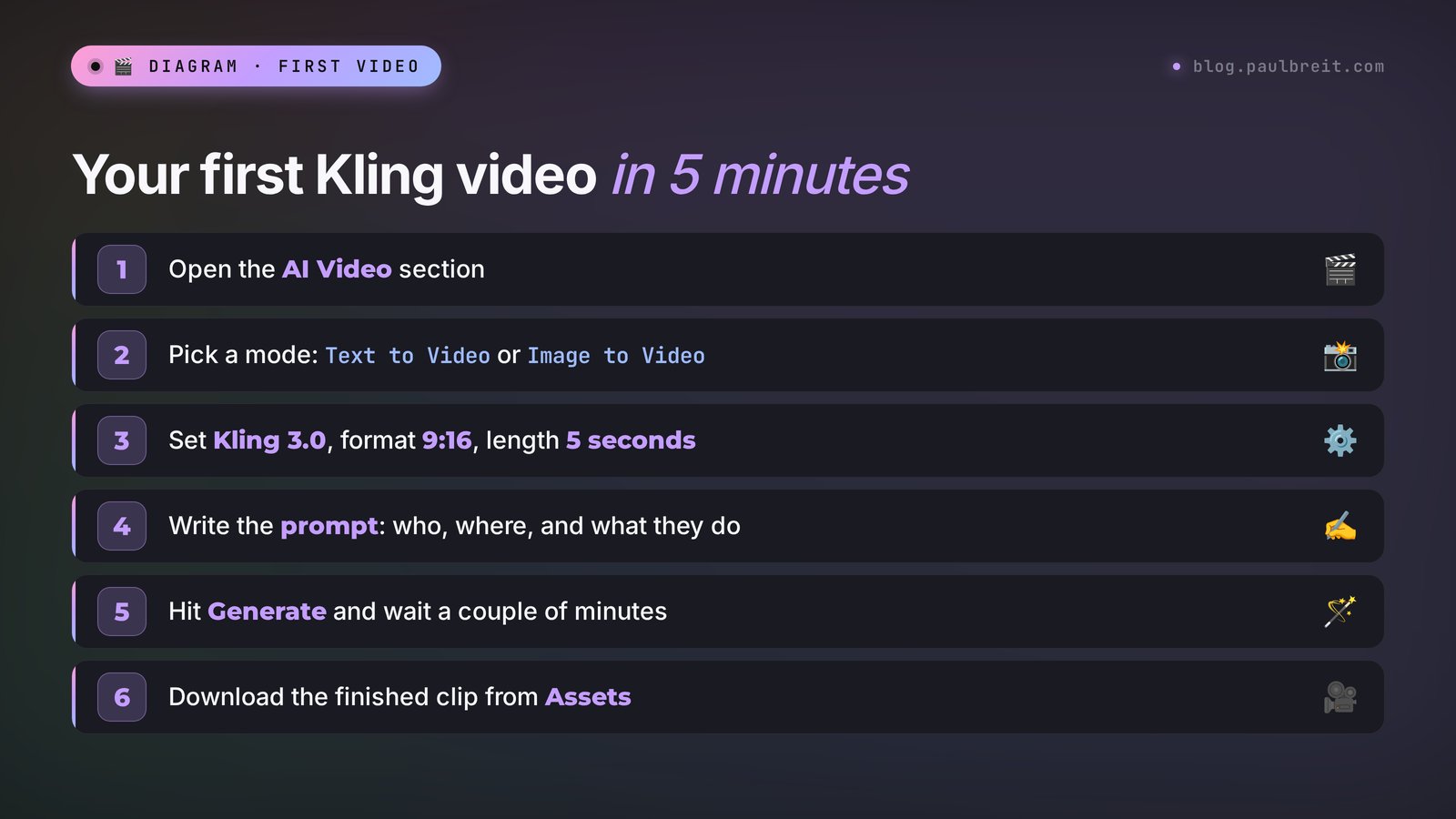
Let's start with the simplest case: a clip made entirely from a description. A task almost anyone can use: an atmospheric opener for a reel about your morning routine or workday.
Open the video section
Go to klingai.com, sign in, and click AI Video. Choose the Text to Video tab. Check the model at the top of the window: it should say Kling 3.0 or Kling 3.0 Turbo.
Set the format and length
For reels, choose 9:16. For your first try, set 5 seconds: you spend fewer credits and see the result faster. Leave sound off for now; we'll get to it later.
Write the prompt
One scene, one main movement, camera movement, light, and style. Write in English: Kling understands other languages too, but English gives the most accurate results. If writing prompts feels like a chore, you can hand it off to another AI – I'll show how below.
Run the generation
Look at the Generate button: it shows how many credits the clip will take. Click it. The clip goes into the queue; on a paid plan it's usually ready in 1–3 minutes, on the free tier it takes longer at peak hours. You can close the tab – the finished clip will appear in Assets.
Review it and make a second version
Every generation comes out a little different. If the first clip almost works but something's off, don't rewrite everything from scratch: change one detail in the prompt and run it again. Usually one out of three or four tries turns out the way you pictured it.
You type into Kling: A cozy home office in the morning. A woman in a beige sweater sits at a wooden desk, opens a notebook and takes a sip of coffee, then looks out of the window and smiles. Steam rises from the cup. The camera slowly pushes in. Soft warm sunlight from the window, shallow depth of field, cinematic, realistic.
What you get: a five-second vertical clip. The woman opens her notebook, takes a sip, turns to the window, steam rises over the cup, the background is softly blurred, and the camera slowly moves closer. A clip like this works as a background for reel text about planning your day, morning habits, or working for yourself.
Why it worked. "A cozy home office in the morning" sets the place and time. The description of the woman is short, with no extra detail. The actions follow one sequence and fit into 5 seconds: opened, sipped, looked, smiled. Steam over the cup is a small detail that makes the frame feel alive. Camera and light set the mood, and "realistic" keeps it from going cartoonish.
A common beginner mistake is cramming a whole movie into 5 seconds: "she wakes up, walks to the kitchen, makes coffee, sits down to work, calls a client." Kling will try to fit it all in and give you a frantic montage. One or two actions per 5 seconds, three or four per 10 – that's a comfortable pace.
Section 06Video from a photo: bring a picture to life
For business, this mode is more useful than text. You take a real photo of yourself, and the clip stays you: your face, your clothes, your office. No swap for a generated stranger.
Pick a photo
Photos come alive best when the face is clearly visible, the light is even, and there's a little space around the person. A crop that cuts off right at the chin or a shot taken against the sun gives strange results. Higher resolution is better, but a phone photo is enough.
Upload it to Image to Video
In the AI Video section, choose the Image to Video tab and drag the photo into the window. Set the clip's aspect ratio to match the photo: a vertical photo means 9:16. If they don't match, Kling fills in the edges itself, and that's where oddities tend to appear.
Describe only the movement
Kling can see what's in the photo on its own. Describing the person's appearance again only confuses it. Write what should move and how: a head turn, a smile, a hand gesture, wind in the hair, camera movement. And always add a line saying the face and clothes stay exactly as in the photo.
Run it and check the face
The main thing to check in the finished clip is the face in the last second. Sometimes the features "drift" a little toward the end. If that happens, cut the clip down to 5 seconds or remove strong head movements from the prompt.
You upload: your own portrait at your desk, vertical, daylight.
You type into Kling: The person in the photo looks up from the laptop, turns to the camera and gives a warm, natural smile, then nods slightly. Hair moves a little. The camera slowly pushes in. Keep the face, hairstyle and clothes exactly as in the photo. No other people, no text.
What you get: a five-second clip where you look up from your laptop, turn to the viewer, and smile. It works as the opening frames of a reel with a hook like "Three things I'd do differently if I were starting today."
The same trick works with objects. A photo of your book or workbook on a desk: "the camera slowly orbits the book, the pages flutter slightly in the breeze, warm lamp light." A photo of a dish: "steam rises over the plate, a drop of sauce slowly slides down, the camera smoothly moves closer." A photo of your office: "a sunbeam slowly moves across the wall, the curtain sways." Clips like these make great reel covers and backgrounds for story text.
Only animate your own photos or ones you have the rights to. A client's photo – only with their written consent. Kling blocks requests involving famous people and explicit content, but responsibility for whose face you animate is still yours.
Section 07The prompt formula and 12 ready prompts
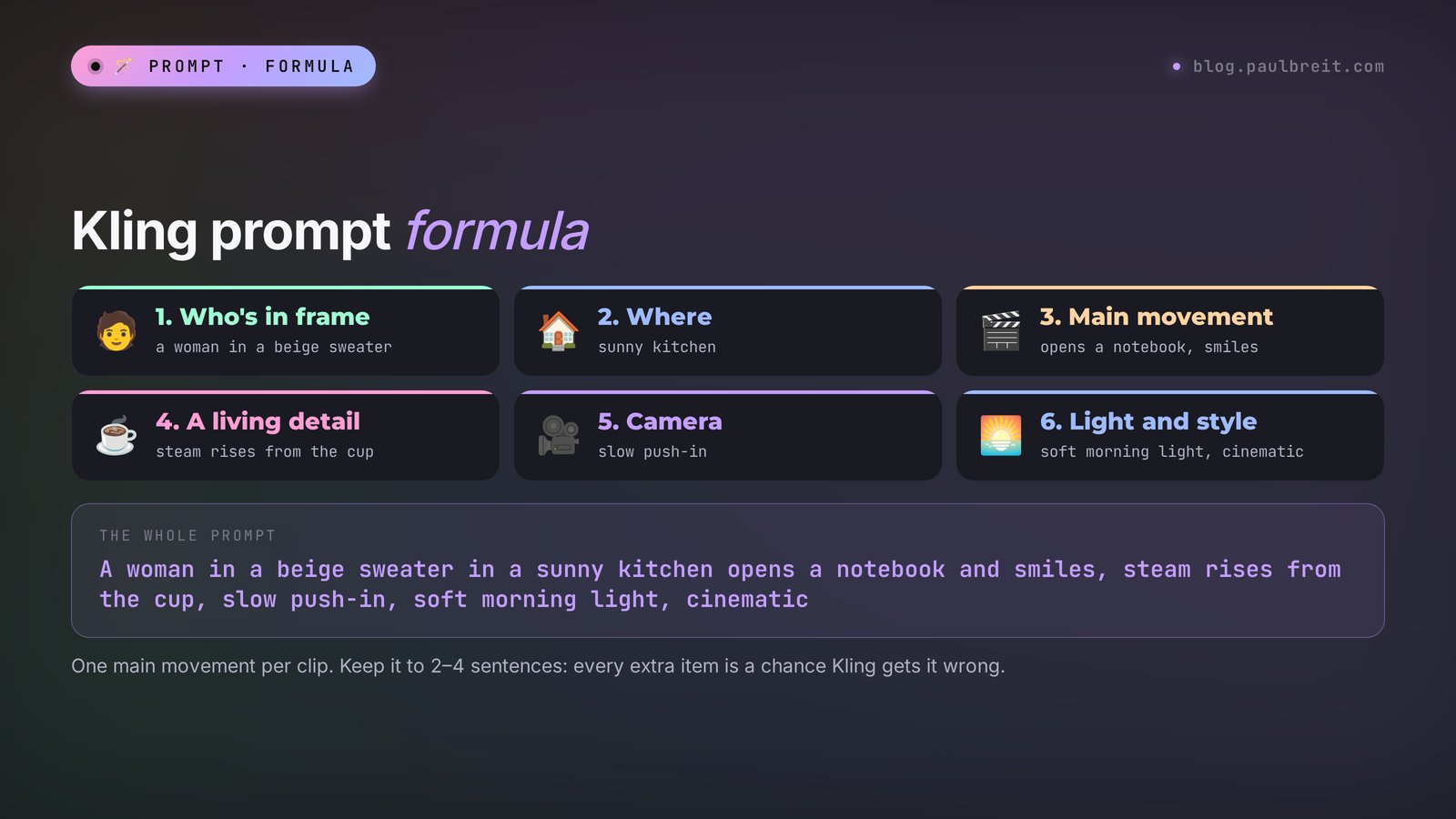
A video prompt differs from an image prompt. In an image you describe a frozen moment; in a video you describe what changes over time. That's why movement is the heart of a Kling prompt. Here's a formula that works almost every time:
| Block | What to write | Example |
|---|---|---|
| Who or what is in frame | The main character or object, briefly | a woman in a beige sweater |
| Where | Place and time of day | at a wooden desk in a sunny kitchen |
| Main movement | One or two actions, in order | opens a notebook, then smiles at the camera |
| A living detail | A small secondary movement | steam rises from the cup |
| Camera | How the camera moves | slow push-in / slow orbit / static shot |
| Light and style | The mood of the frame | soft morning light, cinematic, realistic |
Six blocks, usually 2–4 sentences. You can write more, but every extra item is a chance Kling misreads it. For camera movement, keep a short glossary handy: slow push-in (moving closer), pull back (moving away), orbit (circling around), pan left/right (turning the camera), tracking shot (the camera follows the character), static shot (the camera stays put), handheld (a slight shake, like filming by hand).
Below are 12 prompts for common tasks. Copy them and swap in your own details.
| Task | Prompt |
|---|---|
| Reel opener for a therapist | A calm therapy room with a soft armchair and a plant, afternoon light through linen curtains, curtains move gently, slow push-in, warm and peaceful, realistic. |
| Nutritionist, a dish | A bowl of colorful salad on a wooden table, a hand drizzles olive oil over it, light reflections on the oil, slow orbit around the bowl, bright natural light, food commercial style. |
| Coach, live session promo | A man in a blue shirt stands on a small stage with a microphone, raises his hand to greet the audience, soft spotlight, audience silhouettes blurred, slow pull back, cinematic. |
| Tutor, lesson intro | A notebook on a desk, the pages turn by themselves in a light breeze, colored pencils roll slightly, top-down shot slowly zooming in, cozy daylight. |
| Fitness trainer | A woman finishes a squat in a bright gym, stands up and smiles, sweat shines on her forehead, tracking shot from the side, energetic, realistic. |
| Nail artist | Close-up of hands with fresh glossy manicure placed on a marble table, fingers move slightly, light glides over the nails, macro shot, slow push-in, beauty commercial. |
| Selling a course, cover | A laptop on a desk shows a video lesson, a cup of tea steams next to it, rain on the window behind, slow push-in to the screen, cozy evening light. |
| Travel, lifestyle | A person walks along a narrow street of an old European town at sunset, back to the camera, pigeons fly up, tracking shot from behind, golden hour, cinematic. |
| Animate a portrait | The person in the photo blinks, turns slightly to the camera and smiles, hair moves a little, slow push-in, keep the face and clothes exactly as in the photo. |
| Object, product | A glass jar of honey on a kitchen table, a honey dipper slowly lifts and honey flows down, sunlight through the jar, slow orbit, macro, realistic. |
| Mood background for text | Ocean waves gently roll onto an empty sandy beach at dawn, soft pink sky, static wide shot, calm, realistic. Leave empty space in the upper part of the frame. |
| "Before and after" transition | A cluttered desk with papers gradually becomes clean and organized, objects slide into place, static top-down shot, bright daylight, satisfying. |
Note the "Mood background for text" prompt. The line about empty space at the top of the frame leaves room for a caption you'll add later in editing. Without it, Kling likes to fill the frame with details from edge to edge.
A word on the Negative prompt field. That's where you write what shouldn't be there: "text, watermark, extra fingers, distorted face, blurry." It doesn't always help, but it cuts down on failed clips, especially ones with people.
Section 08Start and end frame, multi-shot, and extend
Once you've got the basic modes down, these tools give you more control over what happens in the clip.
Start and End Frame. You upload two images, and Kling builds the movement between them. It's the easiest way to get a predictable result. Examples: a photo of an empty desk and a photo of the same desk with your course materials laid out – a clip where everything lands in its place. A photo before a renovation and after. A photo of a closed box and an open one with your product inside. The closer the angle of the two frames, the smoother the transition.
Multi-shot. Several shots in one generation, like in editing: a wide shot, a close-up, a detail. You describe each shot on its own line, and Kling assembles them into one clip while keeping the character and setting. Here's a sample breakdown for 10 seconds:
Shot 1: Wide shot. A woman enters a bright cafe and sits at a table by the window.
Shot 2: Close-up. She opens her laptop, the screen lights up her face.
Shot 3: Detail shot. Her hand writes "Plan for today" in a notebook, a coffee cup next to it.
Multi-shot saves time on stitching and makes the clip look like real footage. It also brings more errors: the more shots, the higher the chance the character changes in one of them. Three shots per 10 seconds is a comfortable limit.
Extend. Like the clip and want it to keep going? Click Extend under the finished clip and describe what happens next. Kling adds a few more seconds while keeping the scene. You can stretch a story to a minute or longer this way, but each extension builds up a little distortion: by the third or fourth step, hands and small details break more often. For reels, one extension is usually enough.
Elements (references). You upload photos of a person, an object, or a place, and Kling uses them as "actors" in a new scene. Handy when you need a series of clips with the same character: your brand mascot, for example, or your logo mug in different settings.
Motion Control. You upload a short video with a movement – a "look over here" gesture or a dance step – plus a photo of a character. Kling repeats the movement with your character. Useful for trending reels where everyone copies the same gesture.
Editing a finished video (Omni). You upload a video and write what to change: "make it evening instead of day," "replace the background with the sea," "remove the person on the left." It doesn't work perfectly, but for small fixes it saves a reshoot.
Section 09Sound, speech, and lip sync
Since version 3.0, Kling generates sound together with the picture. Flip the sound toggle, and the clip gets the noise of waves, café chatter, footsteps, a pen scratching on paper. The sound follows the action in the frame, and the clip instantly feels like it was shot on a camera.
Speech is even more impressive. If your prompt says the character speaks and gives the line in quotes, Kling voices it and moves the lips in sync. Example:
You type into Kling: A woman in a cozy office looks at the camera and says warmly: "Hi! Today I will show you three ideas for your first post." Natural voice, slight smile, static medium shot, soft daylight.
What you get: the woman looks into the camera and says the line, her lips match the words, and the tone is warm.
What to know about sound:
- Sound costs more: roughly one and a half times the clip's price. Keep it off for drafts.
- English speech comes out cleanest. Kling speaks other languages too, but the accent and stress can be off. For lines in other languages, it's safer to generate the clip without speech and record your own voice or use a voice clone in ElevenLabs.
- Short lines work better than long ones. One sentence per 5 seconds, two per 10.
- If you need a talking avatar of yourself for several minutes, look at dedicated talking-avatar services like HeyGen. Kling's strength is short, lively scenes.
Skip generating music in Kling: for reels, take a track from the platform's own library. That way you avoid getting blocked over audio, and you ride the trend.
Section 10Let Claude write your Kling prompts
Writing prompts, keeping the formula in your head, and remembering the camera glossary gets tiring. It's easier to hand the job to another AI. Here's what I do: I describe the task in plain words to Claude, and it writes ready-to-use Kling prompts.
If you don't have Claude yet, sign up at claude.ai. For a detailed walkthrough of the first steps, see Claude from scratch: a complete guide for non-techies.
You write to Claude: I'm a therapist and I run a blog about anxiety. I need 5 short background videos for reels, 5 seconds each, vertical. The mood is calm, no people in frame or only silhouettes. Write prompts for the Kling AI video generator using this formula: where, main movement, a living detail, camera movement, light and style. At the end of each one, add that the top of the frame needs empty space for text.
Claude replies: with five ready prompts: a cup of tea on a windowsill in the rain, a forest in morning fog, a candle in a dark room, waves on an empty beach, diary pages in the wind. Each has camera movement, light, and the note about space for text.
Then you copy the prompts into Kling one at a time. If a clip comes out wrong, go back to Claude: "In the clip from prompt 2 the fog is too thick and you can't see anything – rewrite it so the trees show through." Claude will adjust the wording more precisely than you would on your own.
Two more tricks that save time:
- A reel storyboard. Give Claude the text of your reel and ask it to split it into 5-second shots with a Kling prompt for each. You get a ready shot list for a shoot you never have to film.
- A prompt from a photo. Attach your photo in Claude and ask: "Write a Kling Image to Video prompt so the person in the photo smiles and nods, with the face and clothes unchanged." Claude sees what's in the photo and takes the angle and light into account.
For more ready-made wording for other tasks, check out the AI prompt library, and for turning one idea into a month of reel scripts, see AI for reels: 30 scripts in one evening.
Section 11Where Kling clips pay off: 10 scenarios
A pretty clip for its own sake gets old fast. Here's where Kling clips actually bring views and leads.
| Scenario | What you make in Kling | Where you use it |
|---|---|---|
| Reel hook | An animated portrait: you turn to the camera | The first 2 seconds of a reel |
| Background for text | A mood clip with empty space at the top | Quote reels, stories |
| Live session promo | A scene with a stage, a microphone, and lights | Stories, a Telegram post |
| Course cover | An orbit around a laptop showing a lesson | Sales page, ads |
| Product showcase | A book, workbook, or kit in close-up | Product card, ads |
| Before and after | Start and end frame: two of your photos | Case studies, reviews |
| Ad creative | 3–4 versions of one clip for testing | Social media ads |
| Lesson intro | A short clip with your logo on an object | The start of video lessons |
| Client greetings | A holiday scene with your product | Email newsletter, direct messages |
| A story in cuts | A multi-shot clip with three shots | Story reels, stories |
The most underrated scenario on the list is the ad creative. Ad creatives burn out in 2–3 weeks, and every refresh used to mean a new shoot. With Kling you make four versions of one clip in an evening: different light, different camera, different first frame. Launch them all, and after a couple of days keep the one with the cheapest lead.
The second strongest is the reel hook. The first seconds decide whether people watch to the end. Live movement at the start – you turning to the viewer, or the camera sharply pushing in on an object – holds attention better than a static image with text. For how to package a whole reel, see social media prompts.
Section 12How not to burn your credits
Kling credits disappear faster than you'd think. A failed clip costs as much as a good one. Here are the rules that save me more than half the budget:
- Drafts on Turbo at 720p. While you're hunting for the right wording, run cheap tests. Once you've found it, run the final at 1080p on the main model.
- 5 seconds first. If the 5 seconds work, extend. If not, you've lost half as much as with a 10-second clip.
- Sound last. Turn sound on only for the final version; on tests it's a wasted expense.
- The starting frame as an image. Generating an image costs less than a video. First get the perfect first frame in AI Images or another AI, then animate it in Image to Video.
- Change one thing at a time. If you rewrite the whole prompt, you can't tell what worked. Changed the camera – look. Changed the light – look.
- Log in every day. You can't save up the free 66 credits, but you can spend them daily. Over a month that's almost two paid Standard bundles.
- Save the prompts that work. Start a note called "Kling works." In a month you'll have your own library, and clips in a consistent style will start coming out on the first try.
Section 13When something goes wrong
Below are common glitches and what to do about them. Almost everything is fixed by editing the prompt, no technical skills needed.
The face changes toward the end of the clip
Cut the clip down to 5 seconds, remove strong head turns from the prompt, and add "keep the face exactly as in the photo." A tighter photo helps too: the bigger the face in the source, the better Kling holds it.
Hands and fingers come out weird
Remove fine handwork like writing or knitting from the prompt, or move the hands out of frame: "hands out of frame." In the Negative prompt, add "extra fingers, distorted hands."
Nothing moves, or the movement is too weak
Describe the movement more specifically and more strongly: instead of "she moves," write "she turns her head to the camera and smiles." Add camera movement: even a simple "slow push-in" brings a static scene to life.
The frame is chaotic and frantic
Most likely the prompt has too many actions. Keep one or two and remove extra characters. The simpler the scene, the cleaner the result.
The clip sits in the queue for ages
On the free tier, waits can be long at peak hours. Start the generation and go do something else: the clip will show up in Assets on its own. Queues vary by time of day, so if it's slow, try again at a different hour.
Kling refused to generate
A filter kicked in. Common reasons: a famous person in the prompt or the photo, violence, weapons, explicit scenes, politics. Sometimes the filter catches harmless words, like "shot" read as "gunshot." Rephrase: instead of "shot," write "scene" or "view." Credits for a blocked request are usually not deducted.
Text in the frame came out garbled
Kling is bad at writing text inside video. Make the clip without captions ("no text" in the prompt) and add the text in CapCut or in the platform's own editor.
The payment doesn't go through
Check that online and international payments are enabled on your card. If the card still won't go through, subscribe through the App Store or Google Play instead (Section 3).
The video looks soft and blurry once posted
Social platforms compress video. Download at the highest resolution your plan allows and post from an app with high-quality upload turned on. The free tier's basic resolution is weak for ads, which is one more reason to get a paid plan for work.
Section 14Kling vs other AI video tools
Kling isn't the only strong generator. Here's how it compares with the tools people most often weigh it against, as of fall 2026:
| Tool | What it's best at | Length per run |
|---|---|---|
| Kling 3.0 | Faces, facial expressions, price per second, sound and speech | up to 15 sec |
| Google Veo | Cinematic picture and sound | up to 8–10 sec |
| Runway | Editing and revision tools | up to 10 sec |
| Seedance (ByteDance) | Dynamics, fast-moving scenes | up to 10–12 sec |
How to choose in ten seconds. You need people in frame and lifelike faces for reasonable money – Kling. You need a cinematic clip with complex lighting and the budget allows – Veo. You need fine-grained editing tools – Runway. Many people keep two tools: Kling for the main work and a second one for tasks where Kling is weaker. I covered what happened to Sora and what replaced it in Sora shut down: where to make AI video in 2026, and a broader overview of tools for different tasks is in best AI tools 2026.
Section 15Pre-publish checklist
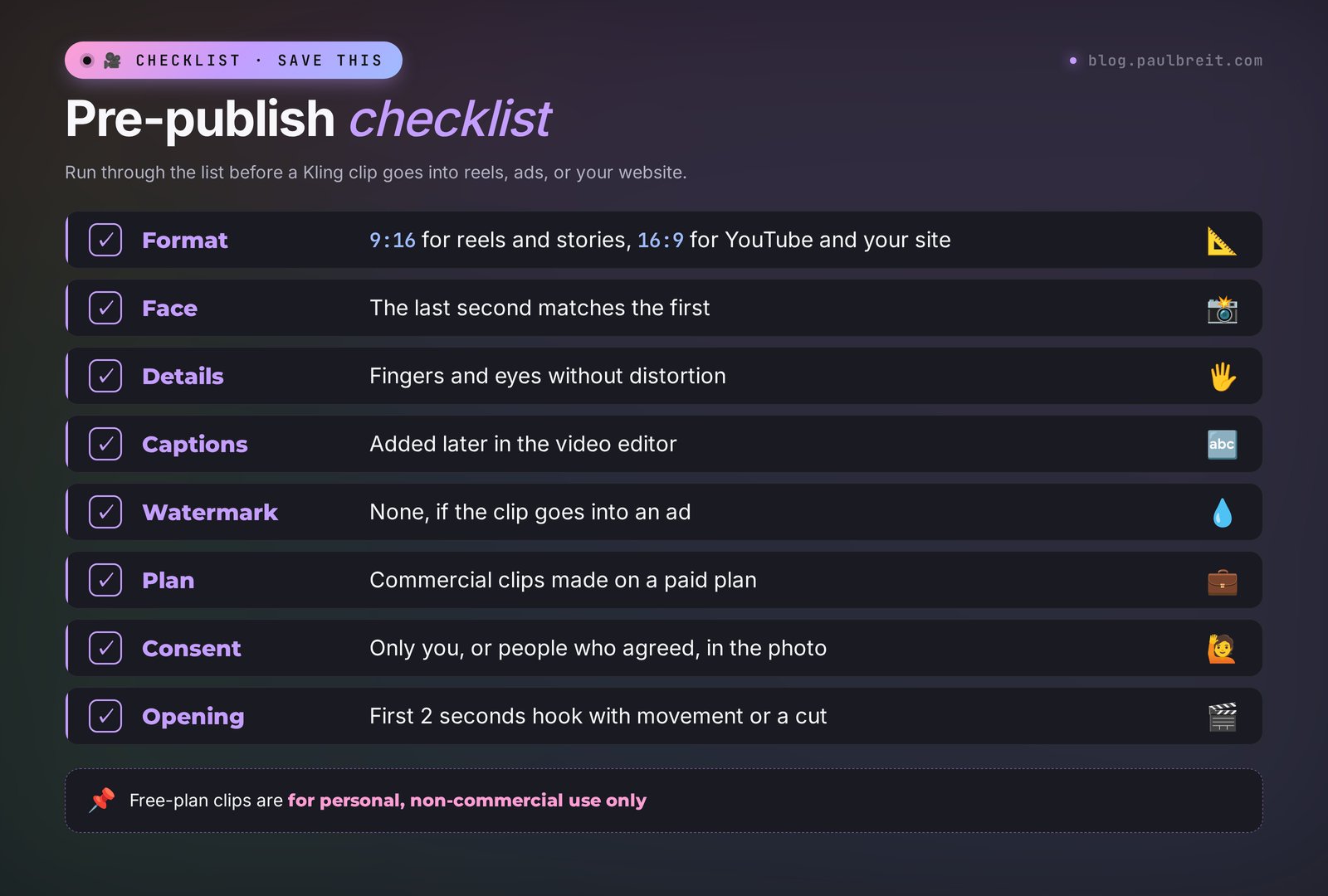
Before you post a Kling clip, run through this list:
- The format matches the platform: 9:16 for reels and stories, 16:9 for YouTube and your website.
- The face in the last second matches the first.
- Fingers, eyes, and teeth look normal. Watch the clip paused frame by frame.
- There's no garbled text inside the frame. Captions are added in editing.
- No watermark if the clip goes into an ad or onto a sales page.
- For commercial use, the clip was made on a paid plan.
- Only you, or people who gave consent, appear in the photo.
- The sound doesn't clash with the music from the platform's library.
- The first 2 seconds hook: movement or a cut right away, no slow build-up.
- The prompt that worked is saved to your note.
RecapThe whole path in a minute
Go to klingai.com and sign up with Google, Apple, or email. You get 66 free credits every day; for ad-ready clips without a watermark you need a paid plan from $6.99 a month. In AI Video, choose Text to Video if you're creating from scratch, or Image to Video if you're animating your own photo. Set Kling 3.0, 9:16, and 5 seconds. Write the prompt by the formula: who's in frame, where, one main movement, a living detail, camera, light and style. Make drafts on Turbo without sound and the final at 1080p with sound. Add captions while editing. Let Claude write the prompts from your plain-language task. Save the wording that works – within a month, clips will come out right on the first try.
Start today with one clip: take your best photo, animate it with the prompt from Section 6, and put it at the start of your next reel. Watch what happens to your completion rate. It'll most likely be the cheapest "shoot" of your life.
FAQFrequently asked questions
Is Kling free?
Partly. Kling gives you 66 free credits every day, which covers a couple of short clips in basic quality. The credits expire by the next day, the clips carry a watermark, and under the service's rules they can't be used commercially. For work, you need a paid plan from $6.99 a month.
How do I sign up and pay for Kling?
Go to the official site, klingai.com, and sign in with Google, Apple, or email – signing up is free. You can pay for a plan with a regular bank card on the website or subscribe through the App Store or Google Play in the Kling app. Avoid unofficial clone sites that promise "Kling for free": some of them serve older, cheaper models.
How do I make a video from a photo in Kling?
Open AI Video, go to the Image to Video tab, upload the photo, and pick the same aspect ratio as the picture. In the prompt, describe only the movement: a head turn, a smile, camera movement, and add that the face and clothes stay exactly as in the photo. Set 5 seconds for your first try. A couple of minutes later the clip appears in Assets.
Can I write Kling prompts in languages other than English?
Yes, Kling understands prompts in other languages. But English gives more accurate results, especially for describing camera movement and light. An easy route: describe the task in your own words to Claude or another AI and ask it to write the Kling prompt in English.
How many credits does one Kling video cost?
It depends on the model, resolution, length, and sound. On Kling 3.0 at 1080p, a second without sound costs about 8 credits and about 12 with sound, so a 10-second clip with sound is roughly 120 credits. 720p and Turbo are cheaper. Kling shows the exact price on the Generate button before you run it.
How long are Kling videos?
Kling 3.0 makes clips from 3 to 15 seconds per generation. After that you can extend a finished clip a few seconds at a time with the Extend button, stretching the scene to a minute or more. Each extension slightly raises the chance of distortion, so for reels one or two steps is usually enough.
Can I use Kling videos in ads?
Yes, if the clip was made on a paid plan: there's no watermark and you get commercial use rights. Clips from the free tier aren't meant for commercial use under the service's rules. For clips with people, use your own photos or photos of people who gave consent.
Why won't Kling create my video?
Most often a filter kicks in: a famous person in the prompt or photo, violence, weapons, explicit scenes, or politics. Sometimes the filter catches harmless words, like "shot." Rephrase the request. If the clip simply takes a long time to appear, it's sitting in the queue: on the free tier, waits can be long at peak hours.