How to Animate a Photo With AI: 5 Tools in 2026
You upload a still, write one sentence, and a minute later the person in the photo turns their head, smiles, and the ocean starts rolling in behind them. Here's how to animate a photo with AI in 2026: five tools that actually work, what they cost, how to prepare the shot, and which prompts keep the face from melting. Plus 15 ready prompts for reels, stories, ads, and the family archive.
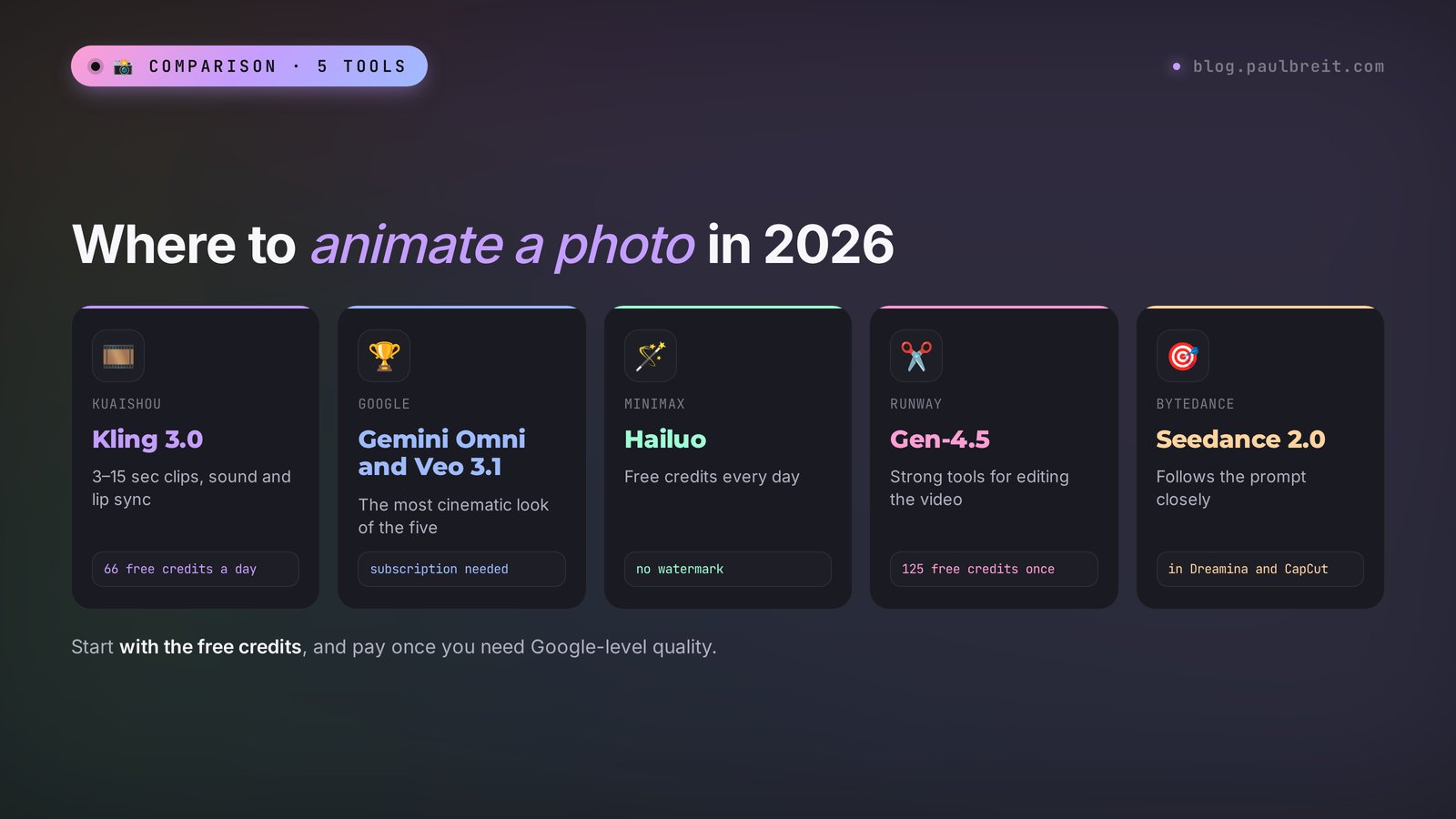
To animate a photo with AI, upload it to the image-to-video mode of one of these tools and describe the motion in one or two sentences, for example: "the person slowly turns their head and smiles, the camera slowly pushes in." In 2026 the best results come from Kling 3.0 (66 free credits a day, clips of 3–15 seconds), Gemini Omni and Veo 3.1 from Google (starting with the Google AI Plus plan at $4.99), Hailuo (free daily credits, no watermark), Runway Gen-4.5 (125 free credits once, Standard $15 a month for 625 credits), and Seedance 2.0 in Dreamina and CapCut (about $0.05 a second on a subscription). A finished 5–10 second clip takes 1–3 minutes.
Everyone who sells services, courses, and consulting and wants more video on their channels without a full shoot day: therapists, coaches, nutritionists, tutors, photographers, makers, designers, and freelancers. And anyone who wants to bring an old photo of a grandparent to life. If you're still choosing a video AI for different jobs, the big picture is in my guide to AI video from text.
What's inside
- What "animating a photo" means, and the options
- 5 tools in one table
- Kling 3.0: step by step
- Gemini Omni and Veo 3.1 from Google
- Hailuo: free every day
- Runway Gen-4.5: animate and edit
- Seedance 2.0 in Dreamina and CapCut
- Which photos animate best
- The prompt formula
- 15 ready prompts
- Talking photos: voice and lips
- Old family photos
- Using animated photos in your work
- Let Claude write the prompt
- 8 mistakes that make faces melt
- When something goes wrong
- Rights, consent, and labeling
- The whole path in a minute
A couple of years ago, "animating a photo" meant one thing: a blinking face on a family picture that looked either touching or a little creepy. The head tilted slightly, the eyes blinked, and that was it. Today it's a different story. The AI takes your photo as the first frame and builds 5–15 seconds of real video from it: a person gets up from the desk, the wind catches their hair, steam rises from a cup, the camera circles the subject. Some tools add sound too.
If you run a blog and sell your services, this is a small miracle. One good shot from your last photo session turns into a dozen short clips for reels, stories, covers, and ads. No camera operator, no lighting, no fifteen takes.
Below I'll lay it all out step by step. Which five tools to pick and how they differ. How to prepare the photo. How to write a prompt so the face stays yours. What to do with old photos of your family. And where the line is that you'd better not cross with other people's pictures.
Section 01What "animating a photo" means, and the options
When people search for "animate a photo," they're after four different things. It helps to know which one you need right away, because that decides the tool.
- Motion in the frame. The photo becomes the first frame of a video, and the AI invents what happens next: the person walks, turns around, laughs, cars drive by in the background. This is image-to-video mode. It covers most requests and all five tools in this roundup.
- A talking photo. The person in the picture says a line, and their lips move in sync with the speech. Useful for greetings, short explanations, and congratulations. It works through lip sync or through digital avatar services.
- Old family photos. Grandma in a black-and-white picture blinks and smiles. Here gentleness matters: minimal movement, the face unchanged, and often restoration and colorization first.
- Cinemagraphs and parallax. An almost still image where a single detail moves: steam over coffee, water in a pool, fire in a fireplace. Or a depth effect where the camera "flies" slightly into the photo. Great for covers and website backgrounds.
Nearly every tool below handles the first and fourth options. I'll cover talking photos and old photos in separate sections, since they have their own quirks.
A video model looks at your photo and predicts what that frame would look like a fraction of a second later, then another fraction of a second later, and so on for 5–15 seconds. It doesn't know what the person looks like from the side or from behind, so it fills that in on its own. Hence the main rule: the less you ask it to show what isn't in the photo, the lower the risk the face turns into a stranger's.
Section 025 tools to animate a photo, in one table
I picked these five on three criteria: they hold the face from the source photo well, there's a free or low-cost way to start, and the interface is clear for a beginner. Prices and limits are as of October 2026. They change, so check the tool's site before you pay.
| Tool | Strength | Clip length | Sound | Free | Paid |
|---|---|---|---|---|---|
| Kling 3.0 | Holds the subject's face, lively expressions, lip sync, multi-shot | 3–15 seconds | Yes | 66 credits a day | From $6.99 for 660 credits |
| Gemini Omni and Veo 3.1 (Google) | The most cinematic picture, edits in plain words | 8–10 seconds, can be extended | Yes, with speech | No | From Google AI Plus at $4.99, Flow from AI Pro at $19.99 |
| Hailuo (MiniMax) | Smooth motion, realistic physics, no watermark | 6–10 seconds | No | Free daily credits, 720p | From $9.99 a month, 1080p |
| Runway Gen-4.5 | Strong tools for editing the video afterward, consistent style | 5–10 seconds | Partly | 125 credits, once | Standard $15 a month for 625 credits |
| Seedance 2.0 (Dreamina, CapCut) | Follows the prompt precisely, lives next to the CapCut editor | Up to 15 seconds | Yes | Trial credits | About $0.05 a second on a subscription |
How to choose in ten seconds:
- you want the best face and expressions for little money – Kling 3.0;
- you want a cinematic picture with sound and speech, and you already have a Google plan – Gemini Omni or Veo 3.1;
- you want to experiment for free every day, without a watermark – Hailuo;
- you want to animate a photo and then rework the clip: background, style, details – Runway;
- you need an ad clip that does exactly what the prompt says, and you edit in CapCut anyway – Seedance 2.0.
For a deeper comparison of these video tools with text-to-video prompts and full walkthroughs, see my breakdown of what replaces Sora: Veo, Kling, Seedance, and Runway are covered there in detail, with prices.
Section 03Kling 3.0: animate a photo step by step
Kling is made by the Chinese company Kuaishou. Version 3.0 came out in February 2026, and over the summer it gained the fast, cheaper Kling 3.0 Turbo and an updated mode for editing finished video. If I had to pick one tool to animate photos of people, I'd take Kling. It keeps the facial features from the source photo better than the rest, and the expressions come out natural.
What Kling 3.0 can do in image-to-video mode:
- clips from 3 to 15 seconds, up to 4K on paid plans;
- sound generated together with the picture, plus lip sync if the character speaks;
- first and last frame: upload two photos and the AI builds a smooth transition between them;
- multi-shot: several shots in one clip, following your storyboard;
- clip extension: if you like the beginning, Kling continues the scene.
The money side: you get 66 free credits a day, enough for a couple of short clips in standard quality. Paid plans start at $6.99 a month for 660 credits, and Pro is $29.99 for 3,000. Kling shows how many credits a clip will cost right on the Generate button, before you run it.
How to animate a photo in Kling
Step 1. Go to the site and sign in
Open klingai.com and sign in with Google or email. There's an app too, but the first time it's easier on a computer: the previews are bigger and the settings are easier to find.
Step 2. Choose image-to-video
In the AI Video section, pick the Image to Video tab and the Kling 3.0 model. Use Turbo for drafts, since it's cheaper. Switch to the standard model once you've found a prompt that works and you need the final version.
Step 3. Upload the photo
Drag the photo into the window. Match the video format to the photo: vertical photo, vertical 9:16 video. If the formats differ, Kling fills in the edges on its own, and that's where odd things tend to appear.
Step 4. Write the prompt
One or two sentences about what moves and how. Kling understands several languages, but English gets the most precise result. Ready-made wording is in Section 10.
Step 5. Set the length and run it
For a test, 5 seconds. Click Generate. It takes anywhere from a minute to a few minutes, longer at peak hours on the free plan. The finished clip waits in your history, and you can download it from there.
Step 6. Refine
Like the beginning but not the ending? Extend the clip or rerun the same prompt: every generation comes out a little different. Usually one in three or four attempts turns out exactly as planned.
A sample Kling prompt for animating your own portrait for a reel:
The woman in the photo slowly turns her head toward the camera and gives a warm, natural smile. Her hair moves slightly in a light breeze. The camera slowly pushes in. Soft daylight, keep her face and clothes exactly as in the photo, no other people.Why it works: one main movement (head turn and smile), one detail for life (hair), one camera action, and a direct "keep the face and clothes." A prompt like this almost always gives a clean result on the first or second try.
Section 04Gemini Omni and Veo 3.1 from Google
Google has two ways in to animating a photo, and they're easy to mix up.
Gemini Omni lives in the regular Gemini app. Google introduced it in May 2026. You attach a photo to a message, write what should happen, and a minute or two later you get a clip of up to 10 seconds with sound. The killer feature is editing by conversation. Don't like it? Write "have her just smile, no gestures, and pull the camera back," and Gemini reworks the finished clip. Video creation is available starting with the Google AI Plus plan at $4.99 a month.
Veo 3.1 is a separate video model, and it works at full strength in Flow, Google's editing studio at labs.google/flow. Clips there are 8 seconds with sound and speech, and you can extend them and stitch them into scenes. For animating a photo there's the Frames to Video mode: your photo becomes the first frame, and you can set the last one too. Flow runs on credits: the Google AI Pro plan at $19.99 gives you 1,000 credits a month, enough for roughly 10 clips in Quality mode or about 50 in Fast mode.
How to animate a photo in the Gemini app
- Open the Gemini app or gemini.google.com and choose video creation in the tools menu.
- Tap the paperclip and attach the photo.
- Describe what should happen and add sound: "quiet café chatter, the clink of a cup."
- Send it and wait a minute or two.
- Edit with plain messages: "slower," "no hand movements," "vertical 9:16."
How to animate a photo in Flow with Veo 3.1
- Open Flow with the account that has the Google AI Pro plan.
- Create a project and choose Frames to Video.
- Upload the photo as the first frame. If you need a transition into a specific scene, upload the last frame too.
- For tests, choose Veo 3.1 Fast: it's several times cheaper, and on a draft you can barely tell the difference.
- Write the prompt and run it. Extend a good clip with the Extend button.
Google rolls out video features by country and by plan, so if you don't see video creation, check Google's help page for supported regions before assuming something is broken. More on Google's plans and getting started is in my guide how to use Gemini.
Everything Veo and Gemini make carries Google's invisible SynthID watermark, and some clips get a visible mark as well. Social networks may use it to label the clip as AI-generated. There's no reason to hide it: viewers got used to that label long ago.
Section 05Hailuo: animate photos for free every day
Hailuo is made by the Chinese company MiniMax. People love it for two things: very smooth motion with believable physics (fabric, water, hair) and a generous free plan. Free credits arrive every day, and the finished clip has no watermark, which is rare among free video tools.
The current models are Hailuo 2.3 and the faster Hailuo 2.3 Fast, and both take a photo as input. Clips are 6 or 10 seconds long, in 720p on the free plan and in 1080p on paid plans from $9.99 a month. There's no sound in the clips, so you add it in the edit.
How to animate a photo in Hailuo
- Go to hailuoai.video and sign in with Google or email.
- Choose video creation and Image to Video mode.
- Upload the photo, pick model 2.3 or 2.3 Fast and a length of 6 seconds.
- Describe the motion. Hailuo understands camera commands in square brackets well, for example [Push in], [Pan left], [Static shot].
- Run it and wait a couple of minutes. If the queue is long, it can take longer: paid users go ahead of free ones.
Where Hailuo is especially good: landscapes, interiors, objects, clothing in motion. For example, a photo of your office with rain falling outside the window and the curtain swaying. Or a product shot with the camera slowly circling it. It handles close-up portraits too, though Kling's expressions are usually livelier.
Section 06Runway Gen-4.5: animate a photo and edit the clip
Runway is an American company and one of the pioneers of AI video. Its Gen-4.5 model keeps up with the leaders on picture quality, and it takes your photo as the starting frame. Most people pick Runway for a different reason, though: the toolkit around the generation.
Once a clip is ready, Runway lets you keep working on it: change the background, restyle the whole clip, adjust details, and keep one visual style across a series of clips. If you already film yourself and want AI to improve and rework that footage, this is the tool. Clips run 5–10 seconds.
The money side: Runway gives 125 credits once when you sign up. After that the Standard plan costs $15 a month for 625 credits. Spend the free credits on one or two photos and on a test of the editing tools, since that's where Runway is strongest.
How to animate a photo in Runway
- Go to runwayml.com and sign up with Google or email.
- Open video generation and choose the Gen-4.5 model.
- Upload your photo as the first frame and match the aspect ratio to it.
- Describe one movement and one camera action, set 5 seconds, and generate.
- If the clip is good but the background or the style isn't, open it in Runway's editing tools and fix just that part, keeping the rest of the clip.
My advice: if you're just starting and simply want your portrait to smile and turn its head, begin with Kling or Hailuo. Come to Runway when you need to polish the clip or keep a consistent look across a whole content series.
Section 07Seedance 2.0 in Dreamina and CapCut
Seedance is the video model from ByteDance, the company behind TikTok and CapCut. Version 2.0 lives inside Dreamina, ByteDance's web studio for images and video, and inside CapCut itself. Its main strength is precision: it does what the prompt says and improvises less than the others. Clips run up to 15 seconds.
That's why Seedance is popular for ads. You describe the shot, and it carries it out without surprises. It's also one of the most affordable models: on a Dreamina subscription a second costs about $0.05, so a five-second animated photo comes in around 25 cents. Dreamina gives trial credits to start.
How to animate a photo with Seedance
- Open dreamina.capcut.com and sign in with your CapCut, Google, or TikTok account.
- Choose AI Video and the Seedance 2.0 model.
- Upload the photo as the first frame.
- Write the prompt: what moves, how, and one camera action. Be specific, since Seedance takes you literally.
- Generate, pick the best version, and open it in the CapCut editor if you want captions, music, or a cut.
Video features often launch in some countries before others. If Seedance or a mode from this article doesn't show up for you, check the service's help page for supported countries.
Section 08Which photos animate best
You can spend an evening on prompts and never get a decent clip if the source photo is weak. Or you can get a great result on the first try from a good photo. Here's what to check before you upload.
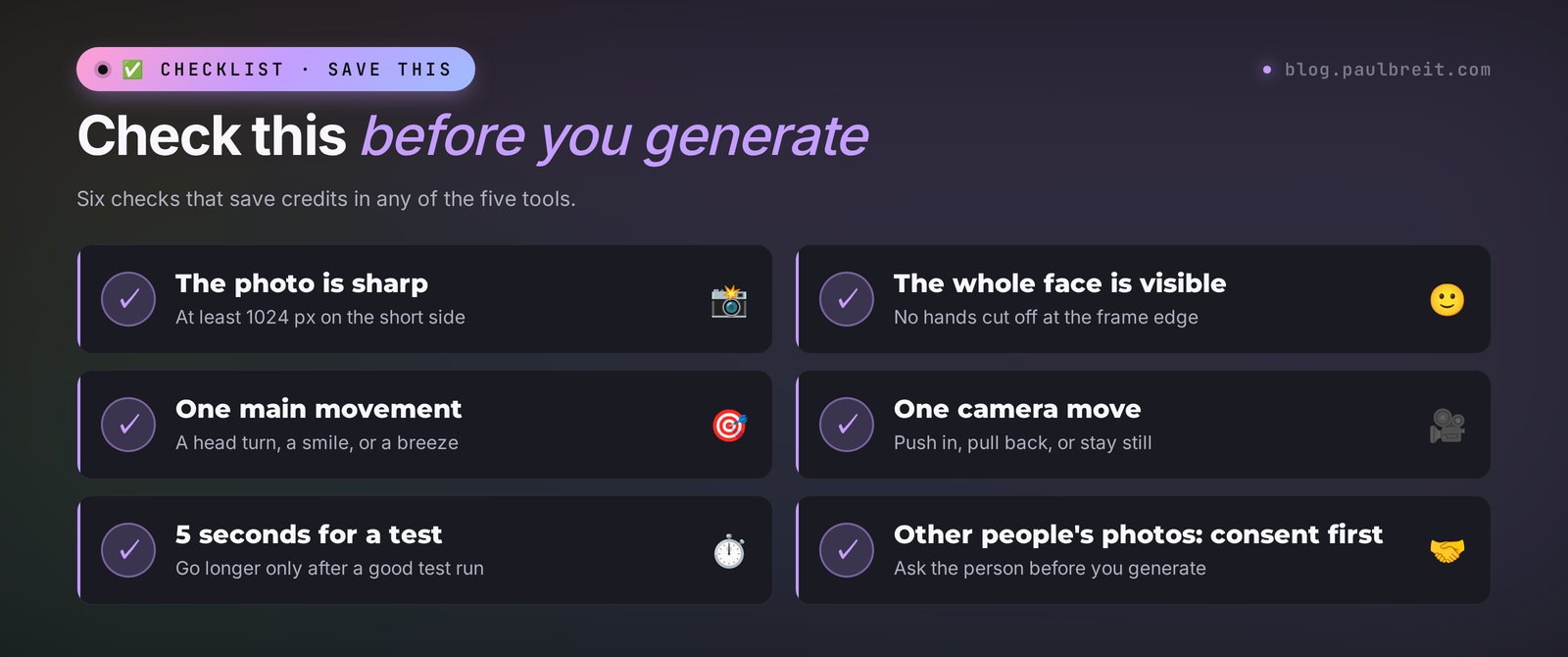
- Sharpness and size. The photo is crisp, at least 1024 pixels on the short side. A blurry shot from a messenger gets "filled in," and the face ends up about 70% like you.
- The whole face. Both eyes visible, the face not covered by a hand, hair, or glasses with glare. Best of all: facing the camera or a slight three-quarter turn.
- Hands fully in frame or fully out of it. Fingers cut off at the edge get redrawn by the AI, and that's exactly where the sixth finger grows.
- A clean background. The simpler the background, the more stable the video. A busy crowd behind you will start to "boil" once it moves.
- Soft light. Hard shadows across the face behave strangely when the head turns.
- One main figure. In a group photo the AI can mix up who's moving and blend features of different people.
- The format matches the future video. For reels and stories, use a vertical photo. If the photo is horizontal and you need vertical video, crop it first.
If the photo is old, small, or noisy, run it through an upscaler first: in Gemini or any upscaling tool. Ask: "increase the resolution and remove the noise, don't change the face." A clean source gives a clean video in no time. More on processing photos is in my roundup of 11 prompts for photo edits.
Section 09The prompt formula for animating a photo
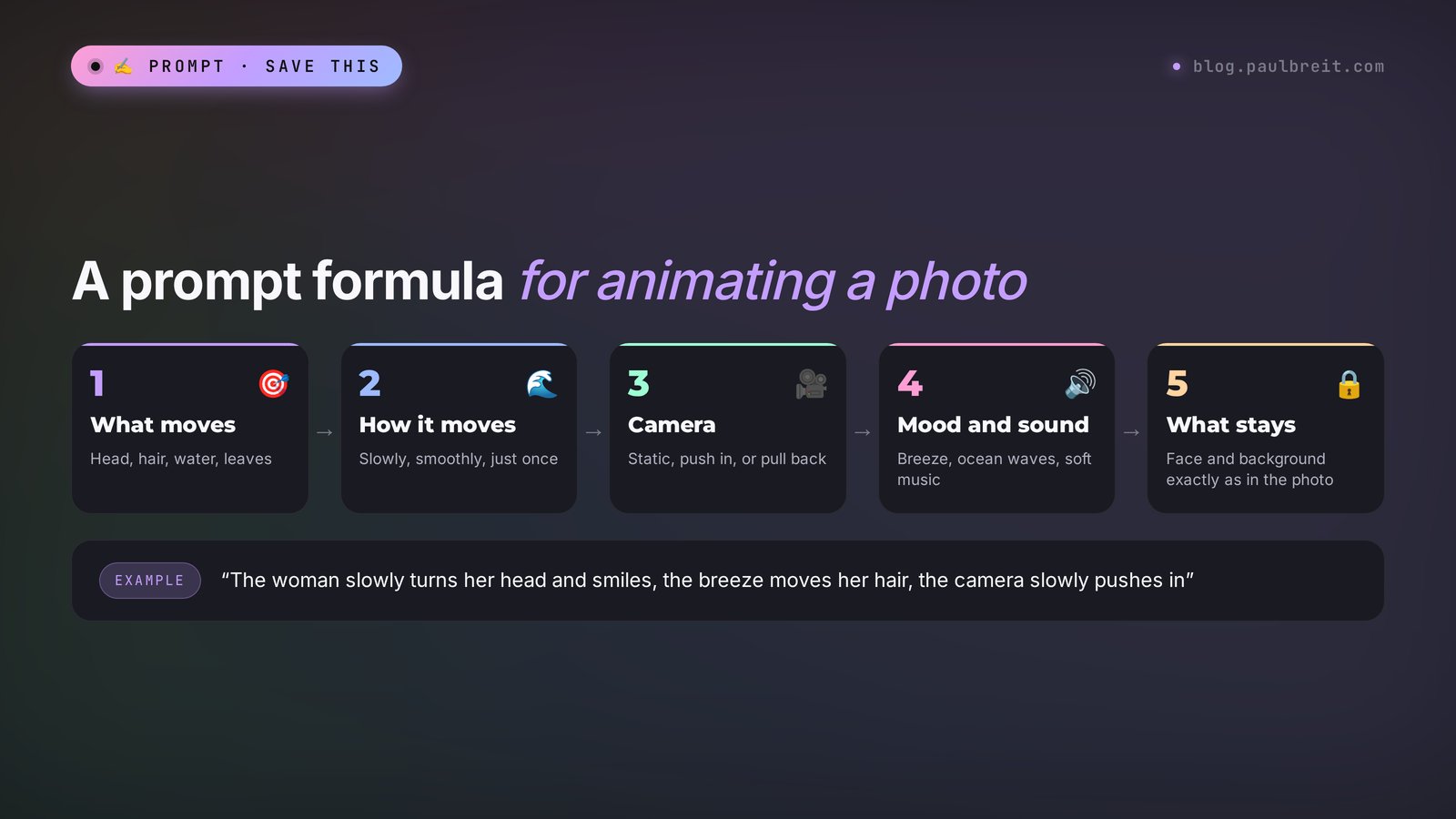
A prompt for animating a photo is simpler than one for video from scratch. The AI sees the appearance, clothes, and setting in the photo, so you don't need to describe them again. Your job is to say what happens. The formula has five blocks:
- What moves. The main subject or object: "the woman," "a cup of coffee," "the waves."
- How it moves. One main action and its speed: "slowly turns her head and smiles."
- Camera. One action: slow push in, pull back, pan, orbit, static camera.
- Mood and sound. Light, wind, weather, and sound if the tool makes it: "a light breeze," "the sound of the sea," "warm evening light."
- What stays. "Keep the face and clothes unchanged," "no other people," "no text in the frame."
An example built on the formula:
The man at the desk looks up from his laptop and smiles at the camera. Steam rises from a cup of coffee. The camera slowly pushes in. Morning light from the window, quiet café sounds. Keep the face and clothes unchanged, no other people.Five sentences, and the AI has no room to freelance. Compare that with "animate this photo nicely": the tool decides what "nicely" means and may send your subject dancing.
Camera words every tool understands
| What you want | Plain description | Prompt wording |
|---|---|---|
| Move closer to the subject | the camera slowly moves in | slow push in |
| Move away and reveal the setting | the camera smoothly moves back | slow pull back |
| Lead the eye to one side | a smooth pan to the left | slow pan left |
| Circle the subject | the camera moves around in an arc | slow orbit around the subject |
| Keep the frame still | the camera doesn't move | static shot, locked camera |
| A lively "handheld" feel | the camera sways slightly | subtle handheld movement |
One camera action per clip. "Pushes in, then orbits, then pulls back" in 5 seconds turns the video into a merry-go-round, and the face will almost certainly melt on the turn.
Section 1015 ready prompts to animate a photo
Copy them, change the details to match your photo, and run them. Every prompt is built for 5–6 seconds and one main movement, and all of them work in Kling, Gemini, Veo, Hailuo, Runway, and Seedance.
Portraits for your blog
1. A warm greeting. For the first frame of a reel or a video avatar.
The person in the photo slowly looks up at the camera, smiles warmly, and gives a slight nod. Static camera. Soft daylight. Keep the face and clothes unchanged.2. The confident pro. For a course cover or a service page.
The person crosses their arms and gives a confident small smile. Slow push in. Soft studio light, subtle background blur. Keep the face and outfit exactly as in the photo.3. A living street background. For a "where I am right now" story.
The woman stands still and fixes her hair, a light wind moves her dress. Passersby walk slowly behind her, out of focus. The camera slowly pulls back. Keep the face unchanged.4. At work. For a post about how a session with you goes.
The woman at the desk types on her laptop, then looks up and smiles at the camera. Steam rises from a cup of tea. Static camera. Cozy evening light from a lamp.Objects and places
5. Product close-up. For an ad for a course, a book, or a product.
Slow orbit around the product on the table. Soft reflections move across its surface. Static background, warm light. Do not change the product shape, label or colors.6. Office or studio. For a post about where you work.
The camera slowly glides through the room from left to right. Light rain falls outside the window, the curtain sways slightly. Warm lamp light. No people in the frame.7. Coffee cinemagraph. For a morning post cover.
Only the steam slowly rises above the cup of coffee, everything else stays still. Static shot. Morning light.8. A travel landscape. For stories and backgrounds.
Waves gently roll onto the shore, palm leaves sway in the breeze, clouds drift slowly. Slow pan right. Golden hour light, sound of the sea.For reels and ads
9. The "before and after" hook. First and last frame (Kling, Veo in Flow): upload two photos.
A smooth transition from the first frame to the second: the person gets up from a desk buried in papers and ends up at a clean workspace with a laptop. The camera slowly pushes in. The face stays the same.10. The "fly into the photo" effect. For the opening seconds of a clip.
Fast smooth push in into the photo, creating a 3D parallax depth effect, foreground and background separate. Keep everything in the photo unchanged.11. Reaction to news. For a reel that answers a comment.
The person reads something on their phone, raises their eyebrows in surprise, then laughs and looks at the camera. Static camera. Keep the face unchanged.12. Animated webinar cover. For a story announcement.
The person in the photo turns to the camera and makes an inviting gesture with their hand. Soft lights in the background twinkle gently. Slow push in. No text in the frame.Family and holidays
13. An old family photo. Minimal movement, maximum care.
The woman in the photo slowly blinks and smiles faintly, her head almost still. Static camera. Keep the face, hairstyle, clothes, and the grain of the old photograph unchanged.14. A childhood photo. For a birthday greeting.
The child laughs and claps their hands, soap bubbles float slowly across the frame. Static camera. Warm sunlight. Keep the face unchanged.15. A holiday card. For season's greetings to clients.
Snow falls slowly outside the window, the string lights twinkle softly, the person by the Christmas tree raises a glass and smiles. The camera slowly pushes in. Keep the face and clothes unchanged.For more ideas for shots that are a pleasure to animate later, see my roundup of 30 AI photo prompt ideas. And if you want pictures that get shared on their own, look at my guide to viral AI photos: many of them make great reels once animated.
Section 11Talking photos: voice and lips
A talking photo is its own story. The lips have to move exactly in time with the words, or the viewer's brain spots the fake instantly. There are three options.
Kling 3.0 with sound. Put the line in quotes in the prompt, for example: The woman looks at the camera and says: "Hi! Today I'll show you how I plan my week." Kling generates a voice and syncs the lips. The voice won't be yours, but the lips move naturally. For short lines in reels, that's enough.
Google Gemini Omni and Veo 3.1. They also generate speech together with the picture. Write the line in quotes and describe the delivery: "says cheerfully," "whispers." Handy for 8-second mini-scenes.
Avatar services. If you need the photo to speak in your voice and for longer than 10 seconds, use digital twin services such as HeyGen or Hedra. The setup: upload the photo, upload audio with your own voice or a voice cloned in ElevenLabs, and the service builds a talking video. Hedra gives 100 free credits, and on the free plan clips carry a watermark and can't be used commercially. I wrote more about talking avatars and voice cloning in my guide to AI video from text.
A talking photo is great for a greeting, an announcement, a short explanation. For a sales video of a minute or longer it still loses to a live recording on your phone: viewers sense the "mask" and trust it less. Record longer explanations yourself and use animated photos as inserts.
Section 12How to animate old family photos
This may be the most touching reason of all. The grandmother you only know from an album suddenly blinks and smiles. To make it gentle and not eerie, work in three steps.
Step 1. Scan or reshoot
A scanner is best, at least 600 dpi. If you don't have one, reshoot the photo in daylight by a window, with your phone held exactly parallel to the print and no flash. Glare and skew are harder to fix later than to shoot straight in the first place.
Step 2. Restore it
Ask the AI to remove cracks, spots, and noise, sharpen the image, and colorize it if you like. The key phrase: "don't change the facial features, hairstyle, or clothes." Compare the result with the original: if the nose changed or the eyes got bigger, run it again. A redrawn face is no longer your loved one.
Step 3. Animate it minimally
A blink, a faint smile, barely noticeable breathing. No head turns, gestures, or speech. Prompt #13 from Section 10 is made for exactly this. Kling and Hailuo work well here.
There's also a dedicated service for old photos: MyHeritage with its Deep Nostalgia feature. It's built for exactly this job: it animates the face in an old photo, so the person smiles, blinks, and turns their head slightly. It's a narrow tool, but very convenient for a family archive.
Before you show the clip to relatives, especially older ones, ask whether they want to see it. For some it's a gift, for others it hurts. And don't post these videos publicly without the family's consent.
Section 13How to use animated photos in your work
Now the most interesting part for everyone who sells services, courses, and consulting. An animated photo is cheap video, and on almost every platform video now pulls more attention than static images. Here's where it pays off.
- The opening seconds of a reel. Your portrait turns toward the viewer in the very first frame. Motion in the first frame catches the eye in the feed. You can draft the scripts for the reels themselves with AI too: step by step in my guide to AI for reels.
- Stories without a shoot. A photo from your last session, animated in different ways, gives you a series of 5–7 stories for the week: morning coffee, working at the laptop, a walk, the evening.
- Webinar and live session announcements. An animated cover with your "come on in" gesture looks livelier in stories and in your channel than a poster.
- Ads. Short clips from photos for Meta, YouTube, and TikTok ads, and for Telegram. You can quickly make 5–10 versions of the first frame and test which one gets more clicks.
- Lesson covers and landing pages. A cinemagraph, a picture where a single detail moves, brings a course page to life without distracting from the text.
- Client testimonials. With the client's consent, their photo with a short animation next to the review text stands out more.
- Greetings. A holiday card where you raise a glass by a snowy window is a warm reason to write to your clients.
To turn animated shots into a proper clip with captions and music, you'll need an edit. CapCut or any simple editor will do: shots on the timeline, your voice on top, auto captions, quiet music.
Take your 3 best photos from your last shoot. Animate each one in 3 versions: greeting, working, emotion. That's 9 short clips, enough opening shots for reels and stories for the next two weeks, with zero hours in front of the camera.
Section 14Let Claude write the prompt for you
If you don't feel like writing prompts, hand the job to a text AI. I use Claude: it sees the image and describes motion well in English, and English is what Kling, Hailuo, Veo, Runway, and Seedance understand most precisely.
Here's how:
- Go to claude.ai and sign up with Google or email.
- Attach the photo to a message.
- Paste the prompt below and add what the clip is for.
Look at this photo. I need to animate it in a video AI (Kling or Hailuo) and get a 5-second clip for [a reel / a story / an ad / the family album].
Write 3 prompt options in English using this formula: what moves – how it moves – one camera action – light and mood – what must stay unchanged.
Rules: one main movement, keep the face and clothes unchanged, don't show anything from behind that isn't in the photo.
Under each option, add one line in plain words: what the clip will look like.
Claude gives you three options. Pick the closest one and paste it into the video tool. If the clip comes out wrong, tell Claude what you didn't like: "the face melted on the turn," "too fast." It will rewrite the prompt to fix the mistake.
For more on talking to Claude so it gets you the first time, see my guide to Claude prompts: a formula and 25 examples.
Section 158 mistakes that make faces melt
- Too many actions. "Gets up, waves, laughs, walks to the window" in 5 seconds. The AI can't keep up, and the facial features drift apart. One action per clip.
- A 180-degree turn. You ask it to show the back of the head or a profile that isn't in the photo. The AI invents it, and when the head turns back, the face belongs to someone else.
- Going straight to 10–15 seconds. The longer the clip, the further it drifts from the source. Make 5 seconds and extend the good ones.
- A weak source. A blurry photo from a messenger, a face in shadow, cut-off fingers. See Section 8.
- Mismatched format. A horizontal photo in a vertical video: the tool fills in the top and bottom, and strange objects appear there.
- No "keep the face unchanged." The AI sometimes "improves" appearance: smooths skin, changes the shape of the eyes. A direct instruction helps.
- Describing the appearance again. You write "a blonde in a red dress" when the photo shows a brunette in blue. The tool starts repainting. It already sees the appearance.
- One attempt. Every generation is a little different. If the first one doesn't work, run the same prompt 2–3 more times before rewriting it.
Section 16When something goes wrong
| What happened | Why | What to do |
|---|---|---|
| The face looks like a different person | A sharp turn, a long clip, a small photo | Remove the turn, cut it to 5 seconds, use a larger photo, add "keep the face exactly as in the photo" |
| Extra fingers and strange hands | Hands cut off by the frame edge or in motion | Use a photo with hands fully in or fully out of the frame, remove gestures from the prompt |
| The background "boils" and drifts | A busy background with lots of small details | Add "static background" or crop the photo tighter around the subject |
| Almost nothing moves | The prompt is too vague or too cautious | Describe a specific action and speed: "slowly turns her head and smiles" |
| The video jerks and speeds up | Several camera actions or the word "fast" | Keep one camera action, add "slow, smooth" |
| Generation takes forever | The free-plan queue at peak hours | Run it early in the morning or late at night, or switch to the fast model |
| The tool refused to generate | Filters: a famous person, a child, a revealing shot | Check that no public figures are in the photo, rephrase the prompt neutrally |
| A mode from this article is missing | Regional rollout or a plan that doesn't include it | Check the tool's help page for supported countries and plans, or use another tool from the table |
| There's a watermark on the clip | The free plan of the tool | Use Hailuo, which has no watermark even for free, or upgrade the tool you prefer |
Don't worry if your first five clips come out weird. That happens to everyone. By the tenth you'll start to feel what the tool understands and what it doesn't, and your hit rate will get close to a hundred percent.
Section 17Rights, consent, and labeling
You can animate anything, but you can't post everything. A few short rules that will spare you trouble:
- Your own photo and photos you took yourself are fine. If other people are in the shot, ask their permission for the clip.
- Someone else's photo needs their consent. An animated face of another person, especially a talking one, easily becomes a fake. In the US, many states recognize a right of publicity: using a person's likeness to promote something without permission can lead to claims. Laws vary by country and state, so when in doubt, ask a lawyer.
- Client photos for testimonials and ads need written consent that says directly the photo will be animated.
- Famous people are off-limits. Most tools block them, and where they don't, it's a direct path to complaints and claims.
- Other people's photos from the internet are protected by the photographer's copyright. Use your own shots or stock photos with the right license. More on who owns what AI creates is in my guide who owns AI-generated content.
- Labeling. If a clip is used in ads, say honestly that it was made with AI. Major platforms ask creators to label realistic AI-generated content, and Google already adds an invisible watermark that platforms can read. There's nothing to hide: audiences in 2026 are used to it.
- The tool's terms. On free plans, some tools forbid commercial use of the clips. If you're making ads, check the terms of your plan.
Section 18The whole path in a minute
- Decide what you need: motion in the frame, a talking photo, an old photo, or a cinemagraph.
- Choose the tool: Kling 3.0 for faces and expressions, Gemini Omni and Veo 3.1 for a cinematic picture with sound, Hailuo for free daily tests, Runway for editing the clip, Seedance 2.0 for precise ad clips.
- Prepare the photo: sharp, at least 1024 pixels, the whole face, a simple background, the same format as the future video.
- Write the prompt with the formula: what moves, how, one camera action, mood, what stays unchanged.
- Generate 5 seconds, make 2–3 attempts, extend the good ones.
- You can hand the prompt to Claude: attach the photo and ask for three options.
- Put animated photos in the opening seconds of reels, in stories, announcements, and ads.
- Other people's faces only with consent, ads with an AI label.
Open Kling or Hailuo today, take your best photo, and ask it to simply smile. Five minutes, and you have your first clip for stories.
FAQFrequently asked questions
Which AI animates photos best in 2026?
For keeping the face and lively expressions, Kling 3.0 leads. The most cinematic picture with sound comes from Gemini Omni and Veo 3.1 from Google. Hailuo is good for smooth motion and free daily credits. Runway Gen-4.5 is the pick when you want to edit the clip afterward, and Seedance 2.0 in Dreamina and CapCut follows the prompt most precisely.
How can I animate a photo with AI for free?
Kling gives 66 free credits a day, enough for a couple of short clips. Hailuo gives free daily credits with 720p video and no watermark. Runway gives 125 credits once at sign-up, and Dreamina offers trial credits for Seedance. Video in Google's Gemini and Flow requires a subscription.
What's the cheapest way to animate photos in bulk?
Run your tests on the free daily credits in Kling and Hailuo. For paid volume, Seedance 2.0 costs about $0.05 a second on a Dreamina subscription, so a five-second clip comes in around 25 cents. Kling's paid plans start at $6.99 for 660 credits.
How do I animate an old photo of a grandparent?
First scan the photo or reshoot it straight in daylight, then restore it with AI and ask it not to change the facial features. After that, animate it minimally: a blink and a faint smile, no head turns. Kling, Hailuo, and the dedicated Deep Nostalgia feature in MyHeritage all work for this.
How do I make a photo talk?
For short lines, use Kling 3.0 or Google Gemini Omni or Veo 3.1: put the line in quotes in the prompt, and the tool generates the voice and syncs the lips. To make a photo speak in your own voice for longer than 10 seconds, use avatar services such as HeyGen or Hedra and upload your own audio.
Why does the face change when I animate a photo?
Most often because of a sharp head turn, a clip that's too long, or a small blurry source. The AI doesn't know what the person looks like from the side, so it makes that up. Make 5-second clips, ask for one calm movement, use a sharp photo of at least 1024 pixels, and add "keep the face unchanged" to the prompt.
How long is an animated photo clip?
Usually 5–10 seconds. Kling 3.0 makes 3 to 15 seconds, Veo 3.1 makes 8 seconds that can be extended, Gemini Omni up to 10 seconds, Hailuo 6 or 10 seconds, Runway 5–10 seconds, and Seedance 2.0 up to 15 seconds. For the best quality, start with 5 seconds and extend the clips that work.
Can I animate other people's photos and use them in ads?
Only with the consent of the person in the photo, and for ads it's better in writing, saying directly that the photo will be animated. In the US, many states recognize a right of publicity, which protects a person's likeness from commercial use without permission. Don't animate famous people for ads, and label AI-generated clips honestly.