How to Use Gemini in 2026: Google's AI Step by Step
Gemini is Google's AI. It writes, watches video and listens to audio, creates images, builds reports from dozens of websites, and talks to you out loud. I walk through where to open it, what you get for free, what the paid plans from $4.99 to $199.99 add, and which prompts to write for real work. For everyone who sells services, courses, and consulting and wants to know whether Google's AI deserves a place in their day.
To use Gemini, open gemini.google.com or the Gemini app, sign in with your Google account, and type your task in plain words in the box at the bottom. Gemini replies in text, and you refine the result in the same chat. The paperclip button lets you add up to 10 files: documents, spreadsheets, photos, video, and audio. The tools menu turns on images, Deep Research for reports with sources, and Canvas for documents. The free version is enough to start. The Google AI Pro plan at $19.99 a month is for large files and long projects.
Gemini fits best if you already live in Google's products: email in Gmail, documents in Google Docs, files in Drive. It also shines when you need to work through a long webinar recording, a video, or a stack of PDFs. If you're still picking your first AI and haven't settled on one, start with my 5-minute scheme for choosing an AI tool and come back here once Gemini makes your shortlist.
What's inside
- What Gemini is in 2026
- Where Gemini is available
- Where to open Gemini: 5 ways in
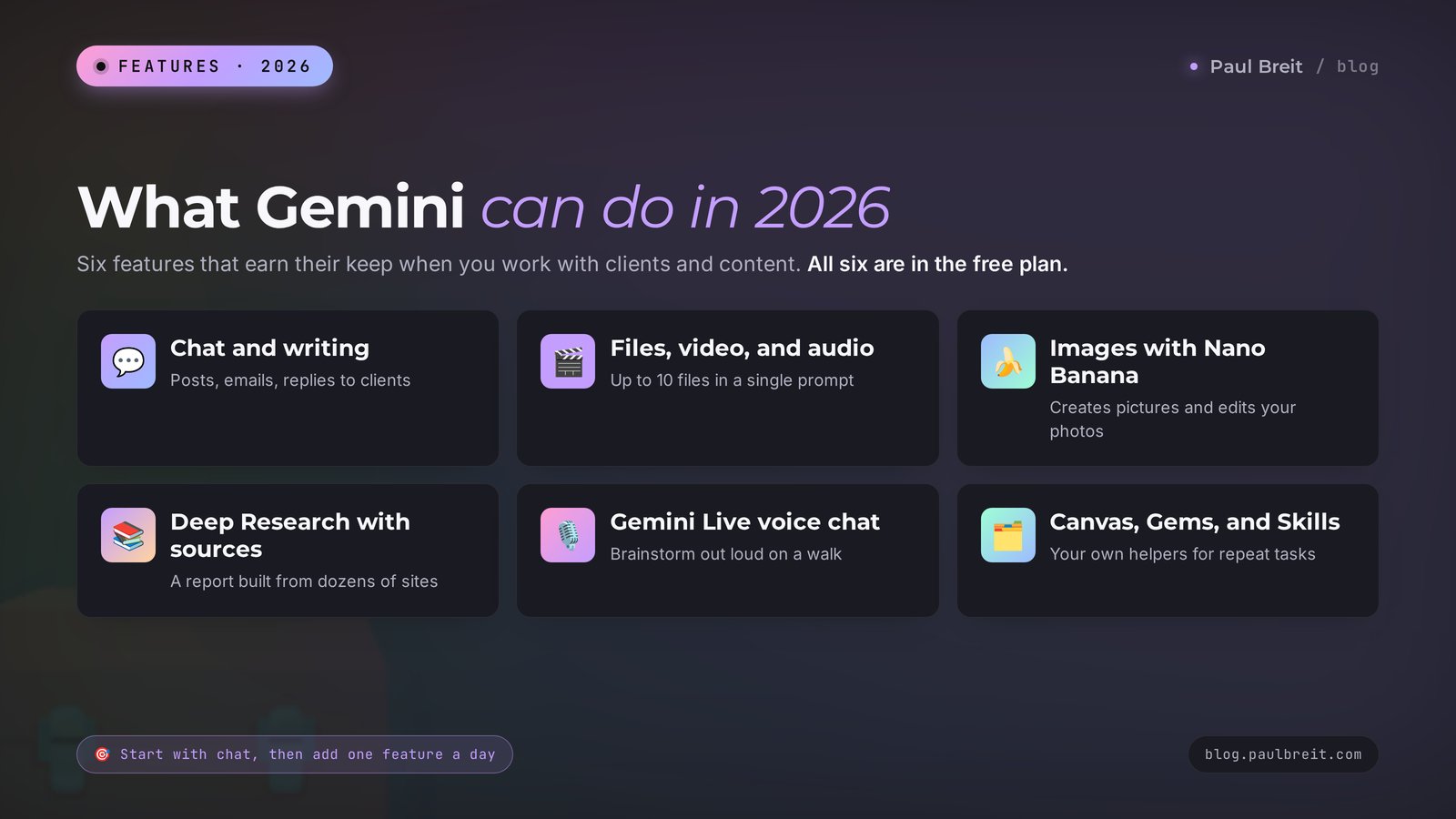
- What Gemini can do: 12 features in one table
- Your first chat, step by step
- Writing for work: 8 ready-to-use prompts
- Files, video, and audio: 4 prompts
- Images and video: 5 prompts
- Deep Research and Gemini Notebook
- Gemini Live, Canvas, Gems, and Skills
- Free or paid: 4 plans
- Gemini, ChatGPT, and Claude: which to pick
- Limits and privacy
- When something goes wrong
- Your first-week checklist
- The whole path in a minute
Here's how it usually goes. Someone has had a Gmail address for ten years. Their pictures sit in Google Photos, their work spreadsheets in Google Sheets. For the past year a colorful little star labeled Gemini has been blinking in the corner of every one of those products. They see it every day and have never clicked it. They don't know what it is, whether it costs money, or how it differs from ChatGPT, which everyone around them keeps talking about.
Behind that star sits one of the three strongest AI models in the world. It can watch an hour-long webinar recording and hand you notes with timestamps, read ten PDFs at once, draw an illustration for your post, and put together a market overview from dozens of websites. By the way, the cover images on the article cards on this blog's homepage are drawn by Gemini.
There's one caveat I'll name up front. Google rolls features out unevenly: by country, by age, and by plan. Something your colleague already has may reach your account a month later. I mark those spots as we go, so you know when a missing button is Google's schedule and nothing you did wrong.
Inside you'll find a step-by-step first chat, 22 ready-to-use prompts for writing, files, images, and research, a table of plans, and a comparison with ChatGPT and Claude. Read it in order or jump through the table of contents straight to the section you need.
Section 01What Gemini is in 2026
Gemini is a chat assistant made by Google. You type a task in plain words, and it answers with text, an image, a table, or a finished document. It belongs to the same class of tools as ChatGPT and Claude, only built by Google and wired into Google's products.
A little history so the names don't trip you up. In March 2023 Google released a chatbot called Bard. In February 2024 Bard was renamed Gemini, and since then that's the name of both the chat and the family of models inside it. If you run into an old tutorial about Bard, it's the same assistant at a younger age.
Several models run inside Gemini, and you choose between them in the dropdown above the input box:
- Gemini 3.6 Flash – the fast everyday model. It came out on July 21, 2026 and is open to everyone, including free users. Google describes it as an all-rounder: daily tasks, document analysis, multi-step projects.
- Gemini 3.1 Pro – the model for complex reasoning, released on February 19, 2026. Free access to it is limited, and subscribers get higher limits.
- Gemini 3.8 Flash – the newest version of the fast model. AI Pro and AI Ultra subscribers received it in early September 2026.
- Deep Think – an extended-thinking mode for the hardest problems. An answer takes several minutes to prepare, and the mode is available to AI Ultra subscribers.
Which model should a beginner choose? Leave the default. The fast Flash model handles posts, emails, notes, and ideas. Switch to Pro when a task needs calculations, a comparison of many conditions, or a long chain of steps, and the Flash answer didn't satisfy you.
Media models work separately from the text models. Images are created and edited by a model with a funny name, Nano Banana. The current versions are Nano Banana 2 and Nano Banana Pro. Video is made by Gemini Omni, which arrived in the app on May 19, 2026 for subscribers.
You don't have to memorize version numbers. Google updates its models every couple of months, and the digits in the names keep changing. Remember the logic: Flash for speed, Pro for hard problems, separate tools for images and video. If the words "model," "context," and "token" still sound foggy, take a look at AI terms for beginners: 30 words in plain English.
Section 02Where Gemini is available
I put this section near the top on purpose. It's frustrating to read a guide for twenty minutes and then find out a feature isn't in your account yet.
Here are the facts as of October 1, 2026.
- The list is long. Google's help pages say the Gemini web app is available in more than 230 countries and territories and in more than 70 languages.
- The feature set varies. Which tools you see and when they arrive depends on your country, your age, and your plan. Video creation, Skills, and some app features roll out in stages.
- Travel can interrupt access. If you take a trip to a country outside Google's list, Gemini may refuse to open there, on the website and in the app alike.
- A VPN is an unreliable fix. Google works out your location from a combination of signals, including account history, location in Maps, and payment details. Changing your IP address alone often changes nothing.
What follows from this in practice? If you live in a country on the list, everything works as designed: local internet, a Google account, and you're in. Before a long trip, check Google's list of supported countries and save anything you'll need offline: export the important chats to Google Docs and download the files.
Marketplaces and chat groups are full of offers like "ready account with an AI Pro subscription at half price." The previous owner can take the account back at any moment, or Google can block it, and your chats and files disappear with it. Nobody refunds the money in that situation. Subscribe only through your own Google account.
From here on I explain how Gemini is built and how to work with it. Follow the steps in order. And if a feature hasn't reached your account yet, read the prompt sections anyway: the prompts work in any AI chat.
Section 03Where to open Gemini: 5 ways in
Gemini has several doors, and different ones suit different tasks.
The website, gemini.google.com
The main entrance for work with text and files. Open gemini.google.com in any browser and sign in with your Google account. If you have a Gmail address, you already have an account. On the left you'll see your list of chats, in the center the input box, and above it the model picker. The interface language comes from your account settings.
The phone app
The Gemini app is in Google Play and the App Store. It has everything the website has, plus the camera and the Gemini Live voice mode. On Android you can set Gemini as your default assistant in place of the old Google Assistant and call it up from any screen.
The Mac app
Since April 15, 2026 Gemini has had a separate app for macOS 15 and later. It's free and opens with Option + Space on top of any window. You can show Gemini your screen and ask about whatever is open on it. In late July the English version added voice dictation: you talk, and Gemini drops cleaned-up text wherever your cursor is.
The Windows app
The app for Windows 10 and later came out on September 10, 2026. It opens with Alt + Space, connects to Gmail and Google Drive, creates images, and runs Deep Research. It's available to free users and subscribers alike.
Inside Google's products
That same little star in Gmail, Google Docs, and other products. In your inbox Gemini summarizes a long thread and drafts a reply. In documents it helps you write and edit. These features come with the paid plans: AI Plus includes Gemini in Gmail and Vids, and AI Pro adds Docs and automatic site browsing in Chrome.
Which door should you start with? I'd begin with the website on a computer. Copying text, uploading files, and reading a long answer in full are all easier there. Add the phone as your second step, for the voice mode.
Section 04What Gemini can do: 12 features in one table
Below is everything Gemini can do as of early October 2026 and how to put it to work. The last column shows the plan where each feature starts.
| Feature | What it does | How to use it | Starts on |
|---|---|---|---|
| Chat and writing | Writes, rewrites, shortens, changes tone | Posts, emails, client replies, service descriptions | Free |
| Pro model | Reasons step by step through a hard problem | Calculations, comparing options, project plans | Free with a limit |
| Files | Reads up to 10 files in one prompt, up to 100 MB each | Contracts, reports, price lists, spreadsheets | Free |
| Video and audio | Watches clips and listens to recordings | Webinar notes, call reviews, timestamps | Free up to 5 and 10 minutes, longer on AI Pro |
| Images | Creates and edits images from a description | Illustrations, covers, photo edits | Free |
| Gemini Omni video | Builds a clip from text, photos, and video | Short clips for social media | AI Plus |
| Deep Research | Searches dozens of sites on its own and writes a report with links | Market overview, competitor analysis, a roundup of studies | Free with a limit |
| Gemini Live | Talks out loud, sees your camera and your screen | Brainstorming, rehearsing a client conversation | Free |
| Canvas | A separate window for a document, code, or a prototype | Long texts, mini apps, landing pages | Free |
| Gems and Skills | Saves your instructions for tasks you repeat | Your own post editor, a helper for client replies | Free |
| Gemini Notebook | Answers only from your sources, makes audio overviews | A knowledge base for your course, a review of your own materials | Free, more on paid plans |
| Gemini in Gmail and Docs | Helps inside your inbox and documents | Thread summaries, email drafts | AI Plus and AI Pro |
Google doesn't publish exact numbers of prompts per day. The help pages only say that limits are "standard" without a subscription and grow on paid plans. You can see what you have left in the app settings.
Section 05Your first chat, step by step
Let's walk through a first conversation with Gemini, from an empty screen to a result you can take into your work. The whole thing takes about fifteen minutes.
Open a new chat and check the model
Click "New chat" in the left column. The model name sits above the input box or next to it. For your first time, leave the fast Flash model.
Introduce yourself in one paragraph
Gemini knows nothing about you. Until it understands who you are and who you work for, the answers will be average. Start with a short introduction: what you do, who your clients are, and what tone you use with them.
Give it one specific task
One message, one task. Name the format of the result: a list, a table, a 200-word text. The tighter the frame, the less you redo later.
Edit in the same chat
Treat the first answer as a draft. Write a follow-up: "make it shorter," "drop the second point," "rewrite the opening so it sounds more alive." Gemini remembers the whole conversation in the chat and edits that exact text. Open a new chat for a new topic.
Take the result with you
Under every answer there are buttons: copy, export to Google Docs or to a Gmail draft, rate the answer. A table goes to Google Sheets in one click.
Here's roughly what that conversation looks like:
You: I'm an interview coach. I prepare adults for job interviews at tech companies. My clients are engineers aged 25–40 who freeze up when they have to talk about themselves. Give me 10 topics for LinkedIn posts. For each topic, add one line on which client pain it touches. Format it as a table.
Gemini: Here are 10 topics. 1. "Tell me about yourself": why the first two minutes decide everything – the fear of blowing the very start. 2. Five phrases that give away a memorized script – the worry of sounding like a robot. 3. What to say when you didn't understand the question – the dread of a long pause on a call…
You: Take topic 3 and write a 200-word post. Open with a scene from an interview and give three ready-to-use phrases.
Notice the order: context first, then a list of ideas, then one idea goes into production. In three messages you get a post written about your client.
The working formula for a prompt is simple, and it's the same for every AI: who you are + who the result is for + what to do + in what format + an example or a constraint. I broke it down in detail in how to write prompts for AI: a 5-part formula. Every prompt below is built on it. Copy them and change the details in square brackets to fit your work.
Section 06Writing for work: 8 ready-to-use prompts
1. The introduction that saves an hour on every task
Remember this context for this chat. I'm a [nutritionist] and I work with [women aged 35–50 who are tired of diets]. I sell [an 8-week coaching program for $300]. I write warmly, in plain language, with no medical jargon and no pressure. When I ask for a text, ask me up to three clarifying questions if you're missing information. Reply with one word: "Got it."Why this works: from here on you can write short messages in this chat. You type "write a post about late-night snacking," and Gemini already knows who it's for and in what voice.
2. A post for your newsletter or social feed
Write a post about [why it's hard to get back to workouts after a vacation]. Length: 200–250 words. Open with a scene the reader will recognize from their own life, give 3 practical steps, and end with a question for the comments. Short paragraphs, no corporate language, and no emoji in every sentence.If the text comes out smooth and faceless, add: "Add one specific detail from real life and cut the general phrases that would fit any topic."
3. A reply to "that's too expensive"
A client sent me a DM: "[I like the program, but $300 is a lot for me right now]." Write 2 versions of a reply: calm, with no discount and no pressure. Show what the person gets for the money and offer an easy next step. Each version up to 60 words.4. A service description for your website or profile
Help me describe my service: [a résumé review and interview prep]. Who it's for: [professionals who haven't landed an offer in six months]. The client's result: [a résumé that gets replies and a confident story about themselves]. Format: [2 one-hour calls + edits in a shared document]. Write a description of 100–130 words: what the person comes in with, what they get, how the work goes, and what to do to sign up.5. The email that's awkward to write yourself
Write an email to a client who [has postponed payment for the third time]. The tone is respectful and firm. Remind them of our agreement, name the deadline [by Friday], and offer two options: pay now or move their start to the next group. Up to 110 words, no apologies and no threats.6. Ten headlines in place of one
Here is the text of my post: [paste the text]. Suggest 10 headlines using different approaches: a number, a question, a story, an unexpected fact, a promised result. Mark the three that will grab [parents of school-age kids] the hardest and explain each pick in one line.7. Cutting a text without losing the point
Cut this text in half: [paste the text]. Keep all the facts, the numbers, and the call to action at the end. Remove repetition, filler words, and explanations of the obvious. After the text, list exactly what you removed.The last line is the important one here. You see right away whether Gemini threw out something you need, and you bring it back with one sentence.
8. A review of your text through a stranger's eyes
Read my text through the eyes of [a business owner who is hearing about me for the first time]: [paste the text]. Name 5 places where the reader gets bored, gets confused, or wants to leave. For each place, suggest a specific replacement. Do not rewrite the whole text.Ask Gemini to show "three versions of the answer." There's a button with drafts under the reply: the AI offers other wordings right away, and you assemble the best text from the pieces, like building blocks. Another hundred prompts for different tasks are in the AI prompt library.
Section 07Files, video, and audio: 4 prompts
This is where Gemini is especially strong. It was built from the start to understand text, images, sound, and video together. You upload a recording, and the AI works with it directly.
The upload rules from Google's help pages:
- you can add up to 10 files to one prompt;
- a document, spreadsheet, or image can be up to 100 MB per file;
- a video file can be up to 2 GB;
- without a subscription Gemini handles video up to 5 minutes long and audio up to 10 minutes;
- on AI Pro and AI Ultra the limit grows to 1 hour of video and 3 hours of audio;
- you can connect a code folder or a GitHub repository: up to 5,000 files and up to 100 MB.
You add files with the plus or paperclip button next to the input box. Google Drive connects from the same place, so you don't have to download the document to your computer first.
9. Notes from a webinar or a call
This is a recording of [my webinar on choosing a niche]. Make notes: 1) the main idea in two sentences; 2) 7–10 key points with timestamps; 3) every question from the audience and my answers; 4) three post ideas based on the webinar. Write in plain language, with no commentary of your own.Why this works: you're asking for four different results from one recording. A single webinar turns into notes for attendees, answers to common questions, and topics for the week ahead. I covered other ways to turn a recording into text in AI transcription: a summary of your webinar in 5 minutes.
10. The short version of a long document
Read this document: [a 14-page lease agreement]. Summarize it in 10 points. In a separate list write out: every amount and deadline, my obligations, the penalties, and the termination terms. If any wording is ambiguous, quote it and explain both readings.Gemini helps you quickly understand what a document says and where the risks hide. Make the decision to sign after you talk to a lawyer. The AI can miss a clause or misread the wording.
11. Comparing several files
I've uploaded [three proposals from contractors]. Put them in a table: price, timeline, what's included, what's billed separately, guarantees. Under the table, write the questions I should ask each contractor before signing.12. A table from a photo or a screenshot
The photo shows [a notebook page with a week of client records]. Move the data into a table: date, name, service, amount. If you're unsure how a word reads, put a question mark next to it. Add up the total for the week.The request for a question mark protects you from quiet mistakes. Without it the AI confidently "reads" an illegible word by guessing, and you find out too late.
Section 08Images and video: 5 prompts
Images in Gemini are created and edited by the Nano Banana model. It's built right into the chat: you describe in words what you want to see, or you upload your own photo and ask for changes. Nano Banana's strength is editing. It does a good job of keeping the face and the object in a photo while you change the background, the clothes, or the lighting.
The formula for an image: what's in the foreground + where it happens + the light + the style + the aspect ratio.
13. An illustration for a post
Draw an illustration for a post about [the fear of a first call with a client]. In the foreground: [a laptop on a kitchen table and a cup of tea gone cold]. Morning light from a window, calm warm tones, realistic photo style. No people and no text. Horizontal frame, 16:9.14. A new background for a product photo or a portrait
This is a photo of me [at my desk]. Keep my face, hair, and clothes unchanged. Replace the background with [a bright office with a bookshelf] and add soft light from the left. The result should look like an ordinary photograph.You need the phrase "keep my face unchanged" in every prompt that uses your portrait. Without it the model may slightly "improve" your features, and the picture ends up showing someone who only resembles you.
15. A cover with text on it
Make a cover for [a guide called "7 Résumé Mistakes"]. Large text "7 Résumé Mistakes" in the center, even letters, easy to read on a phone. A solid [dark green] background and one simple object: [a sheet of paper with a paperclip]. Vertical frame, 4:5.Always check the text letter by letter. The model handles short phrases well, and typos show up in long lines. If a letter slipped, ask: "Fix the text. It has to read exactly like this: …"
16. A series in one style
Draw 4 illustrations for a carousel about [morning habits]: [a glass of water, sneakers by the door, an open notebook, an alarm clock]. One style for all of them: flat illustration, three colors [beige, navy, mustard], lots of white space. Square, 1:1.17. A short clip in Gemini Omni
Make an 8-second clip for Stories: [a cup of coffee on a table, steam rising, the camera slowly moves in, rain starts outside the window]. Vertical 9:16 format, a calm mood, no text on screen.Video creation is available to subscribers starting with the AI Plus plan. Gemini Omni can build a clip from text, photos, and your own videos, edit it right in the chat, and create an avatar. The feature set depends on your country.
Google puts an invisible digital watermark called SynthID on every image and video. You can't see it, but Google's products use it to tell that an image was made by AI. For more on choosing an image tool, read AI image generators in 2026: which to choose, and for clips, AI video from text.
Section 09Deep Research and Gemini Notebook
A regular chat answers from what the model learned and from a quick search. Deep Research works differently. You ask a question, and Gemini drafts a research plan and shows it to you. After you say yes, it visits dozens of websites on its own, reads them, and a few minutes later brings back a multi-page report with links to the sources. You can open the report in Google Docs with one click.
You turn the mode on in the tools menu under the input box. The free version has it with a small monthly limit, and paid plans give you more reports.
18. A market overview for your niche
Run a research project: the market for [online SAT math prep courses] in the US in 2026. I need: average prices and formats, 10 notable players with prices and links, how they differ from each other, and what parents complain about in reviews. End with 5 takeaways for [a private tutor who wants to launch a small group].19. A competitor review from a list
Study the websites and public social profiles of these specialists: [link 1, link 2, link 3]. Put it in a table: what they sell, at what price, the main promise at the top of the page, and what proof they show. Separately, write what none of them has.20. A check on a bold claim
Check this claim: "[80% of people quit online courses in the second week]." Find the original source of the number, the year, and the research method. If there is no reliable source, say so directly and give data I can trust, with links.This prompt is handy for cleaning up your own texts before you publish. Half of the "well-known" numbers on the internet turn out to have no source once you check.
Deep Research cites real pages, yet its summary of them can be off. Before you carry a number into a post or onto a landing page, open the source and find that number with your own eyes. The check takes a couple of minutes, and your reputation is worth more.
Gemini Notebook solves the opposite problem. You put your own sources into a notebook: lesson transcripts, workbooks, articles, PDFs. Gemini answers only from them and shows where each answer came from. A separate feature, Audio Overviews, turns the materials into an audio summary you can listen to like a podcast on the road. The notebook is in the free version. AI Plus gives you more audio overviews, and AI Pro gives you five times more.
How do you use it? Collect all the materials from your course in a notebook and ask questions as a client would: "where do I start if I have no audience?" You'll quickly see which questions your materials answer and where there's a hole.
Section 10Gemini Live, Canvas, Gems, and Skills
Gemini Live: a conversation out loud
The phone app has a Live button. You tap it and talk to Gemini out loud, like on a phone call. You can interrupt it mid-sentence, ask it to keep things shorter, or go back to an earlier thought. You can turn on the camera and show what's in front of you, or share your phone screen. The mode is free. Since May 2026 you can switch between voice and text inside one chat.
21. A voice brainstorm
Let's brainstorm. I'm a [therapist] and I want to launch [a mini course on anxiety before public speaking]. Ask me one question at a time: who my client is, what hurts, what they've already tried. After ten questions, turn my answers into an outline for a 5-lesson course.This prompt is easy to say out loud on a walk. You answer the questions by voice, and at home the same chat holds a finished outline that only needs polishing.
Canvas: a window for a big document
When a text is long, editing it in the chat feed is awkward. Canvas opens a separate window next to the chat with your document in it. You select a paragraph and ask for a rewrite of that part only, change the tone and length with buttons, and the chat stays on the left for discussion. In Canvas Gemini can also build simple web pages, mini apps, and prototypes: you describe a price calculator for your service in words and see it working right away.
Gems and Skills: helpers for your tasks
A Gem is a saved version of Gemini with your instructions. You describe once who you are and how to write, attach examples, and from then on you open that helper in one click with no need to repeat the background.
On September 30, 2026 Google announced the launch of Skills. A Skill is a reusable set of instructions for a task you repeat. The release notes say Skills will replace Gems. The feature is gradually reaching users over 18, including free ones. If you only see Gems for now, use them: the logic is the same.
22. Instructions for your own helper
You are the editor of my posts. I'm a [career consultant] and I write for [professionals aged 28–40 who want to change jobs]. My style: direct "you," short paragraphs, examples from my practice, no corporate language. When I send a draft: 1) fix the mistakes; 2) suggest a stronger first sentence; 3) mark the places where the reader gets bored; 4) return the full text. Keep my wording and do not add new facts.Paste this text into the instructions field when you create a Gem or a Skill and attach three to five of your best posts as samples. Now every draft goes through the same edit in a minute.
Section 11Free or paid: 4 plans
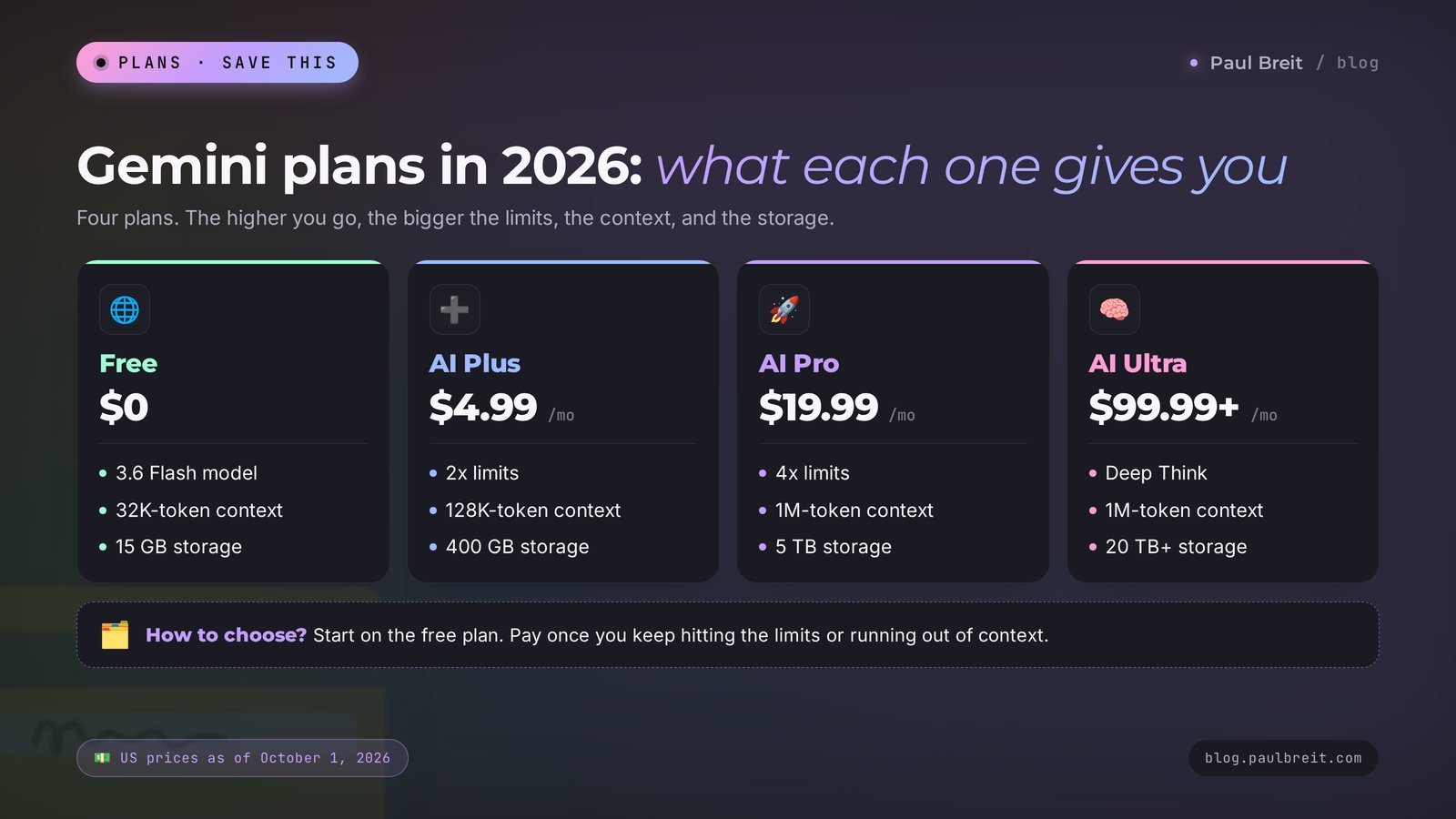
Google has four tiers. The prices below are for the US as of October 1, 2026. In Europe they differ slightly: AI Pro, for example, costs €21.99.
| Plan | Price per month | Limits | Chat memory | Storage | What it adds |
|---|---|---|---|---|---|
| Free | $0 | Standard | 32K tokens | 15 GB | 3.6 Flash, limited 3.1 Pro, images, Deep Research, Live, Canvas, Gems, Notebook |
| Google AI Plus | $4.99 | 2x higher | 128K tokens | 400 GB | Video creation, Gemini in Gmail and Vids, more audio overviews |
| Google AI Pro | $19.99 | 4x higher | 1M tokens | 5 TB | More access to the Pro model, Gemini in Docs, automatic site browsing in Chrome, video up to 1 hour and audio up to 3 hours |
| Google AI Ultra | $99.99 or $199.99 | 5x or 20x higher than AI Pro | 1M tokens | 20 TB and up | Deep Think, early access to the Gemini Spark agent, YouTube Premium |
What does "chat memory" mean in this table? It's the amount of text Gemini keeps in its head within one conversation. 32K tokens is a few dozen pages. Google equates a million tokens to roughly 1,500 pages. On the free plan, in a long chat with big files, the AI starts to forget how the conversation began. On AI Pro you can upload an entire book and discuss it chapter by chapter.
How do you choose?
- Free – for getting acquainted and for short daily tasks: posts, emails, ideas, images. It's enough to find out whether this is your tool.
- AI Plus – if you keep hitting the limits and want Gemini inside your inbox. For the price of a cup of coffee you also get 400 GB in Drive.
- AI Pro – if you work with hour-long recordings, large documents, and long projects. This is the main working plan.
- AI Ultra – for people who sit in Gemini all day and run into the AI Pro limits. A beginner doesn't need it.
Before you pay, live on the free version for at least two weeks. If you never hit a limit in that time, you have no use for a subscription yet. Other free options are collected in free AI tools 2026: what works without paying.
You pay for a subscription with a card through your Google account. The region of your payments profile has to match a country where Gemini is available. A subscription by itself doesn't open access in a country outside the list: the country restriction applies to paid accounts too.
Section 12Gemini, ChatGPT, and Claude: which to pick
The three leading AI assistants of 2026 solve the same tasks, and each has a place where it beats the others. Here's a comparison from the point of view of someone who sells their own services and runs a blog.
| Task | Gemini | ChatGPT | Claude |
|---|---|---|---|
| Notes from video and audio | Its strong suit: watches and listens to the recording directly | Works with audio and short videos | Needs a ready transcript |
| Large documents | Up to 1M tokens on AI Pro | A large window on paid plans | A large window, careful analysis |
| Long texts in your voice | Good, needs editing | Good | Its strong suit |
| Images | Nano Banana, strong at photo editing | Built-in generation, strong at complex scenes | Doesn't create images |
| Search and reports with sources | Deep Research on Google Search | Has a deep research mode | Has a research mode |
| Links to your work tools | Gmail, Docs, Drive, Chrome | Many connected apps | Connections through MCP |
| Entry price for paid features | From $4.99 | About $20 for the main plan | About $20 for the main plan |
What's the takeaway? I'd reach for Gemini for three jobs: working through video and audio, working inside Google's products, and a low-cost way into paid features. For long texts and big projects I open Claude more often. ChatGPT remains the most all-purpose option, with a huge number of tutorials online.
The detailed breakdowns are in neighboring articles: Claude 5, GPT-5, and Gemini 3: what changed and which one fits you, Claude vs ChatGPT, and the big roundup best AI tools 2026 for 12 real work tasks. If you're still unsure, the 5-minute scheme for choosing an AI tool will narrow it down.
Section 13Limits and privacy
Gemini is a strong tool, and it has weak spots you're better off knowing in advance.
- It makes up facts. Like any AI, Gemini can confidently name a study that doesn't exist or mix up a number or a date. Check everything that goes to clients or into print.
- It plays it safe. On health, legal, and financial topics Gemini sometimes answers in generalities or declines. A clarification helps: "I understand this doesn't replace a professional. I need an overview so I can prepare my questions."
- Free memory is short. 32K tokens run out fast when big files sit in the chat. The sign is simple: Gemini starts mixing up what you agreed on at the beginning.
- Features arrive unevenly. Google rolls out new things gradually and country by country. What a friend already has may reach you a month later.
- Access depends on your country. I covered the details in section 2.
Now about your data. In its privacy notice for Gemini, Google directly asks you not to enter confidential information you wouldn't want a reviewer to see: people read some conversations to improve the service. By default chats are saved in your account.
What to do about it:
- open Gemini's activity settings and decide whether to keep your chat history and whether it can be used to train the models;
- for one-off sensitive questions turn on a temporary chat: it doesn't go into your history;
- don't upload ID documents, passwords, medical records, or clients' personal information without their consent;
- before you upload a contract or a message thread, swap the names and amounts for placeholders: Gemini will get the meaning, and nothing extra lands in the service.
Section 14When something goes wrong
| What happens | Why | What to do |
|---|---|---|
| It says Gemini isn't available in your country | Google placed you in a country outside its list | See section 2. Check the list of supported countries in Google's help pages. A VPN is not a dependable fix |
| It answers in the wrong language | The language comes from your account settings or from your first message | Write "answer in English" or change the language in your Google account settings |
| The answer is generic and faceless | Too little context | Add who you are, who the text is for, and what format you need. Attach an example of your own |
| It forgot what you agreed on | The chat memory ran out | Ask for a short summary of what you agreed on and start a new chat with it |
| The video won't upload | The clip is longer than your plan's limit | Without a subscription, cut the recording into pieces of up to 5 minutes or upload the audio track in parts |
| The text on an image has a mistake | The model writes long text unreliably | Shorten the text to 3–5 words and repeat the exact wording in quotes |
| It says you've reached your limit | You've used up your prompts for the Pro model or for a tool | Switch to Flash, wait for the limit to reset, or consider a higher plan |
| It refuses to answer | A safety filter was triggered | Rephrase the task and explain the work purpose of your request |
| There's no Skills or Omni button | The feature hasn't reached your account or your plan yet | Update the app and check again in a couple of weeks. Use Gems in place of Skills |
Section 15Your first-week checklist
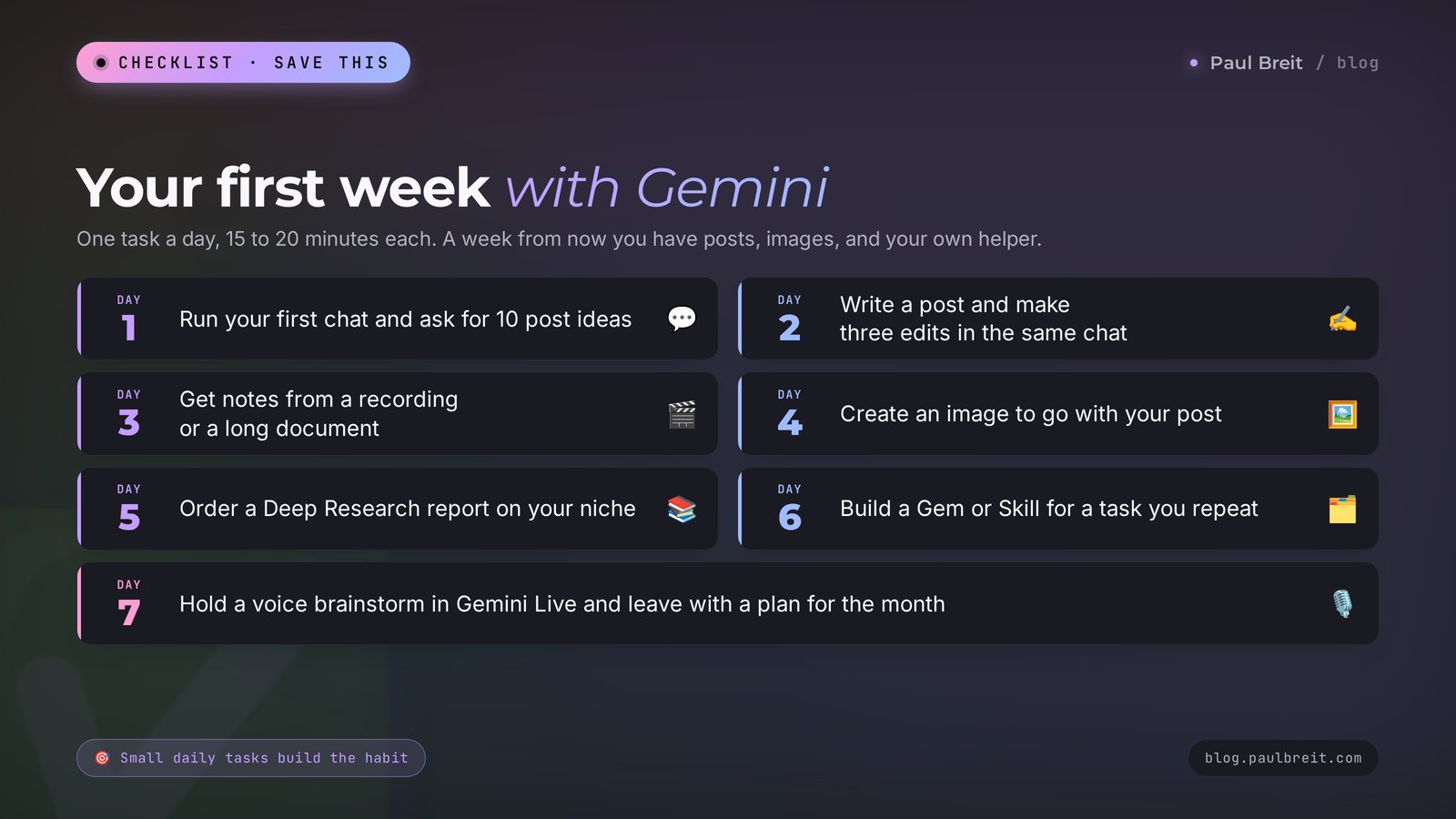
To make Gemini a habit, give it one task a day. The plan below takes 15–20 minutes a day.
- Day 1. Open gemini.google.com, introduce yourself with prompt 1, and ask for 10 post ideas.
- Day 2. Take one idea, write a post with prompt 2, and make three edits in the same chat.
- Day 3. Upload a recording of a call or a webinar, or a long document, and get notes with prompt 9 or 10.
- Day 4. Create an illustration for the post with prompt 13 and try changing the background on your own photo with prompt 14.
- Day 5. Run Deep Research on your niche with prompt 18 and open three sources from the report.
- Day 6. Build your own editor helper in Gems or Skills with prompt 22.
- Day 7. Hold a voice brainstorm in Gemini Live with prompt 21 and put together a plan for the month.
A week from now you'll have finished posts, a set of notes, images, a niche overview, and a personal helper. Most important, you'll know from your own tasks where Gemini helps you and where another tool is the better fit.
Section 16The whole path in a minute
- Gemini is Google's AI, formerly Bard. It runs at gemini.google.com and in the apps for phone, Mac, and Windows.
- It's available in 230+ countries and territories and in 70+ languages. The feature set depends on your country, age, and plan.
- The free plan includes the 3.6 Flash model, images, Deep Research, Live, Canvas, Gems, and Notebook.
- Write prompts with the formula: who you are, who it's for, what to do, the format, an example.
- Upload up to 10 files per prompt. Video up to 5 minutes and audio up to 10 minutes for free, up to 1 hour and 3 hours on AI Pro.
- Turn on Deep Research for market overviews, Gemini Notebook for your own materials, and Gemini Live for ideas on the go.
- Pack the tasks you repeat into Gems or Skills.
- Plans: $0, $4.99, $19.99, and from $99.99. The main difference is the limits and the chat memory.
- Check facts against the sources and don't upload your clients' personal data.
Open Gemini today and hand it the first task from the checklist. Fifteen minutes will give you ten post ideas for the weeks ahead.
FAQFrequently asked questions
Is Gemini free?
Yes, the basic version is free. It includes the 3.6 Flash model, limited access to 3.1 Pro, image creation and editing, Deep Research, the Gemini Live voice mode, Canvas, Gems, and Gemini Notebook. The paid plans, Google AI Plus at $4.99, AI Pro at $19.99, and AI Ultra from $99.99 a month, raise the limits and the size of the chat memory.
Where is Gemini available?
The Gemini web app is available in more than 230 countries and territories and in more than 70 languages. The feature set and the rollout dates depend on your country, your age, and your plan. In a country outside Google's list the service may not open, and a VPN is an unreliable fix because Google determines your location from a combination of signals.
What languages does Gemini support?
Gemini works in more than 70 languages. You can change the interface language in your Google account settings. To get answers in a particular language, write your prompts in that language or ask for it directly in the chat.
How do I start using Gemini?
Open gemini.google.com or the Gemini app, sign in with your Google account, and type your task in the box at the bottom of the screen. Say who you are and who the result is for, and name the format of the answer. Then refine the result in the same chat.
How is Gemini different from ChatGPT?
Gemini is stronger at working through video and audio, it's built deep into Gmail, Google Docs, and Drive, and its paid plans start at $4.99 a month. ChatGPT is more all-purpose and has more connected apps. For everyday writing the difference is small, so choose by your own tasks.
What files can I upload to Gemini?
Documents, spreadsheets, photos, video, audio, and code folders. One prompt holds up to 10 files of up to 100 MB each, and a video file can be up to 2 GB. Without a subscription Gemini handles video up to 5 minutes and audio up to 10 minutes. On the AI Pro and AI Ultra plans it handles up to 1 hour of video and 3 hours of audio.
What is Google AI Pro, and do I need a subscription?
Google AI Pro is a plan at $19.99 a month. It gives you limits 4 times higher than the free ones, chat memory of up to 1 million tokens, 5 TB of storage, and Gemini inside Gmail and Docs. The subscription is for people who work with long recordings and large documents. The free version is enough for getting acquainted and for short tasks.
Can Gemini create images?
Yes. The Nano Banana model creates and edits images right in the chat. It draws from a description and edits uploaded photos: it changes the background, the light, and the details while keeping the face and the object. Image creation and editing are part of the free plan.
What are Gems and Skills in Gemini?
A Gem is a saved version of Gemini with your instructions and examples for tasks you repeat. On September 30, 2026 Google began rolling out Skills, reusable sets of instructions that will replace Gems over time. Both features are available to free users too.
Is it safe to upload documents to Gemini?
Google asks you not to enter confidential information into Gemini: reviewers may look at some conversations. In the activity settings you can turn off saving your history, and for one-off questions you can turn on a temporary chat. Don't upload clients' personal data or passwords.