AI Transcription: A Summary of Your Webinar in 5 Minutes
An hour-long webinar, call, or podcast can become clean text and a short summary faster than a coffee run. Here's what to transcribe speech with in 2026, how to wire recognition up to Claude, and how to walk away with a ready summary, meeting minutes, or a batch of posts. Inside: a step-by-step chain, ready prompts, and a checklist.
To turn an hour-long recording into a summary in 5 minutes, work in two steps. First: upload the file to a speech-recognition service built on the Whisper model (like Notta or TurboScribe), or use free options such as Telegram Premium voice-to-text and YouTube auto-captions. Recognition runs faster than the recording plays, so an hour of sound becomes text in a couple of minutes. Second: copy the finished text, paste it into Claude or ChatGPT, and ask for a summary, key points, or meeting minutes. Your own time in this chain goes to uploading the file and writing one prompt; the AI does the rest.
You ran a 90-minute webinar. There's gold inside: breakdowns, answers to questions, live phrasing that could become a month of posts. And now the recording sits in a folder, because nobody is going to rewatch 90 minutes and type it all out by hand. A week later you can't even remember what that strong stretch around minute 40 was about.
I run four client projects and a personal channel with 20,000 followers, and almost every stream, call, and voice memo we make goes through transcription. It's one of those habits that saves dozens of hours a month and costs nothing. In this article I'll lay the whole system out so you can set it up for yourself in a single evening.
Let me say up front what this article won't do. It won't tell you to install complicated software or write code: everything happens through ready-made services and a chat with an AI. We'll sort out which tools actually work with speech in 2026, how they differ, and how to turn a raw transcript into a clean result you'd be happy to send a client or publish on a blog.
What's inside
- What transcription is and why you need it
- How to get text from an hour-long recording in 5 minutes
- What to transcribe with: the 2026 toolset
- Step by step: from recording to clean text
- Turning a transcript into a summary and content with Claude
- 7 ways to put transcription to work
- Accuracy: how not to end up with mush
- Privacy and what you shouldn't upload
- When something goes wrong
- The recording owner's checklist
In a few regions Claude and ChatGPT aren't available directly, and Anthropic blocks sign-ups from some IP ranges. If that's your case, use a VPN with a US or EU location and register with a mail provider that goes through, such as Gmail or iCloud. For the transcription step itself you usually don't need a VPN: Whisper, Telegram, and most recognition services work directly. You can try Claude at claude.ai.
Section 01What transcription is and why you need it
Transcription is turning spoken words into written text. You feed in a recording of a voice, and you get everything that was said, in letters. This used to be done by hand: someone sat down, played the recording at slow speed, and typed. An hour of sound turned into four or five hours of work and cost real money. Today an AI does the same thing in minutes and for almost nothing.
From the start, it helps to separate two different jobs that people often confuse. The first is speech recognition, where sound becomes text word for word. The second is making sense of that text, where a wall of transcript becomes a short summary, minutes, or an article. Dedicated speech-recognition models like Whisper handle the first. Claude and ChatGPT handle the second. They're different tools for different jobs, and the best result comes when you chain them together.
Why does this matter to anyone who sells services, courses, and consulting? Look at how much around you is spoken out loud and then lost. The webinar you ran. The client call where key agreements were made. The voice memos you dictate on the go. Interviews and podcasts you're invited on. The team standup. All of it is valuable meaning that currently lives only in a recording you never get around to. Transcription drags it into the light and makes it usable.
A quick example from practice. A coach ran a two-hour live breakdown and answered thirty audience questions. That recording used to just gather dust in the archive. Now, in ten minutes, she gets text out of it, and from the text the AI builds five posts, a newsletter email, and a list of frequently asked questions for a future lead magnet. One stream feeds a week of content, and the coach edits her own live words from the recording.
There's a nice flip side, too. A transcript preserves your voice, literally. When you later ask the AI to write a post, it leans on how you actually speak: your phrasing, your examples, your rhythm. The text comes out sounding like you, not smooth and faceless. I have a separate article on teaching AI to write in your voice, and stream transcripts are the best fuel for that setup.
Section 02How to get text from an hour-long recording in 5 minutes
Here's the whole chain from the top; we'll break down each step in detail later. The magic rests on one fact: modern models recognize speech faster than it plays. An hour-long recording is transcribed in a few minutes, sometimes less. Your own part in it is minimal.
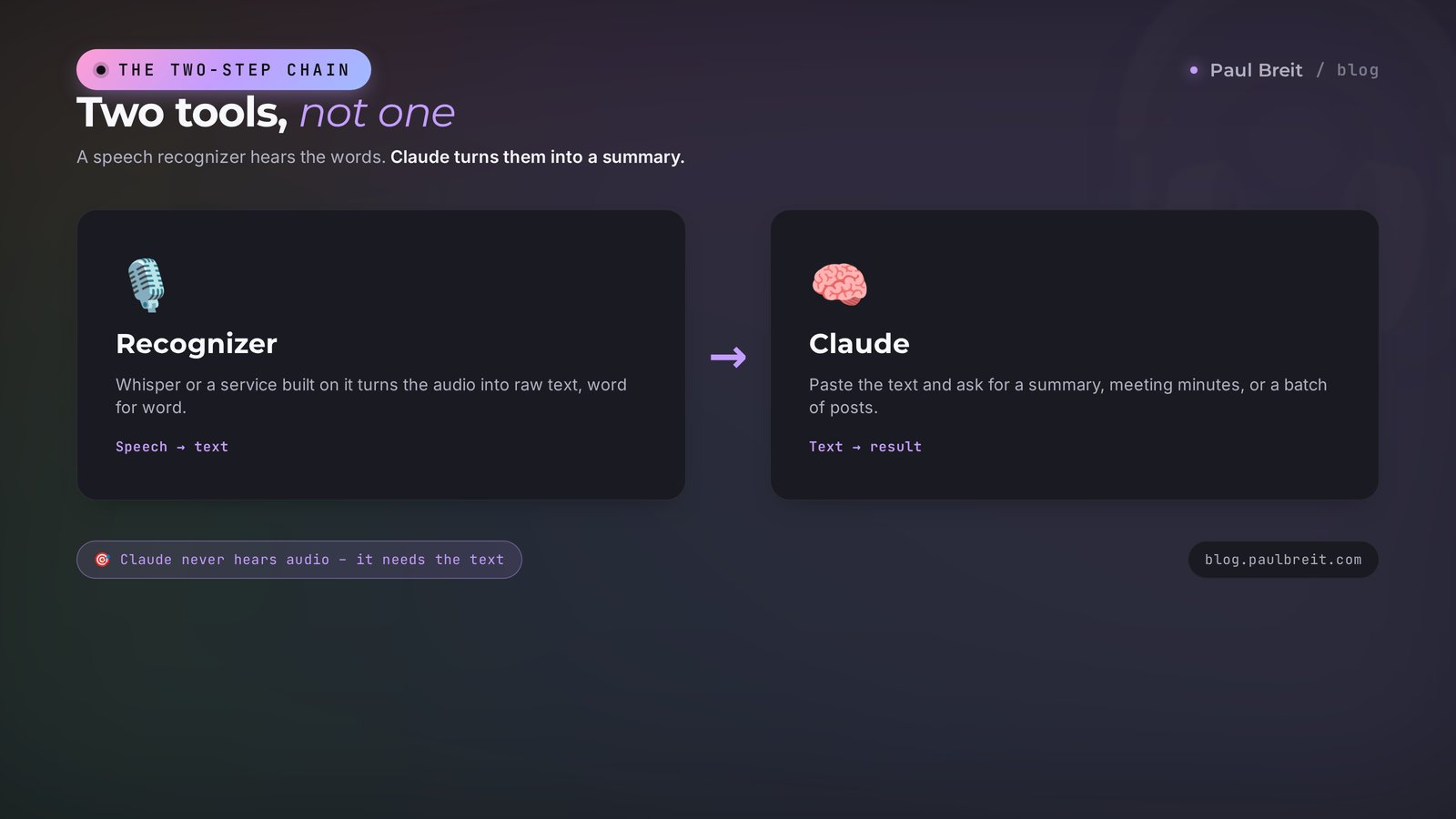
The chain looks like this. Take the recording file. Upload it to a speech recognizer. Get text. Paste the text into Claude. Ask for a summary. Done. Of those five steps, you're only busy on the first and the fourth; a machine runs the rest. That's where the five-minute promise comes from: it's your time, not the processor's.
Why two tools instead of one? Dedicated recognition models are trained to hear speech and hold up well against noise, accents, and fast talkers. But they don't think about meaning; their job is to spit out the text as-is, with every filler word and slip. Claude is the opposite: it's great with meaning but can't parse raw speech at all. Combine their strengths and you get both accurate text and a meaningful summary.
A word on who can do what with audio, because there's a lot of confusion here. Claude doesn't accept audio files and doesn't recognize speech at all: it needs finished text. The ChatGPT app can take an audio file and transcribe it itself, which is handy for short clips. But on a long 90-minute webinar, a dedicated recognition service gives cleaner results with no dropouts. So for serious recordings I recommend the recognizer-plus-AI chain rather than all-in-one.
Recording → speech recognizer (Whisper or a service built on it) → text → Claude → summary. The first step makes sound into text. The second turns text into a result. Your time goes to uploading the file and writing one prompt.
Section 03What to transcribe with: the 2026 toolset
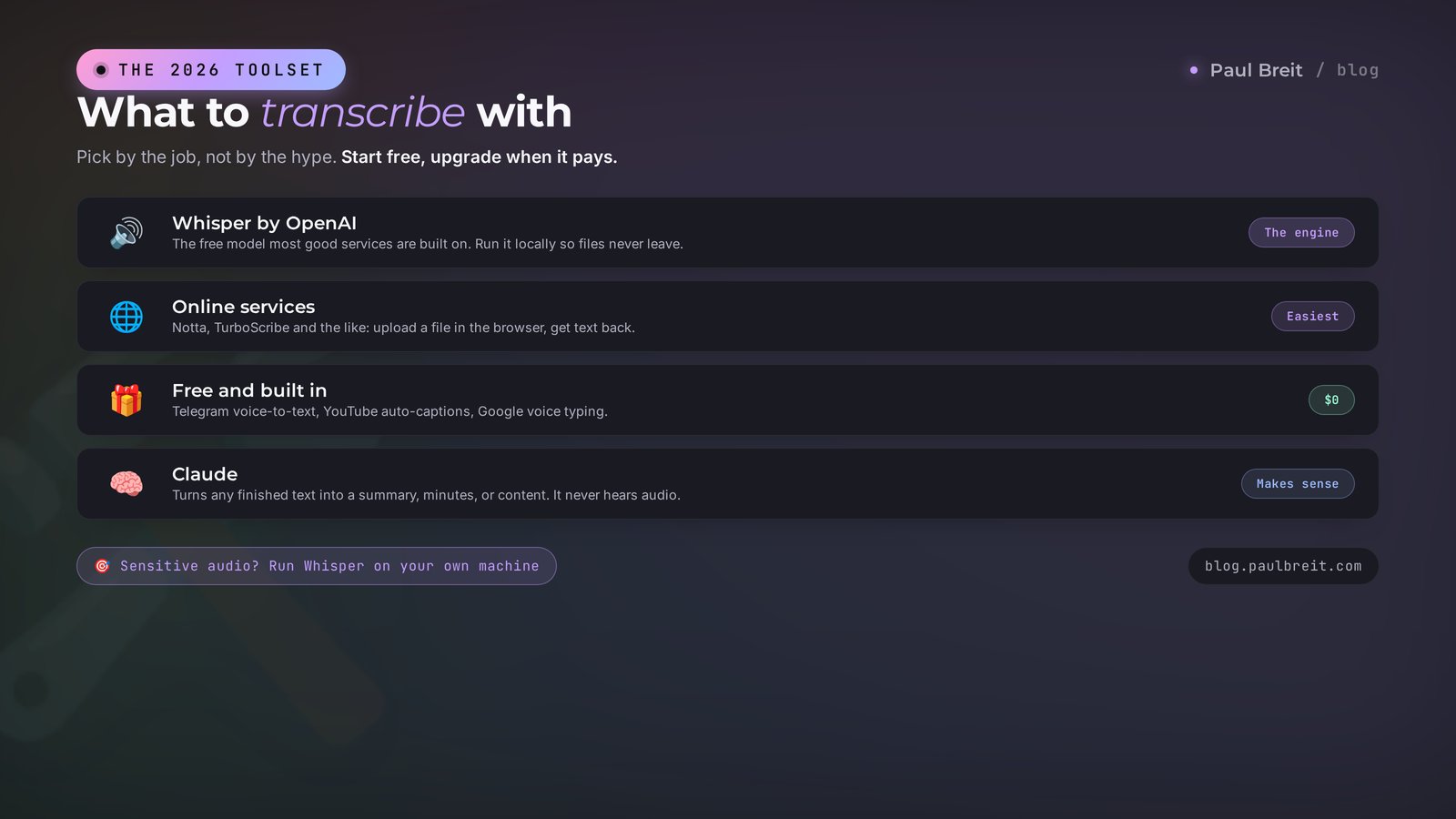
There are a lot of tools, and beginners drown in them. Let me lay them out from free and built-in to professional, so you can pick yours for your task right away.
Whisper by OpenAI – the heart of it all
Whisper is a free speech-recognition model that OpenAI released into the open. Most of the good services are built on it. It handles speech noticeably better than older tools, holding up against noise and varied speaking speeds. You can install Whisper right on your own computer, and then the recording never leaves your machine, which matters for sensitive files. Setup takes a bit of technical fiddling, so most people find it easier to use ready-made services that run on the same model but through a friendly window in the browser.
Online services built on Whisper
This is the most convenient option for anyone without a technical background. You just open a site, upload a file, and get text. Among the ones that handle speech well are Notta and TurboScribe. Most such services have a free tier with a daily cap and a paid tier with no limits. Many can split speakers, add timecodes, and hand you subtitles directly, which is handy for video.
Free and built in
If you'd rather not pay yet, start with what's already at hand. Telegram Premium has built-in voice-to-text for voice messages and video notes: tap the icon and the audio turns into text right in the chat. Voice typing in Google Docs recognizes speech on the fly while you talk or play a recording nearby. YouTube generates auto-captions for uploaded video, and you can copy the whole text. On Android there's Google Recorder, which records and transcribes at the same time. For a lot of jobs that's plenty.
Paid pro services
If you work with recordings constantly, a paid transcription service earns its keep. Tools like Otter and Fireflies join meetings, record, transcribe, and even draft minutes on their own. They lean toward business and integrations, but they cover simple scenarios too, and their strength is that they run the whole loop for you.
A one-off short clip – Telegram Premium voice-to-text or an upload to ChatGPT. Regular streams and calls – an online service built on Whisper with a paid tier. Sensitive recordings that can't go anywhere – Whisper locally on your own computer. And making sense of any text into a summary and content – always Claude.
Section 04Step by step: from recording to clean text
Now, step by step, spelled out so completely that even a first-timer can build it. Let's take a typical job: you have an hour-long webinar recording and you need clean text.
Save the recording as a file
A Zoom webinar, a Telegram stream, video from your phone – save all of it as an ordinary file. Almost any format works: mp4, mov, mp3, m4a, wav. If the recording is video, you don't need to convert anything; the service pulls the audio itself. Once the file is on your computer or in the cloud, you can move on.
Open the recognizer and upload the file
Go to a speech-recognition service, sign up, hit upload, and pick your file. If the service asks for a language, set it – accuracy is higher that way. Then all that's left is to wait. Uploading a large video can take a minute or two depending on your connection.
Wait for the finished text
Recognition runs faster than the recording plays. An hour of sound is usually ready in a few minutes. What you get is the full text, often split by speaker and timecoded. Download it or copy the whole thing. This is your raw transcript: it has everything that was said, including slips and repetitions.
Tidy up the raw text
A raw transcript is hard to read: no paragraphs, and recognition errors in names and terms. This is where Claude comes in. Paste the text and ask it to fix the obvious errors, add paragraph breaks, and cut filler words without changing the meaning. You get readable text that's actually pleasant to work with.
Build the result you need
From the clean text the AI makes whatever you're after: a summary, key points, minutes, an article, posts. There's a whole section on that next, with ready prompts. Save the raw transcript too – it'll come in handy when you want to build something else out of the stream.
Notice exactly where your time goes. Steps two and five need about a minute of action each and one prompt. Steps three and four the machine does on its own while you pour a cup of tea. That's why it feels like an hour-long recording turns into finished material almost instantly.
Section 05Turning a transcript into a summary and content with Claude
The raw text on its own is almost useless: nobody's going to read a twenty-page wall. The value shows up when Claude turns it into something short and useful. It all comes down to the prompt – how you frame the task. The sharper the request, the better the result, and the skill of writing strong prompts pays off directly here.
Here are ready prompts for common jobs. Copy them, paste your transcript below, and adjust to fit.
You're an editor. Below is a transcript of my webinar. Turn it into a structured summary: the main ideas by section, key points as a list, and the important examples and numbers. Keep my phrasing wherever it's alive. At the end, add a block with the questions viewers asked and short answers. Write in plain language, no jargon. Here's the text:
Below is a transcript of a work call. Write short minutes: what we agreed on, the decisions made, a task list with owners and deadlines, and open questions. All as bullet points, as short as possible, so I can send it to everyone. Here's the text:
Below is a transcript of my stream. Find the 5 strongest, most self-contained ideas and write a post for each in my style: short paragraphs, a live conversational tone, speaking directly to "you," no markdown. Open each post with a hook in the first line. Here's the text:
The secret is that the same transcript can run through different prompts as many times as you like. Today you made a summary for yourself. Tomorrow, five posts. Next week, a reel script and a newsletter email. One source, a dozen formats out of it. That's exactly how an hour of recording turns into a content plan – the kind I cover in the piece on what you can do with AI.
One more trick for anyone who works with recordings all the time. Set up a dedicated project in Claude for transcripts and drop in a description of your voice and formatting rules. Then the AI keeps your style in memory and produces posts that already sound like you, without long setup in every chat. How these projects and a knowledge base work, I broke down in the article on Claude Projects.
Section 067 ways to put transcription to work
So the system doesn't stay abstract, here are seven concrete scenarios from practice. Each one saves hours and costs almost nothing.
A webinar summary for people who missed it
Ran a stream? Turn it into a text summary and publish it as its own post or a pinned message. Part of your audience won't watch video but will happily read. The same content reaches more people.
Minutes from a client call
After the conversation, an hour becomes a short document: agreements, tasks, deadlines. Send it to everyone and nobody argues later about who promised what. It also protects you when things get disputed.
Reviewing sales calls
Transcribe your reps' call recordings and ask the AI to find where the deal slipped, which objections went unhandled, where they didn't close. It's a big topic on its own, covered in the article on analyzing sales calls with AI.
An article from a podcast or interview
You were invited onto a podcast, or recorded an interview with an expert – the transcript becomes a full blog article. A live conversation reads better than dry text, and you get the material with almost no effort.
Posts from voice memos on the go
An idea hits on a walk – dictate a voice memo to your saved messages, then transcribe it and hand it to the AI. That way you catch ideas while they're alive, instead of sitting down to write from scratch later.
Subtitles for reels and video
Most people watch short video with the sound off, so subtitles are a must. A speech recognizer hands you a subtitle file directly; you just load it into your editor. Captions from the transcript take minutes and lift completion rates.
Prepping for a talk
Say your upcoming talk out loud, transcribe it, and let the AI help pull together the key points and slides. You'll also hear where you stall and what's worth rephrasing. More in the article on preparing a talk with AI.
Section 07Accuracy: how not to end up with mush
The quality of a transcript depends directly on the quality of the sound. Garbage in, garbage out. The good news is that improving the sound is almost always in your hands, and it costs nothing.
The biggest factor is the mic and your distance from it. Speech from a lavalier, a headset, or at least a close mic is recognized beautifully. Speech from a far-off mic in a big, echoey room turns to mush. If you're preparing an important recording in advance, spend a minute on decent sound; it pays back in clean text.
The second factor is taking turns. If several people cut in and talk at once, any model starts to get confused and blend lines. On calls and in interviews, just agree not to talk over each other and accuracy climbs noticeably.
The third factor is rare words, names, and terms. The model recognizes by ear and often gets unfamiliar names wrong. It can mangle a client's last name, your product's name, or a piece of jargon. There are two ways to fight this. You can set up a dictionary of rare words in the service ahead of time, if it supports that. Or, after transcribing, hand the text to Claude and write: here's a list of correct spellings for names and terms, fix them throughout. The second way always works and needs no setup.
Record with a close mic. Cut background noise and echo. Ask people not to talk over each other. Name the rare terms and names in advance. After transcribing, run the text through Claude to fix recognition errors. Five simple moves, and the text comes out clean.
And one thing about expectations. Even the best model won't be 100% accurate on live conversational speech. Slips, half-finished phrases, and overlapping voices will remain. That's normal and it doesn't get in the way, because the next step – Claude reassembling the text into a meaningful summary – dissolves the small recognition errors anyway. Don't chase a perfect raw transcript; what matters is the final result.
Section 08Privacy and what you shouldn't upload
When you upload a recording to an online service, the file goes to someone else's server. For an ordinary work stream that's not a problem. But some recordings contain things that mustn't leave, and that calls for care.
Don't upload recordings with people's personal data without their consent, or with trade secrets, or with medical and financial details, to third-party services. A conversation with a client that touches their personal circumstances, a sensitive standup about money and contracts, a recording with ID numbers on it – none of that belongs in someone else's cloud.
The way out for sensitive recordings is simple: run Whisper locally on your own computer. Then recognition happens right on your machine and the file never leaves. Yes, it's a bit more work to set up than opening a website, but for truly private recordings it's the right path. As a general rule, treat any data you feed an AI the way you'd treat handing it to a stranger.
A note on ethics and the law. If you're recording a conversation with other people in it, it's decent – and often legally required – to tell them. A simple line at the start of a call, that you're recording and transcribing for minutes, clears up any future questions and bothers no one. Secretly recording someone else's conversation is a whole different story, and not one I'd advise stepping into.
Section 09When something goes wrong
Here are the common snags beginners hit, and what to do about them.
The service won't take a big file
Free tiers often cap the length or size of a recording. Two fixes: split the long recording into parts and run them in chunks, or move to a paid tier. For 90-minute webinars a paid tier beats fussing with slicing.
Errors in terms and names
That's normal for recognition by ear. Paste the text into Claude, give it a list of correct spellings, and ask it to fix them throughout the document. A minute later the names and terms are in place.
Claude won't take the whole text at once
A very long transcript may not fit in one message. Split it into two or three parts, send them in turn labeled "part one," "part two," and at the end ask it to assemble one overall summary. That way the AI handles even a multi-hour recording.
The summary came out dry and doesn't sound like you
That means the prompt was too generic. Add examples of your phrasing to the task, ask it to keep the live wording from the transcript, and write in plain, conversational language. The more specific your request about style, the closer the result is to your voice.
Poor recognition because of noise
If the recording is already made and the sound is dirty, cleaning up the noise in a simple audio editor helps. But better not to get there: going forward, record with a close mic in a quiet spot, and the problem is solved at the root.
Section 10The recording owner's checklist
Before you run a recording through an AI, run down this short list. Every box checked means a clean result with no surprises.
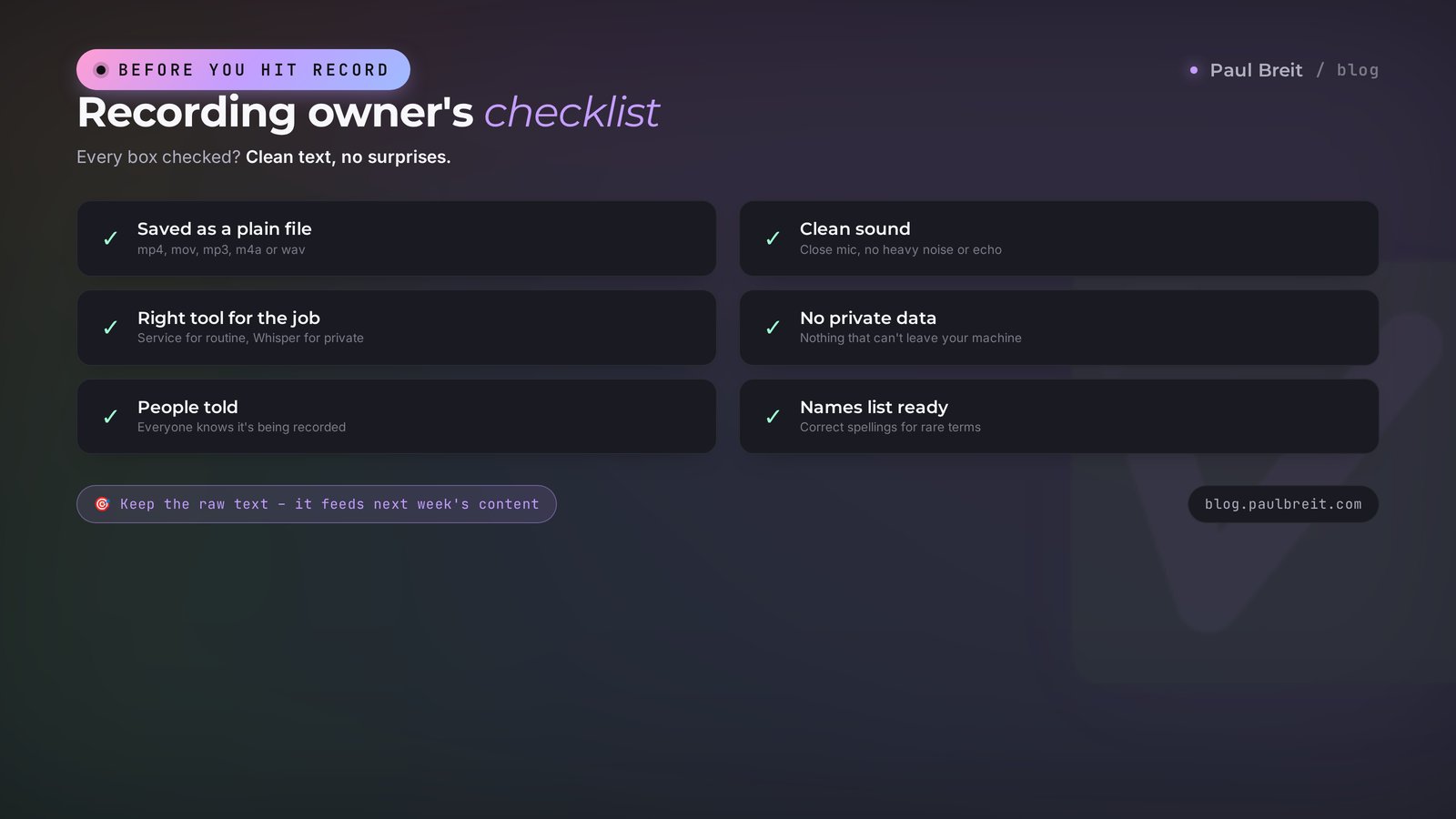
✅ The recording is saved as a plain, common file format.
✅ The sound is acceptable: close mic, no heavy noise or echo.
✅ The right tool for the job is picked: a service for routine recordings, Whisper locally for sensitive ones.
✅ The recording has no personal or private data that can't leave.
✅ Participants have been told it's being recorded and transcribed.
✅ A list of correct spellings for names and terms is on hand.
✅ A prompt is ready for the result you need: summary, minutes, or content.
✅ The raw transcript is saved for later, to build something else from it.
Let's pull it all together in a minute. Transcription is turning speech into text, and an AI does it faster than the recording plays. It works as a chain of two tools: a Whisper-based speech recognizer turns sound into text, and Claude builds a summary, minutes, or content from that text. Claude doesn't listen to audio – it needs finished text, so the steps go in order. You can start free with Telegram, YouTube, and Google voice typing, and for a stream of recordings move to an online service or Whisper locally. Accuracy rests on good sound and on naming the rare words in advance. Don't hand sensitive recordings to someone else's cloud. Learn this system once, and the dozens of hours of recordings gathering dust in your archive start working for you.
FAQFrequently asked questions
How do I transcribe an hour-long recording in 5 minutes?
Upload the file to a speech-recognition service built on the Whisper model: your part takes a minute, then the service works on its own. An hour-long recording becomes text in a few minutes, because recognition runs faster than the recording plays. Copy the finished text and hand it to Claude or ChatGPT with a request for a summary. The whole path from file to finished summary takes 5-10 minutes of your time.
Which AI is best for transcribing speech?
OpenAI's Whisper model and the services built on it handle speech best, for example Notta or TurboScribe. For free and built-in options, Telegram Premium voice-to-text and Google Docs voice typing work well, and YouTube auto-captions cover video. Claude and ChatGPT recognize raw speech less reliably than dedicated services; their job is different: turning finished text into a summary.
Can Claude listen to audio and transcribe it itself?
No. Claude does not accept audio directly and does not recognize speech. It needs finished text. The chain is: a speech recognizer turns the recording into text first, then you paste that text into Claude and it produces a summary, key points, minutes, or an article. The ChatGPT app can accept an audio file and transcribe it itself, but quality on long recordings trails dedicated services.
How much does AI transcription cost?
You can start at zero. The Whisper model is free; you install it on a computer or run it through apps. Telegram Premium voice-to-text, YouTube auto-captions, and Google voice typing are free. Online services usually have a free tier with a daily cap and a paid tier with no limits. For regular work, the paid tier pays for itself in the first week of saved time.
Can I transcribe a Zoom call or meeting recording?
Yes. Save the meeting recording as a video or audio file and run it through a speech-recognition service. Then hand the text to the AI and ask for minutes: who decided what, the agreements, who owns which task, and by when. That turns an hour-long call into a short document you can send to everyone.
How do I improve transcription accuracy?
Accuracy depends on the sound. Record with a lavalier or a headset instead of a far-off mic, cut background noise, and ask people not to talk over each other. Give the AI rare terms, names, and brand names in advance so it doesn't mangle them. After transcribing, run the text through Claude and ask it to fix obvious recognition errors and add paragraph breaks.
Is it safe to upload someone else's recordings into an AI?
Be careful. Don't upload recordings with personal data, trade secrets, or medical and financial details to third-party services without people's consent. For sensitive recordings, run the Whisper model locally on your own computer so the file never leaves. For an ordinary work recording, tell participants you're transcribing it.
What do I do with a finished transcript?
A transcript is raw material. From one hour-long recording the AI can build a summary, a channel post, a blog article, a reel script, a newsletter email, and a list of audience questions. Just paste the text into Claude and ask for each format in turn. One recording feeds a week of your content plan, and you never write from scratch.