Sora Shut Down: Where to Make AI Video in 2026
Sora, OpenAI's video model, is gone: the app and sora.com went dark on April 26, 2026, and developer access through the API ended on September 24. If you used Sora, here is what happened, what to do with your old clips and prompts, and which tools replace it today: Veo 3.1 and Gemini Omni from Google, Kling 3.0, Seedance 2.0, and Runway. Step-by-step instructions, prices, and ready prompts included.
Sora was OpenAI's AI that turned a text description into a video. In 2026 it was shut down: the app and sora.com stopped working on April 26, and API access ended on September 24. To make AI video now, you need a different tool. The strongest replacements are Google Veo 3.1 and Gemini Omni (in the Gemini app and in Flow), Kling 3.0, Seedance 2.0, and Runway Gen-4.5. The prompts you wrote for Sora work there too: describe the shot, the action, the camera, the light, the style, and the sound.
Everyone who sells services, courses, and consulting and wants clips for reels, stories, lessons, and ads without a full shoot day. If you are choosing a video AI for the first time, the big picture is in my guide to making AI video from text, and a comparison of tools for other jobs is in the best AI tools of 2026.
What's inside
- What Sora was and why everyone talked about it
- How Sora was shut down: the timeline
- Why OpenAI turned Sora off
- You used Sora: what to do now
- What replaces Sora: 5 tools in one table
- Veo 3.1 and Gemini Omni from Google: step by step
- Kling 3.0: step by step
- Seedance 2.0 in Dreamina and CapCut
- Runway Gen-4.5: when you need it
- Free tiers and trials: what you get for $0
- The "Sora-style" prompt formula and 8 examples
- Let AI write your video prompts: 4 templates
- A reel from AI clips in one evening
- What a video costs
- Choosing a plan and regional availability
- Faces, brands, and copyright
- When something goes wrong
- Your first-week checklist
- The whole path in a minute
Remember fall 2025? Your feed was full of clips where cats rode skateboards, politicians sang karaoke, and creators you follow flew on dragons. Almost all of it came out of Sora 2. The app hit the top of the App Store within days, people traded invite codes, and for a few weeks it felt like everyone you knew had made at least one video of themselves in a place they had never been.
Then, in the spring of 2026, OpenAI simply switched it off. No big drama: a short message, a month to download your videos, and that was it. That is why searching for "sora" today still turns up tutorials that explain which button to press. The button is gone.
The good news: the job itself has not gone anywhere, and it has actually become easier to do. The tools that were chasing Sora in 2025 grew up this year. Clips with sound, speech, and real camera movement now come from Google, Kling, ByteDance, and Runway, and some of them are cheaper than Sora ever was.
In this article I take it in order: what Sora was and why it closed, what to do with your old clips, what to replace it with, how to write prompts, and what a video costs. It takes about 22 minutes to read, and you can make your first clip tonight.
Section 01What Sora was and why everyone talked about it
Sora was an AI from OpenAI, the same company that makes ChatGPT. It turned text into video: you described a scene in words, and a couple of minutes later Sora gave you a clip of something that had never existed. You could also animate a photo or extend a video you already had.
There were two generations of Sora, and that matters, because older articles mix them up all the time.
The first Sora. OpenAI showed it on February 15, 2024, and it was a shock. Before Sora, AI video meant jittery two-second clips where faces melted and hands grew out of ears. Sora showed minute-long shots with a moving camera, reflections in puddles, and a crowd on a Tokyo street. It opened to the public only on December 9, 2024, for ChatGPT Plus and Pro subscribers in the US and Canada.
Sora 2. It came out on September 30, 2025, together with a standalone iPhone app, and an Android app followed two months later. Here is what changed:
- clips came with sound: speech, footsteps, street noise, and music were generated together with the picture;
- the physics got more believable: a basketball bounced off the rim instead of passing through it;
- "cameos" arrived: you recorded yourself once and could then drop your face and voice into any scene;
- the app became a social network with a feed, like TikTok, except every video in it was made by AI.
Sora 2 clips ran up to 15 seconds, and up to 25 seconds on the expensive ChatGPT Pro plan. The app worked in the US, Canada, Japan, South Korea, and a few other countries in Asia and Latin America. So if you are reading this in the US, there is a good chance you made something in it yourself.
In December 2025 it looked like Sora was heading for the big leagues. On December 11, Disney announced a billion-dollar investment in OpenAI and a three-year license that would have let people make Sora videos with around two hundred Disney characters. That launch never happened.
If words like "model," "prompt," and "generation" still sound like noise, keep my glossary of AI terms for beginners open in another tab. The rest of this article reads twice as easily with it.
Section 02How Sora was shut down: the timeline
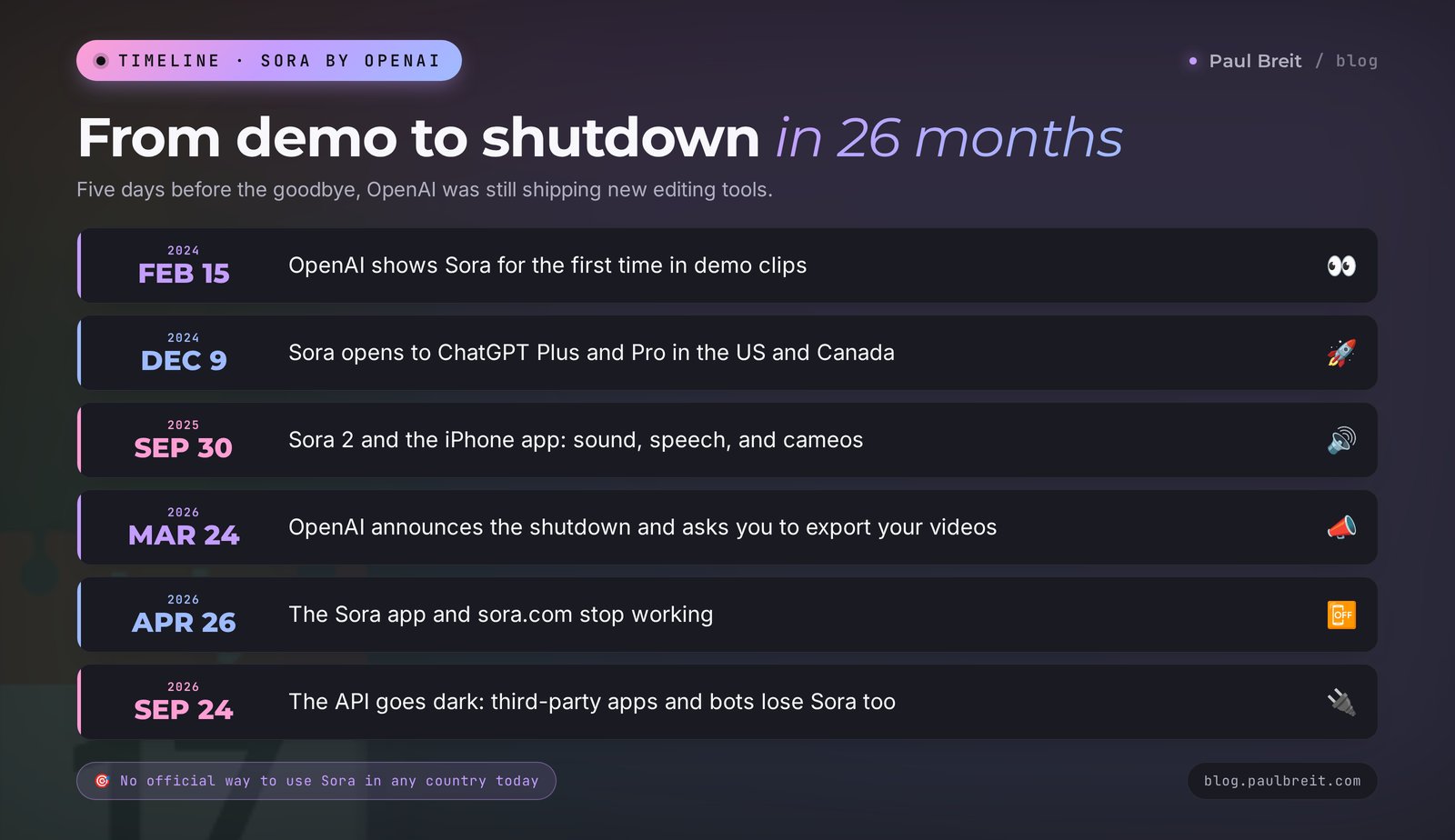
It all happened fast. On March 19, 2026, OpenAI was still shipping new editing tools inside Sora. Five days later came the shutdown notice.
| Date | What happened |
|---|---|
| February 15, 2024 | OpenAI shows Sora for the first time in demo clips |
| December 9, 2024 | The first Sora opens to ChatGPT Plus and Pro subscribers in the US and Canada |
| September 30, 2025 | Sora 2 and the iPhone app launch, with sound and cameos |
| November 2025 | The Android app launches |
| December 11, 2025 | Disney announces a deal with OpenAI and a character license for Sora |
| March 24, 2026 | OpenAI says goodbye to Sora and asks users to download their videos |
| April 26, 2026 | The Sora app and website stop working |
| September 24, 2026 | The API that other services used to plug Sora into their apps is turned off |
Look at the last row. Between April and September, Sora 2 was still alive inside third-party services that connected to it through the API: AI aggregators, chatbots, and editing apps. That is why some people kept using "Sora" through the summer of 2026. On September 24 that door closed too.
The thing to remember: as of October 2026, there is no official way to make a video in Sora in any country. Not for money, not by invite, not through some special app.
Section 03Why OpenAI turned Sora off
OpenAI never gave a detailed official reason. But reporting from major outlets paints a fairly clear picture, and it has three layers.
Money. Video is the most expensive kind of AI generation. One second of video takes many times more computing than an image, and orders of magnitude more than a chat reply. According to media reports, Sora cost OpenAI roughly a million dollars a day. Most users paid the same subscription they paid for ChatGPT, and that was never going to cover costs like these.
The interest faded. At launch Sora 2 was a sensation, but keeping people in a feed of AI clips turned out to be hard. Analysts estimated the app reached about a million monthly users at its peak and fell below half a million by the time it closed. For OpenAI, whose ChatGPT is used by hundreds of millions of people, that is a drop in the ocean.
Rights fights. Almost as soon as Sora 2 launched, the complaints started: clips featured other people's characters, logos, and the faces of real people, including celebrities who had died. Rights holders demanded their content be removed, OpenAI tightened its filters, and the service became less fun with every round. After the shutdown announcement, Variety reported that Disney dropped its plan to invest the billion as well.
The bottom line: OpenAI decided to focus on ChatGPT, coding, and business products. According to press reports, the team behind Sora moved on to research on "world models" for robotics. Video generation was never moved into ChatGPT. You can make images there. You cannot make video.
Video AI is expensive for the companies that build it. That is why free limits in every video tool are small and paid plans charge credits for every second. Don't tie yourself to one tool: keep your prompts and scripts in your own files so you can move to another service in an evening if this one closes too.
Section 04You used Sora: what to do now
If you made videos in Sora, through the app, the website, or a third-party service, go through this list.
Your old videos. OpenAI gave people time to download their videos before the shutdown. If you missed that window, you can no longer get them back through Sora. Check three places: the downloads folder on your phone and computer, your camera roll (many people saved clips there straight from the app), and the chats where you sent them to friends or clients. Anything you posted to TikTok, Instagram, YouTube, or another network can be downloaded from there, though the quality will be a little lower than the original.
Your prompts. This is the most valuable thing you have left. A good Sora prompt is about 80% ready for Veo, Kling, and Seedance. Find your best descriptions in your notes, in screenshots you took of the app, or in the chats where you drafted them, and put them all in one document. Later in this article I show how to adapt them.
Your cameos. If you recorded a cameo of yourself, it lived inside Sora and went away with it. You can't carry it over to another tool. If you want your own face in AI clips again, start from a good photo of yourself and use image-to-video, or look at a digital twin setup built for that purpose.
Your subscription. Sora came with ChatGPT Plus and Pro, so nobody paid for it separately. If you upgraded to Pro just for Sora and the 25-second clips, revisit your plan: for text and images, Plus at $20 a month is enough for most people.
Third-party apps. If you made "Sora videos" through an aggregator or a chatbot, check which model it runs now. After September 24, honest services switched the button to Veo, Kling, or Seedance and said so. If a service still says "Sora 2" and takes your money, that's a red flag.
After Sora closed, plenty of bots, apps, and websites showed up using its name: "Sora 2 unlimited," "Sora 3 free," "Sora Pro access for $4." There can't be a real Sora behind them, because OpenAI switched it off. At best you get a different model under a borrowed label. At worst you pay and get nothing, or you hand over the login to your account. Pay only official services, and only on their own websites.
Section 05What replaces Sora: 5 tools in one table
The video AI market changes every month, so I picked the tools that have stayed at the top through October 2026 and that people actually use for reels, ads, and lessons. Prices are as of publication, so check them on the service's site before you pay.
| Tool | Strength | Clip length | Sound | Free | Paid |
|---|---|---|---|---|---|
| Veo 3.1 (Google Flow) | Cinematic picture, realistic people, 4K | 8 seconds, can be extended | Yes, with speech | No | Google AI Pro $19.99: 1,000 Flow credits |
| Gemini Omni (Gemini app) | Video right in the chat, edits in plain words, your own photos and video as input | Up to 10 seconds | Yes | No | From the Google AI Plus plan, $4.99 |
| Kling 3.0 | Best value for the money, multi-shot, keeps the hero's face | 3–15 seconds | Yes, with lip sync | 66 credits a day | From $6.99 for 660 credits |
| Seedance 2.0 (Dreamina, CapCut) | Follows the prompt precisely, several scenes in one clip | Up to 15 seconds, longer in the new 2.5 | Yes | Trial credits | About $0.05 a second on a subscription |
| Runway Gen-4.5 | Editing tools, changes to existing footage, consistent style | 5–10 seconds | Partly | 125 credits, once | From $15 for 625 credits |
If you pick by the job, it looks like this:
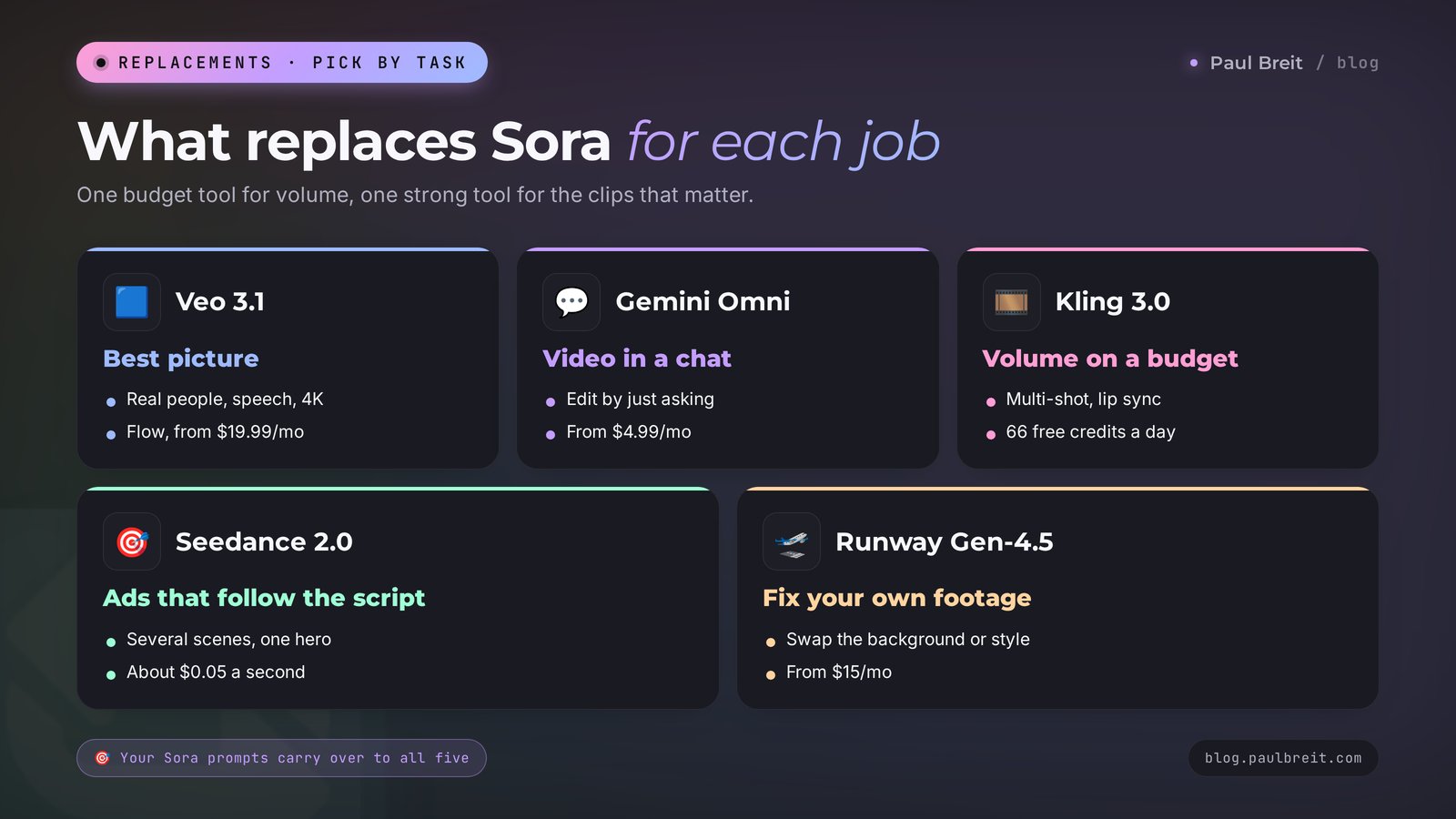
- you need the best-looking picture with real people and sound: Veo 3.1 in Flow;
- you want to make clips right in a chat and fix them by just asking: Gemini Omni;
- you need lots of clips for little money: Kling 3.0;
- you need an ad or a multi-scene story where hitting the prompt exactly matters: Seedance 2.0;
- you need to rework video you already shot: swap the background, the style, an object: Runway.
If I were you, I wouldn't pick "one tool forever." My setup is simple: the main stream of clips comes from one affordable tool, and for the one or two important clips a month, like an ad or a course trailer, I use the strongest one. It costs less and the result is better.
Section 06Veo 3.1 and Gemini Omni from Google: step by step
Google is now Sora's main heir in quality. It has two entry points, and they are easy to mix up.
Gemini Omni lives in the regular Gemini app. Google introduced it on May 19, 2026. It's a model that takes almost anything as input: text, your photo, a piece of video, your voice. Then it builds a clip of up to 10 seconds. The killer feature is editing by conversation. You make a clip, type "pull the camera back and make the light warmer," and it reworks the clip you already have. Video creation is available starting with the Google AI Plus plan.
Veo 3.1 is a separate video model, and it works at full strength in Flow, Google's editing studio at labs.google/flow. Here you get 8-second clips with sound and speech, and you can extend them, stitch them into scenes, and set the first and last frame. Flow runs on credits: the AI Pro plan at $19.99 gives you 1,000 credits a month, which is roughly 10 clips in Quality mode or about 50 in the faster Fast mode.
How to make your first clip in Flow:
- Get a Google AI Pro subscription on your Google account. If you're unsure which plan you need, Section 15 walks through the choice.
- Open Flow and click New project. A project is a folder that holds all the clips for one video.
- Pick a mode. Text to Video is for describing a scene in words. Frames to Video is for giving it a first frame, like your own photo or an image you made in another AI. Ingredients to Video is for building a scene from several images: a character, an object, a place.
- Pick the model and quality. For testing, use Veo 3.1 Fast: it costs several times less, and for a draft you'll barely see the difference. Switch to Quality once you've found the scene and need the final version.
- Set the format. Vertical 9:16 for reels and stories, horizontal 16:9 for YouTube and lessons.
- Paste your prompt using the formula from Section 11. Put any spoken line in quotes so the model knows exactly what the character says.
- Generate 2–4 versions and pick the best one. Don't expect perfection on the first try. That doesn't happen in any video AI.
- Extend or stitch. The Extend button continues a clip for a few more seconds from where it ended. Three or four clips in Scene builder give you a 25–30 second video.
- Download in the quality you need and finish it in your editor: captions, music, on-screen text.
Making a clip in Gemini Omni is even simpler: open the Gemini app, choose video in the tools menu, describe the scene or attach a photo, and say what should happen. A minute or two later the clip is ready, and you adjust it with ordinary messages.
Make a vertical 9:16 video, 8 seconds long: morning, a bright kitchen, a laptop and a cup of coffee on the table, steam rising from the cup, the camera slowly moves in toward the laptop screen, sunshine outside the window. Calm acoustic music, no people in the frame.I covered Gemini itself, its plans, and what else it can do for your work in a separate guide: how to use Gemini in 2026. If you plan to work with Google, read it before you pay so you know what the subscription includes beyond video.
Google puts an invisible digital watermark called SynthID on everything Veo and Gemini make, and a visible badge on some clips. Social networks can use that watermark to label a video as AI-made. There's no reason to hide it. By 2026 viewers are used to that label, and being upfront only builds trust.
Section 07Kling 3.0: step by step
Kling is made by the Chinese company Kuaishou. Version 3.0 came out on February 5, 2026, and it's the one people recommend most often as a Sora replacement when you need a steady stream of clips without spending much. In June 2026 Kling added 3.0 Turbo, faster and cheaper, and an updated Omni that can edit existing video.
What Kling 3.0 can do:
- clips from 3 to 15 seconds, up to 4K;
- sound and speech are generated together with the video, and lips move in time with the words;
- multi-shot: you can lay out a clip shot by shot, for example "wide shot, then a close-up of the hands, then the face," and the model assembles the cuts itself;
- it keeps the same character from shot to shot if you give it a photo;
- it animates photos: upload a picture and describe what should move.
Pricing: the free tier gives you 66 credits a day, enough for a couple of short clips in standard quality. Paid plans start at $6.99 a month for 660 credits, and Pro is $29.99 for 3,000. How many credits a clip uses depends on length, quality, and sound, and Kling shows the price right on the generate button before you start.
How to make your first clip:
- Go to klingai.com and sign in with Google or email. There's also a Kling AI app, but a computer is easier when you're starting out.
- Open the Video section and choose Text to Video or Image to Video.
- Pick the model Kling 3.0. Turbo for drafts, standard for the final cut.
- Set the length and format. For your first try: 5 seconds, 9:16.
- Turn on sound if someone speaks in the clip or you want atmosphere. Without sound it's cheaper, and you can add music later in your editor.
- Paste your prompt and click Generate. Expect anywhere from a minute to several minutes, longer at peak hours on the free tier.
- If you like the start but not the ending, use clip extension and Kling will continue the scene.
Here's a multi-shot prompt for Kling, written for a therapist's reel:
Shot 1 (3s): wide shot, a cozy therapist office with soft daylight, plants on the windowsill, an empty armchair.
Shot 2 (3s): close-up of hands holding a warm cup of tea, steam rising.
Shot 3 (4s): medium shot, a calm woman in her 40s smiles and looks out the window, slow push-in.
Style: natural colors, soft film look, vertical 9:16. Sound: quiet rain outside, soft piano.
Why it's written this way: every shot is spelled out separately with its length, so Kling doesn't invent its own cuts and the clip comes out predictable. If animating photos is closer to what you need, Kling is one of the most convenient tools for it, and the finer points of working with photos are in my collection of AI photo prompt ideas.
Section 08Seedance 2.0 in Dreamina and CapCut
Seedance is the video model from ByteDance, the company behind TikTok and CapCut. Starting in March 2026, version 2.0 rolled out gradually inside Dreamina (ByteDance's web studio for images and video) and inside CapCut itself, first in parts of Asia and Latin America, then in the US. Over the summer, version 2.5 arrived with longer clips.
Why people choose it:
- it follows the prompt very precisely: if you write "the camera circles the subject from right to left," that's what you get;
- it builds several connected scenes with the same character in one clip;
- sound, speech, and lip sync come out of the box;
- it lives next to CapCut, so you can cut the clip, add captions, and lay in music in the same app.
That's exactly why Seedance is popular for ads: you write a storyboard, and it carries it out without improvising. It's also one of the most affordable models: on a monthly Dreamina subscription a second costs about $0.05, so an eight-second clip comes in under 50 cents.
How to try it:
- Open dreamina.capcut.com and sign in with your CapCut, Google, or TikTok account.
- Choose AI Video and the Seedance 2.0 or 2.5 model.
- Set the format to 9:16 and the length, then paste a prompt or upload a starting image.
- Generate, pick the best version, and open it in the CapCut editor if you need to finish the edit.
On availability: the rollout went region by region, and which features you see can depend on your account and country. Use the trial credits first to see what your account actually gets before you rely on it as your main tool.
Section 09Runway Gen-4.5: when you need it
Runway is an American company and one of the pioneers of AI video. Its Gen-4.5 model keeps pace with the leaders on raw picture quality, though that's usually not the reason people pay for Runway.
Runway's strength is the toolkit around generation. With it you can:
- upload video you shot yourself and change its style, background, or time of day;
- remove an object or a person from the frame;
- make many clips in one style by setting a shared reference;
- control camera movement with sliders instead of hunting for the right words in a prompt.
Pricing: when you sign up you get 125 credits once, to try it out. Standard costs $15 a month and gives you 625 credits, and there's Pro at $35 and Max at $95, which roll over unused credits.
Who needs Runway: people who already film themselves and want AI to improve and rework that footage. Say you recorded a lesson with your kitchen in the background and you want a studio behind you. If you're just starting and want to generate clips from text, begin with Kling or Veo and come back to Runway later.
Section 10Free tiers and trials: what you get for $0
Let's be honest up front: there's no free replacement for Sora at the same level. Video is too expensive for the companies that make it. But you can test every major tool without paying, and for a few short clips a week that's enough.
- Kling gives 66 free credits every day. That covers a couple of short clips in standard quality, and it's the best free option for regular practice.
- Runway gives 125 credits once when you sign up. Use them to test editing your own footage, since that's what Runway is best at.
- Dreamina gives trial credits for Seedance. Enough to see whether its precise prompt-following suits your ads.
- Google has no free video tier: Veo and Gemini Omni start with a paid plan. If you already pay for Google AI Plus or Pro for other reasons, video is included.
A simple way to compare: take one prompt, run it in Kling for free and in the trial of one other tool, and look at the two results side by side. You'll learn more from that than from any review. For free tools in other categories, from writing to images, see my roundup of free AI tools.
Section 11The "Sora-style" prompt formula and 8 examples
Here's good news if you're used to Sora: every video AI works from the same kind of description. What it needs from you is a director's note. The more precisely you describe what the camera sees, the fewer attempts you'll burn.
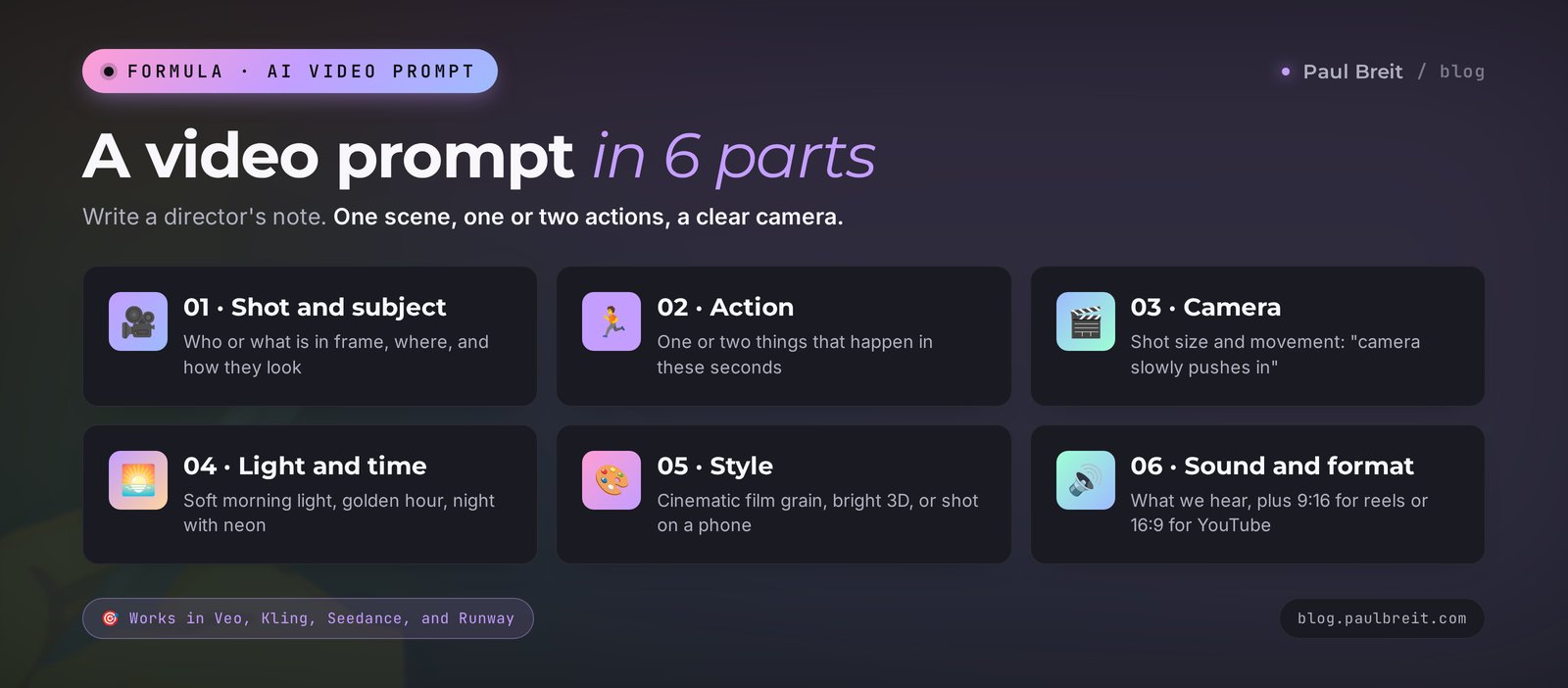
The six-part formula:
- Shot and subject. Who or what is in the frame, where, and how they look. "A woman in her forties in a beige sweater at a wooden table by the window."
- Action. What happens in these few seconds. One or two actions, since the model has no time for more. "Opens a notebook and smiles."
- Camera. Shot size and movement. "Medium shot, the camera slowly moves in."
- Light and time. "Soft morning light from the window," "golden hour," "night with neon signs."
- Style. "Cinematic, film grain," or "bright 3D animation," or "looks like it was shot on a phone."
- Sound and format. What we hear and what aspect ratio. "Quiet café noise, vertical 9:16."
Why this works: a video AI thinks in shots. If you don't say where the camera is, it puts it anywhere, and the clip looks like random footage. If you give it five actions for eight seconds, they blur into a mess. One scene, one or two actions, a clear camera, and your hit rate jumps.
Below are eight ready prompts for the jobs of people who sell services and teaching. Copy them, swap in your niche, and run them.
1. B-roll for a reel about your morning routine
Close-up of a hand pressing the start button on a coffee machine, coffee pours into a white cup, morning sunlight through the window, shallow depth of field, slow motion, warm cozy colors, vertical 9:16. Sound: coffee machine hum, soft morning birds.2. A mood background for a course announcement
Wide aerial shot slowly gliding over a quiet city at dawn, light fog between buildings, first sun rays on rooftops, cinematic, calm and hopeful mood, vertical 9:16, no people in focus. Sound: soft ambient music.3. A "chaos to order" metaphor for a productivity coach
Top-down shot of a messy desk covered with papers and sticky notes, the papers slowly lift and arrange themselves into neat stacks, the desk becomes clean and organized, smooth stop-motion feel, bright natural light, 9:16. Sound: paper rustling, a satisfying click at the end.4. Your product on screen: a checklist or a book
A printed workbook lies on a linen tablecloth, a gentle breeze turns its pages, soft afternoon light, camera slowly orbits around the book, minimal beige and green palette, premium commercial look, 9:16. Sound: pages turning, light acoustic guitar.5. A character delivers a line for an ad
Medium shot of a friendly man in his 30s in a bright home office, looks into the camera and says: "Want more leads without paying for ads? Here's how it works." Natural daylight, realistic, slight handheld camera, vertical 9:16.6. Nature for a therapist or a coach
A calm lake at sunrise, mist over the water, a single wooden boat slowly drifts, camera slowly pushes forward at water level, soft pastel colors, peaceful mood, 9:16. Sound: gentle water, distant birds.7. Animate your own photo (upload the picture as the first frame)
Animate this photo: the person slowly turns head toward the camera and smiles, hair moves slightly in the wind, background stays the same, natural realistic motion, no changes to the face.8. A cartoon style for a kids' niche or a tutor
Bright 3D cartoon style, a cheerful little fox in a school backpack runs along a path through a sunny forest, stops and waves at the camera, camera tracks alongside, vivid colors, playful mood, 9:16. Sound: light playful music, birds.First: make drafts in the cheap mode (Fast, Turbo, low resolution) and regenerate only the scene you've settled on in high quality. Second: if your character matters, draw them first as an image in an image AI and feed that in as the first frame, so they don't change from clip to clip. Third: change one part of the prompt at a time, or you won't know what actually worked.
If you create the first frame separately, my guide to AI image generators will help you pick a tool for it.
Section 12Let AI write your video prompts: 4 templates
Writing director's notes yourself takes time. It's easier to hand that off to a text AI: Claude, ChatGPT, or Gemini. It translates your idea into the language a video model understands, and you just pick the best option.
You can sign up for Claude at claude.ai with your email or Google account. The free plan is enough for these templates. If you're deciding which chatbot to use for this kind of work, I compared them in Claude 5 vs GPT-5 vs Gemini 3.
Template 1. Idea to prompt
You are a director of short vertical videos. I'll describe an idea, and you'll write a prompt for the video AI [Kling 3.0 / Veo 3.1 / Seedance].
Prompt structure: shot and subject, one or two actions, shot size and camera movement, light and time of day, style, sound, 9:16 format.
Clip length: [8] seconds. No more than 60 words.
Give me 3 versions: calm, dynamic, and unexpected.
Idea: [a therapist's morning before the first session, a feeling of calm and readiness].
Template 2. Post to storyboard
Here is my post: [paste the text].
Turn it into a 30-second reel storyboard: 4 clips of 7–8 seconds each.
For each clip give me: what the voiceover says (short, conversational) and a prompt for the video AI using the structure "shot, action, camera, light, style, sound, 9:16."
The same character appears in every clip: [describe their appearance].
Template 3. Converting an old Sora prompt
Here is a prompt I used in Sora 2: [paste it].
Adapt it for [Kling 3.0]: keep the scene and the mood, spell out the camera and the timing explicitly, remove anything related to cameos or other people's characters, and add a line about sound. Give me the final prompt.
Template 4. Fixing a failed generation
I asked a video AI for: [prompt]. What I got: [describe what went wrong, for example "the face changes, the camera shakes, extra people in the frame"].
Explain which words in the prompt could have caused this, and rewrite the prompt to fix the problem. Change as little as possible.
Why this works: text AIs know well how video prompts are built, and they never forget the camera and the light, which people forget all the time. More templates for posts, scripts, and other content are in the AI prompt library.
Section 13A reel from AI clips in one evening
One eight-second clip is raw material. A finished video has an idea, a voice, and captions. Here's how to put one together in an evening, from idea to posting.
- The idea (10 minutes). Take one of your posts or a question clients ask often. One idea per video. If you have two ideas, that's two videos.
- The script (10 minutes). Give the post to Claude with Template 2 from the previous section. You get a 30-second voiceover and four prompts.
- The clips (40–60 minutes). Generate four clips in the tool you chose. Two or three attempts each in the cheap mode, then the final version.
- The voice (10 minutes). Record the voiceover on your phone's voice memo app. Your own voice works better than any synthetic narration: your followers recognize you. If you have no time to record, voice cloning is an option, and I cover it in the guide to AI video from text.
- The edit (20–30 minutes). In CapCut or any editor: clips on the timeline, your voice on top, auto captions, quiet music. The first second gets your most gripping shot, with the hook text in large type.
- Posting. In the caption, one idea and one action: "comment PLAN and I'll send you the checklist."
The first one or two times will take about two hours, and after that you'll fit it into one. You can get ideas and scripts for a whole month in a single evening, as I show in AI reels scripts.
In videos where AI footage is the background and the illustration for your idea: mood, metaphor, b-roll. They work worst when the AI plays you or your clients. Viewers sense the swap quickly, and for anyone who sells services, trust is worth more than a pretty picture. Film your talking head for real, even if it's just on a phone.
Section 14What a video costs
Let's count it on a real task: you make 8 reels a month, each with four clips of 7–8 seconds, and every clip takes about three drafts and one final version.
| Option | What you get | Monthly spend |
|---|---|---|
| Free only | Kling's daily free credits plus one-time trials elsewhere. Short clips, standard quality, drafts take longer | $0 |
| Kling Standard | Your main stream of clips. Drafts on Turbo, finals in standard quality. Credits are tight, so at high volume you'll need a bigger plan | $6.99 |
| Kling Pro | The same stream with room to spare, with sound and in high resolution | $29.99 |
| Google AI Pro | Veo 3.1 Fast for volume and 5–10 Quality finals a month, plus Gemini for writing and Gemini Omni itself | $19.99 |
| Combo | Kling Standard for volume and Google AI Pro for two or three key videos | About $27 |
For comparison: one day of a videographer's time with editing costs more than a monthly subscription to any of these tools. AI won't replace that person completely, because your real voice and face are still needed. But b-roll, backgrounds, metaphors, and animated covers no longer require a shoot day.
Where you can save even more:
- generate without sound if you're adding your own voice and music anyway;
- make 5-second clips and stitch them together, since long clips cost more and break down more often toward the end;
- annual plans in most tools are 20–30% cheaper than monthly, but only buy one after a month of real work.
Section 15Choosing a plan and regional availability
A few things worth knowing before you click "Subscribe."
Pick the plan for your volume. If you make a handful of clips a month, start on the free tiers and add one paid plan only when you run out of credits for two weeks in a row. If video is a weekly part of your content, one budget plan for volume plus one premium plan for key clips is the sweet spot.
Google plans. Gemini Omni comes with Google AI Plus, while full Veo 3.1 in Flow needs AI Pro. If you already pay for Google storage or Gemini, check which tier you're on: you may have video access already.
Regional rollouts. Video features often launch in some countries before others, and Seedance came to the US after Asia and Latin America. If a tool or mode from this article doesn't show up for you, check the service's help page for supported countries before assuming something is broken.
Shared accounts. "Veo access for $5 on a shared account" is a bad idea. Those accounts get banned, strangers see your clips and prompts, and the credits run out on day one because dozens of people are using them. Pay for your own account on the official site.
Section 16Faces, brands, and copyright
The Sora story showed exactly where video AI has its sore spots. To keep your clips from being taken down and your account safe, keep five rules in mind.
- Other people's faces only with consent. Don't make clips featuring recognizable people, celebrities, or colleagues unless they've agreed. For ads this matters twice as much: using someone's likeness without consent is a direct route to a legal claim.
- No other people's characters or logos. Mickey Mouse, anime heroes, and brand logos in your ad are a rights violation, even if an AI drew them. Most tools already block these requests.
- Use your own likeness on purpose. If you animate your photo or build a digital twin, read the terms: what the service does with your images and whether you can delete them later.
- Commercial use. Check whether your plan allows using the clips in ads. On free plans it's often prohibited or requires a "made with" credit.
- Don't pass off an AI clip as real footage. A testimonial from a "client" who doesn't exist, or a "before and after" the AI drew, is deception, and it damages trust far more than it helps sales.
I'm not a lawyer, so for a large ad campaign built on AI video, show the clips to one. For reels with mood b-roll, these five rules are more than enough. The broader question of who owns what you make is covered in who owns AI content.
Section 17When something goes wrong
The character's face changes from shot to shot. Draw the character separately as an image and feed it in as the first frame or reference for every clip. Kling and Seedance have dedicated modes for keeping one character across a whole video.
The clip jitters and melts toward the end. Shorten it to 5 seconds and cut extra actions. The more events in the prompt, the more the model gets confused in the second half.
The camera stands still even though you asked for movement. Write the camera movement as its own sentence in plain words: "camera slowly pushes in," "camera orbits around the subject." Words like "dynamic" don't register as a command.
On-screen text comes out garbled. Almost every video model still writes lettering badly. Ask for a frame without text and add the words in your editor.
The speech sounds off or mispronounces words. Make the clip without speech and lay your own voice over it. Or cut the line down to one short sentence, since models break longer lines more often.
Generation is stuck in the queue. On free tiers the queues are longer at peak hours. Start generations in a batch and do something else, or move to a paid plan with priority.
The request was blocked by a filter. Most likely the prompt has a celebrity's name, a brand, a weapon, or something that looks like violence. Rewrite it without those words. If a harmless request gets blocked, swap individual words for synonyms.
The plan or mode you need isn't showing up. Check your account's country and plan tier, and look at the service's list of supported regions. See Section 15.
You found a "Sora" in some app and it works. That means there's a different model inside. Ask the app's support which one, and compare the price with the official service: going direct is often cheaper.
Section 18Your first-week checklist
Seven days, 20–30 minutes a day, and video AI becomes a normal work tool.
- Day 1. Collect your best Sora prompts in one document, if you have any, plus five video ideas from your own posts.
- Day 2. Sign up for Kling and for one more tool from the table. Make one clip from the same prompt in each and compare.
- Day 3. Take prompt #1 or #6 from Section 11, swap in your niche, make three versions, and pick the best.
- Day 4. Give one of your posts to Claude with Template 2 and get a four-clip storyboard.
- Day 5. Generate the four clips from the storyboard, drafts first, then finals.
- Day 6. Record the voiceover, assemble the video in your editor, add captions, and post it.
- Day 7. Count how much time and how many credits it took. Decide whether the free tier is enough or it's time for a subscription, and which one.
Section 19The whole path in a minute
- Sora is closed: the app and website since April 26, 2026, the API since September 24, 2026. There's no video in ChatGPT either.
- The reasons, according to media reports: huge computing costs, fading interest, and rights disputes.
- Look for your old clips in your downloads, camera roll, chats, and social accounts. Your Sora prompts carry over to other tools.
- Replacements: Veo 3.1 and Gemini Omni for top quality, Kling 3.0 for volume on a small budget, Seedance 2.0 for precise ads, Runway for reworking your own footage.
- For $0: Kling's daily credits plus one-time trials in Runway and Dreamina.
- Use the prompt formula: shot, action, camera, light, style, sound, and format. Claude or another chatbot can write it for you.
- A reel comes together in one evening: an idea, a script, four clips, your own voice, captions.
- Don't use other people's faces, characters, or brands, and don't pass off an AI clip as real footage.
Open Kling today and make one clip from a prompt in Section 11. Ten minutes from now you'll have your first piece of b-roll for a reel, and a week from now, a finished video.
FAQFrequently asked questions
Does Sora still work in 2026?
No. OpenAI announced the Sora shutdown on March 24, 2026. The app and website stopped working on April 26, 2026, and API access for third-party services ended on September 24, 2026. There is currently no official way to make a video in Sora in any country.
Why did OpenAI shut down Sora?
OpenAI did not give detailed official reasons. According to media reports, Sora cost the company roughly a million dollars a day in computing, interest in the app fell, and clips featuring other people's characters and faces drew many complaints from rights holders. OpenAI chose to focus on ChatGPT and business products.
Can I make video in ChatGPT instead of Sora?
No. OpenAI left video generation and did not move Sora into ChatGPT. In ChatGPT you can create images and write scripts and prompts for video, and make the clips themselves in Veo, Gemini Omni, Kling, Seedance, or Runway.
What is the best Sora alternative?
The strongest replacements as of October 2026 are Veo 3.1 in Flow and Gemini Omni in the Gemini app from Google, Kling 3.0, Seedance 2.0 from ByteDance in Dreamina and CapCut, and Runway Gen-4.5. Veo gives the best picture, Kling the best value, Seedance the most precise ads, and Runway the best tools for editing your own footage.
Can I get my old Sora videos back?
Not from Sora itself: OpenAI gave users time to download their videos before the April 26, 2026 shutdown. Check your downloads folder, your camera roll, and the chats where you sent clips. Videos you posted to social networks can be downloaded from there.
Do Sora prompts work in other video AI tools?
Yes, for the most part. Every video model understands the same structure: shot and subject, action, camera, light, style, sound, and format. When you move a prompt over, spell out the camera movement and length explicitly and remove any mention of cameos or other people's characters.
Is there a free Sora alternative?
There is no fully free replacement at the same level, because video is too expensive for the companies that make it. Kling gives 66 free credits a day, enough for a couple of short clips, Runway gives 125 credits once at sign-up, and Dreamina offers trial credits for Seedance.
What are the apps still selling Sora 2?
There can't be a real Sora behind them: OpenAI switched it off, and the API went dark on September 24, 2026. Such apps either run a different model under a borrowed name or are a scam. Don't pay them and don't share the login to your accounts.