Runway: how to make AI video in 2026 – step by step
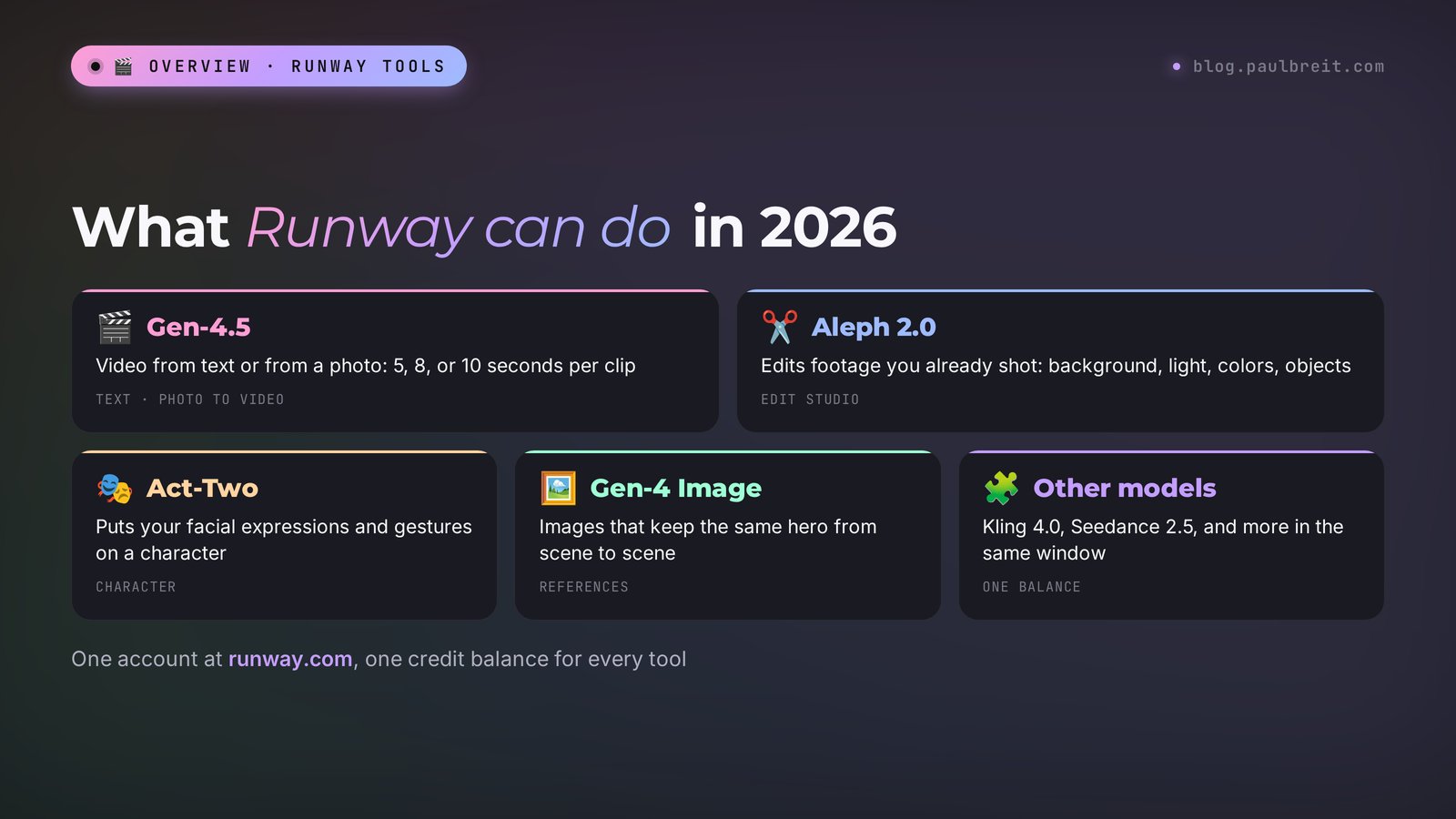
Runway is the American AI video platform that kicked off the whole text-to-video boom back in 2023. In 2026 it holds the Gen-4.5 model, the Aleph 2.0 editor for footage you already shot, Act-Two for bringing characters to life, and an image generator that keeps the same hero from scene to scene. Here's how to sign up, how much video you get for free, how to make your first clip from a photo, and which prompts work on the first or second try.
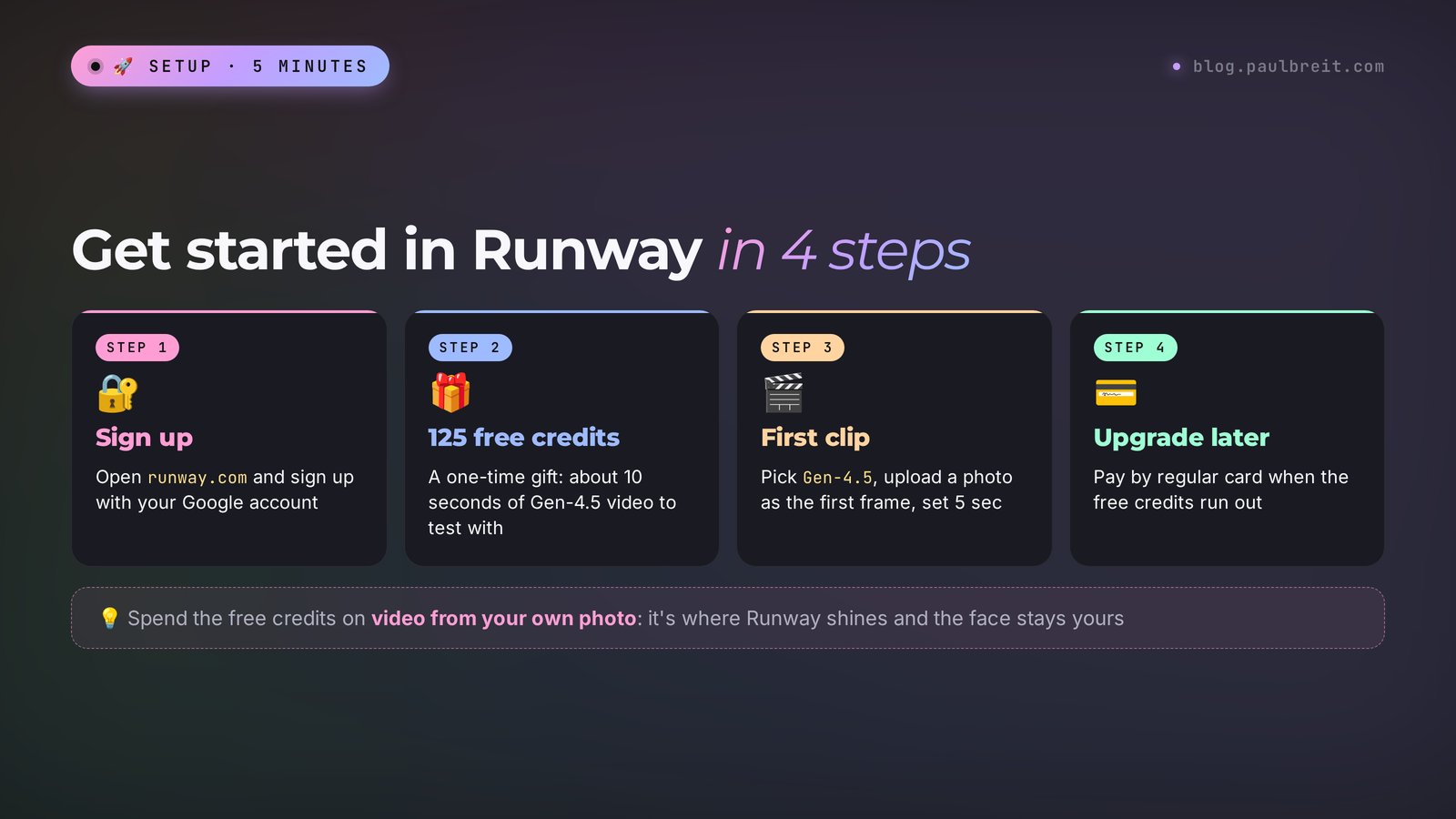
To make a video in Runway, open runway.com and sign up with your Google account. Choose video generation, the Gen-4.5 model, 9:16 for Reels or 16:9 for YouTube, and a length of 5 seconds. Upload a photo as the first frame and describe in English what should move in the shot. The 125 free credits cover about 10 seconds of video. After that you need a plan, starting at $12 a month, paid by regular card.
Everyone who sells services, courses, and consulting and wants short videos without a camera crew or an editor. A therapist can turn a portrait into a calm Reels cover. A coach can make an intro for a live stream. A nutritionist can bring dishes to life. A tutor can animate a lesson. A nail artist or stylist can advertise a new price list. An online school can cut a course trailer. Runway is especially good when the video is already shot and needs fixing: swap the background, change the light, remove a stray object.
What's inside
- What Runway is and what's inside in 2026
- Is it free: credits and plans
- How to sign up and pay
- Your first video from a photo, step by step
- Video from text: when you have no photo
- The Runway prompt formula
- 12 ready prompts for real tasks
- One hero across several clips
- Aleph 2.0: editing finished video
- Act-Two: a character with your expressions
- Sound, voice, and editing
- Let Claude write your Runway prompts
- When something goes wrong
- Runway vs Kling, Veo, and Seedance
- The whole path in a minute
- FAQ
Section 01What Runway is and what's inside in 2026
Runway is a New York company and one of the first to make AI video available to ordinary people. Its Gen-2 model showed the world clips made from a text description in 2023, and Runway has stayed in the top league ever since, alongside Kling, Veo, and Seedance. Gen-4.5 came out in December 2025, and at launch it beat the Google and OpenAI models on the independent Video Arena leaderboard.
Today Runway is a whole studio in your browser. You go to runway.com, and one account gives you several tools. Here are the ones that matter for a blog, ads, and courses.
| Tool | What it does | Why you need it |
|---|---|---|
| Gen-4.5 | Video from text or a photo, 5, 8, or 10 seconds, 720p | Reels, intros, ad clips, backgrounds for text |
| Aleph 2.0 | Edits finished video from a text command | Swap the background, the light, the color of clothes, remove an object |
| Act-Two | Puts your facial expressions and movements on a character | A cartoon helper for a kids' course, a school mascot |
| Gen-4 Image | Images from a description and from references | The same hero in different scenes, first frames for video |
| Third-party models | Kling 4.0, Seedance 2.5, and others right inside Runway | Compare results without opening accounts on other sites |
Many people skip that last row, and it saves time. Since 2026 Runway lets other companies' models in. Kling 4.0, for example, runs from the same window and draws credits from the same balance. If a dance scene didn't work out in Runway, you can try it in Kling without signing up for another service.
What to know about Gen-4.5 before you start. Clips come out in 720p. That's plenty for Reels on a phone, and for a big screen the paid plans offer 4K upscaling. Formats: 16:9 for YouTube, 9:16 for Reels and Stories, 1:1 for the feed, plus 4:3 and 3:4. One generation gives you a 5, 8, or 10-second clip. A longer video is assembled from several pieces, and below I'll show how to make them cut together without visible seams.
The Runway interface has only a handful of buttons, so it's easy to find your way around. And if you don't want to think about camera and lighting terms, Claude will write the prompt for you. More on that in Section 12.
Section 02Is it free: credits and plans
Runway runs on credits. Every generation takes some from your balance, and the price depends on the model and the length of the clip. So the better question isn't "is Runway free" but "how much video do I get for my money."
The free start
When you sign up, Runway gives you 125 credits once. They don't refill every day the way they do in Dreamina or Kling. Once they're gone, it's paid only. A second of Gen-4.5 video costs 12 credits, so a 5-second clip costs 60. That's two short 5-second clips, with 5 credits left over. Free credits last longer for images: Gen-4 Image Turbo takes 2 credits per image, regular Gen-4 Image takes 8.
A tip from practice: don't spend the free credits on a clip from text. Take a good photo of yourself and turn it into video. That shows you Runway's strong side right away. Leave text-to-video for later: there the AI invents the hero on its own, and it's often not the person you had in mind.
Paid plans
Prices and credits were checked on the official page runway.com/pricing. Runway changes its plans several times a year, so check the numbers there before you pay.
| Plan | Price per month | Credits | Roughly how much Gen-4.5 video | What else |
|---|---|---|---|---|
| Free | $0 | 125 once | ~10 seconds | 5 GB of storage, some of the models |
| Standard | $12 billed yearly / $15 monthly | 625 a month | ~52 seconds, about 10 clips of 5 seconds | All models, no watermark, 4K upscaling, music and voice |
| Pro | $28 billed yearly / $35 monthly | 2,250 a month | ~3 minutes, about 37 clips of 5 seconds | Your own voice clone, unlimited 4K upscaling, 100 GB |
| Max | $76 billed yearly / $95 monthly | 9,500 a month | ~13 minutes | Early access to models, HDR and ProRes, credits roll over for a month |
I calculated "roughly how much video" from the Gen-4.5 price of 60 credits per 5 seconds. In real life you'll get fewer clips: some attempts will be duds, and that's normal for any AI video tool. Budget two or three generations for each good clip. Kling 4.0 inside Runway costs more, 118 credits per 5 seconds, with a discount to 89 through November 30, 2026.
Which plan to pick. If you need 5–8 clips a month for Reels and Stories, Standard is enough. If you make ads and test lots of versions, take Pro: for $28 you get almost four times as many credits. Max is for studios and people who make video for clients. If you're not sure, start with Standard at $15 a month: you can cancel any time, and yearly billing only pays off once you know Runway is right for you.
Section 03How to sign up and pay
In the US, getting into Runway is simple: no special setup, no workarounds. It comes down to four steps.
Sign up on runway.com with Google
Open runway.com, click Sign Up, and choose to continue with Google. That's the fastest way: no separate password, and the confirmation email can't get lost. If you'd rather keep work tools on a separate account, use your work Gmail from the start so your clips don't end up mixed with personal stuff.
Fill out a short survey and get 125 credits
After you sign in, Runway asks what you do and what you'll make videos for. It doesn't affect anything, so answer however you like. The credits land on your balance right away. You'll see them in the corner of the screen next to your avatar.
Spend the free credits on a test clip
Before you pay for anything, make one or two 5-second clips from your own photo. The next section walks through it step by step. You'll see how Runway handles your face and your kind of shot, and that tells you whether a plan is worth it.
Pick a plan and pay by card
When the free credits run out, open the plans page and choose Standard, Pro, or Max. Runway takes a regular credit or debit card. Monthly billing is the safer start, and you can switch to yearly later, once you know how much video you actually make. Don't buy shared accounts from third parties: they get banned often, and you lose both the money and the clips you made.
If you already pay for Claude or ChatGPT, it works the same way here: same card, same few clicks.
Section 04Your first video from a photo, step by step
Start with the most reliable mode. You give Runway a photo, it becomes the first frame, and the AI adds the motion. Your face, your clothes, and your room stay yours, because nothing has to be invented. Here's the whole path on an example: a therapist wants a Reels cover where she sits by the window, turns to the camera, and smiles.
Prepare the photo
A regular phone shot works if it's sharp and well lit. Face close up, no heavy blur, no distorting filters. If the photo is horizontal and you need a Reel, crop it to 9:16 right away, or Runway will decide on its own what to cut. One detail makes a noticeable difference: leave a little space around the person. The AI needs room to move the camera.
Open video generation and choose Gen-4.5
On the Runway home page, choose to create a video. Next to the prompt field there's a model picker – set it to Gen-4.5. Pick the format there too: 9:16 for Reels, 16:9 for YouTube. For the first try, set the length to 5 seconds: that way you spend 60 credits instead of 120.
Upload the photo as the first frame
Drag the photo into the image upload box. Runway shows a preview. Check that the frame didn't crop through the face.
Describe the motion in English
The main rule of photo mode: don't retell what's already in the picture. Runway can see that you're in a beige sweater by the window. What it needs to know is what will happen. For example: The woman slowly turns her head from the window to the camera and gives a calm, warm smile. The camera gently pushes in. Soft natural daylight, realistic motion.
Generate and wait
A 5-second clip usually takes anywhere from a minute to several minutes. Meanwhile you can prepare the next prompt: on paid plans Runway runs several generations at once, up to five on Standard.
Review the result and fix one thing
Watch the clip twice: the first time all the way through, the second time only the face and hands. If the face "melted" during the head turn, drop the turn and keep just the smile and the camera move. If the motion is too weak, add one action. Change one detail at a time, or you won't know what worked.
Download and upscale if needed
The finished clip downloads with the Download button. On a paid plan you can upscale to 4K before downloading. For Reels that's usually overkill, but for an ad on your site or YouTube it's worth it.
Everyone's first two or three clips come out average, and that's expected. By the fifth you'll already feel which moves Runway handles beautifully and which ones break the picture. Smooth camera moves, a head turn, a smile, a step, hair in the wind, and steam over a cup come out well. Complex hands, fingers, small text in the frame, and fast dancing come out worse.
Section 05Video from text: when you have no photo
Text mode is for when you don't have a hero: a background for a quote, a city from above, a kitchen out of a commercial, a fairy-tale forest for a kids' course. Here Runway invents everything itself, so the description has to be more detailed.
The difference from photo mode is simple. There you describe only the motion. Here you describe the whole shot: who or what is in the frame, where it happens, what changes over 5–10 seconds, how the camera moves, what the light is like. Skip even one of these, and Runway fills the gap to its own taste, and that taste often looks like stock footage.
An example for a nutritionist, a background for a Reel about breakfast: Close-up of a ceramic bowl on a wooden table by a sunny window. Fresh berries fall one by one onto creamy yogurt with granola. Slow motion, camera slowly moves down to the table level. Warm morning light, shallow depth of field, realistic. No text, no logos, no people.
A trick that saves credits. Instead of going straight to video from text, first make an image in Gen-4 Image Turbo for 2 credits. Go through versions until you like the frame, and only then turn it into video. An image costs 30 times less than a 5-second clip, and you get noticeably fewer failed videos.
Section 06The Runway prompt formula
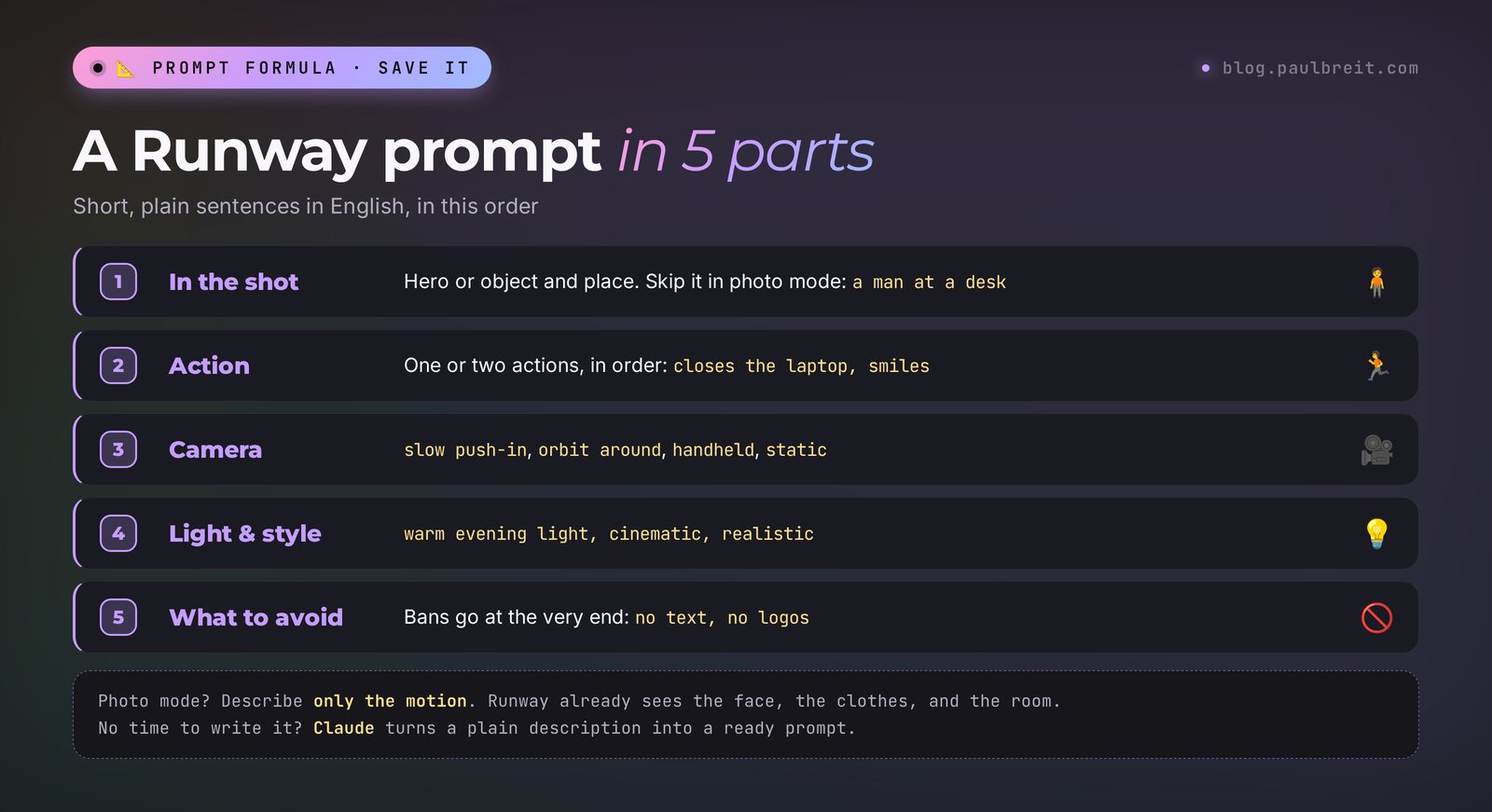
Runway has its own way of reading prompts. The model likes short, clear sentences and direct descriptions. It handles long poetic paragraphs worse than five simple sentences. Here's a formula that works for most tasks:
| Part | What to write | Example |
|---|---|---|
| 1. What's in the shot | Hero or object, place. Skip it in photo mode | A young man at a desk in a cozy home office |
| 2. What happens | One or two actions, in order | He closes the laptop, leans back and smiles |
| 3. Camera | How it moves: push in, pull back, orbit, static | Slow push-in, eye level |
| 4. Light and style | Time of day, mood, realistic or cartoon | Warm evening light, cinematic, realistic |
| 5. What to avoid | A ban on text, logos, extra people | No text, no logos |
Camera words Runway understands
- Slow push-in – the camera slowly moves closer. The best choice for a portrait and emotion.
- Pull back / dolly out – the camera moves away and reveals the space. Good for the end of a clip.
- Orbit around – the camera circles the hero or object. For a product, a dish, a workspace.
- Tracking shot – the camera moves alongside a walking person.
- Aerial / drone shot – a view from above, for a city, the sea, mountains.
- Static camera – the camera stays still. Use it when only the hero moves, for example under text.
- Handheld – a slight shake, the feel of live phone footage.
What not to write
Negatives inside the description: the model often reads the man is not sad as "a sad man." Write what he should be like: the man looks calm and confident. Keep bans for the end as a short list. Don't ask for writing in the frame – Runway draws letters badly, and text is more reliable when added in editing. Don't pack five actions into 5 seconds: the model will manage one or two and blend the rest into mush.
Section 0712 ready prompts for real tasks
The prompts below are written for Gen-4.5. Where it says "from a photo," upload your own photo as the first frame. Swap the details in brackets for your own. If you want a version for your niche, paste the prompt into Claude and ask it to adapt it.
For Reels and Stories
1. A Reels cover with you (from a photo).
The person slowly looks up from the notebook to the camera and smiles warmly. Slight breeze moves the hair. Slow push-in. Soft natural daylight, realistic motion. No text.
2. A background for a quote (from text).
Calm sea at sunrise, gentle waves roll onto an empty sandy beach. Static camera, wide shot. Soft pastel colors, peaceful mood, realistic. No people, no text, no logos.
3. Your morning at work (from a photo of your workspace).
Steam rises from the coffee cup, sunlight slowly moves across the desk, pages of the open notebook flutter slightly. Static camera. Warm morning light, cozy atmosphere.
4. A "before and after" transition (from a photo).
The camera slowly pulls back from the face to reveal the whole room, the person stands up confidently and walks toward the window. Cinematic, smooth motion, warm light.
For ads for services and courses
5. A product or book up close (from a photo).
The camera slowly orbits around the book on the table, soft reflections move across the cover. Clean studio light, shallow depth of field, premium product shot. No text added.
6. A dish for a nutritionist (from text).
Overhead shot of a colorful salad bowl, hands sprinkle seeds on top in slow motion. Fresh green leaves, bright daylight, top-down camera slowly rotates. Realistic food commercial style. No text.
7. A beauty pro (from a photo of your work).
Close-up of the manicured hand slowly turning, light glints on the glossy nails. Slow push-in, soft beauty lighting, pink and white background, realistic.
8. An online course trailer (from text).
A woman in her 30s sits at a laptop at night in a cozy room, her face lit by the screen, she smiles and nods as if she understood something important. Slow push-in. Cinematic, warm lamp light, realistic. No text, no logos.
For teaching and kids
9. A fairy-tale scene for a kids' course (from text).
A small fox in a scarf walks through a magical autumn forest, golden leaves fall slowly around it. Tracking shot at the fox's eye level. Soft 3D animation style, warm colors, gentle mood.
10. An animated diagram for a lesson (from an image).
The illustrated elements gently come to life: arrows glow one by one from left to right, small icons slightly bounce. Static camera. Clean flat illustration style, smooth motion.
For mood and travel
11. A city from above (from text).
Aerial drone shot slowly flying over a European old town at golden hour, red roofs, a river with bridges, light haze. Smooth forward motion. Cinematic, realistic, warm colors. No text.
12. You on a trip (from your own photo).
The person walks slowly along the street and turns back to the camera with a smile, the wind moves the clothes. Tracking shot from behind, then slight pull back. Natural daylight, travel vlog feel, realistic motion.
For even more short-video ideas, see the article on AI for Reels: 30 scripts a month. Take the script from there and make the picture in Runway.
Section 08One hero across several clips
The most common pain with AI video: in the first clip the heroine is a blonde with a bob, and in the second she already has a different face. That won't do for a Reels series or an ad campaign. In Runway you solve it with reference images.
Here's the idea. In Gen-4 Image you upload a photo of the hero – yourself, a client, or a character – and write which scene to show them in. Runway keeps the face and clothes from the reference. That way you make 5–6 first frames with the same person in different places. Then you turn each frame into video with Gen-4.5 in photo mode.
The order in practice:
- Upload 1–3 of your photos from different angles to Gen-4 Image.
- Describe the scene: the same woman from the reference, sitting in a bright cafe with a laptop, smiling, medium shot.
- Make 3–4 versions on Turbo at 2 credits each, and pick the best.
- Repeat for every scene in the series.
- Send each image to Gen-4.5 as the first frame and describe the motion.
To make the pieces cut together without seams, keep the same light and style in every prompt. If one says warm evening light and another says bright daylight, the series will look stitched together from different movies. It helps to keep one style line and paste it at the end of every prompt.
Section 09Aleph 2.0: editing finished video
Aleph is what many people pay for Runway for. It's a model that edits footage you already shot from a text command. You upload a clip from your phone and write what to change. Aleph 2.0 came out in May 2026 and lives in the Edit Studio section.
What you can do:
- swap the background: you filmed in the kitchen, but you need an office or a terrace by the sea;
- change the light: daylight to evening, gray sky to sunset;
- recolor an object or clothes: a blue sweater to beige to match your brand palette;
- remove clutter: a cable, someone else's mug, a person in the background;
- restyle the whole clip, for example as a cartoon.
How it works in version two. You edit one frame the way you want, look at the preview, and if you like it, run it. Aleph 2.0 carries the change through the whole video, including cuts, and tries not to touch anything you didn't ask for. According to Runway, Edit Studio works with clips up to 30 seconds in 1080p.
About the price. Aleph is noticeably more expensive than generating from scratch: as of summer 2026, about 28 credits per second. Runway shows the exact cost before you run it, so watch for that. On Standard that's about 20 seconds of editing a month, so Aleph makes more sense on Pro.
Where it really pays off. You recorded a live stream or a lesson in a less-than-perfect room. Reshooting takes ages, and your editor can't swap the background behind you. Aleph does it with one command: Replace the background with a bright minimalist office with plants, keep the person and lighting on the face unchanged. Another common case is ads: one clip you shot turns into three versions with different backgrounds and colors, and you test which one brings more leads.
Section 10Act-Two: a character with your expressions
Act-Two transfers a real person's movements onto a character. You record yourself on your phone talking and gesturing, upload an image of the character – a cartoon fox, a robot, a drawn version of yourself – and Act-Two repeats your facial expressions, head turns, hand and body movements on it.
Who it's useful for. Kids' teachers and speech therapists get a talking character for lessons. Online schools get a mascot to host a regular segment. People who are shy on camera get a way to make videos without showing their face while keeping their live intonation.
Three rules for a good result:
- Film yourself in even light, face close up, no sharp turns.
- The character in the image should look at the camera and stand in a similar pose.
- Start with short pieces of 5–10 seconds, and split long ones up.
Act-Two doesn't change the voice: the clip keeps your own sound. If you need a different voice, you make it separately and lay it over in editing.
Section 11Sound, voice, and editing
Gen-4.5 clips come out without sound. For Reels that's hardly a problem: music is easier to add in CapCut or right in Instagram. But if you want everything in one place, paid Runway plans include music, voice, and sound effect generation. In October 2026 Runway added ElevenLabs V4 voiceover, and on Pro you can clone your own voice. If you want more control over the voice, I covered ElevenLabs separately.
If you need voiceover in a language other than English, be careful. The Runway interface and model descriptions are in English, and there's no official data on voiceover quality in other languages inside Runway. Before you make a clip with a voiceover, test one phrase. If it sounds off, record the voiceover separately and add it in editing.
Editing usually looks like this: 3–6 five-second pieces from Runway, your own phone footage, music, and subtitles. Subtitles are a must – most people watch Reels with the sound off.
Section 12Let Claude write your Runway prompts
The hardest part of Runway for most people is a prompt with the right words for camera and light. You don't have to write it yourself. Describe the task to Claude in plain words and ask for a finished prompt. If you don't have Claude yet, sign up at claude.ai; the free plan is enough for this. Where to start in Claude, I covered in Claude from scratch.
Here's a request you can copy as is:
I'm a therapist. I have a photo: I'm sitting in an armchair by the window with a cup in my hands. I want to turn it into a 5-second clip for a Reels cover in Runway Gen-4.5, photo mode. Write a prompt in English: only the motion, no description of what's already in the photo. The mood is calm and warm. No text in the frame.
I ran this request myself. Here's what Claude returned:
The woman slowly lifts her gaze from the cup to the camera and gives a calm, warm smile. She takes a small sip and lowers the cup to her lap. Light rain streaks run down the window glass behind her. The camera slowly pushes in from a medium shot to a close-up. Soft natural daylight, gentle and realistic motion. No text, no logos.
And then a tip from Claude: "I didn't describe your appearance, the armchair, or the room: Runway sees them in the photo. Extra words only confuse the model. If the face starts to distort, drop the sip and keep the gaze, the smile, and the camera push-in."
Look at what Claude did. It described two simple actions in order, added a living detail in the background, set the camera move and the light, and banned text. That's exactly the formula from Section 6, put together in a few seconds. And it warned you on its own where the model's weak spot is.
From there it's easiest to work in a dialogue. The clip came out too dark? Write: "make it brighter, add sunlight from the window." Need a series of five clips in one style? Ask for five prompts with the same light and hero and a shared style line at the end. If you're deciding which assistant to trust with tasks like this, I have a breakdown of Claude vs ChatGPT.
One more trick that saves credits. Before you generate a 10-second clip, ask Claude to look at the prompt like a director: "where is the action illogical, or where might the model get confused?" It will catch the spot where the hero is sitting in one sentence and, with no transition, standing by the door in the next, and fix it before you spend 120 credits.
Video is one part of a system that brings in clients. Clips rarely sell on their own. What sells is the chain: a video brings a person to your blog, the blog warms them up, and then comes a request and a conversation.
Section 13When something goes wrong
| What happened | Why | What to do |
|---|---|---|
| The site won't load or keeps spinning | Browser extensions or a stale cache | Clear the browser cache, open the site in an incognito window, or try another browser |
| The confirmation email doesn't arrive | It landed in spam or Promotions | Check those folders, or sign up with Google so no email is needed |
| The card was declined | The bank flagged a new online subscription | Approve the charge in your bank app or use another card |
| The face changes during the clip | A sharp head turn or too many actions | One or two calm actions, a closer face in the source photo |
| Hands and fingers look strange | A weak spot of every video model | Take the hands out of the main action or keep them still |
| Letters and logos appeared in the frame | The model made up signs | Add No text, no logos, no signs at the end |
| The clip is almost static | The prompt has no action | Add a concrete movement: smiles, turns, walks, camera pushes in |
| The clip looks like stock footage | Generic words without details | A concrete detail: what color the sweater is, what's on the table, the time of day |
| Credits ran out faster than expected | 10-second clips and Aleph | Do test runs at 5 seconds, pick the first frame in Gen-4 Image Turbo |
| The generation was rejected | Moderation kicked in | Remove names of celebrities and brands, explicit and dangerous scenes |
A separate word on moderation. Runway won't make clips with recognizable celebrities, politicians, or explicit content. You can upload your own photos. Other people's photos only with their consent, or you risk both your account and your reputation.
Section 14Runway vs Kling, Veo, and Seedance
In 2026 Runway has three strong neighbors, and each has its own personality. An honest comparison on what matters for a blog and ads:
| Runway Gen-4.5 | Kling | Veo 3 | Seedance 2.5 | |
|---|---|---|---|---|
| Strong side | Editing finished video (Aleph), one hero from references | Human motion, video from a photo | Sound and speech together with the picture | Long clips, lots of references |
| Free | 125 credits once | Daily credits | Limited, through Google | Daily credits in Dreamina |
| Sound | Separately, on paid plans | In the newer models | Built in | Built in |
| Where to start | runway.com | klingai.com | Google Flow | Dreamina |
When to pick Runway. If you already have video and need to make it better, Runway has no rival thanks to Aleph. If you need a series of clips with one hero, it's convenient too. If you need a character to talk on camera, look at Veo: details in the article on how to make AI video with Google. To animate photos of people and dancing, try Kling. For clips up to 30 seconds in one take, Seedance 2.5 fits. And if you came here after Sora shut down, here's a separate breakdown of where to make AI video now.
The good news: you don't have to pick one service forever. Many people do it like this – the first-frame image in one AI, the motion in another, the edit in Runway. And Kling and Seedance are now available right inside Runway.
Section 15The whole path in a minute
Open runway.com and sign up with Google. You get 125 credits – about 10 seconds of Gen-4.5 video. Choose video generation, the Gen-4.5 model, 9:16, 5 seconds. Upload your photo as the first frame and describe in English only the motion: action, camera, light, and no text at the end. Claude can write the prompt for you. For a series with one hero, make the first frames in Gen-4 Image from a reference. To edit footage you already shot, use Aleph 2.0 in Edit Studio. After that, the Standard plan starts at $12 a month, paid by regular card.
Start today with one action: take your best photo, prompt #1 from Section 7, and make a 5-second clip on the free credits. If it works even halfway, you'll already see what Runway can do and whether it's worth paying for.
FAQFrequently asked questions
Is Runway free?
Partly. When you sign up, Runway gives you 125 credits once. A second of Gen-4.5 video costs 12 credits, so the free credits cover about 10 seconds, or two 5-second clips. Credits don't refill daily. After that you need a paid plan, starting at $12 a month billed yearly.
How do I start using Runway?
Open runway.com and sign up with your Google account. Answer the short survey and you get 125 free credits right away. Choose video generation, the Gen-4.5 model, a format, and 5 seconds, then upload a photo or type a prompt. When the credits run out, pick a plan and pay by regular credit or debit card.
How much does Runway cost?
As of October 29, 2026: Standard is $12 a month billed yearly or $15 monthly, 625 credits. Pro is $28 or $35, 2,250 credits. Max is $76 or $95, 9,500 credits. Current prices are at runway.com/pricing.
Do I have to write Runway prompts in English?
The Runway interface is in English. The model sometimes understands short prompts in other languages, but results in English are noticeably more stable. If English isn't your first language, describe the task to Claude in your own words and ask for a finished English prompt.
How do I make a video from a photo in Runway?
Choose video generation and the Gen-4.5 model, upload the photo as the first frame, and pick a format and a length of 5 seconds. In the English prompt, describe only the motion: what the person does, how the camera moves, what the light is like. Don't describe the appearance or the setting, Runway sees them in the photo.
Which is better: Runway or Kling?
It depends on the task. Runway is stronger at editing finished video with Aleph 2.0 and at series with one hero from references. Kling is good at animating photos of people and gives daily free credits. And you can run Kling 4.0 right inside Runway.