Veo 3: how to make AI video with Google in 2026
Veo 3 is Google's AI that turns a text description or a picture into an eight-second clip that already has sound: street noise, music, and real speech from the characters. In the summer of 2026 Google replaced it with Veo 3.1, so when you search for "Veo 3" today, this is the version you get. Below: where it lives, how many clips you can make for free, who can access it, how to make your first video from text and from a photo, how to get a character to talk, and which prompts work on the first try. For everyone who sells services, courses, and consulting and wants reels, ads, and intros with no film crew.
Veo 3 is Google's AI for video with sound; its current version is called Veo 3.1. To make a clip, sign in to your Google account, open Google Flow, create a project, and pick Text to Video. Choose the Veo 3.1 Fast model and the 9:16 format, then describe one scene, one action, the camera movement, the light, and the sound, for example "a woman in a light sweater pours tea in a sunny kitchen, the camera slowly pushes in, birds are singing outside the window." Hit Create, and the clip is ready in a couple of minutes. You get 50 free credits a day, and a clip on Fast costs 20.
Veo helps anyone who needs a short, lively clip with sound and no camera: a therapist making a calm, atmospheric reel intro, a nutritionist showing breakfast and a sizzling pan, a coach advertising a live session where the character delivers the invitation, a tutor making a funny sketch about homework, a service business showing a before-and-after. If you're still choosing a tool, start with the overview AI video from text, and Veo's neighbor in the rankings has its own article: Kling AI: video from a photo or text.
What's inside
- What Veo 3 is in 2026
- Where Veo works: Flow, Gemini, and other entry points
- What Veo costs: free and paid plans
- Getting access: regions, age, account, and payment
- The Flow interface in two minutes
- Your first video from text, step by step
- Video from a photo and from two frames
- One character across several clips
- Sound and speech: how to make a character talk
- The prompt formula and 12 ready prompts
- Let Claude write your Veo prompts
- Where Veo clips pay off: 10 scenarios
- How not to burn your credits
- When something goes wrong
- Veo vs other AI video tools
- Pre-publish checklist
- The whole path in a minute
- FAQ
I remember the first time I saw a Veo clip with sound. An old fisherman on a pier turns to the camera and says something about the weather, while seagulls cry and water splashes behind him. Eight seconds. Nobody filmed him, nobody recorded a voiceover, nobody edited anything: the clip came out of one paragraph of text.
Before Veo, video AI made silent movies. The picture looked great, and then you were on your own: hunting for music, picking sound effects, recording a voice, and syncing it to the lip movements by hand. An eight-second clip ate up an evening. Veo made sound part of the generation, so the clip comes out ready to post straight from your browser window.
I'll walk through Veo so you can make your first clip while you read. Inside: what the name Veo 3 actually means today, where to use it, how many clips you get for free, who can access it and how to pay, step-by-step instructions for video from text and from a photo, how to keep one character across several clips, how to write dialogue, a prompt formula with 12 ready prompts, 10 business scenarios, and a big troubleshooting section. Read it in order or jump to what you need from the table of contents.
Section 01What Veo 3 is in 2026
Veo is a family of video generation models from Google DeepMind. The first version came out in 2024, the second at the end of that same year, and in May 2025 Google showed Veo 3. It made a splash with one thing: the clip came out with sound already in it. Characters talked, dishes clinked, the wind blew, and all of it lined up with the picture in time.
In October 2025 the Veo 3.1 update arrived. The sound got richer, characters held their appearance better from shot to shot, and it learned to work with several reference images and with a first and last frame. Then on June 30, 2026, Google shut down the old Veo 3, Veo 3 Fast, and Veo 2. So when you search for "Veo 3" today, you effectively land on Veo 3.1. The old name lives on in search out of habit.
Veo 3.1 comes in three versions, and mixing them up gets expensive:
| Version | What it's for | Quality | Price in Flow |
|---|---|---|---|
| Veo 3.1 Lite | Drafts, testing an idea | 720p, simpler details | 10 credits |
| Veo 3.1 Fast | Everyday work: reels, stories, ads | Good, and quick | 20 credits |
| Veo 3.1 Quality | Final cuts where every detail matters | The best, up to 4K | 100 credits |
These prices are for regular accounts. For subscribers on the top Ultra plan, Lite and Fast cost half as much, while Quality stays the same.
What Veo can do in practice:
- make a clip from a text description;
- bring to life an image or photo you upload;
- build a scene between a first and a last frame you provide;
- keep the same character or object across different clips using reference images;
- generate sound: speech with lip sync, sound effects, background music;
- extend a finished clip by continuing the action from its last frame.
One generation lasts 4, 6, or 8 seconds. For 1080p and 4K, pick 8 seconds; the shorter options only come in base quality. Formats: horizontal 16:9 and vertical 9:16 for reels and stories.
In May 2026 Google introduced a new model, Gemini Omni Flash. It also makes video with sound, but it works like a conversation partner: you ask "make the light warmer" or "have her smile at the end," and the model edits the clip while remembering everything that came before. In the Gemini app, Omni became the default video model for paid subscribers. Veo 3.1 is still very much in use: it runs in Flow, in AI Studio, and through the API, it does 4K, and it's considered stronger at cinematic visuals. For a precise, beautiful, predictable clip, people still reach for Veo.
Section 02Where Veo works: Flow, Gemini, and other entry points
There's no single website called Veo. The model is built into several Google products, and each has its own personality. Here's a map so you don't get lost.
| Where | What it is | Who it suits |
|---|---|---|
| Google Flow | A video studio: projects, scenes, characters, clip extension | Anyone who makes clips regularly. The main entry point for this article |
| The Gemini app | A chat where you can ask for a video | Quick tests from your phone. The default model for paid users is Omni |
| Google AI Studio | A developer playground with access to the models | People who want to touch every setting or connect the API |
| Google Vids | A video presentation editor in a Google Workspace account | Clips inside presentations and training materials |
For steady, ongoing work I recommend Flow. You can see how many credits you have left, choose a specific Veo version, assemble several clips into one scene, extend a clip, and download it in the quality you need. Gemini is simpler but gives you less control: you don't always know which model is running at the moment, and you can't steer length and quality as precisely.
Gemini is handy for something else: coming up with the idea. Ask it to describe five scenes for a reel about your service, pick the best one, and take it to Flow. I covered how to use Gemini itself in detail in How to use Gemini.
Section 03What Veo costs: free and paid plans
Everything in Flow runs on credits. Every account, including free ones, gets 50 credits a day. They expire by the next day, so you can't stockpile them. Google's paid plans add a monthly allowance on top.
| Plan | Price per month | Credits | Clips on Fast |
|---|---|---|---|
| Free | $0 | 50 a day | 2 a day |
| Google AI Plus | about $5 | 50 a day + 200 a month | 2 a day + 10 a month |
| Google AI Pro | about $20 | 50 a day + 1,000 a month | 2 a day + 50 a month |
| Google AI Ultra | $100 to $200 | 50 a day + 10,000–25,000 a month | hundreds, Fast at half price |
Exact prices depend on your country and change over time, so check the Google One plans page before you pay. A rough money benchmark: on the Pro plan, one clip on Fast works out to about 40 cents, and one on Quality to about two dollars.
What you can realistically do for free: five test clips on Lite a day or two proper ones on Fast. That's enough to learn how to write prompts and to make a couple of reels a week. For regular ads and daily clips, the free allowance runs short, and the Pro plan is a sensible place to start.
A separate note for developers. Through the API and AI Studio, Veo is billed per second: Lite costs about 5–8 cents a second, Fast 10–12 cents, and the full version 40 cents at 1080p and 60 cents at 4K. For a regular user this route is pricier and more complicated than Flow; I mention it just to complete the picture.
Google embeds an invisible SynthID mark in every Veo clip, which makes it possible to tell the video was made by AI. A visible badge in the corner appears on most plans; Ultra subscribers get clips without it. In reels, nobody usually notices the badge. In ads, it's better to cover it with a crop or a caption bar during editing.
Section 04Getting access: regions, age, account, and payment
For most people in the US, getting into Veo takes a minute. Still, there are a few conditions, and when Flow refuses to open, it's almost always one of them. Here's what to check.
Check your region
Flow and video generation in Gemini roll out country by country. They're available in the US and in many other countries, but not everywhere. Flow checks where you're connecting from, and if your country isn't supported, it shows a message saying the service isn't available in your region. Google keeps an up-to-date list of supported countries in the Flow help pages. If you travel, keep in mind that access depends on where you are right now.
Use a personal Google account, 18+
A regular Gmail account works. You need to be 18 or older: video generation in Google's products is closed to teenagers. Work and school accounts managed by an organization often have Flow turned off by the administrator. If Flow won't let you in with your work account, try a personal one or ask your admin to enable it.
Open Flow and check your free credits
Search for "Google Flow" and open the official site on the labs.google domain, then sign in. The first time you enter, Flow shows its terms of use; accept them. Your balance is in the top right corner. If it shows 50 credits, everything works and you can start generating.
Paying for a plan. The Google AI Plus, Pro, and Ultra plans are billed through Google One, the same subscription that gives you extra Google Drive storage. You pay with a regular bank card or through Google Play on Android. Some countries also offer a free trial month of Pro, and students sometimes get special offers; check what the Google One page shows for your account. After you subscribe, the monthly credits appear in Flow automatically.
Don't hand your main Google password to third-party sites that promise "Veo for free" or "cheap Veo credits." Some of them are honest resellers running on the official API, and others simply collect accounts. If you want to try Veo, the free 50 credits a day in Flow are the safest option. And if your account suddenly asks you to verify your identity by phone, that's normal after logins from new devices or locations: confirm it and carry on.
Section 05The Flow interface in two minutes
Flow looks like an editing app that's been boiled down to a single window. No need to be intimidated: you only need five spots.
Projects. The home page shows your projects. It's convenient to keep one project per task: "reels for the week," "challenge ads," "lesson intros." All your clips and images pile up inside the project.
The prompt box. At the bottom of the screen there's a large input field. To its left is the mode switch: Text to Video, Frames to Video, Ingredients to Video. The mode determines what you attach to your description.
Generation settings. The slider icon next to the prompt box. This is where you choose the model (Lite, Fast, Quality), the aspect ratio (16:9 or 9:16), the length, and how many variations to make at once: one or two. Two variations cost twice as much, but for important clips it's handy to pick the better one.
The results feed. Finished clips appear above the prompt box. Hover over a clip and buttons appear: download, extend, use a frame as the start of the next shot, add to scene.
Scene. A separate mode where clips line up one after another on a track. This is where you assemble several eight-second pieces into a 30–60 second video and download it as a whole.
Flow adapts its interface language to your browser, and the buttons are few. You can write prompts in plain English, and English is also the language Veo understands best for camera moves and lighting.
Section 06Your first video from text, step by step
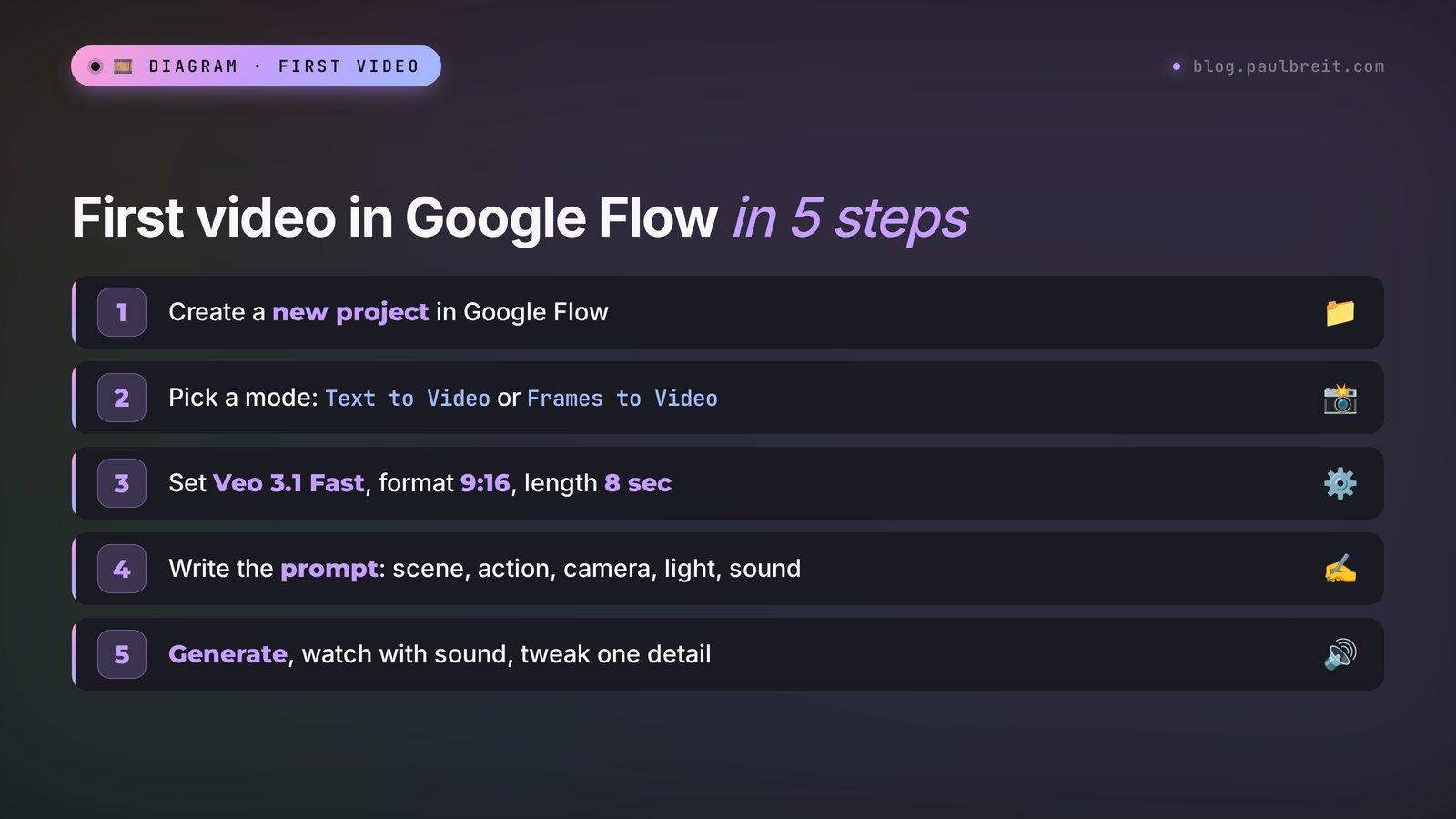
Let's start with a clip made entirely from a description. A task almost anyone can use: an atmospheric intro for a reel about how you start your workday. Eight seconds, vertical, with sound.
Create a project
On the Flow home page, click New project. Give it a clear name, for example "October reels." An empty workspace opens with the prompt box at the bottom.
Choose the mode and settings
To the left of the prompt box, pick Text to Video. In settings, choose Veo 3.1 Fast, 9:16, one variation. For your very first try you can use Lite and spend 10 credits instead of 20.
Write the prompt
Describe one scene: who's in frame, where, one main action, how the camera moves, what the light is like, and what you hear. Describe the sound in a separate sentence, and Veo will generate it. Write in English: Veo understands camera moves and lighting most accurately that way.
Run the generation
Click the send arrow. The clip goes into the queue and is usually ready in one to three minutes. Your credit balance drops right away, even if you delete the result later.
Review it and fix one detail
Watch the clip with the sound on. If it's almost there, change one thing in the prompt: the camera movement, the light, or the character's action. Don't rewrite everything from scratch, or you'll lose what already worked.
You type into Flow: A cozy home office early in the morning. A woman in a light knitted sweater sits at a wooden desk, opens her laptop and takes a sip of tea, then smiles softly. Steam rises from the cup. The camera slowly pushes in. Warm sunrise light from the window, realistic, cinematic. Sound: quiet birdsong outside, the soft click of the laptop opening, a gentle sip.
What you get: an eight-second vertical clip. The woman opens her laptop, takes a sip, smiles, steam rises over the mug, and the camera glides closer. In the audio you hear birds outside the window, the click of the laptop lid, and a quiet sip exactly when the mug touches her lips.
Why it worked. The first sentence sets the place and time. The character is described briefly: a sweater and a desk, no life story. The actions go in order and fit into eight seconds. A separate "Sound:" line tells Veo what to play, so the audio comes out precise, with no random music.
The most common beginner mistake is cramming a whole movie into eight seconds: "she wakes up, walks to the kitchen, makes coffee, sits down to work, calls a client." Veo will either skip half the actions or blend them into mush. One scene means one or two actions. If you need a story, make several clips and assemble them into a scene.
Section 07Video from a photo and from two frames
For business, this mode is often more useful than text. You start with your real photo, so the clip keeps your office, your product, your mug with your logo on it. In Flow it's called Frames to Video.
Choose Frames to Video
Switch the mode to the left of the prompt box. Two slots appear: first frame and last frame. Filling in the last frame is optional.
Upload your photo
Click the first-frame slot and upload the shot. Use a good-quality photo with a clear main subject and no small text. Set the clip's aspect ratio to match the photo: a vertical photo means 9:16.
Describe only the movement
Veo can see what's in the photo on its own. In the prompt, write what should change: who moves, where the camera goes, what you hear. And add that the face, clothes, and surroundings stay exactly as in the photo.
Generate and compare with the original
Check the face in the last frames of the clip: that's where AI most often drifts away from the original. If the face has changed, reduce the movement and avoid head turns of more than a quarter turn.
You upload: a photo of yourself at a desk with a laptop, taken on your phone.
You type: The woman looks up from the laptop, smiles at the camera and gives a small nod. Her face, hair, clothes and the room stay exactly as in the photo. Slow, subtle camera push-in. Sound: quiet office ambience, soft keyboard clicks at the start.
What you get: a living intro for a reel or story: you look up from your work and nod to the viewer. A shot like this at the start of a video holds attention better than a still photo.
First and last frame. Upload both frames, and Veo builds the transition between them. It's a ready-made trick for before-and-after clips: the first frame is a messy room, the last is the same room after a cleaning service. Or an empty plate and a plate with the finished dish. In this case the prompt describes how the transformation unfolds: "the camera stays still, things fly back into place on their own, the light gets warmer."
Upload your own photos or photos of people who gave their consent. Veo often rejects photos of celebrities, politicians, and children, and a clip with someone else's face used without permission is a direct path to a complaint and a blocked social media account.
For simple tasks like "animate an old family photo" or "turn a portrait into a short animation," there are simpler tools. I rounded them up in How to animate a photo with AI.
Section 08One character across several clips
The curse of every video AI is that the character changes from clip to clip. In the first clip the barista has a red beard, in the second it's light brown, and in the third his apron has vanished. For a series of reels or a three-scene ad, that's unacceptable. Flow has a mode for exactly this: Ingredients to Video.
An ingredient is a reference image: a character, an object, or a style. You upload up to three of them, and Veo builds the scene from them while keeping their look. For example, the ingredients could be a photo of your character, a photo of your branded mug, and an image of a café interior. The prompt describes what happens: "the character puts the mug on the counter and smiles at a guest."
How to make a series of three clips with one character:
Make a portrait of the character
Generate the character as an image in Flow itself or in another image AI. Face in close-up, even light, neutral background. This will be the main ingredient in every clip. If you want to polish the image, Nano Banana 2, also from Google, is handy for that.
Add objects and a place
Your product, packaging, interior. Each image is a separate ingredient. The cleaner the reference, the more accurately Veo reproduces it.
Write scenes with an identical character description
In every prompt, name the character the same way and describe the clothes the same way: "the barista with a red beard in a dark green apron." Change only the action and the location.
Assemble the scene
Add the clips that worked to Scene mode, put them in order, and download the combined video. The transitions between clips are simple cuts, and they look natural.
Extending. If a good clip ends too soon, click Extend on it. Veo looks at the last frames and continues the action for a few more seconds. That way you can stretch a scene to a minute or longer. Each extension slightly raises the chance that the face or the background drifts, so for reels one or two steps is usually enough.
Section 09Sound and speech: how to make a character talk
Sound is the reason people choose Veo. It generates three layers: the characters' speech, sound effects (footsteps, clinking dishes, a car engine), and ambience (café buzz, ocean waves, music). All of it in sync with the picture.
How to write a line. Say who's speaking and put the text in quotes: The woman looks at the camera and says: "Three mistakes that cost you clients." Veo understands this is direct speech and syncs the lips. The line has to fit into 8 seconds including pauses: that's 10–15 words, no more. A long sentence gets cut off in the middle or comes out as a tongue twister.
Other languages. Veo speaks English most cleanly. It can also deliver lines in Spanish, French, German, and many other languages, but stress and pronunciation slip more often there, and unusual names and brand words may come out wrong even in English. What works: keep lines short and simple, without rare words; generate two variations and pick the better one; or give the character only the emotion and lay your own voice over it in editing.
How to describe sound effects. On a separate "Sound:" line, list what you hear in order of importance: Sound: rain on the window, a kettle starting to whistle, soft lo-fi music in the background. If you don't want music at all, say so: No music, only natural room sound. Otherwise Veo sometimes adds music to its own taste.
You type into Flow: A friendly female nutritionist in a bright kitchen holds a bowl of oatmeal with berries, looks into the camera and says: "Breakfast in five minutes, and you're full until lunch." Medium shot, static camera, soft daylight. Sound: quiet kitchen ambience, a spoon tapping the bowl. No music.
What you get: the character says the line, her lips match the speech, and in the background there's a quiet kitchen and the tap of a spoon. A ready-made opening shot for a recipe reel.
Music that Veo generates can stay in your clip: it isn't someone else's track. But if you ask for "music like a famous band," Google may reject the generation. For ads, it's safer to use neutral background music or to add a track from your social platform's free library during editing.
Section 10The prompt formula and 12 ready prompts
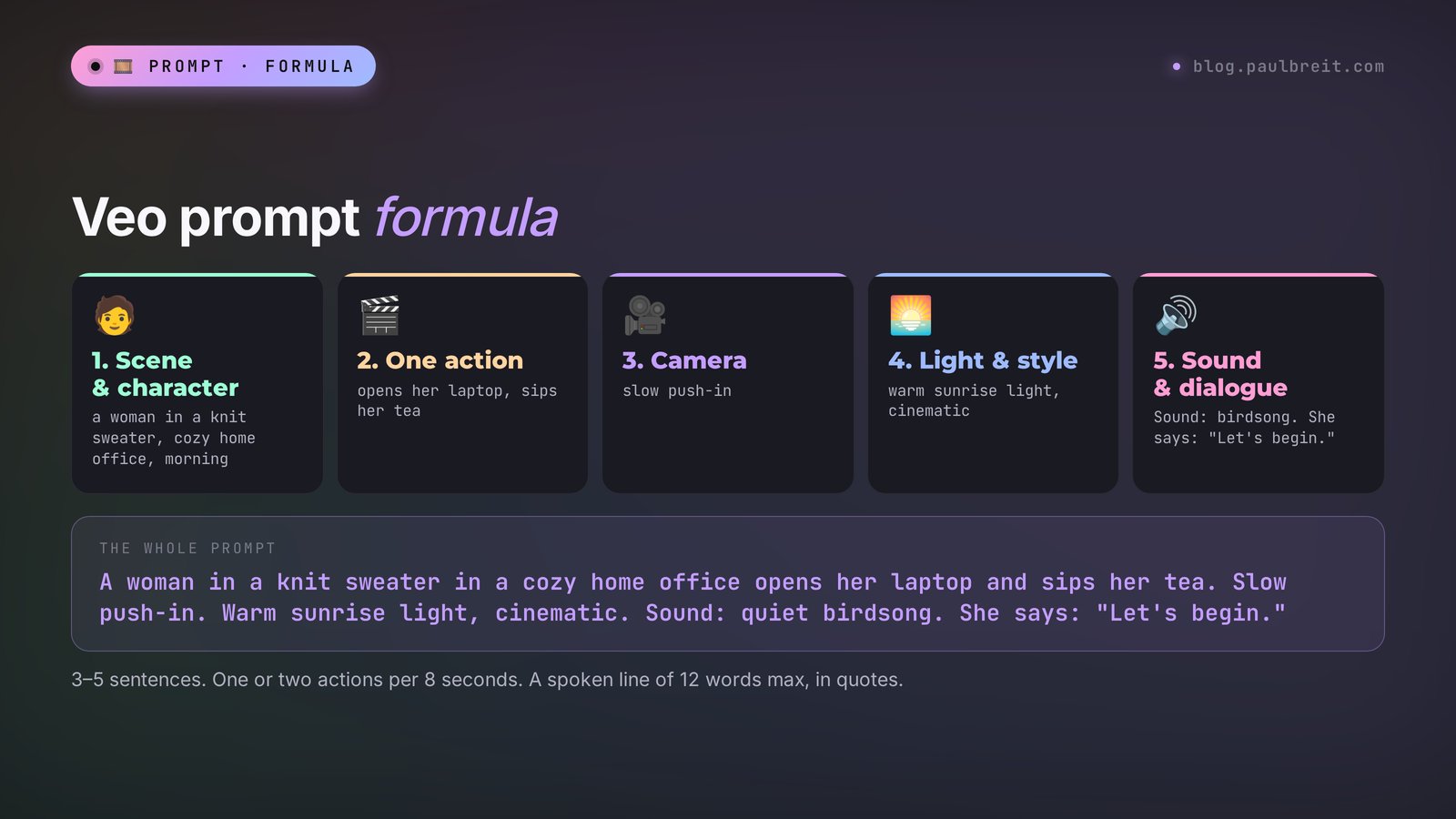
A video prompt describes what changes over time. In an image you capture a moment; in a clip you describe movement and sound. That's why the Veo formula has six blocks:
| Block | What to write | Example |
|---|---|---|
| Scene and character | Where, when, who's in frame, briefly | a young man in a denim shirt in a small coffee shop at night |
| Action | One or two actions, in order | pours latte art, then slides the cup towards the camera |
| Camera | Shot size and camera movement | close-up, slow push-in / static / handheld |
| Light and style | The mood of the shot | warm neon reflections, cinematic, realistic |
| Sound | Effects and ambience on a separate line | Sound: milk steamer hiss, quiet jazz |
| Dialogue | Who speaks and what, in quotes | He says: "Your coffee is ready." |
Three to five sentences are usually enough. Not every clip needs all the blocks: add dialogue only if the character has to talk. For camera movement, keep a few simple words handy: push-in (the camera moves closer), pull-out (moves away), orbit (circles around), tracking shot (follows the character), static (stays put), handheld (shot by hand, with a slight shake).
Below are 12 prompts for common tasks. Copy them and change the details to fit your niche.
| Task | Prompt |
|---|---|
| Reel hook for a specialist | A confident woman in a beige blazer turns to the camera in a bright office and says: "Stop doing this in your posts." Medium close-up, quick push-in. Sound: office ambience. No music. |
| Intro for a therapist | A calm cozy room with a soft armchair, a cup of tea and a plant by the window, late afternoon. Curtains move gently in the breeze. Slow pan right. Warm golden light. Sound: distant birds, quiet clock ticking. |
| A dish for a nutritionist | Close-up of a pan with vegetables sizzling, a hand adds fresh herbs. Steam rises. Top-down camera slowly descends. Natural daylight. Sound: loud sizzling, knife on a cutting board. |
| A trainer at the gym | A fit man in a black T-shirt finishes a set of kettlebell swings, puts the kettlebell down and looks at the camera with a smile. Tracking shot. Gym lighting. Sound: heavy breathing, kettlebell hitting the floor, energetic music. |
| Tutor, a sketch | A teenager at a desk stares at a math textbook, then suddenly understands and raises his hands happily. Static camera, medium shot. Warm evening lamp light. Sound: page turning, a short "Yes!". |
| Live session announcement | A smartphone on a table lights up with a notification, a hand picks it up. Close-up, shallow depth of field. Cozy evening light. Sound: notification chime, soft background music. |
| Product close-up | A glass jar of honey on a wooden table, a spoon slowly lifts a stream of honey that shines in the sunlight. Macro shot, slow orbit. Golden backlight. Sound: quiet, soft dripping. |
| Before and after (two frames) | The camera stays still. The messy room tidies itself: clothes fold, books return to the shelf, the bed gets made. Light becomes warmer. Sound: soft whooshes, calm music. |
| Travel for a blog | A woman in a straw hat walks along a narrow street of an old seaside town at sunset, turns and waves to the camera. Tracking shot from behind. Warm sunset light. Sound: seagulls, distant waves, footsteps on stone. |
| Dramatized testimonial | A happy middle-aged man sits in a cafe, looks at the camera and says: "I got my first three clients in a week." Medium close-up, static. Soft daylight. Sound: quiet cafe ambience. No music. |
| Background for text | Slow-moving soft clouds of pastel color over a calm sea at dawn, no people. Static wide shot. Dreamy soft light. Sound: gentle waves. |
| Humor for stories | A cat sits at a laptop wearing tiny glasses, types quickly with its paws, then looks at the camera, offended. Static camera, medium shot. Office light. Sound: fast keyboard typing, a short meow. |
Note the "Dramatized testimonial" prompt: use it only to act out a real review with the client's permission, and label it as a dramatization. Section 12 explains why. If you want more ready-made wording for captions, posts, and stories to go with these clips, take a look at the AI prompt library.
Section 11Let Claude write your Veo prompts
Writing prompts with the six-block formula is a skill that comes after about a week of practice. You can speed it up by handing the job to a text AI. I use Claude because it keeps the format tidy and doesn't pad the description.
Go to claude.ai and sign up with your email or Google account. The free plan is enough for writing prompts.
Then give Claude the instructions once, and after that just describe your tasks in plain words.
You write to Claude: You help me write prompts for Google's Veo 3.1 video AI. I describe the task in plain words, and you write the prompt in English using this formula: scene and character, one or two actions, camera, light and style, a separate Sound line, and a line of dialogue in quotes if the character speaks. The clip is 8 seconds, and the dialogue is no longer than 12 words. Write 3–5 sentences. Give me two versions: a calm one and a dynamic one. First task: a reel for a therapist, a young woman finishes a video session, closes her laptop and exhales with relief, evening, cozy.
What Claude replies: two ready prompts. For example: "A young woman in a cozy sweater ends a video call, gently closes her laptop and leans back with a relieved sigh. Evening, a warm desk lamp and a candle on the table. Medium shot, slow push-in. Soft, intimate, realistic. Sound: laptop closing, a quiet exhale, soft rain outside. No music." The second version has a quick camera push and light music.
Then you paste the prompt into Flow. If the clip doesn't come out right, tell Claude what you didn't like: "the camera is jittery, make it steadier," "she smiles too widely." It rewrites the part that needs it. After a dozen clips you'll have your own set of phrasings that work; save them in your notes.
You can go further and hand Claude the whole reel script: the hook, three scenes, the lines, the captions. I showed how to do that for a whole month ahead in AI for reels: 30 scripts in one evening.
Section 12Where Veo clips pay off: 10 scenarios
A pretty clip made just to be pretty doesn't bring in money. Here are ten tasks where eight seconds from Veo genuinely help sell services, courses, and consulting.
| Scenario | How to make it | What it gives you |
|---|---|---|
| A hook at the start of a reel | A character turns to the camera and says a provocative line | Viewers stay past the first seconds |
| Live session or webinar announcement | A clip with the line "See you Thursday at 7 p.m." | More sign-ups than a static image |
| Social media ads | 3 scenes with one character, assembled in Flow | An ad clip without a shoot day |
| Before and after | First and last frame: the problem and the result | Shows the result of your service at a glance |
| A lesson cover | An atmospheric 6–8 second scene on the lesson topic | Your course looks more premium |
| Your photo, brought to life | Your photo: you nod and smile | A warm intro for stories and your website |
| A metaphor for the client's pain | A person drowning in a pile of papers, a phone ringing off the hook | The client recognizes themselves in a second |
| A background for story text | A calm scene without people: the sea, clouds, a city | Text stories get read to the end |
| Humor and memes | A cat at a laptop, a grandma blogger, a funny sketch | Shares and reach |
| Product visualization | Your packaging or course workbook in close-up on a beautiful background | Your product looks like it's in a high-end ad |
The first two usually pay off fastest. The hook decides whether people finish the reel, and a live announcement brings people in better than an image with a date on it. Start with those.
And one observation from practice. Clips where a made-up character speaks work well for humor and metaphors. Where trust is at stake (testimonials, promised results, your personal experience), made-up people do damage. A testimonial from a client who doesn't exist is deception, and your audience spots it quickly. For trust, use your own face and real stories.
Section 13How not to burn your credits
Fifty credits a day feel generous right up to your first failed generation on Quality. Here are the rules that save both credits and nerves.
- Draft on Lite, final on Fast or Quality. Test the idea for 10 credits first. Once the composition and action look right, regenerate on a better model with the same prompt.
- One variation at a time. Two variations cost twice as much. Turn them on only for important clips where you want a choice.
- Quality only when you need 4K or a close-up of a face. For reels watched on a phone, Fast is almost indistinguishable.
- Change one detail. A failed clip is almost always ruined by one thing. Change everything at once, and you won't know what helped.
- Text first, then video. Ask Claude or Gemini to check the prompt: does the action fit into 8 seconds, are there any contradictions.
- Keep winning prompts in your notes. Your personal archive of phrasings is your biggest saving after a month.
- Spend your daily credits every day. They expire overnight. Two tries a day on free credits means 60 practice clips a month without paying anything.
Section 14When something goes wrong
Nearly every Veo problem happens to everyone. Here are the common cases and what to do about them.
"This service isn't available in your country"
Flow thinks you're in an unsupported region. Check Google's list of countries where Flow is available, and make sure you're actually there right now. If you are, close all Google tabs, clear cookies, and open Flow again in an incognito window. Also check the country in your Google payments profile: it should match where you live.
The generation was rejected
A safety filter kicked in. Common reasons: a famous person in the prompt or photo, children, violence, weapons, explicit scenes, politics, names of brands and bands. Sometimes the filter catches harmless words like "shot" or "kill the lights." Rephrase, remove names and brands. Credits for a rejected generation are usually refunded.
The character says the wrong thing or nothing at all
Check that the line is in quotes and that it says who's speaking before it: "she says:". Cut the sentence to 10–12 words. If there are two people in frame, state explicitly which one speaks.
The lips don't match the speech
This happens more often in wide shots and in profile. Put the character facing the camera, in a medium shot or close-up. For lines in languages other than English, make two variations and pick the better one.
There's unwanted music in the clip
Add "No music" at the end of the prompt and list only the sounds you need. Veo adds music when the prompt doesn't describe the sound.
The face changes toward the end of the clip
Reduce the movement: fewer head turns, calmer camera. In photo mode, add "face and clothes stay exactly as in the photo." For a series of clips, use ingredients.
Hands and fingers break
An old pain of every video AI. Don't give hands complex work in close-up: typing, counting on fingers, playing guitar. If the hands matter, film them from a bit farther away or hide them behind objects.
Text in the frame is garbled
Veo is bad at writing letters: signs and screens come out as gibberish. Ask for a scene without text ("no text, no signs"), and add captions during editing.
The clip takes forever to appear
At peak hours the queue grows, especially on Quality. Wait 5–10 minutes and don't run the same generation again: you'll pay twice. If the clip still hasn't arrived, refresh the page; it may already be sitting in the project feed.
Credits ran out faster than expected
Check your settings: two variations switched on plus the Quality model drain the balance in a couple of clicks. Go back to the "draft on Lite, final on Fast" routine.
Section 15Veo vs other AI video tools
Veo is strong at cinematic visuals and sound. But for some tasks its neighbors are more convenient. A short comparison table:
| Tool | Strength | Length per generation | Free tier |
|---|---|---|---|
| Google Veo 3.1 | Cinematic visuals, speech and sound with lip sync | up to 8 sec + extension | 50 credits a day in Flow |
| Gemini Omni Flash | Editing a clip through conversation | up to 10 sec | Default video model for paid Gemini users |
| Kling | Faces from photos, price | up to 15 sec | 66 credits a day, paid plans from $6.99 a month |
How to choose in ten seconds. You need a clip where the character talks, or an ad-quality shot: Veo. You need people from your own photos and a longer clip for less money: Kling. Many people keep two tools: Veo for clips with sound, Kling for animating photos. What happened to Sora and what replaced it, I covered in Sora shut down, and a general overview of tools for different jobs is in Best AI tools 2026.
Section 16Pre-publish checklist
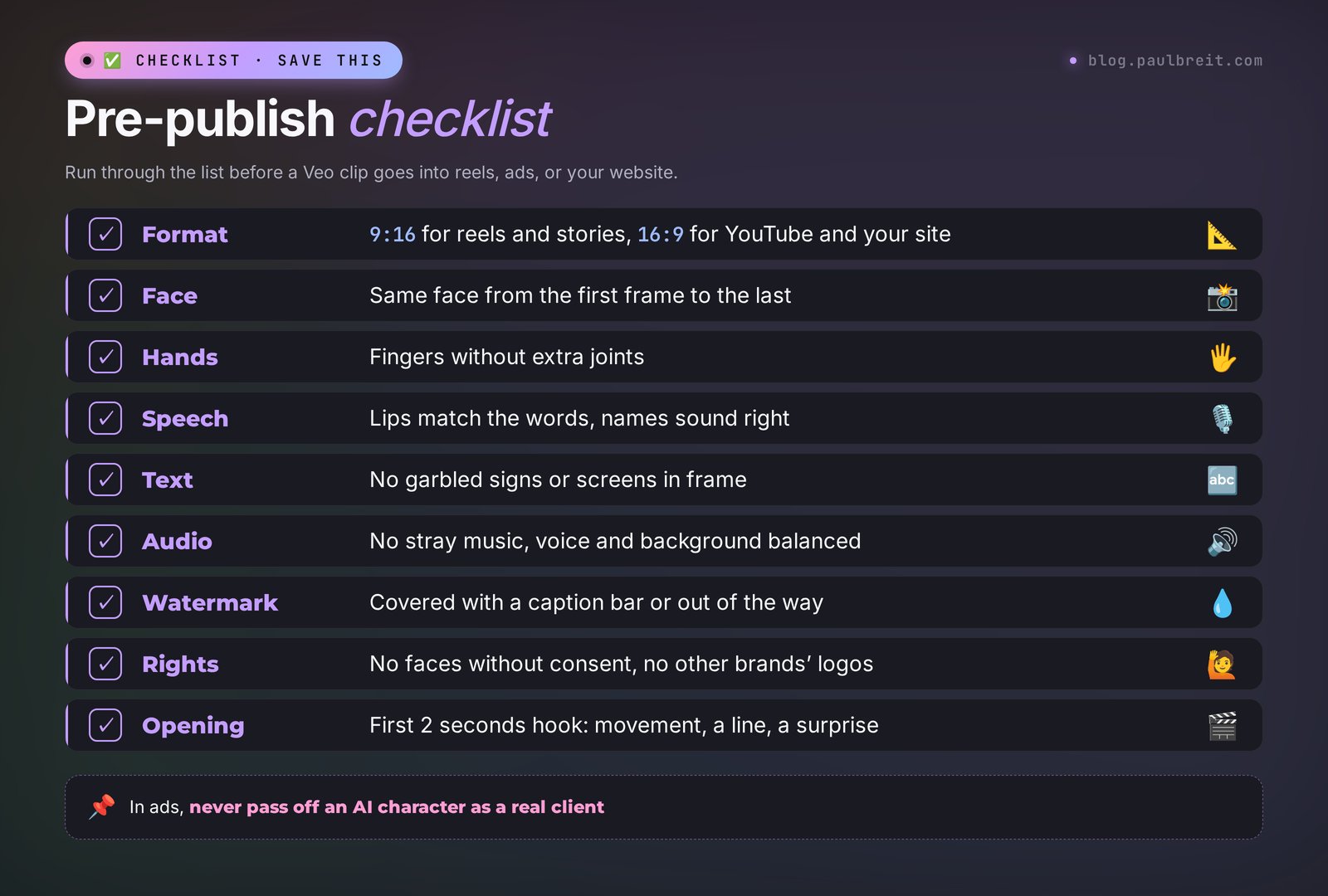
Before you post a Veo clip, run through this list. One minute of checking saves you awkward comments.
- The format matches the platform: 9:16 for reels and stories, 16:9 for YouTube and your website.
- The character's face is the same from the first frame to the last.
- Hands and fingers have no extra joints.
- The speech matches the lips, and names and unusual words sound right.
- There's no garbled text or gibberish signs in the frame.
- No unwanted music, and the voice and background are balanced.
- The watermark is handled: covered with a caption bar or out of the way.
- The clip has no faces used without consent and no other brands' logos.
- If the clip is an ad, you're not passing off a made-up character as a real client.
- The first two seconds hook: movement, a spoken line, or an unexpected shot.
RecapThe whole path in a minute
Veo 3 today means Veo 3.1, Google's video AI with sound and speech. Work in Google Flow, from a personal Google account, in a supported country, and you must be 18 or older. You get 50 free credits every day: a clip on Lite costs 10, on Fast 20, on Quality 100. Create a project, pick Text to Video or Frames to Video, set Fast and 9:16. Write the prompt with the formula: scene and character, one action, camera, light and style, a Sound line, and dialogue in quotes up to 12 words. Make drafts on Lite and the final on Fast. For a series with one character, use ingredients; for a longer scene, use Extend. Add text during editing. Let Claude write the English prompts from your plain-language task.
Start today with one clip: take the hook of your next reel, ask Claude to turn it into a prompt with a spoken line, and generate it on your free credits. Put those eight seconds at the start of the video and check your completion rate a couple of days later. Chances are you'll want to make a second one.
FAQFrequently asked questions
Is Veo 3 free?
You can use it for free, with a daily limit. In Google Flow every account gets 50 free credits a day. That covers five clips on Veo 3.1 Lite or two on Veo 3.1 Fast. The credits expire by the next day. For regular work you need a paid Google AI plan, for example Pro at about $20 a month with an extra 1,000 credits.
What's the difference between Veo 3 and Veo 3.1?
Veo 3.1 is the updated version of Veo 3: richer sound, characters hold their appearance better, and it can make clips from a first and last frame and from reference images. Google shut down the original Veo 3 on June 30, 2026, so when you search for Veo 3 today, you're working with Veo 3.1.
Who can use Veo and where is it available?
Anyone 18 or older with a personal Google account who is in a country where Google Flow is available, which includes the US and many other countries. Work and school accounts may have Flow turned off by an administrator. Paid plans are billed through Google One with a regular bank card.
How do I make a video from a photo in Veo?
In Flow, choose Frames to Video, upload the photo into the first-frame slot, and set the same aspect ratio as the photo. In the prompt, describe only the movement, the camera, and the sound, and add that the face and clothes stay exactly as in the photo. If you also upload a last frame, Veo builds the transition between the two.
Can Veo speak languages other than English?
Yes, Veo delivers lines in Spanish, French, German, and many other languages and syncs them to the lips. English sounds cleanest; in other languages stress and pronunciation slip more often. Keep lines short and simple, generate two variations, or lay your own voice over the clip in editing.
How long are Veo videos?
One generation lasts 4, 6, or 8 seconds, and 1080p and 4K require the 8-second length. You can extend a good clip with the Extend button: Veo continues the action from the last frame. In Scene mode you can assemble several clips into a video of a minute or longer.
Do Veo videos have a watermark?
Every clip carries an invisible SynthID mark that shows the video was made by AI. A visible badge in the corner appears on most plans; Ultra subscribers get clips without it. In editing you can cover the badge with a caption bar or a crop.
Why won't Veo create my video?
Most often a safety filter kicks in: a famous person, children, violence, weapons, brands, or politics in the prompt or photo. Rephrase the request and remove names. If it says the service isn't available, the issue is your location: check that Flow is supported in your country. If the clip takes a long time to appear, it's in the queue, so don't run the generation again.