Claude Code on Windows: Install It and Get Started Without a Programmer
Claude Code installs on Windows in about 15 minutes: through the Claude app with its Code tab, or with one command in PowerShell. I walk through both paths step by step, show the errors Windows throws and how to clear them, and give you ready-to-paste phrases for your first task.
Claude Code installs on Windows two ways. No terminal: download the Claude app for Windows and open the Code tab. With a terminal: open PowerShell, paste irm https://claude.ai/install.ps1 | iex, and check the install with claude --version. You need 64-bit Windows 10 or 11 and a paid plan starting at $20 a month.
What's inside
- Two ways to install Claude Code on Windows
- What to prepare before you install
- Option 1. The Claude app and the Code tab
- Option 2. One command in PowerShell
- Git for Windows: install it or skip it
- WSL 2: who needs it
- Your first steps after installing
- Install errors and how to fix them
- Updating and uninstalling
- The whole path in one minute
- Sources
Two ways to install Claude Code on Windows
Claude Code is an assistant from Anthropic that works with the files on your computer. You describe a task in plain words, and it opens the right folder, reads your documents, creates new ones, builds websites, spreadsheets, and slide decks, and checks its own work. I covered why it matters for people without a technical background in Claude Code for non-coders. This guide is only about Windows.
On Windows, Claude Code can live in three places. Two of them suit a beginner. The third is for people who already work with Linux tools.
| Option | What you need | Who it's for | Effort |
|---|---|---|---|
| Claude app, Code tab | Download the installer, sign in | Anyone who has never opened a terminal | Like installing a messaging app |
| PowerShell, regular Windows | One command, Git for Windows optional | Anyone willing to paste one line into a black window | 15 minutes, including the check |
| WSL 2 (Linux inside Windows) | Turn on WSL 2, install inside Linux | People who want a sandbox and Linux tools | Half an hour and a restart |
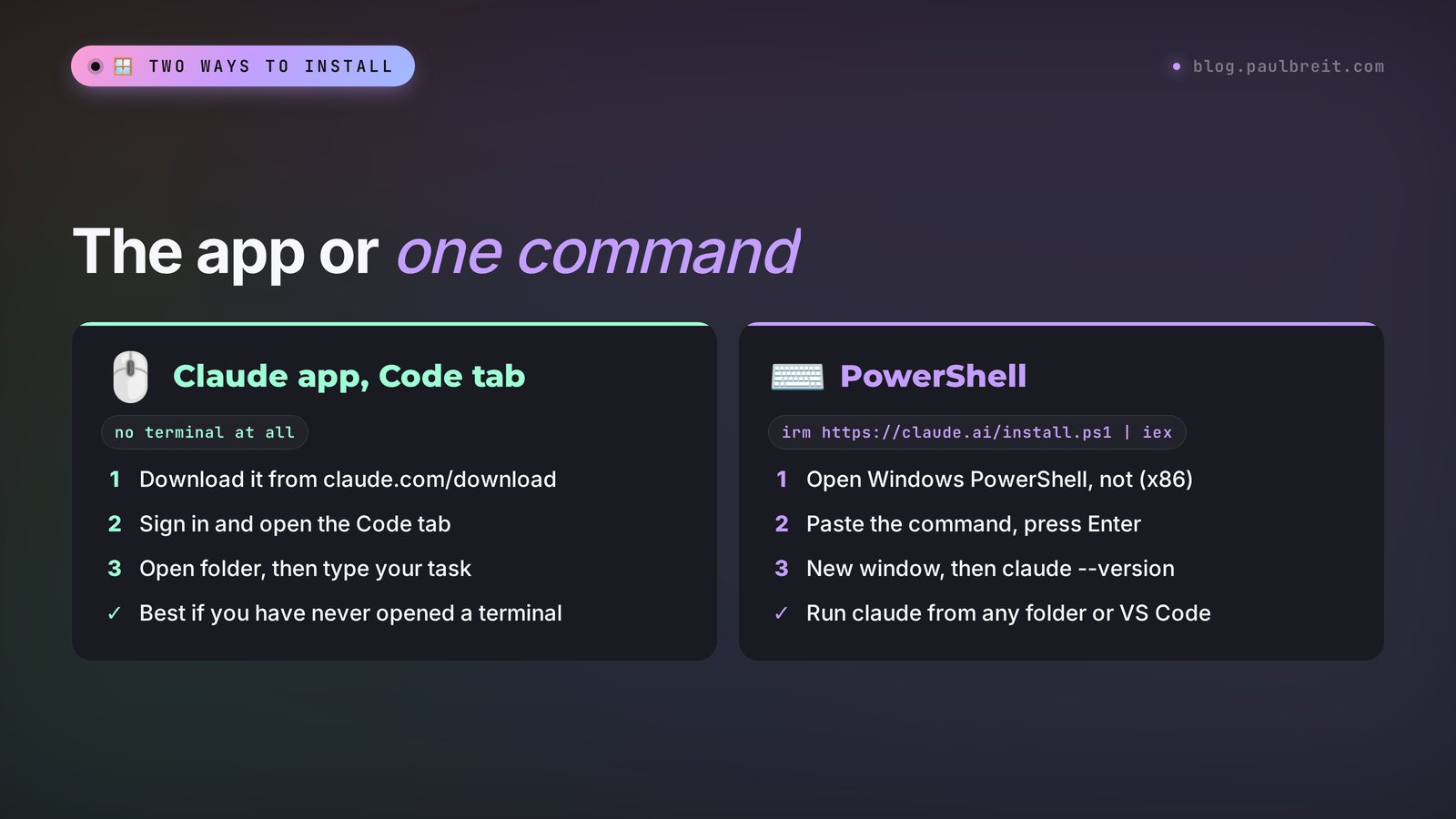
My advice is simple. If the word "terminal" makes you a little nervous, start with the app. It includes all of Claude Code, so you won't need Node.js or the command line, and you pick your folder with the mouse. If you want to launch Claude Code right from a PowerShell window or from an editor like VS Code, install it with the command. You can use both: they share settings and project memory, which live in the same .claude folder in your user profile.
Below is Anthropic's official table of install options for Windows. Look at the Sandboxing column: the sandbox, which keeps Claude's commands isolated from the rest of your system, only works in WSL 2. For everyday work with documents and websites, you can do without it.
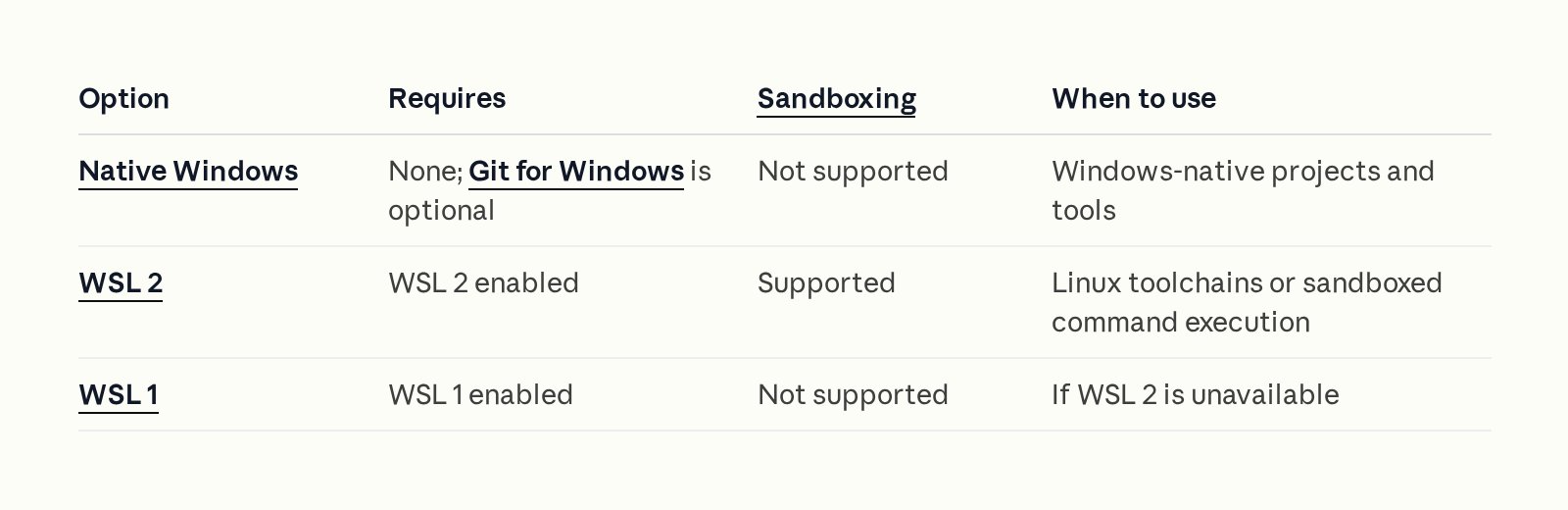
In short: Native Windows means regular Windows, nothing extra required, Git for Windows optional, no sandbox. WSL 2 needs WSL 2 turned on and gives you the sandbox. WSL 1 is a fallback if WSL 2 isn't available.
What to prepare before you install
Get everything ready first, and the install takes minutes. The list is short, but check each item honestly: this is where nine out of ten installs get stuck.
Windows 10 version 1809 or newer, 64-bit
That's what Anthropic's system requirements say. Any Windows 11 works. To check whether your system is 64-bit, press Win + Pause or open Settings → System → About and look at the "System type" line. It should say "64-bit operating system." Claude Code doesn't support 32-bit Windows at all.
4 GB of RAM and an internet connection
A regular x64 or ARM64 processor works (for example, Snapdragon laptops). The Claude app has a separate installer for ARM. Claude Code does its thinking in the cloud, so you don't need a powerful computer: the heavy lifting happens on Anthropic's servers.
A paid Claude plan
The free plan doesn't include Claude Code, and the documentation says so directly. You need Pro, Max, Ultra, or a team plan. Prices are below. I checked them on the official pricing page.
| Plan | Price (claude.com/pricing, Nov 8, 2026) | Claude Code | Who it's for |
|---|---|---|---|
| Free | $0 | no | Trying out the chat |
| Pro | $20/mo ($17/mo billed annually) | yes | Getting started: a couple of tasks a day |
| Max | $100/mo | yes | Several hours of work every day |
| Ultra | $200/mo | yes | Lots of tasks running in parallel |
Pro is enough for a beginner. If you start running out of usage by lunchtime, move up to Max: you can switch plans in your account settings in a couple of clicks. If your card gets declined or you're weighing payment options, I walk through them in how to pay for Claude.
An account at claude.ai
Sign up at claude.ai with your email or Google account. Use the same email for the subscription and for signing in to Claude Code, so the paid plan is recognized right away.
A working folder
Create a separate folder for your first experiments, for example C:\Users\your_name\Documents\claude-start. Put a few files in it that you don't mind experimenting on: your landing page copy, a price list, a client spreadsheet. Claude Code only sees the folder you open for it, so it's smart to start in a sandbox where nothing is precious.
Option 1. The Claude app and the Code tab
I recommend this path to everyone who sells services, courses, and consulting and wants to use Claude Code like any other program. You never touch a terminal. The app already has Claude Code built in, so there's no separate Node.js or command line to install.
Download the installer
Go to claude.com/download and click the Windows download button. The standard version is built for x64 processors. If your laptop has an ARM processor, the documentation page has a separate link to the ARM64 installer.
Install and sign in
Run the downloaded file. From there it works like any other program. Open Claude from the Start menu and sign in to your account. A browser window opens on its own: click "Allow," and the app picks up your sign-in.
Open the Code tab
The Code tab sits at the top of the left sidebar. If the tabs show only icons, hover over them to see the labels. If the app asks you to subscribe, you're on the free plan, and Claude Code isn't available there. If you see a 403 error, make sure your subscription is on the same email you signed in with.
Pick a folder and a model
Below the input field there's a control bar. The first button picks the environment: choose the top item in the Local group, which is your computer. Next to it is the folder button: click Open folder and point it to the folder from Check 5. The model picker is on the right side of the same bar. For your first tasks, the default model works fine.
Write your first task
Write the way you'd message an assistant. Ready-made phrases for the first run are in First steps. Claude shows which files it's changing, and a counter like +12 -1 appears next to them: how many lines were added and how many removed. Click it to open a before-and-after comparison.
If the app asks you to install Git on first launch on Windows, say yes. It's a free program that Claude uses for the command line and for keeping a change history in your folder. More on it in the Git for Windows section.
Everything you do in the Code tab after this works the same as on a Mac. For a step-by-step tour of modes, project memory, and buttons, see how to use Claude Code, written specifically for the Code tab.
Option 2. One command in PowerShell
Take this path if you want to call Claude Code from any folder by typing claude, use it inside an editor, or work on several projects at once. Nothing scary here: you paste one line and press Enter. You don't need administrator rights.
Open the right PowerShell
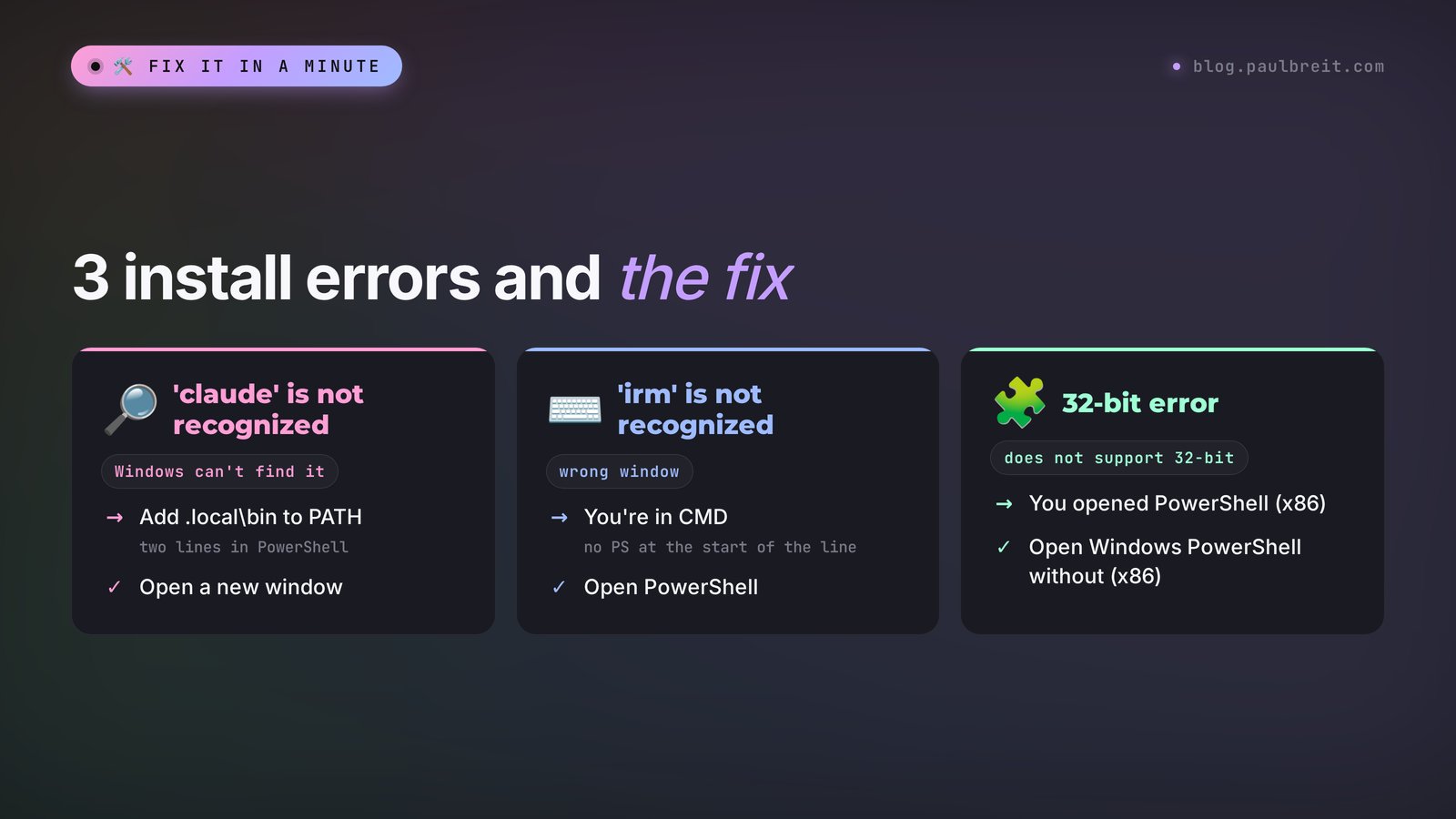
Click Start, type PowerShell, and open "Windows PowerShell." The list also shows "Windows PowerShell (x86)." Skip that one: it's the 32-bit version, and the installer will fail with "Claude Code does not support 32-bit Windows" even on a 64-bit computer. How to tell you're in PowerShell: the line in the window starts with PS C:\Users\your_name>. If there's no PS at the start, you're in the regular CMD command prompt.
Paste the install command
Copy the line with the button on the right, paste it into PowerShell with a right-click or Ctrl + V, and press Enter.
irm https://claude.ai/install.ps1 | iex
The installer stays quiet at first: it doesn't show download progress. Give it a couple of minutes. At the end you'll see a success message, sometimes with a Setup notes block listing what else to configure.
If you opened CMD instead of PowerShell
Anthropic has a separate command for the regular command prompt. You can copy it whole, too:
curl -fsSL https://claude.ai/install.cmd -o install.cmd && install.cmd && del install.cmd
They're easy to mix up, and Windows tells you right away. If it says "'irm' is not recognized," you're in CMD with the PowerShell command. If it says "The token '&&' is not a valid statement separator," it's the other way around: you're in PowerShell with the CMD command.
Close the window and open a new one
The installer puts the program in C:\Users\your_name\.local\bin and adds that folder to the list of places where Windows looks for programs. The old window doesn't know about the updated list. So close PowerShell and open it again. People skip this simple step more than any other, then decide the install failed.
Check the version
In the new window, run:
claude --version
A working install answers with a version number and the words Claude Code in parentheses. Here's the answer on our server on the day this guide was written. On Windows the format is the same:

Got "'claude' is not recognized"? Don't reinstall yet. It's almost always the PATH list, and two lines fix it. They're in the errors section.
Go to your working folder and launch
The easiest way to get into the right folder: open it in File Explorer, click the address bar at the top, delete the path, type powershell, and press Enter. A PowerShell window opens right inside that folder. Then type:
claude
Sign in
On first launch, Claude Code asks how you want to sign in. Choose your Claude account with a subscription. A browser opens: confirm the sign-in there. If the browser doesn't open on its own, press c in the window: the link is copied, and you paste it into the browser yourself. Next, Claude asks whether you trust this folder. Say yes only if the folder is yours and you know what's in it.
There's also a third install option for people who like a package manager: winget install Anthropic.ClaudeCode. It works the same way with one difference: the winget version doesn't update itself, so you'll update it with winget upgrade Anthropic.ClaudeCode. The version from the main command updates in the background without you lifting a finger. That's why I suggest the main command for beginners.
Older guides install it with npm install -g @anthropic-ai/claude-code. That still works, but it needs Node.js 22, and on Windows it often runs into "running scripts is disabled on this system." The main command from Step 2 needs no Node.js and skips those problems.
Git for Windows: install it or skip it
Git is a free program that keeps a history of changes in a folder. It also installs Git Bash: a Linux-style command line. Claude Code can work without it, running every command through PowerShell. With Git Bash, though, it gets Bash, the tool most ready-made scripts and online instructions are written for.
My take: install it right away. It takes 5 minutes and gives you two benefits. First, Claude stumbles less often on commands that are written differently in PowerShell. Second, you can ask Claude to keep version history in your working folder and roll back if you don't like a result.
A few clicks in the installer
Download the installer from git-scm.com/downloads/win, run it, and click Next through the steps. At the PATH setup step, keep the option that adds Git to PATH (it's the default). When it's done, close and reopen PowerShell, and restart Claude Code.
Claude Code looks for Git Bash in the standard folders C:\Program Files\Git and C:\Program Files (x86)\Git. If you installed Git somewhere else and Claude can't see it, tell it right in the chat:
Find where Git is installed on my computer (where.exe git) and set the path to bash.exe in your settings.json as the CLAUDE_CODE_GIT_BASH_PATH variable. Then tell me what I need to restart.
It handles the setting itself. All you do is close the window and open it again.
WSL 2: who needs it
WSL 2 is a real Linux that Microsoft built into Windows. Inside it, Claude Code works the same as on a server or a Mac, and only there do you get the sandbox: a mode where Claude's commands are isolated and can't accidentally touch files outside your project.
Who should go this way:
- you build websites or bots that will later run on a Linux server, and you want the same setup at home and on the server;
- you want a sandbox so you feel safer letting Claude work on its own;
- the instructions you follow were written for Linux or Mac.
If you create content and build spreadsheets and slide decks, you can skip WSL. Regular Windows is enough.
Turn on WSL
Open PowerShell as administrator: right-click the PowerShell icon → "Run as administrator." Paste Microsoft's standard command and restart your computer when the installer asks.
wsl --install
After the restart, an Ubuntu window opens and asks you to create a Linux username and password. The password doesn't show while you type. That's normal.
Install Claude Code inside Linux
In the Ubuntu window (stay out of PowerShell for this one), paste the Linux command and wait for it to finish:
curl -fsSL https://claude.ai/install.sh | bash
Launch Claude Code from the Ubuntu window too, with claude. You don't need Git for Windows for WSL. The Claude app can open sessions directly in WSL 2: the environment picker under the input field has a WSL option.
Your first steps after installing
Installed? Now the fun part begins. Your first half hour decides whether Claude Code becomes your assistant or stays an icon in the Start menu. Try three short tasks, each showing a different side of it.
Task 1. Get to know the folder
Start safe: ask Claude to only look and report back.
Look at the files in this folder and briefly tell me what's in each one. Don't change anything. At the end, suggest three tasks you could do with these files for my business.
You'll see how it reads documents, and you'll get ideas from Claude itself. For a therapist it might suggest turning notes into a client handout, for a tutor, turning a lesson summary into a quiz, for a coach, packaging a program into a one-page landing page.
Task 2. Your first real result
Pick one of the suggested tasks or use this one. It works for almost anyone who sells services:
Use the file that describes my services to build a one-page website in a single index.html file: headline, who it's for, what's included, price, testimonials, and a "Book a call" button linking to my booking page. Keep it clean, in English, and good-looking on a phone. When you're done, open the file in my browser so I can take a look.
Claude creates the file and opens it. Don't like the color, the order of sections, or the button text? Write your edits in words: "make the headline shorter," "add a FAQ section." That's how people build full websites in an evening. There's a complete example in building a website in one evening with Claude Code.
Task 3. Project memory
So you don't have to explain who you are and how you write every time, ask Claude to create a memory file. It rereads it at the start of every session.
Create a CLAUDE.md file in this folder and write down: who I am and what I do, my audience, how I talk to clients (tone and level of formality), and which words I never use. Ask me 5 questions so you can fill it in properly.
Modes: how much freedom to give Claude
In the app, you pick the mode in the bar under the input field. In the terminal, you switch with Shift + Tab. There are four:
- Manual – Claude asks permission before every file change and every command. Perfect for your first week: you see everything it does.
- Accept edits – file edits go through on their own, commands still ask first.
- Plan – Claude writes out a plan first and touches nothing. Handy before a big task.
- Auto – a separate background check lets safe actions through and stops risky ones. Turn it on once you're comfortable.
From here you can teach Claude new skills: ready-made instructions it runs from a single word are covered in Claude Skills, and connecting Telegram, spreadsheets, and your site is in MCP in Claude.
Claude Code install errors on Windows and how to fix them
Windows likes to throw messages that scare beginners. The good news: almost all of them come down to a handful of causes, and each one takes a minute to fix. I built this table from Anthropic's official troubleshooting page and translated it into plain English.
| What Windows says | Cause | What to do |
|---|---|---|
| 'claude' is not recognized | The program folder isn't in PATH, or the window was opened before the install | Open a new window. Still failing? Use the two lines below |
| 'irm' is not recognized | You're in CMD with the PowerShell command | Open Windows PowerShell or use the CMD command |
| The token '&&' is not a valid statement separator | You're in PowerShell with the CMD command | Use the irm … | iex command |
| A parameter cannot be found that matches parameter name 'fsSL' | You pasted the Mac and Linux command | Use the irm … | iex command |
| Claude Code does not support 32-bit Windows | You opened PowerShell (x86) | Open "Windows PowerShell" without (x86) |
| The process cannot access the file | A previous install is still running, or antivirus is scanning the file | Close extra windows, delete the downloads folder, try again |
| 403 or App unavailable in region | Your country isn't on Anthropic's supported list, or the subscription is on another email | Check the supported countries page and sign in with the email that has the plan |
| The command printed the script text and installed nothing | Only half the line was copied | Copy the whole command with the Copy button |
Fixing "'claude' is not recognized"
First, check that the program is actually there. Run this in PowerShell:
Test-Path "$env:USERPROFILE\.local\bin\claude.exe"
False means it isn't installed: run the command from Step 2 again. True means the program is there and Windows just doesn't know where to look. Add the folder to PATH with two lines (paste both at once):
$currentPath = [Environment]::GetEnvironmentVariable('PATH', 'User')
[Environment]::SetEnvironmentVariable('PATH', "$currentPath;$env:USERPROFILE\.local\bin", 'User')
Close the window, open a new one, and type claude --version again. If you're working in a terminal inside an editor like VS Code, restart the editor itself: it reads PATH when it starts.
Sometimes it's the other way around: the claude command suddenly opens the Claude app instead of Claude Code in the terminal. Older versions of the app do that. Update the Claude app to the latest version, and the command will launch terminal Claude Code again.
If the installer trips on the download
"The process cannot access the file" means another process is holding the downloads folder. Close every PowerShell window with an install running, wait for your antivirus to finish scanning, and run:
Remove-Item -Recurse -Force "$env:USERPROFILE\.claude\downloads"
irm https://claude.ai/install.ps1 | iex
When the install went through but something behaves oddly, Claude Code can diagnose itself. The claude doctor command prints the install status, settings errors, and hints on what to fix. It doesn't start a session and doesn't change anything.
I asked Claude a question as a beginner would: "I'm not a programmer. I installed Claude Code on Windows, I type claude, and I get: 'claude' is not recognized as an internal or external command. What does that mean and what do I do, step by step?" The model's answer, lightly trimmed:
"Windows doesn't know where the claude program is. The installer put it in C:\Users\your_name\.local\bin, but that folder isn't on the list of places where Windows looks for programs yet. That list is called PATH. What to do: 1. Close all PowerShell windows and open a new one. Often that's enough, because the old window doesn't see the changes. 2. If that didn't help, check that the program is there: Test-Path "$env:USERPROFILE\.local\bin\claude.exe". True means everything is installed. 3. Add the folder to PATH with two lines [the same ones as above] and open a new window again. 4. Check: claude --version. You should see a version number. If the answer is False, the install didn't finish – run the install command again."
The answer matches Anthropic's official instructions. So if you get stuck at any step, feel free to paste the error text into a regular Claude chat and ask it to explain "like I'm a beginner."
Updating and uninstalling
The version installed with the main command updates itself: Claude Code checks for updates at launch and in the background, downloads them, and switches over on the next start. You don't have to do anything. Want to update right now? Run:
claude update
The winget version updates with winget upgrade Anthropic.ClaudeCode. The Claude app updates itself and offers a restart.
If the claude command suddenly stops being found after an update, check the .local\bin folder in your profile. During an update, the Windows version renames the old file to a backup with a name like claude.exe.old.123456. If the new file didn't land in place, Anthropic suggests restoring the backup with one command:
Get-ChildItem "$env:USERPROFILE\.local\bin\claude.exe.old.*" | Sort-Object Name | Select-Object -Last 1 | Rename-Item -NewName claude.exe
To remove Claude Code completely, run two commands in PowerShell. Your settings and session history stay in the .claude folder. Delete it separately, and only if you're sure you won't be back.
Remove-Item -Path "$env:USERPROFILE\.local\bin\claude.exe" -Force
Remove-Item -Path "$env:USERPROFILE\.local\share\claude" -Recurse -Force
One more reassuring detail: everything Claude Code creates lives in your folder on your own drive. Websites, copy, spreadsheets stay with you whatever happens to your subscription. If you'd like to learn Claude from the ground up, in order, start with Claude from scratch: it covers the whole path from sign-up to your first tasks.
The whole path in one minute
You checked your system: 64-bit Windows 10 version 1809 or newer, or Windows 11. You got the Pro plan for $20 a month. Then you picked a path: the Claude app with the Code tab if you don't want a terminal, or one command in PowerShell if you want to run claude from any folder. You installed Git for Windows. You checked the version, signed in through the browser, opened your working folder, and gave Claude its first task. Below is the whole guide as one list. Copy it for yourself.
Cheat sheet: Claude Code on Windows
1. Check: Windows 10 (1809+) or 11, 64-bit, 4 GB of RAM.
2. Claude Pro, Max, or Ultra plan (Free has no Claude Code).
3. Same email for the subscription and for signing in.
4. No terminal: claude.com/download → install → sign in → Code tab → Open folder.
5. With a terminal: open "Windows PowerShell" (not x86) → irm https://claude.ai/install.ps1 | iex
6. Close the window, open a new one → claude --version (you should see a version).
7. Optional: Git for Windows from git-scm.com, then restart PowerShell.
8. Go to your working folder → claude → sign in through the browser → trust the folder.
9. 'claude' is not recognized → new window, then add %USERPROFILE%\.local\bin to PATH.
10. Something looks off → claude doctor. Update → claude update.
Sources
- Claude Code: Advanced setup – system requirements and Windows install (Anthropic docs), checked Nov 8, 2026
- Claude Code: Troubleshoot installation and login (Anthropic docs), checked Nov 8, 2026
- Claude Code: Get started with the desktop app (Anthropic docs), checked Nov 8, 2026
- Claude pricing (official page), checked Nov 8, 2026
- Anthropic: supported countries and regions, checked Nov 8, 2026
- Git for Windows – official download page, checked Nov 8, 2026
Frequently asked questions
Can I use Claude Code on Windows for free?
No. Claude Code is only available on paid plans: Pro at $20 a month, Max at $100, and Ultra at $200. On the Free plan, the Code tab asks you to subscribe, and the terminal version won't let you sign in.
Do I need administrator rights to install it?
No. The PowerShell command and the CMD command both install Claude Code into your user profile, so they don't need administrator rights. You only need an administrator if you turn on WSL with wsl --install.
Which is better for a beginner: the Claude app or the PowerShell install?
The Claude app with the Code tab is easier for a beginner: you pick the folder with the mouse, you see the changes clearly, and there's no terminal. The PowerShell install is useful if you want to run claude from any folder or work in an editor like VS Code. You can use both.
Do I have to install Git for Windows?
No, Claude Code works without Git through PowerShell. Git for Windows gives it Bash, which most ready-made scripts are written for, plus the ability to keep a change history in your folder. That's why I suggest installing it right away. It takes five minutes.
Does Claude Code work on Windows 7 or 32-bit Windows?
No. The minimum is 64-bit Windows 10 version 1809 or Windows Server 2019. On Windows 7, 8, or any 32-bit system, Claude Code won't run. You can still use Claude in the browser.
Why does it say 'claude' is not recognized after installing?
Windows can't see the program folder. Close the PowerShell window and open a new one. If that doesn't help, check that the file exists with Test-Path and add the %USERPROFILE%\.local\bin folder to PATH with the two lines from the errors section.