How to Use Claude Code: Step-by-Step for Beginners
How to use Claude Code when you've never written a line of code: from sign-up and install to your first finished task in one evening. Six steps, a live dialogue with the AI, a command cheat sheet, ready-made task phrasing, and fixes for the usual snags. Built for everyone who sells services, courses, and consulting and wants AI to actually do the work, not just give advice.
How to use Claude Code: subscribe to Claude Pro at claude.ai, install the Claude desktop app (Code tab) or install Claude Code in the terminal with one command, create an empty folder for your project, open it in Claude Code, and sign in to your account. Then describe the task in plain words, for example "build a one-page site for a therapist with a booking button that opens my Telegram." Claude Code writes a plan, creates the files, shows you the result, and asks permission before important actions. You check the result and ask for changes.
What's inside
- What you need before you start
- Where to run it: 4 options and which to pick
- Step 1. Account and plan
- Step 2. Install Claude Code
- Step 3. Project folder and first sign-in
- Step 4. First task: a live dialogue
- Step 5. Permissions and modes
- Step 6. Project memory: the CLAUDE.md file
- Beginner command cheat sheet
- How to give tasks: a formula and 12 ready phrases
- Five first projects by profession
- When something goes wrong
- Usage limits and how to stretch them
- Safety: five simple rules
- The whole path in one minute
In my last post I explained what Claude Code is, in plain words. Today is the hands-on part. I've watched the same scene play out many times: someone hears that AI can build websites and bots on its own, gets excited, opens Claude Code, sees a black window with a blinking cursor, and closes it five minutes later. I get it. I used to look at a terminal like it was an airplane cockpit.
The good news: all the difficulty lives in the first twenty minutes. After that it's a regular back-and-forth, like working with a freelancer, except this one never sleeps, never gets sick, and never disappears for a week. So I've laid out the path so you can walk it step by step with a cup of tea and finish the evening holding your first real result.
Section 01What you need before you start
Gather everything up front so you don't have to hunt for anything midway. The list is short.
- A computer. Mac, Windows, or Linux. A phone won't do for this: the Claude mobile app can hand a task to the web version, but you'll want a real screen while you learn.
- A Claude account with a paid plan. Claude Code comes with Pro (about $20 a month, cheaper if you pay yearly) and Max ($100 or $200 a month). It isn't available on the free plan.
- An email address and a card. Any email works for the account, and a regular credit or debit card covers the subscription.
- Half an hour of quiet time and one small task. There's a whole section on picking the task below, but start thinking now about what's been bugging you: a personal site nobody has time to build, a folder of photos, a sales export you never get around to totaling.
You don't need to know how to program. You don't need technical vocabulary either: Claude Code understands everyday language and answers the same way. If you're still unsure whether to start with Claude at all, I wrote an honest comparison: Claude vs ChatGPT.
Section 02Where to run it: 4 options and which to pick
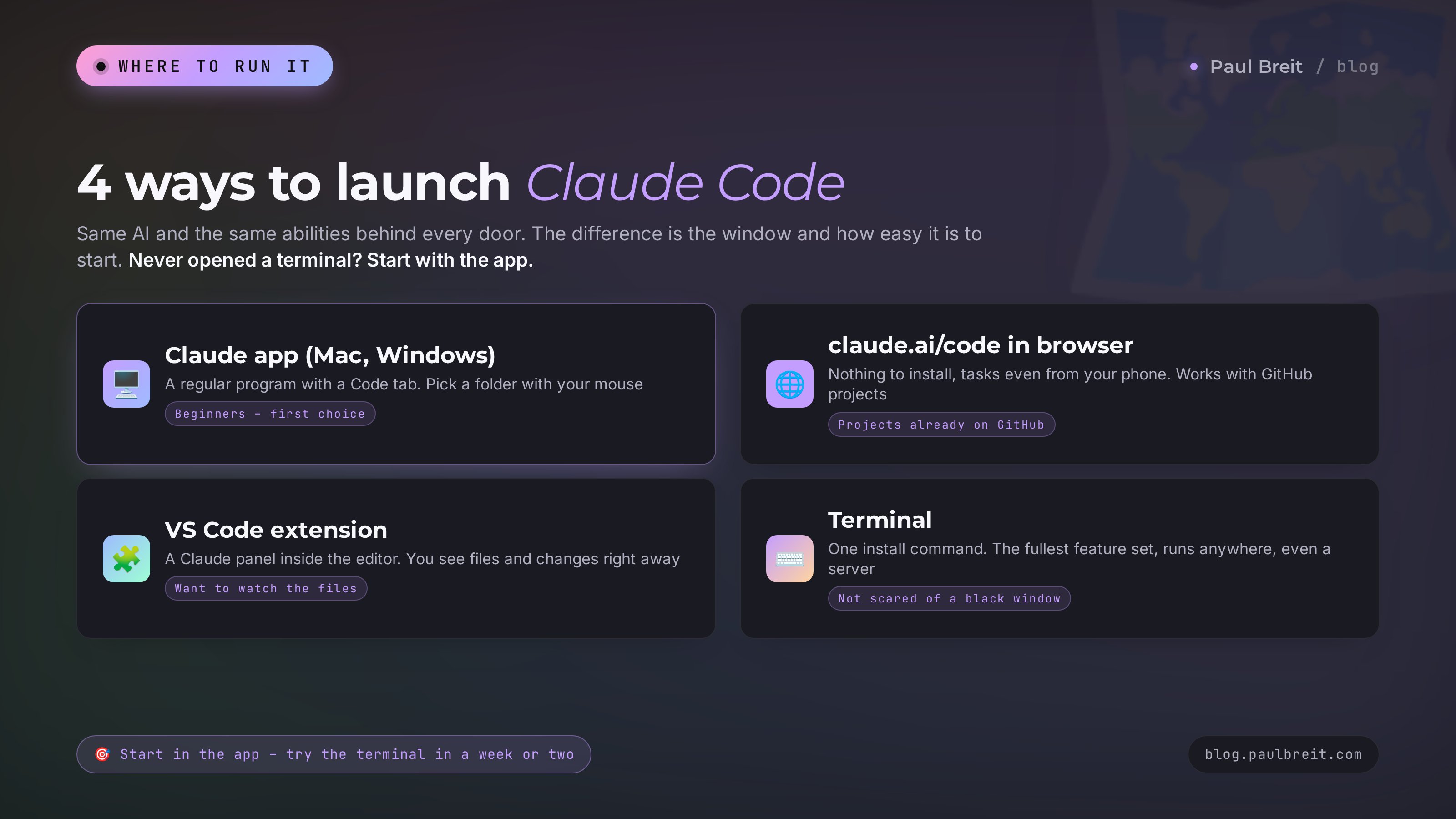
There's one Claude Code and several doors into it. Behind each one it's the same AI with the same abilities. The difference is how the window looks and how easy it is to get going. Here's a comparison so you don't burn the evening deciding.
| Option | What it is | Pros | Cons | Best for |
|---|---|---|---|---|
| Claude app (Mac, Windows) | A regular program with a Code tab | Familiar windows and buttons, pick the folder with your mouse | You have to download and install it | Beginners, first choice |
| Browser, claude.ai/code | Claude Code in the cloud | Nothing to install, you can launch tasks from your phone | Works with projects on GitHub, so you need an account there | People who already keep projects on GitHub |
| VS Code extension | A Claude panel inside the code editor | You see files and changes right away | You need to install the editor first | People who want to watch what happens to their files |
| Terminal | A text window, one install command | The fullest feature set, runs anywhere, including a server | Looks unfamiliar | People who aren't scared of a black window |
My advice is simple. If you've never opened a terminal, start with the Claude app. It looks like any other program on your computer, and the first task goes by without stress. In a week or two, once you're comfortable, try the terminal: everything is the same there, just faster, with a couple of extra features. From here on I show both paths, the app and the terminal. Pick yours.
Section 03Step 1. Account and plan
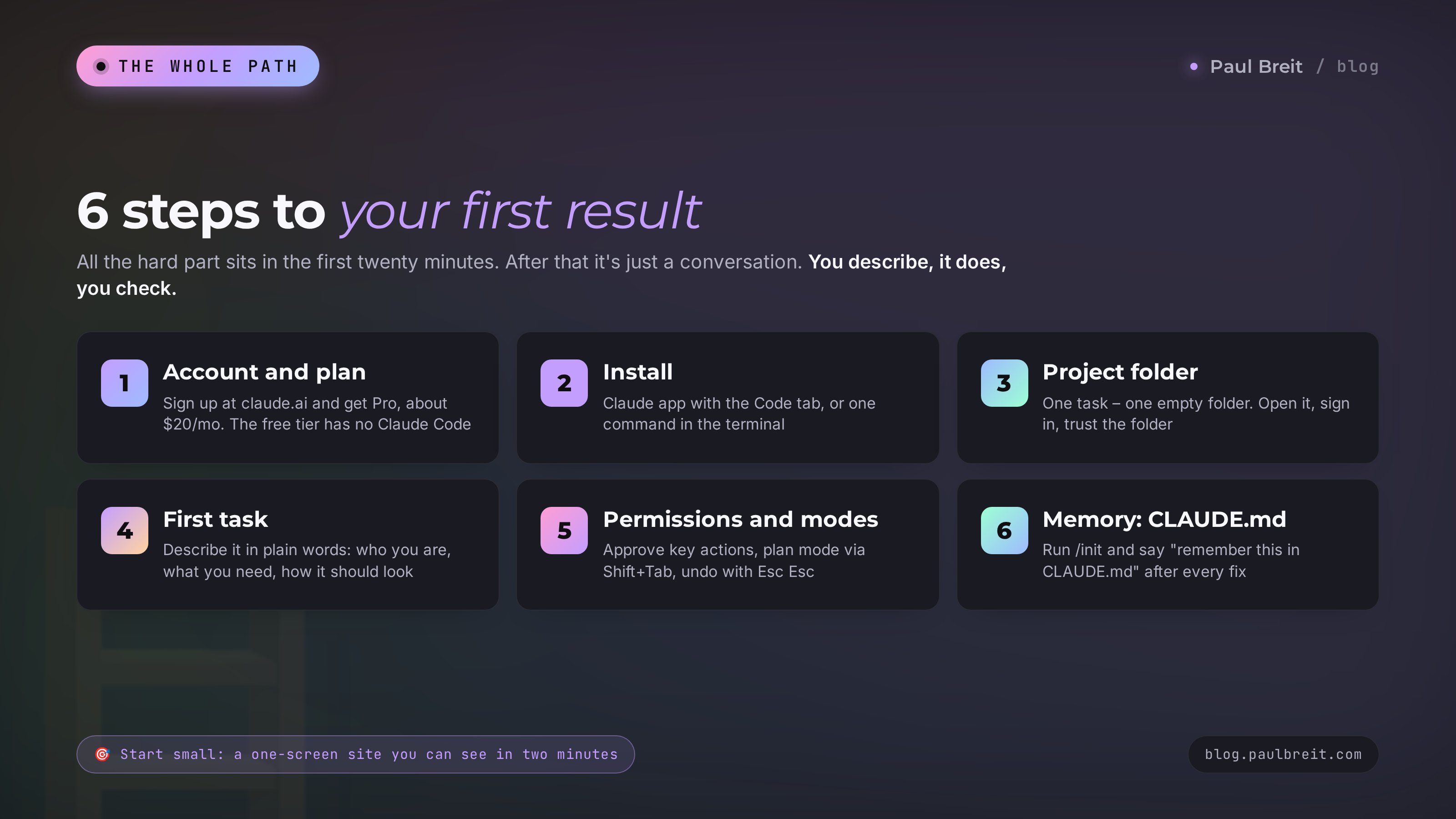
If you already have a Claude account with Pro, skip ahead to step 2. If not, let's go in order.
Sign up at claude.ai
Open claude.ai and sign in with Google or with your email. It takes a minute. You may be asked to confirm a phone number, which is normal.
Subscribe to Pro
In your account settings, pick the Pro plan. For the first few weeks it's more than enough. Max is for people who work in Claude Code for hours every day. You can upgrade later with one click, so there's no reason to overpay on day one.
Remember which email you used
Sounds trivial, but it's the most common reason the app later says "no access." The desktop app and the terminal must be signed in to the exact same account that holds the subscription. Write it down if you juggle several addresses.
That's it, your account is ready. One subscription unlocks both the regular chat on claude.ai and Claude Code. There's nothing extra to buy, and they share the same usage limits.
Section 04Step 2. Install Claude Code
Pick one of the two options and follow it through. Both take about five minutes.
Option A. The Claude app (easiest)
Download the app
On claude.ai, find the download section (at the bottom of the page or in your profile menu) and grab the version for Mac or Windows. Install it like any program: double-click the file, next, done.
Sign in to the same account
Open the app and sign in with the same email that has the subscription. You'll see a section switcher on the left or at the top, and one of the tabs is Code. That's Claude Code.
Option B. The terminal (one command)
The terminal is a text window where you type commands. On a Mac it's called Terminal, and you can find it through Spotlight (Cmd + Space, type "Terminal"). On Windows, open PowerShell from the Start menu. There's nothing scary in there. We're going to type exactly one line.
Paste the install command
On Mac and Linux, copy and paste into the terminal: curl -fsSL https://claude.ai/install.sh | bash. On Windows, in PowerShell: irm https://claude.ai/install.ps1 | iex. Press Enter and wait a minute, the installer downloads everything on its own. The current command always lives in Anthropic's official docs, in case anything changes.
Check that it installed
Close the terminal, open it again, and type claude --version. If you see a version number, the install worked. If the terminal says the command isn't found, restart your computer and try again. Still nothing? Jump to the "When something goes wrong" section below.
Open the regular chat on claude.ai and write: "I'm on a Mac (or Windows) and want to install Claude Code through the terminal. Walk me through it one action at a time, and I'll paste back whatever the terminal says." Regular Claude will calmly hold your hand and explain every line on the screen. I've seen this work for dozens of people who had never laid eyes on a terminal before.
Section 05Step 3. Project folder and first sign-in
Claude Code works inside a folder. Everything it creates goes there, and everything in there, it can see. So the very first rule: one task, one separate folder. Don't open it on your desktop or in your Documents folder where your whole life lives. Create an empty folder with a clear name, like "personal-site" or "sales-review."
Create an empty folder
Right-click on your desktop or in Documents, choose "New Folder," and give it a name. For example, my-site.
Open it in Claude Code
In the app: Code tab, the folder picker button, choose my-site. In the terminal: type cd, a space, drag the folder with your mouse straight into the terminal window (the path fills in by itself), and press Enter. Then type claude and press Enter again.
Sign in and trust the folder
On the first launch in the terminal, Claude Code asks how you want to sign in. Choose your Claude account with the subscription: a browser opens, you confirm, you come back. Then it asks whether you trust the files in this folder. It's your folder and it's empty, so answer "yes." If sign-in fails, it's almost always a different account than the one with the plan.
Now you're looking at an input box. You can type like you would in a messaging app. The hardest part is behind you. The fun part starts now.
Section 06Step 4. First task: a live dialogue
For your first run, pick a task whose result you can see with your own eyes in a couple of minutes. A one-screen personal site is perfect: you open it in the browser right away and understand how the whole thing works. Here's the full dialogue as it looks on screen, so you know what to expect.
Hi. I'm a therapist who works with anxiety in adults. Build me a one-screen personal site: my name, Anna Miller, one sentence about how I help, three short bullet points on "what people come to me with," and a "Book a session" button that opens my Telegram t.me/anna_psy. Calm, warm colors, beige and olive. Make sure it looks right on a phone too.
Got it. Here's the plan: I'll create an index.html file with the whole page, pick a warm beige and olive palette, and make the layout responsive for phones. Creating index.html. [shows the file contents and asks permission to write it] Done. The page is in the my-site folder. Double-click index.html and it'll open in your browser. Want me to add a photo or a pricing block?
Notice two things. First, it told you the plan and then did the work. Second, before creating the file it showed you exactly what it would write and asked permission. You click "yes" (or press 1 in the terminal), and the file appears in the folder.
Double-click index.html and take a look. You'll probably want to change something. That's normal, that's the whole idea. Keep going in the same plain language:
Nice. Make the button bigger and olive. Change the line under my name to "Helping you stop living in anxiety mode." And add a line at the bottom: "First session is 30 minutes, free."
Made three edits to index.html: enlarged the button and made it olive, replaced the subheading, and added the first-session line at the bottom. Refresh the page in your browser.
That's the whole secret. You describe, it builds, you look and refine. Two or three rounds and the site is done. By the way, Claude Code can also help you put a page like this online if you ask, but that's the next step and needs your hosting access. For a full project from voice notes to a finished site, see building a site by voice with Claude Code.
The first message gave the "contractor" everything it needed: who you are, what kind of site, what text, where the button goes, which colors, and where people will view it. The more of those details you pack into the first message, the fewer rounds of edits. If you forget something, no big deal: it'll ask, or make its own call, and you'll adjust.
Section 07Step 5. Permissions and modes
The thought that scares beginners most is "what if it deletes something." Here's how it actually works. By default, Claude Code asks permission for anything that changes files or runs programs. It shows what it wants to do and waits for your answer. The options usually look like this:
- Yes – do this action once.
- Yes, and don't ask again for this kind of action in this folder. Handy when it asks to create a file for the tenth time.
- No – and tell it right away what to do instead. It'll adjust.
On top of that there are work modes you switch with Shift + Tab (in the app it's a toggle next to the input box):
| Mode | How it behaves | When to use it |
|---|---|---|
| Normal | Asks permission for every change | The first few weeks and any important files |
| Auto-accept edits | Edits files in the folder without asking, still asks before running programs | When the task is clear and the folder is separate |
| Plan mode | Changes nothing, only explores and proposes a plan | Before a big task, to agree on the approach first |
I strongly recommend plan mode for anything bigger than a one-page site. Turn it on, describe the task, get a plan of five to ten points, edit it in plain words ("drop point three, the site is one page"), and only then let it run. That way you don't burn your limits on work that went the wrong way.
Two more keys take away almost all the fear. Esc stops Claude Code mid-sentence when you see it heading the wrong way. Double Esc opens a list of previous steps, and you can roll back to the moment before a bad edit. The /rewind command does the same thing. Think of it as "undo" in Word, but for the whole job at once.
Rolling back restores files that Claude Code itself changed. If it ran a program that sent an email or published something online, that can't be undone. So for anything that leaves your computer, read the permission request carefully.
Section 08Step 6. Project memory: the CLAUDE.md file
Every new Claude Code session starts with a blank slate. It doesn't remember that yesterday you agreed on beige colors, or that you call the people you work with clients, not patients. So you don't have to explain it every time, the project has memory: a CLAUDE.md file in the folder. Claude Code reads it on every launch.
Setting up memory is easy: type the /init command. It studies the folder and creates CLAUDE.md with a description of the project. After that you can add to it in ordinary words, right in the conversation:
Save this to CLAUDE.md: this is the site of therapist Anna Miller. Palette is beige and olive. Address the reader as "you," warm and direct. Buttons always open Telegram t.me/anna_psy. Before big changes, show me the plan first.
It adds these rules to the file, and tomorrow, when you open the same folder, you pick up right where you left off. What's usually worth saving to memory:
- who you are and what you do, in a sentence or two;
- who the project is for and what tone it has;
- colors, fonts, contacts, and links that keep repeating;
- rules like "don't delete old versions, move them to an archive folder";
- mistakes it has already made and shouldn't repeat.
The last one is the most valuable. Every time you correct Claude Code, say "remember this in CLAUDE.md." A month later you'll have an assistant that knows your habits better than a new hire. The same knowledge-base idea exists in the regular chat too, I wrote about it in Claude Projects.
Section 09Beginner command cheat sheet
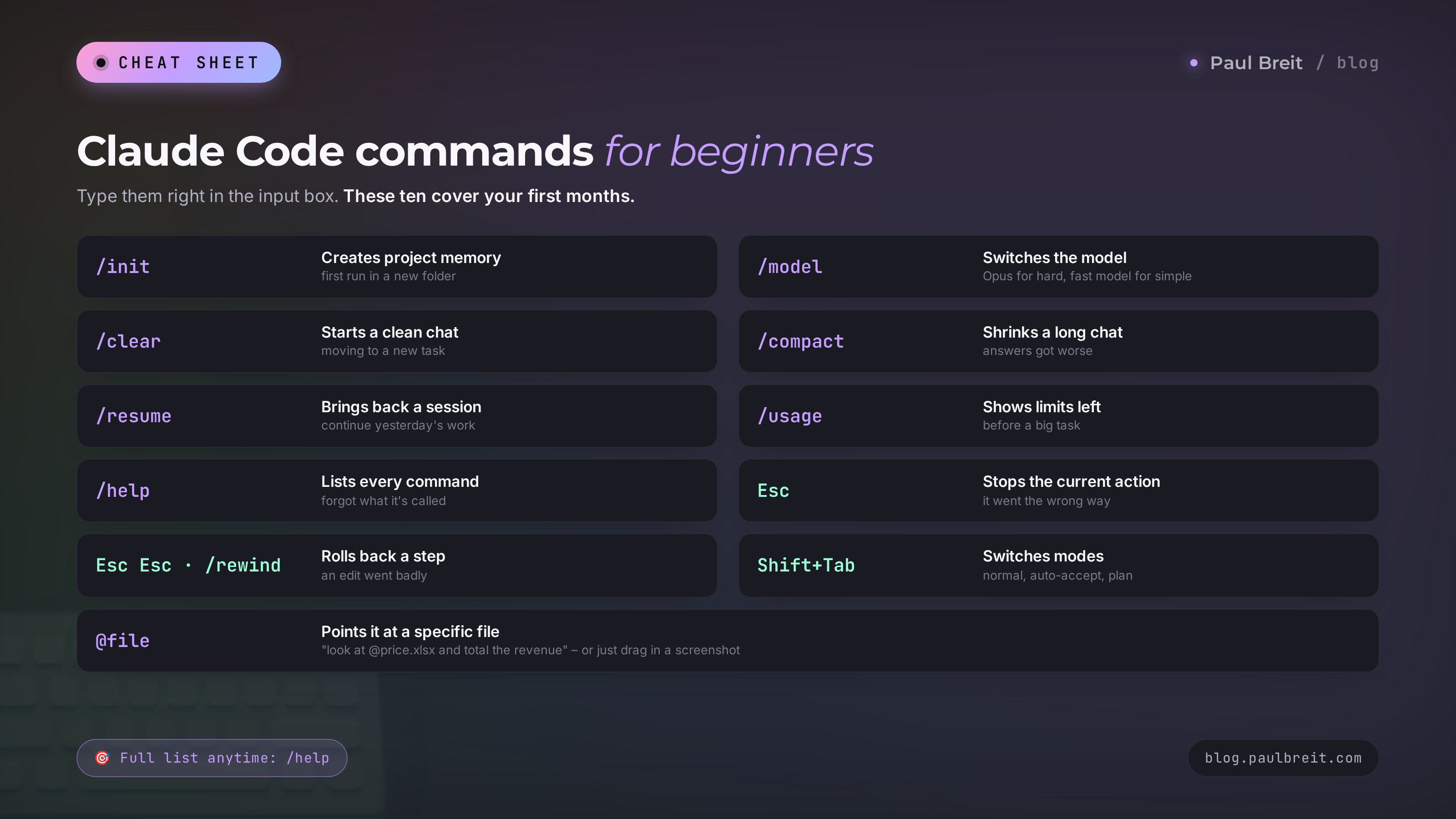
Commands start with a slash and go right into the input box. You don't need to learn all forty. Here are ten that will cover your first months. /help shows the full list.
| Command or key | What it does | When you need it |
|---|---|---|
/init | Creates the CLAUDE.md project memory | First launch in a new folder |
/model | Switches the model | Hard task that needs Opus, or a simple one where a fast model is enough |
/clear | Clears the conversation and starts fresh | Moving on to a new task |
/compact | Squeezes a long conversation into a short summary | The chat is long and answers got worse |
/resume | Brings back a previous session | You want to continue yesterday's work |
/usage | Shows how much of your plan's limit is left | Checking whether a big task will fit |
/help | Lists every command | You forgot what something is called |
| Esc | Stops the current action | You see it heading the wrong way |
Esc Esc or /rewind | Rolls back to a previous step | An edit went badly |
| Shift + Tab | Switches modes: normal, auto-accept, plan | Turning on plan mode before a big task |
Two more tricks make life much easier. The @ symbol plus a file name points Claude Code at a specific file: "look at @price.xlsx and total the revenue." And you can simply drag a screenshot into the window or paste it from the clipboard, and it will see the image. That's a lifesaver when it's easier to show an error than to describe it.
Models are simple. By default, work on Sonnet 5: it's a sensible balance of speed, quality, and limit usage. For hard tasks that need a lot of thinking, switch to Opus. Light errands like "rename these files" are easy work for the fast Haiku 4.5.
Section 10How to give tasks: a formula and 12 ready phrases
Claude Code is exactly as good as your task is clear. People who say "nothing works" write something like "make me a nice website" nine times out of ten. That's like walking up to a designer and saying "just make something." They will. Something.
I use a simple four-part formula. Keep it in front of you for the first few weeks.
- Who I am and why. "I'm an English tutor and I need a page for parents."
- What already exists. "The folder has my prices in price.xlsx and three testimonials in reviews.txt."
- What the result should be. "One page: who I am, prices from the price list, testimonials, and a booking button."
- Constraints. "No animations, large font, must open fine on a phone."
And here are twelve phrases you can copy and fill in with your own details. Each one has been tested on real tasks.
- "First look through the folder and tell me what's in it. Don't change anything."
- "Show me a step-by-step plan. I'll approve it, then go."
- "Ask me whatever questions you need to do this well."
- "Build a one-screen personal site: [who you are, how you help, where the button goes, colors]."
- "Look at the export @sales.csv and calculate revenue by month, the top 10 clients, and the average order value. Save the result to a report.xlsx spreadsheet."
- "Sort all the photos in this folder into subfolders by the year and month they were taken. Don't delete anything."
- "Rename every file in the folder using the pattern date-title. Show me the list of new names first."
- "Turn my notes in the notes folder into one guide in Word with a table of contents."
- "Make a page with a booking form: name, phone, preferred time. Save submissions to a file."
- "Check this site for problems: broken links, typos, how it looks on a phone."
- "Explain in plain words what you just did and which files you changed."
- "Save what we just decided to CLAUDE.md."
I especially recommend the third one. When you're not fully sure what you want, ask Claude Code to question you. It'll ask about your audience, colors, copy, and where to send people, and after five answers the task gets several times clearer. More ways to talk to AI are collected in the AI prompt library.
A long task is easier to dictate. Turn on dictation on your computer (on a Mac, press Fn twice; on Windows, Win + H) and describe the task the way you'd explain it to an assistant out loud. Claude Code handles conversational speech, false starts, and "so, basically" just fine. Plenty of my clients work exactly like this: talk for a couple of minutes, get the result.
Section 11Five first projects by profession
So you're not staring at an empty input box, here are first-project ideas for people who sell services, courses, and consulting. Each takes one evening and brings real value.
| Who you are | First project | What to tell Claude Code |
|---|---|---|
| Therapist, coach | A booking page for a first session | "Build a page: who I am, what I work with, how a session goes, a booking button that opens Telegram" |
| Tutor | A lesson and payment tracker in a spreadsheet | "Make a spreadsheet: name, subject, schedule, paid or not, monthly total" |
| Nutritionist, trainer | A meal plan or program generator into a document | "From the recipes in this folder, build a weekly menu as a PDF with one combined shopping list" |
| Online school | A sales report from an export | "Using @orders.csv, total sales by product and month, build a chart, and save the report" |
| Freelancer, designer | Order in your project archive | "Sort this folder by client and year and list every project in a spreadsheet" |
Notice that not one row says "write code." You describe the result the way you'd describe it to an office assistant. Once you feel confident, move on to bigger tasks: a Telegram bot that answers common questions (walkthrough in a Telegram bot without a programmer), or connecting your own tools through MCP, covered in MCP in Claude. For the big picture on building things by conversation, read the piece on vibe coding.
One client, a sales mentor, started with exactly a spreadsheet. First he asked Claude Code to pull every lead from his message history into it, then to calculate conversion from lead to payment, then to chart it week by week. Three evenings later he had his own small analytics setup that he'd been planning to hire a contractor for. And the main thing, in his words: "For the first time I saw at which step people drop off."
Section 12When something goes wrong
Every beginner hits the same snags. I've collected them in one place so you don't have to dig through forums.
Nine times out of ten you're signed in to a different account than the one with the subscription. Sign out, sign back in with the right email, and restart the app or terminal. If it says the account has no access, check that your Pro or Max plan is active.
The installer set up the path, but the terminal doesn't know about it yet. Close the window and open a new one. No luck? Restart the computer. Still nothing? Open the chat on claude.ai, paste the full error text, and ask it to walk you through the fix step by step.
Press Esc if it's still working. Then double Esc and roll back to the step before the bad edit. Then rephrase the task more concretely, or turn on plan mode and agree on the approach first. Scolding it with "you ruined everything" is useless. Calmly describe what you need instead.
The conversation is too long, and a lot of clutter has piled up in its working memory. Type /compact to shrink the conversation, or /clear to start fresh. Before that, ask it to save the important agreements to CLAUDE.md so they don't get lost.
The file is most likely in another folder. Claude Code only sees the folder it was launched in and everything inside it. Move the file into the project folder, or open Claude Code in the right folder.
Your plan has a short-window limit and a weekly limit. Wait for the window to reset, and it will tell you when. How to stretch your limits is covered in the next section.
Take a screenshot, drag it into the Claude Code window, and write: "This is how it looks on my end, fix it." A picture explains the problem better than any description. Do the same with any error on your screen.
The general principle: show any confusing message to Claude itself, in Claude Code or in the regular chat. It's better at untangling its own errors than any forum. For a big rundown of typical mistakes with AI, see beginner mistakes with AI.
Section 13Usage limits and how to stretch them
On Pro you don't pay per request, but it isn't unlimited either. There's a limit over a few hours and a weekly limit. Claude Code uses noticeably more than the regular chat, because it reads files, tries things, and checks its own work. For tasks like "personal site, spreadsheet, report," Pro is plenty. Once you're spending several hours a day in Claude Code, take a look at Max.
Here's what actually saves limits:
- One task, one conversation. Finished the site? Type
/clearand start the sales report on a clean slate. A long conversation drags all the previous text along and costs more. - The right model. Sonnet 5 for everyday work, Opus only for genuinely hard stuff, Haiku 4.5 for small errands.
- Plan mode before a big task. Agreeing on the approach in words is cheaper than redoing finished work.
- Small folders. Don't open Claude Code in a folder with thousands of files, it will try to study them. A dedicated folder per task saves both time and limits.
- A precise task the first time. Every "no, not that" round costs limit. The four-part formula pays for itself right here.
Check what's left with the /usage command. If you want a broader overview of which AI tools to use for which tasks and what they cost, see the best AI tools of 2026.
Section 14Safety: five simple rules
Claude Code gets access to your computer, so a little hygiene doesn't hurt. The rules are simple and easy to follow.
- A separate folder for every task. Never launch it at the root of your drive or in the folder with all your documents.
- Read permission requests. Especially when it wants to delete, send, or install something. If you don't understand an action, ask: "Explain in plain words what this command will do."
- Don't type passwords or keys into the chat. If it needs access to a service, ask Claude Code where to store the key safely, and put it there yourself.
- Back up anything important. Working with valuable files? Copy the folder first. Two seconds, and you'll sleep better.
- Check everything that goes out. Numbers in a report, links on a site, the text of an email campaign. Final review is on you, especially where money and client data are involved.
It sounds stricter than it is. I've never once seen Claude Code break anything for someone who worked in a separate folder and read what they were approving. It's careful and always asks before anything important. With these rules the work becomes genuinely calm.
Section 15The whole path in one minute
Let's run through the essentials so it all clicks into one picture.
- You need a computer and a Claude Pro or Max plan.
- The easiest start for a beginner is the Claude app, Code tab. The terminal installs with one command and gives you the same abilities.
- Create a separate empty folder for each task and open Claude Code right there.
- Keep the first task small and visible: a personal site, a spreadsheet, a report. Use the formula: who you are, what exists, what result you need, constraints.
- Approve important actions, turn on plan mode before a big task, undo a bad step with double Esc.
- Create project memory with
/initand add everything you agree on. - One task, one conversation,
/clearbetween tasks, Sonnet 5 by default. That way your limits last a long time.
That's it. Honestly, the hardest part of Claude Code is deciding to open it for the first time. After that you talk and it does the work. Pick one small task that's been hanging over you and get it done tonight. Ready to try? 🙂
FAQFrequently asked questions
How do I use Claude Code if I'm not a programmer?
The same way you'd give tasks to an assistant. Open Claude Code in a separate folder and describe the result in plain words: who you are, what needs to be done, how it should look. It writes all the code itself. Your job is to check the result and ask for changes.
Can I use Claude Code for free?
No, Claude Code isn't available on the free plan. It comes with Claude Pro (about $20 a month) and Max ($100 or $200 a month). You can also pay as you go through the API, but for a beginner the Pro plan is simpler and more predictable.
Where is it easiest for a beginner to use Claude Code?
In the Claude desktop app for Mac or Windows, on the Code tab: you pick a folder with your mouse and type the task. There's also the browser version at claude.ai/code for projects on GitHub, the VS Code extension, and the terminal, where it installs with one command.
Do I need to install anything to use Claude Code?
For the desktop app, yes: download it from claude.ai and install it like any program. For the terminal, one install command is enough. The browser version at claude.ai/code needs no installation, but it works with projects stored on GitHub.
Can Claude Code delete my files?
By default it asks permission for every change and shows what it's about to do. Work in a separate folder, read the requests, and keep a copy of anything important. A bad edit can be rolled back with a double Esc or the /rewind command.
What is CLAUDE.md and why do I need it?
It's the project memory file in your folder. Claude Code reads it on every launch, so it's the place for your rules: who you are, colors, contacts, agreements. You create it with the /init command and add to it by saying "remember this in CLAUDE.md."
Which model should I choose in Claude Code?
Sonnet 5 by default: it balances quality, speed, and limits. For hard tasks, switch to Opus with the /model command. For simple errands, the fast Haiku 4.5 is enough.
What do I do when I run out of limits?
Wait for the window to reset, and Claude Code will tell you when. To make limits last longer, keep one task per conversation, clear the chat with /clear, work on Sonnet 5, and agree on a plan before big tasks. If you keep running short, move to Max.
Does Claude Code understand plain everyday language?
Yes, very well. Type or dictate tasks the way you'd say them to a person, in English or many other languages, and it answers in kind. Commands like /init and /clear are fixed words, but there are only about ten you need, and they're all in the cheat sheet above.