Claude Skills in 2026: skills that do the work for you
Claude Skills are saved skills for Claude: a folder with instructions, examples, and templates that Claude pulls out on its own whenever a task fits. You explain once how you write posts, review new leads, or put together a client proposal, and from then on Claude does it by your rules in any new chat. Below, step by step: what skills are, how they differ from projects and prompts, how to turn them on, how to build your own skill in an ordinary conversation, and 12 ready-to-build ideas for everyone who sells services, courses, and consulting.
Claude Skills are saved skills for Claude: instructions in a SKILL.md file plus templates and examples that Claude loads by itself when it sees a matching task. To start, go to claude.ai, turn on "Code execution and file creation" in the settings, open Customize → Skills, and switch on the ready-made skills or create your own: write to Claude "help me create a skill for…" and answer its questions. It works on the free plan and on the paid Pro, Max, Team, and Enterprise plans, and also in Claude Code and through the API.
A coach who writes posts every week and wants them to sound like him without long explanations. A therapist or a nutritionist who reviews a client's intake form before every call. A tutor or the owner of an online school who builds the same client proposal for the tenth time this month. Anyone with repeat work that follows a clear order of steps. No coding needed: you create a skill in a regular conversation with Claude.
What's inside
- What Claude Skills are, in plain words
- Skills, projects, prompts, and MCP: the difference
- Where skills work and what they cost
- How to turn on skills, step by step
- Anthropic's ready-made skills: Word, Excel, PowerPoint, PDF
- How to create your own skill by talking
- What a skill is made of: SKILL.md explained
- 12 skills for everyone who sells services and courses
- How to write a description that makes the skill fire
- Skills in Claude Code and through the API
- If something goes wrong
- 7 beginner mistakes
- The whole path in a minute
You know the drill. You open a new chat with Claude and explain the same thing for the fifth time this week: keep it short, no corporate speak, here's my product, here are my prices, here's how I usually open a post. Claude writes well. Three days later you open a new chat, and it's back to square one.
Skills fix this problem for good. You package your way of working into a skill once, and Claude recalls it by itself whenever it sees a similar task. You type "write a post about the spring enrollment," and it picks up your voice, your banned words, and your post structure without a single reminder.
Sounds like a small thing. In practice it's the gap between an AI you have to train from scratch every time and an assistant that already knows how your business runs. Below I'll walk you through what skills are, where to turn them on, how to build your first skill in 15 minutes, and which skills pay off right away. If you're just getting to know Claude, start with the complete Claude guide for non-techies – it covers the basics.
Section 01What Claude Skills are, in plain words
In Claude, a skill is a folder. Inside there's always one file called SKILL.md, plus anything else you like: a document template, examples of your best texts, a price list, a logo, a small script.
The SKILL.md file has two parts. At the top there's a short header: the skill's name and a description of when to use it. Below that come the instructions in plain language: what to do, in what order, what the result should look like, and what to avoid.
How it looks in action
Picture a new hire. On day one you hand them a binder of how-to guides: "How to reply to a new lead," "How to prepare a client proposal," "How to write a post for the channel." They don't memorize the guides. They only remember the labels on the spines. When a lead comes in, they pull out the right guide and follow it.
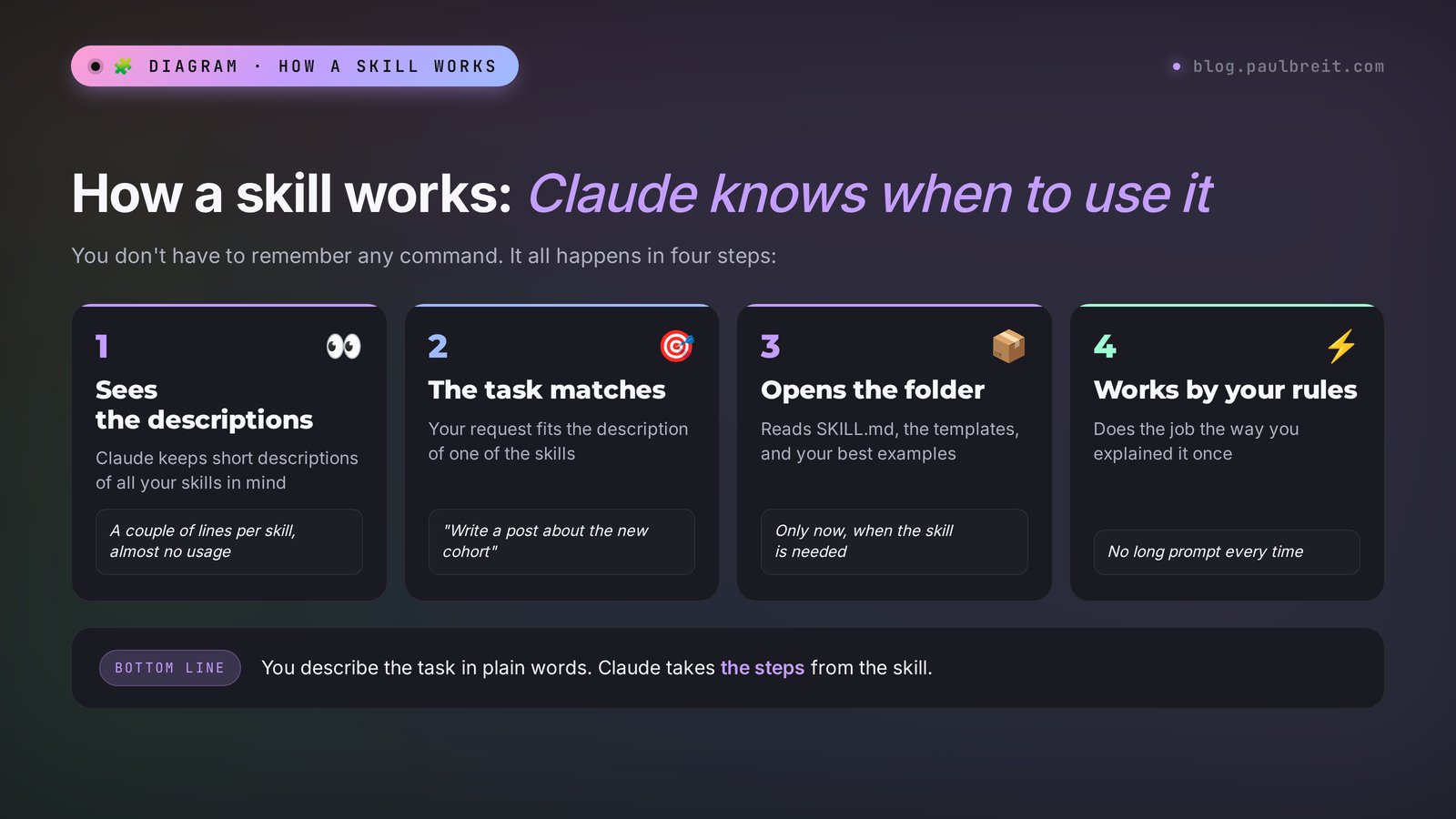
Claude works the same way. At the start of every chat it sees only a list: the names and descriptions of all your skills. That's a few lines per skill. When you write a task, Claude checks it against the descriptions. If it finds a match, it opens the full instructions and loads the files they mention. If there's no match, it works as usual.
Anthropic calls this principle progressive disclosure. For you it means something simple: you can install thirty skills if you want. They don't eat up the chat's memory or get in each other's way, because only the one you need goes to work.
What changes in practice
- No more repeating the rules. Your voice, your prices, your dos and don'ts live in the skill. A new chat starts straight with the work.
- Consistent results. A client proposal on Tuesday looks the same as one on Friday, because both are built by the same steps.
- Work you can hand off. You can give a skill to an assistant or your team. They get your way of working together with an AI that follows it.
- Skills stack. Claude can use two skills at once: for example, "post in my voice" and "plain-language check," running the text through both.
Section 02Skills, projects, prompts, and MCP: the difference
Claude offers several ways to "teach" the AI your way of doing things. Beginners mix them up, switch everything on at once, and then can't tell what actually worked. Here's how they line up.
| Tool | What it is | When it works | Best for |
|---|---|---|---|
| Prompt | The task text you type into the chat | Only in that message | One-off tasks |
| Personal preferences | A couple of paragraphs about you in your profile | In every chat, always | General things: how to address you, which language to answer in |
| Project | A folder with files and instructions for a group of chats | In every chat inside the project | A knowledge base on one topic: a course, a client, a launch |
| Skill | Instructions with templates for one repeating task | In any chat, when the task matches the description | A way of working: a post, a lead review, a proposal, a report |
| Connector (MCP) | A link to an outside service | When Claude needs to fetch or send something | Access to Google Sheets, your calendar, Notion, Telegram |
Skill or project
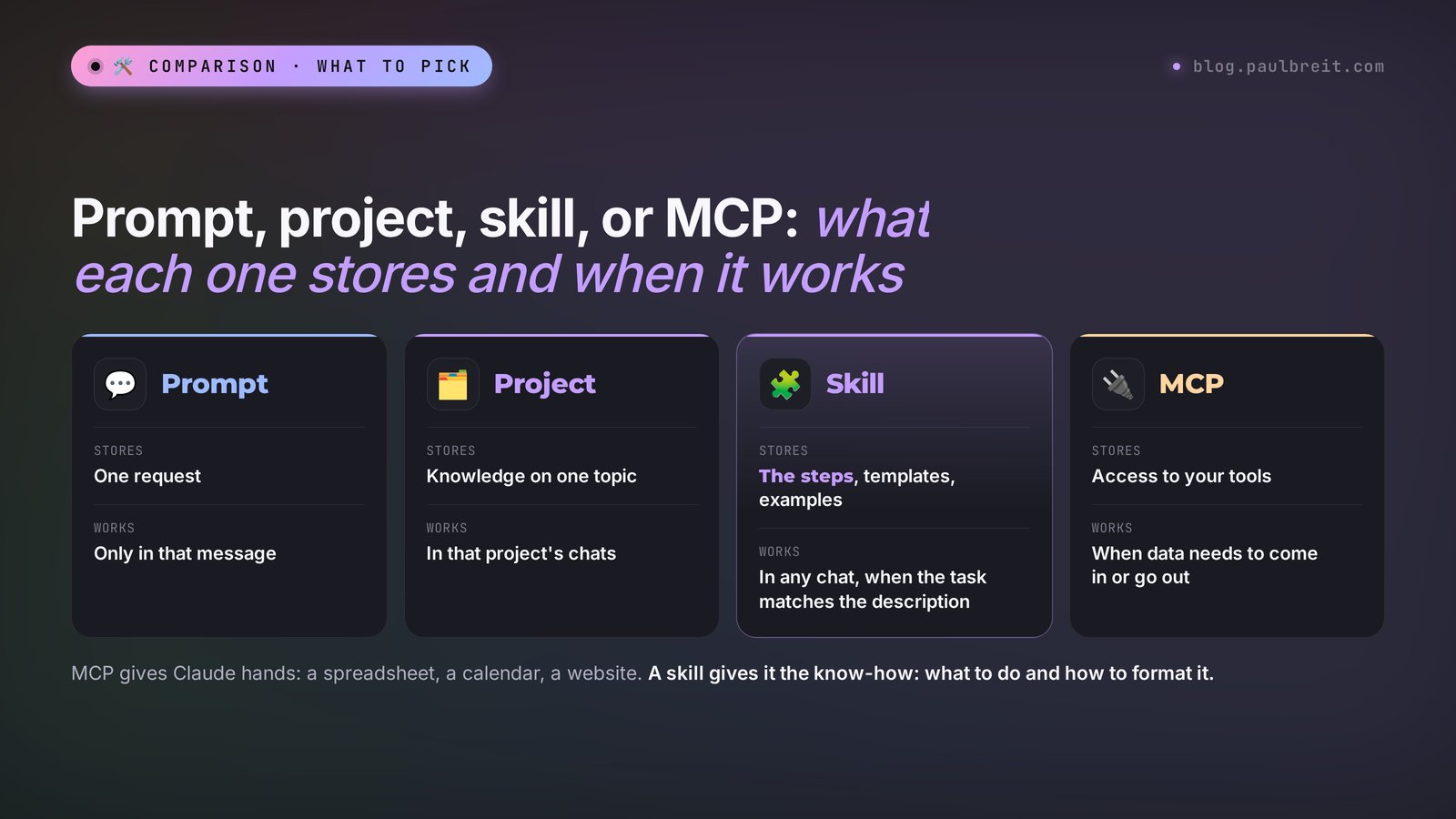
This is the question I get asked most. A project stores knowledge: course materials, your correspondence with a client, a product description. A skill stores a sequence of steps: how to turn that knowledge into a post, an email, or a report.
A simple rule. If you want Claude to know something about a specific topic, put it in a project. If you want it to be able to do a certain job equally well everywhere, make a skill. More on projects in Claude Projects: a knowledge base that remembers everything for you.
They work great together. The "Spring course launch" project holds the curriculum, prices, and testimonials. The "Post in my voice" skill knows how you write. Inside the project you type "write a post about module three," and Claude takes the facts from the project and the delivery from the skill.
Skill or MCP
An MCP connector gives Claude hands: access to a spreadsheet, a calendar, a website. A skill gives it the know-how: an understanding of what to do with that access. For example, a Google Sheets connector lets Claude read your list of payments, and a "Weekly report" skill explains which numbers to calculate and how to present the conclusions. Connectors are covered in detail in MCP in Claude: connect Telegram, Sheets, and your site to AI.
Skill or a long prompt in your notes
Lots of people keep their favorite prompts in a notes app and paste them into the chat. That works, but it has three downsides. You have to remember the prompt and find it. It takes up space in every chat in full. And it can't bring files along: the contract template or the price list has to be attached by hand.
A skill loads itself, sits folded up in memory, and brings all the files it needs. Your best prompts from your notes are perfect raw material for your first skills. If you don't have prompts of your own yet, grab a starting point from the library of 100 ready-made prompts.
Section 03Where skills work and what they cost
Skills arrived in Claude in October 2025. Back then Anthropic released them for paid plans, together with four ready-made skills for documents. Today the picture is wider.
- The claude.ai website and the Claude apps on desktop and mobile. Skills are available on the Free, Pro, Max, Team, and Enterprise plans.
- Claude Code – an agent that works with files and programs. There, skills live in folders on your computer and can also be called with a slash command.
- The API and the Agent SDK – for people who build Claude into their own services and bots.
You don't pay separately for skills. They draw on your plan's regular usage limits. The free plan's limits are small, and a complex skill that creates files can hit them after a couple of tasks. For regular work, Pro is more comfortable at about $20 a month.
Getting an account
If you don't have Claude yet, sign up at claude.ai with a Google account or any email address. The free plan is enough to try skills out, and you can upgrade to Pro with a regular credit card in the same settings menu whenever the limits start to pinch.
Start on the free plan and build one skill end to end. If you find yourself hitting the limit every day, that's the signal that skills are saving you real time and Pro will pay for itself.
Section 04How to turn on skills, step by step
Turning skills on takes two minutes. Menu names below are exactly what you'll see on claude.ai.
Open the settings
Go to claude.ai, click your name in the bottom-left corner, and choose Settings.
Turn on code execution
Go to the Capabilities tab and switch on "Code execution and file creation." Without it, skills don't work at all: Claude needs its own workspace to read the skill's files and create documents.
Open the skills section
Find Customize in the menu, and Skills inside it. Here's the list of all your skills: Anthropic's ready-made ones and your own. Each has a toggle.
Turn on the ones you need
Go through the list and switch on whatever will be useful. Claude can't see a skill that's switched off. A skill that's on sits ready and loads by itself when a task matches its description.
Test it in a new chat
Open a new chat and write a task the skill was made for. For example: "Make a 5-slide presentation about my consultation." While working, Claude will show that it has read the skill's file. That means everything works.
On the Team and Enterprise plans, the organization owner turns skills on: the organization settings have a Plugins & skills section. From there the owner can also roll out a skill to every employee at once, and it shows up for everyone with no manual install.
Section 05Anthropic's ready-made skills: Word, Excel, PowerPoint, PDF
Anthropic built the first four skills itself, and they're already in every account. They kick in automatically as soon as you ask for a file in the right format.
| Skill | What it does | Example task |
|---|---|---|
| Word (docx) | Documents with headings, tables, lists, footnotes | "Turn this text into a consulting agreement in Word" |
| Excel (xlsx) | Spreadsheets with formulas, charts, multiple sheets | "Build a payment tracker with monthly totals" |
| PowerPoint (pptx) | Presentations with slides, images, speaker notes | "A 12-slide webinar deck in shades of blue" |
| Creating PDFs, extracting text and tables, filling in forms | "Make a checklist lead magnet as a PDF" |
The difference from a regular chat is noticeable. Without the skill, Claude sends you text that you then move into Word yourself. With the skill, it creates a real file: you download it and send it straight to the client.
How to get the most out of the ready-made skills
- Give the full content. "Make a proposal" gets you an empty shell. "Make a proposal in Word: the service is a sales funnel audit, three packages, here are the prices and what's in each" gets you a finished document.
- Describe the look in words. "Clean, white background, dark blue headings, logo in the top-right corner" – and Claude will do exactly that. Attach the logo as an image.
- Edit precisely. "On slide three, change the heading; on slide five, remove the table" works faster than "redo it."
- Save what works. Got a presentation you like? Say: "remember this style as a skill." How to do that is in the next section.
Besides the four document skills, Anthropic has an open collection of examples: a skill that helps you create other skills, a brand-style skill, and skills for design and website testing. The most useful one to start with is the skill-creation helper. That's where you should begin. And if you want to go deeper on presentations, see how to make a presentation with AI in an hour.
Section 06How to create your own skill by talking
The easiest route doesn't involve writing any files by hand. You tell Claude how you do the work, it asks clarifying questions, and it assembles the skill itself. Let's walk through a real example: an "Intake review before a call" skill for a therapist.
Open a new chat and describe the task
Turn on code execution (section 04), open a new chat, and write what you want to automate. It doesn't have to be pretty. Write it the way you'd explain it to an assistant.
Help me create a skill.

I'm a therapist and I work online. Before the first session, the client
fills out an intake form: 10 questions about their request, past
therapy, and expectations.
I want to paste the answers into the chat and get a short review:
– what the client's real request is,
– what to pay attention to in the first session,
– 3–5 questions worth asking,
– whether my format suits the client (I don't work with addictions
  or acute crises; I refer those clients to colleagues).

The review should fit on one page, in plain language, with no diagnoses.Answer Claude's questions
Claude will turn on the skill helper and start asking for details. Usually that's 4–7 questions. Answer in detail: the more specifics now, the fewer fixes later.
Here's roughly what that conversation looks like.
Claude: How would you like the review to look: one block of text or sections with headings?
You: Sections. At the top, one line: the client's name and their main request in my own words.
Claude: What should I do if the form shows signs of a crisis, for example thoughts of self-harm?
You: At the very start of the review, mark in large letters "Urgent specialist consultation needed" and give no recommendations about the work.
Claude: Please send an example of a completed form and an example of a review you'd be happy with.
You: (you paste an anonymized form and describe what your ideal review looks like)
Use anonymized forms in the skill's examples: replace names, phone numbers, and identifying details. A skill is your way of working; it doesn't need real client data.
Get the finished skill
Claude will assemble a folder with the SKILL.md file and, if needed, an example. It will show you the instructions as text – read them all the way through. This is your standard operating procedure, and it should say exactly what you meant.
Save the skill
Under the result you'll see either a button to save the skill or a link to a ZIP file. In the first case, click the button and the skill goes straight into Customize → Skills. In the second, download the archive, open Customize → Skills, click "+", then Create skill and Upload a skill, and choose the archive.
Test it on three different tasks
Open a new chat and paste a real anonymized form with no explanation. If Claude loaded the skill on its own and produced a review in your format, the description is right. Then test a form with a "red flag" and a form that clearly isn't a fit for you. Three tests will show where the instructions are weak.
Refine it
If something's off, go back to the chat where you created the skill and write: "The review has too many generic phrases. Add a rule to the skill: every point must be backed by a specific answer from the form." Claude will update the file, and you upload the new version.
Your first skill takes 15–20 minutes, testing included. The next ones take about 10 minutes each, because you already know which details Claude will ask about.
Section 07What a skill is made of: SKILL.md explained
Even if Claude writes your skills for you, it helps to understand how they're built. That way you can fix a couple of lines yourself and see right away why a skill isn't firing.
Folder structure
intake-review/
├── SKILL.md          ← main file: header and instructions
├── example-review.md ← an example of a good result
└── template.docx     ← a document template, if needed
Only SKILL.md is required. Everything else depends on the situation. If you upload a ZIP archive by hand, the skill folder must sit directly inside the archive, with SKILL.md inside that folder. A common mistake is an extra wrapper folder, which makes the upload fail.
The header: name and description
At the very top of the file, between two lines of three hyphens, sits the header. It has two required fields.
- name – the skill's name, up to 64 characters. Use lowercase letters with hyphens, for example intake-review.
- description – the description, up to 200 characters on claude.ai. This is the most important line in the whole skill: it's how Claude decides whether to call the skill or not.
A full example
---
name: intake-review
description: Reviews a new therapy client's intake form before the
  first session. Use when the user pastes intake form answers or asks
  to prepare for a first session.
---

# Intake review before the first session

## Input
The client's answers to the 10 intake questions.

## Steps
1. Read the whole form.
2. If there are signs of a crisis (thoughts of self-harm, abuse,
   an acute state), write in large letters at the start
   "Urgent specialist consultation needed" and stop.
3. State the main request in one sentence, in the client's words.
4. Note 2–3 things worth paying attention to,
   each backed by a specific answer from the form.
5. Suggest 3–5 questions for the first session.
6. Assess whether the format suits the client: I don't work
   with addictions or acute crises.

## Output format
One page. Section headings. Plain language.
No diagnoses and no medical terms.

## Example
See example-review.md.
Notice: the instructions are written in ordinary words, like a task for a human assistant. No code. The numbered steps help Claude avoid skipping anything. A separate "Output format" block keeps the result consistent from one run to the next.
What else you can put in the folder
- Examples of good results. Two or three of your best posts or proposals work better than any description of your style.
- Reference files. A price list, a list of services, frequent client questions. Claude opens them only when the instructions say to.
- Document templates. Your branded contract or proposal form in Word, so Claude fills in exactly that.
- Scripts. Small programs for precise calculations, such as working out discounts. Claude writes them itself if you ask.
Section 0812 skills for everyone who sells services and courses
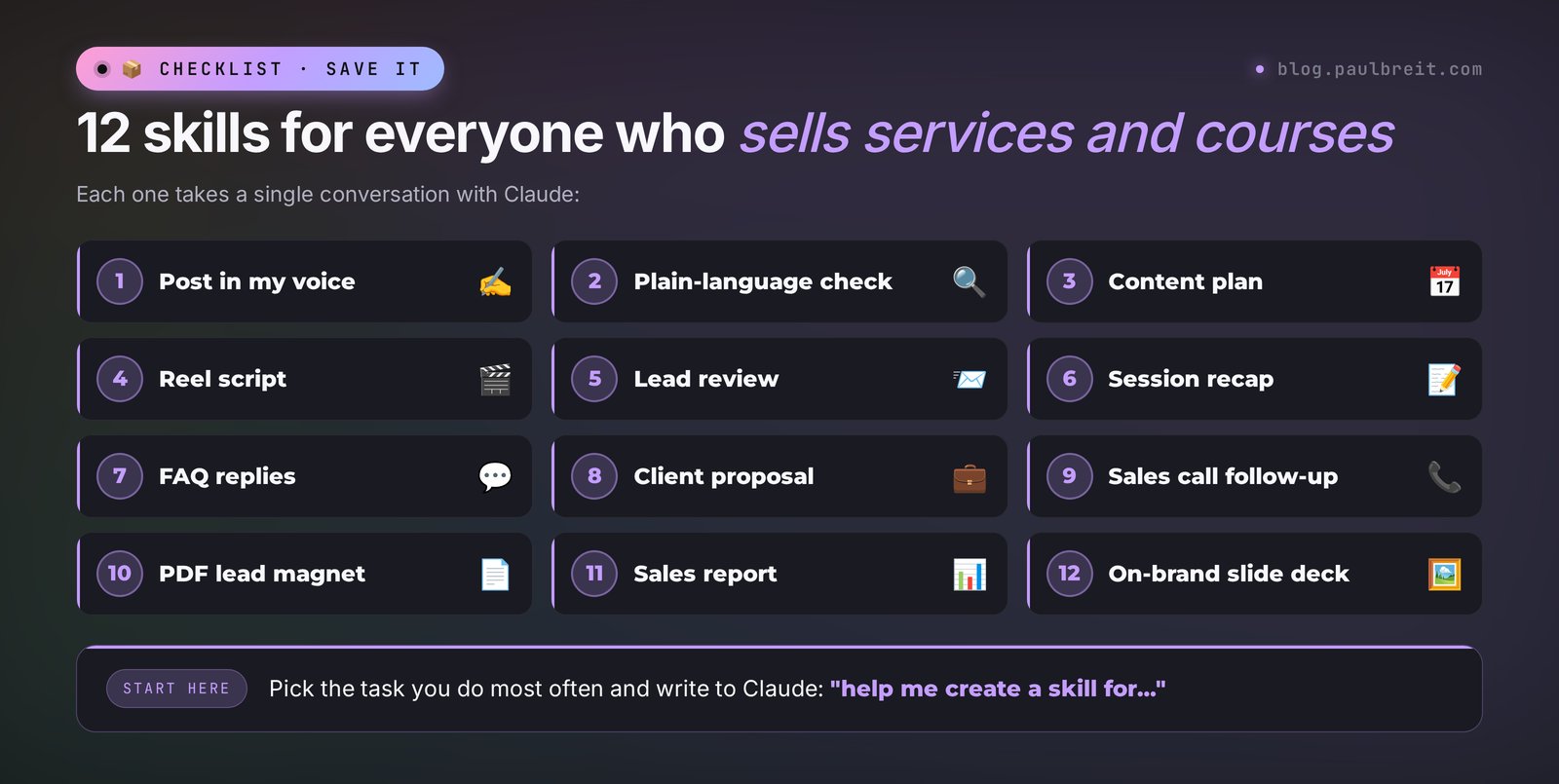
Below are skills that pay off in the very first week. For each one: what it does and a ready-to-use description. You can take the description word for word when you create the skill in a conversation with Claude: say "here's the description, help me build the skill," and it will ask the rest of the questions itself.
| Skill | Area | Time saved |
|---|---|---|
| Post in my voice | Content | 20–30 minutes per post |
| Plain-language check | Content | 10 minutes per text |
| Monthly content plan | Content | 2–3 hours a month |
| Reel script | Content | 15 minutes per video |
| Lead review | Clients | 15 minutes per client |
| Session recap | Clients | 20 minutes per meeting |
| FAQ replies | Clients | an hour a week |
| Client proposal | Sales | 40 minutes per proposal |
| Sales call follow-up | Sales | 10 minutes per message |
| PDF lead magnet | Sales | half a day per checklist |
| Sales report | Numbers | an hour a week |
| On-brand slide deck | Documents | 2–3 hours per presentation |
The time savings are a rough guide based on my experience and my clients' – yours will differ. What matters more: these tasks come back every week, and a skill takes almost all of them off your plate.
1. Post in my voice
Writes a post for Telegram, Instagram, or any other platform in your voice: your paragraph length, your favorite turns of phrase, your list of banned words. Put 5–7 of your best posts in the folder as samples. Description: "Writes posts for my Telegram channel in my voice. Use when asked for a post, an announcement, or channel copy."
2. Plain-language check
Runs any text against a list of AI-sounding words and corporate jargon, fixes them, and shows what it replaced. Especially useful paired with the first skill. A detailed breakdown of how to get Claude to write like a human is in 7 AI skills that fix dry Claude copy. Description: "Checks text for jargon and AI-sounding words and rewrites it in plain, natural language. Use before publishing any text."
3. Monthly content plan
Builds a plan around your content pillars and proportions: for example, 40% education, 30% stories, 20% inspiration, 10% sales. Takes launches and holidays into account. Delivers an Excel spreadsheet with dates. Description: "Creates a monthly content plan around my content pillars as a spreadsheet. Use when asked for a posting plan." A step-by-step approach is in a content plan for a month in one evening.
4. Reel script
Writes a script in your format: a hook for the first seconds, the problem, the twist, the call to action. It remembers that you talk in a conversational style and shoot without a talking head, if that's how you work. Description: "Writes short-video scripts for reels in my format. Use when asked for a script, a reel, or a video idea." For more on reels, see 30 reel scripts a month in one evening.
5. Lead review
The very skill from section 06. It's useful well beyond therapists: coaches, nutritionists, lawyers, accountants – anyone who gets an intake form or a message thread before the first meeting. Description: "Reviews a new client's intake form or inquiry before the first meeting. Use when intake answers are pasted in."
6. Session recap
You paste the call transcript, and the skill writes an email to the client: what you agreed on, the homework, the next step, the date of the next meeting. Clients appreciate this, and it takes you a minute instead of half an hour. Description: "Writes a recap email to the client from a session transcript. Use when a meeting transcript is pasted in."
7. FAQ replies
The folder holds a file with your answers to 20–30 typical questions: prices, format, refunds, timelines. You paste the client's message, the skill drafts a reply in your words and flags it if the question is new and the answer isn't in the file. Description: "Drafts a reply to a client based on my FAQ file. Use when a client message is pasted in."
8. Client proposal
Fills in your proposal template in Word: the client's name, their goal, the right package, the timeline, the price. The template and price list live in the skill's folder, so the numbers are always current as long as you keep the price list updated. Description: "Builds a client proposal from my template and price list in Word. Use when asked for a proposal or an offer for a client."
9. Sales call follow-up
Writes an email or a direct message to people who had a consultation but didn't buy. Three versions by timing: the next day, after three days, after a week. No pressure, built on what the client said during the call. Description: "Writes follow-up messages to a client after a sales call if they haven't decided yet. Use when asked for a follow-up." The sales call script article pairs well with this one.
10. PDF lead magnet
Turns your topic into a checklist or a mini-guide of 3–7 pages as a PDF, in your brand colors, with a call to action at the end. One skill, and a lead magnet for each launch comes together in 15 minutes. Description: "Creates a PDF lead magnet: a checklist or mini-guide in my brand style. Use when asked for a lead magnet or a checklist." The full process is in a lead magnet with AI in an hour.
11. Sales report
You upload an export of payments from your payment platform or a spreadsheet of leads. The skill calculates revenue, average order value, and the lead-to-sale conversion rate, compares them with last week, and writes three takeaways in plain words. Description: "Builds a sales report from a payments spreadsheet: revenue, average order value, conversion, takeaways. Use when a payments export is uploaded." More spreadsheet ideas in AI for spreadsheets.
12. On-brand slide deck
Stores your colors, fonts, and logo, and builds a presentation for a webinar or a call in a consistent style. Put your logo and a couple of good slides in the folder. Description: "Builds presentations in my brand style: colors, fonts, logo. Use when asked for slides or a presentation."
Where to start
You don't need to build all twelve in one evening. Take the task that ate up the most time last week and make a skill for it. A week later, add a second one. In a month you'll have a set of five or six skills that cover most of your routine, and you'll know exactly which ones actually work.
Section 09How to write a description that makes the skill fire
Nine out of ten "my skill doesn't work" complaints are solved by editing one line: the description. Claude chooses a skill based on the description alone, since it hasn't seen the full instructions yet. So the description has to answer two questions: what the skill does and when to call it.
A weak and a strong description
Weak: "Post helper."
Claude has no idea which posts, for which platform, or in which situations. The skill fires every other time.
Strong: "Writes posts for my Telegram channel in my voice. Use when asked for a post, an announcement, channel copy, or to rewrite a draft."
This one has an action, a platform, and a list of situations where the skill is needed. Claude loads it with confidence.
Five rules for a good description
- Start with a verb. "Writes," "reviews," "builds," "calculates." It's instantly clear what the skill does.
- Add "Use when…". List the words you usually use to set this kind of task: post, announcement, copy, draft.
- Name the input. "When an intake form is pasted in," "when a payments spreadsheet is uploaded." Claude will recognize the task by what you sent.
- Avoid overlap. Two skills with similar descriptions confuse Claude. "Post in my voice" and "Reel script" need clearly different descriptions.
- Stay within 200 characters. That's the claude.ai limit. A long wall of text gets cut off anyway.
How to call a skill directly
If Claude still didn't load the skill you need, just name it: "Use the intake-review skill for this form." That always works, and it's also a hint that the description could use some work.
Section 10Skills in Claude Code and through the API
If you already work in Claude Code, skills are even handier there. If you don't, feel free to skip this section – claude.ai gives you more than enough. What Claude Code is and why a non-programmer would want it, I explain in Claude Code for non-coders.
Where skills live
- Personal skills – in the .claude/skills folder inside your home folder. They work in all your projects on that computer.
- Project skills – in the .claude/skills folder inside a specific project. They work only in that project and travel with it to your team.
- Plugin skills – installed as a bundle together with a plugin from the marketplace.
You don't need to create the folders by hand. Tell Claude Code: "Create a personal skill for my weekly report, here's how I do it…" and it will put the files where they belong.
Slash commands
In Claude Code, every skill also becomes a command. A skill named weekly-report is called by typing /weekly-report at the start of your message. That's convenient for actions you want to trigger only yourself, such as publishing: you add a setting to the skill's header that blocks Claude from calling it on its own, and it won't run without your command.
Another nice touch: Claude Code watches the skills folder. Edit a file, and the changes are picked up instantly, no restart needed.
Through the API
For people who build their own bots and services on Claude, skills are available through the API too: you upload a skill once and attach it to your requests. For example, a Telegram bot answers clients using the "FAQ replies" skill. How to build a bot like that without a programmer is covered in how to build an AI agent with no code.
Skills became a shared standard
At the end of 2025, Anthropic opened up the skills format as a shared standard, and other tools for working with AI agents started supporting it. For you that means one thing: a skill you make today isn't locked into a single app. A folder with SKILL.md moves between tools that support the format.
Section 11If something goes wrong
There's no Skills section in the settings
Check that "Code execution and file creation" is on in the Capabilities tab. Without that toggle, skills are hidden. If you're on a work Team or Enterprise account, the organization owner may have turned skills off – message them.
The archive won't upload
Three common causes. There's an extra wrapper folder inside the archive: open it, and the top level should be the skill folder with SKILL.md inside. The folder name doesn't match the name field. The header has no description, or the lines of three hyphens are off. The fastest fix: send Claude the archive and write "this skill won't upload, find and fix the error."
Claude doesn't use the skill
First, check that the skill's toggle is on. Then rewrite the description using the rules from section 09: a verb, "Use when…", and the words of your task. And test in a new chat – older chats may have started before the skill existed.
The skill fires when it shouldn't
The description is too broad. Claude will attach "Helps with texts" to any text at all. Narrow it down: name the platform, the type of text, the input. If you want the skill to run only on your command, add "Use only when explicitly asked" to the description.
The result is different every time
The instructions lack specifics. Add numbered steps, an "Output format" block, and one or two examples of a good result as separate files. Examples do more than any description of style.
You hit the limit
Skills that create files use up the limit faster than regular messages. On the free plan you'll feel it by the second or third task. Your options: break the work into parts or move to Pro.
Almost any skill problem is solved by one message in a new chat: "Here's my skill (attach SKILL.md), here's what I ask, here's what I get. Why is this happening and how do I fix it?" Claude will find the weak spot in the instructions better than you will.
Section 127 beginner mistakes
- One skill for everything. "My marketing," with posts, proposals, and reports all inside, works poorly. One skill, one task. Five small skills beat one big one.
- A two-word description. "Posts." "Clients." Claude can't tell when to call it. Write a full description with "Use when…".
- Instructions without examples. "Write in a lively, human way" means something different to everyone. Three of your real posts explain your style better than a page of rules.
- Real client data in the examples. Names, phone numbers, and details of other people's lives don't belong in a skill. Anonymize.
- Never testing the skill. You saved it and forgot about it, then a week later you're puzzled by a strange proposal. Three test tasks right after creating it save a lot of stress.
- Prices and facts baked into the instructions. You raise your prices and have to hunt for them all over the text. Keep the price list and facts in a separate file in the skill's folder and update that file.
- Installing other people's skills without reading them. A skill can contain scripts that Claude will run. Install skills only from trusted sources, and always read SKILL.md before installing.
Section 13The whole path in a minute
- Claude Skills are saved skills: a folder with SKILL.md holding a name, a "when to use me" description, and step-by-step instructions, plus templates and examples.
- Claude sees only the skill descriptions and opens the full instructions when a task matches. You can have many skills.
- They work on claude.ai on every plan, including the free one, in the Claude apps, in Claude Code, and through the API.
- To turn them on: Settings → Capabilities → "Code execution and file creation," then Customize → Skills.
- Anthropic's ready-made skills create real Word, Excel, PowerPoint, and PDF files.
- Your own skill: "help me create a skill for…", answer Claude's questions, save it, run three test tasks.
- A description of up to 200 characters: a verb, "Use when…", and the words of your task.
- Build your first skill for the task that cost you the most time last week. Then add one a week.
- Install skills only from trusted sources and read SKILL.md before you switch one on.
FAQFrequently asked questions
What are Claude Skills in plain words?
Claude Skills are saved skills for the Claude AI. Each skill is a folder with a SKILL.md file that holds a name, a description, and step-by-step instructions for one task, plus optional templates and examples. Claude loads a skill by itself when your task matches its description and does the work by your rules with no repeated explanations.
Are skills available on Claude's free plan?
Yes, skills are available on the Free, Pro, Max, Team, and Enterprise plans. The free plan's message limits are small, so complex skills that create files hit them quickly. For regular work, Pro at about $20 a month is more comfortable.
How do I turn on Skills in Claude?
Go to claude.ai, open Settings, and on the Capabilities tab switch on "Code execution and file creation." After that, skills appear under Customize → Skills, where you can switch them on and off and upload your own.
How do I create my own skill without coding?
Open a new chat and write to Claude: "Help me create a skill for…", then describe the task the way you'd explain it to an assistant. Claude will ask clarifying questions, assemble the SKILL.md file, and offer to save the skill. All that's left is to test it on three tasks.
How is a skill different from a project in Claude?
A project stores knowledge on one topic and works only in its own chats. A skill stores a sequence of steps for a repeating task and loads in any chat when the task matches its description. They work well together: the facts come from the project, the delivery from the skill.
Why isn't Claude using my skill?
Most often the skill is switched off or has a weak description. Check the toggle in Customize → Skills and rewrite the description: a verb at the start, the phrase "Use when…", and the words you usually use for the task. Test in a new chat. You can also call the skill directly: "use the such-and-such skill."
How many skills can I install?
You can install dozens of skills. Claude keeps only the names and descriptions in memory and opens the full instructions when they're needed. The key is that different skills' descriptions don't overlap, or Claude will get confused about which one to call.
Do Claude Skills work in Claude Code and through the API?
Yes. In Claude Code, skills live in .claude/skills folders on your computer, either personal or per project, and each one can also be called as a slash command. Through the API, you upload a skill once and attach it to your requests, for example to power a client support bot.
Is it safe to install other people's skills?
Only from trusted sources. A skill can contain scripts that Claude will run in its workspace. Before installing, open SKILL.md and the other files and make sure you understand what the skill does.