Pika: AI video from photos – how to use it for free in 2026
Pika is an American AI tool that turns a photo into a short video: the person in the shot smiles and turns to the camera, the coffee in the cup starts to steam, the product spins on the table. In the fall of 2026 Pika changed a lot: the free plan is still there, but it no longer comes with credits. Here's how to try Pika for free today, what the paid plans cost, how to sign up and pay, how to make your first video from a photo, and which prompts work on the first try.
To use Pika for free, sign up at pika.art with Google and connect Pika in ChatGPT: your first generation there earns 250 bonus credits. The Free plan itself gives 0 credits as of November 1, 2026. Video from a photo is made in Video Studio: upload the photo, pick a model, and describe in English the action, the camera move, and the light. A 5-second 720p clip on Wan 3.0 costs 33 credits. Paid plans start at $10 a month for 900 credits, and you pay by card.
Everyone who sells services, courses, and consulting and wants to bring their photos to life for Reels, Stories, and ads without a shoot. A nutritionist gets a steaming breakfast plate. A therapist gets a slow camera push-in on an armchair by the window. A tutor gets a lesson cover where the books open by themselves. A nail artist gets a hand turning toward the light. An online school gets a short course trailer made from five slides. Pika is especially handy when you want to try several video models in one window without paying each one separately.
What's inside
- What Pika is in 2026 and what changed
- Pika for free: what you really get
- How to sign up and pay
- Which Pika tool for which job
- Your first video from a photo, step by step
- Pikaframes: one clip from several photos
- Which model to pick so your credits last
- The prompt formula for video from a photo
- 10 ready prompts for real tasks
- Let Claude write the prompts
- Sound, captions, and editing
- If something goes wrong
- Pika, Kling, Higgsfield, and Seedance
- The whole path in one minute
- FAQ
Section 01What Pika is in 2026 and what changed
Pika launched in 2023 as one of the first AI tools that made video from text and images. People remember it for the funny effects: the person in a photo gets squished, melts, or turns into a cake. Those clips went viral, and many people still think Pika is a meme toy.
Today it's a different story. On September 17, 2026, Pika launched a new platform that brings video, images, and sound together. One account now runs Pika's own models alongside models from other developers: ByteDance, Google, Kling, Alibaba, MiniMax, OpenAI. You pay from one credit balance and choose which model makes each clip.
The old version of the site moved to old.pika.art. It says so right there: Pika has changed, and the old version is available temporarily. If you watched Pika videos from a year ago and are looking for the same buttons, they're gone from the main site. The funny Pikaffects (squish, melt, cake-ify) live on in the Pika mobile app and on the old version of the site.
| What's inside | What it does | Why you need it |
|---|---|---|
| Pika 2.5 | Pika's own video model: a clip from text, from a reference photo, or from keyframes | Cheap tests, your first Reels clips |
| Pikaframes | Animates the transition between several frames, up to five photos | A course trailer, a before-and-after, a story in five frames |
| Pikadditions | Adds a new object or character to an existing video | Liven up your own footage: a butterfly on your shoulder, a logo on the table |
| Pikaformance | Makes an avatar or a photo talk, sing, or move to audio | A talking cover, a greeting for your bot |
| Other companies' models | Seedance 2.5, Kling 4.0, Veo 3.1, Wan 3.0, MiniMax H3, Grok Imagine 1.5, and more | Pick a model for the task and budget, pay from one balance |
| Apps | 40+ ready tools: Video Studio, Swap Anything, Camera Director, Product Ad, Headshots | Solve a task with one button, no long prompts |
| Sound | Pika Soundtrack, Pika Music, Pika Speech, Pika SFX | Music, voice, and sound effects for your clip in the same window |
There are two fresh additions too. On October 16, 2026, Pika showed up inside ChatGPT: you can ask the chat to make a clip, and it calls Pika's tools. On October 29, Pika H3 Flex came out – a model built on MiniMax H3 that takes up to 12 references, makes video up to 15 seconds with sound, and upscales the picture to 4K. You won't need it for your first clips, but if you see the name in the model list, you'll know what it is.
The Pika interface is in English. There are a lot of buttons, but one app is enough to start: Video Studio. Anything you need to write as text, Claude can draft for you – more on that in Section 10.

Section 02Pika for free: what you really get
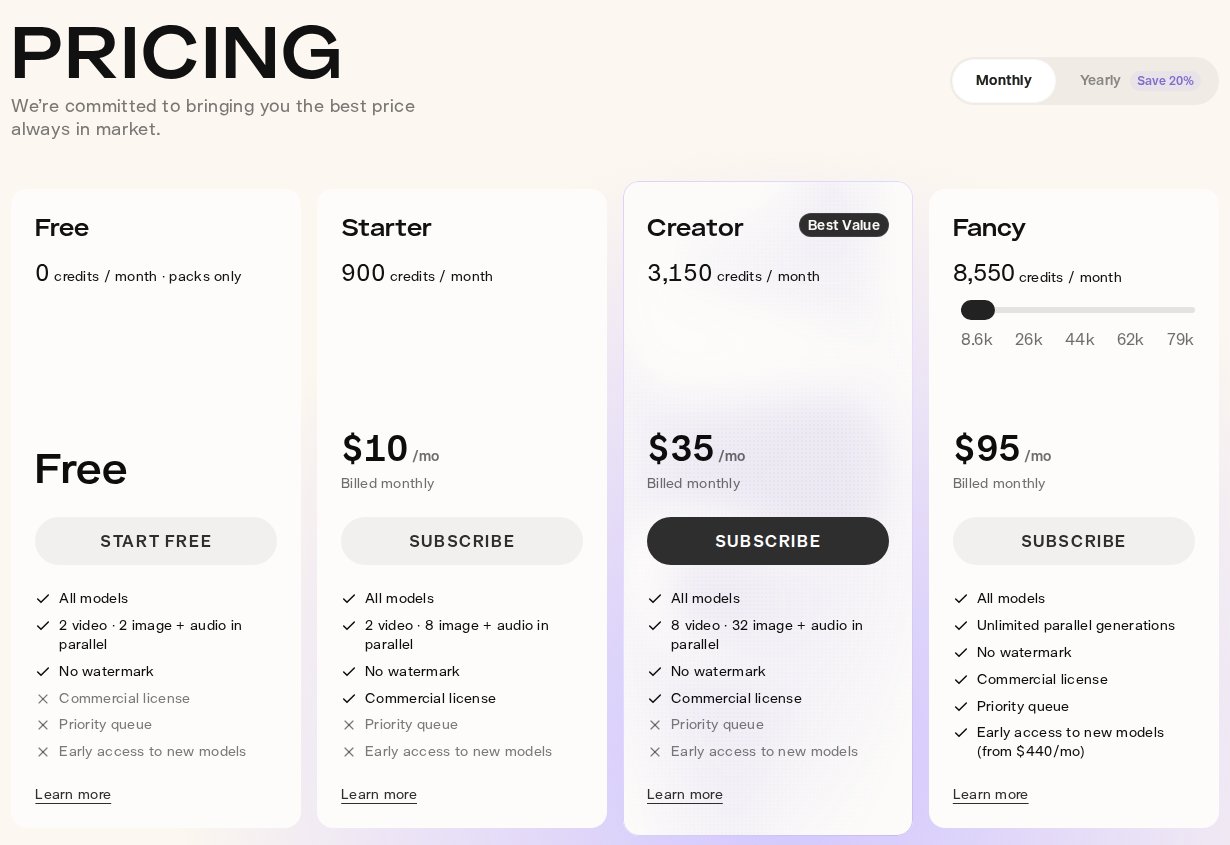
This is the main question people bring to Pika, so I'll answer it straight. In early 2026 the free plan gave 80 credits a month, enough for a few clips. That's over. On the official pricing page the Free plan says: 0 credits / month · packs only. In other words, zero credits a month, and you can only generate with purchased packs.
What the Free plan itself gives you: an account, access to all the models and apps, up to two videos generating at once, and clips without a watermark. But there's no commercial license on Free: clips from the free plan can't be used in ads or in work for clients.
Plans, credits, and generation costs were checked on the official page pika.art/pricing. The 250-credit bonus for your first generation in ChatGPT is listed in the Pika app catalog at create.pika.art/apps. Pika changes its terms often, so check there before you pay.
The only free route: the ChatGPT bonus
The Pika app catalog has an offer: make your first Pika generation inside ChatGPT and get 250 bonus credits. It's a one-time gift, it doesn't renew every month. But it's enough to get to know the tool.
What 250 credits buy, at the prices on the pricing page:
- about 7 clips of 5 seconds in 720p on Wan 3.0 (33 credits per clip);
- 2 clips of 5 seconds in 720p on Seedance 2.5 (122 credits per clip);
- 31 images on Nano Banana 2 (8 credits per image);
- 125 images on GPT Image 2.5 (2 credits per image).
My advice: don't spend the bonus on Seedance 2.5 right away. Make 4–5 test clips on Wan 3.0, find a photo and a prompt that work, and only then decide whether you need a paid plan.
Paid plans
| Plan | Price per month | Credits per month | What matters |
|---|---|---|---|
| Free | 0 | 0, packs only | No watermark, no commercial license, 2 videos at once |
| Starter | $10, or $8 billed yearly | 900 | Commercial license, 2 videos at once |
| Creator | $35, or $28 billed yearly | 3,150 | 8 videos at once, the best credit price among subscriptions |
| Fancy | $95 to $880, from $76 billed yearly | 8,550+ | Priority queue, unlimited parallel generations |
What that means in clips. By Pika's own estimate, Starter's 900 credits equal 27 clips on Wan 3.0 or 7 clips on Seedance 2.5. Creator's 3,150 credits equal 95 clips on Wan 3.0 or 25 on Seedance 2.5. For a Reel every few days, Starter is enough if your main model is Wan 3.0 or Pika 2.5.
Credit packs without a subscription
If you don't want a subscription, you can buy a pack: 60 credits per $1 on any plan, including Free. The smallest pack in the table is 1,500 credits for $25, and there's also a custom amount from $25. A subscription is the better deal: Starter gives you 900 credits for $10, while a pack would give you 600 for the same money.
A small detail that's easy to miss: top-up credits work only in the new Pika on the website and through Pika MCP. They can't be spent in the API, the iPhone app, or the old version at old.pika.art. If you want the Pikaffects from the app, a pack bought on the website won't help.
Section 03How to sign up and pay
Getting started takes a few minutes. Here's the whole path, from the first click to your first paid credits.
Sign up with Google
The easiest way in is your Google account. One click, and you're on the Free plan with access to every model and app.
Claim the bonus through ChatGPT
In the Pika app catalog, click Try in ChatGPT on the Pika for ChatGPT card, sign in to your Pika account, and ask ChatGPT to make your first image or clip. After the first generation, 250 credits land on your balance.
Pay by card
When the bonus runs out, pick a plan or a pack and pay with a regular credit or debit card. Start with the cheapest option: Starter at $10 or a $25 pack.
One detail that saves money. Before you pay, use up the bonus credits and figure out which model you like. If it turns out you need one specific model, Kling for example, it's sometimes cheaper to pay its developer directly. More on that in Kling: AI video from photos and text.

Section 04Which Pika tool for which job
Pika has more than forty apps, and a beginner drowns in them. The good news: for business you really need five or six. The rest will come in handy once you're comfortable.
| Task | Tool | Example |
|---|---|---|
| Bring your photo to life for Reels | Video Studio | A coach in the photo looks up and smiles as the camera slowly pushes in |
| A clip from several frames | Pikaframes | Five course slides flow smoothly into each other |
| A product ad from a photo | Product Ad, Product Shot | A jar of cream on marble with water drops falling around it |
| Replace something in an existing video | Swap Anything | Swap the mug in your footage for a branded one |
| Reshoot an existing clip from another angle | Camera Director | Turn a static shot into a camera orbit |
| A professional portrait from a regular photo | Headshots | An avatar for your profile and channel cover |
| Captions for a clip | Dynamic Captions | Word-by-word subtitles that follow your speech |
| Music and sound effects for a clip | Pika Soundtrack | Footsteps, wind, and background music matched to the action |
Anything done with one button in an app usually costs more than the bare model: the app writes a long prompt for you and sometimes runs several models in a row. For your first tests, use Video Studio and pick the model yourself – that way you see the price of every clip.
Section 05Your first video from a photo, step by step
The most common scenario: you have a good photo and want it to come alive for 5 seconds. It's a Reels cover, a bot greeting, or a Stories background. Let's walk through an example: a photo of a nutritionist in the kitchen holding a breakfast plate.
Pick the photo
Photos come alive best when the person or object is clearly visible, the light is even, and there's a little free space around. A waist-up photo works better than a tight close-up: the AI has room to move the camera. Avoid group shots and photos where a hand or glasses cover the face: those details break most often in motion.
Open Video Studio
Sign in to Pika and open the Video Studio app from the Video section. Upload the photo as a reference or the first frame. No need to describe the person's looks, clothes, or setting: the AI sees them in the photo.
Pick a model
For the first test, use Wan 3.0 or Pika 2.5: they're cheap. Save Seedance 2.5, Kling 4.0, and Veo 3.1 for the final version, once the prompt is dialed in. Pika shows the price of a clip before you run it, so keep an eye on it.
Write the prompt in English
One or two sentences: what the person does, how the camera moves, what the light is like. For example: The woman smiles warmly and holds the breakfast plate toward the camera. Slow dolly-in, soft morning light from the window. No text. I break down the formula in Section 8.
Set the length and quality
For a test, 5 seconds and 720p are enough. You can remake a good version in higher quality later or extend it with the Extend Video app. A long clip right away means credits that most likely go to a bad take.
Run it and compare
Run two generations in a row with the same prompt: on Free and Starter you can make two videos at once. The AI gives a different result every time, and out of two versions one is almost always noticeably better. Download the good one and drop it into your edit.
What to expect from your first clip. In most cases the face holds up and the motion is smooth, but hands and small text on objects sometimes drift. If there's a sign or a label on packaging in the shot, be ready for the letters to warp. That's why you always end the prompt with no text and add your logo later in editing.
If you want to compare how other services handle the same task, check out how to animate a photo with AI: five services on one example.
Section 06Pikaframes: one clip from several photos
Pikaframes is one of Pika's most useful features of its own. You upload two to five frames, and the AI fills in smooth transitions between them. The result is a mini story: before and after, step one, step two, result.
Where this works for business:
- Before and after. A fitness trainer uses two photos of a client, and one flows smoothly into the other. An aesthetician shows skin before and after a course of treatments.
- Course trailer. Five slides with module topics turn into a 10-second clip for a landing page or Stories.
- Process. A nail artist shoots three stages of the work, and Pikaframes stitches them into one motion.
- Client journey. A therapist shows three scenes: an anxious person by the window, a conversation in the office, a calm walk.
How to make the transition look clean. The frames should have a similar composition: the person in roughly the same spot, the same angle, similar light. If you're full-length outdoors in one photo and in a studio close-up in the other, the AI starts inventing in-between frames, and the result looks odd. In the prompt, describe what happens between the frames: smooth transition, the person turns toward the camera, camera slowly pushes in.
Pikaframes runs on the Pika 2.5 model. If you need something longer, it's easier to make several short transitions and join them in editing.
Section 07Which model to pick so your credits last
The main beginner mistake in Pika is picking the most expensive model for every test. Then Starter's credits are gone in one evening. The price gap between models is almost fourfold, so choose for the task.
| Model | Price in Pika | When to use it |
|---|---|---|
| Wan 3.0 (Alibaba) | 33 credits per 5 sec in 720p | Tests, drafts, everyday clips. Takes up to 20 references and makes sound |
| Pika 2.5 | Pika calls it economical | Video from a photo and from keyframes, Pikaframes |
| Seedance 2.5 (ByteDance) | 122 credits per 5 sec in 720p | The final version, when the face and smooth motion matter |
| Kling 4.0 | shown before you run it | Video with built-in sound, up to 30 seconds |
| Veo 3.1 (Google) | shown before you run it | A cinematic shot with sound, 4K output |
| MiniMax H3 | shown before you run it | A complex scene from many references: up to 15 photos, videos, and audio files |
A working routine that saves credits: draft on Wan 3.0 or Pika 2.5, three or four prompt tweaks, and only the winning prompt goes to Seedance 2.5 or Veo 3.1. That way you pay for the expensive model once instead of five times.
Each of these models has its own breakdown on the blog: Seedance 2.5, Veo 3, and Kling. If you like one model so much that you make dozens of clips on it a month, compare the price directly with its developer.
Section 08The prompt formula for video from a photo
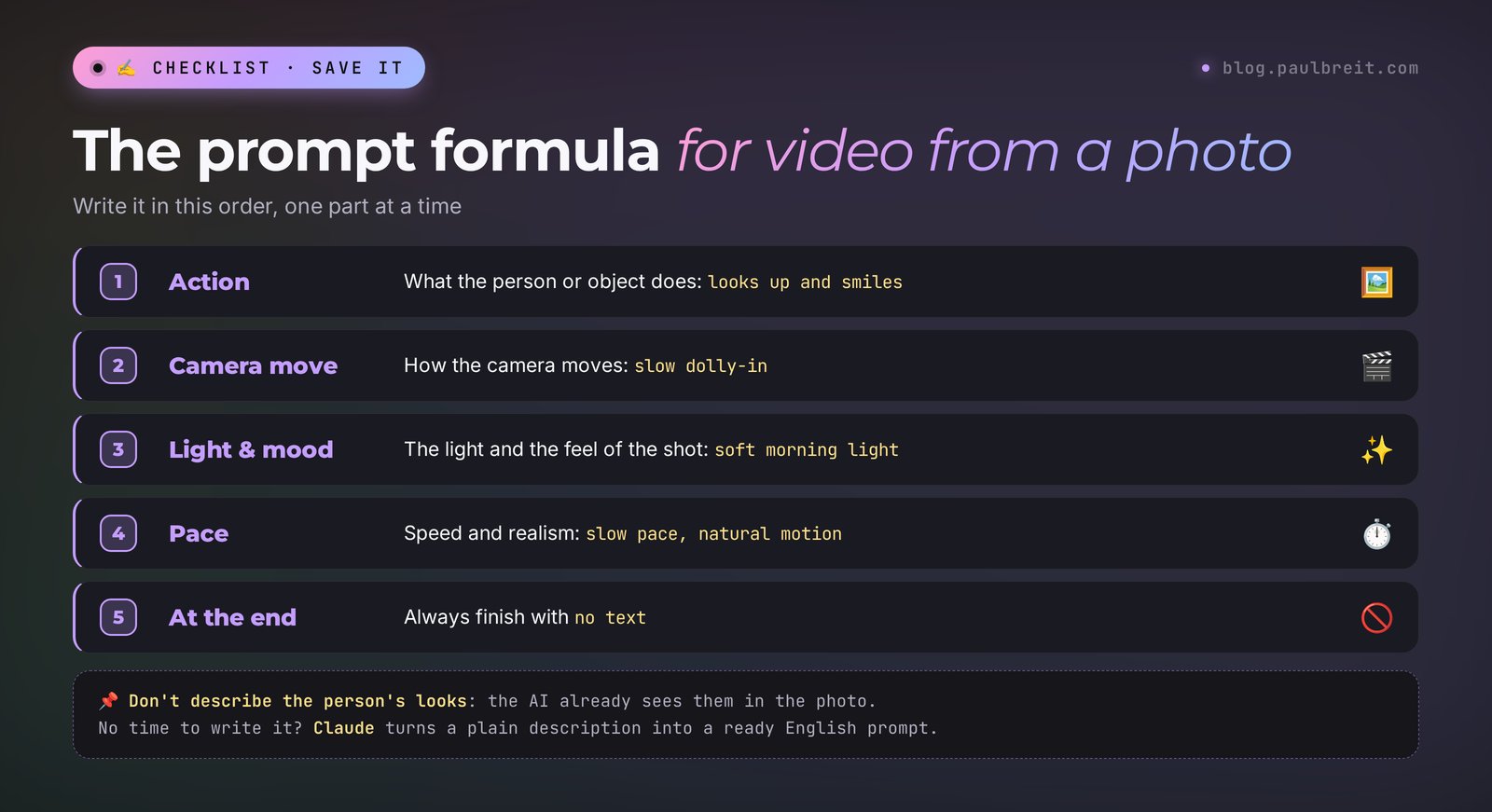
Beginners put everything into the prompt: who's in the photo, what they're wearing, the color of the walls. The AI already sees all that. What it needs is something else: what should change. A video-from-photo prompt describes motion, and only motion.
| Part | What to write | Example |
|---|---|---|
| 1. Action | One or two movements of the person or object | She looks up from the laptop and smiles |
| 2. Camera | How the camera moves | Slow dolly-in / camera orbits around / static camera |
| 3. Light and mood | Where the light comes from and the atmosphere | Soft morning light from the window, calm cozy mood |
| 4. Pace | Speed and realism | Natural realistic motion, slow pace |
| 5. Exclusions | What you don't want | No text, no captions, no extra people |
Why one or two actions. In 5 seconds a person can naturally make one movement: look up, turn, reach out. Ask them to stand up, walk to the window, pick up a cup, and wave, and the AI either speeds everything up into cartoonish fuss or skips half of it.
Camera moves that work almost every time:
- slow dolly-in – a slow push-in, adds weight and draws attention to the face;
- slow pull-back – a pull-back that reveals the setting, good for a final shot;
- camera orbits around – an orbit around the person or product, looks expensive;
- handheld camera – a slight shake, the feel of live phone footage;
- static camera – the camera stays put and only the subject moves, for talking shots.
If you want a library of ready, eye-catching camera moves at the click of a button, that's the strong suit of another service – Higgsfield. Its breakdown is in Higgsfield: how to make AI video with camera effects.
Section 0910 ready prompts for real tasks
Each prompt is designed for your own photo: upload the shot, paste the text, and change a word or two if needed. The description above each prompt tells you what it does.
1. Reels cover: a look into the camera
A photo where you're looking away or down at a notebook. A second later you raise your eyes to the viewer.
The person looks up from the notebook straight into the camera and gives a confident, warm smile. Slow dolly-in, soft natural daylight, calm mood, realistic motion. No text.
2. Nutritionist: breakfast close-up
A photo of a plate on the table. Steam rises, the camera slowly lowers toward the food.
Steam gently rises from the warm breakfast plate. The camera slowly lowers and pushes in toward the food. Soft morning window light, cozy kitchen atmosphere, realistic motion. No text, no hands.
3. Therapist: a calm office
A photo of an armchair by the window. The curtains sway, the light slowly shifts.
The curtains move slightly in a soft breeze, sunlight slowly shifts across the armchair. Very slow camera push-in, peaceful and safe mood, warm tones. No people, no text.
4. A product on the table
A photo of a jar, a book, or a box. The camera orbits the object like in an ad.
The camera slowly orbits around the product on the table. Soft studio light with gentle reflections on the surface, premium commercial look, smooth motion. No text, keep the label unchanged.
5. Fitness trainer: a power move
A photo at the gym. One short, powerful movement and a slight camera shake.
The athlete lifts the dumbbells in one powerful motion and exhales. Handheld camera with slight shake, dramatic side light in the gym, energetic mood, realistic motion. No text.
6. Tutor: the books come alive
A photo of a desk with books. The pages turn by themselves.
The pages of the open book slowly turn by themselves, dust particles float in the sunlight. Static camera, warm afternoon light, magical but realistic mood. No text, no people.
7. Nail artist: a hand in the light
A photo of a hand with a finished manicure. The hand turns smoothly, highlights glide over the nails.
The hand slowly turns toward the light, glossy reflections glide across the nails. Macro shot, static camera, soft bright studio light, elegant mood. No text, no extra fingers.
8. A greeting for your bot
A waist-up photo. You wave and nod to the viewer.
The person waves hello to the camera with a friendly smile and nods slightly. Static camera, medium shot, bright soft light, welcoming mood, natural motion. No text.
9. A course trailer with Pikaframes
Three to five slides or photos with topics. Smooth transitions between them.
Smooth cinematic transitions between the frames, the camera keeps moving forward through each scene, consistent warm light, steady pace, inspiring mood. No text distortion.
10. You and the city: the final shot
A photo outdoors or by a window with a view. The camera pulls back and reveals the open space.
The person stands still looking at the city, then turns head toward the camera. Slow pull-back revealing the wide view, golden hour light, calm confident mood, realistic motion. No text.
If a clip came out almost right, change one part of the prompt at a time: first the camera, then the light. When you change everything at once, you can't tell what actually helped.
Section 10Let Claude write the prompts
You don't have to write the prompts yourself. Tell Claude in plain words what's in the photo and what clip you want, and ask for a ready prompt based on the formula from Section 8. If you haven't used Claude yet, sign up at claude.ai. How to start from zero is covered in Learn Claude from scratch.
Here's a request you can send Claude as is:
Write a prompt for Pika, video from a photo, 5 seconds.
In the photo: me, a nutritionist, standing in the kitchen holding a breakfast plate.
What I need: I smile and hold the plate out toward the camera, the camera slowly pushes in.
This is a Reels cover.
Rules: prompt in English, 1–2 actions, camera move, light,
don't describe my appearance, end with no text. Give me 2 versions.
I sent this request to Claude. Here's the reply:
Version 1: The woman smiles warmly and extends the breakfast plate toward the camera. Slow dolly-in from medium shot to a closer view of the plate and her face. Soft morning daylight from the window, warm cozy mood, natural realistic motion. No text.
Version 2: She looks at the camera, smiles and gently lifts the plate closer to the lens. Steady slow push-in, bright soft kitchen light, fresh and friendly mood, smooth natural movement. No text, no captions.
Tip: start with the first version on a cheaper model. If the hands or the plate start to drift, remove the word extends and keep only the smile and the camera push-in – the AI holds a single action more reliably.
Notice that last tip: Claude itself suggests how to simplify the prompt if the first take fails. That saves credits better than any table.
Claude runs Pika itself through MCP
Pika has its own MCP server – a way to connect it to an assistant so the assistant can call Pika's tools itself. The server address on the official page pika.art/mcp is mcp.pika.art/mcp. It gives access to more than 60 apps and models for video, images, and sound.
What it looks like for you. In Claude's connector settings, you add a custom connector with this address, sign in to your Pika account, and grant access. Then you write in the chat: make a Reels clip from this photo, the camera slowly pushes in. Claude writes the prompt, picks the model, and runs the generation. Credits come off your Pika balance, so ask Claude right away to tell you the price before every run.
Section 11Sound, captions, and editing
A silent clip performs worse in Reels. In August 2026 Pika released four audio models, so now you can make sound in the same window:
- Pika Soundtrack – picks music, ambience, and sound effects to match the action in the shot: footsteps, clinking dishes, wind;
- Pika Music – writes a full track from a description, lyrics, or a reference;
- Pika Speech – text-to-speech with more than 50 ready voices;
- Pika SFX – a single sound effect from a description.
For captions there's Dynamic Captions: word-by-word subtitles that adjust to your speech on their own. Remember that most people scroll Reels with the sound off, so you almost always need captions.
How to put the whole clip together. A shot generated in Pika is the 5-second hook at the start of your Reel. After that comes you and your idea: phone footage, your voice, a useful tip. You can stitch it all together in any editor.
Section 12If something goes wrong
| Problem | Why | What to do |
|---|---|---|
| The generate button is inactive and mentions credits | Free has 0 credits | Claim the 250 bonus credits through ChatGPT or buy a pack from $25 |
| The face in the video looks like someone else | The action is too complex or the head turns too far | Keep one action, drop the head turn, use Seedance 2.5 for the final |
| Hands and fingers drift | Small details in motion are the weak spot of every video model | Remove hand movements or crop the photo so less of the hands shows |
| The label on the packaging turned into mush | The AI redraws the text in every frame | Write no text, keep the label unchanged, and add the logo in editing |
| The motion is too fast, like a cartoon | Too many actions in the prompt for 5 seconds | Keep one action, add slow pace, natural motion |
| The camera stays still even though you asked for a push-in | The camera description got lost in a long prompt | Put the camera move in the second sentence, shorten the rest |
| Purchased credits don't show up in the iPhone app | Packs work only on the website and through MCP | Generate at pika.art in your browser |
| The clip can't be used in ads | Free has no commercial license | For ads and client work you need Starter or higher |
General rule: if two takes in a row come out badly, change the photo. Most often the problem is the source: dim light, cropped hands, a face that's too small.
Section 13Pika, Kling, Higgsfield, and Seedance
Pika isn't the only way to make video from a photo. Here's briefly how it differs from its neighbors, each of which has its own breakdown on the blog.
| Service | Strength | Free | Best for |
|---|---|---|---|
| Pika | Many models in one window, Pikaframes, task-specific apps, sound, MCP for Claude | 0 credits, a one-time 250 bonus through ChatGPT | You want to try different models from one balance |
| Kling | Its own strong photo-to-video model, long clips with sound | Terms on the Kling site | You make lots of clips on one model |
| Higgsfield | A library of camera moves and visual effects at one click | 0 credits on Free | You need striking intros with "expensive" camera work |
| Seedance | Clips up to 30 seconds in one take, holds the face steady | Depends on the platform | You need one long continuous shot |
| Runway | Editing existing video, replacing backgrounds and objects | Terms on the Runway site | You work with your own footage |
My pick for getting started: Pika, if you don't know yet which model suits you. In one evening you can try Wan 3.0, Pika 2.5, and Seedance 2.5 on the same photo and see the difference with your own eyes. Once you settle on a favorite model and your volume, compare the price with its developer.
Section 14The whole path in one minute
Open pika.art and sign up with Google. The Free plan gives 0 credits, so connect Pika in ChatGPT and make your first generation – 250 bonus credits arrive. Open Video Studio, upload your photo, pick Wan 3.0 (33 credits per 5 seconds), and describe in English one action, the camera move, the light, and end with no text. Claude can write the prompt. Make two takes and keep the better one. Repeat the winning prompt on Seedance 2.5 for the final. Like it? Starter at $10 gives you 900 credits and a commercial license, and you pay by card.
Start today with one action: take your waist-up photo and prompt #1 from Section 9, and make a clip with the bonus credits. Even if the first take only half works, you'll see how five seconds of motion change the impression of an ordinary photo, and you'll know whether Pika is for you.
FAQFrequently asked questions
Is Pika free?
Partly. The Free plan account costs nothing, but as of November 1, 2026 it gives 0 credits a month, and you can only generate with purchased packs. You can get 250 bonus credits once for your first generation through Pika in ChatGPT. That's enough for about 7 clips of 5 seconds on the Wan 3.0 model.
How do I sign up for Pika and pay?
Open pika.art, click Try Pika, and sign in with your Google account. The Free plan gives 0 credits, so connect Pika in ChatGPT and make your first generation to get 250 bonus credits. Plans and credit packs are paid with a regular credit or debit card.
How much does Pika cost?
As of November 1, 2026: Free has 0 credits, Starter is $10 a month with 900 credits, Creator is $35 with 3,150 credits, and Fancy starts at $95 with 8,550+ credits. Paying yearly saves 20%. Packs without a subscription cost 60 credits per $1. A 5-second 720p clip costs 33 credits on Wan 3.0 and 122 on Seedance 2.5.
Do I have to write Pika prompts in English?
The Pika interface is in English. Models sometimes understand short prompts in other languages, but English gives more stable results. If English isn't your first language, describe the task to Claude in your own words and ask for a finished English prompt.
How do I make a video from a photo in Pika?
Open the Video Studio app, upload the photo, pick a model such as Wan 3.0 or Pika 2.5, and describe in English one action, the camera move, and the light, ending with no text. Set 5 seconds and 720p, then run it. For a clip from several photos, use Pikaframes, up to five frames.
Can I use Pika videos in ads?
Only on a paid plan. The commercial license is included in Starter, Creator, and Fancy. The Free plan doesn't have it, so clips made on Free can't be used in ads or delivered to clients.