ChatGPT Projects: Workspaces With Memory
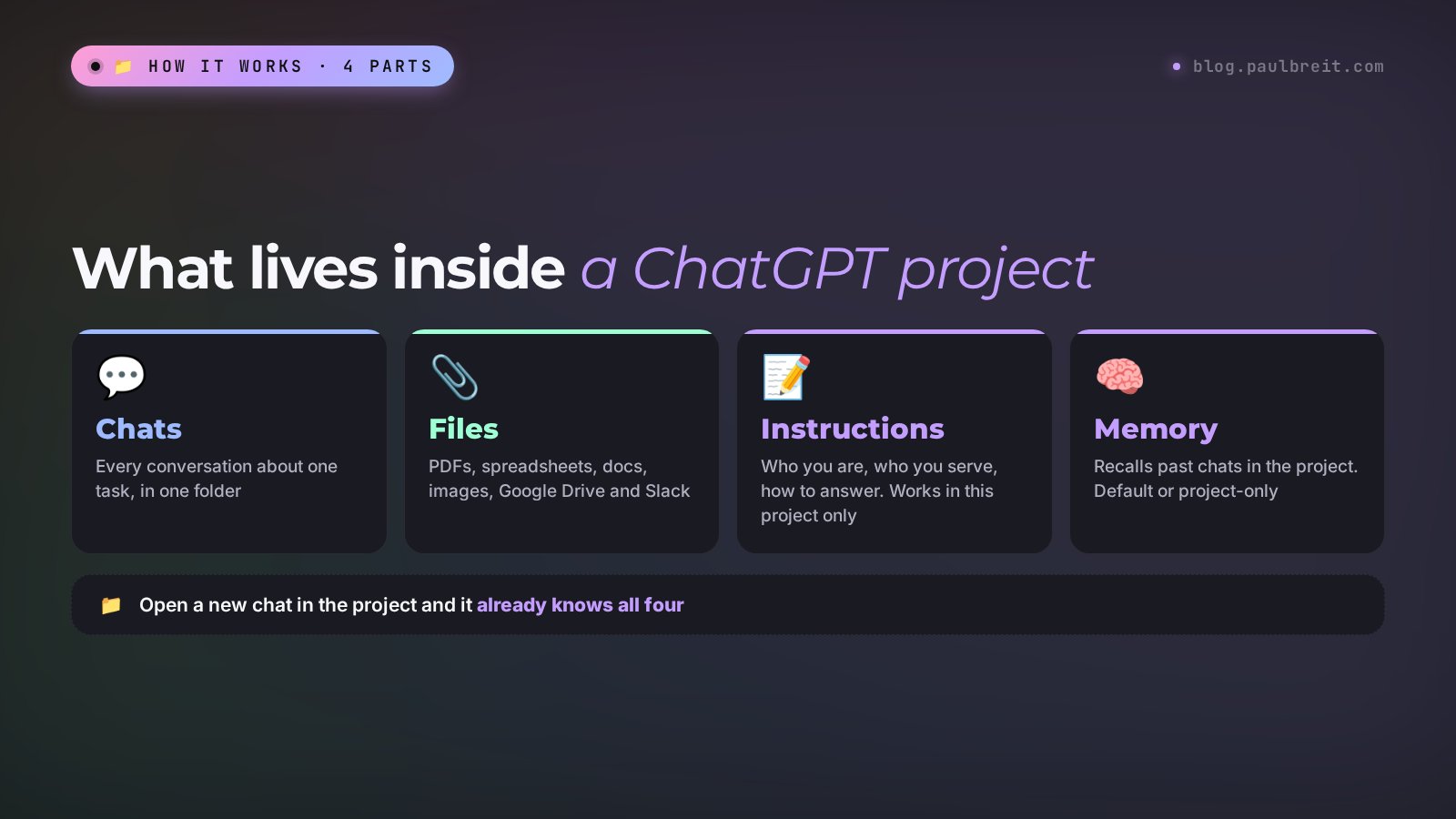
ChatGPT Projects keep your chats, files, and one shared set of instructions together for a single task. You explain once who you are, who you work for, and how answers should look, upload your materials, and every new chat in the project already knows it. Here is how to use ChatGPT Projects: creating one, writing instructions, choosing files, setting memory, and sharing with a teammate.
To use ChatGPT Projects, click New project in the left sidebar, give it a name, upload your files, and add project instructions under ••• → Project settings. Every chat inside the project sees those files and instructions and can recall earlier chats in the same folder. Projects work on every plan, including Free.
What's inside
What ChatGPT Projects are and how they differ from a regular chat
A regular ChatGPT chat stands alone. Every new one means explaining again what you do, who your clients are, and what tone to use, and attaching your price list one more time. A week later you have twenty such chats and find the right one only through search.
A project puts it all in one folder: the chats for a task, the files with your materials, and instructions that apply to every chat inside. It also has its own memory, so ChatGPT can draw on earlier conversations in the folder.
| Tool | What it keeps | When to use it |
|---|---|---|
| Regular chat | One conversation | A one-off question: translate, calculate, name something |
| Project | Chats, files, instructions, and memory for one task | Work you come back to for weeks: a blog, a launch, a client, a course |
| ChatGPT memory | Facts about you for all chats | Things true everywhere: your name, niche, answer language |
| Custom GPT | A separate assistant with its own instructions | The old format that OpenAI is retiring (details below) |
Projects work in the browser, the desktop app, and on mobile: start on your laptop, continue with ChatGPT on your phone.
How to create a project in ChatGPT: step by step
It takes about five minutes.
Click New project in the sidebar
Open chatgpt.com or the app and find New project in the Projects section of the left sidebar. On your phone, swipe right to open the sidebar.
Pick a name, icon, and color
Name the project after the task: "Blog and social", "December challenge launch", "Client: Olivia, coaching". The icon and color help you spot it at a glance.
Upload your files
Drag PDFs, spreadsheets, documents, or images into the project sources, or paste text.
Write the project instructions
Click the three dots (•••) next to the project name and choose Project settings. Paste your instructions (templates below).
Start your first chat inside the project
Type on the project page, and the chat lands in the folder with access to files and instructions. Test it first: "Briefly tell me what you know about me and my materials." If the answer misses, fix the instructions.
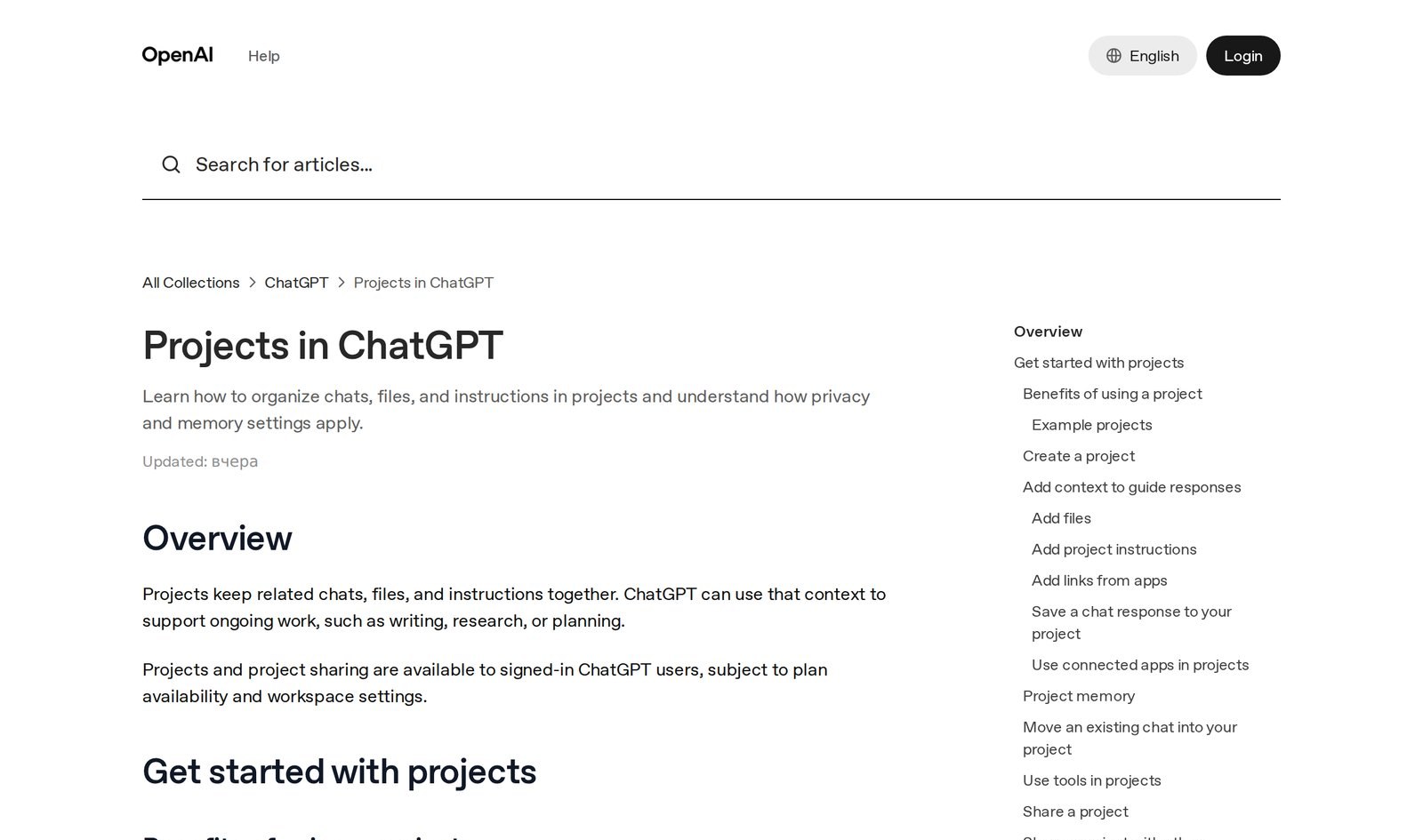
I read OpenAI's help article "Projects in ChatGPT" on November 18, 2026. It confirms that projects and sharing are available on Free, Go, Plus, Pro, Business, Enterprise, and Edu, on the web and mobile. Project instructions apply only inside the project and override your global custom instructions.
What to write in ChatGPT project instructions
Instructions turn a folder of chats into an assistant that writes in your voice and keeps your audience in mind from the first message.
Good instructions answer four questions: who you are, who you work for, what you need from ChatGPT in this project, and how the answer should be formatted. Add a fifth: what to do when information is missing, or the AI fills gaps with made-up facts.
Here's a template for a content project. Copy it and replace the text in square brackets:
You help me run my blog and social media.
Who I am: [therapist / coach / tutor], I work with [who], my main offer is [service and price].
My clients: [who they are, what they want, what they fear].
How to write: speak to the reader as "you", plain words, short paragraphs, no jargon, no exclamation marks.
Rely on the project files: they hold my past posts, my service description, and client reviews.
If facts are missing, ask me. Never make anything up.
Answer format: the text first, then three options for the opening line.
And this one is for a project about one client or group:
In this project we work with the client [name / company].
The client's goal: [what they want and by when].
The files contain the contract, the brief, our emails, and the client's materials.
Your job: draft emails, meeting agendas, call recaps, and tasks.
Write politely and to the point, with no extra promises.
Take deadlines and amounts only from the contract. If they aren't there, say so.
Keep instructions short: 6–12 lines. Put everything long in files: your service description, reviews, sample texts. Instructions tell ChatGPT how to work, the files give it material. If you want the output to sound like you, my method for teaching AI your voice pairs well with a project.
Which files to upload to a project, and how many
You can upload PDFs, spreadsheets, text documents, and images, or just paste text. In a private project you can also link Google Drive files and folders and Slack channels. To keep a good answer, choose Add to project sources in the message menu.
What's worth adding on day one:
- a description of your services and prices;
- 5–10 of your best posts or emails, so ChatGPT learns your style;
- client reviews and short success stories;
- common client questions with your answers;
- the brief, contract, or scope of work if the project is about a client.
How many files fit depends on your plan. Reviews from 2026 list these limits: up to 5 files per project on Free, up to 25 on Go and Plus, up to 40 on Pro, Business, and Enterprise, with up to 10 files per upload. OpenAI changes limits quietly; if you hit one, merge short documents into one PDF.
Keep sensitive data out: ID and card numbers, clients' medical details. Replace names with "Client 1" before uploading.
Project memory: default or project-only
Open a new chat in the same folder, and ChatGPT remembers what you agreed on yesterday.
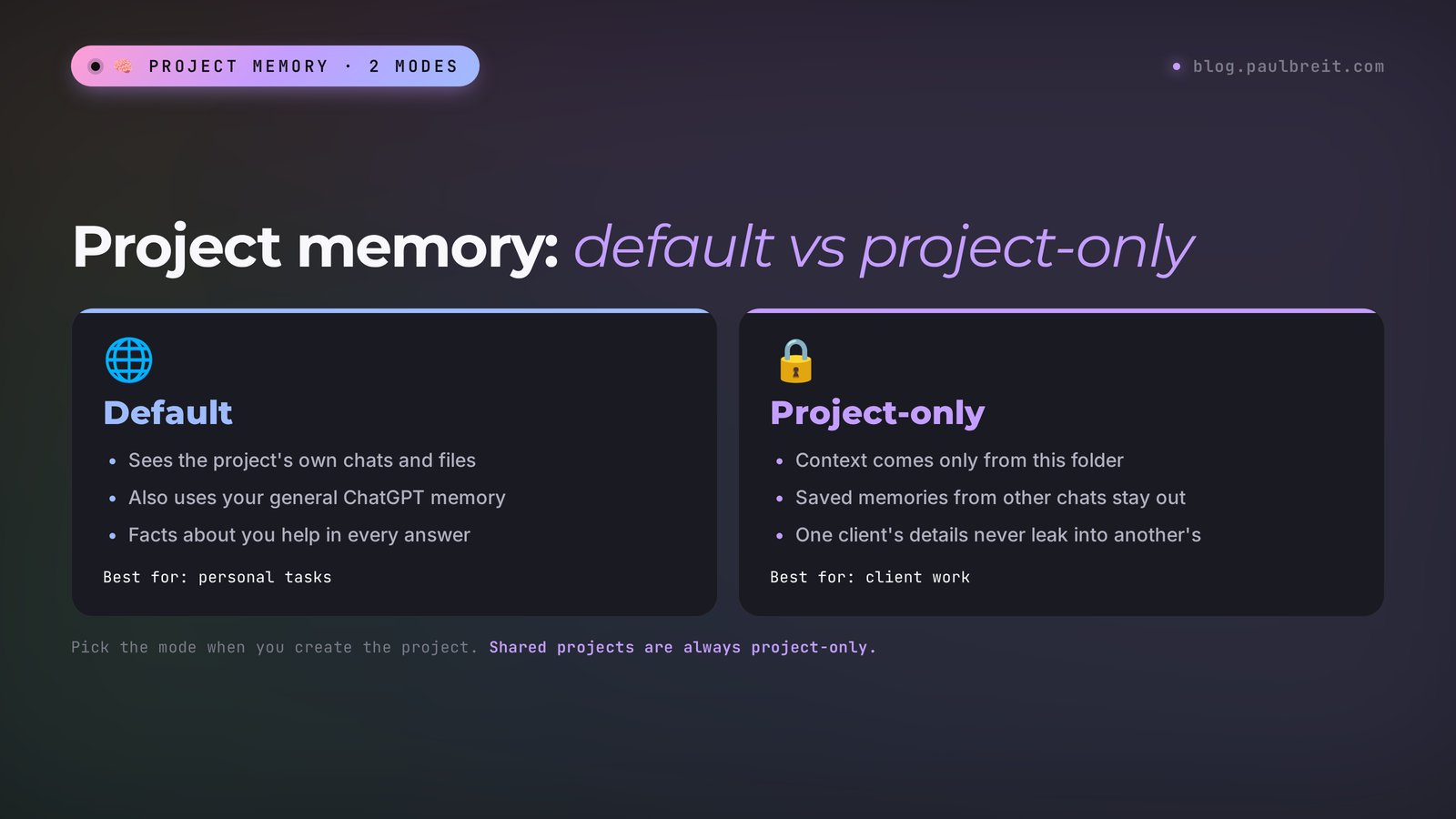
Project memory has two modes. You choose one when you create the project, using the gear icon:
- Default. The project sees its own chats plus your general ChatGPT memory. Handy for personal tasks where general facts about you help.
- Project-only. ChatGPT takes context only from chats in this folder, and saved memories from other conversations don't affect it. Right for client projects: one client's details never surface while you work on another.
Shared projects always use project-only memory, so your personal memories stay private.
If you also use Claude, its version works differently. I compared the two in Claude Projects and memory in Claude.
How to move old chats into a project
Drag a chat from the history on the left onto a project, or open the chat menu (three dots) and choose Move to project. Once moved, the chat picks up the project's instructions and files.
To send a chat back to your general history, use the same menu: Remove from project. There's one limit: chats created inside a GPT can't be moved. For those, start a new chat in the project and paste in the key points from the old one.
How to share a project with your team
Share a project with an assistant, colleague, or contractor, and they continue right where you stopped, with the same chats, files, and instructions.
There are two access levels. Chat access lets people see everything and chat inside the project. Edit access adds changing instructions, managing files, and inviting others. The number of members depends on the plan:
| Plan | Files per project | Members in a shared project |
|---|---|---|
| Free | up to 5 | up to 5 |
| Go and Plus | up to 25 | up to 10 |
| Pro | up to 40 | up to 100 |
Member limits come from OpenAI's help center, file limits from 2026 reviews. To show one conversation only, use Share inside that chat: the link opens that chat alone.
For personal accounts, shared project data trains models only if the owner and every member have Improve the model for everyone turned on.
ChatGPT Projects vs custom GPTs
Many people ask whether to build a custom GPT or a project. In 2026 the answer is easy: OpenAI is retiring custom GPTs. New GPTs can no longer be created on the Free, Go, Plus, and Pro plans, existing ones are scheduled to retire on December 11, 2026, and plugins take their place. I covered the migration in detail in my guide to the custom GPT in ChatGPT.
| Project | Custom GPT | |
|---|---|---|
| What it is | A folder with chats, files, instructions, and memory | A separate assistant with one set of instructions |
| Status in 2026 | Available on every plan | Being retired, creation closed |
| Remembers past chats | Yes, within the project | No shared memory across its chats |
| Best for | Your own recurring work and small teams | Migrate to a plugin before Dec 11 |
5 projects to start with
If you sell services, courses, or consulting, here are five folders that pay off in the first week. Names and contents are ready, take them as they are.
| Project | What to upload | What to ask for |
|---|---|---|
| Blog & social | Best posts, service description, reviews | Posts, reel scripts, a weekly content plan |
| Sales copy | Offer, prices, common objections | Service descriptions, emails, newsletter and landing page copy |
| Clients | Anonymized briefs and contracts | Emails, meeting recaps, work plans |
| Learning | Notes, lesson transcripts, PDF books | Cheat sheets, self-check questions, an action plan |
| Personal | To-do list, budget, schedule | A weekly plan, option comparisons, deadline reminders |
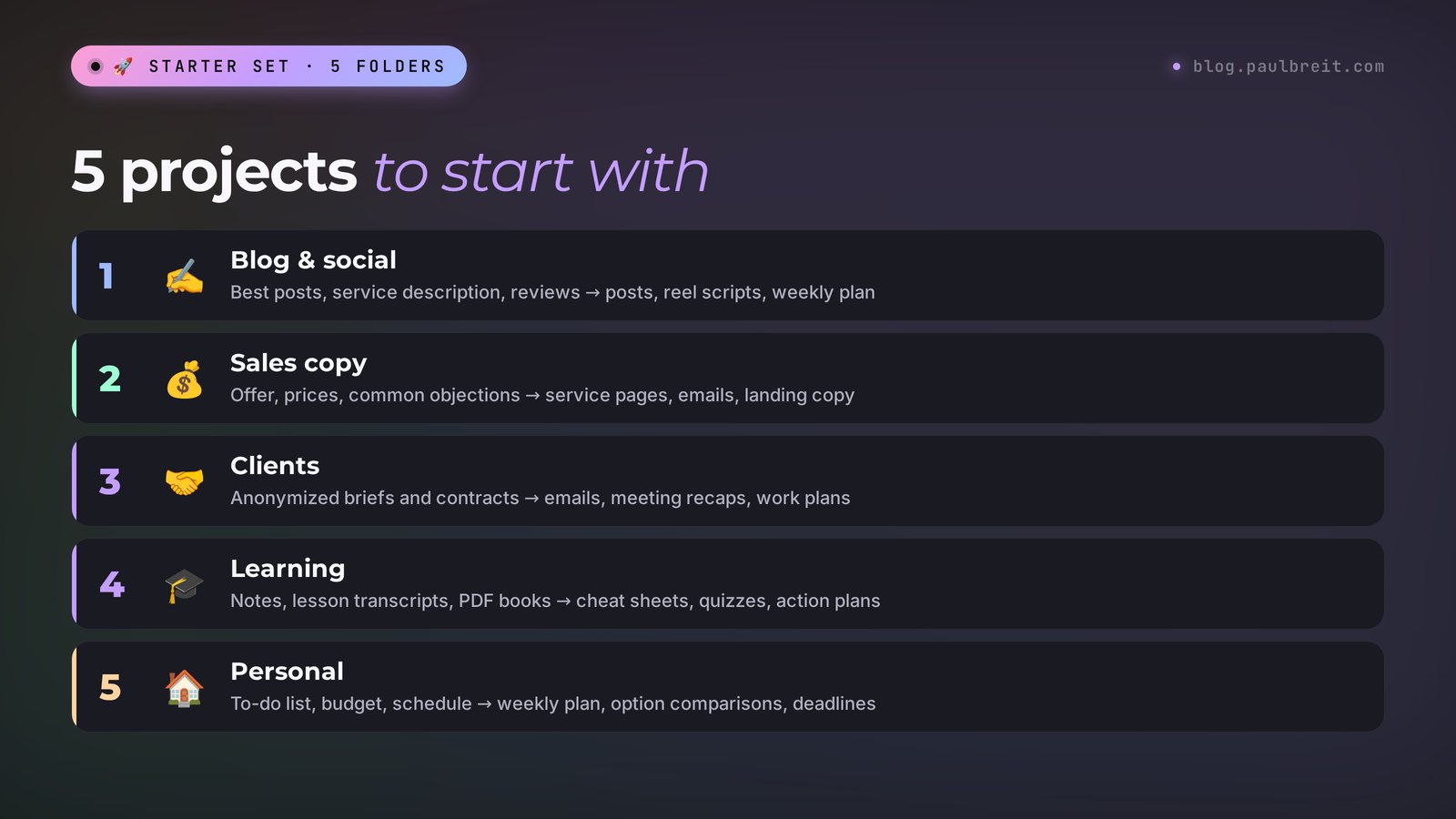
Start with one, the one with the most repetitive work. Usually that's the blog: inside the project you type "a post about the fear of a first consultation" and get a draft in your tone.
Inside projects you get Canvas, image generation, voice mode, and web search; paid plans add agent mode and deep research. Study mode doesn't work in projects.
Are ChatGPT Projects free? Plans and price
Projects are available to everyone signed in to ChatGPT, including the Free plan. Pay when you hit limits on files or messages, or want agent mode and deep research.
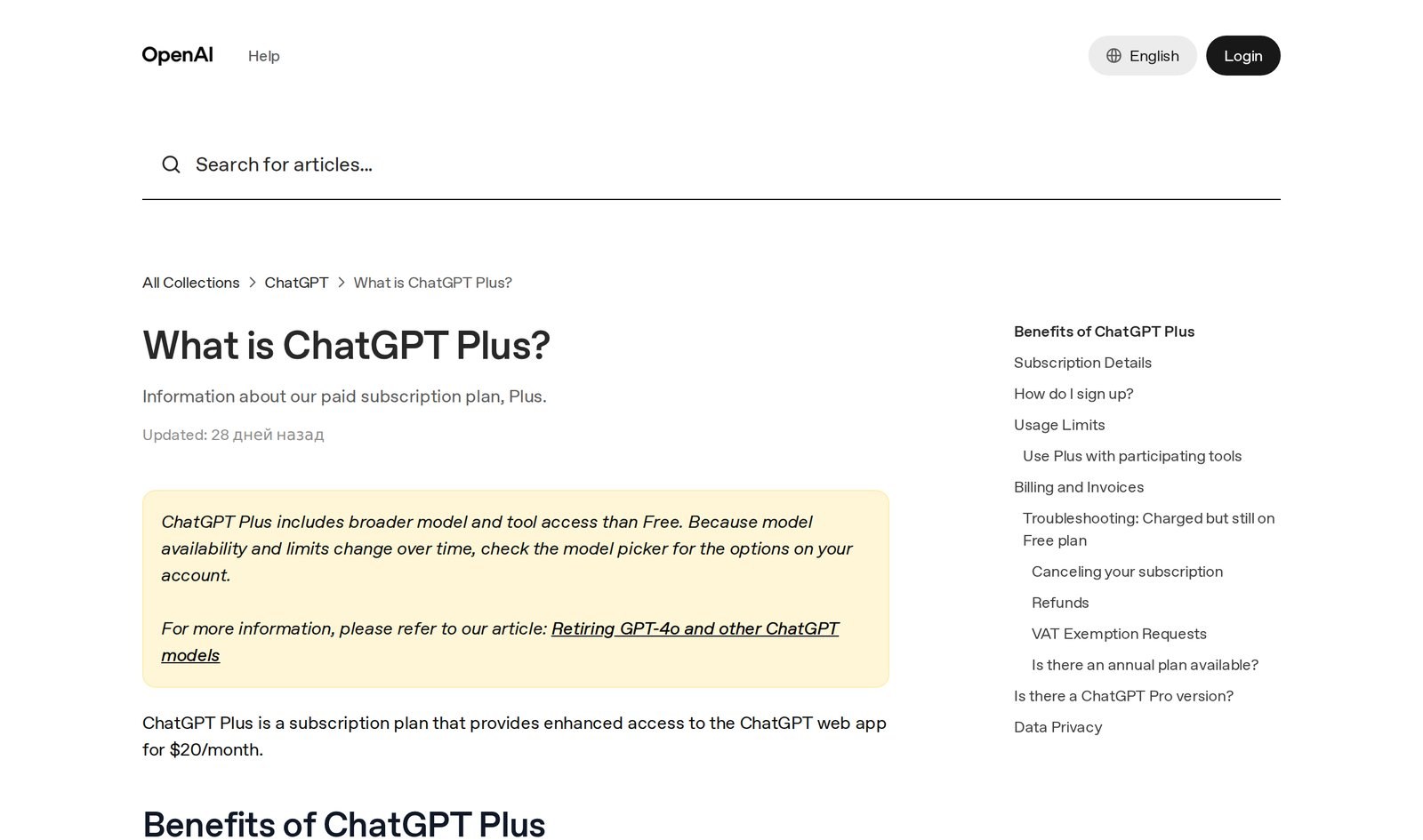
ChatGPT Plus costs $20 a month; I checked the price on OpenAI's help page on November 18, 2026. Pro costs more and is mainly for people who work in ChatGPT all day. I covered the newest model and what changed in GPT-6 in ChatGPT.
Still choosing between assistants? Read my honest comparison of Claude vs ChatGPT: Claude has projects too, and many people prefer it for long texts.
Troubleshooting ChatGPT Projects
| Problem | Cause | What to do |
|---|---|---|
| No New project button | Not signed in, or an old app version | Sign in, update the app, or open chatgpt.com in a browser |
| ChatGPT ignores the files | The question was asked outside the project, or the file is a scan with no text | Start the chat on the project page, ask directly "use file X", convert scans to a text PDF |
| A file won't upload | Plan file limit reached or the file is too large | Delete what you don't need from sources, merge small files into one |
| No Move to project option | The chat was created in a GPT | Start a new chat in the project and paste in the key points |
| Answers don't sound like you | Vague instructions, no sample texts | Add a "how to write" line and upload 5–10 of your posts |
Deleting a project (••• → Delete project) is permanent: its chats, instructions, and files are gone, and members lose access. Download what you need first.
Everything in one minute
One folder per task, short instructions of 6–12 lines, 5–10 files with your materials, project-only memory for clients. Works on every plan.
Cheat sheet: ChatGPT Projects
1. Left sidebar → New project → name it after the task, pick an icon and color.
2. Gear icon → memory: default (personal) or project-only (clients).
3. Upload 5–10 files: services and prices, best texts, reviews, common questions.
4. ••• → Project settings → instructions: who you are, who you serve, what to do, how to format.
5. Add the line: "If facts are missing, ask me. Never make anything up."
6. First chat: "Briefly tell me what you know about me and my materials."
7. Drag old chats into the project or use Move to project.
8. Save good answers: message menu → Add to project sources.
9. Give your assistant chat or edit access via Share.
10. Custom GPTs retire Dec 11, 2026: move personal GPTs into projects.
Sources
- Projects in ChatGPT (OpenAI Help Center), checked Nov 18, 2026
- What is ChatGPT Plus? (OpenAI Help Center, subscription price), checked Nov 18, 2026
- ChatGPT pricing (official OpenAI page, Projects listed for Free, Go, and Plus), checked Nov 18, 2026
Frequently asked questions
Are ChatGPT Projects free?
Yes. Projects and project sharing are available on every plan, including Free. The Free plan has lower limits on files per project and members in a shared project.
How do I use ChatGPT Projects effectively?
Give each project one task, write short instructions of 6–12 lines (who you are, who you serve, what to do, how to format, ask when facts are missing), and upload 5–10 files with your services, best texts, and reviews. Start every chat on the project page.
What is the difference between a project and a custom GPT?
A project is a folder with chats, files, instructions, and memory for your own work, and you can share it with colleagues. A custom GPT is a separate assistant. OpenAI is retiring custom GPTs, and projects are now the main replacement for personal tasks.
Does ChatGPT remember other chats inside a project?
Yes. A project can draw on its own chats and files in new conversations. In project-only memory mode, ChatGPT takes context only from that folder and doesn't pull in memories from your other chats.
Can I move an old chat into a project?
Yes. Drag the chat onto the project in the left sidebar or choose Move to project in the chat menu. Only chats created inside a GPT can't be moved.
Do ChatGPT Projects work in the mobile app?
Yes. Projects are in the ChatGPT apps for iPhone and Android. Work you start on your computer continues on your phone, with the same files and chats.