Custom GPT in ChatGPT: How to Build One in an Evening as GPTs Are Retired
Building a custom GPT in ChatGPT works differently in 2026: the Create button is gone on personal plans, and existing GPTs will be retired on December 11, 2026. Here's how to build your own assistant in one evening with a project or a plugin, what instructions to give it, and how to migrate an old GPT without losing anything.
You can no longer create a custom GPT the old way on a personal account: OpenAI has closed creation of new GPTs and will retire existing ones on December 11, 2026. A ChatGPT project gives you the same result: create a project, paste instructions into its settings, upload files with your materials, and test it on five questions. On the Go, Plus, and Pro plans you can build a plugin instead: type @plugin-creator in a chat, describe the task, and attach your files. A GPT you already have moves to a plugin with the Migrate to plugin button in My GPTs.
People search for "custom GPT" with one goal: a ChatGPT that already knows their business. It remembers your prices, answers in your tone, doesn't mix up your services, and doesn't need everything explained from scratch every time. You can still build a helper like that in one evening. Only the button you build it with has changed.
Everything below about GPTs, projects, and plugins I checked on November 6, 2026 against OpenAI's official help center. Links to the pages are right in the text.
Section 01What happened to custom GPTs
Custom GPTs arrived in ChatGPT at the end of 2023. You gave a GPT a name, instructions, and files, and got a separate helper for a specific task. In the fall of 2026 OpenAI announced it is retiring the feature and moving everything to plugins.
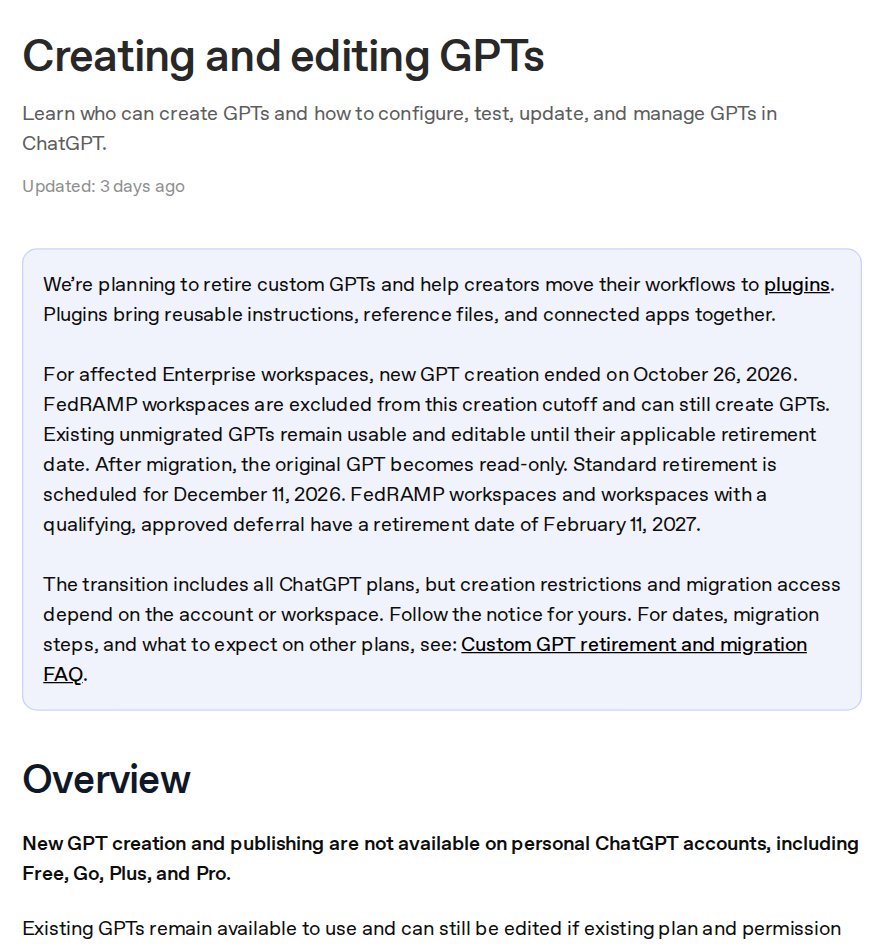
Here's what the OpenAI help article on creating GPTs and the GPT retirement and migration FAQ say:
- You can't create or publish new GPTs on personal accounts. This applies to every personal plan: Free, Go, Plus, and Pro.
- Existing GPTs still work for now. You can keep using them, and you can edit your own GPTs if your plan allows it.
- Retirement is scheduled for December 11, 2026. After that date custom GPTs and their pages become unavailable. For some business workspaces the date is pushed to February 11, 2027.
- Your chats won't disappear. Conversations you had with GPTs stay in your history – there's nothing to save by hand.
- The replacement is plugins. When you migrate, a GPT's instructions become a skill inside the plugin, and its knowledge files move into the plugin's reference materials.
That explains why the old tutorials all make sense, yet you don't have a Create button. They were written when the button existed. Now it's gone, and any guide that says "go to Explore GPTs and click Create" leads to a dead end on a personal plan.
The good news: the point of a custom GPT hasn't gone anywhere. A helper with your instructions and your files can still be built today – it just lives in a different part of the interface.
Section 02What replaces a GPT: project, plugin, or skill
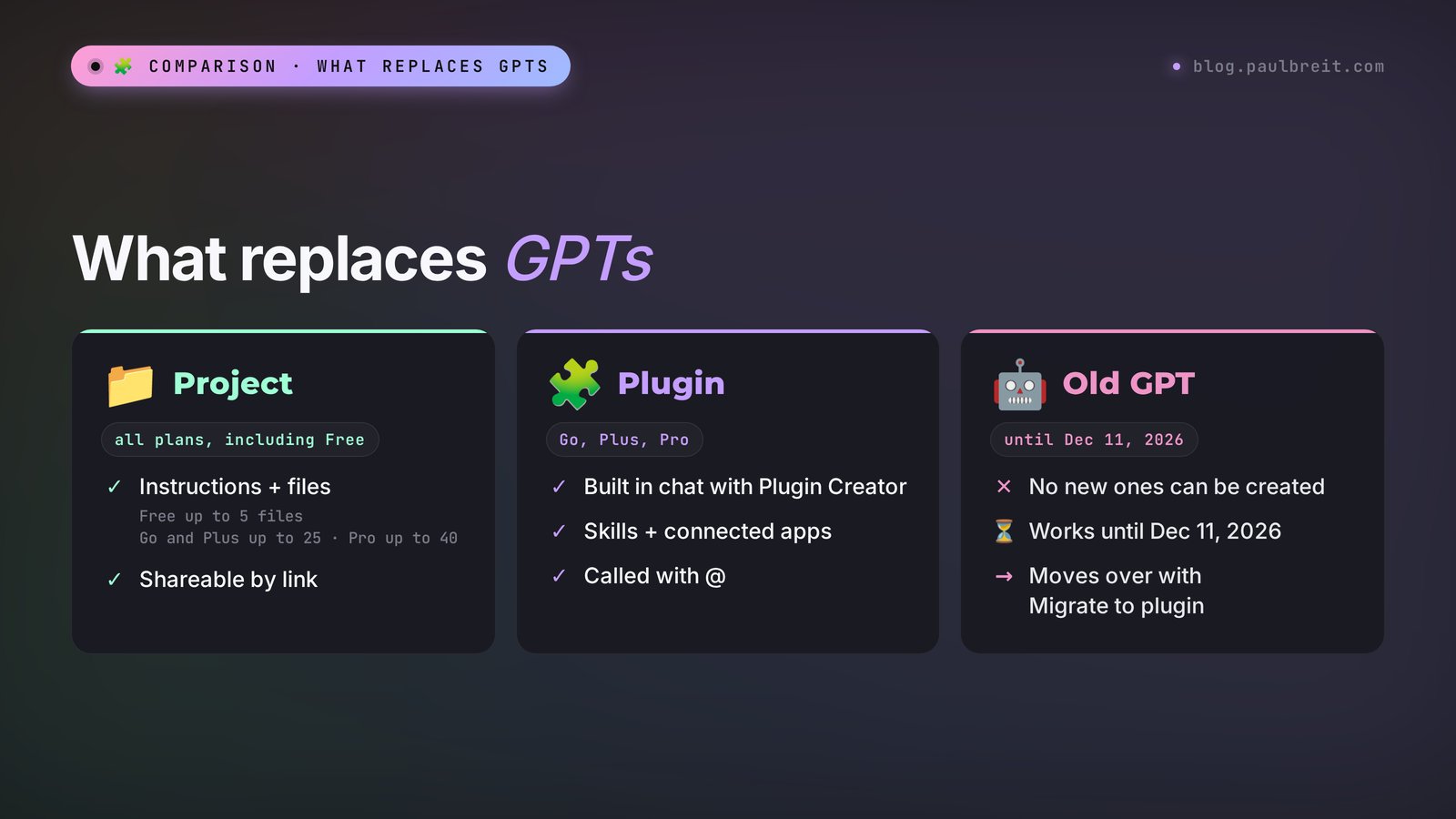
ChatGPT now has three tools that cover the job of a custom GPT. They're similar, but each fits a different situation.
| Project | Plugin | Skill | |
|---|---|---|---|
| What it is | A folder with chats, files, and shared instructions | A bundle of skills and connected apps for a task | A ready workflow: instructions, examples, files |
| Plans | All, including Free | Creation on Go, Plus, and Pro | Business, Enterprise, Healthcare, Edu |
| How you create it | The New project button in the sidebar | A chat with @plugin-creator | The Skills section or a request in chat |
| How you call it | Open the project and chat inside it | With @ in any chat, or automatically | ChatGPT picks it up on its own from the description |
| Can you share it | Yes, by invite or link | In Business and Enterprise workspaces | Within the workspace |
Plugin availability by plan comes from the pricing page chatgpt.com/pricing: you can create and share plugins on Go, Plus, and Pro, but not on Free. Projects and project sharing, per the OpenAI help article on projects, are available on Free, Go, Plus, Pro, and business plans. Skills, per the help article on Skills, are available on Business, Enterprise, Healthcare, and Edu.
How to choose without overthinking it:
- Free plan, or you need a result today – a project. It gives you the essentials: permanent instructions and your files in every chat.
- Go, Plus, or Pro, and you want to call your helper from any chat – a plugin. Type @ and its name, and it joins in.
- You work as a team on a Business plan – a plugin or a skill; both can be shared with colleagues inside the workspace.
Current plan prices are on the ChatGPT pricing page. A project doesn't require a paid plan: it's available on Free too.
Section 03What to prepare before you start
Five minutes of prep saves an hour of rework. Gather the following:
- A ChatGPT account. Sign up at chatgpt.com. A Free account is enough for the project path; a plugin needs Go, Plus, or Pro.
- A computer. Plugins and projects work in the phone app too, but building is easier on chatgpt.com: uploading files and editing instructions is simpler there.
- A folder with your materials. Your price list, a description of your services, common client questions, a couple of your best posts or emails. More on these in step 2.
- A list of five questions your clients actually ask you. You'll test the assistant on them at the end.
No programming required. The whole build is a conversation with ChatGPT and a couple of buttons.
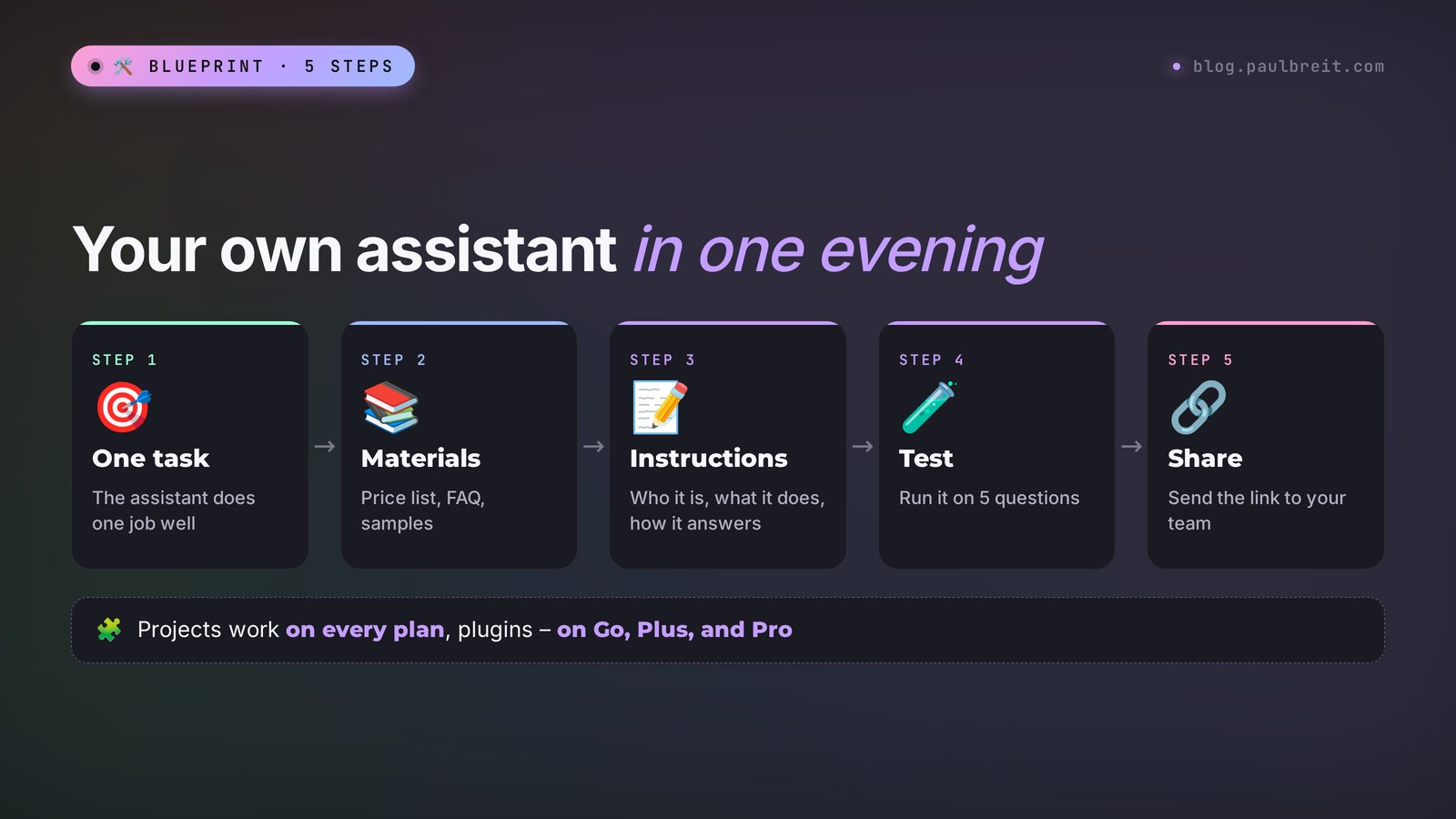
Step 1One task for the assistant
The most common mistake is building a "do-everything helper." It writes posts, answers clients, and crunches reports. In the end it gets confused everywhere: the tone of your posts leaks into client replies, and numbers from a report pop up in a post.
The rule is simple: one assistant, one task. Here's what a good task statement sounds like:
- "Replies to people after a free webinar and invites them to a consultation."
- "Writes posts for my channel in my voice on a topic I give it."
- "Sorts form submissions and tells me who to call back first."
- "Drafts a proposal from a template for a specific client."
Test the wording with one question: in a week, will I be able to say whether it's doing a good job or a bad one? If yes, you've picked the right task. If the answer is "well, it helps in general," narrow it down.
Several tasks? Build several assistants. You can create as many projects as you need, and each one does its own job without the mix-ups.
Step 2The materials it relies on
Instructions tell the assistant how to behave. Files give it facts: prices, terms, your wording. OpenAI's help center puts it the same way: rules, tone, and workflow go into the instructions, and reference material goes into files.
What people usually upload:
| File | Why | Example content |
|---|---|---|
| Price list and services | So it doesn't make up prices | Consultation – $150, one month of support – $900, what's included |
| FAQ | So it answers in your words | 15–30 client questions with your answers |
| Writing samples | So it matches your tone | 5–10 of your best posts or emails |
| Client profile | So it speaks your audience's language | Who buys, what hurts, what words they use |
| Templates | So it keeps the format | The structure of a proposal or a report |
The prices in the table are just an example – use your own.
Three rules that raise quality a lot:
- Text beats scans. The assistant reads a Word document or a plain text file confidently. A photo of a page or a complex multi-column layout leads to errors. OpenAI's help center directly recommends simple text files.
- One file, one topic. Prices separately, questions separately. That makes it easier for the assistant to find what it needs, and easier for you to update one file when prices change.
- Name your files clearly. "Price list 2026," "FAQ," "Post samples." You'll refer to them by name in the instructions.
How many files you can upload to a project depends on your plan. Per the OpenAI help article on projects, for shared projects: Free – up to 5 files, Go and Plus – up to 25, Pro – up to 40. For a single task even five is enough, as long as you don't chop your materials into tiny pieces.
No FAQ file? Ask ChatGPT to build one for you. Paste 20–30 client messages from your inbox into a chat and write: "Turn this into a list of frequently asked questions, group similar ones, and leave space for my answers." Fill in the answers yourself, in your own words. This is the part you can't hand to AI: your wording is exactly what clients choose you for.
Step 3Instructions: a ready template
The instructions are the heart of the assistant. They apply in every chat and decide how it answers. ChatGPT will write the first draft itself – you just edit it.
Here's a prompt builder. Replace the text in square brackets with your own and send it in a regular chat.
You're helping me build an assistant in ChatGPT.
My work: [who you are and what you sell].
The assistant's task: [one task].
Who will talk to it: [me / clients / my assistant].
Materials I'll upload: [file names].

Write instructions for the assistant, up to 3,000 characters:
– who it is and who it works for;
– what it does, step by step, in the format "if asked X → do Y";
– tone and answer length;
– where to get facts: only from the uploaded files,
  and if the answer isn't there, say so honestly and offer
  to connect with me;
– what not to do.
At the end, give me 5 questions to test the assistant on.
Why the template is built this way. The "if X → do Y" format comes from OpenAI's advice on instructions: an assistant follows step-by-step rules more precisely than general wishes. The "only from the files" limit protects you from made-up prices and terms. And the five test questions at the end give you a ready test for step 4.
I ran this prompt myself to show what comes out.
Model: Claude Opus 5.5. The prompt isn't tied to a specific AI – you paste it into ChatGPT the same way. Inputs: "My work: nutritionist, I run a 4-week online nutrition support program. Task: reply to people who came after a free webinar and invite them to a consultation. Who talks to it: future clients. Files: Price list, Support program, FAQ."
The model's answer (trimmed only in the greeting):
You are a nutritionist's assistant. You reply to people who came after a free webinar on nutrition and want to know whether the support program is right for them.
1. Asked about the program → briefly describe the format from the "Support program" file: 4 weeks, what's included, how we stay in touch.
2. Asked about the price → give the price from the "Price list" file and what it includes. Don't invent discounts.
3. The person describes their situation: weight, how they feel, lab results → don't diagnose and don't prescribe a diet. Say the specialist will go through it at a consultation, and offer to book one.
4. The question is in the "FAQ" file → answer in its words.
5. The answer isn't in the files → say: "I'm not sure, I'll check with the specialist" and offer to leave a contact.
Tone: warm, polite, no medical jargon. Answers up to 5 sentences, ending with one question that leads to booking.
Forbidden: promising results in pounds lost, discussing medications, and comparing yourself to other specialists.
Test questions: How much is the support program, and can I pay in installments? I have diabetes – will it work for me? Why are you better than a fitness app? How much will I lose in a month? Can I start with a single consultation?
Notice item 3 and the questions about diabetes and weight. The model put up guardrails on its own exactly where the assistant could hurt both the client and your reputation. Check spots like these with your own eyes: every niche has its own. For a lawyer it's "don't give opinions on a specific case," for a therapist "if someone mentions a crisis, give crisis-support contacts right away and don't continue selling."
What to fix in the draft by hand:
- File names must match the ones you'll upload.
- Tone – adjust it to yourself: if you talk to clients casually, write that in.
- The client's next step – name it concretely: a booking link, a form, a number to call.
Path AA custom GPT as a project
A project is the simplest path, and it's available even on the Free plan. The steps, per the OpenAI help center:
- Create a project. In the sidebar click New project, enter a name such as "Assistant: post-webinar replies," and pick an icon and color.
- Add the instructions. Open the project menu (three dots) → Project settings and paste the text from step 3. These instructions apply only inside the project and take priority over your general ChatGPT settings.
- Upload files. In the project's sources area, add your price list, FAQ, and samples. You can open, download, or delete files at any time.
- Turn on project-only memory if the assistant is for clients or colleagues. Then it relies on the project's chats and files and doesn't pull in your personal notes from other chats. You choose the memory mode when you create the project and can change it in its settings.
- Start a chat inside the project and ask the first question from your list. Every new chat in the project gets the instructions and files right away.
You can save a good answer to the project's sources from the message menu (Add to project sources). That way you build up a base of good answers, and the assistant learns from your own examples.
To share a project, use the Share button: invite someone by email or open access to anyone with the link. Access comes in two kinds: chat only, or edit. Give a helper who'll use the assistant chat-only access so they don't accidentally wipe the instructions.
To join a shared project, a person needs their own ChatGPT account. The number of participants depends on the owner's plan: Free – up to 5, Go and Plus – up to 10, Pro – up to 100. A project won't work for an assistant that answers hundreds of clients: it's a tool for you and your team.
Path BA custom GPT as a plugin
A plugin is the direct successor of a GPT. Inside it live skills (instructions and materials) and, if you need them, connected apps like Google Drive or Slack. The main difference from a project: you call a plugin from any chat with @, and ChatGPT can pull it in on its own when it sees a matching task.
The steps, per the OpenAI help article on plugins:
- Open the Plugins section in the ChatGPT sidebar.
- Install Plugin Creator from the plugin directory. It's a helper that builds plugins through conversation. Another way in is the "+" (Add) button in the Plugins section, which opens a chat with Plugin Creator directly.
- Start a chat with @plugin-creator and describe the task. Attach your materials.
- Answer the follow-up questions and install the plugin if ChatGPT offers to.
- Test the plugin: in a new chat, type @ and its name, then ask a question from your list.
Here's a sample first message for Plugin Creator. Copy it and adapt it too.
@plugin-creator Create a plugin called "Post-webinar replies."
It replies to people who came from my free webinar
and invites them to a consultation.
Add a skill with the instructions below and use
the attached files as reference materials:
Price list, Support program, FAQ.

[paste the instructions from step 3]
You change a plugin through conversation too. Write: "@plugin-creator update 'Post-webinar replies': add an answer about installment payments from the Price list file." Before handing the plugin to colleagues, test it again on the same five questions.
Sharing plugins with other people, per the help center, works in Business and Enterprise workspaces. On a personal plan the plugin works for you. So the choice is: an assistant for yourself – a plugin; an assistant for a small team on a personal plan – a shared project.
Step 4The five-question test
An untested assistant is a lottery. The test takes 15 minutes and catches almost every problem before a client sees it.
Take five questions. A good set looks like this:
- A simple, common question whose answer is in a file. You're checking that the assistant takes the answer from the file and doesn't make things up.
- A price question. The number must match your price list to the dollar.
- A question the files don't answer. The right reaction is an honest "I don't know, I'll check" and an offer to get in touch.
- A risky question in your niche: about health, money, guaranteed results. The assistant must not promise what you don't promise.
- A trick question, like "your competitor is cheaper." You're checking the tone: no excuses and no attacks.
Judge each answer on three things: the facts are right, the tone is yours, and there's a next step for the client at the end. Found a mistake? Fix the instructions precisely, one item at a time, and ask the same question in a new chat. If you rewrite all the instructions at once, it's easy to break what already worked.
A tip from OpenAI's guidance on instructions: if the assistant gets things wrong, first clarify the instructions and add an example of a correct answer. That fixes things faster than connecting new features.
Section 04How to migrate an old GPT to a plugin
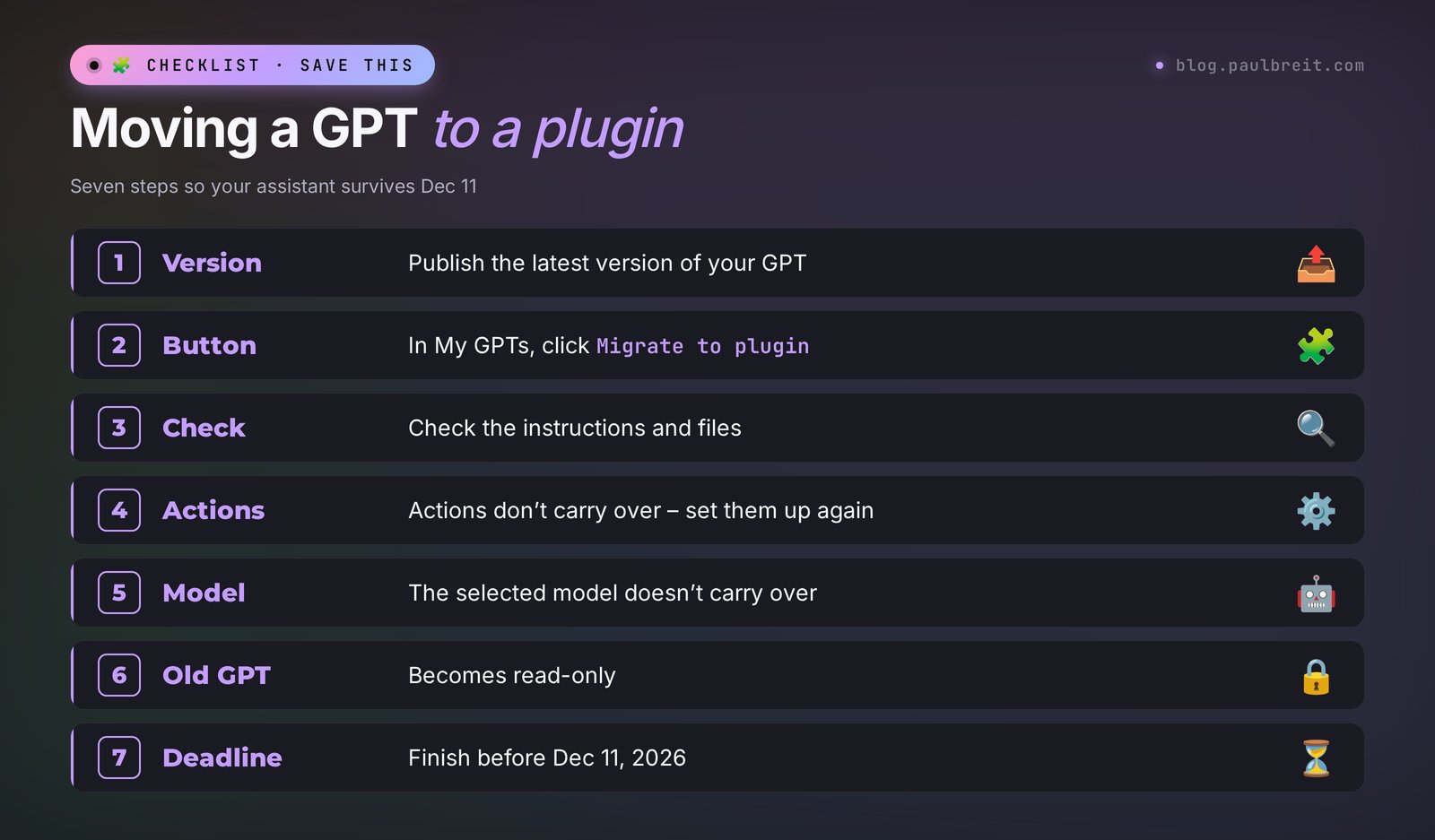
If you've already built a GPT and use it every day, migrate it before December 11, 2026. Per the OpenAI migration FAQ, here's how:
- Finish all edits and publish the GPT. Migration takes the latest published version; drafts don't carry over. You don't need to publish it publicly – "Only me" access is enough.
- Save a few of your usual requests and the answers to them. You'll compare the plugin with the old GPT on these.
- Open My GPTs and click Migrate to plugin next to the GPT you need. If the button isn't there, migration hasn't been opened for your account yet, or you're signed in to a different account from the one where you built the GPT.
- Check what moved over. The instructions become a skill inside the plugin, knowledge files are copied into its reference materials, and connected apps are added as apps.
- Set up what doesn't carry over. Actions – the way your GPT talked to other services – don't migrate. The selected model doesn't carry over either.
- Compare the answers on your saved requests and at least one tricky case.
Keep in mind: after migration the old GPT keeps working until the retirement date, but it becomes read-only. Make all further edits in the plugin. One more thing: the new plugin is visible only to you at first – people who used your GPT don't get access automatically.
If you use someone else's GPT, there's nothing to migrate, and you can't. Check the notice on the GPT's page and ask the creator whether there will be a replacement. If there won't be, build your own helper with the steps above: it'll take an evening.
Section 05Six assistants for different niches
Below are ready ideas for everyone who sells services, courses, and consulting. You can build each one with the steps in this article.
| Who you are | The assistant's task | What files to upload |
|---|---|---|
| Therapist | Drafts posts on the topics clients come to you with | Your 10 best posts, a topic list, ethics rules |
| Nutritionist | Answers questions after a webinar and invites people to a consultation | Price list, program, FAQ |
| Tutor | Creates exercises on a lesson topic for the student's level | Curriculum, sample exercises, grading criteria |
| Lawyer | Prepares an initial list of questions for a client by case type | Case checklists, letter templates |
| Fitness coach | Writes reminders and motivational messages to clients in a program | Workout program, sample messages |
| Course creator | Answers students based on course materials and points them to the right lesson | Course outline, lesson notes, FAQ |
Each of these assistants takes over the repetitive part of the work. Decisions and live contact with clients stay with you.
By the way, assistants like these can be built and sold as a service – some of my clients have turned that into a separate line of business. If you want to understand more advanced assistants that work around the clock without you, start with what an AI agent is, then move on to the guide on how to build an AI agent with no code.
Section 06When the assistant gets it wrong
Almost every problem comes down to six situations. Here's what to do in each.
- It makes up prices or terms. Add a line to the instructions: "Take prices and terms only from the Price list file. If they're not there, say you'll check." Make sure the file is uploaded and named exactly as in the instructions.
- It doesn't see a file. Most often the file is a scan or a complex table. Re-save it as plain text or a Word document and upload it again. If the file is long, split it into several by topic.
- It answers at too much length. Set the length as a number: "no more than 5 sentences." Every AI reads the word "briefly" its own way.
- The tone isn't yours. Upload 5–10 of your texts and add to the instructions: "Write the way the Samples file is written. Short sentences, friendly, no corporate jargon."
- The plugin doesn't kick in on its own. Per the OpenAI help center, ChatGPT pulls in a skill automatically when the skill's description matches the request, and it doesn't do this on every request. Call the plugin explicitly with @ or refine its description through @plugin-creator.
- There's no button to create a GPT. That's not a bug: creating GPTs is closed on personal plans. Build a project or a plugin using this article.
And one safety rule. Don't put client IDs, passwords, or card details in the assistant's files. If you open a project to other people, keep only what you're fine with every participant seeing.
Section 07The same assistant in Claude
If ChatGPT isn't convenient for you, or the move from GPTs to plugins doesn't thrill you, you can build the same setup in Claude. It has projects with instructions and files, plus skills that work roughly like ChatGPT plugins. The instructions template from step 3 and the five-question test carry over unchanged.
Sign up at claude.ai.
What to read next:
- Claude Skills – how skills work in Claude and which tasks they take off your plate.
- Claude Projects – a knowledge base that remembers your context, the closest match to a ChatGPT project.
- Claude vs ChatGPT – an honest comparison if you're still choosing where to build your assistant.
- Digital twin – the next level: an assistant that thinks and writes like you.
RecapThe whole path in a minute
- New GPTs can't be created on personal plans, and existing ones will be retired on December 11, 2026.
- A custom GPT is now a project with instructions and files (every plan) or a plugin via @plugin-creator (Go, Plus, Pro).
- One task per assistant.
- Files: price list, FAQ, writing samples – as plain text, one topic per file.
- ChatGPT writes the instructions from the "if X → do Y" template; you fix the tone and the client's next step.
- Five-question test: common, price, no answer in the files, risky, trick question.
- Publish your old GPT and move it with the Migrate to plugin button; set up actions again.
FAQFrequently asked questions
Can I create a custom GPT for free?
You can't create a new GPT on a personal account, free or paid: OpenAI has closed this feature. The free replacement is a ChatGPT project: it has permanent instructions and your files, with up to 5 files on the Free plan.
Why is there no Create a GPT button in ChatGPT?
Because OpenAI is retiring custom GPTs and moving everything to plugins. On the Free, Go, Plus, and Pro plans, creating and publishing new GPTs is closed. Instead of a GPT, build a project or a plugin with @plugin-creator.
What happens to my GPTs after December 11, 2026?
Custom GPTs and their pages become unavailable. Your chats with them stay in your history. To keep the assistant working, migrate the GPT to a plugin before that date with the Migrate to plugin button in My GPTs.
How is a plugin different from a GPT?
A plugin brings skills (instructions and materials) and connected apps together in one place. You call it with @ in any chat, and ChatGPT can pull it in on its own when the task fits. A GPT was a separate chat with a single set of instructions.
Can I give my assistant to clients?
With a shared project you can invite people who have a ChatGPT account, but the number is limited: up to 10 participants on Plus. Plugins can be shared in Business and Enterprise workspaces. For hundreds of clients you need an assistant in Telegram or on your website.
Do I need a paid ChatGPT plan to build an assistant?
Not for a project: projects are available on every plan, including Free. Creating plugins requires Go, Plus, or Pro.