How to Turn On Memory in Claude (and How It Differs From Projects)
How to turn on memory in Claude: it takes one toggle in Settings, and it works even on the free plan. Below you'll find where that toggle lives on the web, desktop, and mobile apps, how to view and edit what Claude remembers about you, how memory differs from Projects and instructions, how memory works in Claude Code, and why it sometimes looks like memory isn't working.
To turn on memory in Claude, open Settings → Your Claude (in the older menu, Settings → Memory) and switch on Generate memory from chats. Memory is available on every plan, including Free. Searching past chats is a separate toggle, Search and reference chats, and it works on paid plans only. Every project has its own memory.
What's inside
- What memory in Claude is
- How to turn on memory: step by step
- Memory in the desktop and mobile apps
- Searching past chats
- How to view and edit memory
- Claude memory vs Projects
- Memory in Claude Code
- Importing memory from ChatGPT
- Which plans include memory
- What Claude won't remember
- Memory not working: causes
- Everything in one minute
- Sources
Section 01What memory in Claude is
Without memory, every new chat with Claude starts from a blank page. You explain again who you are, what you do, who your clients are, and what tone to write in. The third time, it gets annoying. By the tenth, you stop giving context at all, and the answers turn generic.
Memory fixes that. As you talk, Claude saves the important facts about your work as separate entries and leans on them in later chats. Those entries don't pile up as one summary at the end of a conversation: Claude writes and updates them while you're still talking. You can also tell it directly: "Remember this."
According to Anthropic's help center, memory picks up:
- your role, projects, and professional context;
- people and places that come up in your work;
- how you like to communicate and work: answer length, tone, format;
- technical preferences, if you write code or work with spreadsheets;
- details of ongoing tasks and what you're working on right now.
Memory focuses on work topics first. If you spent an hour planning a vacation with Claude, that may never make it into memory. If you spent an hour pricing a new consulting package, it most likely will.
A real-life example. A nutritionist told Claude once that she runs online consultations, sells a four-week meal program, and writes posts for her Instagram. A week later she opens a new chat and types: "Write a post about breakfasts." Claude already knows who the post is for, which product it can mention softly at the end, and which platform it's for. She doesn't have to explain anything again.
Section 02How to turn on memory in Claude: step by step
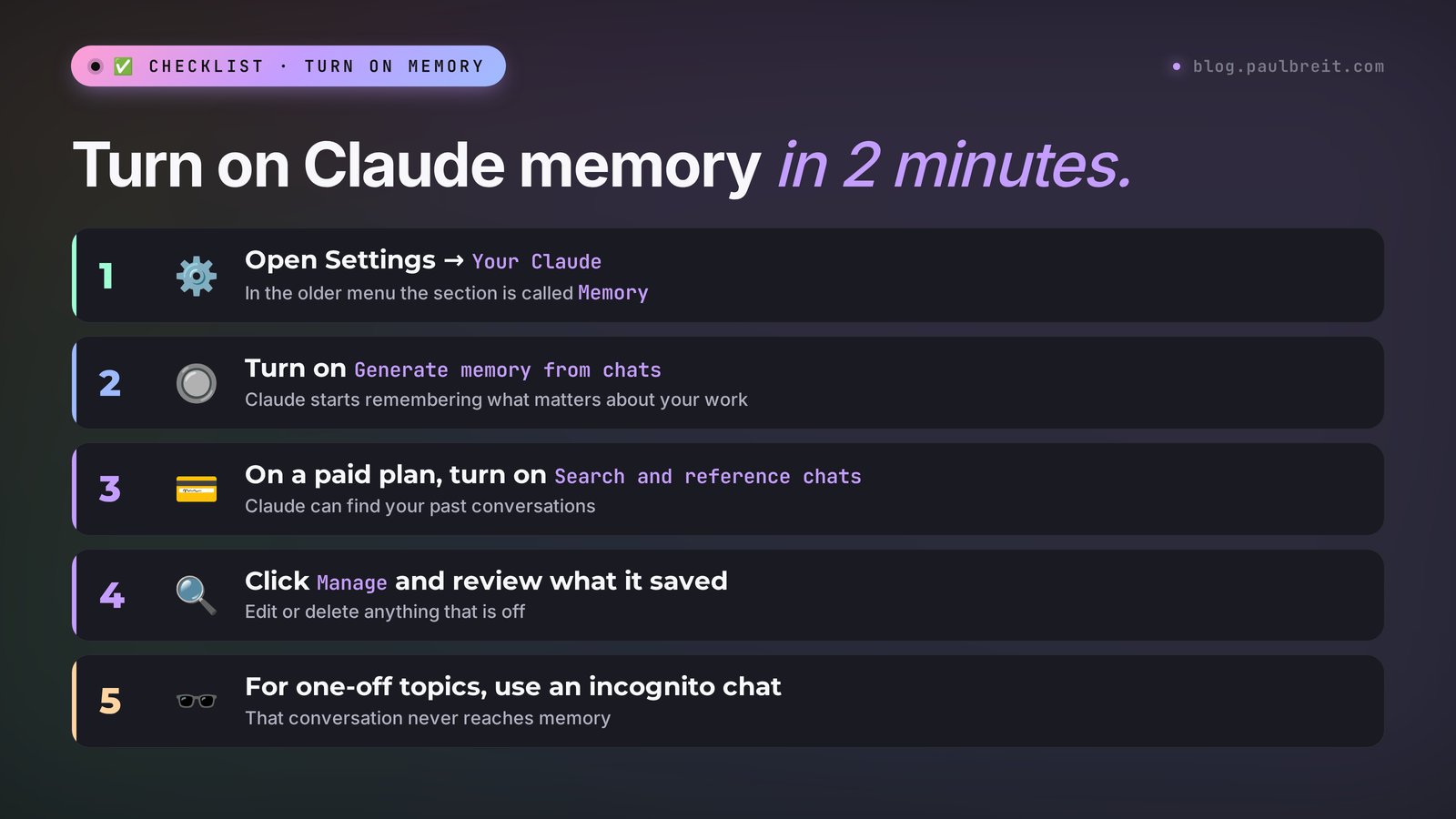
On the Free, Pro, Max, and Ultra plans, memory is on by default in the browser, the desktop app, and the mobile app. So for most people it's already working. If you ever switched it off, signed in to an old account, or simply want to make sure, go through four steps.
Open Settings
On claude.ai, click your name or profile icon in the bottom-left corner and choose Settings. The desktop app uses the same path. On your phone, Settings opens from the profile menu.
Find the Your Claude section
In the new menu, the section is called Your Claude. If your account still shows the older settings layout, look for the Memory section instead.
Turn on Generate memory from chats
This is the main memory switch. Once it's on, Claude starts remembering and using what it learns about you. Next to it you may see Include sensitive topics in memory; more on that below, in the privacy section.
Test it in a new chat
Tell Claude a couple of facts about your work, close the chat, open a new one, and ask: "What do you know about my work?" If it lists what you said, memory works.
Here's how Anthropic's official help center describes this spot. The frame highlights the paragraph with the path in Settings.
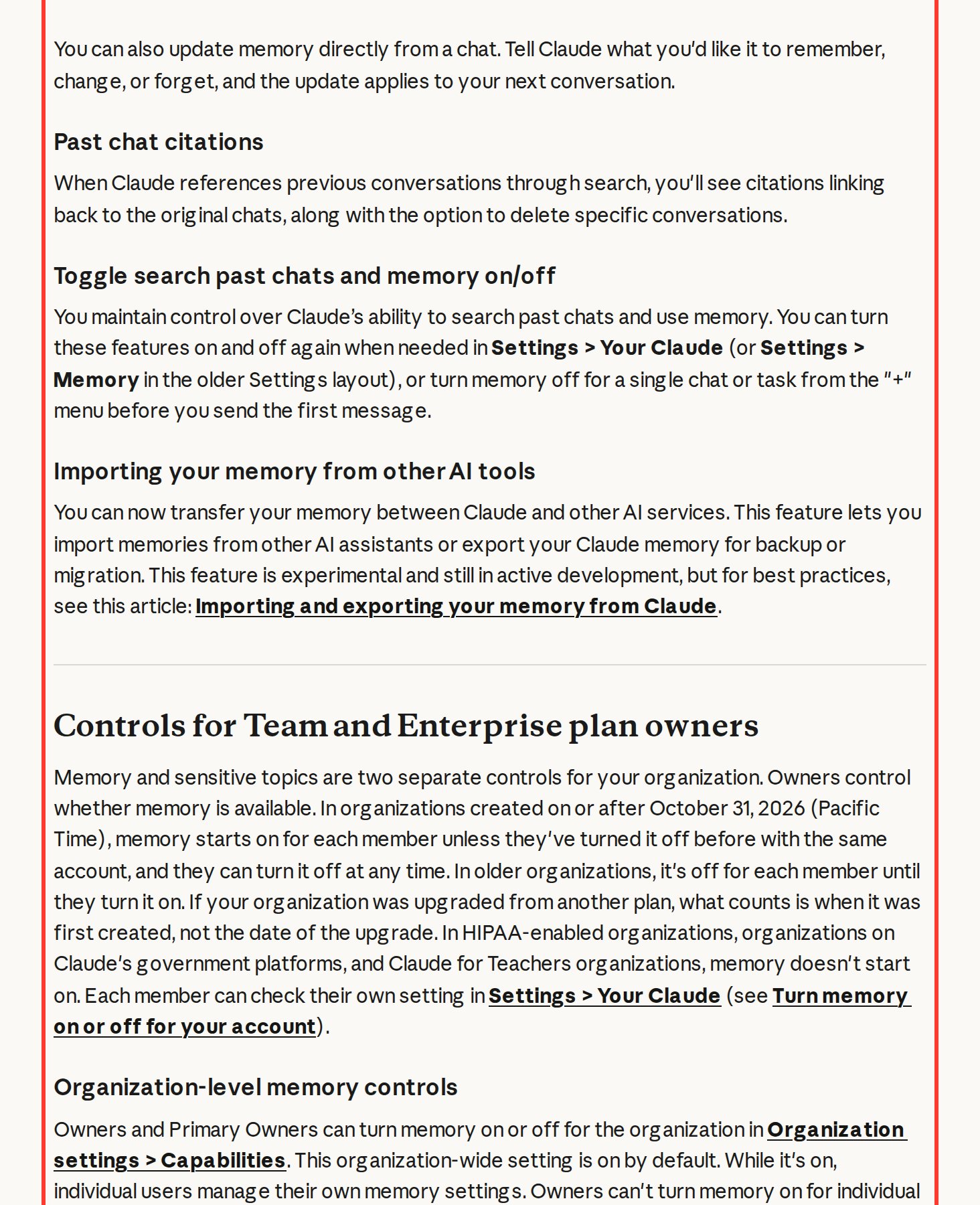
You can also switch memory off for a single chat. Before your first message, click "+" in the input box and turn off the Memory toggle. Claude won't use that conversation for memory, and every other chat keeps working as usual. It's handy for one-off work that isn't yours: a text for a friend, a brief for a contractor, a post on a topic unrelated to your business.
Section 03Memory in the Claude desktop and mobile apps
People often search for separate instructions for the Claude desktop app or the phone app. There's no separate setting. Memory belongs to your account, so the toggle you flip in one place applies everywhere you're signed in.
- Desktop app (Mac and Windows). Same path as the browser: profile icon in the bottom-left corner → Settings → Your Claude.
- Mobile app (iPhone and Android). Open the profile menu, then Settings, and look for the same memory toggles.
- Browser. claude.ai → profile → Settings → Your Claude.
Memory import from other AI tools, covered below, works in the browser and the desktop app. If you mostly use Claude on your phone, run the import once from a computer, and the result shows up on mobile too. More tips for the phone app are in the guide on using Claude on your phone.
Section 04Searching past chats: the second toggle
The same settings section has a second toggle: Search and reference chats. People often mix it up with memory, though the two do different jobs.
Memory is a set of short entries about you that Claude keeps in mind all the time. Chat search lets Claude look inside a specific old conversation. Say you write: "Remember the launch warm-up sequence we drafted last week? Take the third post from there and shorten it." With search on, Claude finds that chat, pulls the text, and shows a link to the original conversation. With search off, it will tell you honestly that it can't see it.
Chat search works on paid plans only: Pro, Max, Ultra, Team, and Enterprise. The Free plan doesn't have this toggle. Memory itself does work there.
Should you turn on both? I would. Memory gives you constant background context, and search helps when you need to pull a specific piece of text out of an old conversation without copying it by hand.
Section 05How to view and edit what Claude remembers
Claude's memory is transparent. You can see every entry and change it.
In Settings. Open Settings → Your Claude and click Manage next to Your memory. Everything Claude remembers about you is listed under Topics. The same screen has a field called Tell Claude what to change or remove, where you can type what to fix or delete.
Right in the chat. Tell Claude what to remember, change, or forget. The edit takes effect from the next conversation. Three phrasings worth keeping at hand:
Remember: I run online nutrition consultations, my clients are women aged 30–45, and my main product is a 4-week program. Keep your answers to me short and to the point.
Forget everything about the "Spring Challenge" project, it's closed. My new main product is group consultations.
Write out, word for word, everything you remember about me, as a list. Don't add anything of your own.
The last request is worth sending once a month. Memory accumulates, and old prices, closed projects, and products you no longer sell stay in it. Claude will keep relying on them until you ask it to update.
If you don't know what's worth putting into memory, ask Claude to draft the entries for you. I tested this request myself:
Here are some facts about me: [your text]. Turn them into 5 short lines worth saving to your memory so you can help me better with my work. One fact per line.
Model: Claude Opus 5.5. Input: "I'm a nutritionist, I consult online, I sell a 4-week meal program for $160, my clients are women aged 30–45, I write an Instagram blog, I like short answers without filler." Output:
1. Nutritionist, consults online.
2. Main product: a 4-week meal program, $160.
3. Clients: women aged 30–45.
4. Runs an Instagram blog; copy needs to fit that format.
5. Prefers short answers without filler.
And a note from the model: better not to paste specific clients' health data into the chat; generalized cases are enough for the work.
Five lines, and Claude stops asking who to write for and how long. The advice in the note is solid too; we'll come back to privacy below.
Section 06Claude memory vs Projects: the difference
Beginners mix up three places where Claude keeps knowledge about you: instructions, memory, and Projects. All three save you from repeating yourself, and each one handles a different job.
| What | Who fills it | Where it applies | What to put there |
|---|---|---|---|
| Instructions (Instructions for Claude) | You, by hand, once | In every chat | Who you are, how to talk to you, what to avoid |
| Memory | Claude itself as you talk, plus your "remember this" requests | In every chat outside projects | Current work, products, people, preferences |
| Project | You: the project's files and instructions | Only in that project's chats | Price list, copy, testimonials, a knowledge base for one line of work |
| Project memory | Claude, from conversations inside the project | Only in that project | What came up while working on that project |
The key point: every project has its own memory. When you work inside a project, Claude sees that project's memory plus your general memory from chats outside projects. It doesn't see other projects' memory. So client A's details won't surface while you're working on client B's project.
If you want a project to know nothing from your general memory, open the project page and switch off Use account memory in the Memory block. Then the project lives completely on its own. Do this when you run someone else's business in Claude: a project for a client shouldn't pull in your personal products and prices.
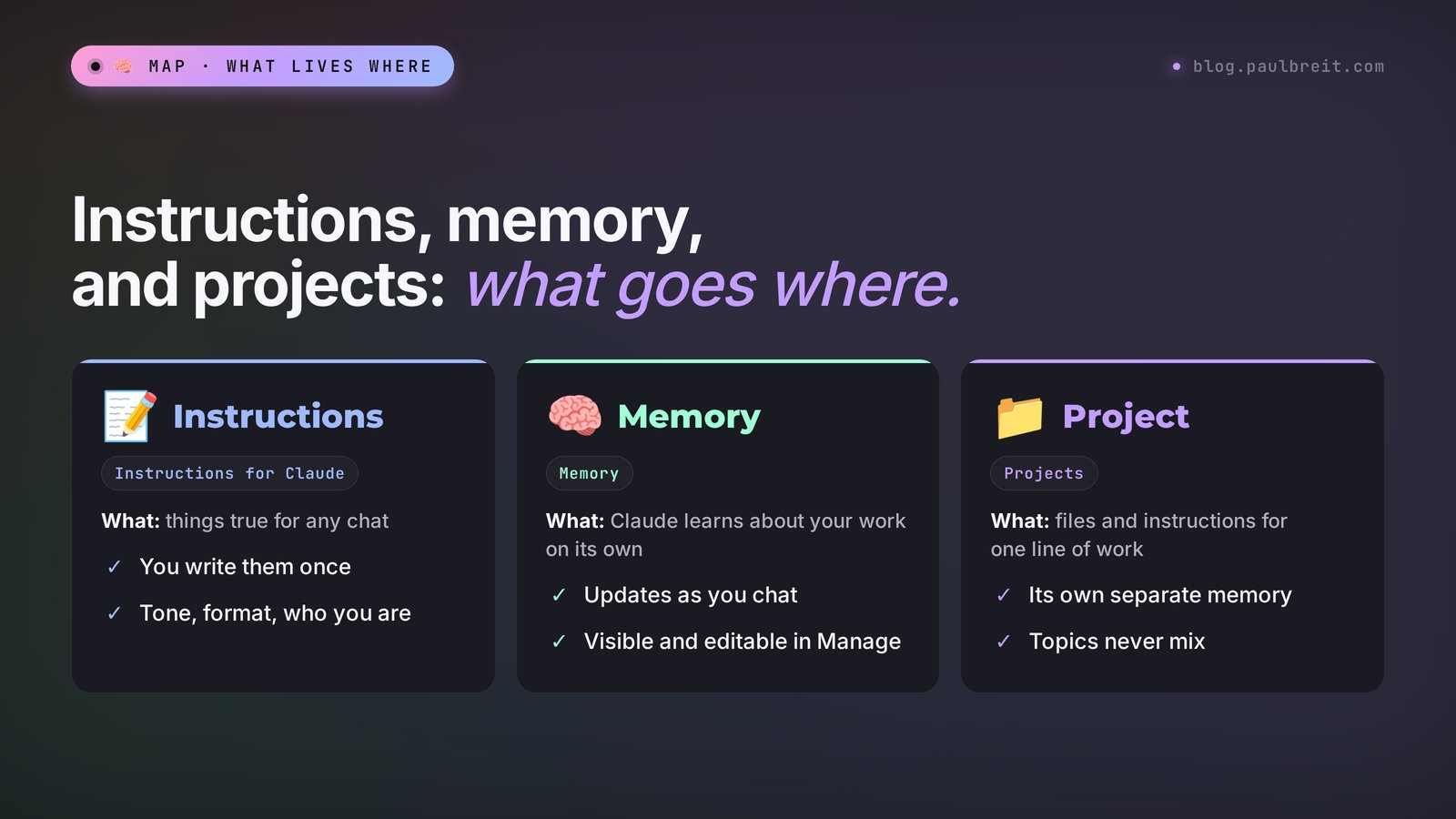
Here's how I split it in practice. General facts about yourself go into instructions, three to five lines. Materials for one line of work, like a price list, copy, and testimonials, go into a project. Claude picks up everything else into memory on its own. How to build a project with a knowledge base is covered in the guide to Claude Projects.
Section 07Memory in Claude Code: CLAUDE.md and auto memory
If you use Claude Code, memory works differently there, and the toggle in claude.ai settings doesn't affect it. According to the Claude Code documentation, each session starts with a fresh context, and two mechanisms carry knowledge between sessions.
- CLAUDE.md files. Instructions you write yourself. A project file sits in the working folder as ./CLAUDE.md (or ./.claude/CLAUDE.md), and personal preferences for all projects live in ~/.claude/CLAUDE.md. The /init command generates a starting CLAUDE.md from your project.
- Auto memory. Notes Claude writes on its own from your corrections and preferences. It's on by default in local sessions and is stored per project in ~/.claude/projects/<project>/memory/, with a MEMORY.md index file.
The /memory command inside a session lists your memory files, opens any of them in an editor, and switches auto memory on or off. If you tell Claude Code "remember that…", it saves the note to auto memory; to put a rule into CLAUDE.md, ask it directly: "add this to CLAUDE.md." To get started with the tool itself, see the guide on how to use Claude Code.
Section 08Importing memory from ChatGPT and other AI tools
If you've worked in ChatGPT for a long time, it has already collected a lot about you. You can move that over and skip starting from zero. Import is available on every plan, in the browser and the desktop app.
- Open Settings → Your Claude and click Start import.
- Claude shows a ready-made prompt. Copy it and send it to your previous AI tool in a regular chat.
- Copy the whole reply, paste it into the import field in Claude, and click Add to memory.
If you don't see the import button, send your previous AI tool this request and move the answer over by hand with "Remember: …":
Put together everything you know about me and my work as one list: what I do, who my clients are, what products and prices I have, which projects I'm working on, and what tone and format of answers I like. Stick to facts, no opinions.
Anthropic is upfront that import is still experimental. Claude keeps work-related details first, and personal details may not carry over. So after the import, ask Claude to write out its memory word for word and check what it picked up. To export Claude's memory, say for a backup, use the same request: "Write out, word for word, everything you remember about me." For a broader comparison of the two tools, read Claude vs ChatGPT.
Section 09Which Claude plans include memory
Memory is included in every individual plan, Free included. On the pricing page it's the Memory across conversations row in the Free column. Paid plans add chat search and higher limits.
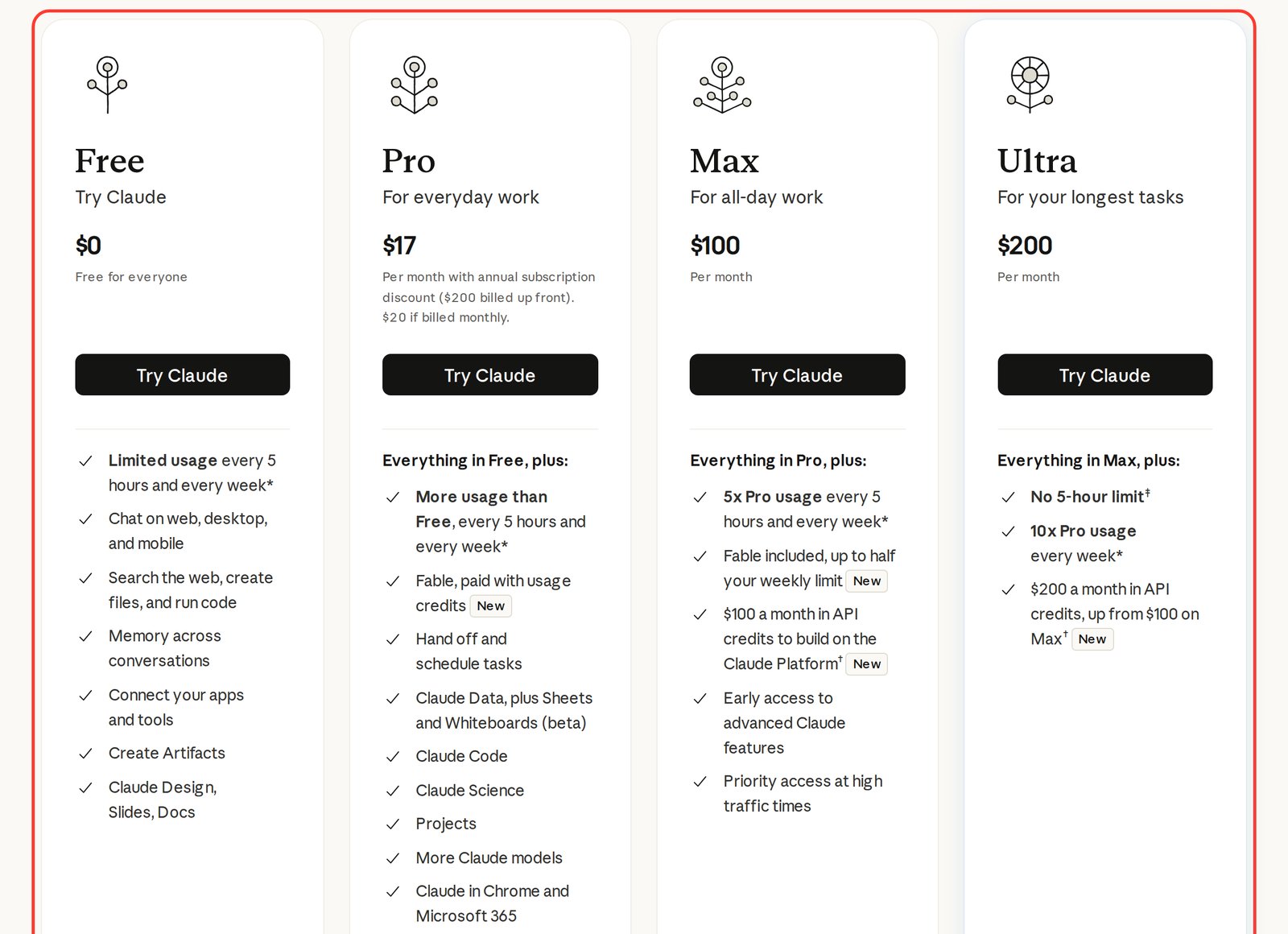
| Plan | Price (claude.com/pricing, 11/16/2026) | Memory | Chat search | Projects |
|---|---|---|---|---|
| Free | $0 | yes | no | up to 5 |
| Pro | $20/month, or $17/month billed annually | yes | yes | unlimited |
| Max | $100/month | yes | yes | unlimited |
| Ultra | $200/month | yes | yes | unlimited |
On the Team and Enterprise plans, the organization owner turns memory on in Organization settings → Capabilities. In organizations created on October 31, 2026 or later, memory is on for members right away. In older ones, it stays off until each member turns it on in their own settings. If the owner disables memory for the whole organization, members can't turn it on.
The Free plan is enough to start: memory works, and you get five projects. How the plans differ on limits is covered in the guide to Claude pricing plans.
Section 10What Claude won't remember: privacy, incognito, pause
Sensitive topics. By default, Claude doesn't save health, race and ethnicity, religious and political views, gender identity, and similar topics to memory. If you need it, for example you're a therapist and want Claude to remember the specifics of your practice, turn on Include sensitive topics in memory. Think twice: the memory is about you, and details about your clients can end up there too.
What's never saved, even if you ask: ID numbers, criminal records, bank account numbers, immigration status.
Incognito chats. The ghost icon in the top-right corner opens a temporary chat. It isn't saved to your history and doesn't reach memory. It's available on every plan and works well for one-off questions unrelated to your work.
Pause and reset. Click the memory toggle and Claude offers two options. Pause: everything already remembered stays, but Claude stops using it and doesn't create new entries. Reset memory: deletes all memory, project memory included, with no way to restore it. Before a reset, export your memory with the "write out word for word" request, in case something turns out useful.
One more detail. If you delete a chat, the memory entries that came from it don't disappear on their own. Delete them by hand in the Topics list or ask Claude to forget them.
Section 11Claude memory not working: causes and fixes
| What happens | Cause | What to do |
|---|---|---|
| Claude remembers nothing from past chats | Memory is off or paused | Settings → Your Claude → turn on Generate memory from chats |
| Can't find a specific old conversation | Chat search is off, or you're on Free | Turn on Search and reference chats; not available on Free |
| Inside a project, doesn't know what you said in another project | Each project has its own memory | Add it to this project's files or repeat the facts in its chat |
| Inside a project, knows nothing about you | Use account memory is off in that project | Turn it on in the Memory block on the project page |
| Relies on old prices and closed products | Memory was never cleaned up | Ask it to write out its memory, then say what to forget and what to update |
| Didn't keep personal details after import | Import is experimental and keeps mostly work details | Add what you need with "Remember: …" |
| No toggle on a work account | The Team or Enterprise owner disabled memory | Message your organization owner |
Most often, "Claude forgot everything" means one of two things: a person works inside a project and expects it to know about the neighboring one, or memory was paused once and forgotten. Both take a minute to fix in Settings.
If you want to go deeper with Claude, from your first chat to agents that work for you, I laid out the path step by step in Learn Claude from scratch. Ready-made phrasings for everyday tasks are in the collection of Claude prompts.
Section 12Everything in one minute
Memory in Claude is available on every plan and turns on with the Generate memory from chats toggle in Settings → Your Claude. Searching old chats is a separate toggle, paid plans only. Every project has its own memory, and you can cut off general memory inside a project. Entries are visible in Manage → Topics, and you can edit them there or right in the chat. Once a month, ask Claude to write out its memory and clear out what's outdated.
Cheat sheet: memory in Claude
1. Settings → Your Claude (older menu: Settings → Memory).
2. Turn on Generate memory from chats – works on every plan.
3. On a paid plan, turn on Search and reference chats – search across old chats.
4. Manage → Topics – view and edit what Claude remembered.
5. In chat: "Remember: …", "Forget …", "Write out word for word what you remember about me."
6. Every project has its own memory. Full isolation: switch off Use account memory in the project.
7. One-off unrelated question – incognito chat (ghost icon) or "+" → turn off Memory.
8. Import from ChatGPT: Start import → prompt → paste the reply → Add to memory.
9. Claude Code: rules in CLAUDE.md, auto memory via /memory.
10. Once a month, clear out old prices and closed projects.
Sources
- Use Claude’s chat search and memory to build on previous context (Anthropic help center), checked 11/16/2026
- Import and export your memory from Claude (Anthropic help center), checked 11/16/2026
- Claude pricing (official page), checked 11/16/2026
- How Claude remembers your project (Claude Code documentation), checked 11/16/2026
FAQFrequently asked questions
How do I turn on memory in Claude?
Open Settings, then the Your Claude section (in the older menu, Settings, then Memory), and switch on Generate memory from chats. On the Free, Pro, Max, and Ultra plans, memory is usually already on by default.
Does the free version of Claude have memory?
Yes. Memory works on the Free plan the same way it does on paid plans. The only thing Free lacks is searching past chats: the Search and reference chats toggle starts with the Pro plan.
What is the difference between Claude memory and Projects?
Memory is a set of short entries about you that Claude collects on its own and uses across your chats. A project is a folder with files and instructions for one line of work, and it applies only in its own chats. Each project also has its own separate memory that other projects can't see.
How do I see what Claude remembers about me?
In Settings, Your Claude, click Manage next to Your memory: every entry is listed under Topics. Or type in a chat: "Write out, word for word, everything you remember about me."
How do I delete Claude's memory?
Delete a single entry in the Topics list or ask in a chat: "Forget ...". Reset memory erases all memory, project memory included, and it can't be undone. Pause keeps the entries, but Claude stops using them.
Can I move my memory from ChatGPT to Claude?
Yes. In Settings, Your Claude, click Start import, send the prompt it shows to ChatGPT, paste the reply into the import field, and click Add to memory. The feature is experimental, so check what Claude remembered after the import.