How to Use Claude on Your Phone: iPhone and Android
How to use Claude on your phone: install the official app on iPhone and Android, sign in without losing your chats, and get comfortable with voice, the camera, projects, and the Share sheet. At the end, 12 work scenarios with ready phrases for everyone who sells services, courses, and consulting and wants to handle tasks right from a smartphone.
To use Claude on your phone, download the free "Claude by Anthropic" app from the App Store or Google Play and sign in the same way you do on claude.ai: with Google, Apple, or email. Then type a request, dictate it with the microphone icon, talk out loud in voice mode, or attach photos and files with the "+" button. Chats and projects sync with your computer, and the free plan is enough for your first weeks.
Anyone who answers clients on the go, comes up with posts on a walk, and wants to prep livestreams and calls without a laptop. If you're still choosing an AI tool, start with the best AI tools of 2026.
What's inside
- What Claude can do on your phone in 2026
- How to install Claude on iPhone
- How to install Claude on Android
- Signing in: use the same method as on desktop
- First launch: where everything lives
- Voice: dictation and voice mode
- Camera, screenshots, and photos
- Files, projects, and memory on your phone
- The Share button, widgets, and Shortcuts
- Emails, texts, and meetings right from the chat
- 12 work scenarios from your phone
- Phone and computer: how to work as a pair
- Free or Pro: which plan to pick for your phone
- If something goes wrong
- What you shouldn't send to AI
- Checklist: your phone is ready to work
- The whole path in one minute
- FAQ
A client texts you at 10:40 p.m. A long message with three questions, doubts about the price, and a request to "explain one more time how your course is different from free videos." You're in an Uber, the laptop is at home. Before, you'd have answered in the morning, and by morning that person would have cooled off. Now you take a screenshot of the chat, open Claude on your phone, and say out loud: "Help me reply warmly and to the point, no pressure." Thirty seconds later you have a ready draft. Tweak it to sound like you, hit send.
I start more than half of my work tasks on my phone. A post idea shows up on a walk, a lead needs sorting while I'm standing in line, a livestream outline is easiest to sketch on the road. Claude on a smartphone is the same AI as on the website, with the same account and chat history, just always in your pocket. And the phone has three things the computer doesn't: a camera, a microphone, and a Share button in every app.
In this guide I'll walk through everything in order: how to install Claude on iPhone and Android, how to sign in without losing your chats, how to use voice and the camera, where projects and files live on the phone, plus 12 ready work scenarios with phrases you can copy. Read straight through or jump around with the table of contents.
Section 01What Claude can do on your phone in 2026
Claude is an AI from Anthropic. It has a website, claude.ai, a desktop app, and free apps for iPhone, iPad, and Android. All of them run on one account. Start a conversation on your laptop, pick it up on your phone right where you left off, and the other way around.
The app does almost everything the website does and adds a few things that only exist on a phone. Here's what matters as of October 2026:
- Chat and writing. Posts, client replies, Reels scripts, livestream outlines, service descriptions. The models are the same as on the website, and the model picker sits right in the chat window.
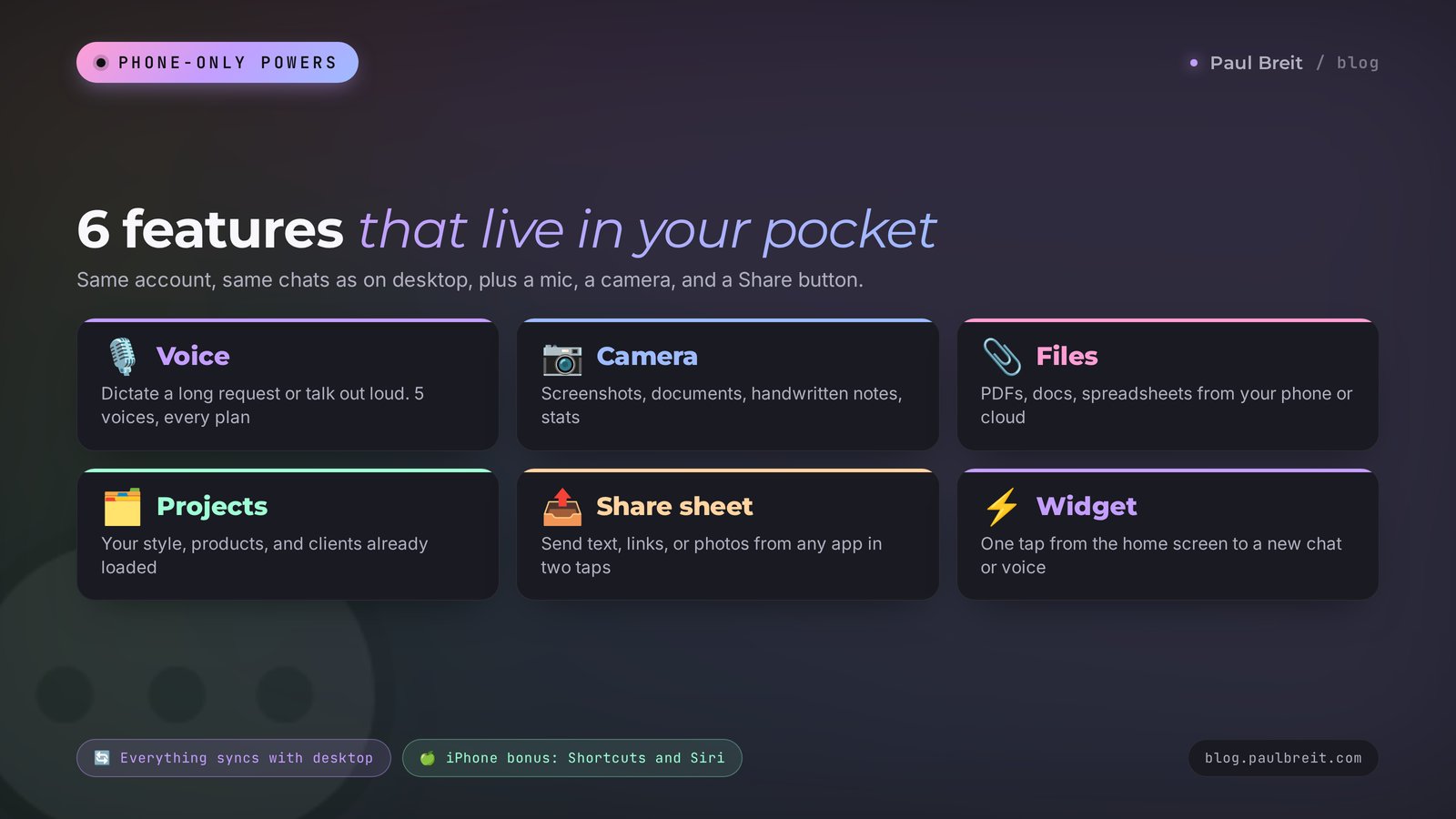
- Two kinds of voice. Dictation turns your speech into the text of a message. Voice mode gives you a real conversation: you talk, Claude answers out loud. Voice mode works on every plan, including Free, and you get five voices to choose from.
- Camera and photos. Snap a document, a menu, handwritten notes, someone else's website, or send a screenshot of a chat. Claude reads the text in the image and breaks down what's on it.
- Files. PDFs, spreadsheets, and text documents from your phone's storage, iCloud or Google Drive, or a messaging app.
- Projects and memory. The projects with your materials that you built on desktop open on the phone too. Memory of past conversations is shared as well.
- Hooks into your phone's apps. Claude prepares a draft text, email, or calendar event and opens the right app, then you check it and send it yourself. On iPhone you also get Reminders and Shortcuts.
- The Share button. Text, a link, or an image from any app goes to Claude in two taps.
- Widgets. One tap from your home screen to a new chat or straight into voice mode.
What the phone doesn't do well: long work with big documents, building websites and slide decks, serious spreadsheet editing. You can view a finished result on your phone just fine, but editing a large file on a small screen is torture. More on that in the section about pairing the phone with your computer.
If you want to see how to build a whole workday around a smartphone and which other AI tools to put on it, I have a separate breakdown: AI on your phone: a full workday from a smartphone. Here we'll stay focused on Claude.
Section 02How to install Claude on iPhone
Setup takes a couple of minutes. The main thing is to get the official app and skip the knockoffs, and the App Store has plenty of those.
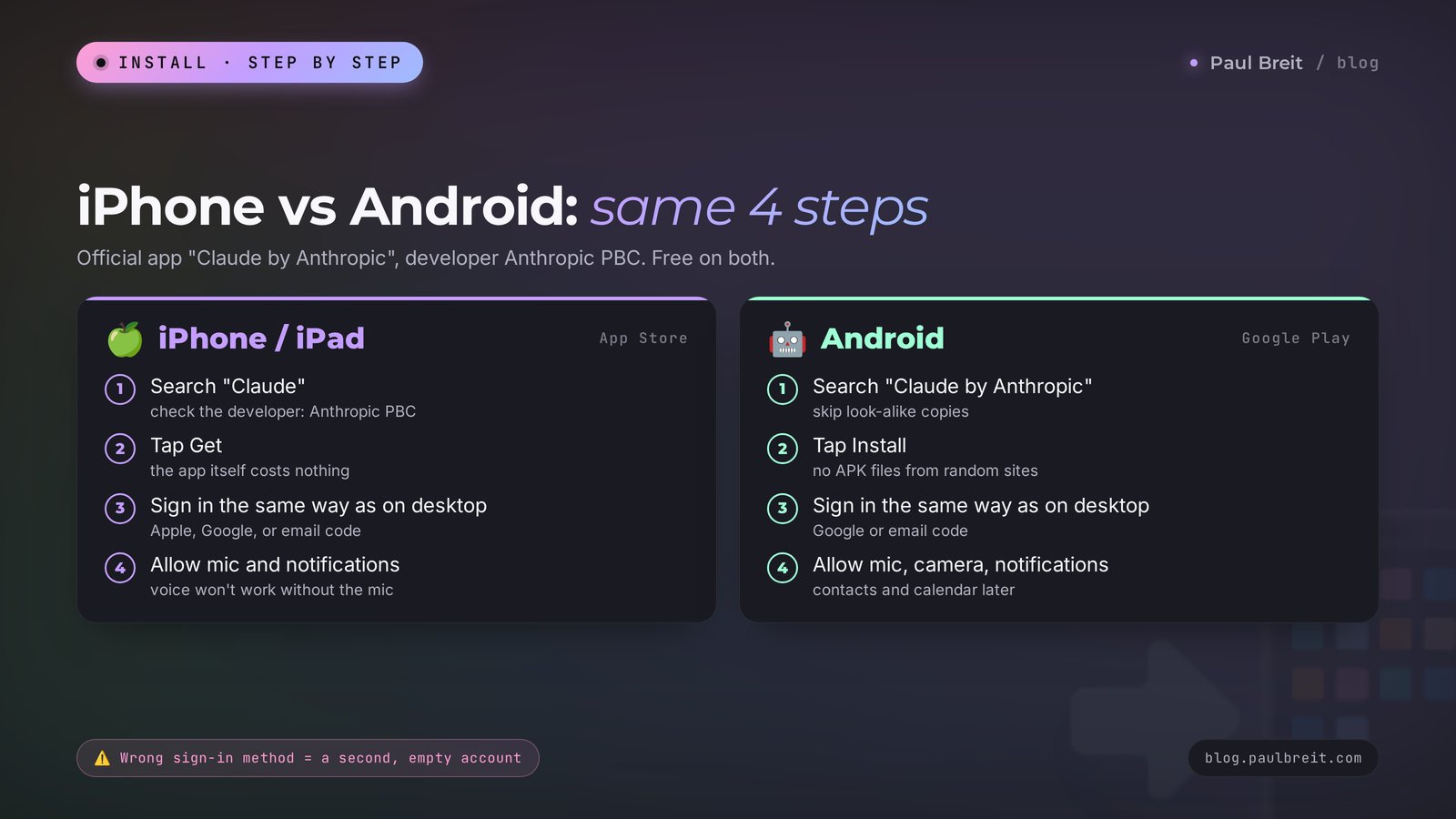
Open the App Store and search for Claude
Type "Claude" in search. You want "Claude by Anthropic," developer Anthropic PBC. The icon is an orange starburst on a light background. Apps with similar names like "Claude AI Chat Assistant" from unknown developers are middlemen that often charge a separate subscription and show you ads.
If the app doesn't show up
Check the spelling and search for "Anthropic" instead. Claude is available in the App Store in the US, Canada, the UK, the EU, and most other countries. If it still doesn't appear, your Apple ID is probably set to a country where Anthropic doesn't offer the app. In that case, open claude.ai in Safari for now; everything in your account works there too.
Install and open it
Tap Get. The app is free. If you already pay for a plan on the website, you don't need to buy anything again inside the app.
Sign in to your account
iPhone gives you three options: Apple, Google, and email with a one-time code. If you already have an account on claude.ai, sign in THE SAME WAY you signed up. Signed up with Google? Tap Continue with Google. Otherwise the app will create a second, empty account, and you won't see your chats or projects.
Allow the microphone and notifications
The first time you tap the mic, your phone will ask for permission. Tap Allow, or voice won't work. Notifications are useful too: a long answer or a research task can take several minutes, and your phone will ping you when it's done.
On iPad it's all the same, it's one app. On a tablet it's handy to keep Claude in Split View next to a document or your messages.
Section 03How to install Claude on Android
On Android the path is almost identical, just with Google Play in place of the App Store.
Open Google Play
Find "Claude by Anthropic" from developer Anthropic PBC. Check the developer name with your own eyes: Google Play has lots of copies with similar icons.
If Google Play says the app isn't available in your country
The store looks at the country of your Google payments profile. If you moved recently, the profile may still point to your old country; you can update it in Google Play under your avatar → Settings → General → Account and device preferences → Country and profiles. Google only lets you change it once a year, so think it through. I don't recommend downloading APK files from third-party sites: it's easy to pick up malware disguised as Claude that steals your passwords.
Install and sign in
Tap Install. Sign in the same way you do on your computer: Google or email with a code.
Grant permissions
Microphone for voice, camera for photographing documents, notifications so you're not sitting around waiting for long answers. The app will ask for contacts and calendar access later, the first time you ask it to draft a message or a meeting. Grant permissions as you need them; there's no reason to open everything up front.
If your phone runs without Google services (some Huawei and Honor models), there's no official way to install the app. In that case open claude.ai in your phone's browser and add the site to your home screen: browser menu → Add to Home screen. You get something close to an app, just without voice mode and some phone features.
Section 04Signing in: use the same method as on desktop
Most "Claude on my phone is empty" complaints come down to one thing: a different sign-in method. Claude treats Apple, Google, and email as separate doors. Walk through a different door, and you land in a brand-new account with zero chats.
Check how you signed up. On your computer, open claude.ai → your name in the bottom left → Settings. The email address there tells you which account you're in. If it's a Gmail address and you originally clicked Continue with Google, use Google on the phone too.
Sign in with Apple and hidden emails. If you chose Sign in with Apple and picked Hide My Email, Apple created a random relay address for you. On the phone, tap Sign in with Apple again, and don't type that relay address by hand into the email field.
Work and personal accounts. If your company gave you a Claude Team or Enterprise seat, that's a separate account tied to your work email. Sign in to it with the matching method, and keep business work and personal experiments in the right account from day one.
If you already created an empty second account by accident, it's harmless. Log out of it (menu → Settings → Log out) and sign in again with the right method. Your real chats and projects are waiting in the original account.
The easiest path for a beginner: sign up on your computer, make sure everything works, and only then sign in on your phone with the same method. That way it's simpler to figure out what went wrong if something does. How to set up your account so Claude writes in your style from the start is covered in my guide Claude from scratch. Those settings are shared and will show up on your phone automatically.
Section 05First launch: where everything lives
The app interface is in English, and Claude answers in whatever language you write in. There aren't many buttons; you'll get the hang of it in two minutes.
- The input field at the bottom. This is where you type. To the left of the field is a "+" button: camera, photos from your library, files.
- The microphone icon. Dictation: you speak, and your words turn into the text of a message. You can edit it before sending.
- The sound wave icon. Voice mode, a live spoken conversation.
- The model name above the field or in the menu. This is where you switch models. The default model is fine for everyday writing; for complex analysis, pick the strongest one you have.
- The menu on the left (three lines, or swipe right). Chat history, the Projects section, search across past conversations, settings.
- The new chat button in the top right corner. Tip: start a new chat for each new task. In one long chat, Claude thinks slower and hits limits faster.
In settings (menu → your name or the gear icon), check three places. First, the voice for voice mode. Second, the theme; dark mode is easier on the eyes in the evening. Third, your personal instructions: if you already filled them in on desktop, they're here. If not, you can fill them in from the phone, though a real keyboard makes it easier.
A first request to check that everything works: "Hi. I run an online English school for adults. Suggest five post topics for this week, one line per topic." Got a useful answer? The app is ready to work.
Section 06Voice: dictation and voice mode
Voice is the number one reason to put Claude on your phone. Typing long requests with one thumb is a pain. Anyone can talk through a thought in a minute. There are two ways to do it, and they're for different jobs.
Dictation: say it, get the text of your request
Tap the microphone icon and talk as you are, with pauses, "ums," and corrections. Claude gets your speech as text and makes sense of it. This is the perfect way to send long requests: tell it about a client, dump raw thoughts for a post, describe a task with every detail.
You dictate: Okay, so today I did a live session on nutrition for new moms, about forty people showed up, three asked about the price of my coaching program, and one said it's too expensive. Tomorrow I want a post where I explain, without making excuses, what goes into the price, and gently invite people to a consultation. Warm tone, no hype, keep it short.
What you get: a ready post of 150–200 words: the story from the live session, three points on what people are actually paying for, and an invitation to a consultation at the end. All that's left is to swap a couple of words so it sounds like you.
The trick: give more detail than you think you need. Names, numbers, exact phrases from clients. AI can only make a text feel alive from what you give it. Dictating details is five times faster than typing them, which is exactly why requests made on a phone come out the richest.
Voice mode: a spoken conversation
Tap the sound wave icon. The screen changes, and Claude listens and answers out loud. The mode works on every plan, there are five voices, and you pick one in settings. There are two ways to talk. Hands-free: Claude catches your pause and replies on its own. Push to talk: hold the button while you speak. The second way is better in a noisy place, where hands-free can get triggered by other people's voices.
Where voice mode is useful:
- Rehearsing a sales call. Say: "Play a client who has doubts about the price of my yoga course and says she'll think about it. I'm practicing my answers. After each one, tell me what was convincing and what wasn't." Five minutes of this in the car before a call is worth an hour of reading articles about objections.
- Brainstorming on a walk. Talk through a name for a new product, a theme for a challenge, a launch plan. You walk, Claude throws out options and asks clarifying questions.
- Prepping for a livestream. Ask it to fire ten questions at you that viewers usually ask, and answer them out loud. You'll find out where you get shaky.
- Language practice. If you work with clients abroad, practice Spanish or French in conversations about work topics.
The whole conversation is saved as text in the chat. After your walk, open it and ask: "Turn our conversation into a step-by-step launch plan." You talked, you got a structure.
In crowded places, use earbuds with a mic. Claude hears you better, and the people around you don't hear your business plans.
Section 07Camera, screenshots, and photos
The phone's second superpower is the camera. Tap "+" in the input field, choose the camera or your photo library, add an image, and type or dictate what to do with it. Claude reads the text in the image and understands tables, charts, website interfaces, and handwritten notes, as long as the handwriting is readable.
What to photograph and screenshot for work:
- Client conversations. A screenshot of a thread from iMessage, WhatsApp, or Instagram DMs plus a request: "Help me reply. This person is hesitating; I want to ease the doubt and offer a call." Before you send the screenshot, cover or blur any personal client data on it: phone number, last name, address.
- Competitors' posts and ads. "Break down what this post runs on: hook, structure, call to action. What can I borrow for my niche without copying?"
- Your own landing page or service page. A screenshot of the first screen: "Look at this as a first-time visitor. Is it clear in five seconds what I offer and to whom? What should I cut?"
- Handwritten notes and whiteboards. After a meeting or a mastermind, snap your notes: "Rewrite this as a clean list, group it by topic, pull out the tasks for this week."
- Documents. A contract, an invoice, a letter from your bank: "Explain in plain words what I should pay attention to." For legally important decisions, the AI's answer helps you prepare questions for a lawyer. Make the decision after you talk to one.
- Stats. A screenshot of your Instagram insights or ads dashboard: "What's good here, what's bad, what should I try next week?"
You can send several images in one message. For example, five screenshots of client reviews, and then ask: "Pull three short quotes from these reviews for Stories and write one post with a client story." More examples of working with images and voice are in AI from a photo, screenshot, or voice.
Section 08Files, projects, and memory on your phone
Through "+" → Files you can attach a PDF, a Word document, a spreadsheet, or a text file from your phone's storage, from the cloud, or straight from a messaging app. A client sent you a contract in WhatsApp? Open it, tap Share, and send it to Claude. More on that method in the next section.
Projects. A project is a folder with standing materials and instructions that Claude takes into account in every chat inside it. For example, a "My blog" project with a description of your audience, samples of your posts, and a list of your products. Building and filling projects is easier on desktop, and using them from your phone is a joy: open the menu → Projects → "My blog" → new chat, and dictate a post idea. Claude already knows your style, products, and clients, so there's nothing to explain again. How to build a project like that from scratch is covered in detail in Claude Projects: a knowledge base that remembers.
For the phone, I recommend setting up three projects:
- Content. Your style, content pillars, samples of posts that worked. Everything you dictate on walks goes here.
- Clients and sales. Product descriptions with prices, frequent questions and objections, your best answers. Chat screenshots go here.
- Personal assistant. Your schedule, monthly goals, habits. Day plans and task breakdowns go here.
Memory. If memory is turned on in settings, Claude remembers the important things from past conversations: what you do, what your products are called, what you've already tried. Memory is shared across all devices. You can see and edit what it remembers in settings.
Artifacts. If Claude built you a checklist, a mini calculator, or a small page on desktop, you can open and view it on your phone too. You can create big artifacts from the phone, but editing them is more comfortable on a big screen. More on what artifacts are in Claude Artifacts.
Section 09The Share button, widgets, and Shortcuts
The most underrated move: sending things to Claude straight from other apps, with no copying by hand.
The Share sheet. In WhatsApp, Safari or Chrome, Photos, Mail, or Notes, tap Share and choose Claude. If it isn't in the first row, scroll right and tap More, then drag Claude up so you don't have to hunt for it next time. What's handy to send this way:
- an article from your browser – "summarize in five bullet points and suggest how I can use this in my work";
- a long voice memo transcript or a note – "turn this into a post";
- a contract or a competitor's price list from a messaging app – "compare this with my terms";
- a photo from your library – "write a caption for this shot for Stories."
Widgets. Add a Claude widget to your home screen: on iPhone, long-press an empty spot → "+" in the corner → find Claude; on Android, long-press → Widgets → Claude. One tap and you're in a new chat or straight in voice mode. On iPhone you can also put a quick launch on the Lock Screen. It's a small thing that saves seconds, and seconds decide whether you capture an idea or forget it.
Shortcuts on iPhone. Claude works with the Shortcuts app. You can build a shortcut that sends Claude your template request with one tap or by voice through Siri. For example, "Post idea" opens a chat and pastes the start of the request: "Here's a raw thought, turn it into a post in my style:". If Shortcuts feels like a dark forest, skip this point: the widget and the Share button are more than enough.
Section 10Emails, texts, and meetings right from the chat
The Claude app can prepare a draft and hand it off to your phone's built-in apps: Messages, Mail, Calendar, Maps, Clock, and on iPhone, Reminders too. A person always does the sending: Claude opens the app with the text filled in, you check it and tap Send or Save yourself.
Here's how it looks in practice:
You dictate: I booked a trial consultation with Anna for Thursday at 7 p.m. Eastern, one hour. Create a calendar event and write her a short confirmation email with what to bring: a list of questions and the recording of her last session.
What you get: Claude shows a draft event and the email text. Tap one button and Calendar opens with the event filled in; save it. Tap the second and Mail opens with the email ready; check the address and send.
The first time, your phone will ask for permission to access your calendar or contacts. Only allow what you'll actually use. This works on personal plans: Free, Pro, and Max.
Where else it comes in handy:
- a reminder for clients who signed up for a livestream – the text for a group message in one go;
- a polite no to a partner you find it awkward to turn down yourself;
- directions to an in-person meeting plus a reminder to leave early;
- an alarm for the time you publish a post, if you post by hand.
In the US, Pro and Max subscribers can also connect health data from Apple Health or Android Health Connect and ask Claude to make sense of their sleep, steps, and workouts. Handy for coaches and trainers who track their own routine, but optional for everything in this guide.
Section 1112 work scenarios from your phone
Now the practice. Below are scenarios my clients and I use every week. Copy the phrases as they are and change the details to fit you. If you want more ready-made wording, check out the library of 100 prompts.
| Situation | What to send | What to say |
|---|---|---|
| 1. A tricky client message | Screenshot of the chat | Help me reply warmly and to the point. The person has doubts about the price; I want to offer a short call with no pressure. |
| 2. A post idea on a walk | Voice mode or dictation | Here's a raw thought. Make it a 150-word post in my style with a first line that hooks. |
| 3. Before a sales call | Voice mode | Play a client who says "too expensive" and "I'll think about it." I'm practicing my answers; rate each one. |
| 4. A Reels caption | A frame from the video | Write a Reels caption: a short story, a twist, and one simple action at the end. |
| 5. A competitor's post went viral | Screenshot of the post | Break down why it worked. Suggest three topics on the same pain point for my niche. |
| 6. After a meeting | Photo of your notes | Rewrite this cleanly, pull out the decisions and the tasks with deadlines. |
| 7. Plan for the day | Dictated to-do list | Sort by priority, estimate the time, tell me what can wait. |
| 8. A client review | Screenshot of the review | Make a case-study post: before, what we did, after. No exaggeration. |
| 9. Landing page check | Screenshot of the first screen | Is it clear in five seconds what I offer and to whom? What should change in the headline? |
| 10. Livestream prep | Dictated topic | Outline a 40-minute livestream: intro, three blocks, a story, an invitation at the end. |
| 11. A contract or terms | PDF via Share | Explain in plain words where the risks are for me and what to clarify. |
| 12. A client meeting | Dictated agreements | Create a calendar event and a confirmation email. |
Let me unpack three of them so you can see what a live conversation looks like.
Scenario 1: answering a client's doubt
You send a screenshot and write: She's a therapist who wants to join my program on landing your first clients. She doubts it'll work for her because she only has 200 followers. Help me reply like a human, no pressure, and offer a 20-minute call.
Claude replies: a ready answer of four or five sentences. It acknowledges the doubt, gives a clear argument about small accounts and first sales, and offers a call with two time options.
You follow up by voice: Shorter and simpler, and drop the word "audience."
Claude replies: a trimmed version in three sentences. Copy it, paste it into the chat, send.
Scenario 2: a post from a walk
You dictate inside the "Content" project: Today at yoga I noticed again that beginners always pick the back row and are afraid to ask anything. I want a post about how my classes don't have a "back row," I come over to everyone. A soft invite to book a trial class.
Claude replies: a post in your style, because the project already has samples of your writing. The first line hooks with the back-row scene, and it ends with an invitation to a trial class.
Scenario 7: a day plan while you wait in line
You dictate: Today I need to: reply to six clients, record two Reels, check my ads, a call at 3 p.m., a report for my accountant, groceries. I have about five free hours.
Claude replies: an hour-by-hour plan with breaks. It suggests moving the accountant report to tomorrow and puts the client replies first, while those leads are still warm. If you ask, it'll create reminders for the key items.
Notice the pattern: in every scenario you give specifics. Who the client is, what niche, how many people, what exactly was said. The more details you give, the less Claude makes up on its own, and the less you'll have to edit. How to phrase requests so the answer is right the first time is covered in Claude prompts: a 6-block formula and 25 examples.
Section 12Phone and computer: how to work as a pair
All chats and projects sync through your account. That means you can split the work: the phone handles collecting material and quick tasks, the computer handles everything big.
Easier on the phone: ideas, voice drafts, client replies, breaking down screenshots, the day plan, rehearsing calls, quick questions. Anything that takes under five minutes and doesn't need a big screen.
Easier on the computer: long articles and landing pages, working with big spreadsheets, building slide decks and mini apps, setting up projects and personal instructions, connecting services like Gmail and Google Drive.
A working combo looks like this. In the morning, on your commute, you dictate three post ideas into the "Content" project. In the afternoon, at your computer, you open that same chat and ask Claude to expand the best idea into a post and build a carousel for it. In the evening, from your phone, you review the finished text and fix one sentence. Nothing got copied anywhere or emailed to yourself.
If you have the Claude desktop app, it's part of this loop too. And if you already use Claude Code for your websites and automations, you can start and watch its cloud tasks from the phone app as well. A beginner doesn't need this, but it's good to know the option exists. If you're curious, start with Claude Code for non-coders.
Section 13Free or Pro: which plan to pick for your phone
The app is free; you only pay for an account plan if you need one. One plan covers all devices: pay for Pro on the website, and it works on your phone too.
| Plan | Price | Who it's for |
|---|---|---|
| Free | $0 | Trying it out, client replies, post ideas, voice mode. There's a daily message limit, shared between phone and computer. |
| Pro | $20 a month, or $17 a month billed yearly | Everyday work: projects, long conversations, files, roughly five times more messages than Free. |
| Max | from $100 a month | People who work with Claude all day and keep hitting the Pro limits. |
My advice: start on the free plan and use it every day for a week with the scenarios from Section 11. If you hit the limit by lunchtime, Claude is already earning its keep, and Pro will pay for itself.
An in-app purchase goes through the App Store or Google Play, and the price there can differ from the website price because of the store's commission. If you want to save a few dollars, subscribe on claude.ai in your browser. If you're still choosing between AI tools, read my honest comparison of Claude and ChatGPT and the roundup of free AI tools for 2026.
Section 14If something goes wrong
The app keeps loading forever or shows an error. Check your internet connection: switch from Wi-Fi to cellular or the other way around. Public Wi-Fi in hotels and airports sometimes blocks new services until you accept their terms in the browser. Close the app completely and reopen it. If that doesn't help, update the app in the store.
I can't see my chats and projects. You signed in a different way and created a second account. Log out (menu → Settings → Log out) and sign in the same way you do on your computer: the same Google account, the same Apple ID, or the same email.
The sign-in code isn't arriving. Check your Spam and Promotions folders. Wait a minute and request the code again. If you use a work email, your company's filter may be holding the message; ask IT or sign in with a personal address.
The microphone doesn't work. Open your phone's Settings → Apps → Claude and turn on microphone access. If you use Bluetooth earbuds, check what they're connected to.
Voice mode interrupts or talks to itself. Put on earbuds or switch to push to talk. In noise, Claude mistakes other people's speech or its own sound from the speaker for yours.
Claude misread a photo. Shoot in good light, straight on, with no glare. A long document is better sent as one PDF than as ten photos.
I ran out of messages. On the free plan the limit resets after a few hours. To burn through it more slowly, start a new chat for each task and don't attach the same big files over and over.
My account got locked. Write to support through the form on the website and describe what happened. Recovery isn't guaranteed, which is one more reason to stick to one sign-in method and one payment card from the start.
Section 15What you shouldn't send to AI
A phone tempts you to send everything: taking a screenshot is easy, and stopping to think about what's on it takes time you don't have. A few rules that protect you and your clients.
- Clients' personal data. Phone numbers, addresses, Social Security numbers, diagnoses. Before sending a screenshot, mark them out in the built-in photo editor – it takes five seconds.
- Passwords and codes. Never. Not in text, not in screenshots. A bank's verification code in the background of a screenshot is the classic mistake.
- Other people's private materials. Paid courses, partners' internal documents – only with the owner's permission.
- Decisions without a check. An answer about taxes, a contract, or health should be checked with a professional. Claude explains things very well and helps you prepare questions, and the responsibility stays with you.
One more measure: turn on Face ID or a fingerprint lock on your phone. The Claude app holds all your work conversations, and an unlocked phone left on a café table opens them to anyone. For a deeper look at keeping your accounts safe, see how to protect yourself against AI-powered hacking.
Section 16Checklist: your phone is ready to work
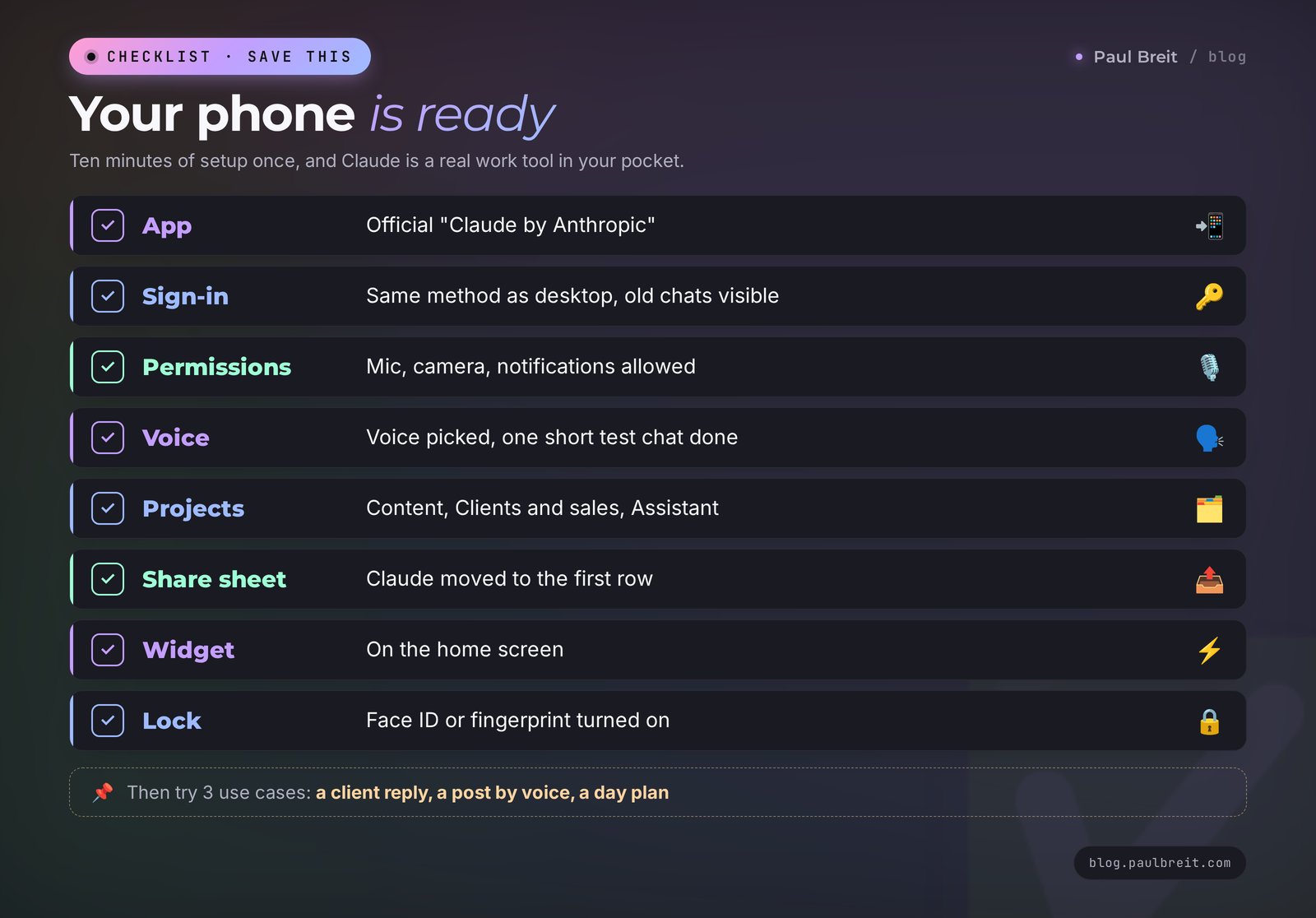
- The official "Claude by Anthropic" app from Anthropic PBC is installed.
- You signed in the same way as on desktop, and your old chats and projects are visible.
- The microphone, camera, and notifications are allowed.
- A voice is picked, and voice mode is tested with one short conversation.
- The "Content," "Clients and sales," and "Personal assistant" projects are set up with your materials.
- Claude is moved to the first row of the Share sheet.
- The Claude widget is on your home screen.
- Face ID or a fingerprint lock is turned on.
- You tried three scenarios from Section 11: a client reply, a post by voice, a day plan.
Section 17The whole path in one minute
- Sign up on claude.ai from your computer and note which method you used: Google, Apple, or email.
- Download "Claude by Anthropic" from the App Store or Google Play. Check that the developer is Anthropic PBC.
- Sign in the same way as on your computer.
- Allow the microphone, camera, and notifications, and pick a voice.
- Add the widget and move Claude up in the Share sheet.
- Set up three projects and fill them on your computer.
- Every day, handle at least one task from your phone: a client reply from a screenshot, a post by voice, a day plan.
- After a week, decide whether the free plan is enough.
That's it. After a week of this, you'll notice your phone stopped being just a feed and a messenger. It becomes a workplace where an idea turns into a finished post, and a hesitant client gets an answer while they're still warm. If you want to go further and understand how Claude works as a whole, start with the guide Claude from scratch: a complete guide for non-techies.
FAQFrequently asked questions
Is there a Claude app for phones?
Yes. The official free app "Claude by Anthropic" from developer Anthropic PBC is available for iPhone and iPad in the App Store and for Android in Google Play. It runs on the same account as claude.ai and shows all your chats and projects.
How do I install Claude on iPhone?
Open the App Store, search for "Claude," and pick "Claude by Anthropic" from Anthropic PBC. Tap Get, open the app, and sign in the same way you signed up on claude.ai: Apple, Google, or email with a code. Then allow the microphone and notifications.
How do I install Claude on Android?
Open Google Play, find "Claude by Anthropic" from Anthropic PBC, and tap Install. If the store says the app isn't available in your country, check the country of your Google payments profile. Don't download APK files from third-party sites.
Why can't I see my chats in the Claude app?
You most likely signed in with a different method and created a second, empty account. Log out and sign in exactly the way you do on your computer: the same Google account, the same Apple ID, or the same email. Your chats and projects are in the original account.
Is the Claude app free?
Yes, the app itself is free. The free plan has a daily message limit shared between your phone and computer. Pro costs $20 a month, or $17 a month billed yearly, and works on all your devices at once.
Does Claude have voice mode on the phone?
Yes. The app has two ways to use your voice: dictation turns speech into the text of a message, and voice mode gives you a spoken conversation. Voice mode is available on every plan, there are five voices to choose from, and you can talk hands-free or hold a button.
Do chats sync between my phone and computer?
Yes, as long as you're signed in to the same account with the same method. Chats, projects, personal instructions, and memory are shared across the website, the desktop app, and the phone app.
Can Claude on my phone read photos and screenshots?
Yes. Tap "+" to take a photo of a document or attach a screenshot from your library. Claude reads the text and breaks down a chat, a competitor's post, a web page, or handwritten notes. Blur clients' personal data on screenshots before sending.