How to Customize ChatGPT: Step-by-Step Settings Guide
Here is how to customize ChatGPT in about 15 minutes and save hours later. You tell it once who you are, who you work for, and how answers should sound, pick a base style, and clean up its memory. After that, every new chat starts with your context, and you stop explaining that "keep it short" means three paragraphs. Below: every setting step by step, an instruction template, and a test prompt.
To customize ChatGPT, click your profile picture, open Settings → Personalization, turn on Enable customization, and fill in ChatGPT custom instructions: who you are and how to answer. On the same screen, pick a base style and tone and review memory. It all works on the Free plan. The instruction limit is 1,500 characters on Free and Go and 5,000 on Plus and Pro.
What's inside
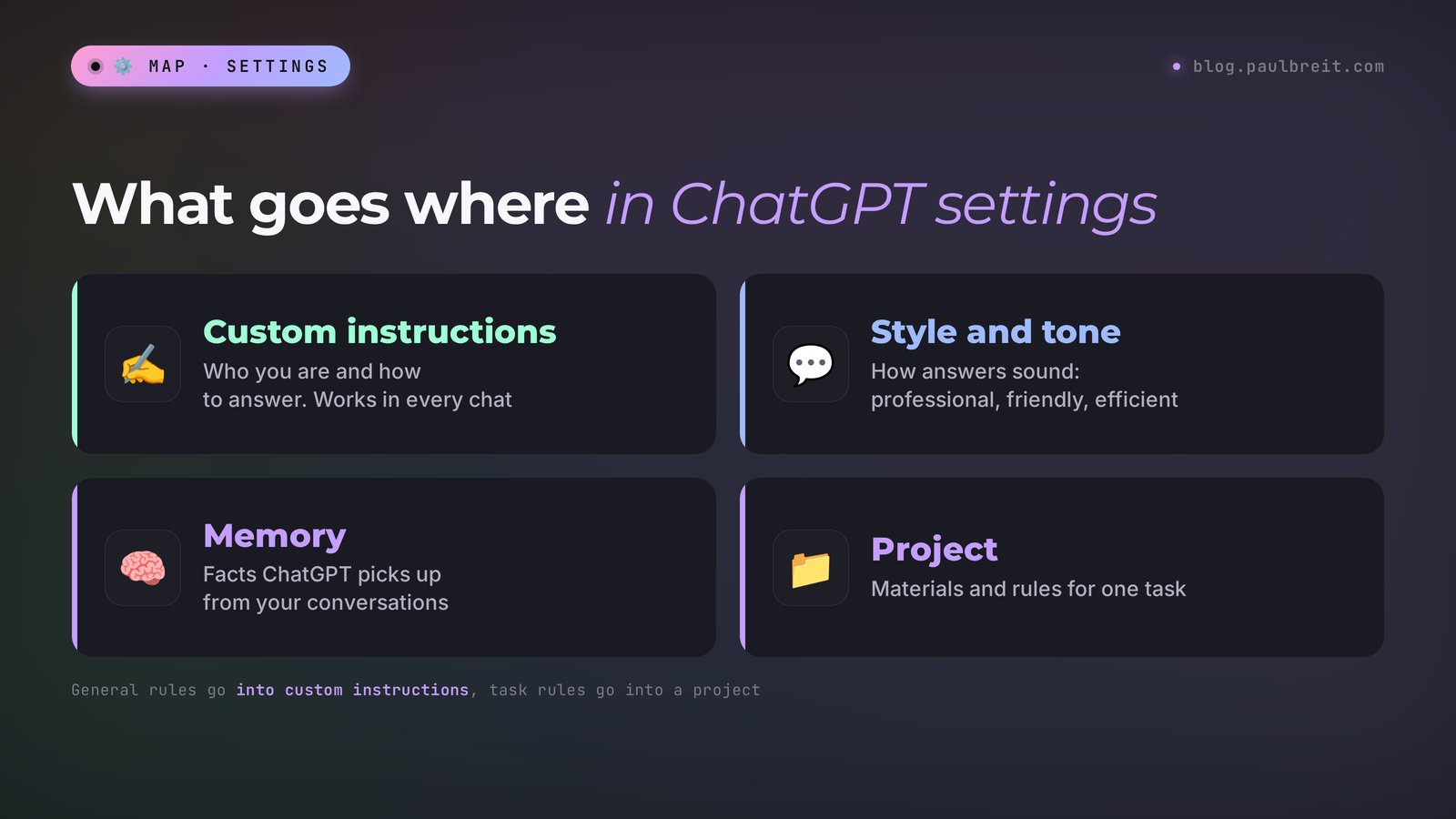
What you can customize in ChatGPT
Out of the box, ChatGPT answers everyone the same way: polite, long, with lists and headings where two sentences would do. It doesn't know you're a nutritionist in Austin whose clients are new moms, so you explain it again in every chat.
Four settings fix that, all in Personalization.
| Setting | What it does | Where it applies |
|---|---|---|
| Language | The language of menus and buttons | The whole interface |
| Custom instructions | Who you are, who you work for, how to answer | Every chat, including existing ones |
| Base style and tone | The personality of answers: professional, friendly, efficient | Every chat |
| Memory | Facts about you that ChatGPT picks up from conversations | Every chat except temporary ones |
You write instructions yourself, and they always apply. ChatGPT builds memory on its own, and you review and clean it. ChatGPT Projects are a separate tool, covered below.
Step 1. Interface and answer language
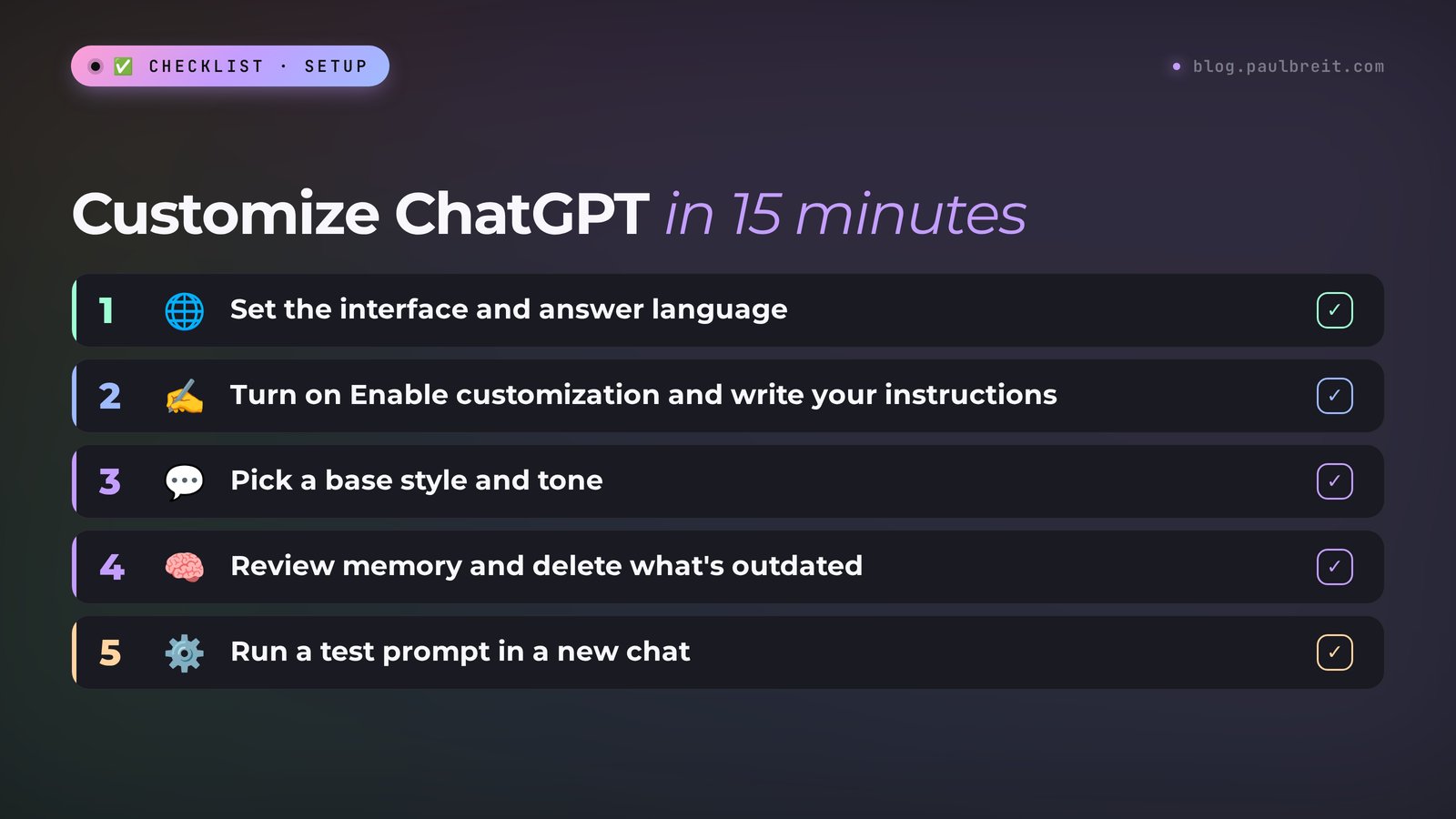
Click your profile picture, open Settings → General → Language, and pick the one you want. Auto-detect follows your browser language.
The interface language doesn't lock the language of answers. Paste a Spanish review or a German link, and ChatGPT may switch. To stop that, add a line to your instructions: "Always answer in English, even if I send text in another language."
Step 2. ChatGPT custom instructions
This is the main setting. Custom instructions are text ChatGPT takes into account in every answer. Per OpenAI's help center, they apply to all chats at once, including ones in progress, on every plan, on web, desktop, iPhone, and Android.
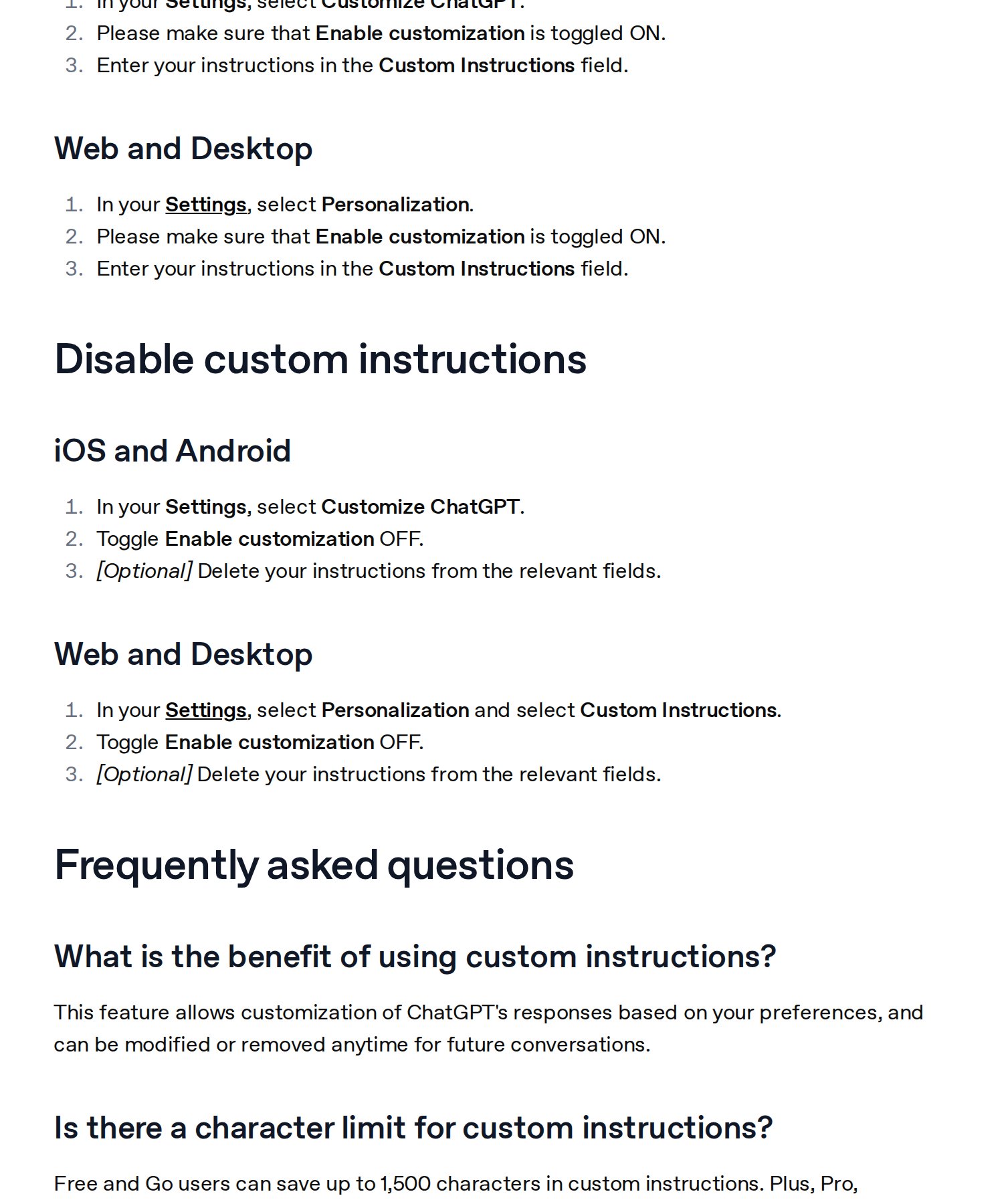
Open Personalization
In the browser and the desktop app: profile picture → Settings → Personalization. On your phone: profile picture → Customize ChatGPT.
Turn on Enable customization
While it's off, ChatGPT ignores everything below it. This is the most common cause of "it ignores my instructions."
Write your instructions in the Custom instructions field
One field holds it all. The limit is 1,500 characters on Free and Go, and 5,000 on Plus, Pro, and business plans. The same screen may also ask for your name and occupation.
Save and open a new chat
Changes apply right away. Test them in a new chat.
Good instructions answer four questions: who you are, who your clients are, how to write, and what not to do. This template fits the free 1,500-character limit:
About me: I'm a [profession], I work with [who], I sell [service, course, consulting] for [price]. Location or format: [online / city].
My clients: [who they are, what problem they have, what they want].
How to answer:
- always in English;
- short and to the point: the answer first, then the explanation;
- plain words, no corporate jargon, no exclamation marks;
- use a table or list when it helps, but skip extra headings.
What not to do:
- don't make up numbers, facts, or testimonials: if data is missing, ask me;
- don't praise my question or repeat it back before answering.
Write social media posts in a lively way, as if I'm telling a friend, and never use the words "unique", "exclusive", or "let's dive in".
The most useful line is "don't make up numbers, ask me." Without it, ChatGPT happily invents "87% of clients see results in a week."
I filled in the template for a nutritionist who runs a $59 online nutrition challenge and ran the prompt "Write a launch post for the challenge" on Claude Opus 5.5, with this text as the instruction. I had no ChatGPT account access for this test, and the instruction logic is the same in both. The answer started straight with the post, with no "Great question!" and no exclamation marks. The template had no start date, so at the end the model asked: "When does the challenge start and how many days does it run? I'll add it to the post." The post contained no invented numbers or testimonials.
Step 3. Base style and tone
Next to the instructions there's a dropdown called Base style and tone: ready-made personalities that set how ChatGPT talks to you. Path on web and in the app: profile picture → Personalization → Base style and tone.
| Style | How it answers | Good for |
|---|---|---|
| Default | Clear and neutral | When you don't want to choose |
| Professional | Formal, precise, business language | Emails to partners, documents, contracts |
| Friendly | Warm and conversational, asks follow-up questions | Planning, decisions, thinking out loud |
| Candid | Honest and direct, names risks and gives a next step | Reviewing an offer, a draft, a launch plan |
| Quirky | Playful, with humor and unexpected comparisons | Brainstorming, content ideas |
| Efficient | The answer first, then brief steps, no extra words | Checklists, how-tos, quick questions |
| Cynical | Dry and sarcastic, still with a practical answer | People who find it more fun |
For work, I'd pick Candid or Efficient. Candid points out holes in your sales copy and suggests fixes; Efficient saves reading time.
The style changes only the manner of speech, and ChatGPT's skills stay the same. In emails and posts, tone follows the task and your instructions, so the style barely shows there. Per OpenAI's help center, instructions and memory can override it: tell it "write strictly and formally," and Quirky almost stops joking.
Step 4. Memory
Memory is what ChatGPT remembers about you on its own. Mention that you only work until lunch, and a week later another chat may take it into account. Handy, until memory fills up with junk: an old price, a closed project, a joke it took seriously.
Open memory settings
Settings → Personalization → Memory. Toggles vary by plan and region; most people see Reference saved memories and Reference chat history.
See what ChatGPT knows about you
Open Manage, or just ask: "What do you remember about me? List it."
Delete what's outdated
Delete items from the list, or write: "Forget that I run a yoga challenge, I closed it." Wrong memories get corrected the same way.
Ask it to remember the essentials
Write: "Remember: my consultations are 60 minutes, the price is $65, and clients book through direct messages on Instagram." This goes into saved memories.
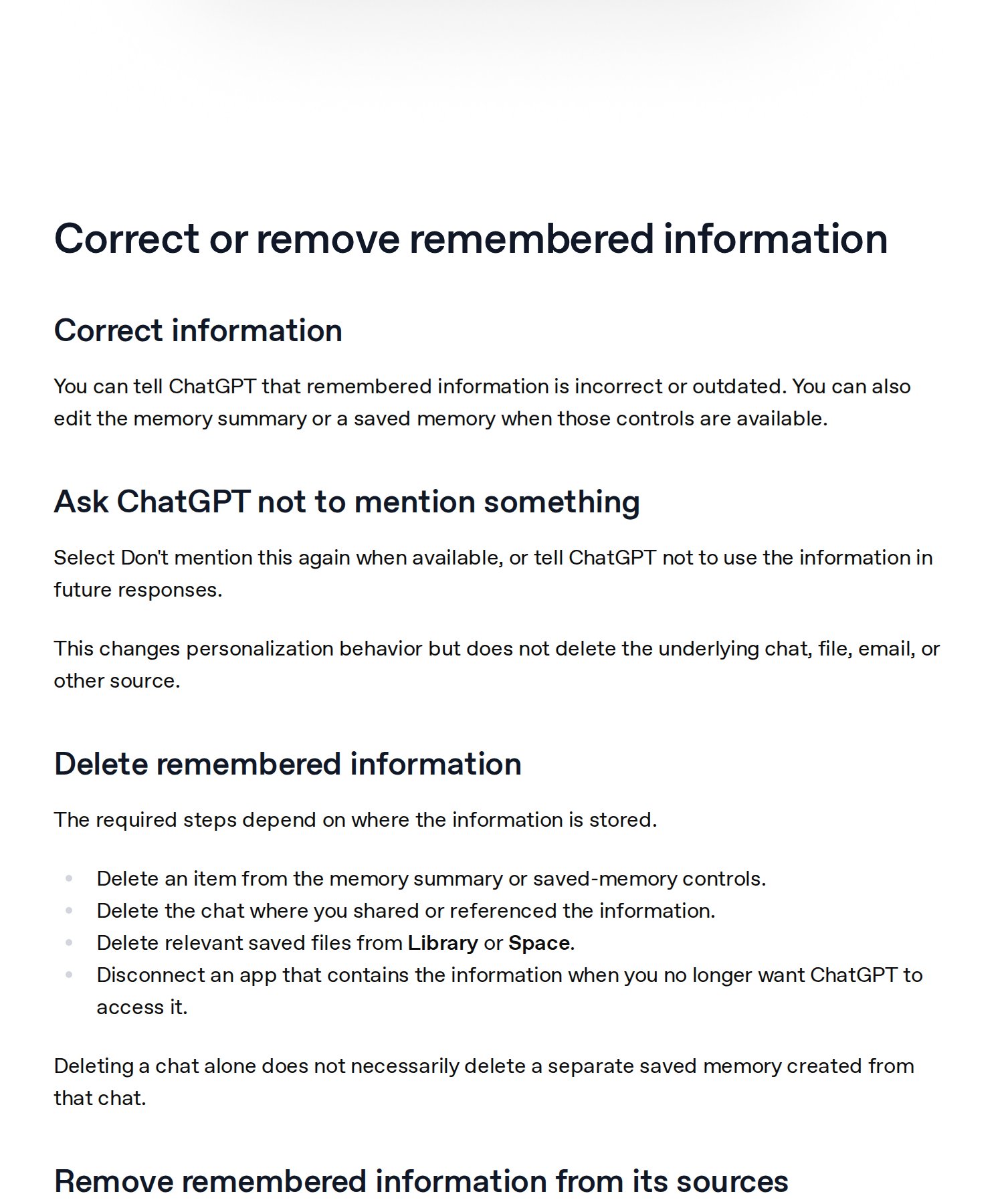
Easy to miss: deleting a chat isn't enough. A saved memory lives separately from its chat and stays after the chat is gone. Delete both. If you turn off Reference chat history, whatever ChatGPT took from past conversations is deleted from OpenAI's servers within 30 days, while the chats themselves stay in your history.
For conversations that shouldn't reach memory (someone else's data, a one-off question), use a temporary chat from the button at the top of the window. It doesn't add to memory or history.
Step 5. Test your settings
Open a new chat and paste this test prompt.
Briefly summarize what you know about me from my instructions and memory: who I am, who my clients are, how you should answer me. Then write a 100-word post about my main service in the style I set.
What to look for in the answer:
- the summary includes your profession, clients, and answer rules, so the instructions work;
- no old facts you deleted, so memory is clean;
- the post has no banned words or invented numbers, so the tone holds.
Missing pieces mean your instructions are too long or vague. Keep one rule per line.
When general settings aren't enough: projects
Custom instructions apply everywhere, which suits the general stuff. But if you run a blog, prepare a launch, and write for two clients at once, one set of instructions won't cover it all.
That's what projects are for: a folder for one task with its own instructions and files. Project instructions apply only inside the folder and override your general ones. The rule of thumb: general rules go into custom instructions, task rules go into a project. The full walkthrough is in my guide to ChatGPT Projects. People used to build a custom GPT for this; for personal work, a project is now easier.
Using Claude too? Same logic, different buttons: see memory in Claude and Claude Projects.
Customizing ChatGPT on your phone
Settings sync across devices. On your phone, tap your profile picture, then Customize ChatGPT for instructions and Personalization for style and memory.
Long instructions are easier to write in your notes app and paste in. App setup is covered in ChatGPT on your phone.
Can you customize ChatGPT for free?
Yes. Everything above works on Free; paid plans add capacity. Prices in euros as listed on chatgpt.com/pricing from Europe, checked Nov 19, 2026:
| Plan | Price per month | Instructions | Memory |
|---|---|---|---|
| Free | 0 | up to 1,500 characters | limited |
| Go | €8 | up to 1,500 characters | longer than Free |
| Plus | €23 | up to 5,000 characters | expanded |
| Pro | from €103 | up to 5,000 characters | maximum |
In the US, OpenAI's help article "What is ChatGPT Plus?" lists Plus at $20 a month (checked Nov 19, 2026). I couldn't confirm Go and Pro in dollars, so check chatgpt.com/pricing for your country.
Free is enough to start: 1,500 characters hold this template. Plus makes sense once ChatGPT is a daily work tool. Still choosing? Read Claude vs ChatGPT.
Troubleshooting ChatGPT customization
| Problem | Cause | What to do |
|---|---|---|
| ChatGPT ignores your instructions | Enable customization is off | Turn it on in Personalization and open a new chat |
| Long instructions won't save | Over the limit: 1,500 characters on Free and Go | Cut it down: one rule per line, no introductions |
| Answers in the wrong language | You sent text or a link in another language | Add "Always answer in English" to your instructions |
| Brings up an old price or a closed project | An outdated memory | Delete it in Memory → Manage, or write "Forget that…" |
| No Memory section or toggles | Features depend on plan and region | Update the app, check in the browser at chatgpt.com |
Everything in one minute
Four settings in Personalization: language, custom instructions, base style and tone, and memory. The key piece is 8–12 lines of instructions ending with "don't make up numbers, ask me." It's free and syncs to your phone.
Cheat sheet: how to customize ChatGPT
1. Profile picture → Settings → General → Language.
2. Personalization → turn on Enable customization.
3. In Custom instructions write: who I am, my clients, how to answer, what not to do.
4. Add the line: "Don't make up numbers or facts. If data is missing, ask me."
5. Base style and tone: Candid for reviewing copy or Efficient for quick answers.
6. Memory: ask "What do you remember about me?" and delete what's outdated.
7. Ask it to remember the essentials: services, prices, how clients book.
8. When you delete a chat with personal data, delete the memory from it too.
9. New chat: "Summarize what you know about me and write a post in my style."
10. Task-specific work (a client, a launch) goes into a separate project with its own instructions.
Sources
- ChatGPT Custom Instructions (OpenAI Help Center), checked Nov 19, 2026
- Customizing Your ChatGPT Personality (OpenAI Help Center), checked Nov 19, 2026
- Memory in ChatGPT (OpenAI Help Center), checked Nov 19, 2026
- What is ChatGPT Plus? (OpenAI Help Center), checked Nov 19, 2026
- ChatGPT Pricing (opened from Europe), checked Nov 19, 2026
Frequently asked questions
Where are custom instructions in ChatGPT?
On the web: profile picture, Settings, Personalization. On your phone: profile picture, Customize ChatGPT. Turn on Enable customization, or the instructions won't work.
Can I customize ChatGPT for free?
Yes. Custom instructions, base style and tone, and memory are all on the Free plan, with a 1,500-character instruction limit and less memory. Plus raises the limit to 5,000 characters.
How do I make ChatGPT always answer in English?
Set English under Settings, General, Language, and add this line to your custom instructions: "Always answer in English, even if I send text in another language."
How do I delete what ChatGPT remembers about me?
Open Personalization, Memory, Manage and delete what you don't need, or write "Forget that…" in a chat. Deleting a chat doesn't erase a memory created in it, so delete the memory separately.
What is the difference between custom instructions and memory?
You write custom instructions yourself, and they apply in every chat. ChatGPT builds memory on its own from your conversations, and you review, correct, and delete it.