OpenAI Codex: What It Is and How to Use It Without Coding
OpenAI Codex is an AI agent that opens the files on your computer, writes code, builds pages and spreadsheets, and shows you the finished result. In 2026 it lives right inside the ChatGPT app, and you don't need to know any code: you describe the task in words, Codex does it. I'll show you how to open it, which plan actually makes it useful, and which five tasks to give it on your very first evening.
OpenAI Codex is an AI agent that does tasks on your computer: it builds websites and pages, sorts through spreadsheets and files, and makes small programs from a description in plain words. To use it without coding, download the ChatGPT app from chatgpt.com/download, sign in, pick Codex in the menu at the top, open a separate folder for the task, and describe the result you want. Start in Ask for approval mode: Codex will ask your permission before every risky action. Codex comes with every ChatGPT plan, but you'll get real work done with Plus at $20 a month.
The word "Codex" sounds scary. It feels like something for programmers: a black screen, commands, error messages. A few years ago that was true. Today Codex opens in the same window where you chat with ChatGPT, and it talks to you in plain English.
The difference from a regular chat is one, and it's huge. ChatGPT advises you on how to do something. Codex does it itself: it creates files, builds the page, checks that it opens, and shows you the result. You stay the client who explains the task and signs off on the work.
Everything below about plans, the app, and work modes I checked on November 7, 2026 against OpenAI's official pages. The links are right in the text so you can verify it yourself.
Section 01What Codex is, in plain words
Codex is an AI agent from OpenAI, the same company that made ChatGPT. What sets an agent apart from a chatbot is that it has hands. It can open a folder on your computer, read the files in it, create new ones, run a check, and fix whatever broke.
Picture an assistant you've sat down at your laptop. You say: "Make a page describing my consultation, here's the text and the photo." The assistant creates the page file, drops in the text, picks a design, opens it in the browser, checks that everything lines up, and says: "Done, take a look." If you don't like something, you just say so: "Make the button green and bigger." It makes the change.
Under the hood Codex writes code. You don't need to read that code, the same way you don't need to understand an engine to call a cab. You judge the result with your own eyes: did the page open, are the numbers in the spreadsheet right, are all the files in place.
Where Codex lives in 2026
Over the past year OpenAI moved Codex around several times, so old instructions often get it wrong. Right now, according to OpenAI's official guide, the picture looks like this:
- The ChatGPT desktop app (Mac, Windows, Linux). This is your main option. You pick Codex from the drop-down menu at the top of the window, right next to regular ChatGPT.
- ChatGPT in the browser. Works with nothing to install, but has no access to the folders on your computer. Awkward for your first steps.
- Codex CLI and the code editor extension. These are versions for programmers, with commands in a terminal. You won't need them.
- Codex Cloud. Tasks that run on OpenAI's servers with a connected code repository. Also a developer tool.
Remember one thing: you need the ChatGPT desktop app and the Codex item in its menu. You can skip everything else.
Section 02How Codex differs from regular ChatGPT
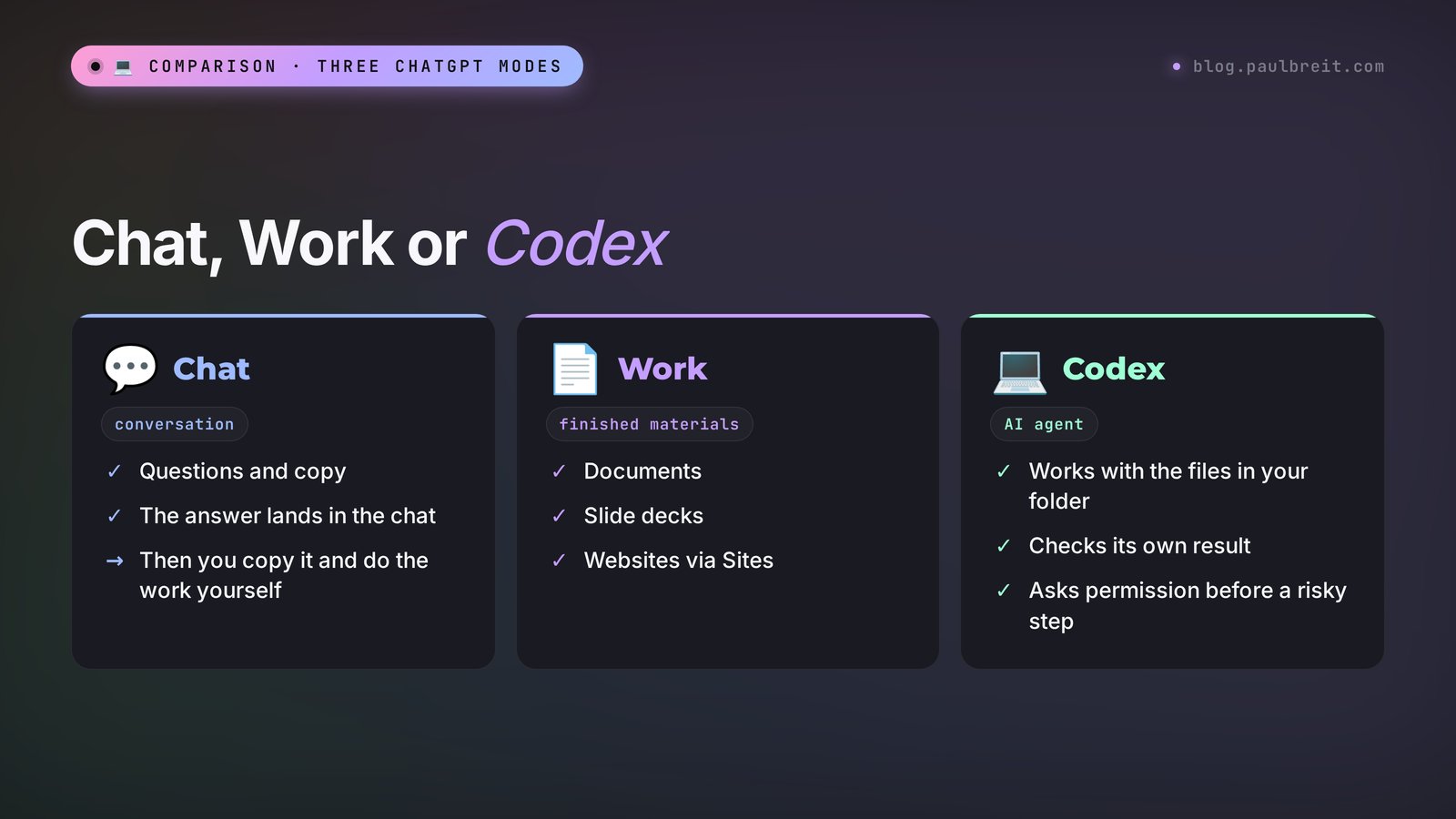
The ChatGPT app now has three modes, and beginners mix them up. Here's how they differ in practice.
| ChatGPT, Chat mode | ChatGPT, Work mode | Codex | |
|---|---|---|---|
| What it's for | Questions, copy, ideas | Documents, slide decks, spreadsheets, websites via Sites | Tasks with files and code in your folder |
| What you get | An answer in the chat | A finished file or document | Files in a folder on your computer: pages, spreadsheets, scripts |
| Access to your files | Only what you attached | Project files and attachments | The whole chosen folder: reads and changes it |
| Checks its own work | No | Partly | Yes: runs it, opens it, fixes errors |
| Who it suits | Everyone | Everyone | Anyone whose task is about files, pages, automation |
A simple rule for choosing. Need copy or advice – regular chat. Need one document or a slide deck – Work mode. Need the AI to work with your files on its own, assemble something from several parts, and check that it works – Codex.
A real-life example. You're a nutritionist with 40 client intake forms in Word sitting in a folder. In a regular chat you'd attach them one by one and copy the answers. Codex opens the folder, reads all 40 files, builds one combined spreadsheet with "name, goal, restrictions, date," and saves it right next to them. One request instead of an evening of manual work.
Section 03What Codex does with no programming
Below are tasks Codex handles from a description in plain words. I picked the ones that come up for people who sell services, courses, and consulting.
- A service or lead magnet page. You hand over the text, a photo, and your color preferences. Codex builds a page that opens in the browser and looks fine on a phone.
- Order in your files. Rename 300 event photos by date, sort receipts by month, find duplicates. By hand that's hours; Codex does it in minutes.
- A summary spreadsheet from scattered files. Lead exports, intake forms, reports from different services. Codex pulls them into one spreadsheet and calculates the totals.
- A calculator or quiz for your site. "Calculate the cost of a nutrition program," "Find your anxiety type in 7 questions." Codex builds a mini app you can put on a page.
- A slide deck as a web page. Slides you flip with the arrow keys, that open from a link and look the same on any device.
- Analysis of an ad or sales export. Codex reads the file, finds which ads bring in leads, and draws charts.
- A live website. With the Sites feature, Codex builds a site and publishes it at a link, with no separate hosting. More in Section 10.
- Repetitive routine. If you do the same thing with files every week, Codex describes that sequence once as a skill and then runs it on a single command.
What Codex won't do on its own. It won't create accounts for you in other services, won't pay for a domain, and won't get into your CRM until you connect it. And don't hand it anything you can't check with your own eyes. If you're not sure whether the result is right, first ask Codex to explain what it did in plain words.
One more limitation that's worth knowing up front. If you need a bot that answers clients around the clock, Codex will write it, but the bot needs somewhere to run all the time: a server that's always on. Your laptop won't do. I broke down how a bot like that works in the article on a Telegram bot without a programmer.
Section 04Codex plans and limits in 2026
There's no separate Codex subscription. According to OpenAI's official Codex pricing page, it's included in every ChatGPT plan: Free, Go, Plus, Pro, Business, and Enterprise. The difference is how much work you can get done.
| Plan | Price per month | What you get in Codex |
|---|---|---|
| Free | $0 | Trial access: try how Codex works |
| Go | $8 | The same trial access, more messages in the regular chat |
| Plus | $20 | Expanded access, the Codex app for Mac and Windows, plugins |
| Pro | from $100 | Maximum tasks, the strongest GPT-6 models for long work |
Source: chatgpt.com/codex/pricing. For Free and Go, OpenAI says "Test Codex Capabilities," meaning trial access. The Plus description lists "Expanded Codex usage" and "Build with the Codex app for macOS and Windows"; the Pro description says "Maximum Codex tasks." The prices, $20 for Plus and from $100 for Pro, come from OpenAI's help article on ChatGPT plans.
Limits are counted in messages and depend on the model. On Plus, per the table on the same page, GPT-6.1 Sol gives you 15 to 160 messages per limit window, the most powerful GPT-6 Astra gives 5 to 45, and the lightweight GPT-6 Luna gives 350 to 3,000. The range is wide because one message can be a simple button-color tweak or the build of an entire website. A complex task eats more.
OpenAI also warns that work on your computer and in the cloud draws from one shared allowance, and a weekly limit may apply on top. You can see what's left in Codex settings, in the usage section.
What this means for you in practice:
- You can try it for free and figure out whether it's for you. A couple of tasks is enough to see how Codex works.
- For regular work, get Plus. It covers several relaxed work sessions a week: pages, spreadsheets, and sorting through files.
- Pro makes sense if Codex runs for several hours every day. A beginner doesn't need it.
- Match the model to the task: the lightweight one is enough for simple edits; save the strong one for complex builds.
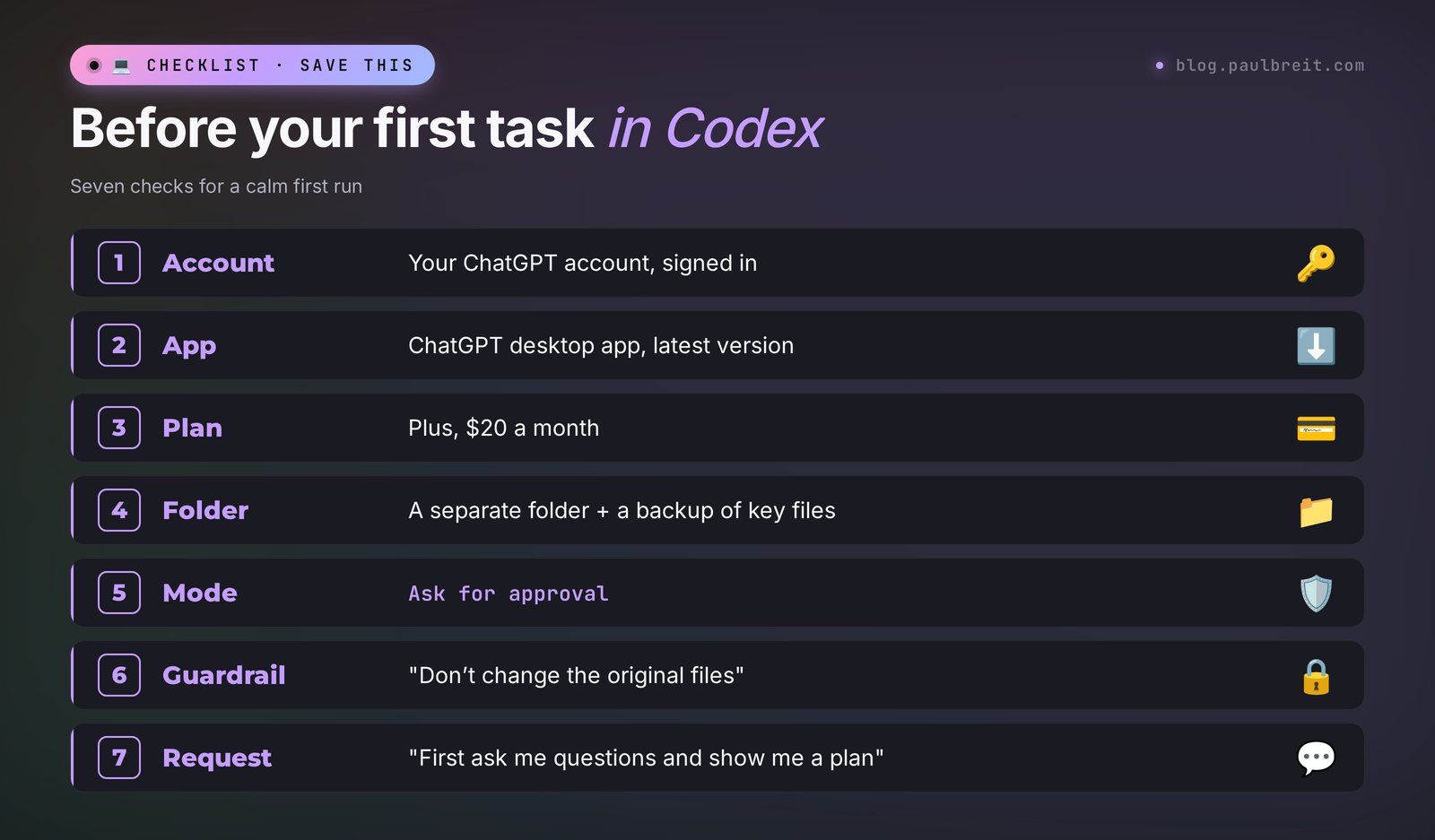
Section 05Before you start: account and plan
The setup takes a few minutes and you only do it once.
- Account. If you already have a ChatGPT account, Codex opens inside it, with nothing extra to sign up for. If you don't, create one at chatgpt.com with your email.
- Phone. Sometimes ChatGPT asks for a phone number to verify the account. Keep yours handy.
- Plan. Free is enough to try Codex. For regular work, upgrade to Plus in your account settings (see Section 04). Codex comes with the same subscription, with nothing extra to pay.
- Region. Codex works in the countries where OpenAI officially operates. The US, the UK, and the EU are on the list.
The desktop app talks to OpenAI's servers the same way the website does. If your connection drops in the middle of a task, Codex stops halfway. No big deal: reconnect and type "continue" in the same chat. But the files in the folder may be half-done at that moment, so keep a separate folder for every task.
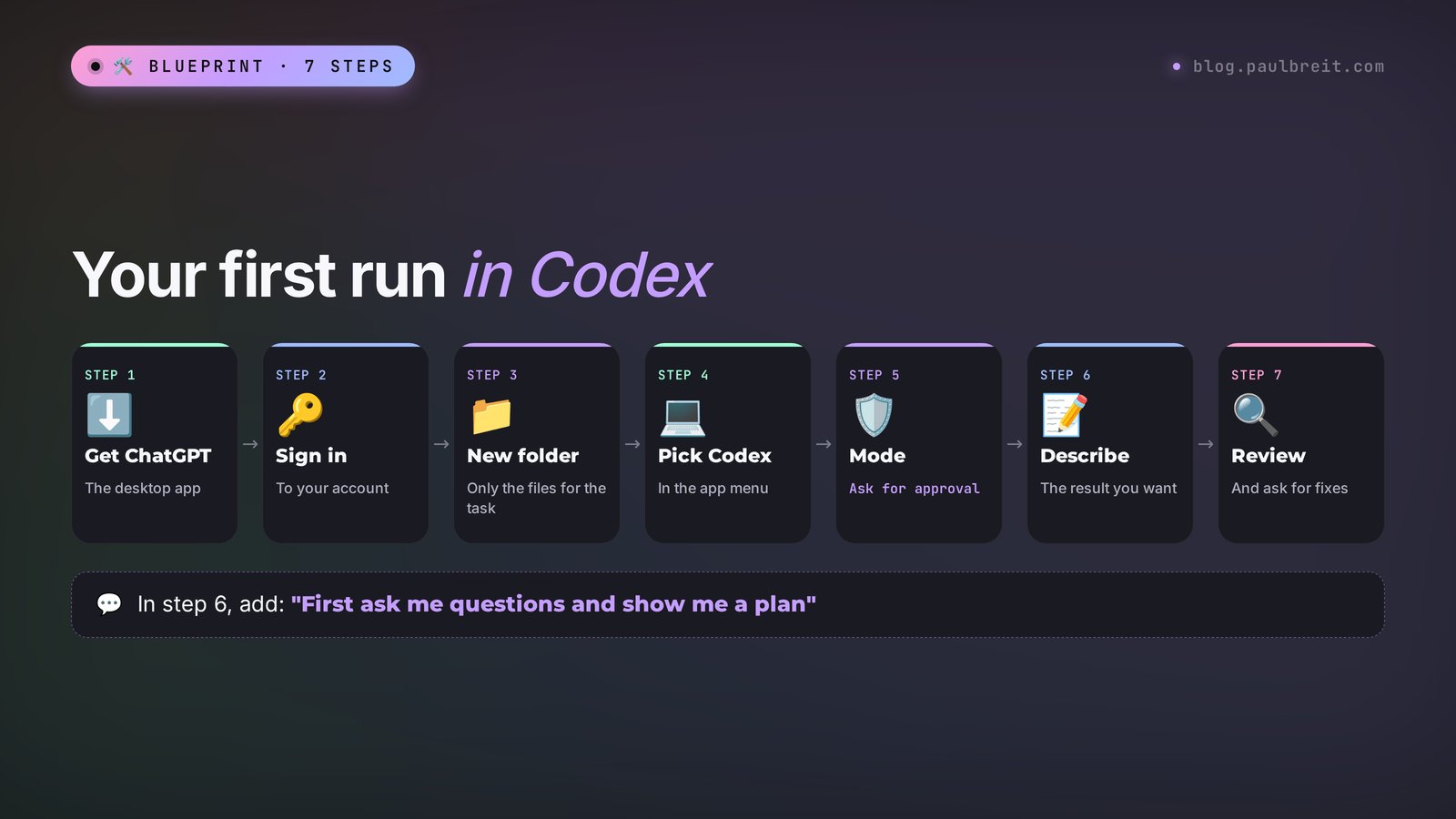
Section 06Step by step: your first run
The whole path from installation to a first result takes about half an hour. The order follows OpenAI's guide to the ChatGPT app, with my notes for beginners.
Step 1. Download the ChatGPT app
Go to chatgpt.com/download and download the version for your computer: Mac or Windows. Install it like any other program. OpenAI has separate instructions for Linux, but if you don't know what Linux is, you don't need it.
Step 2. Sign in to your account
Open the app and sign in with the same account you use on the ChatGPT website. Your subscription carries over automatically. Signing in with an API key is also possible, but that's an option for developers, and some features aren't available with it.
Step 3. Create an empty folder for the task
This is the most important step, and the one people skip most often. Create a regular folder on your desktop, say "Consultation page." Put in it only what the task needs: the text, the photo, the logo.
Why a separate folder. Codex reads and changes the files in the folder you open. If you open all of "Documents," it sees everything, takes longer to figure things out, and might touch something it shouldn't. A folder per task gives you both order and safety.
Step 4. Pick Codex and open the folder
At the top of the app window there's a drop-down menu to switch between ChatGPT and Codex. Pick Codex, click New chat, and point it to the folder you created in Step 3. Now Codex works inside it.
Step 5. Set the cautious mode
Next to the input field there's a permission mode selector. For your first tasks, set Ask for approval. In this mode Codex asks you before changing files outside the folder and before going online. More on the modes in Section 08.
Step 6. Describe the result you want
Write what you want to get at the end, who it's for, and in what form. You don't need to explain how to do it; that's Codex's job. A good first request always ends with "first ask me questions and show me a plan." That way you'll see whether Codex understood the task correctly before it spends your limit.
I'm not a programmer. Explain everything in plain words.

What I want to get: [describe the result, for example:
a page describing my consultation].
Who it's for: [who will use the result].
What's in the folder: [list the files].
How I'll know it's done: [what should open,
show up, or calculate].

First ask me up to 5 clarifying questions.
Then show me a plan of 3–7 steps.
Don't do anything until I write "go."
When you're done, tell me which file to open
and what to check in it.
Step 7. Review the result and ask for changes
When Codex finishes, it tells you what it did and which file to open. Open it and look with your own eyes. Write your edits the way you would to a real contractor: "Make the headline bigger," "Put the price above the button," "On the phone the text runs into the photo." Codex will figure out what to change.
I ran this template myself to show you what kind of answer to expect at the first stage.
Model: Claude Opus 5.5. The template isn't tied to a specific AI: Codex answers it in the same order, questions and then a plan. Inputs: "What I want to get: a page describing my consultation as a therapist. Who it's for: people who come from my Telegram channel. What's in the folder: consultation_text.docx, photo.jpg. How I'll know it's done: the page opens in a browser and on a phone, and there's a booking button."
The model's answer (translated from Russian, otherwise unedited):
Questions:
1. Where should the booking button lead: to your Telegram direct messages, a form, or a calendar? Send me the link.
2. Should the page show the price of the consultation? If so, what is it?
3. Are there colors you use in your channel, or should I pick a calm palette myself?
4. Do you need client testimonials? If so, send 2–3 texts with names and permission to publish them.
5. Is the page for sharing by link, or do you want to put it on your own website?
Plan:
1. I'll read the consultation text and split it into blocks: who it's for, what you work with, how a session goes, price, booking.
2. I'll build an index.html page in this folder and put the photo in the first screen.
3. I'll add a booking button with the link from your answer to question 1.
4. I'll check how the page looks at phone width and fix anything that shifts.
5. I'll tell you which file to open and what to check in it.
Notice question 4: the model remembered on its own to ask about permission to publish testimonials. That's exactly why you start with questions. A five-point plan takes 20 seconds to read, and you see right away if the AI got the task wrong.
Section 07A full first task: a page for a therapist
Let me take the task from the test above all the way to the end, so you see the whole conversation. This is what normal work with Codex looks like: a few short messages. You don't need a perfect request on the first try.
You: paste the template from Step 6 with your inputs.
Codex: asks questions and shows a plan, like in the "Tested" box.
You: "The button leads to my Telegram direct messages, link t.me/yourname. The price is $65 for a 60-minute session. Calm colors, beige and green. No testimonials yet, skip that block. The page is for sharing by link. Go."
Codex: works for a few minutes. Meanwhile, the window shows which files it's creating and what it's checking. In Ask for approval mode it may ask for permission, for example to go online to fetch a font. Read what exactly it's asking for and allow it if the task needs it.
Codex at the end: "Done. Open index.html in the folder. Check: the headline and photo in the first screen, the price in the 'How a session goes' block, the button at the bottom leads to Telegram. On a phone the blocks stack one under another."
You: double-click the file. It opens in the browser. Look at what's off and write it as one list: "1. The photo is too big, make it smaller. 2. Add a booking button to the first screen too. 3. Replace the word 'therapy' with 'consultation' everywhere."
Codex: fixes all three points and again tells you what to check.
Three or four rounds of edits, and the page is ready. To show it to people by link, you have two options: publish it through Sites (Section 10) or ask Codex to prepare the files for your hosting.
A few tips that save your limit:
- Edits as a list in one message. Five separate "and also this" messages cost more than one message with five points.
- A screenshot instead of a description. If something shifted, take a screenshot and paste it into the chat. Codex understands images.
- One task, one chat. New page, new folder, new chat. In a long chat with ten tasks, Codex starts getting confused.
Section 08Permission modes: what a beginner should pick
Codex can change files and go online, so OpenAI built several modes that set how freely the agent acts without your confirmation. Descriptions per OpenAI's help article on permission modes:
| Mode | What it does | When to use it |
|---|---|---|
| Ask for approval | Always asks before changing files outside the folder and before going online | Your first weeks. OpenAI recommends starting with it |
| Approve for me | Asks only about actions that look risky | Once you understand what Codex does and you're tired of clicking "allow" |
| Full access | Full access to the internet and to any file on the computer | A beginner doesn't need it. Don't turn it on for a work computer with documents |
My advice is simple. For the first two weeks, work in Ask for approval and read every request. You'll quickly see that Codex usually asks for sensible things: download a font, install a program it needs to check the page. Once the requests stop surprising you, switch to Approve for me. Leave Full access to programmers.
And one more safety net few people think about. Before you give Codex a folder with important files, make a copy. The chance that something goes wrong is small, but a copy takes ten seconds, and lost client intake forms are gone for good.
Section 09Skills and plugins: Codex remembers your work
The most underrated part of Codex for a non-programmer is skills. A skill is a written instruction for a specific task: how you make posts, how you format a client report, how you name files. You describe it once, and from then on Codex runs it from a single phrase.
According to OpenAI's help article on skills, a skill is a folder with an instruction file and, optionally, examples and templates. Skills work in both ChatGPT and Codex; in the app you'll find them under Skills in the sidebar. In Codex you can call a skill with a $ sign and its name, or just describe the task: Codex will work out on its own that a ready skill fits.
You don't need to write a skill by hand. Tell Codex:
We just made [what we made, for example:
a consultation page]. I'll be making these
regularly for different services.

Turn this work into a skill:
– write down the steps we went through;
– add my edits as rules
  (colors, words, what must always be there);
– save the successful page as a sample.

Give the skill a clear name in plain English
and tell me which phrase calls it.
A plugin is the next level: a package of several skills and connections to services (Slack, GitHub, Figma, and others) that you can install for yourself with one click or share with colleagues. You don't need plugins at the start, but know they exist for when you want to connect Codex to your tools.
Here's how it looks for me. In my "Marketing and AI" program, clients get 21 ready-made skills for Claude Code and Codex: the agent makes posts, edits video, and produces banners, slide decks, and ads using my methods. A skill is built the same way in both agents, so one and the same skill works in either. More on skills themselves in the article on Claude Skills; the principle in Codex is the same.
Section 10A live website with Sites
For a non-programmer, the main barrier used to come at the very end: the page is done, it's sitting in a folder, so how do you show it to people? You had to deal with hosting, a domain, uploading files.
In 2026 OpenAI launched a feature called Sites. According to OpenAI's help article, Sites lets you build, host, and share a site just by describing it in ChatGPT or Codex, and you can start without a single line of code. You can also host something you've already built, with no separate publishing setup.
The kinds of sites OpenAI gives as examples:
- a searchable collection of materials: for example, a library of useful articles and videos for your clients;
- a dashboard with numbers and charts: ad results, sales for the month;
- a tracker: a client's progress through your program;
- a sign-up form;
- a calculator;
- a step-by-step guide: for example, "how to prepare for your first consultation."
For your therapist page this means: after the edits you tell Codex "publish this page with Sites" and get a link you can put in your channel's header. OpenAI keeps the terms, availability, and limits of Sites by plan in its help center and changes them, so check there before any serious launch.
If you need a full website on your own domain, with analytics and a form that sends leads to your Telegram, that's a different level. I covered how an AI builds a site like that in the article on vibe coding, and a ready-made service that builds sites from a description in the Lovable review.
Section 11Six ready tasks for different niches
For your first week with Codex to bring real value, take a task from your own niche. Below are six working options. Paste each one into the template from Step 6.
| Niche | Task for Codex | What to put in the folder |
|---|---|---|
| Therapist | A consultation page with a booking button | Text about the consultation, a photo, a booking link |
| Nutritionist | A summary spreadsheet of client intake forms | Forms in Word or PDF |
| Tutor | A knowledge-level test with scoring | A list of questions with the correct answers |
| Coach | A 6-question quiz: "which program is right for you" | A description of your programs |
| Online school | A monthly lead report with charts | Lead and payment exports in Excel |
| Photographer | Rename photos and sort them by shoot and date | The folder with photos |
For the lead report, here's a ready wording you can use as is:
I'm not a programmer. Explain in plain words.

The folder has exports of leads and payments
for the month. Build a report in one file
that opens in a browser:
– how many leads came in each day;
– which sources bring the most leads;
– how many leads turned into payments;
– three takeaways: what works, what doesn't,
  what to try next month.

Don't change the original files, work with copies.
If the data has gaps or strange values,
show them to me first.
First ask me questions and show me a plan.
The line "don't change the original files" is the safety net from Section 08 in a single phrase. Get used to adding it to every task that involves valuable data.
The line about gaps and strange values is there because exports from different services are almost always messy: empty cells here, a payment recorded twice there. If Codex quietly "fixes" them, the report will look great and be wrong. Let it show you first, and you make the call.
Section 12If something goes wrong
The most common first-evening problems and what to do about them.
There's no Codex item in the menu. Make sure you opened the desktop app (the website in a browser can't work with folders) and that it's updated to the latest version. On the free plan, access is a trial and may be limited.
The app won't sign in or shows a network error. Check your internet connection and restart the app. If you're on a VPN or a corporate network with a firewall, make sure the ChatGPT app is allowed through.
Codex did the wrong thing. Don't start over. Write in the same chat what exactly is off, and ask it to first restate the task in its own words. Nine times out of ten, the first request was missing one detail.
Codex is "stuck" and hasn't written anything for a while. Wait a couple of minutes: big tasks take time. If nothing changes, stop the task with the button in the window and write "tell me where you stopped and why."
You've hit the limit. Codex will tell you when the limit resets. While you wait, switch to a lighter model for small edits. If you run out every week, that's a sign Codex has become a working tool and it's time to think about a higher plan.
The page opens, but on a phone everything is off. Take a screenshot on your phone, move it to your computer, and paste it into the chat with "this is how it looks on a phone, fix it." That works faster than any description.
Codex asks to install something, and it makes you nervous. Ask directly: "What is this program, why do you need it, and what happens if I say no?" Codex will explain. If the answer is unclear, say no: it will look for another way.
You don't understand what Codex did. Ask: "Explain what you did as if I were 12, and show me which files appeared." You don't have to understand the code, but it's worth understanding what's in your folder.
Section 13Codex or Claude Code
Codex has a direct counterpart from Anthropic: Claude Code. Both agents work with the files on your computer, both support skills, both handle a non-programmer's tasks. The choice usually comes down to where you already have a subscription.
- Already paying for ChatGPT Plus – start with Codex. It's included in your subscription, with nothing extra to buy.
- Already paying for Claude Pro – start with Claude Code. There's a step-by-step guide in the article on how to use Claude Code, and why a non-programmer needs it in Claude Code for non-coders.
- Not paying for anything yet – try Codex's free access. Then compare which AI suits you better in writing and style. The article Claude vs ChatGPT in 2026 helps here.
There's also a third option for anyone who wants a visual editor instead of a chat: Cursor. It's closer to a developer program with an AI inside, and beginners find it harder than Codex.
You can also work with both agents at once: their skills follow the same open standard, and a skill you built in one usually carries over to the other.
RecapThe whole path in a minute
- Codex is an OpenAI agent that works with the files in a chosen folder on its own and checks the result.
- It's built into the ChatGPT desktop app; you pick it in the menu at the top of the window.
- It's included in every plan, but real work takes Plus at $20 a month.
- Before you start: your ChatGPT account, the desktop app, and the Plus plan for regular work.
- A separate folder for every task, and a copy of any important files.
- Ask for approval mode for the first few weeks.
- Your request describes the result and ends with "first ask me questions and show me a plan."
- Turn successful work into a skill; publish your site with Sites.
FAQFrequently asked questions
Is OpenAI Codex free?
Codex is included in every ChatGPT plan, including the free one, but on Free and Go the access is a trial: enough to try a couple of tasks. For regular work you need Plus at $20 a month, which has expanded limits and the Codex app for Mac and Windows.
How is Codex different from ChatGPT?
ChatGPT answers in the chat and advises you on how to do something. Codex works with the files in a folder on your computer: it creates pages, spreadsheets, and programs itself, runs them, checks them, and fixes errors. Both live in the same app and the same subscription.
Do I need to know how to code to use Codex?
No. You describe the task in plain words, and Codex writes the code itself. Your job is to explain what result you need and check it with your own eyes. Ask Codex to explain everything in plain words, and it will.
Do I need a separate subscription for Codex?
No. There's no separate Codex subscription: it's included in every ChatGPT plan, from Free to Enterprise. The plan only changes how much work you can get done. Plus at $20 a month is enough for regular work; Pro from $100 is for people who run Codex for hours every day.
Where do I download Codex?
You don't need a separate download: Codex is built into the ChatGPT desktop app. Download it at chatgpt.com/download, sign in, and pick Codex in the menu at the top of the window. The terminal and code editor versions are only for programmers.
Which is better: Codex or Claude Code?
Both agents handle similar tasks and support skills. If you already pay for ChatGPT Plus, start with Codex; if you pay for Claude Pro, start with Claude Code. The difference usually comes down to whose writing and style you like better.