Cursor AI: an app and a bot without a developer in 2026
Cursor AI is a code editor with a built-in AI agent: you describe the task in plain words, and it creates the files, installs what's needed, and runs the finished result. Below is a step-by-step guide for everyone who sells services, courses, and consulting: what changed in Cursor after SpaceX bought it, what it costs after October 12, 2026, and how to build a lead intake bot and a price calculator for your site in one evening.
Cursor AI is a code editor with an AI agent that builds apps, bots, and websites from a plain-language description. Download it from cursor.com, open an empty folder, give the agent a task such as "build a Telegram bot that collects leads and sends them to me," and click "Run" whenever the agent asks to run a command. The free plan covers your first projects; paid plans start at $8 a month. Claude and GPT models are billed on top of any plan at API prices, so set a spending limit before you use them.
A therapist who needs a booking bot. A tutor who wants a lesson price calculator on their site. A coach, a nutritionist, a fitness trainer, the owner of a small online school – anyone tired of waiting weeks for a developer and paying $400 for something simple. You won't write code. You will have to explain clearly what you want, and that's a skill you build in a couple of evenings.
What's inside
- What Cursor is, in plain words
- What changed in 2026: SpaceX and new plans
- Account, access, and payment
- Cursor, Claude Code, or Lovable
- Install and first launch
- The screen: four zones
- Project rules: teach the agent your taste
- Project 1: a Telegram lead bot
- Project 2: a price calculator for your site
- How to talk to the agent: 8 techniques
- Keeping the bot running 24/7
- If something goes wrong
- 7 beginner mistakes
- The whole path in a minute
A couple of years ago there was only one way to do this. You need a booking bot – you find a developer, explain the task, wait a week, get something roughly like what you asked for, and spend another week on fixes. Want to change one question in the bot? Message the developer again and wait again.
Cursor breaks that loop. You open the app, type "build a bot that asks for a name, a phone number, and a good time to call, and sends the request to me," and a few minutes later the bot is answering in Telegram. Want to change a question? One sentence to the agent. Seriously, the whole edit takes less than a minute.
But in 2026 there's a lot of confusion around Cursor. SpaceX bought the company and the plans changed on October 12. So first, an honest look at what's going on with Cursor right now, what it costs, and who it actually suits. Then we'll build two working projects from scratch. If building software with words is new to you, start with the overview of vibe coding – it gives you the big picture.
Section 01What Cursor is, in plain words
Cursor is a code editor. Developers build apps in tools like this: a file list on the left, the program text in the middle, a command window at the bottom. Cursor is built on VS Code, the most popular free editor, so it looks like a developer's workspace.
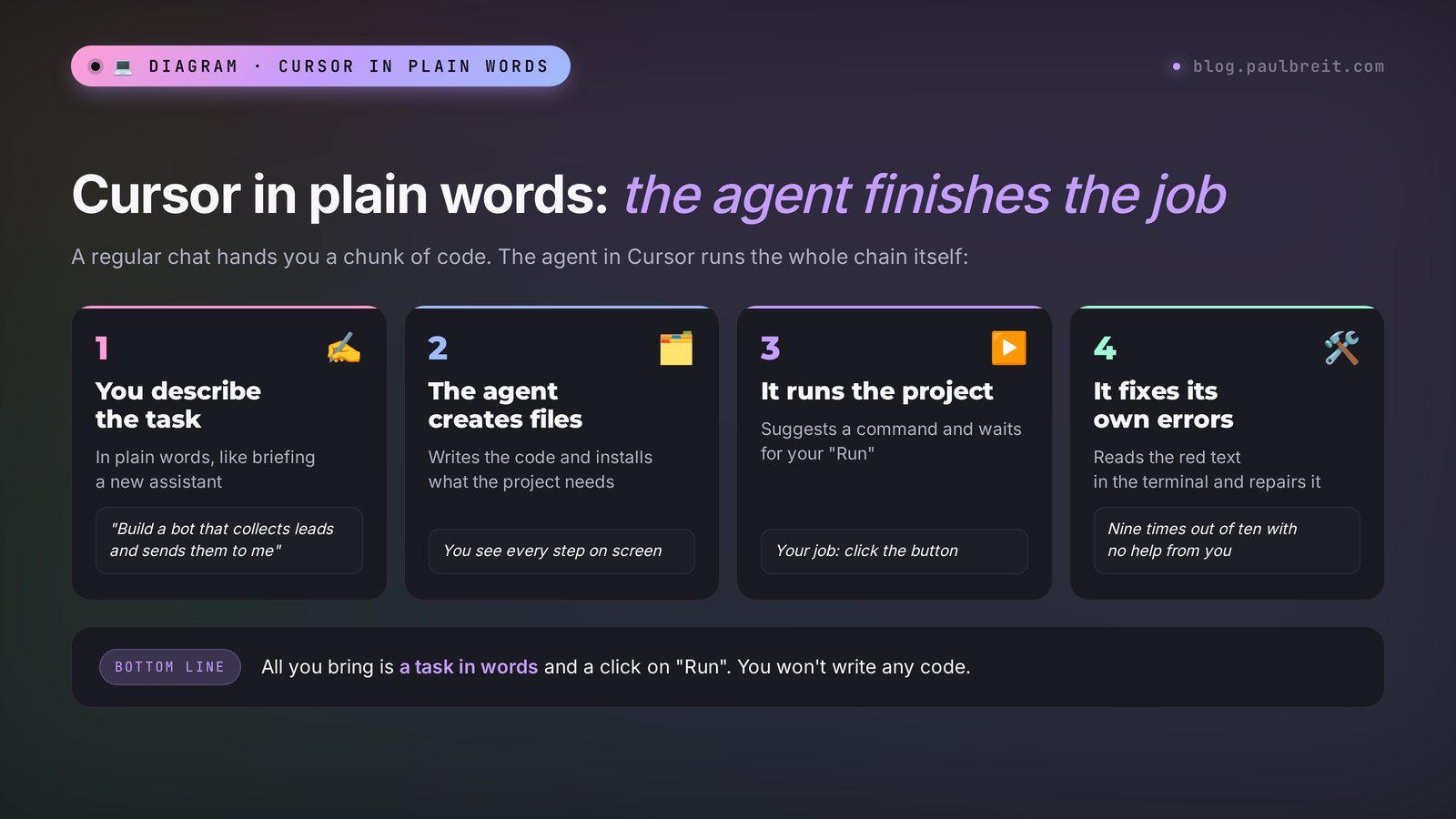
The heart of Cursor is the agent. It's an AI built right into the editor, and it does far more than chat. It opens files, writes code into them, creates new ones, runs commands, reads errors, and fixes them on its own. You set the task, the agent does it, you check the result and give feedback. If the word "agent" is new to you, here's a short explainer on what an AI agent is.
Picture hiring a developer who sits at your computer. You tell them what you need, they build it, and you see every action on screen. They never rush, never get offended by edits, and are happy to work at 3 a.m. That's Cursor.
What people actually build with it, no developer needed
- Telegram bots. Consultation booking, lead intake, lead magnet delivery, answers to common questions, client reminders.
- Calculators and quizzes. Service pricing, plan matching, a "which format fits you" quiz with a sign-up at the end.
- Websites and landing pages. A page for a consultation, a course, or an event, with a sign-up form and a mobile version.
- Small apps for yourself. A client tracker, a payment sheet with reminders, an invoice generator, a session log.
- Automations. A script that pulls the bot's leads into a spreadsheet every morning, or renames a hundred files in a second.
How the Cursor agent differs from a regular AI chat
In a regular chat, ChatGPT or Claude sends you a chunk of code, and the rest is on you: where to paste it, how to run it, why a red error just popped up. For a beginner, that's usually where it ends.
The agent in Cursor takes the job all the way. It creates the file, adds the code, runs the program, sees the error, reads it, and fixes it. You watch and click "Run" when the agent asks permission to execute a command. That's what makes Cursor usable for people with no technical background.
Inside Cursor you can choose which AI works as the agent. There are Cursor's own models called Composer, Grok models from xAI, and on higher plans, Claude and GPT. Auto mode picks the model for you, and to start with, it's the best option.
Section 02What changed in 2026: SpaceX and new plans
If you read about Cursor a year ago, forget half of it. In 2026 the service changed owners, plans, and pricing rules. Let's go in order, so you don't pay for things you don't need.
Who owns Cursor now
Cursor was made by Anysphere, a US company. In June 2026, SpaceX announced it was buying Anysphere for $60 billion in stock, and the deal closed on August 14. By then SpaceX had already merged with xAI, the company behind Grok. That's how Cursor and Grok ended up under one roof.
For you as a user, this means two things. First, Grok models take up more and more space inside Cursor. Second, Cursor plans are now sold together with Grok and X Premium in a single subscription.
Plans after October 12, 2026
On October 12, 2026, the shared The X Subscription launched. The standalone $20 Cursor Pro is no longer sold to new customers. Here are your options now:
| Plan | Price per month | What you get in Cursor | Who it suits |
|---|---|---|---|
| Free | $0 | A limited number of agent requests | Trying it out and building a first simple project |
| Plus | $8 | Base usage, Grok models only | Small projects once a week |
| Premium | $30 | 4x the usage, cloud agents, Claude and GPT available at extra cost | Regular work on your own projects |
| Super | $100 | 15x the usage | People who build projects every day |
| Ultra | $200 | 50x the usage | Agencies and people who build projects for clients |
The usage pool is shared between Grok and Cursor and refreshes weekly. Burn it chatting with Grok, and you'll have less left in Cursor. For teams there's a Teams plan from $30 per person per month.
Claude and GPT are no longer included in the subscription. On Premium and up you can pick them in Cursor, but every request is billed separately at the API list price, starting with the very first message. If the agent works on a big project with Claude for a long time, your monthly bill can easily climb above the subscription itself. Keep an eye on usage in the settings, in the usage and billing section.
What to do if you already have the old Cursor Pro
Don't touch anything until you've worked it out. Legacy Cursor subscribers keep their plan and their included Claude and GPT usage until they switch to the new subscription themselves. Switching is irreversible: you can't go back to the old plan, and support won't roll it back.
If you mostly work with Claude, the old $20 Pro is a better deal right now than any of the new plans. Hold on to it.
What changed in the app itself
Cursor 2.0 came out at the end of 2025: you can now run several agents at once, each on its own task. In 2026, agents reached the browser, the phone, and the cloud. A cloud agent runs on Cursor's servers while your computer is off and sends you the result when it's done. For a beginner that's overkill for now, but it's worth knowing: one day you'll set a task in the evening and wake up to a finished project.
Section 03Account, access, and payment
Getting set up takes a few minutes, and none of it needs a credit card until you decide to upgrade. Three things to get right from the start:
Create an account with Google
The fastest route is signing in with your Google account – one click, no new password. Use the email you check every day: billing notices and usage alerts land there.
Start free, pay by card when you're ready
The Free plan needs no payment details. When you move to Plus or higher, a regular credit or debit card works. For your first project you don't need to pay at all.
Set a spending limit right away
Claude and GPT requests are billed on top of the plan. Before you ever pick one of those models, open the usage and billing settings and set a monthly cap you're comfortable with. Then a long agent session can't turn into a surprise bill.
Cursor works in most countries, but not in places under US sanctions: there the service stops responding. If your sign-in or requests fail with a region error, that's the reason, and a different tool won't necessarily fix it – most strong code-building agents are American.
Section 04Cursor, Claude Code, or Lovable: which to pick
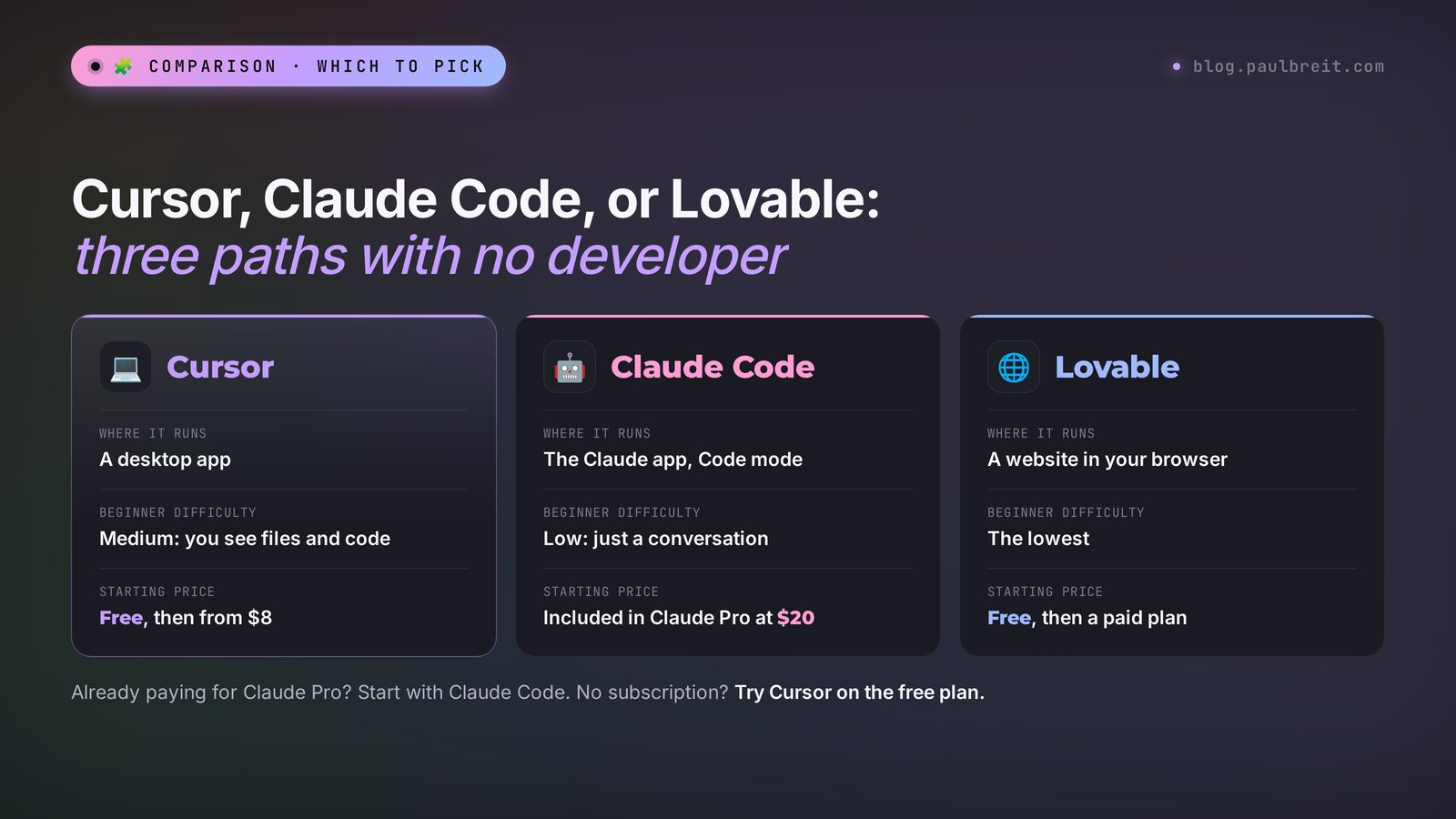
Cursor isn't the only way to build software with words. There are three main paths, and each fits a different temperament. Let's compare them honestly, so you don't struggle with a tool that isn't right for you.
| Tool | Where it runs | Beginner difficulty | What it does best | Starting price |
|---|---|---|---|---|
| Cursor | A desktop app | Medium: you see files and code | Bots, apps, projects you'll keep developing for months | Free, then from $8 |
| Claude Code | The Claude desktop app, Code mode | Low: just a conversation | Sites, bots, and automations through dialogue | Included in Claude Pro at $20 |
| Lovable | A website in your browser | The lowest | Sites and web apps with one-click publishing | Free, then a paid plan |
| Claude Artifacts | The Claude chat window | The lowest | Calculators, quizzes, mini-tools in 5 minutes | Free |
When to choose Cursor
- You want to see what your project is made of and gradually understand it.
- The project will live a long time: a bot you'll keep improving for six months, a client portal, a client tracking system.
- You want flexibility in models: Grok today, Claude tomorrow for a hard task.
- You plan to build projects for clients eventually. Cursor is the standard tool in that world.
When something else is better
- The sight of code scares and distracts you – go with Claude Code, it's pure conversation. Details in Claude Code for non-coders.
- You need a simple calculator or quiz right now – build it in Claude Artifacts, it's faster.
- You only need a website, live on the internet right away – AI site builders like Lovable are more convenient.
My advice: if you already pay for Claude Pro, start with Claude Code. If you don't have a subscription and don't want to pay yet, Cursor on the free plan is a great way to try building software with zero investment.
Section 05Install and first launch
Installation takes about 10 minutes.
Download Cursor from the official site
Open cursor.com/download. The site detects your system: Windows, macOS, or Linux. Download only from there: search results include virus-laden copies pretending to be Cursor.
Install it like any other app
On Windows, run the downloaded file and click "Next." On a Mac, drag the Cursor icon into the Applications folder. If the system asks whether you trust the developer, confirm.
Sign in
On first launch Cursor offers to sign in. Click sign in, a browser opens – sign up with Google. Go back to Cursor and it picks up the account on its own.
Skip the extra settings
Cursor will ask about importing VS Code settings, keyboard shortcuts, and a theme. If you've never used a code editor, just click "Skip" or "Continue." You can write to the agent in any language you're comfortable with, and it answers in the same one.
Create a project folder
Create an empty folder on your desktop, for example "lead-bot." Lowercase letters with no spaces save you from odd errors. In Cursor, click File → Open Folder and pick that folder. Everything the agent builds will live there.
Write to the agent: "Hi. Tell me which model is running right now and what you can do in this folder." If you get a sensible answer, installation is done. If you see a sign-in or access error, open the settings and check that your account shows as signed in, then restart Cursor.
Section 06The screen: four zones
Your first look at Cursor can be intimidating: lots of panels, unfamiliar icons. In reality you need four zones, and you can ignore the rest for months.
1. The file list on the left
This shows what's in your folder. For now it's empty. Once the agent gets to work, files appear here: the bot's code, settings, the lead list. Click a file and it opens in the middle. You don't need to change anything by hand, just watch what shows up.
2. The editor in the middle
This is where file contents open. When the agent changes something, Cursor highlights the edits: green for added, red for removed. Above the edits there are accept and reject buttons. For a beginner it's easier to accept everything and check the result in action.
3. The agent panel on the right
The main place. Here you write tasks and read replies. If you don't see the panel, press Ctrl+L, or Cmd+L on a Mac. At the bottom of the panel there's a mode switch and a model picker. You want Agent mode: in it, the AI creates files and runs commands itself. In Ask mode it only answers questions and changes nothing, which is handy when you want to ask something without touching the project.
4. The terminal at the bottom
A window for commands. You don't type anything there. When the agent needs to install something or start the bot, it suggests a command and waits for your "Run." Once you click, the command runs in the terminal and the agent reads the outcome. Red lines mean an error, and the agent usually starts fixing it on its own.
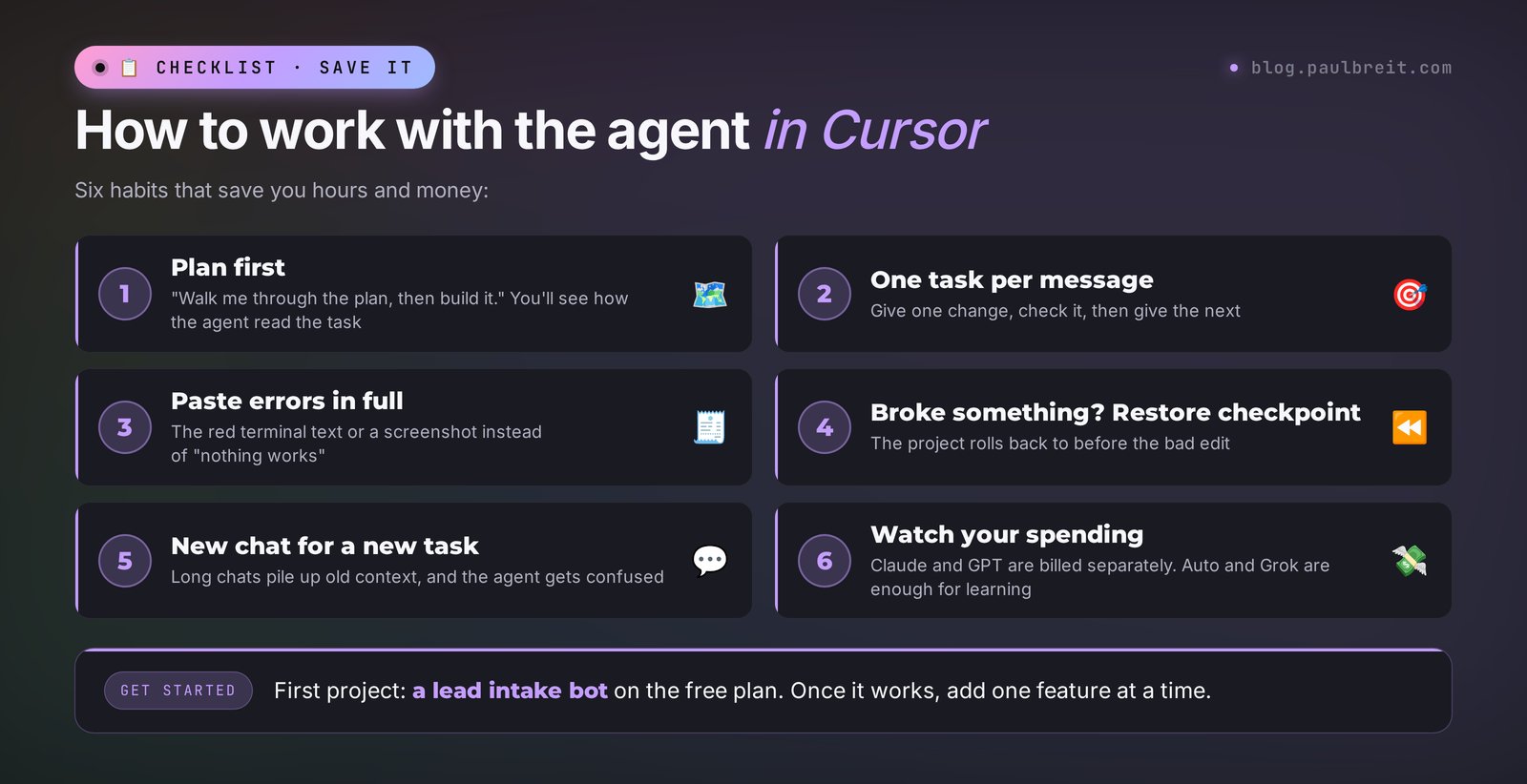
Before each of your messages, Cursor saves the state of the project. If the agent breaks something, hover over your message in the chat history and click Restore checkpoint. The project goes back to how it was before the bad edit. This is your safety net – use it without hesitation.
Section 07Project rules: teach the agent your taste
The agent starts every conversation from a blank slate. It doesn't remember that you're a beginner, that you need plain explanations, or that you can't stand it redoing things that already work. So you don't have to repeat this in every message, Cursor has project rules. The agent reads them before every task.
You don't need to create files by hand. Copy this message to the agent:
Create a project rule that you'll read before every task:

- I'm not a developer. Explain everything in plain words.
- Before big changes, briefly tell me the plan and wait for my "yes."
- Don't redo things that already work unless I ask.
- After every task, tell me what changed and how to check it.
- Keep passwords, tokens, and keys in a separate settings file,
  never paste them directly into the code.
- If you're not sure what I want, ask instead of guessing.
The agent will create a rules file inside the project folder. Check it: in Cursor's settings, under Rules, a new rule appears. Want to tweak it? Write to the agent: "add to the project rules: …".
The point about passwords and tokens matters most. A bot token is the key to your bot. If it ends up in the code, and you later publish that code or send it to someone, a stranger can use the key.
Section 08Project 1: a Telegram lead bot
Let's build a bot that greets a client, asks three questions, and sends you a ready lead. This is the most common need for anyone who sells services: leads stop getting lost in chats, and the client gets an instant reply even while you sleep. If you want to compare approaches, the same bot is built with Claude in how to build a Telegram bot without a programmer.
Step 1. Create the bot in Telegram
This is the only part you do yourself, and it takes two minutes. In Telegram, find the official @BotFather bot with the blue check mark. Send it /newbot. It asks for a name – type something like "Book with Anna." Then it asks for a username – Latin letters, ending in "bot," for example anna_booking_bot.
In reply, BotFather sends a long string of numbers and letters separated by a colon. That's the token. Copy it and don't show it to anyone.
Step 2. Describe the bot to the agent
Go back to Cursor, check that Agent mode is on, and write the task. The more detail now, the fewer fixes later:
Build a Telegram bot for booking a consultation with a therapist.

What it does:
1. On /start it says hello: "Hi! I'll help you book
   a consultation with Anna. It takes a minute."
2. It asks, one at a time: name, phone or Telegram handle,
   and what the person wants help with.
3. At the end it thanks them and says Anna will reply within a day.
4. It sends each lead to me in Telegram as one message
   and saves it to a spreadsheet file I can open in Excel.

Bot token: [paste the token]
I'll send my Telegram for leads when you ask.

First explain the plan in plain words, then build it.
Install anything that's needed yourself.
Step 3. Approve the plan
The agent will reply roughly like this: "Here's the plan. I'll build the bot in Python. I'll install a library for working with Telegram. The token goes into a separate settings file. Leads will be saved to leads.csv, which opens in Excel. For the bot to know where to send leads, I need your numeric Telegram ID – I'll add a /myid command, you send it to the bot, and it shows your number. Shall I start?"
Read the plan. If it matches what you wanted, reply "yes." If something's off, fix it now: at the plan stage a correction costs one message, after the build it costs several.
Step 4. Click "Run"
The agent gets to work. It creates files, and when something needs installing, it shows the command and a Run button. Click it. If Python isn't on your computer, the agent notices from the error and either tells you how to install it or installs it itself.
A couple of minutes later the agent writes: "The bot is running. Open it in Telegram and send /myid." You do, the bot sends your number, you copy it to the agent. The agent puts the number in the settings and restarts the bot.
Step 5. Test it as a client
Open the bot on your phone and go through the whole client path: /start, name, phone, request. A second later the lead lands with you. Look at it through the client's eyes and through the owner's eyes. Is everything clear? Does the greeting sound too dry? Is the lead easy to read?
Step 6. Polish it with plain sentences
This is where the fun starts. Every improvement is one message to the agent:
- "Add buttons with request options: anxiety, relationships, burnout, other."
- "If someone types a phone number without +1, accept it anyway, but normalize it to one format."
- "After the lead, send the client a link to my free checklist."
- "Add a /leads command that sends me all leads from the past week. It should work only for me."
- "If a client stops halfway, send them one gentle reminder an hour later."
That's how, in one evening, a simple bot becomes a working tool that handles consultation bookings without you.
The bot works while Cursor is open and your computer is on. Close the laptop and the bot goes quiet. For testing, that's fine. To take leads around the clock, the bot needs to move to a server – more on that in section 11.
Section 09Project 2: a price calculator for your site
The second project is simpler and more visual: a calculator that works out the price of your services and invites the visitor to sign up. These noticeably increase inquiries: people see the price for their own situation and hesitate less.
The task for the agent
Open a new empty folder in Cursor, for example "calculator," and write:
Build a price calculator for lessons with an English tutor.
One page that opens in a regular browser.

The visitor chooses:
- format: one-on-one ($60) or in a pair ($40 per person);
- lessons per week: 1, 2, or 3;
- term: 1 month, 3 months (5% off), 6 months (10% off).

The calculator instantly shows the monthly price, the total
for the term, and how much the discount saves.
At the bottom, a "Book a trial lesson" button that leads
to my Telegram https://t.me/[your_handle].

Design: light, calm, large font, looks good on a phone.
No extra decoration.
When you're done, open the page in the browser.
A couple of minutes later a page file appears in the folder, and the agent opens it. Move the sliders, switch the options, and check the numbers against a calculator on your phone: the prices must match your own math to the cent.
How to polish it
- "Use my site's colors: dark navy as the main color, orange buttons." You can drop a screenshot of your site right into the chat, and the agent will pick the colors from the image.
- "Add a headline at the top: How much it costs to learn English by summer."
- "Check how the page looks at phone width and fix anything that shifts."
- "Make a version I can paste into my Squarespace, Wix, or WordPress site as an HTML block."
The last one is especially useful: many people run their site on a builder, and the agent will prepare the code so you can paste it into a custom code block. How to put a standalone page online without a builder is covered in the article on vibe coding.
| Niche | What the calculator works out | Where to send people after |
|---|---|---|
| Therapist | The cost of a session package with a bundle discount | A booking bot for the first session |
| Nutritionist | The price of 1, 2, or 3 months of coaching with a lab-results review | An intake form before the consultation |
| Fitness trainer | A training package online or at the gym | Direct messages in Telegram |
| Interior designer | A project priced by square footage and scope | A request form with a phone field |
| Online school | A course plan with 3, 6, or 12 monthly installments | The payment page |
| Photographer | A shoot by hours, number of photos, and travel | A bot with date selection |
Section 10How to talk to the agent: 8 techniques
About 80% of a Cursor project's quality depends on how you set the tasks. Everyone uses the same model, yet results differ wildly from person to person. Here's what works.
1. Describe the result through the client's eyes
"Build a booking bot" – the agent fills in the blanks itself, and fills them in its own way. "The client taps start, sees a greeting, answers three questions, gets a thank-you" – the agent builds exactly that. Walk through the person's path step by step, as if briefing a new office manager.
2. Ask for the plan first
The phrase "walk me through the plan, then build it" saves hours. You see how the agent understood the task before it writes twenty files.
3. One task per message
Five edits in one message is a sure way to have the agent forget two and botch a third. Give one edit, check it, give the next.
4. Paste the full error
If the bot doesn't respond or the page won't open, don't write "nothing works." Copy the red text from the terminal or take a screenshot and paste it in the chat: "Here's what it shows. Find the cause and fix it." The agent reads errors better than any human.
5. Say what's off-limits
"Change only the greeting text, leave everything else alone." Without that line the agent sometimes "improves" neighboring parts along the way, and something that worked breaks.
6. Show examples
Instead of "make it pretty," attach a screenshot of a site or bot you like: "I want the same feel, but in my colors." The agent understands images.
7. Start a new chat for a new task
A long chat accumulates old discussions, and the agent starts getting confused. Done with the bot, moving to the calculator – open a new chat. Your project rules stay in place.
8. Ask it to explain
"Explain in plain words what parts the bot is made of and what each file does." After a month of questions like that, you'll understand your project better than many freelancers. Ready-made task wordings for AI are collected in the AI prompt library.
Section 11Keeping the bot running 24/7
A bot on your laptop lives only while the laptop is on. Clients write at night and on weekends, so a working bot needs its own home – a server. That's a computer in a data center that runs around the clock and costs from about $5 a month.
For a lead bot you don't need anything powerful: the smallest virtual server (VPS) from any well-known provider is enough. DigitalOcean and Hetzner, for example, both create a server in a couple of minutes, take a regular card, and have a clear dashboard. Pick whichever you like – the steps below are the same everywhere.
How to move the bot to a server without understanding servers
Create a server
In your provider's dashboard, create a new server (DigitalOcean calls it a Droplet). Choose Ubuntu and the smallest configuration. Once it's created, you'll see an IP address, the root login, and a password.
Ask the agent to move the bot
Write in Cursor: "Move this bot to my server and set it up to run around the clock and restart on its own after crashes and reboots. Server address: …, login: root, password: …. Do everything yourself and explain step by step." The agent connects to the server, installs what's needed, and starts the bot. You click Run.
Stop the bot on your computer and test
Ask the agent to stop the local copy of the bot, close your laptop, and message the bot from your phone. If it answers, it lives on the server now. Leads keep arriving in your Telegram.
Change the server password
The password has been in a chat with an AI. Ask the agent: "Change the server password to a strong new one and show it to me once." Save the new password in a password manager. Even better, ask it to set up key-based login – the agent can do that too.
What a working bot costs per month
| Item | Minimum | Comfortable |
|---|---|---|
| Cursor | $0 – the free plan for building | $8–30 a month if you improve it regularly |
| Server for the bot | The smallest plan, about $5 | A plan with room for 2–3 projects |
| Domain name | Not needed for a bot | Only if the calculator gets its own site |
| Developer | $0 | $0 |
For comparison: a freelancer will charge $300 to $1,000 for a bot like this, and every change means more money and more waiting. A bot you built yourself pays for itself with the very first lead.
Section 12If something goes wrong
| What happened | Why | What to do |
|---|---|---|
| Cursor won't sign you in or reports an unsupported region | The sign-in in the browser didn't finish, or you're in a region Cursor doesn't serve | Sign out and back in from Cursor's settings, finish the browser step, and restart the app |
| The agent only replies with text and creates nothing | Ask mode is on | At the bottom of the agent panel, switch the mode to Agent |
| The bot is silent in Telegram | The bot isn't running or the token is wrong | Write to the agent: "The bot isn't responding. Check whether it's running and look at the errors" |
| Leads don't reach you | Your numeric ID isn't set, or you haven't sent the bot /start | Send /start to the bot from your account and ask the agent to check the recipient ID |
| The agent broke something that worked | The task was vague or didn't say what to leave alone | Click Restore checkpoint on the message before the breakage and set the task more precisely |
| The agent goes in circles fixing the same thing | The chat is too long and the model got confused | Open a new chat, describe the problem again, and attach the error text |
| You ran out of requests | The plan's weekly usage is used up | Wait for the weekly refresh or move to a higher plan |
| The bill came out higher than expected | The agent worked on Claude or GPT, which are billed separately | Switch the model to Auto or Grok and set a spending limit in the settings |
Section 137 beginner mistakes
1. Building a big system right away
"Build me a CRM with a bot, payments, an email list, and a client portal" – and two hours later you're drowning in errors. Start with a bot that collects leads. Once it works, add one feature at a time.
2. Accepting edits without looking
The agent makes mistakes. After every task, check the result by hand: go through the client path in the bot, run a couple of options in the calculator. Five minutes of checking saves an evening of hunting for what broke.
3. Pasting tokens and passwords into the code
Keys live in a separate settings file. The rule from section 7 takes care of that, but before you send the project to anyone, ask the agent anyway: "Are there any passwords or tokens in plain text in this project?"
4. Letting commands run unchecked
Clicking "Run" over and over gets old, and it's tempting to let the agent run every command on its own. While you're learning, keep clicking yourself: a second of reading the command shows you what the agent is about to do, and you catch the odd strange step before it happens.
5. Not watching your spending
The most expensive mistake with the new plans. You picked Claude "because it's smarter," stepped away for an hour – and the agent burned money on API calls. For learning projects, Auto and Grok are enough. Turn on expensive models selectively, for a hard task.
6. Collecting personal data without asking
A bot that collects names and phone numbers stores personal data. Add a line to the greeting about how you'll use their details, plus a link to your privacy policy. The agent adds it in one message.
7. Quitting after the first error
Red text in the terminal is scary only the first three times. It's a normal part of the work: the agent sees the error and fixes it on its own nine times out of ten. Copy the error to the agent, click Run, keep going.
Section 14The whole path in a minute
- Cursor is a code editor with an agent that writes, runs, and fixes programs from your description.
- Since August 2026 Cursor belongs to SpaceX; since October 12 it's sold in a shared subscription with Grok: $0, $8, $30, $100, $200 a month.
- On the new plans, Claude and GPT are billed separately at API prices. If you have the old Cursor Pro, keep it.
- Access: sign up with Google, pay by card when you upgrade, set a spending limit on day one.
- Install: cursor.com/download, sign in, an empty project folder, Agent mode.
- First, create project rules: plain explanations, a plan before work, keys separate from code.
- Lead bot: a token from @BotFather, a detailed task for the agent, the plan, Run, a test through the client's eyes.
- Calculator: describe prices and options, check the numbers to the cent, ask for a version for your site.
- One task per message, paste errors in full, if something breaks – Restore checkpoint.
- For 24/7 operation, move the bot to a server; the agent does it from the address and password.
FAQFrequently asked questions
What is Cursor AI in plain words?
Cursor is a desktop app, a code editor with a built-in AI agent. You describe the task in plain words, and the agent creates the files, writes the code, runs the project, and fixes errors on its own. People use it to build bots, websites, calculators, and small apps with no programming knowledge.
How much does Cursor cost in 2026?
Since October 12, 2026, new customers buy Cursor as part of The X Subscription shared with Grok: Free – $0, Plus – $8 a month, Premium – $30, Super – $100, Ultra – $200. On the new plans, Claude and GPT inside Cursor are billed separately at API prices. Legacy Cursor Pro subscribers stay on their old plan until they switch themselves.
Is there a free version of Cursor?
Yes, the Free plan with a limited number of agent requests. It's enough to install the app, learn the interface, and build a first simple project: a lead bot or a price calculator.
Do I need a credit card to start with Cursor?
No. The Free plan needs only an account, and signing in with Google works. A card is needed when you move to Plus or higher. Set a spending limit at the same time, because Claude and GPT usage is billed on top of the plan at API prices.
Who owns Cursor now?
Cursor was made by Anysphere. In August 2026 it was bought by SpaceX, which by then had merged with xAI, the developer of Grok. That's why Grok and Cursor's own models are now the main models in Cursor, and the subscription is sold together with Grok and X Premium.
Can I build a bot in Cursor without knowing how to code?
Yes. You create a bot with @BotFather in Telegram, get a token, and describe in detail what the bot should do. The agent writes the code, installs what's needed, and starts the bot, while you click Run and check the result. Improvements are made in plain sentences too: "add buttons," "send the leads to me."
Which is better for a beginner: Cursor or Claude Code?
If the sight of code and files throws you off, start with Claude Code: it's pure conversation, and it's included in the $20 Claude Pro subscription. Cursor is more convenient when you want to see how the project is built, choose models, and develop one project over a long time. You can try Cursor for free.
Why does my bot stop responding when I turn off my computer?
While the bot runs on your computer, it works only when the computer is on. For round-the-clock operation, bots are moved to a server. In Cursor, it's enough to ask the agent to move the bot to your server and give it the address and password – it does the rest itself.