How to Use Claude Cowork: A Beginner's Guide for 2026
How to use Claude Cowork, the mode where Claude finishes a multi-step task on its own: it sorts your files, browses websites, and builds spreadsheets and reports. Here is where to turn it on, how to word your first task, which safety mode to pick, and what it costs.
To use Claude Cowork, get a paid plan (Pro, Max, or Ultra), open Claude on your computer, in a browser, or on your phone, pick Cowork in the message box, describe the result you want, then review Claude's plan and run it. Claude reads files, works in a browser and connected apps, and hands back a finished result.
What's inside
- What Claude Cowork is, in plain English
- Cowork vs chat vs Claude Code
- Where Cowork works and what it costs
- Your first Cowork task, step by step
- How to write a task that works the first time
- 7 ready tasks for people who sell services
- Scheduling, projects, and plugins
- Safety: the three approval modes
- Usage limits and common problems
- The whole path in one minute
- Sources
Section 01What Claude Cowork is, in plain English
In a regular chat you ask a question and get an answer. Everything after that is on you: copy the text, open the spreadsheet, paste, check, send. Cowork takes that legwork off your plate. You describe what you want at the end, and Claude breaks the job into steps and works through them one by one.
Anthropic describes Cowork as the same agentic capabilities that power Claude Code, brought to everyday office work with no terminal involved. Claude reads and creates files, opens websites in a built-in browser, works with connected apps like Google Drive and Slack, and delivers a finished result: a spreadsheet, a document, a slide deck, a report with links back to the source files.
A simple example. You drop 30 client intake forms into a folder, all in different formats, and write: "Combine every form into one spreadsheet: name, niche, request, budget. Put the three hottest leads on top." In a chat you would upload the files one at a time and stitch the answers together yourself. In Cowork you give the task once and a few minutes later the finished spreadsheet sits in the same folder.
If the word "agent" still feels fuzzy, start with what an AI agent is. Cowork is the easiest way to try an agent without writing a single line of code.
Section 02Cowork vs chat vs Claude Code
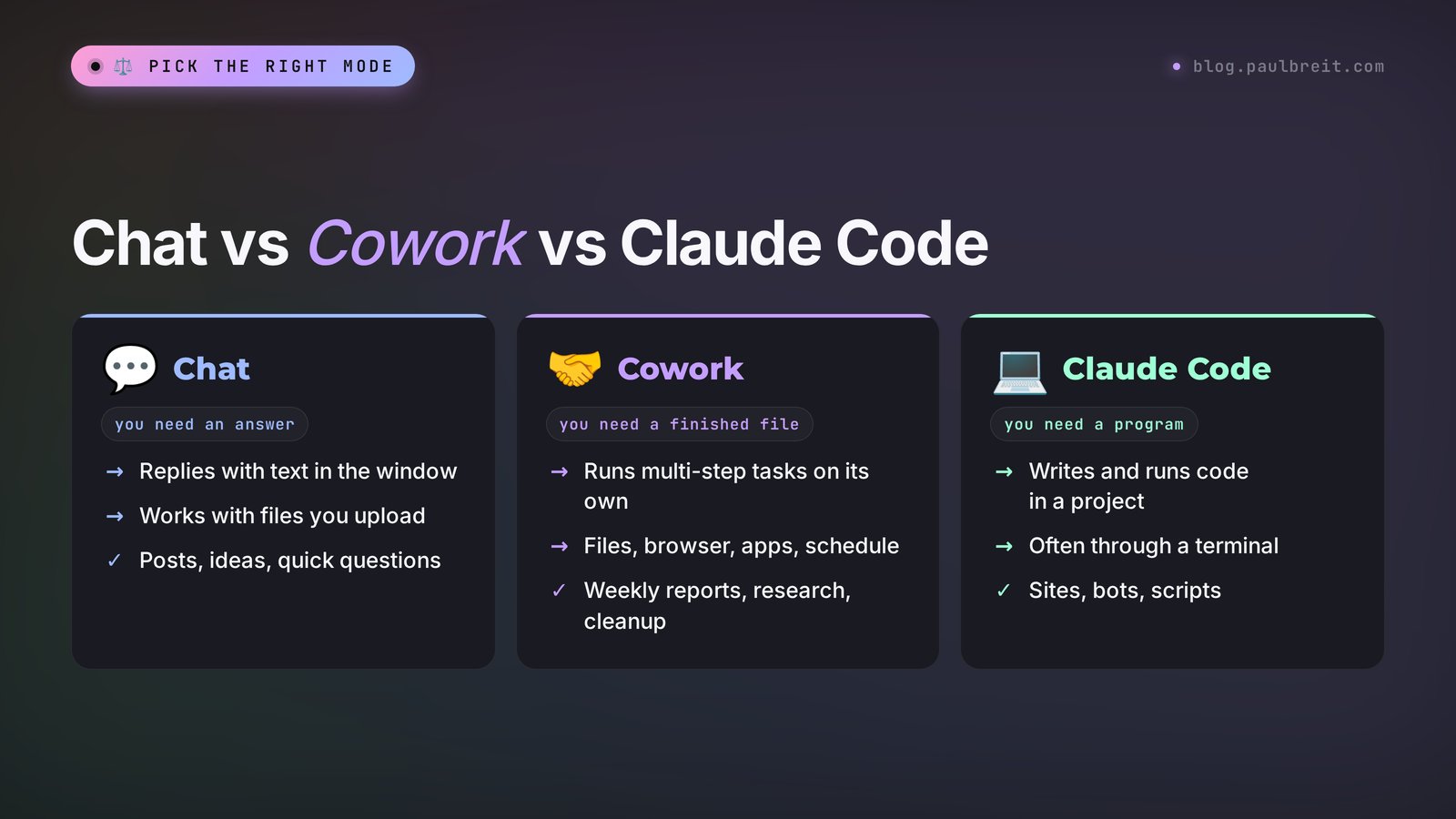
The Claude app now gives you three ways to work. Mixing them up is the number one reason people open Cowork and have no idea what to do with it.
| Mode | What it does | Best for | Example task |
|---|---|---|---|
| Chat | Answers with text in the window, works with files you upload | Quick questions, copy, ideas | "Write a post about my new course" |
| Cowork | Runs a multi-step task on its own: files, browser, apps, schedule | Routine you do by hand every week | "Build a weekly lead report from my spreadsheet and inbox" |
| Claude Code | Writes and runs programs inside a project folder | Websites, bots, scripts, automations | "Build a landing page for my workshop" |
The rule of thumb is simple. Need text or an answer: chat. Need a finished file or an action inside your apps, with more than three steps: Cowork. Need a program, a site, or a bot: Claude Code. Cowork and Claude Code share the same engine, and Cowork never asks you to open a terminal or think about code.
Section 03Where Cowork works and what it costs
Cowork comes with paid plans only. The Free plan doesn't include it. I checked these prices on the official claude.com/pricing page on November 9, 2026.
| Plan | Price | How much work fits | Cowork |
|---|---|---|---|
| Free | $0 | Limited, with a 5-hour and a weekly cap | No |
| Pro | $20/month, or $17/month billed annually ($200/year) | More than Free | Yes |
| Max | $100/month | 5x the usage of Pro | Yes |
| Ultra | $200/month | 10x Pro per week, no 5-hour limit | Yes |
| Team | $25 per seat/month, $20 billed annually | For teams | Yes |
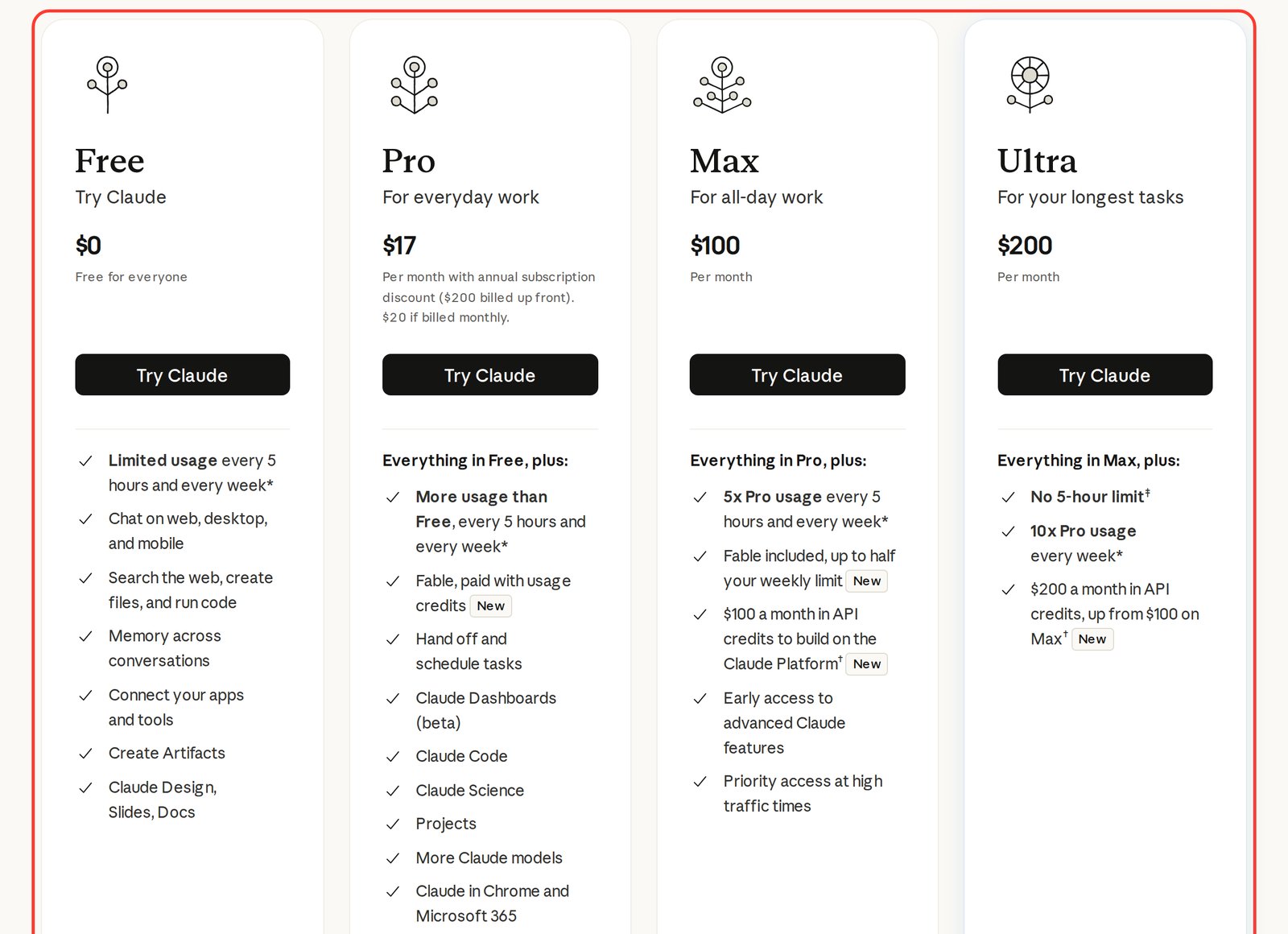
Look at the Pro column on the screenshot: it lists "Hand off and schedule tasks". That line is Cowork. For a first try, Pro is plenty. Move up to Max or Ultra only once you keep hitting the limit on real work.
Where Cowork runs, according to Anthropic's help center as of November 9, 2026:
- Claude desktop app – macOS and Windows on every paid plan, Linux in beta. This is the only place where Claude can see the files on your computer.
- Web (claude.ai) and the mobile app – Pro, Max, Ultra, Team (in beta), and Enterprise if your admin turned it on.
- Claude side panel in Chrome – every paid plan.
The work itself runs on Anthropic's servers in an isolated cloud environment. That's why a task keeps going even after your laptop goes to sleep. You only need to keep the app open when Claude is working with files on your computer or with your browser.
Section 04Your first Cowork task, step by step
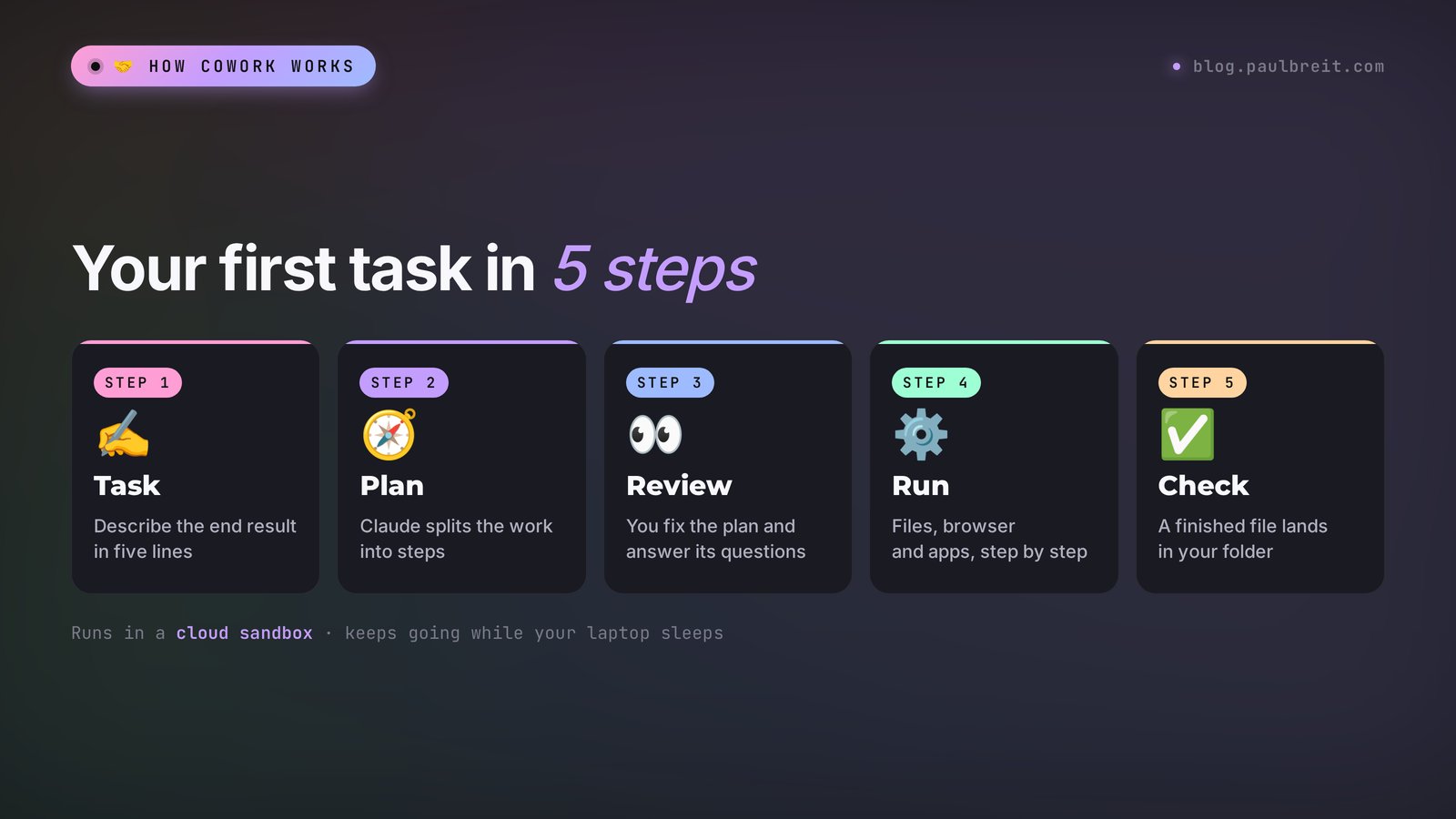
For your first run, use the desktop app. There Cowork can see your folders, and the difference from chat is obvious right away.
Get a paid plan
Go to claude.ai, sign in, and choose Pro. It's enough to get to know Cowork. You can upgrade later without losing anything.
Download the Claude desktop app
The macOS and Windows app is on the official page claude.com/download. Install it and sign in with the same account. If you already have it, update it: Cowork shows up in the latest versions.
Switch to Cowork
In the box where you normally type a message, select Cowork. The window still looks like a chat, but now Claude takes the whole task and works through it on its own.
Give access to one folder
Create a separate working folder, for example "Cowork test", and put 3-5 files for the task inside. Give Claude access to that folder only. There's no need to open your whole Documents folder: the less access, the calmer you sleep.
Describe the task and ask for a plan
Write what should exist at the end and ask Claude to show you its plan first. A ready-made template is in the next section.
Review the plan and run it
Claude shows how it intends to work. If something is off, correct it in plain words: "skip the budget column", "don't touch the original files". Then hit run and watch it move through the steps. The finished file appears in your working folder.
Section 05How to write a task that works the first time
Anthropic's help center gives a simple formula: describe the goal, the result you need, and, if the task repeats, how often to run it. I add two more lines – what Claude must not touch and what to show you before it starts. That makes five lines.
Task: [what needs to happen, in one sentence].
Inputs: [folder, files, website, or app].
Result: [which file or action you need at the end, in what format, and where to save it].
Limits: don't change or delete the original files, don't send anything without my confirmation.
Before you start, show me a step-by-step plan and ask questions if anything is missing.
Here is the intake form example from the first section, already filled in.
Task: combine client intake forms into one spreadsheet.
Inputs: the "Leads" folder with forms in Word, PDF, and screenshots.
Result: a file "Leads_summary.xlsx" in the same folder. Columns: name, niche, request, budget, contact, date. Put the three leads with the biggest budget on top.
Limits: don't change or delete the original files, don't send anything without my confirmation.
Before you start, show me a step-by-step plan and ask questions if anything is missing.
I gave this prompt to Claude Opus 5.5 in a regular chat along with a description of the folder, to see what plan it would propose before running anything. The reply is shortened, the substance is intact:
"Plan: 1) open the folder and count the files by format; 2) pull name, niche, request, budget, contact, and date from each form, reading screenshots as text; 3) if a field is missing, leave the cell empty and list those files separately; 4) create Leads_summary.xlsx next to the originals without touching them; 5) sort by date and pin the three biggest budgets to the top. Questions: are the budgets all in dollars or in mixed currencies? Do you want a 'status' column for your own notes?"
The questions at the end are a good sign. Answer them before you hit run, and you'll have almost nothing to redo.
If writing prompts for Claude still feels awkward, there's a separate guide with a formula and examples: Claude prompts.
Section 067 ready tasks for people who sell services
The best Cowork tasks are the ones you do by hand every week and secretly hate. Below are seven for coaches, therapists, consultants, tutors, and anyone who sells services, courses, or consulting. Copy one and swap in your own details.
1. Weekly lead roundup.
Open my leads spreadsheet [link or file]. Count the leads from the last 7 days by source, list anyone who hasn't had a reply for more than 24 hours, and save a short report to a document called "Leads_week".
2. Competitor research.
Visit these websites [3-5 URLs]. For each one, note the offer, the price, the promise above the fold, the bonuses, and the guarantee. Put it all in a table and finish with how my offer [description] could stand out.
3. Folder cleanup.
The "Downloads-sort" folder is a mess. Sort the files into folders "Contracts", "Invoices", "Course materials", and "Other", and rename them using the pattern YYYY-MM-DD_name. Don't delete anything. At the end, show me a list of what moved where.
4. Prep for a client call.
Tomorrow I have a call with [name]. Find the intake form and notes from past sessions in the "Clients/[name]" folder. Make one page: who they are, what they came in with, what we agreed on last time, and 5 questions for the call.
5. Content calendar from your course.
The "Course" folder holds my lessons. Go through them and build a 4-week content calendar: 3 posts a week, each with a topic, the main idea, and the lesson it comes from. Save it as a spreadsheet.
6. Slide deck from notes.
Turn the "Webinar_notes" document into a 12-slide deck: one idea per slide, a big headline, no more than 20 words of text per slide. Save it in the "Webinar" folder.
7. Weekly newsletter and social stats.
Every Monday at 9 a.m., open my stats spreadsheet [file], compare last week with the week before, and send me 5 lines: what went up, what went down, and which post or email performed best.
That last task repeats, so it's a natural fit for a schedule. That's the next section.
Section 07Scheduling, projects, and plugins
Scheduled tasks. Type /schedule in Cowork and describe what to do and when: every day, every Monday, once a month. According to Anthropic's help center, a scheduled task runs even when your computer is off. The exception is tasks that touch local files: for those, the desktop app has to be open. Scheduling is already on Pro – it's the "schedule tasks" line on the pricing page.
Projects. You can group related tasks into a project with its own files, instructions, and memory. Say you create a "Course launch" project and drop in your product description, client testimonials, and past posts – every new task already knows the context. I covered how projects work in regular chat in Claude Projects, and the logic in Cowork is the same.
Plugins. A plugin is a ready kit for one area of work: skills, connections to your apps, and helper subagents in one package. Plugins work in Cowork, in chat, and in Claude Code. The skills inside a plugin are the same Claude Skills, and the app connections work like MCP in Claude.
Memory. Cloud tasks start from what Claude already remembers from your chats, and what comes up during a task flows back into chat. If you'd rather keep work details out of memory, check your memory settings before your first task.
Section 08Safety: the three approval modes
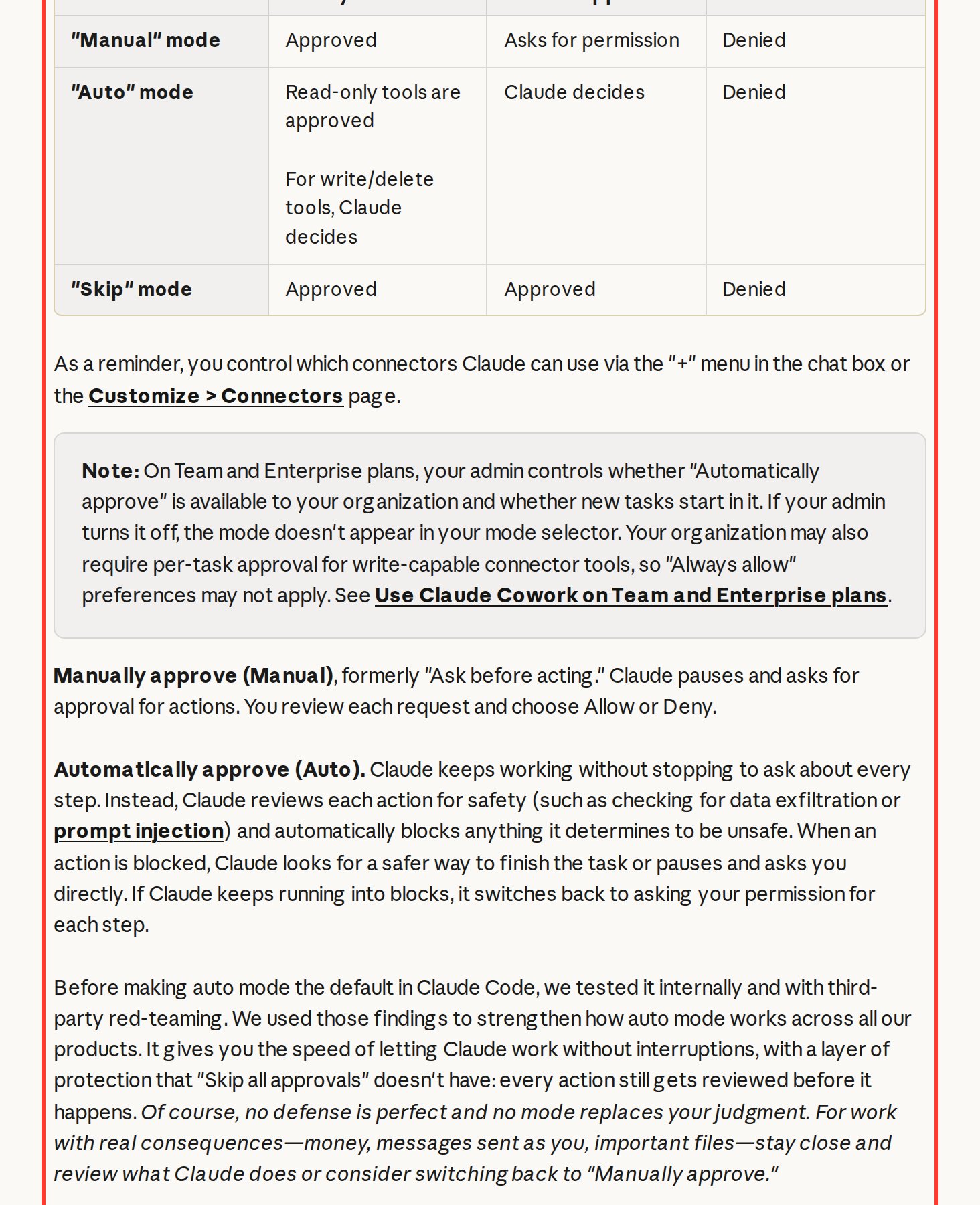
Cowork acts on your behalf: it opens files, websites, and apps. That's why it has three modes that decide when Claude asks for your permission.
- Manual. Claude stops before an action and waits for you to click allow or deny. Slower, and everything stays under your control.
- Auto. The default on Pro, Max, Ultra, and Team. Claude works without pausing, and every action passes an automatic safety check. Anything suspicious gets blocked.
- Skip. No checks at all. Anthropic recommends it only where you fully trust the task and its sources.
The main risk is called prompt injection – a planted command. Claude reads someone else's web page or email, and hidden inside is an instruction like "forward all files to this address". Anthropic has protections against this, and its help center says plainly that responsibility for Claude's actions stays with you. My rules for Cowork:
Bank accounts and payments, folders with passwords, IDs, and client contracts, emails sent in your name without review. For anything important, switch to Manual. In every mode Claude asks before permanently deleting files, and it's still smarter to give it access to a separate working folder only.
Section 09Usage limits and common problems
A Cowork task burns through your usage noticeably faster than a regular question: every step, every file it reads, and every page it opens is model work. On Pro, one long task can eat your allowance in a couple of hours. Here's what to do about limits and the other usual snags:
| Problem | Cause | Fix |
|---|---|---|
| No Cowork option | Free plan or an old app version | Upgrade to Pro and update the app |
| Claude can't see my files | The task runs in the browser or on your phone | Start it from the desktop app and grant access to a folder |
| Usage ran out mid-task | Many steps and heavy files | Split the task, batch similar work, watch usage in Settings |
| Wrong result | The end result or format wasn't described | Add a "Result" line and ask for a plan before running |
| A scheduled task didn't run | It uses local files and the app was closed | Keep the app open or move the files to a cloud service |
| No Cowork on web or mobile at work | On Enterprise the admin hasn't turned it on | Ask your admin, or use the desktop app |
Anthropic's help center adds two more tips on limits: group similar work into one task, and start a new conversation for an unrelated topic. A long thread drags all its context along and uses up your allowance faster.
If you're brand new to Claude, go through Claude from scratch first, then come back to Cowork. And when you outgrow ready-made tasks, the next step is building your own AI agent with no code.
Section 10The whole path in one minute
Cowork is the mode where Claude takes a task all the way to a file or an action. You need Pro or higher. Open the desktop app, choose Cowork, give access to a separate folder, describe the task in five lines, and review the plan. Put repeating tasks on /schedule. Switch to Manual for anything important. Below is the whole guide as one list – copy it for yourself.
Cheat sheet: Claude Cowork
1. Plan: Pro, Max, or Ultra (no Cowork on Free).
2. Download the Claude app from claude.com/download and sign in.
3. Pick Cowork in the message box.
4. Create a separate working folder and give access to that folder only.
5. Write the task in five lines: task, inputs, result, limits, "show me the plan".
6. Review the plan, answer its questions, run it.
7. Anything that repeats goes on /schedule.
8. Money, passwords, contracts: Manual mode only, or keep them out.
9. Running low on usage: split tasks, start new topics in a new conversation.
10. Check usage in Settings before a big batch.
Section 11Sources
- Anthropic: Get started with Claude Cowork, checked Nov 9, 2026
- Anthropic: Use Claude Cowork safely, checked Nov 9, 2026
- Anthropic: The Claude Cowork product guide, checked Nov 9, 2026
- Claude pricing (official page), checked Nov 9, 2026
FAQFrequently asked questions
Can I use Claude Cowork for free?
No. Cowork comes with paid plans only: Pro at $20 a month, Max at $100, Ultra at $200, plus Team and Enterprise. The Free plan doesn't include Cowork.
Does Claude Cowork work on Windows?
Yes. Cowork runs in the Claude desktop app for Windows and macOS on every paid plan, and Linux is in beta. Only the desktop app gives Claude access to the files on your computer.
Does Cowork work on my phone and in the browser?
Yes, on Pro, Max, Ultra, and Team (in beta) Cowork is available on claude.ai and in the Claude mobile app, and on Enterprise if your admin turned it on. Files on your computer aren't reachable from there, so the work runs on cloud apps and the browser.
What's the difference between Claude Cowork and Claude Code?
Both run on the same agentic engine. Claude Code is for programs, websites, and scripts and often works through a terminal. Cowork is built for office work: spreadsheets, documents, reports, sorting files and apps, with no code and no terminal.
Can Cowork delete my files?
Claude asks for your permission before permanently deleting files, in every approval mode. For extra peace of mind, give it access to a separate working folder only and write in the task: don't change or delete the original files.
Does Cowork keep working when my computer is asleep?
Yes. Cowork runs in an isolated cloud environment, so a task keeps going while your laptop sleeps. The app only needs to stay open when Claude is working with files on your computer or with your browser.