Stable Diffusion: How to Use It for Free in 2026
Stable Diffusion is an AI image generator with an open model: you can download it, run it on your own computer, and nobody charges you a cent per image. And if you don't have a powerful computer, there are websites where it runs in your browser with free daily credits. Inside: which versions exist and which one to pick, where to use it online with no install, how to set it up on your computer in a couple of clicks, what hardware you need, what the settings mean, how to write prompts, and 20 ready prompts for covers, product shots, backgrounds, and ads.
There are two ways to use Stable Diffusion for free. With no install, open the Stable Diffusion 3.5 demo on Hugging Face or the generator on Civitai, type a prompt in English, and press Generate: free credits there refill every day. With an install, put Stability Matrix or ComfyUI Desktop on your computer, download an SDXL model inside it, and generate with no limits. For that you need an NVIDIA graphics card with 8 GB of video memory or more. The model is free for personal use and for businesses making under $1 million a year.
Everyone who sells services, courses, and consulting and doesn't want to pay a subscription for every image in their posts. A therapist needs calm illustrations for posts about anxiety. A nutritionist needs beautiful plates and ingredients. A tutor needs lesson covers and carousel cards. A trainer needs backgrounds for ads. A marketplace seller needs scenes for product listings. And if you have a gaming PC at home, Stable Diffusion turns it into an image factory that runs with no limits and no monthly bills.
What's inside
- What Stable Diffusion is and why it's free
- Versions: SD 1.5, SDXL, SD 3.5, and community models
- Three ways to use it for free
- Free online: where to generate with no install
- Your first image online: step by step
- Access, sign-up, and downloads
- What hardware you need to install it
- Installing it on your computer in a couple of clicks
- Generation settings: a cheat sheet
- The prompt formula and the negative prompt
- From a plain description to a clean prompt
- 20 ready prompts for real tasks
- LoRA, photo editing, and outpainting
- Stable Diffusion vs. other image AI tools
- Rights and commercial use
- When something goes wrong
- A checklist for your first evening
- The whole path in a minute
When the first open version of Stable Diffusion came out in 2022, I installed it on my laptop out of curiosity. The first image took about three minutes, the fan howled so loudly that my cat left the room, and the result was a woman with three arms against something that vaguely resembled the sea. Honestly, I decided back then that it was a toy for geeks.
Four years later, a lot has changed. Installers set it up in a couple of clicks, the community has released thousands of fine-tuned models for every style you can think of, and on a decent graphics card an image takes a few seconds. And the main thing stayed the same: the model is yours. No subscriptions, no "you've hit your limit, come back tomorrow," and nobody watching what you generate.
Below is everything you need to start from zero. If you're still choosing which image generator fits you, take a look at my overview of AI image generators. This piece focuses on Stable Diffusion alone: where to use it for free, how to install it, and how to write prompts that get you what you pictured from the first tries.
Section 01What Stable Diffusion is and why it's free
Stable Diffusion is an AI model that draws images from a text description. It was released in August 2022 by the British company Stability AI together with researchers from the University of Munich and the company Runway. The main difference from Midjourney, ChatGPT, and Gemini is that the model weights (the trained neural network itself) are publicly available. You can download them as a file, run them on your own computer, and use them with no internet connection.
That's the answer to "why is it free." You don't pay for the model, because you already have it. You only pay for the computing: either with your own computer and electricity, or with credits on a website where someone else runs the model. Many of those websites hand out free credits every day, and that's usually enough for a couple dozen images a day.
The second thing that sets it apart is the community. Since the model is open, thousands of enthusiasts have fine-tuned it for their own needs. There are models just for photorealism, just for anime, just for watercolor, for interiors, for logos, for product shots. Imagine Midjourney with thousands of versions, each with its own character, and all of them free.
What Stable Diffusion can do in 2026:
- generate images from a description in any style: photo, illustration, 3D, anime, watercolor, poster;
- run on your computer with no internet and no limits;
- plug in community models and small LoRA add-ons that bring in a style, a character, or an object;
- redraw an existing image or photo from a description (this is called img2img);
- redraw a selected part of an image and extend its edges;
- copy a pose, outline, or composition from a reference image with ControlNet;
- upscale images 2–4x without losing sharpness.
Where Stable Diffusion falls behind the paid competitors: it handles long, complex instructions worse, and it's weaker at writing text on an image. More on that in the comparison section.
Stable Diffusion pays off when you need lots of images and don't want to pay a subscription: a month's worth of post covers, backgrounds for carousels, dozens of ad creative variations. If you need one image right now and don't want to fiddle with settings, ChatGPT or Nano Banana 2 will be faster: both have a free limit and need no installation.
Section 02Versions: SD 1.5, SDXL, SD 3.5, and community models
What confuses newcomers most is the zoo of versions. Websites say "SDXL" in one place, "SD 3.5" in another, and something like "Juggernaut" in a third, and it's unclear what's what. Let me sort it out.
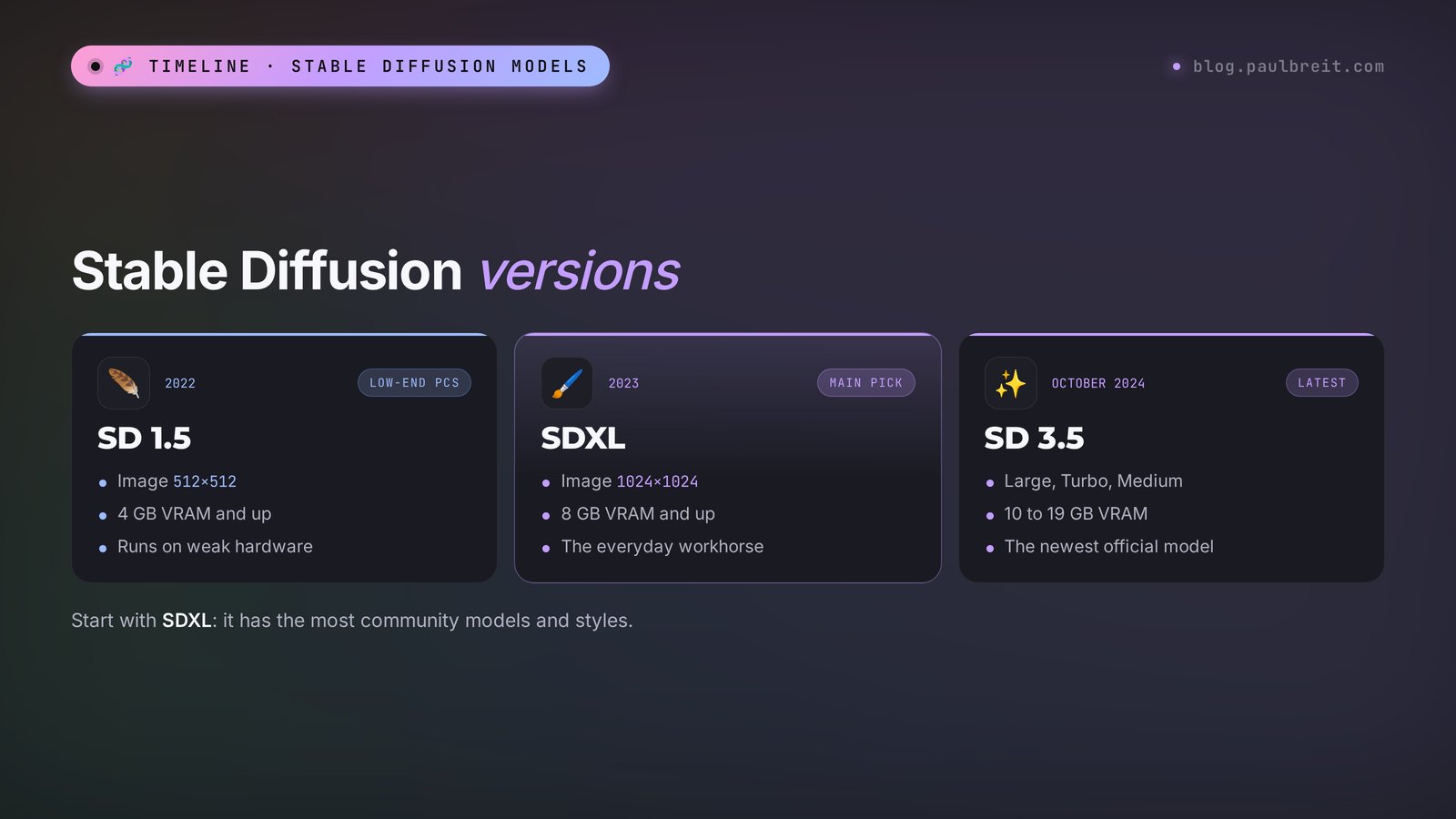
Stable Diffusion 1.5 – 2022
The veteran the whole community grew up on. It generates at a small 512 by 512 pixels and gets hands and faces wrong in wide shots, but it flies even on weak graphics cards with 4 GB of memory. It has the most add-ons of any version. Today people pick it when their computer is very modest or when they need an old favorite community model.
SDXL – 2023
The main workhorse in 2026. It generates at 1024 by 1024 pixels right away, understands prompts noticeably better, and handles light and composition more beautifully. It needs a graphics card with 8 GB of memory or more. The community has released hundreds of excellent SDXL models for photorealism, illustration, and anime, so most people who use Stable Diffusion seriously work with SDXL and its fine-tuned versions.
Stable Diffusion 3.5 – October 2024
The newest official model from Stability AI. Nothing newer has come out since: the company's website still calls SD 3.5 its most powerful model. It follows long prompts more precisely, keeps several objects in the frame better, and writes short captions in the Latin alphabet. There are three variants:
- SD 3.5 Large – the full model with 8 billion parameters, the best quality, needs a powerful graphics card (11–12 GB in a lightweight format, about 19 GB in the full one);
- SD 3.5 Large Turbo – a faster version that generates in 4 steps instead of 30, with slightly simpler quality;
- SD 3.5 Medium – a lighter model with 2.5 billion parameters, for graphics cards with about 10 GB.
Community models
These are official models that enthusiasts have trained further. In the Stable Diffusion world they're called checkpoints. For example, Juggernaut XL and RealVisXL are well-known SDXL-based models for photorealism. There are models for anime, for painting, for 3D illustration. You download them from Civitai or Hugging Face, and they plug into the same program as the official ones. Often a community model generates more beautiful images than the official one, because it was tuned for a specific style.
| Model | Year | Resolution | Video memory | Strength | Who it's for |
|---|---|---|---|---|---|
| SD 1.5 | 2022 | 512×512 | 4 GB and up | Runs on weak hardware, tons of add-ons | Old laptops and graphics cards |
| SDXL and its fine-tunes | 2023 | 1024×1024 | 8 GB and up | The best balance of quality and speed, hundreds of community models | Almost everyone, start here |
| SD 3.5 Medium | 2024 | up to 1440×1440 | about 10 GB | Understands prompts well | Graphics cards with 10–12 GB |
| SD 3.5 Large | 2024 | 1024×1024 | 11–19 GB | The best quality among official models, short Latin captions | Powerful graphics cards and the online demo |
| SD 3.5 Large Turbo | 2024 | 1024×1024 | 11–19 GB | An image in 4 steps | When you need speed |
On the same websites and in the same programs you'll come across FLUX and other open models. Other companies release them, so they aren't Stable Diffusion, even though they run with the same tools. If you see them in the list, don't worry: most of what you'll learn below about prompts and settings applies to them too.
Section 03Three ways to use it for free
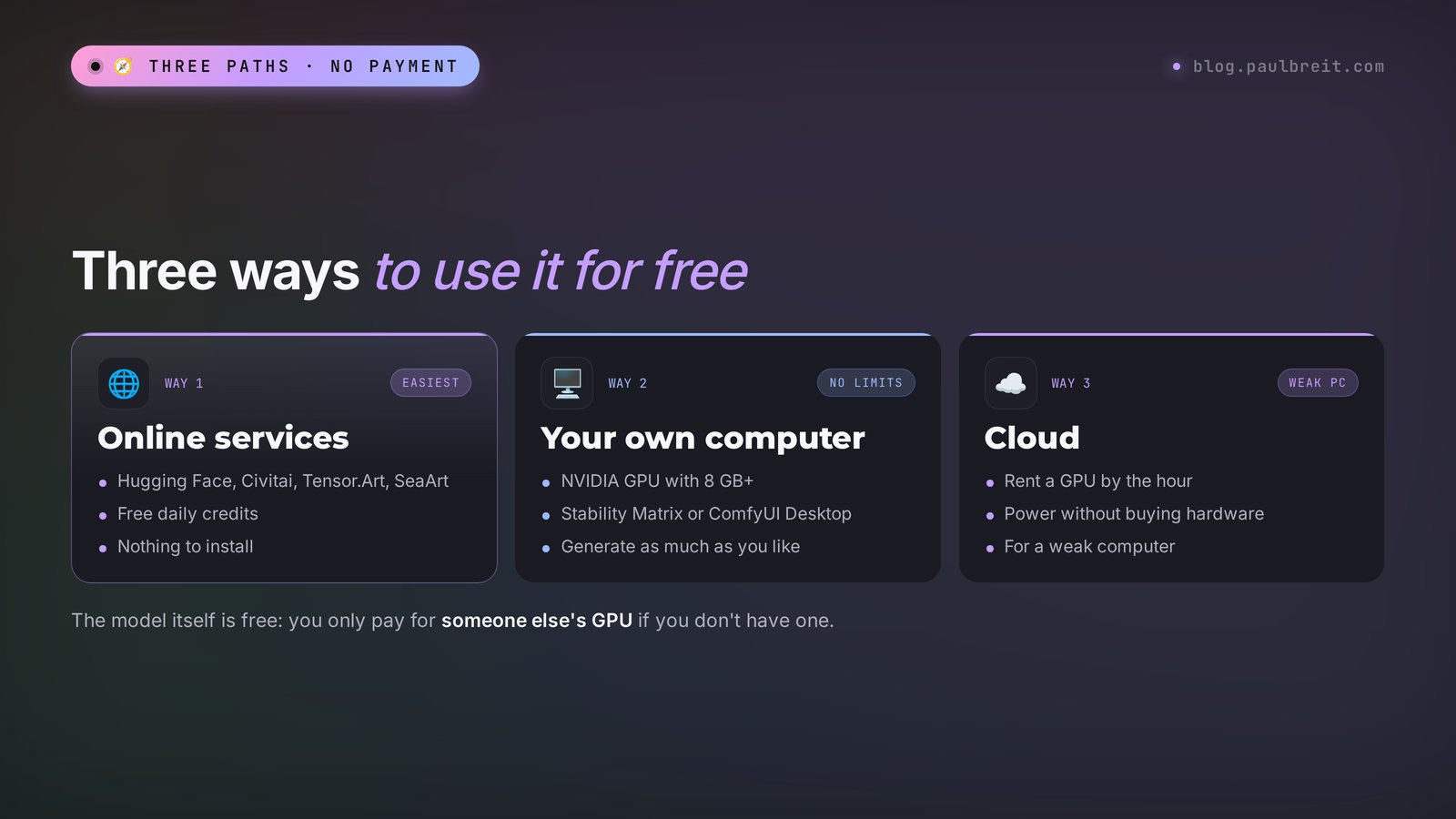
Stable Diffusion has no single official website everyone goes to, the way Midjourney does. There are three paths, and which one to take depends on your computer and on how many images you need.
Way 1. Online services in your browser
The model is already running on someone else's powerful computers, and you just type a prompt on a website. Nothing to install, and it works from any laptop and even from your phone. The price is credits, which the websites hand out free every day, and on free plans other users can often see your images. Good for trying it out and for occasional tasks.
Way 2. Your own computer
You install a program, download a model, and generate as much as you like. No limits, no queues, full privacy. You need a graphics card, ideally an NVIDIA one with 8 GB of video memory or more. Good if you have a gaming PC or need lots of images every week.
Way 3. A rented computer in the cloud
You rent a powerful graphics card from a cloud service for an hour and run the same program on it. That's no longer quite free, but it costs very little per hour, and you don't need your own hardware. The free version of Google Colab has been restricted for Stable Diffusion with a user-friendly interface since 2023, so I wouldn't count on it. For a beginner this is the hardest path, so let's leave it for later.
| Online services | Your own computer | Cloud | |
|---|---|---|---|
| Price | $0 within the daily credits | $0, apart from electricity | Hourly rental |
| What you need | A browser and an email | A graphics card with 8 GB+, 30+ GB of disk space | A bank card and patience |
| Limits | Yes, from a dozen to a hundred images a day | None | As long as you pay |
| Privacy | Images are often public | Full | Good |
| Difficulty | Low | Medium, a one-time setup | High |
| Who it's for | Trying it out, occasional tasks | People who need images all the time | People with a weak computer and lots of tasks |
My advice: start online. In one evening you'll know whether you like how Stable Diffusion draws, and only then decide whether to install it on your computer.
Section 04Free online: where to generate with no install
There are dozens of Stable Diffusion websites, and most of them structure the free plan the same way: you get credits when you sign up and every day after that, and one image costs a few credits. The services change their free limits often, so check the exact numbers on the website the day you sign up. Here are the platforms I've tested.
Hugging Face – the official SD 3.5 demo
Hugging Face is the biggest website for open AI models. Stability AI keeps free demo pages for its models there, called Spaces. You open the Stable Diffusion 3.5 Large page, type a prompt, and press the button. Signing up is optional, but without an account your free quota runs out faster, and at peak hours there can be a queue. The settings are minimal, but you get the pure official model.
Civitai – a model library with a generator
Civitai is the main website of the Stable Diffusion community: it hosts thousands of models and add-ons, with a generator built in right next to them. Its advantage is that you can generate with any model from the library without downloading it. The in-house currency is called Buzz. New users get a little free Buzz every day, plus more for daily logins and activity on the site. The cost of an image depends on the model, the size, and the number of steps.
One warning. Civitai has a lot of explicit content. Turn on the filter in your profile settings so the feed shows only safe content, otherwise your first visit may surprise you.
Tensor.Art and SeaArt
Two big online generators with libraries of Stable Diffusion-based models and free daily credits. The interface is similar to Civitai: you pick a model, type a prompt, and set the size. Since late 2025, Tensor.Art has allowed only safe content, which is handy if you're generating for work. SeaArt offers lots of fine-grained settings and suits people who already know their way around.
| Service | Sign-up | Free | Models | Good for |
|---|---|---|---|---|
| Hugging Face | Optional | A demo quota, sometimes a queue | Official SD 3.5 | Trying the pure model in a minute |
| Civitai | Email, Google, or Discord | Free daily Buzz | Thousands of community models | Finding your favorite model and style |
| Tensor.Art | Email or Google | Daily credits | A library of models and LoRAs | Work tasks, safe content only |
| SeaArt | Email or Google | Daily credits | A library of models, ControlNet | People who want more settings |
Search results and messengers are full of websites and bots with "free Stable Diffusion" in the name. Some of them are wrappers that charge money for what's free on Hugging Face, or ask for access to your account. Don't enter the password to your main email on unfamiliar websites, and don't pay bots for "unlimited" plans.
Section 05Your first image online: step by step
Let's take a real task: a cover for a post about how to stop putting things off until Monday. The post format for Instagram and other social networks is vertical, 4:5. We'll go through it on Civitai, because there you can pick a good model right away.
Sign up
Open civitai.com and click Sign In. The easiest way is to sign in with your Google account. Go straight to your profile settings and turn on the safe content filter.
Open the generator
At the top of the page there's a Create or Generate button. A generator panel slides out on the right: a prompt field, a model picker, the size, and the number of images. Check how much Buzz you have: the number is shown next to your avatar.
Pick a model
Click the current model in the model field and find an SDXL-based model labeled for photorealism, for example Juggernaut XL. If you're not sure, keep the default model: it'll do for your first image.
Set the size
Choose a vertical format. For SDXL models, 896×1152 or 832×1216 work well: they're close to 4:5 and 2:3, and the model draws at those sizes without distortion. A 1024×1024 square always works too.
Write the prompt and the negative prompt
In the main field, describe the image in English. In the Negative prompt field, list what shouldn't be there. Ready-made wording is below.
Press Generate and pick the best option
Images appear within a few seconds. Don't be discouraged if nothing hits the mark on the first try: that's normal. See which one is closest to what you pictured and nudge the prompt in that direction.
The cover prompt:
a cozy home desk on a monday morning, a paper planner open with a pen on it, a cup of coffee with steam, soft sunlight through the window, a small green plant, warm calm mood, shallow depth of field, editorial lifestyle photoThe negative prompt:
text, letters, watermark, logo, people, hands, blurry, low quality, distortedHere's how a session like this usually goes in real life:
You: the prompt above, the Juggernaut XL model, size 896×1152.
Stable Diffusion: [images] The desk looks nice, but everything is in cold blue tones, and the planner has scribbles instead of lines.
You: add golden hour, warm tones, blank pages to the prompt and cold colors to the negative prompt.
Stable Diffusion: [images] Warm light, clean pages. But the edge of the frame cuts off the mug.
You: add top view at the start and set the seed (the randomness number) from the image you liked, so only the composition changes.
Stable Diffusion: [images] A top view, everything in the frame. Ready for a cover: add the headline in an editor.
Notice that the prompt changes a little at a time. One edit per round, and you immediately see what affects what. If you rewrite the whole thing, you'll lose what was already working.
Section 06Access, sign-up, and downloads
Here Stable Diffusion has a big advantage over Midjourney and ChatGPT. Once the model is on your computer, it works with no internet at all. You download the program and the models once, and after that you don't need a connection.
The online services are simple too: Hugging Face, Civitai, Tensor.Art, and SeaArt open in any browser, with no special setup. A few practical tips:
- The email you sign up with. The easiest option is to sign in with your Google account. With some lesser-known email providers, services don't send the confirmation email or it lands in spam.
- No payment needed. This whole guide is about free options, so you won't need a bank card. If you ever want more credits, the services sell them, but for the tasks in this guide the free ones are enough.
- Downloading models. Models weigh 2 to 20 GB. If a download from Civitai or Hugging Face keeps breaking, download through the installer program instead: it can resume interrupted downloads.
For quick one-off tasks, ChatGPT and Nano Banana 2 in Gemini also make images and have a free limit. They understand plain requests, but you won't get custom models and fine-grained settings like in Stable Diffusion.
Section 07What hardware you need to install it
Before you install anything, check your computer. What matters most for Stable Diffusion is the graphics card and its memory. The processor and regular RAM matter less.
How to find out which graphics card you have. On Windows, press Ctrl+Shift+Esc, open the Performance tab, and find the GPU entry: it shows the name and the "Dedicated GPU memory." That's your video memory. On a Mac, open the Apple menu and choose About This Mac: it shows the chip, for example M1 or M3, and the amount of memory.
| Your computer | What runs | Time per image | Advice |
|---|---|---|---|
| NVIDIA with 4–6 GB | SD 1.5, SDXL with difficulty | Tens of seconds | Start with SD 1.5 or go online |
| NVIDIA with 8 GB | SDXL comfortably | 10–30 seconds | The best start, use SDXL models |
| NVIDIA with 12 GB | SDXL, SD 3.5 Medium, and Large in a lightweight format | 5–15 seconds | You can try everything |
| NVIDIA with 16–24 GB | Everything, including SD 3.5 Large | A few seconds | Go wild |
| AMD Radeon | Works, but setup is harder | Slower than NVIDIA of the same class | There are optimized SD 3.5 versions for AMD |
| Mac with M1–M4 | SD 1.5 and SDXL | From 15 seconds to a minute | Get the free Draw Things app |
| Laptop without a graphics card | Almost nothing | Minutes per image | Online only |
You also need disk space: the program itself takes 5–10 GB, and each SDXL model weighs about 6–7 GB. Plan for 30–50 GB of free space, preferably on an SSD. 16 GB of RAM or more is a good idea.
On a Mac, the easiest option is Draw Things from the App Store. The app is free and comes with a model catalog: you pick SDXL, it downloads the file itself, and you can start generating. It also works on iPhone and iPad, just slower.
Section 08Installing it on your computer in a couple of clicks
Installing Stable Diffusion used to be a quest: install Python, download the code, type commands into a black window, hit an error, google the error. Now there are installer programs that do it all for you. Here are the three main ones.
Programs for working with Stable Diffusion
- Stability Matrix – a free installer and manager. It installs any of the programs below with one button, downloads models from Civitai and Hugging Face by itself, and keeps track of updates. The best start for a beginner on Windows.
- Fooocus – the simplest interface: a prompt field, a Generate button, and a few styles. It works with SDXL models. Development is slow now and it doesn't support new models, but for your first few weeks nothing is more convenient.
- Forge – the classic interface with every setting on one page: models, sizes, steps, photo editing, upscaling. Good once you've found your feet.
- ComfyUI – an interface made of blocks you connect with wires, like a construction kit. It looks intimidating, but it can do everything and gets new models first. There's a ComfyUI Desktop version that installs with a regular installer.
Step by step with Stability Matrix
Download the installer
Find Stability Matrix on GitHub (the LykosAI project page) and download the file for your system. It's a regular program like any other. Unzip the archive into a folder on a drive with plenty of space and run it.
Choose a program
On first launch, Stability Matrix asks what to install. To start, choose Fooocus if you want it as simple as possible, or Forge if you want to see all the settings. Click Install and wait: the program downloads everything it needs by itself, which takes 10–30 minutes.
Download a model
Open the Model Browser tab. It has a built-in search across Civitai and Hugging Face. Find an SDXL model, for example Juggernaut XL, and click Download. The file is about 6–7 GB, and Stability Matrix puts it in the right folder by itself.
Launch it and open the interface
Go back to the main tab and click Launch. Within a minute your browser opens with the program's interface. Don't worry that it's in the browser: everything runs on your computer, the browser is just a convenient window.
Generate your first image
Select the model you downloaded in the list at the top, paste the prompt from Section 05, set the size to 896×1152, and click Generate. The first run takes longer than usual because the model loads into the graphics card's memory. After that it gets faster.
You don't have to figure out errors on your own. Take a screenshot of the error window and send it to Claude, ChatGPT, or DeepSeek with a message like: "I'm installing Stable Diffusion through Stability Matrix on Windows, my graphics card is such-and-such, and this error came up. Explain in plain words what to click to make it work." The AI will break down the error and suggest a specific next step.
Section 09Generation settings: a cheat sheet
Stable Diffusion has more settings than any paid image AI. That's both intimidating and freeing. The good news: six of them cover 90% of tasks. The names are the same in online services and in programs on your computer.
| Setting | What it does | Where to start | When to change it |
|---|---|---|---|
| Steps | How many times the model refines the image | 25–30 for SDXL, 4–8 for Turbo models | Above 40 adds almost nothing and only costs time |
| CFG Scale | How strictly to follow the prompt | 5–7 for SDXL, about 4–5 for SD 3.5, 1–2 for Turbo | Image is overexposed and "fried" – lower it. The model ignores the prompt – raise it |
| Sampler | The method of drawing step by step | DPM++ 2M Karras or Euler a | Almost never; community model pages say which one works best |
| Size | Width and height in pixels | SDXL: 1024×1024, 896×1152, 832×1216, 1344×768 | To match the format: 4:5 post, 9:16 story, 16:9 cover |
| Seed | The randomness number | -1, meaning random | Liked an image – lock its seed and change the prompt a little at a time |
| Batch | How many images at once | 4 | Fewer on a weak graphics card, more when you're hunting for an idea |
A separate word about size, because almost everyone trips over it. Models are trained at specific sizes: SD 1.5 at 512 pixels, SDXL at 1024. If you set SDXL to 512×512, you'll get mush. If you set SD 1.5 to 1920×1080, the image will have two noses, three heads, and repeated chunks. Stick to the model's native sizes, and get a big image by upscaling the finished one.
The seed is the most underrated setting. Found a composition you like? Copy that image's seed and enter it instead of -1. Now change just one detail in the prompt: the color of the clothes, the time of day, the object on the table. The composition stays, and you see exactly how each word affects the result. That's how a series of covers comes out in one style.
Section 10The prompt formula and the negative prompt
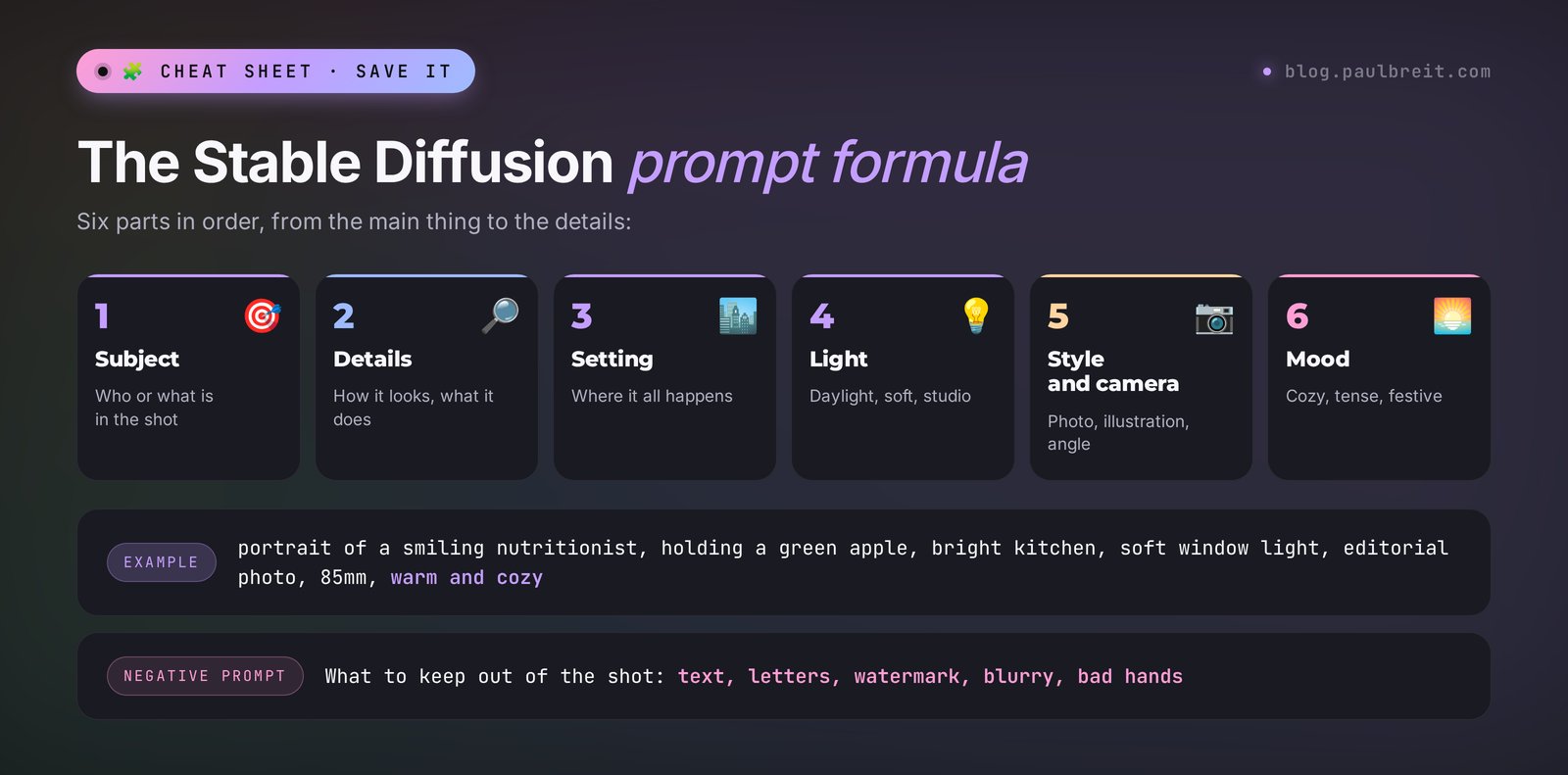
Stable Diffusion reads a prompt as a set of image features. It understands long, literary descriptions worse than ChatGPT does, so it's better to write in short chunks separated by commas. Words at the start of the prompt carry more weight than words at the end. Put the main thing first.
A formula that works almost every time:
- What's in the shot. The main object or character: a ceramic cup of matcha latte.
- Details. Material, color, action, emotion: with latte art, on a linen napkin.
- Setting. Where it happens: on a wooden table in a bright cafe.
- Light. What kind and from where: soft morning light from the window.
- Style and camera. Photo, illustration, 3D, angle, lens: food photography, top view, 50mm.
- Quality and mood. calm mood, high detail, natural colors.
The negative prompt is a separate field where you write what shouldn't be in the image. Midjourney has the --no parameter for this, while in Stable Diffusion it's a full second field, and it really helps. A basic negative prompt you can use almost every time:
text, letters, watermark, logo, signature, blurry, low quality, jpeg artifacts, deformed, extra fingers, bad hands, bad anatomyFor photorealism, add cartoon, illustration, 3d render, painting. For illustrations, the opposite: photo, realistic.
Word weight in parentheses
Another trick paid image tools don't have. If the model stubbornly ignores a detail, put it in parentheses with a number: (red scarf:1.3). A number above 1 strengthens the word, below 1 weakens it. Don't go above 1.5: the image will start falling apart. This works in Forge, ComfyUI, and most online services.
Negatives inside the main prompt. If you write no people in the main field, the model sees the word people and draws people. Move everything that shouldn't be there into the negative prompt.
Section 11From a plain description to a clean prompt
Most Stable Diffusion models don't understand other languages at all, or only pick up individual words. Write in English, in short comma-separated chunks. If turning an idea into that format feels awkward, or English isn't your first language, let a text AI do the work.
Give Claude, ChatGPT, or DeepSeek the role of a prompt writer once and use it all evening. Ready-made wording:
You help me write prompts for Stable Diffusion (the SDXL model). I'll describe an image in plain words. You return two blocks in English:
1. Prompt – short comma-separated phrases following the formula: subject, details, setting, light, style and camera, mood.
2. Negative prompt – what to exclude, plus a basic set: text, letters, watermark, blurry, low quality, deformed, bad hands.
If my description is missing something a good image needs, add it yourself and briefly say what you added. No extra words.
Here's what that looks like in practice:
You: A cover for a nutritionist's post about breakfasts. Oatmeal with berries, a bright kitchen, morning, cozy, vertical.
AI: Prompt: a bowl of oatmeal topped with fresh blueberries, raspberries and honey, wooden spoon, on a white marble kitchen counter, bright morning sunlight, linen towel, cozy calm mood, food photography, 45 degree angle, natural colors. Negative prompt: text, letters, watermark, blurry, low quality, deformed, bad hands, people. I added honey and a wooden spoon to bring the shot to life; set the vertical size to 896×1152.
Then you copy both blocks into the generator. If you don't like the result, tell the AI in plain words what to fix: "fewer berries, warmer light, top view." It'll return an updated prompt.
Section 1220 ready prompts for real tasks
All the prompts are designed for SDXL models and their photorealistic fine-tunes. Add the basic negative prompt from Section 10 to each one. Swap in your own niche, colors, and objects. For more image ideas, see my collection of AI photo prompt ideas and the AI prompt library.
Covers and post illustrations
#1. A post about burnout. A calm, atmospheric scene with no people.
an empty armchair by a rainy window in the evening, a knitted blanket and a cup of tea on a small table, warm lamp light, muted blue and amber tones, quiet melancholic mood, cinematic photo, shallow depth of field#2. A post about your first money in a new venture.
a small glass jar filled with coins and a sprouting green plant growing out of it, on a sunny windowsill, soft morning light, clean minimal background, hopeful mood, macro photo, high detail#3. A live session or webinar announcement. Leave room for a headline.
a professional microphone and a laptop on a desk in a modern home studio, soft purple and blue background lights, bokeh, empty space on the left side, clean composition, product photo, 16:9 frame#4. A post about planning your week.
top view of a neat desk with an open weekly planner, colorful sticky notes, a pen, a cup of coffee and a small succulent, soft natural light, pastel colors, flat lay photo, organized calm mood#5. A story post about a move or a trip.
an open suitcase on a bed with neatly folded clothes, a passport and a paper map, warm afternoon light through sheer curtains, cozy hotel room, travel lifestyle photo, warm film colorsProduct shots and food
#6. A healthy breakfast. For a nutritionist or a food blog.
a bowl of greek yogurt with granola, sliced strawberries and mint leaves, on a light wooden table, soft daylight from the side, fresh healthy mood, food photography, 45 degree angle, natural colors#7. Skincare on a backdrop. For a product listing or an ad.
a glass bottle of face serum standing on a wet stone surrounded by green leaves and water drops, soft studio light, clean beige background, luxury skincare product photo, sharp focus, high detail#8. A book or workbook. For selling a guide or a course.
a closed hardcover notebook with a blank cover lying on a cozy blanket next to a cup of cocoa and reading glasses, warm lamp light, autumn evening mood, lifestyle product photo, shallow depth of field#9. Candles and coziness. For a therapist, a coach, or a maker of handmade goods.
three handmade soy candles in ceramic jars on a linen tablecloth, dried flowers, soft golden glow, dark warm background, calm cozy atmosphere, product photo, high detail#10. Fitness and nutrition.
a shaker bottle, a pair of dumbbells, a towel and a banana on a gym bench, morning sunlight through large windows, energetic fresh mood, fitness lifestyle photo, clean compositionBackgrounds for stories, carousels, and websites
#11. A soft gradient background.
abstract soft gradient background, flowing silk fabric in lavender and peach tones, gentle light, smooth texture, minimal, calm, high resolution wallpaper#12. A workspace with no people. A background for a website or a course cover.
a bright minimalist home office with a large window, wooden desk, laptop, plants and bookshelves, morning light, scandinavian interior, wide angle interior photo, empty space for text#13. A natural texture.
close-up texture of green monstera leaves with water drops, soft diffused light, deep green tones, fresh natural background, macro photo, high detail#14. A therapist's office.
a calm therapy room with two soft armchairs facing each other, a small table with tissues and a plant, warm neutral colors, soft window light, peaceful safe atmosphere, interior photo#15. A city at dusk. For posts about goals and big plans.
a city skyline at blue hour seen from a high balcony, warm lights in the windows, soft clouds, calm inspiring mood, cinematic wide photo, empty space at the topAd creatives
#16. A creative for an online course.
a laptop on a cozy sofa showing a blurred video lesson, a notebook with handwritten notes, a cup of tea, warm evening light, comfortable learning at home mood, lifestyle advertising photo, empty space on the right#17. A creative for a consultation.
two coffee cups on a cafe table by the window, an open notebook and a pen between them, soft afternoon light, friendly trusting atmosphere, lifestyle photo, shallow depth of field#18. A "before and after" creative with no people.
split composition, left side a messy desk covered with papers and empty cups in cold gray light, right side the same desk clean and organized with a plant in warm sunlight, advertising photo, clear contrast#19. A creative for a challenge.
a pair of running shoes on a sunrise road with long shadows, morning mist, golden warm light, motivational fresh mood, low angle photo, cinematic colors#20. A gift certificate.
an elegant gift box with a satin ribbon and a blank card on top, scattered dried flowers, soft pastel background, gentle studio light, premium festive mood, product photo, high detailStable Diffusion is bad at writing text, and anything longer than a word or two usually turns into gibberish. That's why the prompts above have no captions, and they do include the phrase empty space: it leaves room for a headline. Add the headline itself in any image editor. If the text has to be right on the image, ChatGPT or Nano Banana 2 will handle it better.
Section 13LoRA, photo editing, and outpainting
Once you're comfortable with regular images, you'll discover the features people love Stable Diffusion for. Here's a quick rundown of the main ones, so you know what to look for.
LoRA – small add-ons for a model
A LoRA is a file of tens or hundreds of megabytes that teaches a model something specific: a watercolor style, a particular character, a type of clothing, a film photo effect. It plugs into the main model like a filter. Civitai has thousands of them. In online generators you add a LoRA with a button next to the model picker, and in programs on your computer you pick it from the list of add-ons. Each one's page says which model it works with (SD 1.5 or SDXL) and which trigger word to add to the prompt.
img2img – an image from an image
You upload a photo or a sketch and write a prompt. The model redraws the image while keeping the composition. The Denoising strength slider decides how much to change: 0.3 is a light stylization, 0.7 is almost a new image. That's how a photo of your workspace becomes a watercolor for a cover, or a hand-drawn sketch becomes a finished illustration.
Inpaint – redraw one part
You brush over part of the image and write what should be there. The model redraws only the selected area. This is how people fix mangled hands, remove a stray object, change the color of a mug, or extend the edges so a square image becomes a wide cover.
ControlNet – copy a pose or an outline
An add-on that takes a person's pose, the outlines, or the depth from a reference image and draws a new image on that skeleton. You need it when exact composition matters: for example, a series of illustrations where the character stands in the same pose every time.
Upscale – enlarge without losing sharpness
You can enlarge a finished image 2–4x with special upscaler models. They fill in fine details, so the image stays sharp even at a large size. Handy for print and for website covers.
You can make images with your own face in Stable Diffusion, but that's advanced territory: you need to train your own LoRA on 15–30 photos or install special add-ons. If you need an avatar or a portrait where people recognize you, it's faster to upload your photo to Nano Banana 2.
Section 14Stable Diffusion vs. other image AI tools
Stable Diffusion doesn't have to be your only image AI. Each one has its own strength. Here's a comparison on what matters for work:
| AI tool | Price | Text in the image | Strength |
|---|---|---|---|
| Stable Diffusion | Free on your computer, credits online | Weak, short Latin captions at best | No limits, thousands of models, full control |
| Midjourney | From $10 a month | Short Latin captions | The most beautiful aesthetics out of the box |
| ChatGPT | Free limit available | Good, long text and infographics | Understands complex requests right away |
| Nano Banana 2 (Gemini) | Free limit available | Good | Editing your own photos while keeping your face |
Here's how I'd split the work. Regular images for posts and backgrounds in one style go to Stable Diffusion, especially if it's on your computer and doesn't eat credits. One striking cover for a launch goes to Midjourney. An image with text, a diagram, or an infographic goes to ChatGPT. A portrait with your own face goes to Nano Banana 2. For the full lineup by task, see my article on the best AI tools of 2026, and everything that works without a subscription is collected in my overview of free AI tools.
Section 15Rights and commercial use
Can you use Stable Diffusion images in ads, on a website, or in product listings? In most cases yes, but there are nuances worth knowing up front.
- SD 1.5 and SDXL were released under the open CreativeML OpenRAIL license. Commercial use is allowed; the restrictions cover only prohibited content: deception, harm to people, breaking the law.
- SD 3.5 was released under the Stability AI Community License. It's free for personal use and for companies and entrepreneurs with annual revenue under $1 million. Above that, you need a paid enterprise license.
- Community models have their own terms. Each model's page on Civitai has icons showing whether you can sell the images and whether you can use the model in paid services. Open it and check before a commercial project.
- Online services add their own rules. On free plans, images often end up in a public feed where other users can see them. Don't upload client photos, documents, or anything you don't want to show.
And three honesty rules I recommend following every time. Don't generate recognizable real people without their consent, let alone celebrities. Don't pass off generated "results" as real: a "before and after" weight-loss photo or a "client testimonial" with a made-up face is deception, and platforms block ads for it. Don't copy the style of a specific living artist to advertise your product.
Section 16When something goes wrong
| What happened | Why | What to do |
|---|---|---|
| The image has nothing to do with the request | The prompt isn't in English, or the main thing is buried at the end | Write the prompt in English and put the main subject first |
| Two heads, repeats, stretched figures | The size isn't native to the model | For SDXL, stick to 1024×1024, 896×1152, 832×1216; for SD 1.5, 512×512 or 512×768 |
| A soft, blurry image | Too few steps or a small size on SDXL | Set 25–30 steps and the native size |
| An overexposed, "fried" image | CFG is too high | Lower it to 5–6, or to 1–2 for Turbo models |
| Mangled hands and fingers | A weak spot of the models, especially SD 1.5 | Add bad hands to the negative prompt, fix the hands with Inpaint, or keep them out of the shot |
| Random letters on the image | The model added text to make it look nice | Add text, letters, watermark to the negative prompt |
| The program says CUDA out of memory | Not enough video memory | Lower the size and the number of images per batch, or use a lighter model. In Forge, turn on the low-VRAM mode |
| An image takes minutes | The processor is working instead of the graphics card, or the card is weak | Check that the NVIDIA card is selected, update the driver, try a Turbo model |
| A black square instead of an image | The safety filter kicked in or the model glitched | Rephrase the prompt in neutral terms and restart the program |
| Free credits ran out | The daily limit | Wait until tomorrow or switch to another service from Section 04 |
| A model download keeps breaking | A huge file and an unstable connection | Download through Stability Matrix, which resumes interrupted downloads |
| An error during installation | Not enough space, an old driver, antivirus software | Take a screenshot and ask Claude, ChatGPT, or DeepSeek to explain what to click |
Section 17A checklist for your first evening
A two-hour plan. By the end you'll know whether Stable Diffusion suits you, and you'll have a batch of images for a couple of weeks of posts.
- Open the SD 3.5 demo on Hugging Face and make one image with prompt #2 to get a feel for the model.
- Sign up on Civitai with Google and turn on the safe content filter.
- Give Claude, ChatGPT, or DeepSeek the prompt-writer role from Section 11.
- Pick an SDXL model for photorealism and make three covers with prompts #1, #3, and #4 for the topics of your next posts.
- Make two story backgrounds with prompts #11 and #13.
- On an image you like, lock the seed and change one detail. See how the composition holds.
- Zoom in on every image to check it: hands, eyes, small details, random letters.
- Add headlines in an editor and save the prompts that worked in your notes.
- Check your graphics card using Section 07. If it has 8 GB or more, install Stability Matrix and repeat one image on your own computer.
- If you don't have a graphics card, save the list of services from Section 04 and rotate between them when the credits run out.
Section 18The whole path in a minute
- Stable Diffusion is an open image AI from Stability AI. The model is free: you can download it and run it at home.
- Versions: SD 1.5 for weak hardware, SDXL as the main workhorse, SD 3.5 as the newest official model (October 2024).
- Online with no install: the Hugging Face demo, Civitai, Tensor.Art, and SeaArt with free daily credits.
- On your computer: an NVIDIA graphics card with 8 GB or more, setup through Stability Matrix or ComfyUI Desktop, and Draw Things on a Mac.
- The local version works with no internet; the online services need only a browser and an email.
- Key settings: 25–30 steps, CFG 5–7, the model's native size, and a fixed seed for a series in one style.
- Prompt in English: subject, details, setting, light, style. Everything unwanted goes into the negative prompt.
- Add text to the image later in an editor: the model is weak at writing it.
- SD 3.5 is free for businesses with revenue under $1 million a year; for community models, check the license on their page.
FAQFrequently asked questions
Is Stable Diffusion really free?
Yes, the model itself is free: Stability AI released it openly, and you can download it and run it on your computer with no subscription. You only pay for the computing. On your own computer that's electricity, and on online services it's credits, which most websites hand out free every day.
How do I use Stable Diffusion online without installing anything?
Open the official Stable Diffusion 3.5 demo on Hugging Face, or the generator on Civitai, Tensor.Art, or SeaArt. Type a prompt in English, choose a size, and press Generate. Civitai, Tensor.Art, and SeaArt require an account, and the easiest way to sign up is with Google.
What graphics card do I need for Stable Diffusion?
NVIDIA works best. SD 1.5 needs 4 GB of video memory, SDXL needs 8 GB or more, SD 3.5 Medium about 10 GB, and SD 3.5 Large 11–12 GB or more in a lightweight format. AMD cards work too, but setup is harder. On a Mac with an M1–M4 chip, the Draw Things app is the easy option.
What is the latest version of Stable Diffusion?
The latest official model is Stable Diffusion 3.5, released in October 2024 in Large, Large Turbo, and Medium versions. Stability AI hasn't released a newer model since. In practice, many people generate with SDXL and the community's fine-tuned versions of it, because it has the most models and add-ons.
Can I write prompts in languages other than English?
Most Stable Diffusion models don't understand other languages, or only pick up individual words. Write in English. A handy trick is to describe your idea in plain words to Claude, ChatGPT, or DeepSeek and ask for a prompt and a negative prompt in English.
Does Stable Diffusion work offline?
Yes. Once you've downloaded the program and the models, the version on your computer works with no internet at all. The online services Hugging Face, Civitai, Tensor.Art, and SeaArt need a connection, and they open in any browser.
What is a negative prompt?
It's a separate field where you write what shouldn't be in the image: text, letters, watermark, blurry, bad hands, and so on. Stable Diffusion handles negatives in the main prompt poorly: if you write no people, it sees the word people and draws people. That's why everything unwanted goes into the negative prompt.
Can I use Stable Diffusion images in ads?
As a rule, yes. SD 1.5 and SDXL allow commercial use under the OpenRAIL license. SD 3.5 is free for businesses with annual revenue under $1 million, and above that you need a paid license. Community models have their own terms, which you'll see on the model's page on Civitai.
How is Stable Diffusion different from Midjourney?
Midjourney is a paid subscription from $10 a month and gives the most beautiful images out of the box. Stable Diffusion is free, runs on your computer with no limits, offers thousands of community models, and gives you full control over the settings. In return, you have to install it or find an online service, and a beautiful result takes a bit more tuning.
Why does my image have two heads or mangled hands?
Two heads and repeats almost always come from a non-native size: SDXL was trained at 1024 pixels and SD 1.5 at 512. Use the native size and get a bigger image by upscaling. Mangled hands are a weak spot of the models: add bad hands to the negative prompt and redraw the hands with Inpaint.