AI for Email: an Agent That Sorts and Replies for You
In 2026, AI for email does a lot more than summarize a long message. It reads your inbox, files every email into the right folder, drafts replies in your voice, and sends you a summary every morning: who wrote, what's urgent, where money is waiting. Here are 6 AI email tools for Gmail and Outlook, plus a step-by-step build of your own email agent in Claude that you can finish in one evening.
The best AI for email depends on where your inbox lives. For Gmail, use Gemini right inside the inbox or Claude with the Gmail connector. For Outlook, use Copilot with a Microsoft 365 subscription. To have AI sort incoming mail and prepare replies on its own, build an email agent in Claude: connect Gmail, give it instructions with folders and rules, and it will go through your inbox every morning and leave drafts you send with one click.
Anyone whose clients and money live in their inbox: a therapist with session bookings, a tutor with rescheduled lessons, a coach with sign-ups after a webinar, a lawyer with contracts, a freelance designer with revision requests, a nutritionist answering questions about programs, an online school owner with payment emails. If you have ever found a lead a week late, buried under newsletters, this article is for you.
What's inside
- What AI for email can do in 2026
- 6 AI email tools: the 2026 lineup
- Which one fits your inbox
- Why an agent beats a button
- Build your email agent in Claude, step by step
- Instructions for the agent: ready-to-paste text
- Your first morning review: a sample chat
- Replies in your voice and 6 templates
- The agent on a schedule
- If your email is on Outlook, Yahoo, or iCloud
- Ready setups for 6 niches
- Security: what the agent must never do
- If something goes wrong
- How much time it saves
- Your first-week checklist
- The whole path in a minute
- FAQ
Section 01What AI for email can do in 2026
I'll be honest: email is the most underrated place to put AI to work. Everyone rushes to make posts, reels, and pictures, while leads quietly drown in the inbox between a ride receipt and a newsletter from a service you signed up for three years ago and forgot about. A client writes in the evening, you see it two days later, and by then they've bought from someone else. Sound familiar?
Email AI has grown up fast over the past year. In January 2026, Google announced the biggest Gmail update in 20 years: summaries of long threads, answers to questions about your inbox, smarter drafts, and a separate AI Inbox that pulls priorities to the top. Microsoft has kept Copilot inside Outlook for a while now. And Claude learned to connect to Gmail and work with it like an assistant you've handed the keys to your inbox.
Here's what AI already does with email today, with zero programming:
- Summarizes. A 30-email thread with a contractor turns into five lines: what you agreed on, what's still open, who owes whom what.
- Sorts. It separates leads and client emails from newsletters, notifications, and spam, and it does this by meaning. An email that says "hi, how much is your course?" gets recognized as a lead even if the word "lead" appears nowhere in it.
- Searches by meaning. A question like "which invoice did my bookkeeper send me in September?" works without the exact words from the email.
- Writes replies. From a short command like "politely decline and offer next month," it drafts the whole email in your tone.
- Pulls out facts. The amount on a receipt, the date from a meeting invite, the payment details from a contract in the attachment.
- Reminds you. It finds emails you promised to answer and didn't, and clients who went quiet after you sent an invoice.
And one important limit the ads never mention. AI makes mistakes. Rarely, but it does: it can take a partner's email for a newsletter or mix up a date. That's why every setup in this article keeps the final word with you. The agent sorts and writes drafts, you look them over and hit Send. That takes seconds, and the cost of a mistake drops to zero.
Section 026 AI email tools: the 2026 lineup
I've collected what actually works with email in 2026. The first three live inside your email service or connect straight to it. The last three are standalone email apps and add-ons that sit on top of Gmail and Outlook.
| Tool | Works with | What it does | Price |
|---|---|---|---|
| Claude with the Gmail connector | Gmail | Searches and reads emails, summarizes threads, sorts by your rules, drafts replies, runs on a schedule | Pro plan – $20/month ($17/month billed yearly) |
| Gemini in Gmail | Gmail | Thread summaries (AI Overviews), Help Me Write, Suggested Replies, AI Inbox with priorities, questions about your inbox | Core features free, Proofread and inbox Q&A in Google AI Pro and Ultra |
| Copilot in Outlook | Outlook, Hotmail | Thread summaries, reply drafts, tone coaching, help with attachments | Microsoft 365 Personal – $9.99/month, 60 AI credits a month |
| Superhuman | Gmail, Outlook | A fast email app with AI: sorting, summaries, drafts | $30/month, or $25/month billed yearly |
| Shortwave | Gmail | An email app with an AI assistant: search by meaning, summaries, replies | Limited free plan, paid from $24/month billed yearly |
| Fyxer | Gmail, Outlook | Files emails into categories, drafts replies in your voice, never sends anything on its own | From $37/month billed yearly ($49 month to month), 14-day free trial |
Claude with the Gmail connector
My favorite for anyone who sells services, courses, and consulting. You connect Claude to Gmail in settings, and from then on you just type in the chat: "go through my inbox from the last 24 hours," "find every client email I haven't answered," "draft a reply to Maria about rescheduling." Its first strength is writing. Claude writes the most natural, human-sounding emails of the bunch, and it's easy to teach it your tone. Its second strength is instructions: you explain the rules of your business once, and it follows them in every review. The weak spot: Claude doesn't wake up on its own when a new email lands. It works when you ask it to, or when a scheduled task comes due.
Gemini in Gmail
Google's built-in assistant. Since January 2026, Gmail shows an AI Overview of long threads at the top of the email, helps you write a reply with Help Me Write, and offers short Suggested Replies you can send with one tap, all free. The separate AI Inbox pulls important emails and to-dos to the top, and Gmail Live, shown at Google I/O in May 2026, lets you ask your inbox questions out loud. Proofread and detailed questions across your whole mailbox come with a Google AI Pro or Ultra subscription. The catch: Gemini knows almost nothing about your business until you explain it in every single request.
Copilot in Outlook
If your email runs on Outlook, or you work at a company with Microsoft email, Copilot is already close by. It summarizes a thread, drafts a reply from a short command, and suggests how to soften a sharp email. For a personal inbox you need a Microsoft 365 subscription: Personal is $9.99 a month and includes 60 AI credits a month. I cover every version of Copilot in detail in How to Use Microsoft Copilot in 2026.
Superhuman, Shortwave, and Fyxer
These are standalone email apps and add-ons on top of Gmail and Outlook. Superhuman is a fast email app for people who live in their inbox all day, and it's now owned by Grammarly. Shortwave leans on search by meaning and summaries. Fyxer is the closest to the topic of this article: it files emails into categories, drafts replies in your voice, and never sends anything on its own. All three cost between $24 and $49 a month. They're good tools. My only argument against starting with them is breadth: for about the same money, Claude gives you more, because it handles your posts, spreadsheets, and documents too, on top of your email.
Section 03Which one fits your inbox
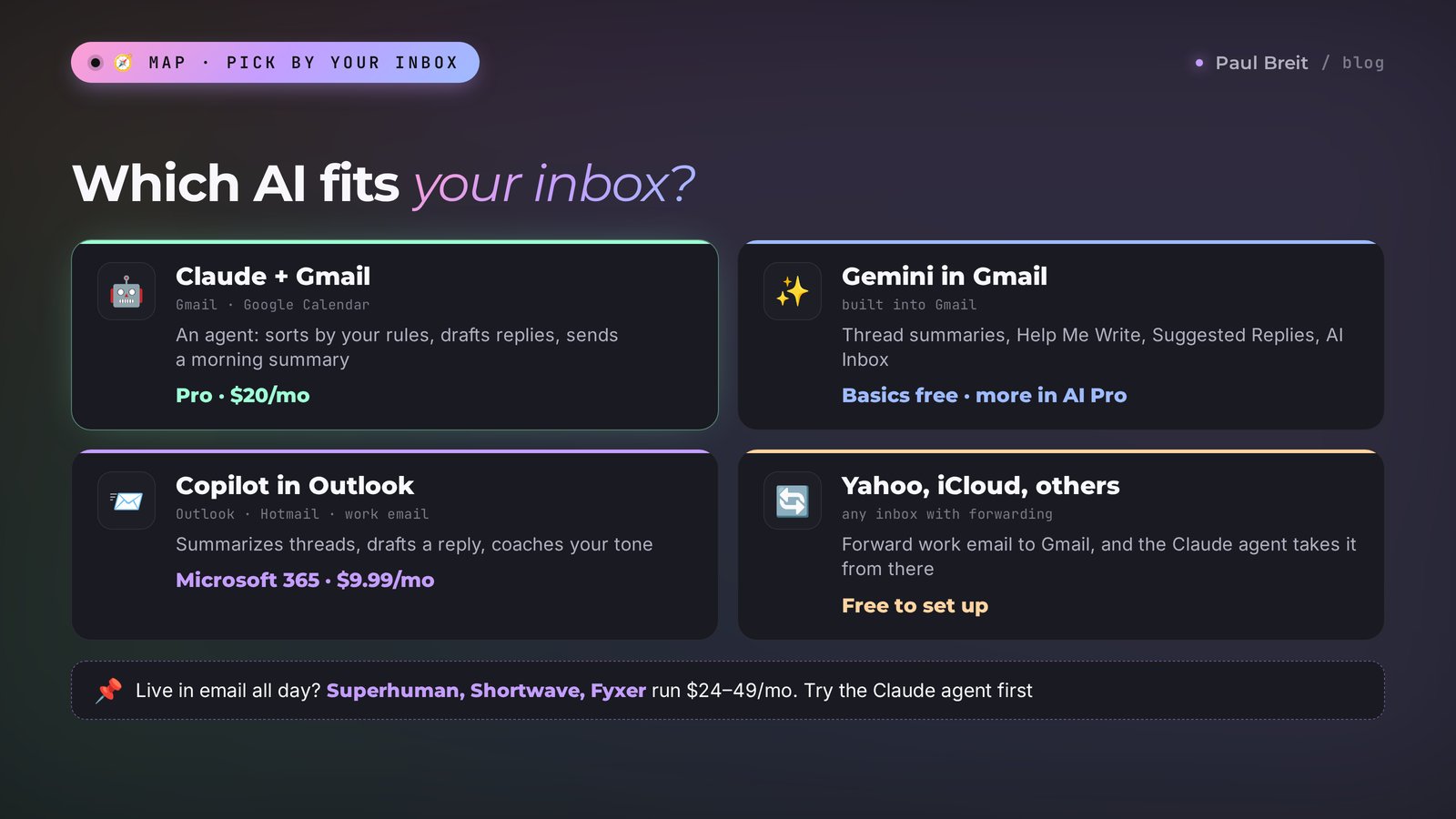
You don't need to try all six. One thing almost always decides it: where your work email lives. Go down the list and stop at the first line that describes you.
- Your email is on Gmail and you want it handled for you. Claude with the Gmail connector and the email agent from this article. Keep Gemini inside Gmail as a free extra for quick summaries.
- Your email is on Gmail and there's no budget for a subscription yet. The free Gemini features in Gmail: thread summaries, Help Me Write, Suggested Replies. I collected other free tools in free AI tools for 2026.
- Your email is on Outlook or your company runs on Microsoft. Copilot. At a company, your admin turns it on. For a personal inbox you need Microsoft 365.
- Your email is on Yahoo, iCloud, or another provider. Read the section on forwarding work email to Gmail. That's the shortest path to a real agent.
- You're in email all day and willing to pay for a dedicated app. Look at Fyxer or Superhuman. But try Claude first: one subscription covers your email, your writing, and your spreadsheets.
My advice for most readers of this blog is simple: set up a work email on Gmail if you don't have one yet, and build the agent in Claude. That gets you the most for $20 a month, and you'll use the same subscription for posts, your website, and everything else I write about here.
Section 04Why an agent beats a button
Here's the key point. The "summarize" button in Gmail or the Copilot pane in Outlook works like this: you open an email, press the button, get a summary. Handy, yet you're still the one going through the inbox. You still open every email, decide whether it matters, and write the reply, even with a hint.
An email agent works differently. It's an AI you've briefed once on the rules of your business, given access to your inbox, and assigned a recurring job. If you want to understand the concept itself, I have a detailed piece on what an AI agent is. For email, the agent has three parts:
- Instructions. Who you are, what you sell, which emails count as leads, what the agent may answer, what goes only to you, and what tone to write in.
- Access. A connection to your email, so the agent sees incoming mail and puts drafts into your mailbox by itself.
- A routine. A review every morning, on command or on a schedule.
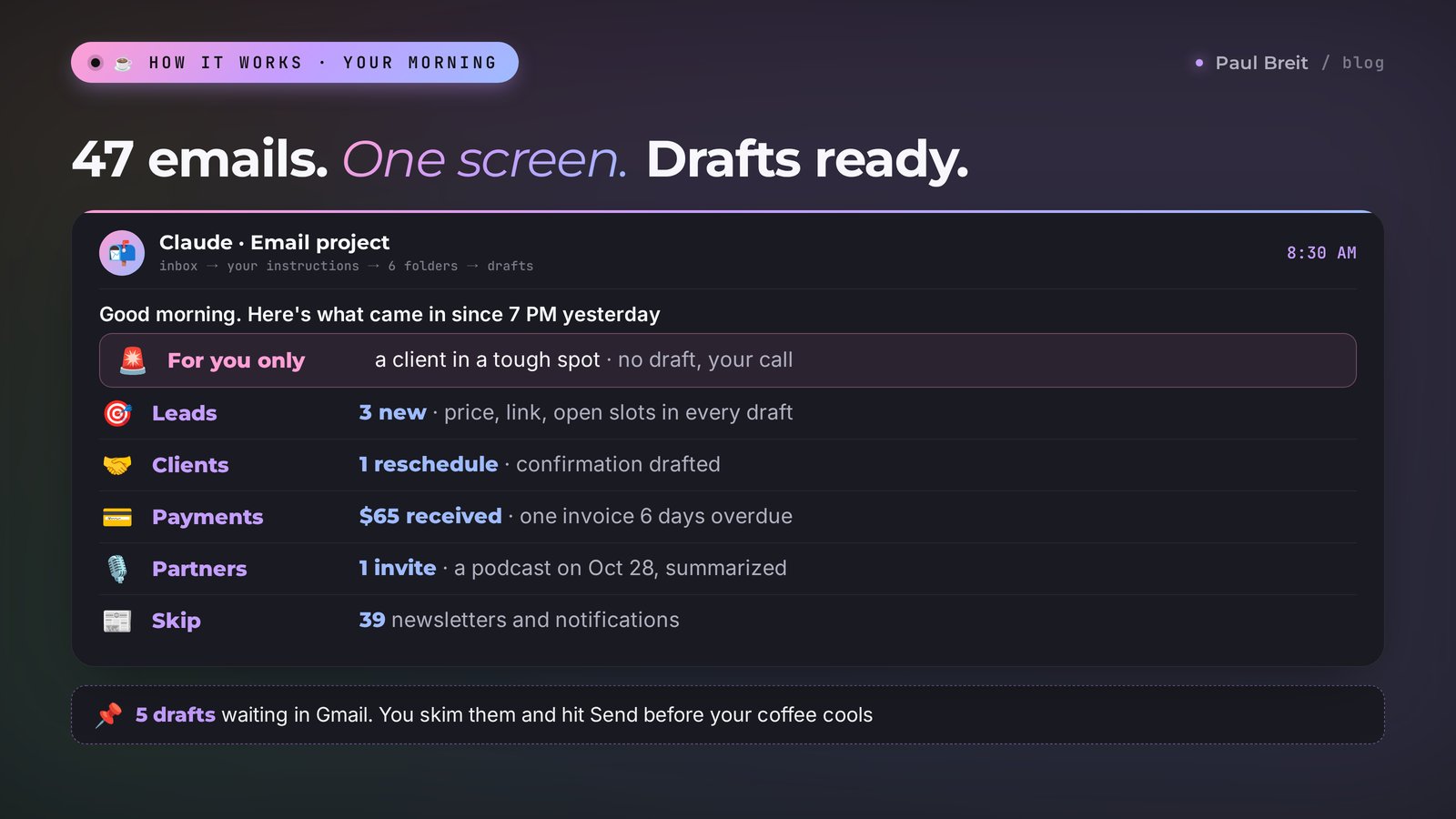
You feel the difference on day one. Your morning used to start with 80 unread emails and that nagging "what did I miss" feeling. Now it starts with a one-screen summary: three leads, two clients waiting for an answer, one payment in, one overdue, everything else safe to skip. Under every lead there's a ready reply. You skim, hit Send, and your inbox is done before your coffee cools.
Section 05Build your email agent in Claude: step by step
Set aside one evening. Most of that time goes into the instructions; the setup itself takes about twenty minutes. No code, no files to create by hand, everything happens in the Claude window. If you've never used Claude before, start with my guide Claude from scratch for non-techies and come back here.
Sign up for Claude
Go to claude.ai and create an account. The easiest route is to sign in with the same Google account you use for work email: you'll need that Gmail in step 3 anyway. If you're outside the US or EU, check that your country is on Anthropic's list of supported regions before you subscribe.
Upgrade to Pro
The Gmail connector works on paid plans. Pro costs $20 a month, or $17 a month billed yearly, and that's more than enough for a daily inbox review. If you'd rather test the waters first, use the free plan to write your instructions and switch to Pro when you're ready to connect your email.
Connect Gmail
In Claude, open Settings, find the section with connectors, pick Gmail, and click Connect. A Google window opens: choose your work account and allow access. That's it, Claude can now see your email. Can't find the button? Ask Claude right in the chat: "how do I connect my Gmail?" It will tell you where the option sits in your version. While you're there, connect Google Calendar too: the agent will use it to offer clients open time slots.
Create an "Email" project
In the left menu, open Projects and create a new one called "Email." A project is a folder with permanent memory: whatever you put in its instructions, Claude remembers in every new chat inside that project. This is where the agent instructions from the next section go. More on how projects work in my guide to Claude Projects.
Paste the instructions
Copy the template from Section 06, replace everything in square brackets with your own details, and paste it into the project instructions field. Don't aim for perfect on the first try: the instructions are a living document, and after a week of real email you'll fine-tune them.
Teach the agent your voice
Open a new chat in the project and type: "Find my last 20 emails to clients in the Sent folder and describe how I write: length, greeting, how I address people, sign-off, favorite phrases. Save the description, I'll add it to the instructions." Claude will read your emails and return a style profile. Add it to the end of the project instructions. More on this in Section 08.
Run your first review
Type in the project chat: "Go through my inbox from the last 3 days according to the instructions." Compare the result with your own sense of things. Where the agent got it wrong, tell it straight: "the email from Oleg is a partner, add to the instructions that his company's domain goes to Partners." You'll find an example of a review like this in Section 07.
Why bother with a project when there's a regular chat? In a regular chat you'd have to explain who you are and how to sort every single time. The project remembers the instructions, and a review starts with one sentence.
Section 06Instructions for the agent: ready-to-paste text
Here's the template I recommend as your starting point. Six folders cover the inbox of almost anyone who sells services, courses, and consulting. Replace everything in square brackets with your own details. The more specifically you describe what a lead looks like and what you charge, the more accurate the agent will be.
You are my email agent. Your job is to go through my work email in Gmail, file emails into folders, draft replies, and send me a summary.

Who I am: [name], [what I do, e.g.: therapist, I run one-on-one online sessions].
What I sell: [products and prices, e.g.: 60-minute session – $65, package of 5 sessions – $290].
How to book: [booking link, or "reply to this email"].
My working hours: [e.g.: Mon–Fri, 10 AM to 7 PM Eastern].

Folders:
1. Leads – someone asks about price, booking, a program, or terms for the first time. Even if it's a one-line email.
2. Clients – someone I already work with: reschedules, questions about our work, feedback.
3. Payments and documents – invoices, receipts, contracts, bank and payment service notifications.
4. Partners – collaboration offers, live streams, podcasts, ads. [Domains and names of my partners: ...]
5. Newsletters – service news, subscriptions, marketing emails.
6. Skip – automatic notifications, spam, emails that mean nothing to me.

What to do with each email:
– Leads: draft a reply in the email thread. Answer the question, give the price, include the booking link. If the question is unclear, ask one clarifying question.
– Clients: draft a reply if the answer is obvious (reschedule, time, link). If the client complains, asks for a refund, or describes a difficult situation, do NOT draft anything. Flag it in the summary as URGENT FOR ME.
– Payments and documents: in the summary, list amounts, who from, and what for. Flag overdue invoices.
– Partners: summarize the offer briefly, no draft.
– Newsletters and Skip: just the count in the summary.

Rules for replies:
– Write warmly and briefly, the way I do. [I'll add a description of my style below.]
– Never promise discounts, deadlines, or results that aren't in these instructions.
– Never send emails yourself. Drafts only. I send.
– If you're unsure which folder an email belongs to, put it in the summary marked "check this."

Summary:
Start with what matters most: how many new leads, which clients are waiting for a reply, whether anything is urgent. Then go folder by folder, one line per email: who from, what about, what you did. End with a list of drafts waiting for me to send.

My style:
[paste the style description from step 6]
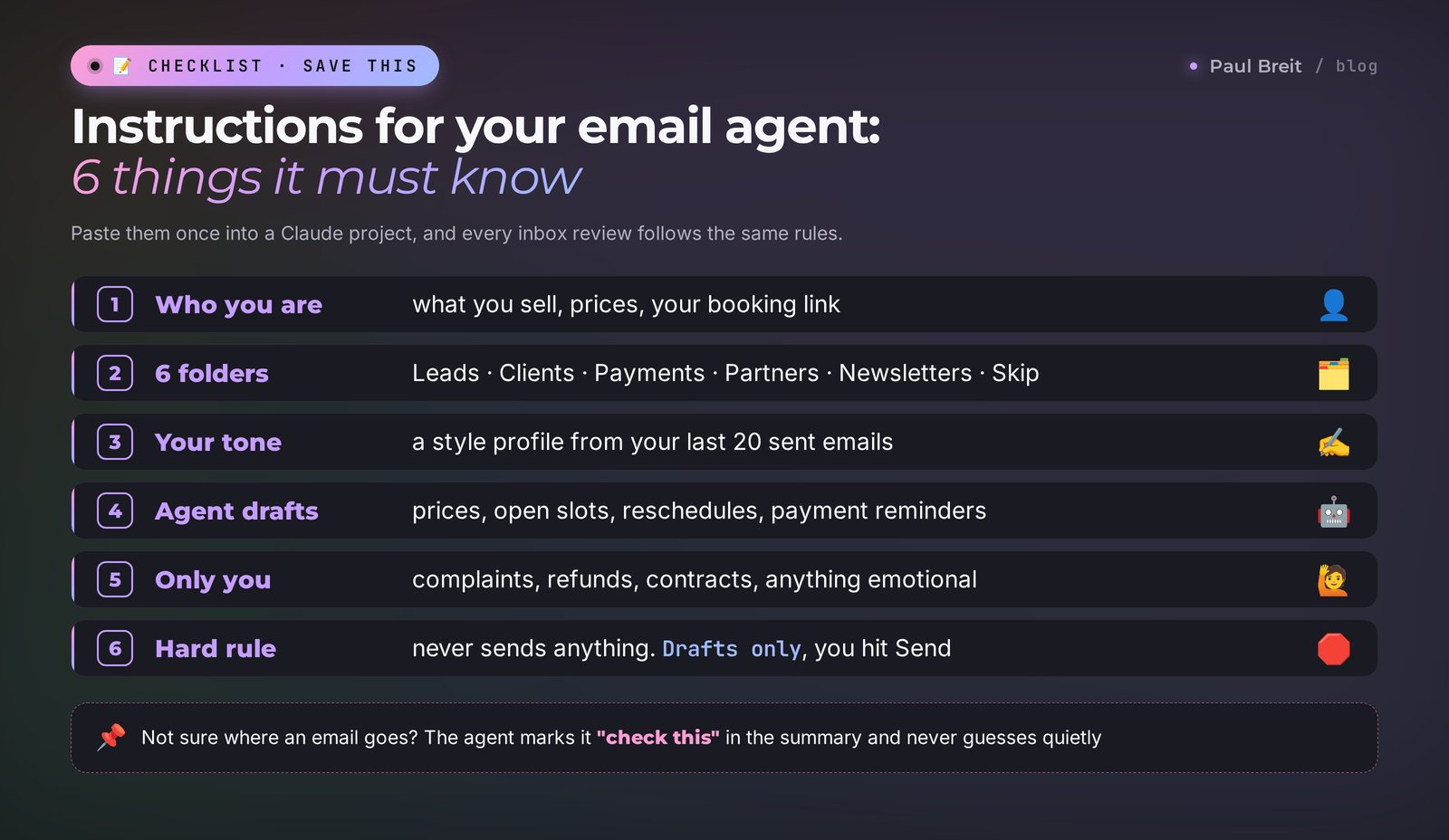
A few words on why the instructions are built this way.
- Folders are described in words. AI sorts by meaning, so it matters more that it understands what "lead" means to you than that it knows keywords. "Someone asks about price for the first time" works more reliably than any filter for the word "pricing."
- Prices and links are right in the text. Without them, the agent writes "I'll check and get back to you," and the draft loses its point. With them, it answers the lead completely.
- There's a "for me only" zone. Complaints, refunds, contracts, anything emotional. The cost of a mistake there is high, so you read those emails yourself. The agent leaves them alone and only flags them at the top.
- There's a rule for doubt. Without it, the agent quietly drops a borderline email somewhere. With it, you see every edge case, and within a week you refine the instructions until almost none are left.
Section 07Your first morning review: a sample chat
Here's what a review looks like for a hypothetical therapist who runs online sessions. The names are made up; the mechanics are exactly like this.
You type in the "Email" project: Good morning. Go through my inbox since 7 PM yesterday according to the instructions.
Claude replies: I went through 47 emails. The headline: 3 new leads, 1 client waiting for a reply, 1 urgent item for you.
URGENT FOR YOU. Irene K. writes that she felt worse after the last session and asks whether she should continue. I didn't draft a reply.
Leads (drafts ready): Anna asks about the price of the 5-session package; I replied with the $290 price and the booking link. Daniel asks whether you work with couples; that isn't in the instructions, so I drafted a clarifying question about what's worrying him, please check it. Ellen asks for an open slot this week; I offered Thursday at 12:00 and Friday at 3:00 from your calendar.
Clients: Oleg asks to move his session from Monday to Wednesday; a confirmation draft is ready.
Payments: a $65 payment came in from Anastasia M.; Sergey's $290 invoice has been unpaid for 6 days.
Partners: an invitation to a podcast on October 28, topic: burnout, audience around 8,000.
Newsletters: 18 emails. Skip: 21 emails.
You type: Tell Daniel that yes, I work with couples, a couples session is $95. And add that to the instructions. Draft a gentle reminder to Sergey about the invoice.
Claude replies: I rewrote the draft to Daniel. The reminder to Sergey is ready: short, no pressure, with the payment link again. Add this line to the project instructions: "I work with couples, a session is $95, 90 minutes." If you'd like, I can write out the full updated section.
Notice three things. First, the agent didn't touch Irene's email and flagged it at the top, because the instructions have a rule about difficult situations. Second, on a question the instructions don't cover, it honestly marked "please check it" and made nothing up. Third, you make corrections in plain words, and every correction makes the agent more accurate.
Then you open Gmail, go to Drafts, skim five emails, and hit Send. Five minutes, and your inbox is done.
A common beginner mistake is asking "go through my email" without a time range. Claude will pick some window of its own, and you won't know what got skipped. Always name the period: "for the last 24 hours," "since 7 PM yesterday," "over the weekend."
Section 08Replies in your voice and 6 templates
The most common complaint about AI in email: "it writes like a robot, my clients will notice." True, if you set nothing up. By default, a draft sounds like a letter from your bank: "Thank you for reaching out, we look forward to serving you." Your clients are used to something else.
The fix takes ten minutes. Claude reads your sent emails and writes up a description of your style. Here's what to ask it to note:
- email length: two lines or a full paragraph;
- greeting: "Hi Anna," "Hello Anna," or just "Anna,";
- whether you use emojis, and which ones;
- how you sign off and sign your name;
- favorite phrases, and words you never use;
- how you state a price: just the number, or with a note on what's included.
Add the description to the instructions, and within a couple of days the drafts will sound close enough to you that you send them with almost no edits. If a draft misses, don't quietly rewrite it. Tell Claude what's off: "too formal, I don't write like that, shorter and warmer." It will fix the draft, and it will remember if you ask it to update the style description.
Now the templates. These are the typical emails almost anyone who sells services receives. Describe in the instructions how you answer each, and the agent will draft these replies on its own.
| Email type | What to put in the instructions | How the agent replies |
|---|---|---|
| Price question | All prices, what's included, booking or payment link | Gives the price, briefly explains what's included, adds the link |
| Request for an open slot | Working hours, meeting length, calendar access | Offers 2–3 open slots from your calendar |
| Rescheduling | Your rescheduling rules: how many hours ahead, how many times | Confirms the change or politely reminds them of the rule |
| "Is this right for me?" | Who your work is for and who it isn't for | Asks one clarifying question or answers from your description |
| Payment reminder | How many days before a reminder, in what tone | Drafts a short, gentle reminder with the link |
| Collaboration offer | Who you work with and who you don't | Summarizes the offer, drafts a reply only on your command |
There are deliberately no templates for refunds, complaints, and disputes. You always read those emails yourself. AI can suggest wording if you ask, but the decision and the tone here are yours alone.
By the way, if you also write newsletters to your clients, I have a separate guide: email newsletters written with AI. It's about emails people read to the end.
Section 09The agent on a schedule
So far the agent works when you tell it to "go through my email." That alone saves a ton of time, but you can go further and put the review on a schedule, so the summary is simply waiting for you in the morning.
For that you need the Claude desktop app. It has a Cowork mode where Claude carries out multi-step tasks on its own, and that's where you can create a scheduled task. Here's the order:
Install the Claude app
Download Claude for Windows or Mac from claude.ai and sign in with the same account.
Ask Claude to create the task
In Cowork mode, type: "Create a scheduled task: every weekday at 8:30 AM, go through my Gmail from the past 24 hours using the instructions from the Email project, draft replies, and send me a summary." Claude sets the task up itself and shows you what it will look like. If it asks to copy the instructions into the task, let it do that on its own.
Check the first run
In the morning, see whether the summary arrived and whether drafts appeared in Gmail. If something's off, describe to Claude what you see, and it will adjust the task.
One important detail: a scheduled task runs when your computer is on and the Claude app is open. If your laptop is asleep in a bag, the review waits until you open it. For most people that's fine: you turn on the computer in the morning, and a couple of minutes later the summary is ready.
If you want the agent working around the clock and reacting to every new email by itself, that's the next level: your own server and Claude Code. The principle is the same as in an AI agent in your Telegram DMs, just with email instead of direct messages. But I'll be honest: for email, a morning and evening review is enough for almost everyone. A lead you answered three hours later with a ready, thoughtful email converts better than a lead that sat for two days.
Section 10If your email is on Outlook, Yahoo, or iCloud
Plenty of people have lived in one inbox for a decade, and nobody wants to move just for an AI tool. I get it. You have three options; pick the one that fits.
Option 1. The AI already in your inbox
If you're on Outlook, that's Copilot with a Microsoft 365 subscription. It summarizes threads, drafts replies from a short command, and helps with tone. You can't build a full agent with your own folders, morning summary, and schedule out of it yet, but for searching and answering one email at a time it does the job. Try requests like these:
- "Summarize this thread: what did we agree on and what's still open?"
- "Draft a reply: politely decline and offer November."
- "Make this email softer, it sounds too blunt."
- "What are the deadline, the amount, and the cancellation terms in this contract?"
Option 2. Forward work email to Gmail
The most common path. Outlook.com, Yahoo Mail, and iCloud Mail all have forwarding options in their settings, though what's available can depend on your account and plan. You turn on forwarding to your Gmail, and work email starts arriving where the agent from this article handles it. You can reply straight from Gmail. To find the exact menu path, ask Claude: "how do I forward all my Yahoo Mail to Gmail?" and it will walk you through the current steps.
One wrinkle. If clients write to your Yahoo or iCloud address and the reply comes from Gmail, that might confuse them. The fix is easy: in your first reply from Gmail, mention in the signature that this is now your work address, or set up Gmail to send as your old address. Claude can walk you through that setup step by step too.
And if your business email is on your own domain and runs on Google Workspace, it's already Gmail under the hood. Connect it to Claude directly; at a company, your Workspace admin may need to allow the connection first.
Option 3. Move to Gmail completely
If your email is a mess anyway, this might be your chance at a clean slate: a new work inbox on Gmail, forwarding from the old one for a while, and after a couple of months you can stop checking the old one. Your call. I'll just say that an agent on a fresh inbox works more accurately from the start: it isn't wading through ten years of old newsletters.
Section 11Ready setups for 6 niches
Six folders are the universal frame. What the agent answers on its own and what it leaves for you depends on your niche. Find your row and add it to the instructions.
| Niche | What the agent answers | What only you handle | Special folder |
|---|---|---|---|
| Therapist | Price, open slots, rescheduling, video call link | Anything about how the client is feeling, last-minute cancellations | Flag emails with alarming words separately |
| Tutor | Schedule, rescheduling, homework from a template, monthly payment | Parent complaints, questions about grades | Parents' emails separate from adult clients' emails |
| Coach or mentor | Replies to sign-ups after a live session, program, price, booking an intro call | Custom terms, payment plans, refunds | Live-session sign-ups with the session date in the summary |
| Lawyer | Confirming documents were received, booking a consultation | Any reply on the substance of a case | Deadlines from court and counterparty emails at the top of the summary |
| Designer or freelancer | A brief for a new lead, project status, agreed deadlines | Disputed revisions, a new price, dropping a project | Revisions for each project as a separate list |
| Online school | Course access, password resets, links to materials | Refunds, complaints, dispute emails from payment services | Payment and access emails with the order number |
The special folder is what makes the agent truly yours. A therapist can't afford to miss an email from someone who's struggling. A lawyer can't miss a deadline in a counterparty's email. An online school can't miss a client who paid and didn't get access. Write your rule in one line, and the agent will keep it in every review.
Section 12Security: what the agent must never do
Giving AI access to your email is a serious step. Your inbox holds passwords, contracts, and client conversations. So here are the rules I consider mandatory.
- The agent doesn't send email on its own. Drafts only. The rule is in the instructions, but keep it in your head too: even if some app offers "auto-reply without review," don't turn it on for client emails.
- Connect your work inbox. The agent has no business in your personal email with your bank, tax accounts, and family threads. One more reason to have a separate work Gmail.
- Don't ask it to forward passwords or codes. Emails with words like "verification code" or "password reset" go to Skip, and the agent never quotes them anywhere. Put that in the instructions.
- The agent helps you catch scammers. Ask it in the instructions to flag emails that push you to pay urgently, click a link, or enter a password on behalf of a bank or service. AI is pretty good at spotting these, though the final call is still yours.
- Turn off training on your data. In Claude's privacy settings, check whether your chats may be used to improve models, and switch it off if you don't want that.
- You can revoke access in a minute. Changed your mind? Disconnect Gmail in Claude's settings or in the security section of your Google account, where every app with access is listed.
If you handle sensitive client data, medical or legal for example, think about what exactly will end up in the review before you connect your email. Sometimes the smarter move is a separate inbox for leads and bookings, with the substantive conversations kept where the agent doesn't look.
Section 13If something goes wrong
Here are the problems that come up most often, and what to do about them.
| What happened | Why | What to do |
|---|---|---|
| Claude won't let you subscribe | Your country isn't on the supported list | Check Anthropic's list of supported regions; the setup in this article needs a paid plan |
| No Gmail connect button | Free plan or an outdated app | Make sure you're on Pro, update the app, ask Claude "where do I connect Gmail?" |
| Claude says it can't see your email | The connector isn't enabled for this chat, or Google access dropped | Turn Gmail on in the connectors menu at the bottom of the chat window, or reconnect the account |
| Leads land in Newsletters | The description of a lead is too narrow | Show the agent an example: "this email is a lead, fix the rule in the instructions" |
| Drafts sound stiff | No description of your style | Do step 6 from Section 05 and add your style to the instructions |
| The agent made up a price or a term | It isn't in the instructions | Put prices and terms right in the instructions, add the rule "don't promise anything that isn't here" |
| The scheduled task didn't run | The computer was asleep or the app was closed | Open the app and the review will run, or move the time to when your computer is definitely on |
| Gemini features don't show up in Gmail | Google rolls out features gradually, and some need AI Pro | That's normal; use Claude for the inbox review |
If something breaks that isn't in the table, describe the situation to Claude itself: what you did, what you expected, and what you saw. Most of the time it finds the problem on its own and suggests a fix.
Section 14How much time it saves
Let's run a simple example. Say you get 50 emails a day, and each one takes a minute and a half on average: open it, understand it, decide, reply or put it off. That's 75 minutes a day, more than six hours a week. Almost a full workday spent shuffling email.
With the agent, the picture changes. The summary takes a couple of minutes to read, sending the ready drafts with a quick check takes another five, and the hard emails you always read yourself anyway. That comes to 15–20 minutes a day instead of well over an hour. Your numbers will differ, but the scale of the savings is clear.
Where the agent hits hardest, though, is the money that used to get lost in the pile. A lead no longer sits under newsletters for a week. An overdue invoice doesn't get forgotten. A client who asked to reschedule gets an answer that same morning. Every one of those small things is a person who stayed with you.
If the email agent works for you, the next step is an agent that sends you a sales report every morning; I wrote about it in AI business analytics. And if you want to understand how to build agents for your own tasks in general, start with the guide how to build an AI agent with no code.
Section 15Your first-week checklist
- ☐ Day 1. Set up a work Gmail if you didn't have one. Signed up for Claude and upgraded to Pro.
- ☐ Day 1. Connected Gmail and Google Calendar in Claude's settings.
- ☐ Day 2. Created the "Email" project and pasted the instructions from Section 06 with your prices, links, and folder descriptions.
- ☐ Day 2. Asked Claude to describe your style from your sent emails and added the description to the instructions.
- ☐ Day 3. Ran the first review for the last three days and corrected every sorting mistake in plain words.
- ☐ Day 4. Sent the first drafts, noted what you had to edit, and told Claude about it.
- ☐ Day 5. Added the line for your niche from the table in Section 11 and the security rules from Section 12.
- ☐ Day 6. Put the review on a schedule in the Claude desktop app.
- ☐ Day 7. Counted how many drafts you sent without edits. More than half means the agent is tuned; from here on it's small improvements.
Section 16The whole path in a minute
AI is already built into most inboxes: Gemini in Gmail, Copilot in Outlook. To have your email handled for you, build an agent in Claude: sign up at claude.ai, upgrade to Pro, connect Gmail, create an "Email" project with instructions. The instructions cover who you are, what you sell, prices, links, 6 folders with clear descriptions, what the agent answers and what goes only to you, and the rule "send nothing without my yes." Teach the agent your style from your sent emails. Run reviews with "go through my inbox from the last 24 hours," or put the review on a schedule in the Claude desktop app. Inbox on Outlook, Yahoo, or iCloud: use the built-in AI, or forward work email to Gmail.
FAQFrequently asked questions
What's the best AI for email in 2026?
It depends on your email service. For Gmail, use Claude with the Gmail connector if you want an agent that sorts and drafts replies, and Gemini for quick summaries. For Outlook, use Copilot. For Yahoo, iCloud, and other providers, forward work email to Gmail and let the Claude agent handle it.
Can AI answer emails on its own?
It can prepare replies, and it does that well once you give it your prices, rules, and a description of your style. I recommend always keeping the sending to yourself: the agent puts drafts in your mailbox, you check them and hit Send. That way an AI mistake never reaches a client.
Is there a free AI for email?
Yes. In Gmail, thread summaries, Help Me Write, and Suggested Replies from Gemini are free. Shortwave has a limited free plan. An agent that sorts and drafts in Claude needs the Pro plan at $20 a month.
How do I connect Claude to Gmail?
Sign up at claude.ai, upgrade to Pro, open Settings, go to connectors, pick Gmail, and allow access in the Google window. After that, Claude searches and reads your email and drafts replies when you ask in the chat.
Does AI work with Outlook, Yahoo, or iCloud email?
Outlook has Copilot built in with a Microsoft 365 subscription: it summarizes threads and drafts replies. For an email agent in Claude, turn on forwarding of work email from Outlook, Yahoo, or iCloud to Gmail, and the agent handles it there.
Is it safe to give AI access to my email?
It is if you follow a few simple rules: connect a separate work inbox, forbid the agent from sending emails on its own, never quote codes and passwords, and turn off the use of your chats for training in settings. You can revoke access anytime in Claude's settings or your Google account.
How much time does an email agent save?
If you get about 50 emails a day and each takes a minute and a half, going through them takes over an hour. With an agent, it's 15–20 minutes: read the summary, check and send the drafts, answer the hard emails yourself. The biggest win is that leads and payments stop getting lost in the inbox.
Can the agent go through my email on a schedule?
Yes. In the Claude desktop app, Cowork mode lets you create a scheduled task, for example every weekday at 8:30 AM. The task runs when your computer is on and the app is open. For round-the-clock work you need your own server.