How to Use Microsoft Copilot in 2026: A Step-by-Step Guide
Copilot is Microsoft's AI assistant, and it lives in your browser, in Windows, and inside Word, Excel, PowerPoint, and Outlook. I'll walk you through which Copilot you actually need, how to get started, what it costs in 2026, how to write your first prompt, and 40 prompts that handle everyday work with copy, spreadsheets, email, and slide decks.
To use Microsoft Copilot, open copilot.microsoft.com or the Microsoft Copilot app, sign in with your Microsoft account, and type your task in plain English, for example "write 3 posts for a therapist about burnout." The basic Copilot is free, with daily limits. Copilot inside Word, Excel, PowerPoint, and Outlook comes with a Microsoft 365 subscription starting at $9.99 a month. It's strongest at answers backed by sources, emails, spreadsheets, and presentations. Before you share anything sensitive, turn off model training in the privacy settings.
Anyone who spends a lot of time in Word, Excel, Outlook, and PowerPoint, or simply works on Windows: a therapist preparing handouts for group sessions, a bookkeeper reconciling spreadsheets, a coach building webinar slides, a tutor making flashcards, a consultant writing client emails, a nutritionist putting together meal plans. If your work lives in Google Docs and Gmail, Copilot is still useful, but the payoff is smaller.
What's inside
- What Copilot is in 2026
- Which Copilot you need: 4 products, one name
- How to get started and sign in
- Free or paid: 2026 plans
- Your first prompt in 5 minutes
- What Copilot can do: modes and features
- The prompt formula for Copilot
- 20 chat prompts for real work
- Copilot in Word, Excel, PowerPoint, and Outlook: 20 prompts
- Copilot in Windows and the Edge browser
- 10 use cases if you sell services
- What not to send Copilot
- When something goes wrong
- Copilot vs ChatGPT, Claude, Gemini, and Perplexity
- Your first-week checklist
- The whole path in a minute
- FAQ
Section 01What Copilot is in 2026
Copilot is Microsoft's AI assistant. The name says it all: you're the pilot with your hands on the controls, and Copilot suggests, calculates, drafts, and clears the busywork off your desk. It started in February 2023 as a chat inside Bing search. By the end of that year it was renamed Copilot, and since then Microsoft has built it into nearly everything it ships: Windows, the Edge browser, Word, Excel, PowerPoint, Outlook, Teams, and even Notepad and Paint.
Under the hood it runs on models from OpenAI, the company behind ChatGPT, plus Microsoft's own models for voice and images. Since fall 2026, the business versions also let companies pick Anthropic's Claude models. As a user you don't need to think about any of this: the free chat has a Smart mode where Copilot decides which model to use for your question. A quick question gets a fast answer; a hard task goes to a model that takes longer to think.
Strip away the marketing, and Copilot differs from other chatbots in three ways.
- Answers with links. Copilot grew out of a search engine, so by default it goes to the web and shows where each fact came from. For questions about prices, rules, news, and services, that's handy: you see the source right away and can check it.
- It works with your Microsoft files. If you live in Word, Excel, and Outlook, Copilot sees your document, spreadsheet, or email thread from inside the app. No copying text into a chat window and back.
- It's already on your computer. On Windows 11, Copilot is built into the system, and new laptops even have a dedicated Copilot key. The barrier to entry is zero: press the key and ask.
Now the honest part about its weak spots. Copilot writes long pieces in a dry, slightly corporate voice. It's grammatically clean and gets the job done, but jokes and casual turns of phrase come out forced. For posts, articles, and sales copy I use Claude, and I keep Copilot for spreadsheets, email, and quick answers backed by sources. More on that in the comparison near the end.
Section 02Which Copilot you need: 4 products, one name
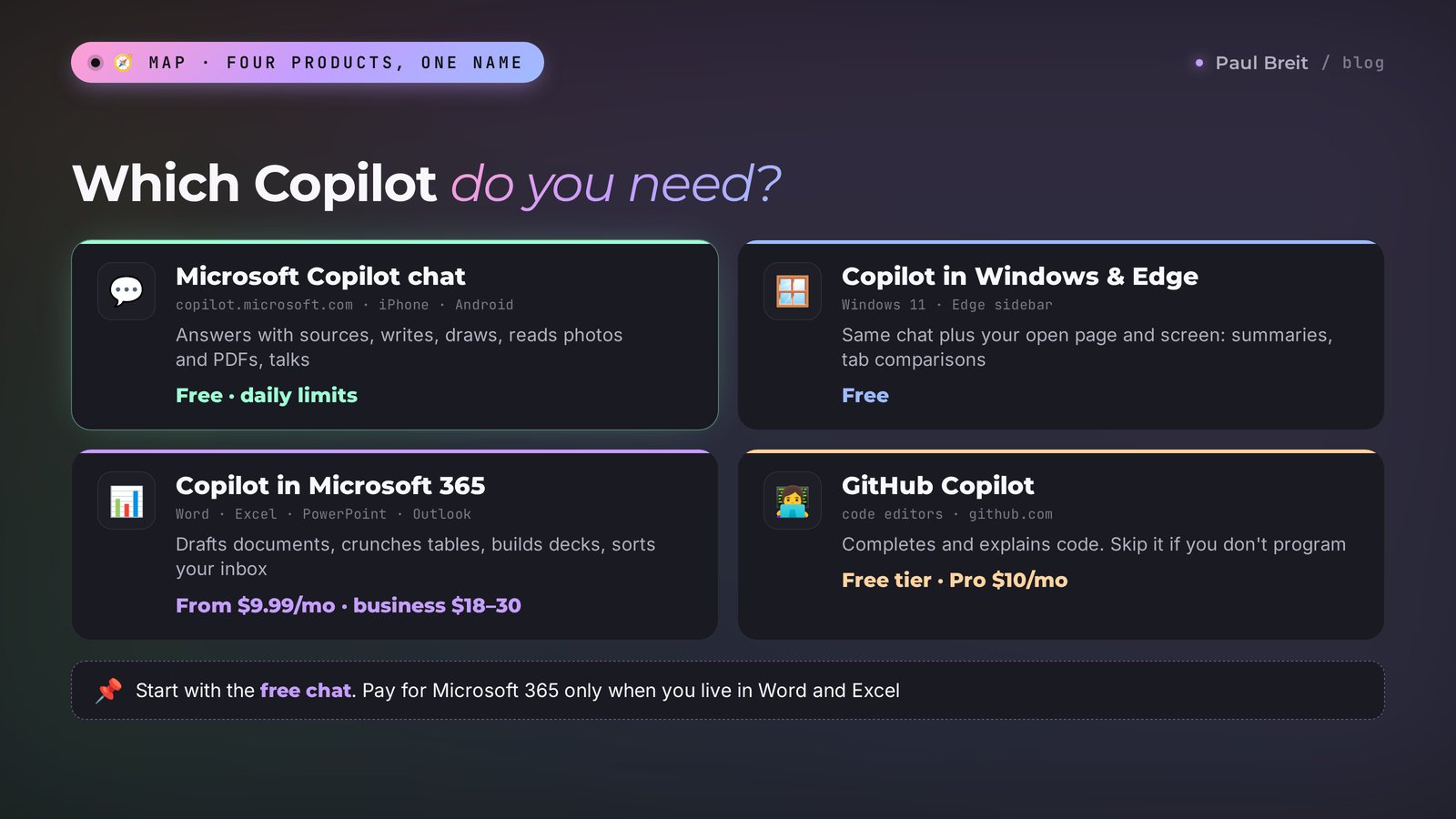
The biggest source of confusion with Copilot is that Microsoft gave one name to completely different products. Someone reads an article about "Copilot for programmers," goes to the website, sees a chat window, and has no idea what's going on. Here's the breakdown:
| Product | Where it lives | What it does | What it costs |
|---|---|---|---|
| Microsoft Copilot (chat) | copilot.microsoft.com, the iPhone and Android app, Bing | Answers questions, writes, makes images, reads photos and files, talks out loud | Free, with daily limits |
| Copilot in Windows and Edge | Windows 11, the Edge browser | The same chat plus your open page and screen: summaries, comparing tabs, help with apps | Free |
| Copilot in Microsoft 365 | Word, Excel, PowerPoint, Outlook, OneNote | Drafts and edits documents, crunches spreadsheets, builds presentations, sorts email | Microsoft 365 subscription from $9.99 a month; for businesses from $18 per user |
| GitHub Copilot | Code editors, the GitHub website | Completes and explains code | Free tier available; Pro is $10 a month |
If you don't write code, cross GitHub Copilot off the list: it's built for programmers and does nothing for everyday tasks. If you sell services, courses, or consulting, your path looks like this: start with the free chat, see after a week whether it's enough, and only then decide on a subscription for Word and Excel.
A note on Copilot for companies. It's called Microsoft 365 Copilot, and an IT admin connects it to the organization's email and files. If you work for an employer and a Copilot icon has already shown up in your Outlook, that's the one. It has its own data rules and its own feature set, including Cowork mode, where Copilot carries out multi-step tasks on its own. For a solo practitioner or a small online school, that's overkill; a personal subscription is plenty.
Section 03How to get started and sign in
The good news: getting into Copilot takes about two minutes, and you probably already have everything you need. Copilot is available in the US, Canada, the UK, the EU, and most other countries, and the US usually gets new features first.
Here's what you need:
- A Microsoft account. It's one login for all of Microsoft's services: Windows, Outlook, OneDrive, Xbox, Skype. If you use a Windows PC or have ever had a Hotmail or Outlook address, you almost certainly have one already.
- Any email address, if you don't have an account yet. You can create a Microsoft account with Gmail, iCloud, Yahoo, your work domain, or a new Outlook.com address. It's free.
- A modern browser or the app. Edge, Chrome, Safari, and Firefox all work. On your phone, the Microsoft Copilot app is in the App Store and Google Play.
Step by step, it looks like this:
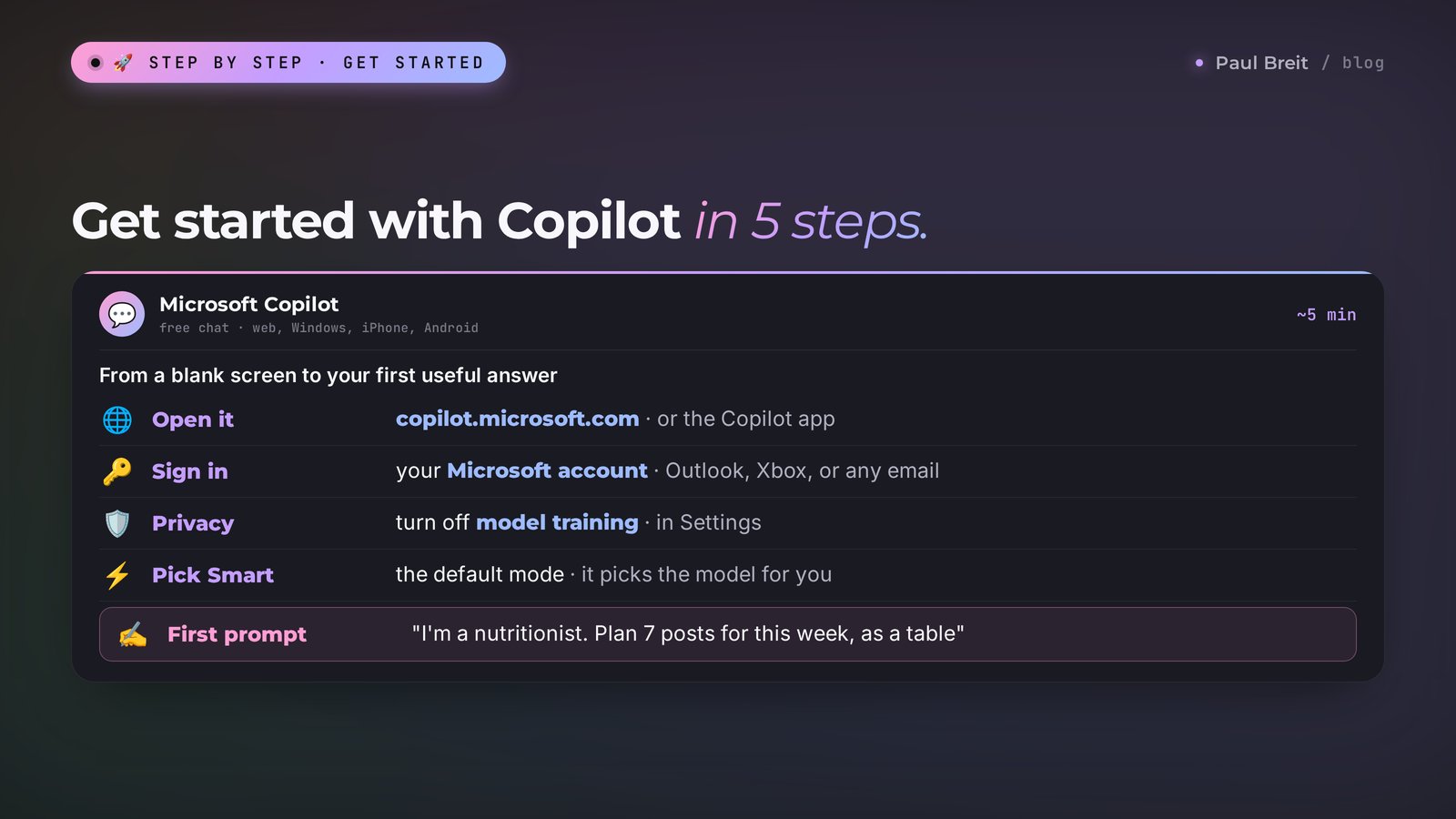
Open copilot.microsoft.com or the app
Go to copilot.microsoft.com. Any browser will do, and in Edge Copilot is also built into the sidebar. On your phone, download the Microsoft Copilot app. On Windows 11, just click the Copilot icon on the taskbar.
Sign in with your Microsoft account
Click "Sign in" in the corner. You can ask a couple of questions without signing in, but the limits are stricter and your history isn't saved. Images and voice mode are often locked for guests. If you don't have an account, click "Create one" on the same screen, enter any email address, and set a password. Microsoft will send a code to that inbox.
Check your privacy settings
Open your profile, then Settings, then Privacy. Turn off the toggle that lets Microsoft use your conversations to train its models. It takes ten seconds, and it matters if you ever paste client details. More on this in Section 12.
Leave the mode on Smart
Above the message box there's a mode switch. Smart picks the model for you and is the best choice to start with. You can change the interface language in settings too; Copilot will answer in whatever language you write in.
Write your first prompt
At the bottom of the screen there's a "Message Copilot" box. Describe your task the way you'd explain it to an assistant. There's a full walkthrough of the first prompt in Section 05.
A word on billing. A Microsoft 365 subscription is charged to a card through your Microsoft account, and the price depends on your account's country. US prices are listed below. Buy it directly from Microsoft or an official retailer. Don't buy "cheap shared accounts" from resellers: an account like that can be locked at any moment, and your OneDrive files go with it.
If you're traveling and see "Copilot isn't available in your region," it's usually the network you're on, not your account. Switch to a different connection or check the troubleshooting table in Section 13.
Section 04Free or paid: 2026 plans
At the end of 2025, Microsoft reshuffled its plans. The standalone Copilot Pro subscription at $20 a month is no longer sold. Its place went to Microsoft 365 Premium, and the regular Personal and Family plans got Copilot with a monthly allowance of AI credits. Prices below are US prices.
| Plan | Price | What you get | Who it's for |
|---|---|---|---|
| Free Copilot | $0 | Chat on the web and in the app, answers with sources, images, voice, photo and file analysis. Daily limits | Everyone, to start |
| Microsoft 365 Personal | $9.99 a month or $99.99 a year | Word, Excel, PowerPoint, Outlook, 1 TB of cloud storage, and 60 AI credits a month for Copilot inside the apps | People who occasionally ask Copilot to do something in a document |
| Microsoft 365 Family | $12.99 a month or $129.99 a year | The same for up to 6 people, but only the subscription owner gets Copilot | A household where one person needs Copilot |
| Microsoft 365 Premium | $19.99 a month | Copilot in every app with the highest limits, priority access to new models and features | People who work in Office every day |
| Microsoft 365 Copilot for business | $18 to $30 per user per month | Copilot with access to company email, files, and chats, plus organization-level data protection | Teams and companies |
What's an AI credit? One Copilot action inside an app: rewriting a paragraph in Word, building a summary in Excel, drafting a presentation. Sixty credits works out to roughly two or three requests a day. That's enough for "shorten this email now and then," but not for daily work with reports. Credits don't roll over: the counter resets at the start of each month.
What to know about the free chat. Microsoft doesn't publish exact limits and adjusts them based on load. In practice, regular work with text lasts you the whole day; people usually hit the ceiling with images and voice mode. When you run out, Copilot offers a lighter model or asks you to come back tomorrow.
My advice on money is simple. Spend a week in the free chat, pasting in text from your documents. If you catch yourself shuttling tables between Excel and the browser ten times a day, get Personal. If you're out of 60 credits by mid-month, move to Premium. For more options that cost nothing, see my roundup of free AI tools for 2026.
Section 05Your first prompt in 5 minutes
Let's take a real task almost everyone who runs social media has: a content plan for the week. Our example is a nutritionist who sells one-on-one nutrition consults.
Open a new chat and choose Smart
The mode switch sits above the message box. Smart picks the model itself, and it's the best option to start. Switch to Think Deeper for hard tasks: strategy, calculations, reviewing a contract. It takes longer, but it makes fewer logic mistakes.
Say who you are and who the task is for
Copilot knows nothing about you until you tell it. One sentence about your niche and audience improves the answer more than any "magic words."
State the task and the output format
How many posts, how long, and in what form: a table, a list, finished text. The more precise the format, the fewer rewrites.
Refine the answer with follow-ups
The first answer is a draft. Ask it to cut, change the tone, add an example. Copilot remembers the whole conversation, so there's no need to restate the task.
Take the result with you
Under each answer there are Copy and Export buttons: you can export a table to Excel and text to Word or PDF. It's a small convenience many competitors don't have.
Here's the whole conversation:
You write to Copilot: I'm a nutritionist with an Instagram account of 1,500 followers. I sell one-on-one nutrition consults for $150. My audience is women 30–45 who work in offices and want to lose weight without strict diets. Make a content plan for the week: 7 posts, each with a topic, a hook for the first paragraph, and a call to action at the end. Return it as a table.
What you get: a 7-row table. Monday: why a salad at lunch leaves you craving sugar by 4 p.m. Tuesday: a breakdown of office snacks. Wednesday: myths about "carbs at night." Thursday: a client story with a concrete before-and-after menu. Friday: how not to blow it at the office party. Saturday: a poll. Sunday: an invitation to book a consult. Each row has an opening paragraph and a call to action.
You write: Good. Rewrite Thursday: I don't have a client story yet, so make it a first-person post about my own sugar habit. And cut every opening paragraph to two sentences.
What you get: an updated table where Thursday is now a personal story and every opening is shorter and punchier. From here you can ask it to expand any post into full text.
Why it worked. The prompt has a niche, an audience size, a price, a picture of the audience, and an output format. Copilot didn't have to guess who you're writing for, so the topics landed in the real life of an office worker. There's no generic "benefits of broccoli" anywhere in the plan. And the second message: you fixed one spot in a finished answer without rewriting the whole prompt. That's faster and easier on your limits.
The most common mistake is a one-liner like "come up with posts about nutrition." You'll get exactly what you've already seen from a hundred other accounts. Another mistake is trusting numbers in the answer without checking. If Copilot writes "studies show 70% of women…," click the source icon and see where it came from. Sometimes the source is real; sometimes the number is made up.
Section 06What Copilot can do: modes and features
Copilot has a long list of features, and Microsoft changes it regularly. Below is what's actually useful for work, minus the exotic stuff.
Response modes
- Smart. The default mode: Copilot picks the model itself. For 90% of tasks you don't need anything else.
- Think Deeper. The model thinks longer, checks itself, and lays out the solution step by step. Use it to work out unit economics, compare pricing plans, or untangle a confusing letter from the IRS.
- Deep Research. Copilot reads dozens of pages on its own and puts together a report with links. It takes a few minutes. Good for a market overview, competitor research, or new platform rules.
Images
Ask it to "draw" or "create an image," and Copilot makes a picture from your description. It's good for post covers, lesson illustrations, and rough banner drafts. Lettering is hit or miss: a short word in big type usually comes out fine, while a long phrase gets garbled. Add text later in an editor. For more on images, see my guide to AI image generators.
Photos, files, and screenshots
Click the paperclip or plus sign next to the message box and upload a photo, a PDF, a Word document, or a spreadsheet. Copilot reads it and answers based on what's inside: it'll summarize a contract, spot errors in an estimate, pull numbers from a screenshot of a report, or explain a chart. Snap a photo of a restaurant menu or a product label on your phone, and it'll handle that too.
Voice and Vision
The app has a voice mode: you talk, Copilot answers out loud, and you can interrupt it. It's handy in the car or on a walk when you want to talk through an idea for a post. In voice mode you can turn on Mico, an animated character that reacts to the conversation. It's there for fun and doesn't affect the quality of the answers.
Copilot Vision is a mode where Copilot sees what you show it: your phone camera or your computer screen. Show it your ads dashboard and ask where to change the budget, and it'll tell you what to click. Vision isn't available everywhere, and some scenarios require a Microsoft 365 subscription, so if you don't see the button, it's your region or your plan.
Memory
Copilot can remember facts about you across conversations: your niche, your audience, your style, important dates. Tell it directly: "Remember: I'm a therapist, I work with adults with anxiety, I write without jargon and address readers as 'you.'" In future chats, it'll take that into account. You can view and delete what it remembers in the memory settings.
Groups
Copilot Groups is a shared chat you can invite up to 32 people to with a link. Copilot takes part like everyone else: it sums up the discussion, tallies votes, and hands out tasks. A real-life example: you, your business partner, and your assistant are planning a course launch, everyone drops ideas into one group, and Copilot turns them into a plan with deadlines.
Connecting email and drives
Settings has a Connectors section. You can add Outlook and OneDrive, as well as Gmail, Google Drive, and Google Calendar. After that you can ask, "Find the email from my bookkeeper about the reconciliation" or "What's on my calendar Thursday?" Copilot will find the answer in your data. Connect only what you actually need: every connection is one more door into your data.
Pages
Copilot Pages is a workspace where you can move an answer from the chat and keep editing it with Copilot, like a document. It's handy when a conversation turns into something long: a lesson plan, an offer, a webinar script.
Section 07The prompt formula for Copilot
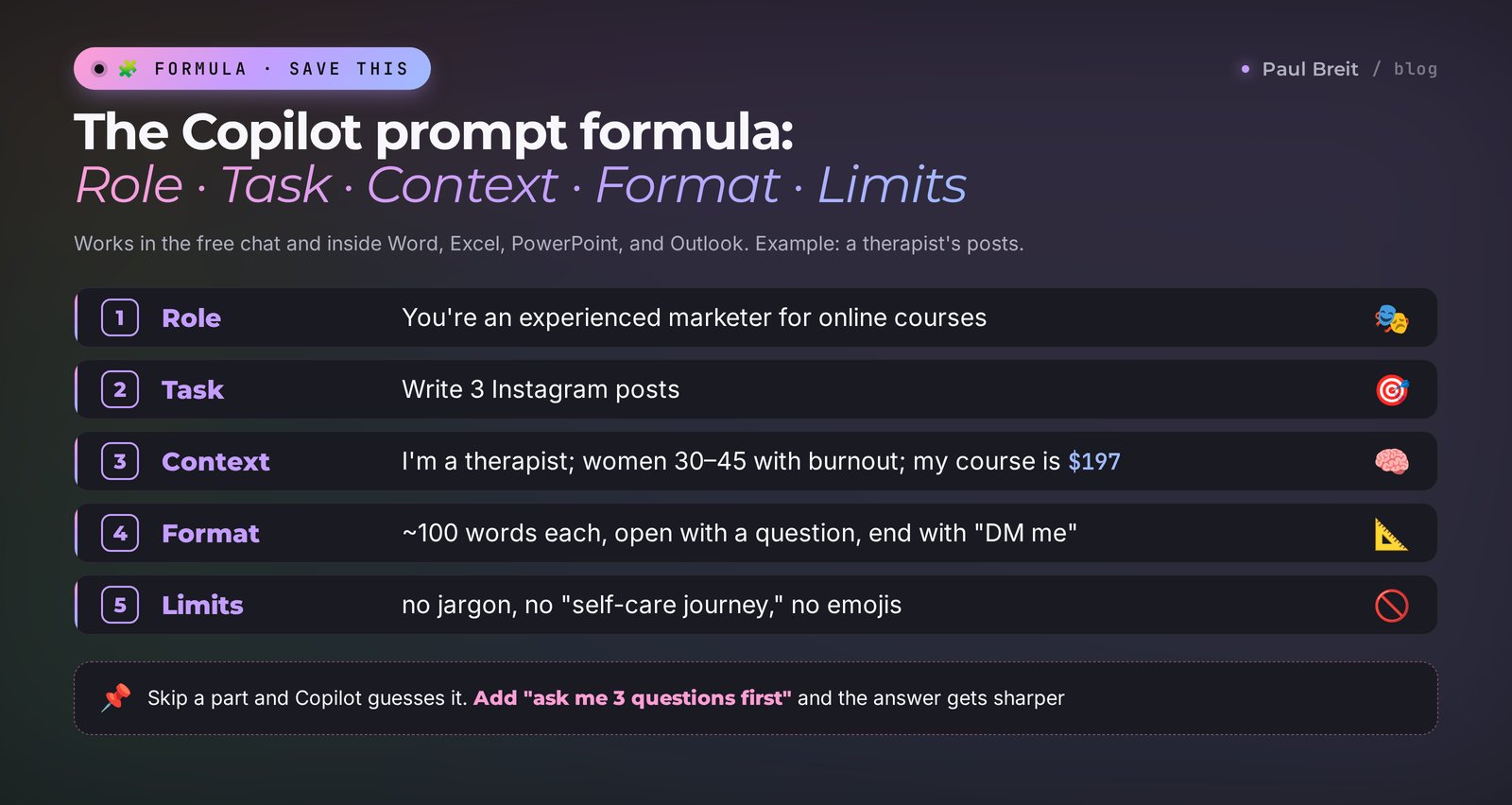
Like any AI, Copilot answers exactly the question you asked. A vague question gets a vague answer. I use a five-part formula, and it works both in the chat and in Word and Excel:
| Part | What to write | Example |
|---|---|---|
| Role | Who Copilot should be for this task | You're an experienced marketer for online courses |
| Task | What to do, in one verb | Write 3 posts |
| Context | Who you are, who it's for, what you sell, what you've tried | I'm a therapist; my audience is women 30–45 with burnout; I sell a $197 course |
| Format | Length, structure, type of output | About 100 words each; the first line is a question; end with a call to DM me |
| Limits | What not to do | No jargon, no "self-care journey" or "holding space," no emojis |
Put together, the prompt looks like this:
You write: You're an experienced marketer for online courses. Write 3 Instagram posts. I'm a therapist; my audience is women 30–45 who are burned out at work, and I sell a course called "Exhale" for $197. Each post is about 100 words, the first line is a question, and at the end there's a call to DM me the word "exhale." No jargon, no "self-care journey" or "holding space," no emojis.
What you get: three posts with different angles: one built around the Sunday-night knot in your stomach when you think about Monday, one about three signs of burnout people mistake for laziness, and one built on the question "When did you last rest without feeling guilty?" All three end with the same call to action and the word "exhale."
Three tricks on top of the formula that noticeably raise the quality:
- Give it a sample. Paste one of your posts that did well and write: "Write in the same style." Copilot picks up your sentence length, how you address readers, and your rhythm.
- Ask it to ask you questions. Add at the end: "Before you write, ask me 3 clarifying questions." Copilot will ask about things you didn't think of, and the answer gets sharper.
- Ask for options. "Give me 10 headlines" works better than "give me a headline." Picking one strong option out of ten is easy.
I've collected ready-made wording for dozens of tasks in my AI prompt library, and it works in Copilot too. If you want the theory behind it, read how to write prompts.
Section 0820 chat prompts for real work
Copy, fill in your details in the square brackets, and send. Every prompt has been tested in the free Copilot.
| Task | Prompt |
|---|---|
| Post ideas | I'm a [niche]; my audience is [who]. Give me 15 post topics that address the fears people have before buying [product]. For each one, one sentence on what the post is about. |
| Post from rough notes | Here are my rough thoughts: [text]. Turn them into an Instagram post of about 150 words. Keep my wording and remove the repetition. |
| Headlines | Give me 10 headlines for a post about [topic]. Half with a number, half as a question. No longer than 60 characters. |
| Service description | Write a description of my [service name] for my social media page: who it's for, what the client gets, how we work together, price [amount]. 5 short paragraphs. |
| Handling an objection | A client writes: "[objection]." Give me 3 ways to reply: gentle, confident, and one that answers with a question. No pressure. |
| Reel script | Write a 40-second video script about [topic]: the first line hooks in 3 seconds, then the problem, the solution, and a call to action. Conversational language. |
| Competitor research | Find 5 [niche] professionals in the US who sell online consultations. Compare them in a table: price, format, promise, what makes them stand out. Include links. |
| Topic research | What has changed in [topic] over the last 6 months? Facts with links to sources only, no rumors. |
| Pricing | I sell [service] for [price]. Suggest 3 packages: basic, standard, and premium, with what's included and the price. Explain why the middle one will sell most often. |
| Course outline | Outline a 5-lesson mini-course on [topic] for [audience]. For each lesson: the goal, what's inside, and a 15-minute homework task. |
| Webinar | Write a plan for a 60-minute webinar on [topic] that ends with selling [product]. Break it down minute by minute. |
| Document summary | [Attach a PDF] Explain this contract in plain English: what I'm required to do, deadlines, penalties, and what to watch out for. |
| Screenshot analysis | [Attach a screenshot of your stats] What does this show? Give me 3 takeaways and what to change next week. |
| Client email | Write a polite email to a client who missed the second payment. Friendly tone, no blame, and offer to move the due date. |
| Intake form | Create an 8-question intake form for a first [niche] session so I understand the client's goal and don't waste session time. |
| Testimonials | Here are 10 client testimonials: [text]. Pull out the recurring results and the client phrases worth using in ads. |
| Schedule | I have 20 hours a week. Split them between sessions, content, learning, and rest so I can see 8 clients. Show it as a table by day. |
| Explain something complex | Explain [term] the way I'd explain it to a client with no background. Use an everyday example, 5 sentences. |
| Proofreading | Check this text for errors and stiff, bureaucratic phrasing. List what you fixed, then give me the clean version: [text]. |
| Image | Draw a cover for a post about [topic]: [what's in the frame], soft daylight, calm colors, no text, empty space on the right for a headline, 16:9 format. |
If you post regularly, take a look at my collection of social media prompts: it has separate sets for stories, reels, and carousels.
Section 09Copilot in Word, Excel, PowerPoint, and Outlook: 20 prompts
This is where Copilot is strongest. Inside the apps it sees your whole document, so you don't copy anything. You need a Microsoft 365 subscription, the same account signed in to the app, and an up-to-date version of Office. The Copilot icon appears on the ribbon at the top or right inside the document.
Word: documents, contracts, handouts
In a blank document, Copilot offers to "Draft with Copilot." In an existing one, select some text and an icon for editing appears next to it. The side panel answers questions about the document.
- Draft a consulting services agreement: the parties, scope, fee [amount], payment terms, and session cancellation and rescheduling.
- Summarize this document in 5 bullet points for a client who won't read 12 pages.
- Rewrite the selected paragraph in simpler language for someone with no background. Keep all the numbers.
- Turn this text into a handout: headings, bullet lists, and a 7-item checklist at the end.
- Find contradictions in this document and places where dates or amounts don't match.
Excel: spreadsheets without formulas
Copilot in Excel works best with data formatted as a table: select the range and press Ctrl+T. Then just ask in plain words. For more on spreadsheets and AI, see my guide to AI for spreadsheets.
- Calculate revenue by month and show me which month dipped. Build a chart.
- Add a column with the average order value per client and highlight anyone who bought more than twice.
- Find duplicate clients by phone number and combine their totals.
- What 3 conclusions can you draw from this table of leads? Where do the clients who actually pay come from?
- Write a formula that marks a row "overdue" if the payment date has passed and the status isn't "paid."
PowerPoint: decks from a document
The flashiest feature: Copilot builds a presentation from a Word file or a short description. The design comes out clean but generic, so treat it as a draft. For how to turn slides into something that sells, read how to make a presentation with AI in an hour.
- Create a 10-slide webinar presentation from [Word document]. One idea per slide.
- Add a slide with the three course tiers and their prices [prices].
- Cut the text on every slide in half and move the details to the speaker notes.
- Rewrite the slide titles so they sound like benefits for the audience.
- Add a summary slide at the end: what the audience learned and what to do next.
Outlook: an inbox that doesn't bury you
In Outlook, Copilot summarizes long threads, drafts replies, and helps with tone. It's useful when clients email you and a thread grows to twenty messages.
- Summarize this thread: what we agreed on and what's expected from me.
- Write a reply: I agree to move the meeting to Thursday at 3 p.m.; please send your questions in advance.
- Make the tone of this email warmer, but keep the payment deadline firm.
- Which emails from this week need a reply from me? A list with one line about each.
- Write a reminder to clients about tomorrow's webinar: the time, the link [link], and what to prepare.
If you're on Personal with 60 credits, spend them in Excel and PowerPoint: that's where Copilot saves the most time. Emails and short copy can be done in the free chat and pasted in.
Section 10Copilot in Windows and the Edge browser
On Windows 11, Copilot is a separate app you open from the taskbar icon, with Win+C on some builds, or with the Copilot key on newer laptops. You can turn on voice activation: say "Hey Copilot," and it starts listening. The app is the same chat with a few extras: you can share your screen with Copilot, and it'll show you where a setting lives in an app or explain an error message.
What's genuinely useful in Windows:
- Ask "how do I take a screenshot of part of the screen" or "where do I turn on dark mode" and get an answer that fits your system.
- Show it a screen with a confusing error and ask what to do.
- Ask it to summarize the PDF you have open without uploading it anywhere.
In the Edge browser, Copilot lives in the sidebar on the right. It sees the page you have open, so you can ask:
- "Summarize this article in 5 bullet points."
- "Compare the plans on this page with the plans in my other tab."
- "Pull the main points from this YouTube video with timestamps."
Edge also has Copilot Mode, where Copilot takes actions on websites itself: it fills in forms, gathers information from several tabs, and searches for what you need. It's useful, but be careful: give it simple tasks and check the result, especially when purchases or personal data are involved.
Section 1110 use cases if you sell services
The theory is clear; now here's how it fits into a real week. Ten tasks I'd hand to Copilot if I were running consultations or selling a course.
- Sorting leads in a spreadsheet. Export the leads from your form to Excel and ask Copilot which source brings in the people who pay. Five minutes later you know where to put your ad budget.
- Session notes. After a call, paste in your notes and ask: "Write a session recap for the client: what we discussed, the homework, and the date of the next session." The client gets a tidy email, and you look organized.
- A handout from a webinar. Upload the webinar transcript to Word and ask for a handout with headings and a checklist. That's a ready-made lead magnet.
- Slides for a live session. PowerPoint can turn that same handout into draft slides. All that's left is to adjust the design and add your own case studies.
- Answers to common questions. Collect 20 questions clients ask in your DMs and have Copilot write short answers in your tone. That becomes a cheat sheet for you or your assistant.
- Competitor overview. Deep Research will go through your peers' websites and build a table of prices, formats, and promises, with links. Useful before you raise your rates.
- Content plan. Once a week: "Here are my last 5 posts and their reach. Suggest a plan for next week based on what performed best."
- Working with testimonials. Paste in testimonials and ask it to pull out specific client results. You get ready phrases for ads and your sales page.
- Email. In Outlook, have Copilot show you every evening which emails need a reply, and draft the responses. You just review and hit Send.
- Monthly finances. Upload your bank statement to Excel and ask where the money went and which subscriptions you can cancel. Not fun, but useful.
Notice that in every scenario Copilot makes a draft and the final decision is yours. That's the whole point of a copilot. If you want to go further and have AI run part of your work on its own, read about automating your routine with AI step by step.
Section 12What not to send Copilot
The free Copilot is a cloud service. Your messages go to Microsoft's servers, and the company may use some of them to improve its models unless you turn that off in settings. So there are a few simple rules.
- Social Security numbers, card numbers, passwords – never. Not yours, not your clients'.
- Clients' personal information – full names, phone numbers, diagnoses, therapy details. If you're a therapist, coach, or nutritionist and want to work through a case, anonymize it: "a client, 34, anxiety at work." If you handle health information under HIPAA, the consumer Copilot isn't the place for it.
- Confidential business information – partners' private numbers, contracts with a confidentiality clause.
- Signed documents – better to describe the gist in your own words.
In Copilot's privacy settings there are toggles for model training on your conversations and for personalization. I recommend turning off the first one right away. You can delete your chat history all at once or one conversation at a time.
The business version has stricter protections: Microsoft 365 Copilot for organizations doesn't train on company data, and that's written into the contract. But if you're an individual with a personal subscription, the regular rules above apply.
A separate question is who owns the copy and images Copilot creates. Can you use them in ads and sell them? I cover that in detail in who owns AI-generated content.
Section 13When something goes wrong
| What you see | Why | What to do |
|---|---|---|
| "Copilot isn't available in your region" | The network you're on points to an unsupported country, often on hotel Wi-Fi, a corporate VPN, or while traveling | Switch networks or turn off the corporate VPN, clear your browser cache, or open a private window |
| Endless loading after you sign in | An ad blocker or a stale cache | Turn off the ad blocker for copilot.microsoft.com or try another browser |
| No image or voice button | You're not signed in, or your account's region doesn't support the feature | Sign in and check the country in your Microsoft account profile |
| "You've reached your daily limit" | You've used up your free requests | Wait until tomorrow or continue in another tool, such as Claude or ChatGPT |
| No Copilot in Word or Excel | No subscription, an old version of Office, or you're signed in with a different account | Update Office and sign in with the account that has the Microsoft 365 subscription |
| Copilot in Excel says "I can't analyze this" | The data isn't formatted as a table or has blank rows | Select the range, press Ctrl+T, and unmerge any merged cells |
| The answer comes back in another language | Copilot picked up the language of the text you pasted | Add "Answer in English" to the prompt or save it to memory |
| The facts in the answer don't add up | The model made a mistake or used a weak source | Open the links under the answer and ask again in Think Deeper mode |
| Payment is declined | The card's country doesn't match your Microsoft account's country, or your bank blocked the charge | Use a card issued in your account's country, check the billing address, or call your bank. Until then, stay on the free plan |
If something breaks that isn't in the table, describe the problem to Copilot itself: "I'm seeing this error [text or screenshot]. What should I do?" Half the time it suggests the fix on its own.
Section 14Copilot vs ChatGPT, Claude, Gemini, and Perplexity
No AI is the best at everything. I keep several on hand and pick by task. Here's how Copilot stacks up against its neighbors:
| AI | Strengths | Weaknesses | Paid plan |
|---|---|---|---|
| Copilot | Works with Word, Excel, and Outlook; answers with links; built into Windows | Dry voice in long copy; features vary by country | From $9.99 a month with Microsoft 365 |
| ChatGPT | Versatile, lots of features, voice, a huge community | Best features are paid; its copy is easy to spot by stock phrases | From $20 a month |
| Claude | The most natural-sounding copy, long documents, complex tasks, artifacts | No built-in image generation | From $20 a month |
| Gemini | Works with Google Docs, Gmail, and Sheets; strong with video | Copy can feel generic without a good sample | Included in Google AI plans |
| Perplexity | Search-first answers with sources, quick research | Weaker at long creative writing and documents | From $20 a month |
How to choose in practice:
- Spreadsheets, email, and presentations in Office – Copilot.
- Posts, articles, and sales copy in your own voice – Claude. Sign up at claude.ai; it takes a minute with any email. Step by step in learning Claude from scratch.
- Google Docs and Gmail – Gemini.
- Fast research with sources – Perplexity.
- One subscription that does a bit of everything – ChatGPT. If you're torn between the two big ones, read Claude vs ChatGPT.
I've put the full picture by task in my roundup of the best AI tools of 2026: everyday work tasks and which tool to use for each.
Section 15Your first-week checklist
- ☐ Day 1. Signed in at copilot.microsoft.com with your Microsoft account.
- ☐ Day 1. Turned off model training on your conversations in settings.
- ☐ Day 2. Told Copilot to remember your niche, audience, and tone.
- ☐ Day 2. Made a weekly content plan with the formula: role, task, context, format, limits.
- ☐ Day 3. Uploaded a PDF or contract and asked for a plain-English summary.
- ☐ Day 4. Made a post cover with "draw."
- ☐ Day 5. Tried voice mode on a walk and talked through a post idea.
- ☐ Day 6. Ran Deep Research on your competitors and saved the table.
- ☐ Day 7. Counted how many times this week you moved data between Office and the browser. More than 20 – time to think about a Microsoft 365 subscription.
Section 16The whole path in a minute
Copilot is Microsoft's AI assistant. To start, you need the free chat at copilot.microsoft.com or in the app, plus a Microsoft account you can create with any email. Write prompts with the formula: role, task, context, format, limits. Refine the answer with follow-ups and check numbers against the links. Ask it to remember your niche and tone. For Word, Excel, PowerPoint, and Outlook you need a Microsoft 365 subscription: Personal at $9.99 with 60 credits or Premium at $19.99 with the highest limits. Copilot Pro is no longer sold. Turn off model training and don't send clients' personal data. Keep Claude nearby for copy that sounds like you.
Start today with one action: open copilot.microsoft.com, paste in the content-plan prompt from Section 05, and swap the nutritionist for your own niche. In five minutes you'll have a week of post ideas, and you'll know whether Copilot fits the way you work.
FAQFrequently asked questions
Is Microsoft Copilot free?
Yes, the basic Copilot at copilot.microsoft.com and in the app is free. It writes, answers with links to sources, makes images, and reads files, but with daily limits. Copilot inside Word, Excel, PowerPoint, and Outlook requires a Microsoft 365 subscription starting at $9.99 a month.
How do I start using Copilot?
Open copilot.microsoft.com or download the Microsoft Copilot app, sign in with a Microsoft account, and type your task in plain language. If you don't have an account, you can create one for free with any email address, including Gmail or iCloud. On Windows 11, Copilot is already on the taskbar.
Do I need a Microsoft account to use Copilot?
Not for a quick question, but you'll want one. Without signing in, the limits are stricter, your chat history isn't saved, and images and voice mode are often unavailable. A Microsoft account is free and works across Windows, Outlook, OneDrive, and Copilot.
How is Copilot different from ChatGPT?
Both run on models from the same company, OpenAI. Copilot is more tightly connected to Microsoft products like Word, Excel, Outlook, Windows, and Edge, and by default it searches the web and links to sources. ChatGPT is more versatile and has more features in its own app. For work in Office, Copilot is more convenient.
What happened to Copilot Pro?
At the end of 2025, Microsoft stopped selling Copilot Pro at $20 a month. It was replaced by Microsoft 365 Premium at $19.99, which includes the Office apps and Copilot with the highest limits. Copilot was also added to the regular Personal and Family plans, with an allowance of 60 AI credits a month.
How do I turn on Copilot in Word and Excel?
Get a Microsoft 365 Personal, Family, or Premium subscription, update Office to the latest version, and sign in to the app with the same account. The Copilot icon appears on the ribbon. In Excel, format your data as a table with Ctrl+T, or Copilot won't be able to analyze it.
Can Copilot make images?
Yes. Type "draw" and describe the picture: what's in the frame, the lighting, the colors, the format. The free plan has a daily limit. Long lettering on images comes out uneven, so add text later in an editor.
Is it safe to send documents to Copilot?
Everyday work documents, yes, but not Social Security numbers, card numbers, passwords, or clients' personal information. Turn off model training on your conversations in settings. The business version, Microsoft 365 Copilot, doesn't train on company data under its contract.
What is GitHub Copilot, and do I need it?
GitHub Copilot is an assistant for programmers that completes and explains code. It has a free tier and a Pro plan at $10 a month. If you don't write code, you don't need it: for copy, spreadsheets, and email, use the regular Microsoft Copilot.