Claude Code From Your Phone and Telegram: Control Your Agent Remotely
Claude Code from your phone runs through the regular Claude app: start Remote Control on your computer, open the session in the Code tab on your phone, and pick up where you left off. You can also message your agent in Telegram through the official plugin. Below: both setups, all four options compared, prices, and fixes.
To control Claude Code from your phone, run claude remote-control on your computer, scan the QR code, and continue the session in the Claude app under the Code tab. For Telegram, install the telegram@claude-plugins-official plugin and start claude with the --channels flag. You need a Pro plan or higher, and your computer has to stay on.
What's inside
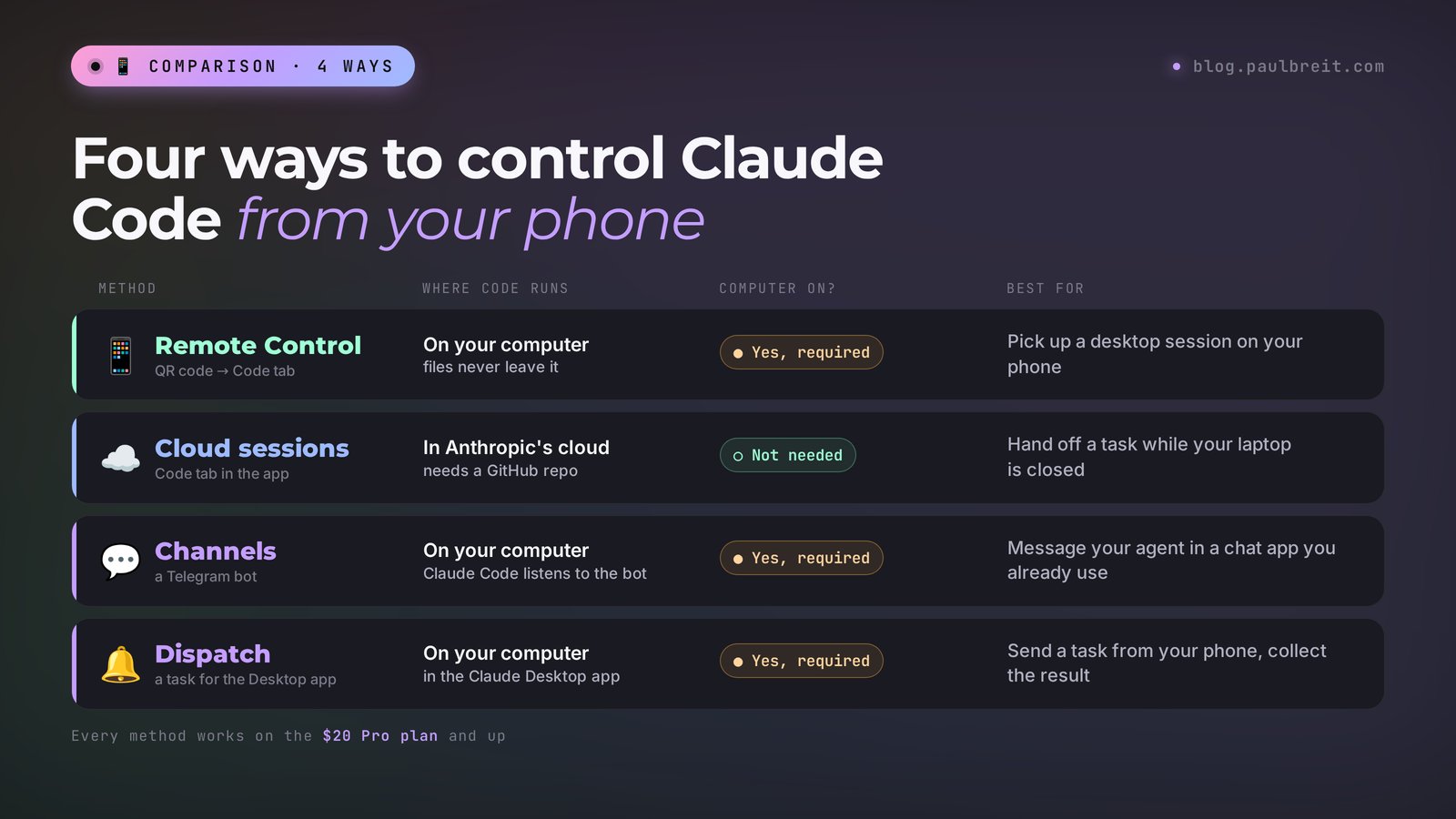
Four ways to use Claude Code from your phone
There is no separate Claude Code mobile app. Everything runs through the regular Claude app for iPhone and Android, in the Code tab, plus Telegram if you add the plugin. Your phone works as a remote: the code runs either on your computer or in Anthropic's cloud.
So decide first where the work should happen: on your computer, with your folders and connected services, or in the cloud, with a GitHub project and the laptop closed.
| Method | Where the work runs | Computer on? | When to use it |
|---|---|---|---|
| Remote Control | On your computer | Yes | You started at your desk and want to keep going from the couch or on the road |
| Telegram (Channels) | On your computer | Yes | You want to message the agent like a normal chat |
| Cloud sessions | In Anthropic's cloud | No | The project is on GitHub and the task should run with your laptop closed |
| Dispatch | In the Claude Desktop app on your computer | Yes | You want to send a task as one message and let it decide how to run it |
For most tasks the first two are enough: Remote Control shows the full session, Telegram is a simple chat with the bot.
What you'll need
- A paid Claude plan. Create the account at claude.ai. Remote Control works on Pro, Max, Ultra, Team, and Enterprise. It doesn't work with a Console API key: you have to sign in with your claude.ai account. The Free plan has no Claude Code at all.
- Claude Code on your computer. Install guides: Mac and Windows. First steps are in how to use Claude Code.
- The Claude app on your phone. Get it from the App Store or Google Play and sign in with the same account. More in how to use Claude on your phone.
- For Telegram, also: Telegram and a program called Bun on your computer. Claude can install Bun for you.
Prices from claude.com/pricing, checked Nov 17, 2026:
| Plan | Price per month | What it means for phone use |
|---|---|---|
| Free | $0 | No Claude Code, so no Remote Control or Telegram |
| Pro | $20, or $17 billed annually | Claude Code, Remote Control, Telegram, and Dispatch all work |
| Max | $100 | 5x the Pro limits, handy if your agent runs for hours |
| Ultra | $200 | No five-hour limit, 10x the Pro weekly limit |
Pro is enough. A remote session uses your limits exactly like work at the computer; the phone itself uses none. Plan details are in my guide to Claude pricing plans.
Remote Control: how to connect your phone to Claude Code
Remote Control connects the Claude app to a session running on your computer. The agent keeps working with your files and settings, and you can type either in the terminal or on your phone: the conversation syncs both ways.
Sign in to Claude Code with your claude.ai account
Open a terminal in your project folder and run claude. If you haven't signed in, type /login and choose your Claude subscription. With an API key set (the ANTHROPIC_API_KEY variable), Remote Control refuses to work. Not sure? Ask Claude: "Check whether ANTHROPIC_API_KEY is set, and if it is, remove it. I need to sign in with my subscription."
Turn on Remote Control
Pick one of three options. In a session that's already running, type /remote-control (or /rc), and the whole history moves to your phone. Starting fresh, run claude --remote-control for a normal terminal session that's reachable from your phone. The third option, claude remote-control, starts server mode: the terminal waits for connections, and you open sessions from your phone. Since August 2026, server mode also lets you start a new session right from your phone in the Code tab.
Confirm
The first time, Claude Code explains Remote Control and asks Enable Remote Control? Answer y. If the folder is new, it also asks whether you trust it. Answer y again.
Open the session on your phone
A link appears in the terminal. In server mode, press the space bar to show a QR code and scan it with your phone's camera: the session opens in the Claude app. Or open the app, tap Code at the bottom, and find the session in the list. Connected sessions show a computer icon with a green dot.
Give the session a clear name
The default name is your computer's name plus random words, which gets confusing with several sessions. Name it right away: /remote-control Weekly posts or claude remote-control --name "School website". Rename later with /rename.
To skip the command every time, type /config and switch on Enable Remote Control for all sessions. Every new session will then appear in the app on its own.
The real help output from my server, with all the server-mode flags:
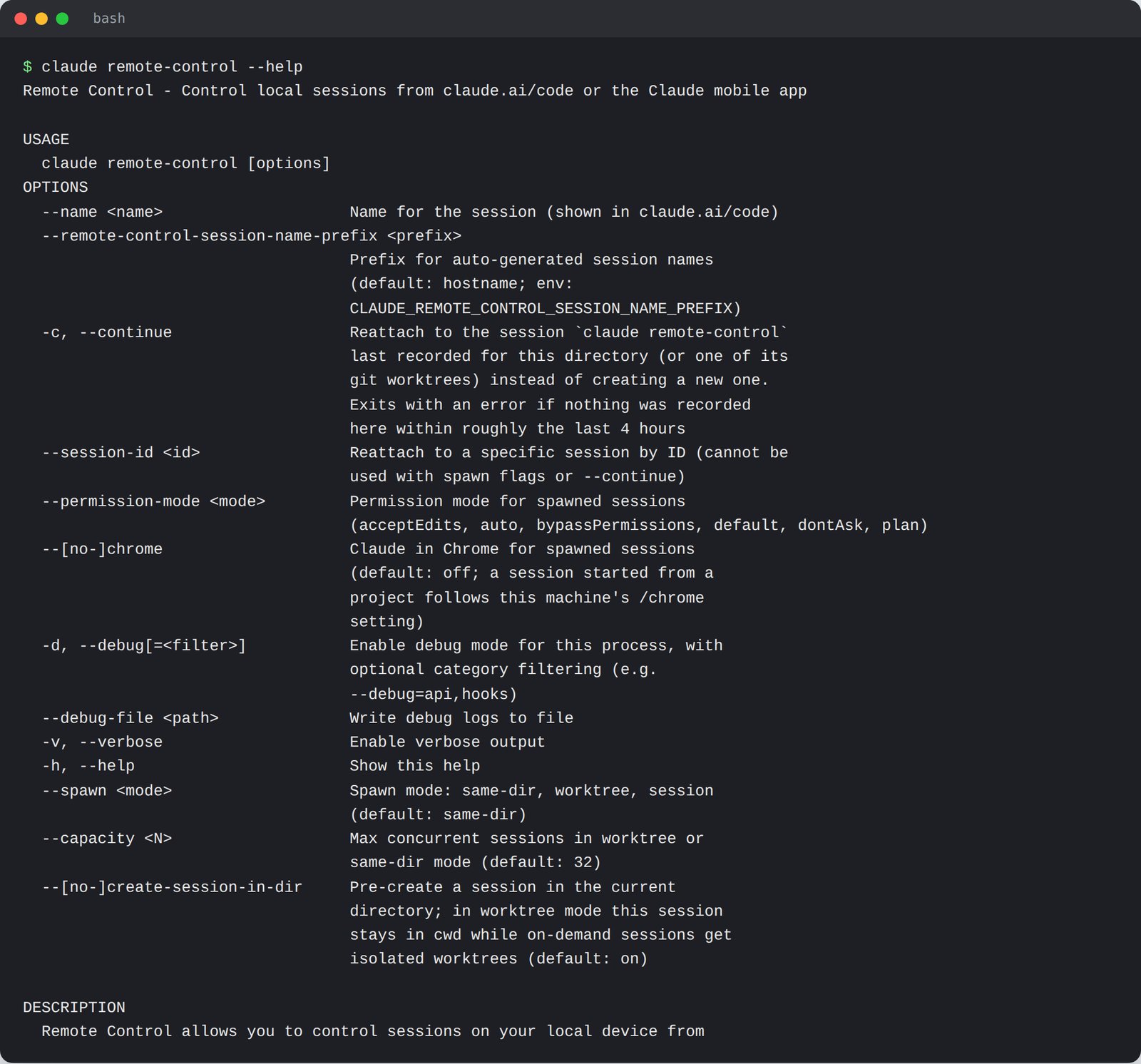
I ran claude remote-control --help on a server with Claude Code 2.1.289. The help opens with "Remote Control – Control local sessions from claude.ai/code or the Claude mobile app" and lists --name, --continue, --session-id, --permission-mode, --spawn, and --capacity (up to 32 sessions at once). It matches Anthropic's official docs. If your help output is shorter, tell Claude Code: "update yourself to the latest version."
What you can do in a session from your phone
Almost everything you can do at the computer. Claude runs your task on your machine and shows the progress; in a git project you also see file changes. Subagents the session launched are visible too, and you can stop them from your phone (more in Claude Code subagents).
- Send photos and files. A draft slide or a screenshot of a bug: Claude sees the photo right away and saves it to
~/.claude/uploads/on your computer for use in the project. - Answer permission requests. The agent asks to delete a file or run a command, you tap allow, and it moves on.
- Switch model and effort. Type the command with an argument:
/model sonnet,/effort high. - Tidy the conversation.
/compact,/clear, and/usagework from your phone.
Commands that open a terminal menu, such as /plugin and /resume, don't work from the phone. The app offers Manual, Accept edits, Plan, and Auto permission modes. Bypass permissions, where the agent does everything without asking, can't be turned on from your phone, and that's a good thing.
A task that's easy to send while you're out. Copy it and adjust:
Open the folder with this week's posts. Take the photo I attached and turn it into a cover for the post about the challenge launch, sized 1080×1350. Save it next to the post, show me a preview, and send a notification to my phone when you're done.
Push notifications: the agent pings you
You don't have to sit and watch the screen. While Remote Control is on, Claude sends a push notification when a long task finishes or when it needs your decision. You can also ask for it in the task: "text my phone when you're done."
- Sign in to the Claude app with the same account you use in Claude Code.
- Allow notifications when your phone asks.
- In Claude Code, type
/configand turn on Push when Claude decides and Push when actions required. You can turn on both.
No notifications? Open the Claude app once to refresh its notification data. On iPhone, check Focus modes and the notification summary; on Android, take Claude out of battery saving. While you're typing in the terminal, nothing goes to your phone: Claude knows you're already there.
Claude Code in Telegram: step by step
Anthropic has an official feature called Channels and a ready-made Telegram plugin. You create your own bot, link it to Claude Code on your computer, and chat with the agent. Replies come back to Telegram, while the work happens on your computer with your real files.
Channels is in research preview, so --channels doesn't show up in claude --help, though it works. Individual Pro, Max, and Ultra plans need no extra permissions; on Team and Enterprise, an owner must enable Channels first.
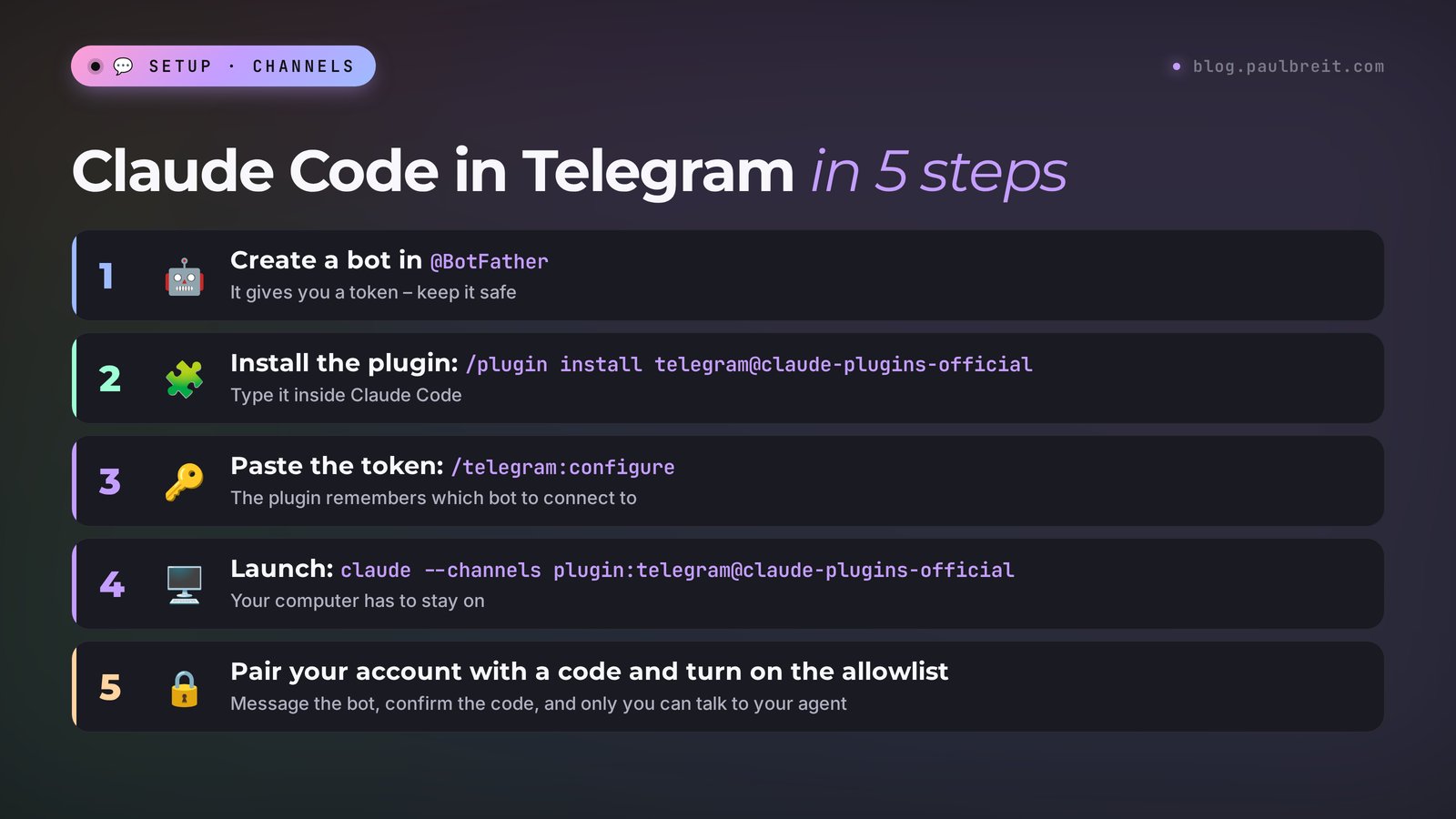
Create a bot in BotFather
Open @BotFather in Telegram, send /newbot, and pick a name and a username ending in bot. BotFather sends you a token, a long string of numbers and letters. It's the key to your bot, so never share it. New to bots? See how to build a Telegram bot without a programmer.
Ask Claude to prepare your computer
The plugin needs Bun. Run claude and type: "Install Bun for the Telegram plugin and check that it works."
Install the Telegram plugin
Type /plugin install telegram@claude-plugins-official and choose user scope so the plugin works in all your projects. If you see Marketplace not found, first type /plugin marketplace add anthropics/claude-plugins-official, then install again.
Give the plugin your token
Type /telegram:configure, a space, and the token from BotFather. The plugin saves it on your computer. If the command isn't found, type /reload-plugins and try again.
Restart Claude Code with the channel
Exit with /exit and start Claude Code like this: claude --channels plugin:telegram@claude-plugins-official. The session now listens to your bot. Keep the terminal window open: the bot answers only while it runs.
Pair your account and lock out everyone else
Message your bot, and it replies with a pairing code. In the terminal, type /telegram:access pair and the code. Then type /telegram:access policy allowlist: the bot now accepts messages only from you and silently ignores everyone else.
/plugin install telegram@claude-plugins-official
/telegram:configure YOUR_BOTFATHER_TOKEN
/exit
claude --channels plugin:telegram@claude-plugins-official
/telegram:access pair CODE_FROM_YOUR_BOT_CHAT
/telegram:access policy allowlist
One thing that confuses people: when Claude replies in Telegram, the terminal shows your message and a short note that a reply was sent, without the reply text. The text lives only in Telegram. That's by design.
Send the bot the same tasks as in the terminal, only shorter: "how many leads came in this week," "change the price on the landing page to $49 and show me the diff." The agent sees the same files and connected services (see MCP in Claude).
Remote Control or Telegram: which to choose
Both control the same session on your computer. Choose Remote Control when you want to watch the work: file changes, permission buttons, model selection, push notifications. Setup is one command with nothing to install.
Choose Telegram for quick errands on the go, with answers in a messenger you already keep open. It's great for checks and small edits. Setup takes longer, and Anthropic warns the flag format may change while Channels is in preview. Plenty of people use both: Remote Control for serious work, Telegram for "how's that report coming along?"
When your computer is off: cloud sessions and Dispatch
Remote Control and Telegram need Claude Code running on your computer. Close the terminal or shut down the laptop, and the session goes offline. If the laptop only sleeps, Claude Code reconnects when it wakes.
For tasks that should run with the laptop closed, there are cloud sessions. In the Code tab of the Claude app, pick a GitHub repository and branch, describe the task, and send it. The work runs on Anthropic's servers, and you check the result later from any device. The catch for non-coders: the project must be on GitHub, because the cloud can't see your local folders.
Dispatch is for Claude Desktop users: you send a task from your phone, Dispatch decides how to run it on your computer and notifies you when it's done or needs approval. It works on Pro, Max, and Ultra; Team and Enterprise don't have it.
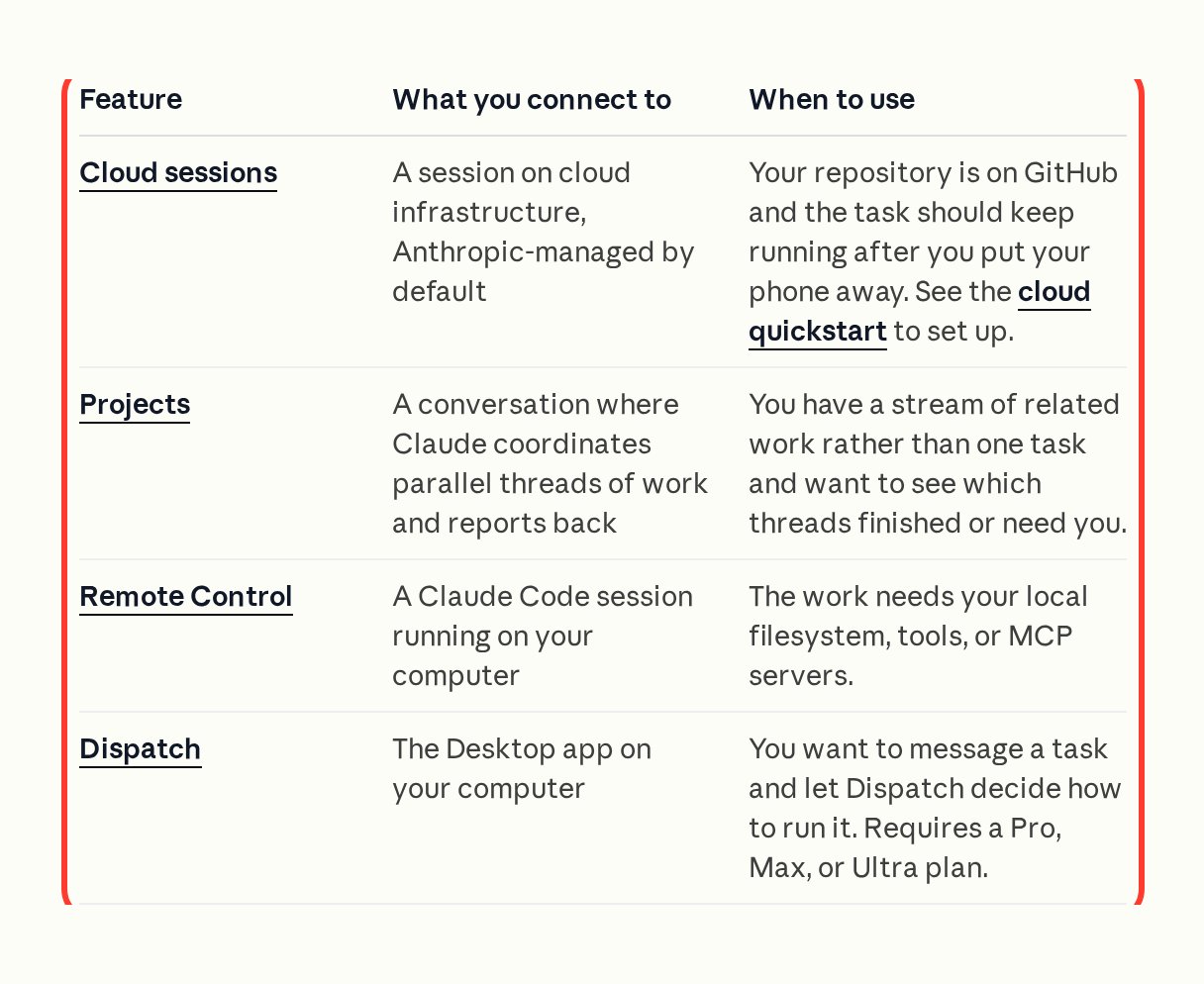
Here's how Anthropic compares the options in its documentation:
An agent on a server: running around the clock
For always-on work, install Claude Code on a server, a rented computer that never shuts down. There you run claude remote-control or claude --channels …, and the agent is reachable from your phone any time.
You don't need to touch the server yourself: give Claude the address and password, and it installs what it needs. Then send it this:
Run Claude Code on this server in Remote Control mode with the name "Server agent" so it keeps running after I disconnect. Use tmux. Then show me how to check that it's running and how to restart it with one command.
Server mode holds up to 32 sessions at once, and --spawn worktree gives each session its own git copy of the project so they don't edit the same files. For one person, the defaults are usually fine.
Security: what you should know
Remote Control opens no inbound ports on your computer: Claude Code connects out to Anthropic's servers over a secure connection and pulls your messages from there. While a session is connected, the conversation is stored on Anthropic's servers to sync between devices. Keep that in mind if you handle other people's personal data.
Telegram needs more care, because the bot is a door into your computer:
- Keep the bot token private. Never paste it into chats or show it in screenshots.
- Turn on the allowlist right away. After
/telegram:access policy allowlist, the bot listens only to paired accounts. - Don't add other people casually. Anyone who can message the bot can approve or deny the agent's actions on your computer.
- Skip the no-confirmation mode. Let the agent ask before deleting files or running commands, and answer from your phone.
Troubleshooting: when something goes wrong
| What you see | Cause | What to do |
|---|---|---|
| Remote Control requires a claude.ai subscription | Not signed in with your subscription, or an API key is set | Type /login and choose your subscription; ask Claude to remove ANTHROPIC_API_KEY |
| No Code tab in the app | Free plan, or a different account in the app | Use the same account and a Pro plan or higher |
| Remote Control disconnected or Can't reach | The computer slept, the internet dropped, or the terminal closed | Wake the computer; if Claude Code is closed, run claude remote-control --continue |
| Session drops after your IP address changes | Anthropic's servers reject the connection from the new address | Wait: Claude Code retries for three minutes; if that fails, type /remote-control again |
| The Telegram bot is silent | Claude Code started without --channels, or the window is closed | Restart with claude --channels plugin:telegram@claude-plugins-official and keep the window open |
| No notifications on your phone | Push is off in /config, or the phone mutes it | Turn on both Push options, open the Claude app, check Focus and battery settings |
Error not in the table? Send its text to Claude: "here's a Remote Control error, figure it out and fix it." New to Claude Code? Start with Claude Code for non-coders, or go from your first chat to your own agents with learning Claude from scratch.
Everything in one minute
Remote Control: claude remote-control, a QR code, the Code tab. Telegram: a BotFather bot, the plugin, the token, --channels, pairing. Laptop off: cloud sessions or a server. Pro plan or higher.
Cheat sheet: Claude Code from your phone and Telegram
1. Pro plan or higher; sign in to Claude Code via /login with your subscription.
2. Claude app on your phone, same account, Code tab.
3. Remote Control: claude remote-control (or /remote-control in an open session).
4. Space bar shows a QR code; scan it and the session opens in the app.
5. Notifications: /config → Push when Claude decides and Push when actions required.
6. Telegram: create a bot in @BotFather → /plugin install telegram@claude-plugins-official.
7. /telegram:configure TOKEN → /exit → claude --channels plugin:telegram@claude-plugins-official.
8. Message the bot → get a code → /telegram:access pair CODE → /telegram:access policy allowlist.
9. Keep the computer and terminal running; for 24/7 access, move it to a server.
10. Never share the bot token, and keep the allowlist on.
Sources
- Continue local sessions from any device with Remote Control (Claude Code documentation), checked Nov 17, 2026
- Claude Code on mobile (Claude Code documentation), checked Nov 17, 2026
- Push events into a running session with channels (Claude Code documentation), checked Nov 17, 2026
- Telegram plugin source code (official Anthropic repository), checked Nov 17, 2026
- Claude pricing (official page), checked Nov 17, 2026
Frequently asked questions
Can I use Claude Code from my phone?
Yes. Sessions open in the regular Claude app for iPhone and Android, in the Code tab. The code runs on your computer through Remote Control or in Anthropic's cloud.
How do I connect Claude Code to Telegram?
Create a bot in @BotFather, run /plugin install telegram@claude-plugins-official and /telegram:configure with the token, restart with claude --channels plugin:telegram@claude-plugins-official, then pair your account via /telegram:access pair and turn on the allowlist.
Does Remote Control work on the free plan?
No. Remote Control is available on the Pro, Max, Ultra, Team, and Enterprise plans. The Free plan doesn't include Claude Code at all, and Remote Control doesn't support signing in with a Console API key.
Do I need to keep my computer on?
Yes, for Remote Control and Telegram. If the laptop sleeps, the session reconnects when it wakes. For 24/7 access, install Claude Code on a server or use cloud sessions.
Is it safe to control Claude Code through Telegram?
Yes, if you follow two rules: never share your bot token, and turn on the allowlist right away with /telegram:access policy allowlist. The bot then accepts messages only from your account and ignores everyone else.