Codex Skills: Teach It Once, Let It Do the Work
Codex skills are written playbooks for the tasks you repeat: a weekly lead report, sorting client intake forms, a page for a new service. You show Codex how you do it once, and from then on it runs the task from a single sentence, by your rules, with no reminders. I'll show you how to build your first skill without a line of code, how to call it, and where to find ready-made ones.
Codex skills are playbooks you write once for a task you repeat, and after that Codex does the task on its own from one sentence. To build your first skill without code, open Codex in the ChatGPT desktop app, do the task together with it once, and type: "$skill-creator, turn this work into a skill." It will ask a few questions, write the steps and your rules into a SKILL.md file, and save the skill. From then on, call it with the $ sign and its name, or simply describe the task: Codex will find the right skill itself.
You know the drill. Every Monday you sit down to build the weekly lead report. You open the export, try to remember which columns you need, how you calculated conversion last time, where the chart went. You explain it all to the AI from scratch. It does things its own way again, and you fix the same spots again.
A skill removes that "from scratch." You show Codex the right way once, and it writes the steps and your fixes into a separate file. Next Monday you type one sentence: "make the weekly lead report." Codex finds the matching skill, reads the instructions, and does it the way you agreed last time.
Everything below about how skills are built, called, and stored I checked on November 8, 2026 against OpenAI's official guide to skills. If you've never opened Codex, start with OpenAI Codex: what it is and how to use it without coding, where the first run is covered step by step. Here we go one level further.
Section 01What a Codex skill is, in plain words
A skill is a folder with an instruction file inside. The instructions say which task the skill handles, when to use it, and what to do step by step. Next to that file there can be samples, templates, and small programs, if the task needs them.
Picture hiring an assistant and handing them a memo on day one: "When intake forms from new clients come in, do this: read each one, pull out the name, the request, and any limitations, put it all in a spreadsheet, and flag anyone who mentioned urgency." The assistant keeps the memo in a desk drawer and pulls it out the moment they see intake forms. A skill is that same memo, written for Codex.
One important detail sets a skill apart from a long instruction pasted into a chat. Codex doesn't hold all your skills in its head at once. According to OpenAI's guide, at first it only sees the names and short descriptions, and it loads the full instructions once it has picked a skill for the task. So you can have twenty skills: they don't clog the agent's memory and don't get in each other's way.
One more thing worth knowing right away. Codex skills follow the open skills standard for agents, the same one Claude skills use. A skill built for one agent usually works in the other. More on that in Section 14.
Section 02Skill vs saved prompt vs Custom GPT
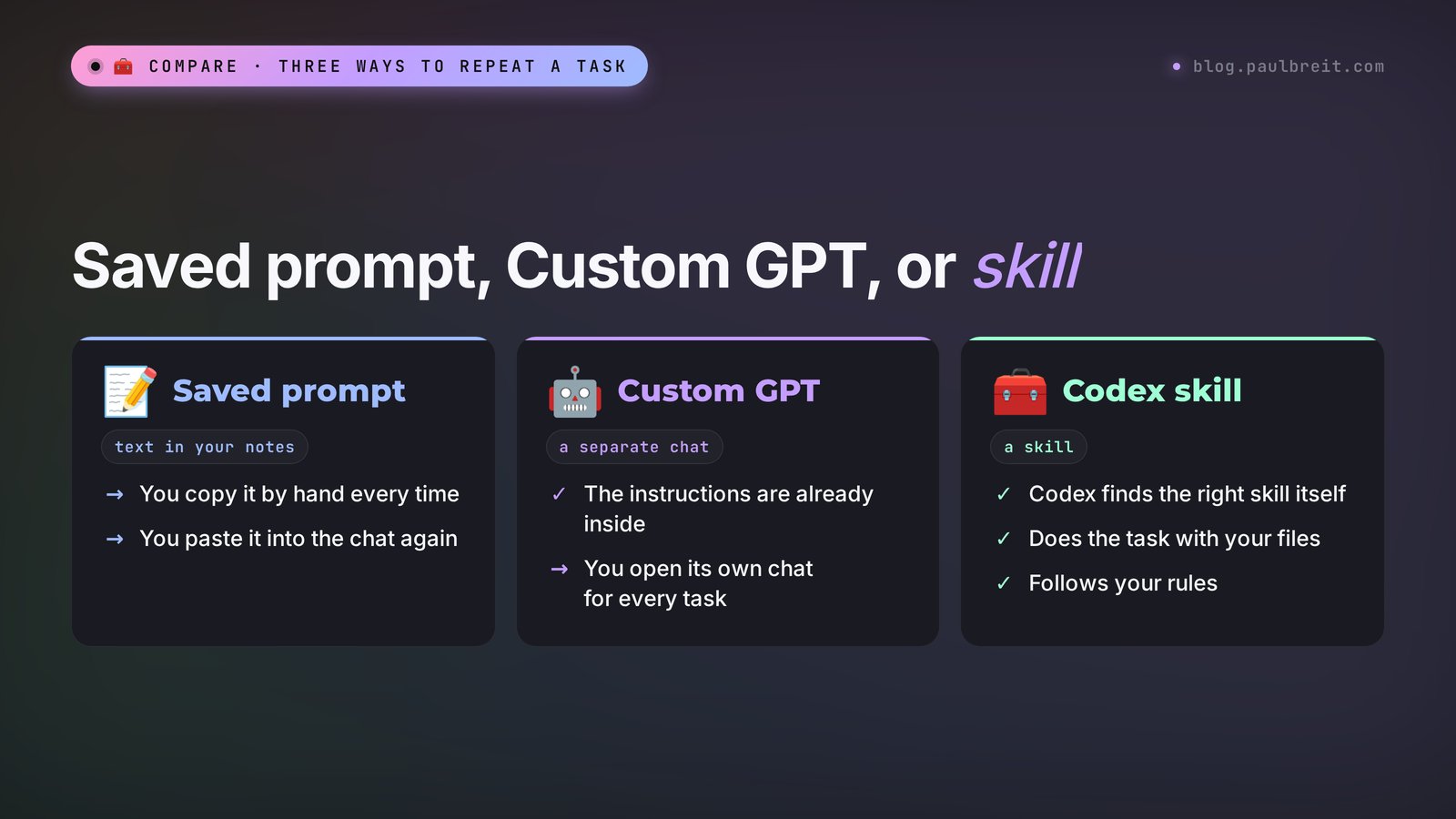
Beginners mix up three things: a saved prompt, a Custom GPT in ChatGPT, and a skill. All three are about "explain once, then reuse." The difference is who remembers the instructions and what the AI can actually do with its hands.
| Saved prompt | Custom GPT | Codex skill | |
|---|---|---|---|
| Where it lives | In your notes | A separate chat in ChatGPT | A folder with instructions that Codex sees on its own |
| How you start it | Copy and paste it every time | Open that GPT | A sentence with $ or just a description of the task |
| Working with files | Only what you attach | Only what you attach | The whole chosen folder: reads, creates, checks |
| Can run programs | No | Limited | Yes, if the skill includes a script |
| How many you can keep | As many as you like, but you search yourself | Each in its own window | Lots, and Codex picks the right one itself |
A simple rule. If the task is about text and fits in one message, a saved prompt is enough, and there are ready ones in the AI prompt library. If you need a separate helper for client conversations or brainstorming, that used to be a Custom GPT. On personal plans the Create button is gone and existing GPTs retire on December 11, 2026, so today you build that helper as a project or a plugin; I covered how in the article on Custom GPTs in ChatGPT. If the task repeats, involves files and several steps, and the result needs checking, that's a skill.
Where a skill wins the most: tasks where order and small details matter. Which columns go in the table, how files are named, which words you never use, where the booking button sits. In a chat these details get lost by the third message. In a skill they're written down and followed every single time.
Section 03Which tasks to turn into a skill
Not every task deserves a skill. If you do something twice a year, it's easier to explain it again. A skill pays off when three signs line up.
- The task repeats. At least once a week or once a month, but regularly. A lead report, sorting intake forms, packaging materials for a client.
- It has a clear input and output. In: an export, forms, text, photos. Out: a spreadsheet, a page, a document, renamed files. If you can't say what should come out at the end, the skill will be guessing.
- You've fixed the result more than once. Every fix you made is a ready rule for the skill. "Calculate conversion from leads, leave site visits out of it," "write phone numbers in one format," "no exclamation marks in the headline." The more of these rules you've collected, the more time the skill will save.
A good test: think of what you've explained to an AI or an assistant more than twice. That's almost always your first candidate.
And the other side: what to leave out of skills at the start. Tasks where everything is different every time and your gut makes the call: a launch strategy, a reply to a client in a tough spot, choosing the topic for a big post. A skill there gets in the way, because it boxes in work that hates boxes. For those, a regular conversation with the AI works better.
One more category that's worth turning into a skill: tasks where you're afraid of making a mistake. Renaming and sorting hundreds of files, for example. Debug the order once on a copy of the folder, write it into a skill, and from then on it runs the same way, with no surprises.
Section 04What you need before you start
You don't pay for skills separately. They're part of Codex, and Codex comes with a ChatGPT subscription. According to OpenAI's official Codex pricing page, it's available on Free, Go, Plus, Pro, Business, and Enterprise. The difference is how much work you can get done.
| Plan | Price per month | What you get in Codex |
|---|---|---|
| Free | $0 | Limited trial access |
| Go | $8 | The same limited trial access |
| Plus | $20 | Expanded usage and the Codex app for macOS and Windows |
| Pro | from $100 | Maximum Codex tasks |
Source: chatgpt.com/codex/pricing. For Free and Go, OpenAI says "Limited trial access to Codex"; for Plus, "Expanded Codex usage" and "Build with the Codex app for macOS and Windows"; for Pro, "Maximum Codex tasks." The page itself doesn't show the Plus and Pro amounts, so the $20 and from-$100 prices come from OpenAI's help page on ChatGPT plans.
What this means for skills. You can try building your first skill on the free plan: skill-creator will run for a couple of messages. But building and debugging a skill takes several rounds of questions and fixes. On trial access, the limit runs out halfway. For calm, steady work, get Plus.
Two more things you need to get started.
- The ChatGPT desktop app. Download it from chatgpt.com/download and pick Codex in the menu at the top of the window. Skills that work with your files live right there; the browser version can't reach the folders on your computer.
- An account and a plan. Sign in with Google, Apple, Microsoft, or email, the same way you sign in to ChatGPT. Any regular credit or debit card works for Plus.
Section 05What's inside a skill
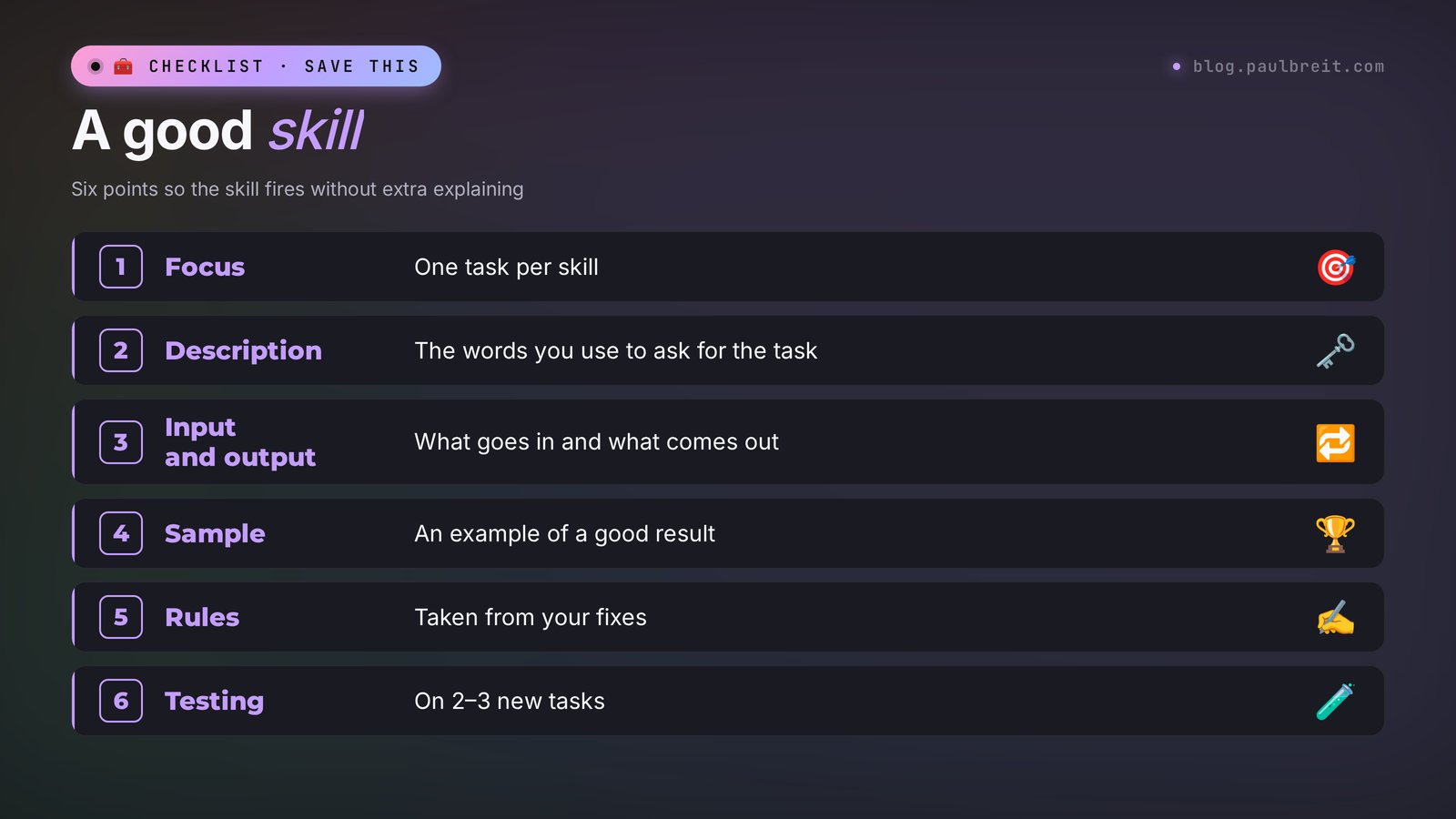
You won't write a skill by hand; Codex does that. But it helps to know what it's made of: that way you can check the skill was built right and fix it with plain words.
According to OpenAI's guide, a skill is a folder with a required SKILL.md file. At the top of the file sit two lines that decide everything:
- name is the skill's name in Latin letters, with hyphens. For example, weekly-leads-report. You call the skill by this name.
- description says when to use the skill and when to leave it alone. Codex uses it to decide whether the skill fits your task.
Below that come the instructions themselves in plain text: steps, rules, what counts as a finished result. Optionally, four more things can show up in the folder:
| In the folder | What it's for | Example |
|---|---|---|
| scripts | Programs for actions that must run the same way every time | Calculating conversion, renaming files |
| references | Reference material Codex reads as it works | Your list of services and prices, formatting rules |
| assets | Templates and samples | A great report, a sample page, a logo |
| agents/openai.yaml | Technical description for the app | The skill's name and icon in the interface |
The most underrated line here is the description. OpenAI directly advises keeping it short, with clear boundaries, and putting the main use case and the words you use to ask for the task right at the start. If the description says "helps with analytics," Codex won't connect it to your Monday report. If it says "Weekly lead report from an Excel export: conversion, sources, chart. Use when asked for the weekly lead report," Codex recognizes the task from half a sentence.
One more tip from the same guide that will save you headaches: one task per skill. A skill called "everything for my marketing" will fire in the wrong places at the wrong times. Three small skills work better than one big one.
Section 06Step by step: your first skill with skill-creator
Codex already has a built-in helper skill called skill-creator. Its only job is to help build other skills. It asks what the skill should do, when it should kick in, and whether it needs programs, and then creates the folder with the files itself. The order below is mine, tested on tasks from people who sell services and consulting.
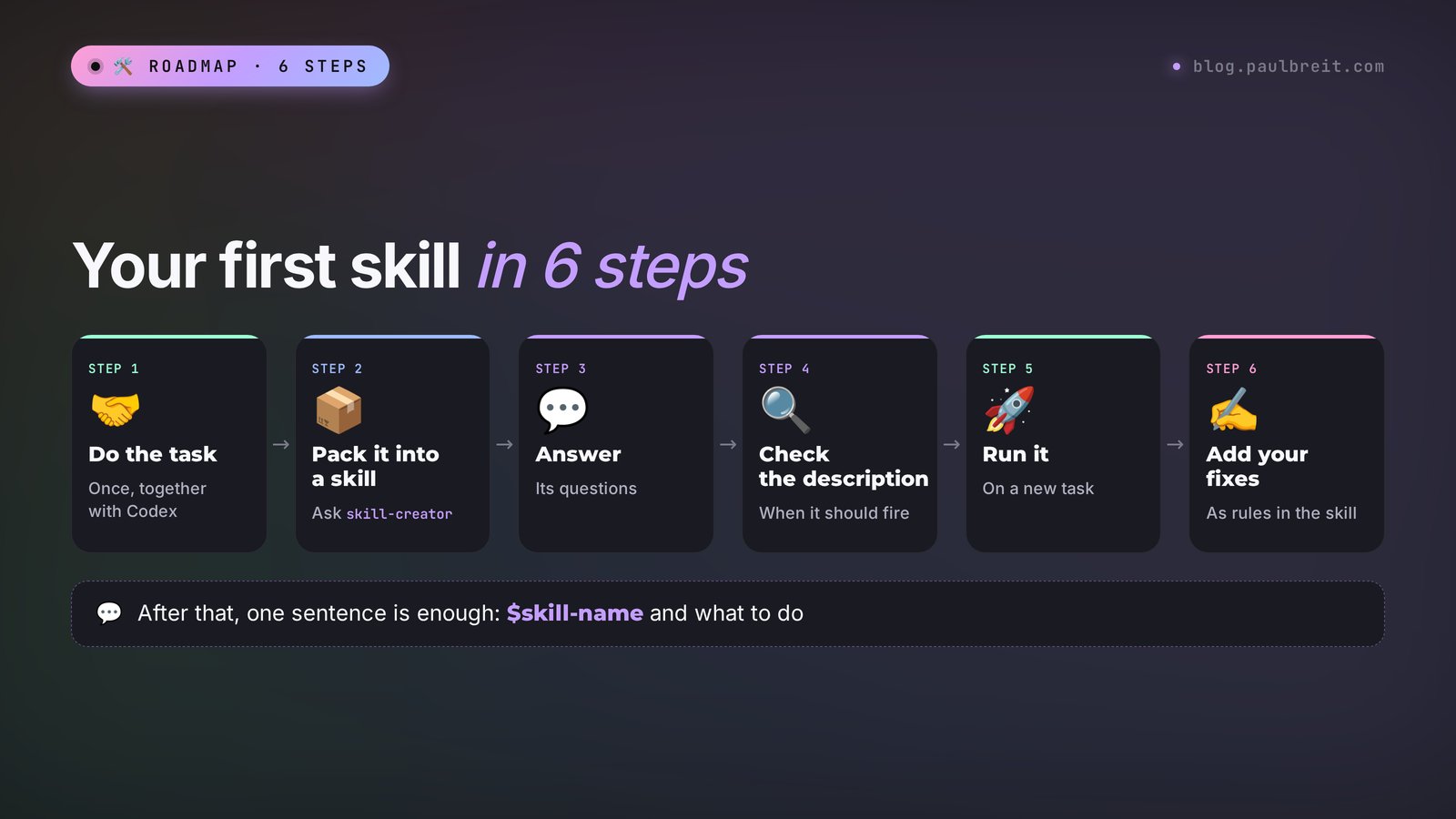
Step 1. Do the task once together with Codex
This is the most important step, and the one you'll be tempted to skip. Don't invent a skill out of thin air. Open Codex, create a folder for the task, put the files in it, and do the work as a regular conversation: ask, look, fix. Let it take three or four rounds of fixes. Each fix will later become a rule in the skill.
Why this way? A skill invented from scratch describes how you think you work. A skill built from real work describes how you actually work, with all the small details you'd forget to list.
Step 2. Call skill-creator
Once you're happy with the result, type the request below in the same chat. The $ sign before the name tells Codex you're calling a specific skill.
$skill-creator
I'm not a programmer. Explain things in plain words.

We just did [what you did, for example:
the weekly lead report from an Excel export].
I'll be doing this regularly.

Turn this work into a skill:
– write down the steps we went through;
– add all my fixes as rules;
– save the good result as a sample;
– in the description, include the phrases I
  usually use to ask for this task.

Ask me questions first if anything is missing.
When you're done, tell me the skill's name,
what sentence calls it, and where it's stored.
Step 3. Answer the questions
skill-creator will clarify what counts as input and output, and whether the skill should stay instructions only or needs programs. Answer the way you'd explain it to a new assistant. If you don't know the answer, say so: "suggest something and explain why."
About programs inside a skill. OpenAI advises sticking with instructions by default and adding scripts only when an action must run exactly the same way every time or needs an outside tool. For a beginner the rule is simple: if the task involves calculations or hundreds of files, say yes to a script. If it's about text and formatting, instructions are enough.
Step 4. Check the description
Ask: "Show me the skill's name and description and explain in plain words when it will kick in." Read the answer and ask yourself: if I describe the task in my usual words, will Codex recognize it from this description? If the description is vague, ask for a more specific version that includes your phrases.
Step 5. Run the skill on a new task
Open a new chat so Codex doesn't remember the previous conversation, and give it fresh files for the same task. Describe the task in plain words, without $. If the skill fired on its own, the description is good. If Codex started doing things its own way, call the skill explicitly with $ and then fix the description (Step 4).
Step 6. Add your fixes as rules
Almost always, the first new run surfaces something that wasn't in the first task. A different export layout, empty rows, a renamed column. Don't quietly fix the result yourself. Tell Codex: "Add a rule to the skill: if a column has a different name, ask me and don't guess." After two or three runs like this, the skill becomes stable.
The whole path from the first task to a working skill usually takes one evening. After that it works every time the task comes back.
Section 07What you get at the end: a test run
So you can see what kind of skill to expect, I ran the Step 2 request myself on a typical nutritionist task: intake forms from new clients in Word, and a summary spreadsheet needed from them.
Model: Claude Opus 5.5. The SKILL.md format is shared by Codex and Claude, so the result works for both agents. Input: "We made a summary spreadsheet from client intake forms in Word. My fixes: phone numbers in (XXX) XXX-XXXX format, allergies in a separate column in red, clients with a deadline under a month go to the top. I'll do this after every new intake round."
The model's output, the SKILL.md file:
---
name: client-intake-table
description: Summary spreadsheet from new client intake forms (Word, PDF) in a folder. Use when asked to "collect the intake forms," "make a table from the forms," "sort the new clients." Do not use for sales or lead reports.
---
# Intake form summary spreadsheet
Input: a folder with client intake forms in Word or PDF.
Output: a clients.xlsx file in the same folder.
Steps:
1. Read every intake form in the folder. Count them and state the number.
2. From each one, take: name, phone, goal, health limitations, allergies, desired timeline.
3. Format phone numbers as (XXX) XXX-XXXX.
4. Put allergies in a separate column and highlight those cells in red.
5. Put clients with a timeline under one month at the top of the table.
6. If a form is missing a field, leave the cell empty and list those forms at the end of your reply.
Rules:
– Don't make anything up: only what the client wrote.
– Don't change or rename the original forms.
Done when: the number of rows in the table equals the number of forms, and I've named which forms are incomplete.
Notice three things. The description includes the phrases a person actually uses to ask for the task, and it says plainly when to leave the skill alone. The fixes from real work became steps 3 to 5. And the "Done when" line gives Codex a way to check itself: if there are 14 forms and 13 rows, it will see the mistake before handing you the spreadsheet.
That's what a normal first skill looks like: half a page of text. A beginner doesn't need skills that run ten screens long. The shorter and more specific it is, the more precisely Codex follows it.
Section 08How to call a skill
According to OpenAI's guide, a skill can start in two ways.
- Explicitly, by name. In Codex you put the $ sign before the name: "$client-intake-table, sort the forms in this folder." In regular ChatGPT mode, skills are called with the @ sign. An explicit call is reliable: you know exactly which skill is running.
- On its own, by description. You describe the task in plain words: "put the new client intake forms into a spreadsheet." Codex compares it with the skill descriptions and picks the right one itself. Convenient, but it only works if the description is precise.
My advice for the first few weeks: call skills explicitly, with $. That way you see whether the instructions work on their own. Once a skill reliably gives a good result, switch to plain sentences and check whether Codex recognizes the task.
You can see all your skills in the ChatGPT app: the sidebar has a Skills section. OpenAI says it shows the skills created across all your projects. If you forgot what you named a skill, look there or ask Codex: "Which skills do I have and what does each one do?"
One small catch. If you call a skill and Codex says it doesn't exist, most of the time it simply hasn't picked up the new folder. In its notes on the skills catalog, OpenAI advises restarting Codex after installing a skill. Close the app and open it again.
Section 09How to improve a skill after each run
A skill is a living document. The first version is always a little rough, and that's fine. What matters is moving each fix into the skill right away. Otherwise, a month from now you'll be explaining the same things again, only now on top of the skill.
A simple habit does the job. After every run, ask yourself one question: what did I fix? If the fix was a one-off, leave it in the chat. If it will come up again, send it into the skill with the request below.
Update the skill [name]:
add a rule – [what you fixed,
for example: if a client has no phone number,
highlight them in yellow and don't skip them].

Show me exactly what changed in the instructions,
as one list: before and after.
Leave everything else in the skill as it is.
The "show me what changed" line matters. Without it, Codex sometimes rewrites the whole skill and loses a rule you added a week ago along the way. A before-and-after list takes thirty seconds to read and protects you from that.
Once a month it's worth giving the skill a deep clean: "Reread the skill [name] in full. Are there rules that contradict or repeat each other? Suggest a shorter version, and don't delete anything without my approval." A month's worth of rules piles up, and some of them go stale.
And one last thing. If a skill has grown and started doing two different jobs, split it. "Split the skill into two: one for sorting intake forms and one for the client welcome email." Each will become more reliable.
Section 10Ready-made skills and plugins
You don't have to build everything yourself. Codex has a second helper skill, skill-installer: it downloads skills from catalogs and other people's repositories. According to OpenAI's guide, you type "$skill-installer" and the name of the skill set. Codex downloads the folder and puts it where skills are stored.
OpenAI's skills catalog on GitHub, github.com/openai/skills, is marked as deprecated. It has three groups: system skills install with Codex automatically, curated ones you install manually with skill-installer, and experimental ones you can try by their folder address. For current examples, OpenAI now points to its plugins repository.
A plugin is a bundle of several skills, sometimes together with connections to services and template files. You install it with one click and can hand it to colleagues. In regular ChatGPT on the web and on your phone, skills only work as part of plugins; in Codex on your computer you can also keep standalone skills.
A safety rule I ask you to follow every time. Someone else's skill is someone else's instructions for an agent that has access to your folder. Before installing one from an unfamiliar source, ask Codex: "Read this skill and tell me in plain words what it does, which programs it runs, and where it sends data." If the answer mentions sending files somewhere on the internet, or actions outside the folder that you don't understand, don't install it. I wrote in detail about how agents get turned against their own owners in the article on protecting your blog and client base from AI hacking.
And an honest word on how useful ready-made skills are. They're good for standard jobs: documents, spreadsheets, presentations. The biggest time savings, though, will come from your own skills, because they hold your rules, your words, and your format for the result. No catalog knows those for you.
Section 11Where skills live and how to share them
Most of the time you don't need to know the folder address: Codex puts the skill where it belongs and finds it on its own. But if you want to pass a skill to an assistant, make a backup, or move to a new computer, the map comes in handy. According to OpenAI's guide, Codex looks for skills in several places:
| Where | Folder | What for |
|---|---|---|
| In the task folder | .agents/skills inside the working folder ($CWD) or at the project root ($REPO_ROOT) | Skills for this project only |
| On your computer | .agents/skills in your home folder ($HOME) | Personal skills for every task |
| System-wide | /etc/codex/skills | Skills installed by an administrator |
| Built-in | Bundled inside Codex itself | skill-creator, skill-installer, and others |
Folders that start with a dot are hidden by default on Mac and Windows, so you won't see them in a regular window. No need to dig for them. Ask Codex: "Show me where the skill [name] is stored and make a copy of it in a folder called Skills backup on my desktop."
Which option to choose. A skill you only need in one project, say formatting materials for one course, keep in that project's folder. A skill you use everywhere, like the lead report or your writing style, store as a personal one.
How to pass a skill to an assistant or a colleague. The simplest way is to send them the skill folder as a zip file. They drop it into their personal skills, restart Codex, and the skill works. If you have several skills and want your team to install them with one click, ask Codex to package them into a plugin.
You can turn individual skills on and off in the Codex settings file, ~/.codex/config.toml, in the [[skills.config]] section. You don't have to edit it by hand: type "turn off the skill [name], but don't delete it," and Codex will do it itself.
Section 12Eight skills for different niches
For your first skill to be truly useful, take a task from your own work. Below are eight options that come up for people who sell services, courses, and consulting. Each one is built with the steps from Section 6.
| Niche | Skill | Input | Output |
|---|---|---|---|
| Nutritionist | Intake form summary | Forms in Word or PDF | A spreadsheet with goals, limitations, and allergies |
| Therapist | A page for a new service | Text about the service, a photo, a booking link | A page in your design with a booking button |
| Online school | Weekly lead report | Lead and payment exports | A table with conversion by source and a chart |
| Tutor | Grading homework by criteria | Homework and grading criteria | Grades and a short comment on each assignment |
| Coach | Session recap for the client | A call transcript | An email: what you agreed on, tasks, next meeting |
| Photographer | Sorting a shoot | A folder of photos | Photos sorted by date and client with clear names |
| Fitness trainer | Weekly plan from a template | Client form and your template | A workout plan in your format |
| Mentor | Lesson materials in one style | Lesson drafts | Lesson files with matching formatting and a table of contents |
For the lead report, here's a ready first request. Do the task with it once, fix the result, and then turn it into a skill with the request from Step 2.
I'm not a programmer. Explain things in plain words.

The folder has an export of leads and payments for the week.
Make a report:
– how many leads came in and from where;
– how many of them paid;
– conversion from lead to payment for each source;
– one chart: leads and payments by day.

Save the report as a file in this same folder.
First tell me which columns you found in the export
and how you understood each one. Don't calculate
anything until I confirm.
That last line is there for a reason. If Codex misreads a column, the whole report will look great and be wrong. Confirming the columns takes ten seconds and later becomes the first step of your skill. I covered how to set up a report like this so it arrives on its own every morning in the article on AI business analytics.
If you're building income from AI services, as in my guide to making money with AI from scratch, Codex is one of the tools alongside Claude and ChatGPT. The skills from this article fit the jobs you'll do for clients: reports, pages, sorting files.
Section 13If something goes wrong
Codex ignores the skill and does things its own way. The description is almost always to blame. Ask to see the description and compare it with your sentence. Add the words you use to ask for the task, plus a sample request. Until the description is fixed, call the skill explicitly with $.
The skill kicks in where it shouldn't. The description is too broad. Add a line about when to leave it alone: "Do not use for sales reports." OpenAI recommends spelling out boundaries in the description for exactly this reason.
"That skill doesn't exist." Codex hasn't picked up the new folder. Restart the app. If that doesn't help, ask: "Where do you look for skills, and is [name] there?" The skill may have been saved in another project's folder.
The skill works but drops small details. That means its rules are fuzzy. "Format the table neatly" should become "header in bold, thousands separated with commas, total in the last row." Codex follows specifics to the letter and drifts on vague wording.
Codex got slow and the limit burns fast. The skill may be too long or pull in large reference files. Ask: "Shorten the skill [name] and keep only what actually affects the result." And pick the model to fit the task: a simple skill runs fine on a lighter one.
Your internet dropped in the middle of a task. Codex will stop halfway. Reconnect and type "continue" in the same chat. Files in the folder may be half-finished at that moment, so for important tasks keep a copy of the originals.
The skill messed up your files. This happens when the instructions don't forbid changing the originals. Add the rule "don't change the originals, save the result as a separate file," and always debug a new skill on a copy of the folder. For the first few weeks, work in the careful Ask for approval mode, as OpenAI recommends for beginners.
Section 14Skills in Codex and in Claude
If you already use Claude, you're in luck: skills there are built the same way. Both Codex and Claude follow the open skills standard for agents: a folder, a SKILL.md file, a name and description at the top. So a skill built for one agent usually moves to the other with no rework. Sometimes you'll need to adjust a couple of spots where the instructions refer to features of a specific agent.
| Codex | Claude | |
|---|---|---|
| Skill format | A folder with SKILL.md | A folder with SKILL.md |
| Helper for building skills | skill-creator | skill-creator |
| Explicit call | The $ sign and the name | The skill name in your request; in Claude Code, the / sign |
| Subscription | ChatGPT, Plus at $20 for real work | Claude, Pro at $20 for real work |
What to pick if you're just starting out. Go with the agent whose subscription you already pay for. Your skills won't be lost: if you want to switch in six months, the folders move with you. I covered how skills work in Claude in detail in Claude Skills in 2026: skills that do the work for you, and skills that teach Claude to write in your voice in 7 AI skills that fix dry Claude copy. If you're choosing between the two agents overall, take a look at how to use Claude Code and the comparison Claude vs ChatGPT.
RecapThe whole path in a minute
- A Codex skill is a folder with instructions for a task you repeat. Codex runs it from one sentence.
- Turn into a skill what repeats, has a clear input and output, and what you've fixed more than once.
- You need the ChatGPT desktop app, and for real work, Plus at $20 a month.
- First do the task together with Codex, then ask $skill-creator to pack it into a skill.
- Check the description: it has your words and says when to leave the skill alone.
- Test the skill in a new chat on new files, and write every fix into the skill right away.
- Ready-made skills install with $skill-installer or as part of plugins. Ask Codex to explain any outside skill first.
- The format is shared with Claude, so skills move between agents.
FAQFrequently asked questions
What are skills in Codex?
Skills are folders with instructions for a specific task: what to do, in what order, and by which rules. Codex sees the names and descriptions of all your skills and loads the right one when a task fits. That way repeat work gets done from one sentence, the same way every time.
How do I create a skill in Codex?
Do the task once together with Codex, then type in the same chat: "$skill-creator, turn this work into a skill." The built-in skill-creator will ask questions, write the steps and your fixes into a SKILL.md file, and save the skill. No coding needed.
How do I call a skill in Codex?
Two ways. Explicitly: the $ sign and the skill name, for example "$client-intake-table, sort the forms." Or just describe the task in words, and Codex will pick the skill by its description. All your skills show up in the Skills section of the ChatGPT app sidebar.
Where are Codex skills stored?
Personal skills live in the hidden .agents/skills folder in your home folder; project skills live in the same kind of folder inside the project. There's also a system folder for administrators and the skills bundled with Codex itself. To find or copy a skill, it's easiest to ask Codex.
Do Claude skills work in Codex?
Usually, yes. Both agents use the open skills standard: a folder with a SKILL.md file that starts with a name and a description. You can drop a Claude skill into the Codex skills folder and restart the app. Sometimes you'll need to adjust spots where the instructions refer to features of a specific agent.
Are Codex skills free?
You don't pay for skills separately: they're part of Codex, and Codex comes with every ChatGPT plan. On Free and Go the access is a trial, and the limit runs out fast. To build skills and run them regularly, you need Plus at $20 a month.