Leonardo AI: Free AI Images in 2026
Leonardo AI is one window with dozens of AI models for images and video: its own Lucid and Phoenix models, plus FLUX, GPT-Image, Nano Banana, Veo, and Kling right next to them. Every day it gives you 150 free tokens, enough for test covers, banners, and social media images. Here's how to sign up, which model to pick, how to write prompts, and how to stretch the free limit into a full week of work.
Leonardo AI is an AI tool for images and video with a free limit of 150 tokens a day. Go to leonardo.ai, sign in with Google or email, open the Image section, pick the Lucid Origin model, type a prompt, set the format to 16:9 and one image at a time. In 10–30 seconds your image is ready to download, upscale, or fix in the editor. On the free plan your generations are public; for ads with private images you need a paid plan.
Anyone who needs images more than once a week and wants to choose between different AI models without five subscriptions. A coach making covers for live sessions, a nutritionist making food shots for stories, a therapist making calm, atmospheric illustrations for posts, a tutor making lesson cards, a nail artist making a price list background, a photographer making moodboards before a shoot. If you sell services, courses, or consulting and you're tired of digging through stock photo sites, Leonardo solves that in one evening.
What's inside
- What Leonardo AI is in 2026
- Is it free: tokens, plans, and rights
- Sign up in 3 minutes
- Where everything lives in the interface
- Your first image, step by step
- Which model to pick for the job
- A prompt formula for Leonardo
- 20 ready prompts for real tasks
- Your own style and one character across a series
- Editing, backgrounds, and upscaling
- Video in Leonardo AI
- How to stretch 150 tokens
- Let Claude write your Leonardo prompts
- 10 working scenarios for sales and content
- If something goes wrong
- Leonardo vs other AI image tools
- Pre-publish checklist
- The whole path in a minute
- FAQ
Section 01What Leonardo AI is in 2026
Leonardo AI started in Australia in late 2022 as a tool for video game artists: people used it to draw characters, weapons, and locations. It quickly turned out the same tools were great for everyday jobs too – covers, ads, product shots. In 2024 Canva bought the company, and since then Leonardo's models have been gradually showing up inside Canva as well. Leonardo.ai itself still lives on as a separate product and keeps growing.
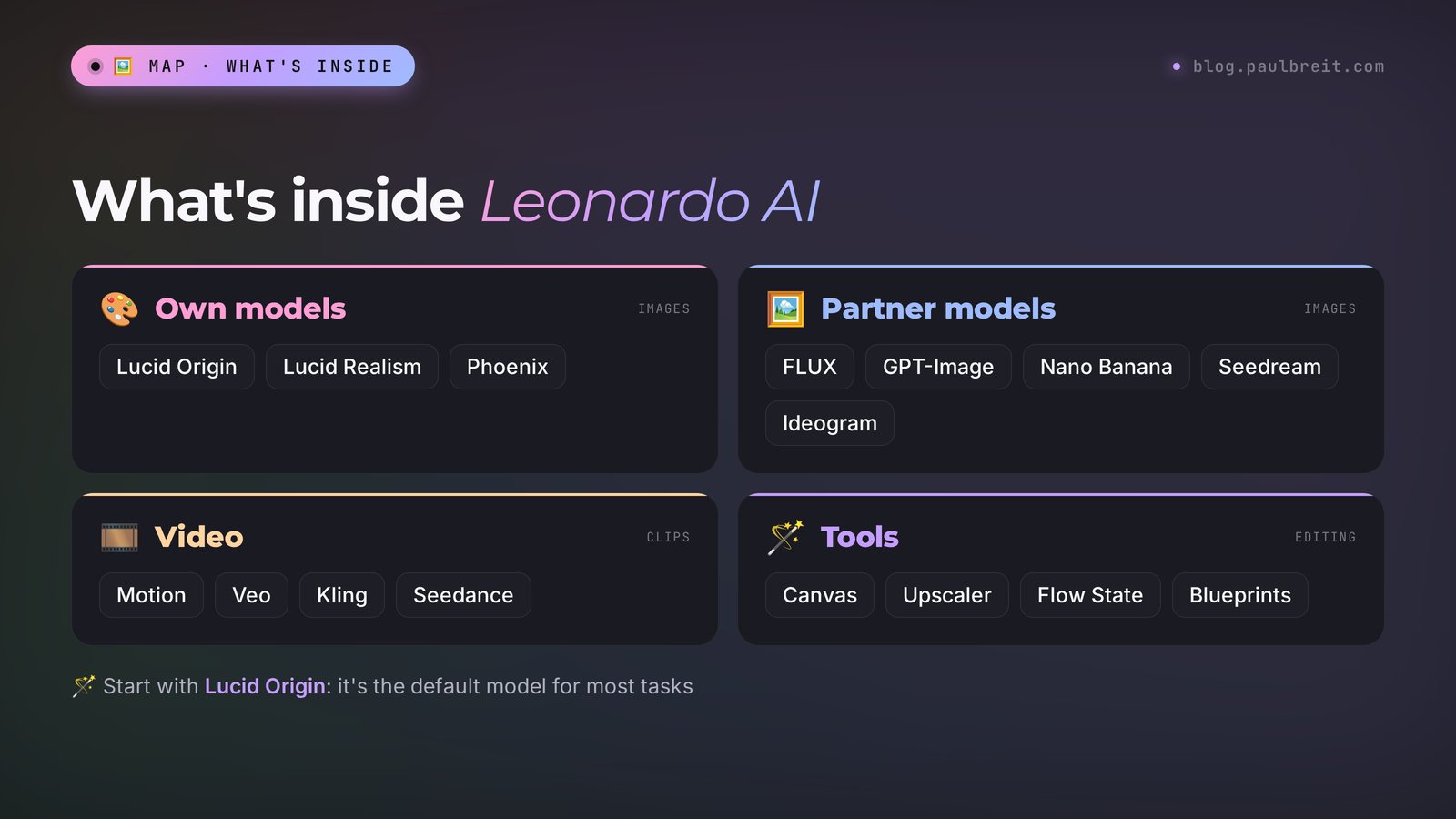
The main thing to understand about Leonardo: it's a storefront of dozens of AI models. You go to one site, and inside you choose who does the drawing: Leonardo's own model or a model from Google, OpenAI, Black Forest Labs, or ByteDance. That's both the strength of the service and the source of confusion for beginners, who open the model dropdown and get lost.
Here's what's inside as of October 2026:
| Group | Models | What for |
|---|---|---|
| Own image models | Lucid Origin, Lucid Realism, Phoenix 1.0 | The main workhorse: covers, illustrations, photos of people and objects. On paid plans you can generate with them without limits in relaxed mode |
| Partner image models | FLUX, GPT-Image, Nano Banana, Seedream, Ideogram | When you need a specific strength: accurate text on the image, editing a photo by description, a complex composition |
| Video | Motion, Veo, Kling, Seedance, and others | Bring an image to life, make a short clip from text. These burn tokens the fastest |
| Tools | Canvas, Upscaler, Flow State, Blueprints, Realtime Canvas | Editing, upscaling, a stream of variations, ready-made templates, drawing from a sketch |
Lucid Origin came out in August 2025 and became the default model for most tasks. It makes Full HD images, follows long descriptions well, and can write short English captions without a mess of letters. Lucid Realism is tuned for photorealism: skin, fabric, window light. Phoenix is the previous generation, still strong at illustrations and careful with text.
One more thing that sets Leonardo apart from simple chatbots that make pictures: it has a lot of dials. Frame format, number of variations per run, style, how strongly your reference influences the result, quality mode. That scares beginners for the first ten minutes. Then you realize these dials are exactly what gets you an image you're not embarrassed to put in an ad.
Honestly, the downsides. Leonardo loses details in long prompts, especially when the main thing is buried at the end. Longer captions on the image often come out with typos. And the free limit works so that heavy models eat it in a few clicks. All of that is fixable, and I'll show you how below.
Section 02Is it free: tokens, plans, and rights
Yes, you can use Leonardo AI for free, and without a card. But "free" here is measured in tokens, the service's internal currency. Every generation costs some number of tokens, and how many depends on the model, the size, the number of images per run, and the quality mode.
How the free limit works
Every day a free account gets 150 fast tokens. Unused ones expire: whatever is left in the evening won't be there in the morning, and your balance is back to exactly 150. A light image on one of Leonardo's own models costs a few tokens, so you get several dozen images a day. Heavy models, large sizes, upscaling, and especially video cost many times more, and the limit is gone in a couple of minutes.
Leonardo shows the exact cost of a generation right on the Generate button, before you click. Make it a habit: glance at the number, then click. One more annoyance – a failed generation still costs tokens. If you don't like the image, you don't get the tokens back.
What a paid plan gives you
| Plan | Price per month | Tokens per month | Key points |
|---|---|---|---|
| Free | $0 | 150 a day | Images are public, tokens don't roll over, some features are locked |
| Essential | $12 | 8,500 | Private generations, commercial use, unlimited relaxed generations on Leonardo's own models |
| Premium | $30 | 25,000 | More tokens and parallel jobs, headroom for video |
| Ultimate | $60 | 60,000 | For people who make images and clips every day |
Paying yearly brings the price down by about 20%. Leonardo has renamed its plans several times, so in older articles you'll see Apprentice, Artisan, and Maestro – those are the same tiers. Prices and plan contents change, so check the Pricing page on the site before you buy.
An important detail about "unlimited." Endless relaxed-mode generations on paid plans only work on Leonardo's own models: Lucid, Phoenix, and a couple of FLUX versions. Heavy partner models like Veo, Kling, Nano Banana Pro, and Seedream always charge tokens at full price. If you're buying a subscription for video, count tokens, not the word "unlimited."
What about image rights
On the free plan, everything you generate goes into the public feed, and other users can see your prompt and your result. For personal experiments that's fine. For ads and brand visuals it's not great: anyone can copy your image. Private generations and the freedom to use images commercially start with a paid plan. The terms change, so before you launch ads, open the terms of service and check the current clause on rights.
And about payment. The free plan doesn't need a card at all, so you can start today and decide about paying a week from now, once you understand how many images you actually need.
Section 03Sign up in 3 minutes
Leonardo works right in the browser, nothing to install. The whole sign-up is four steps.
Choose how to sign in
The fastest is Google or Apple. Email works too: you'll get a message with a sign-in link. If the link doesn't arrive within a couple of minutes, check your spam folder.
Fill out the short questionnaire
Leonardo asks you to pick a username and say who you are: hobbyist, professional, developer, or other. The answer doesn't affect anything, pick any. Your username is visible in the public gallery, so don't use your last name if you don't want your experiments tied to you.
Check your tokens
A token counter appears in the bottom left or top right corner. It should say 150. If there's no number, refresh the page. That's it, you can start creating.
Don't create a bunch of accounts to collect 150 tokens from each. The service tracks this and can ban all the accounts at once, along with the images in your library. If the limit isn't enough, it's cheaper to save tokens with the rules from Section 12 or take the cheapest paid plan.
Section 04Where everything lives in the interface
The interface looks busy on first open, but you only need to know a handful of sections. Here's the map:
| Section | What it does | When you need it |
|---|---|---|
| Image | An image from a text description | Every day: covers, backgrounds, illustrations |
| Video | A clip from text or from a finished image | Animate a cover, make a background for Reels |
| Canvas | Editor: paint in, erase extras, extend the frame | When the image is almost good but one piece is in the way |
| Upscaler | Enlarging and sharpening details | Before printing or a large banner |
| Flow State | A stream of variations from one idea | When you don't know what you want and are looking for a direction |
| Blueprints | Ready-made one-click scenarios | Standard tasks: styled portrait, product shot, background swap |
| Library | All your images and clips | Find and download what you made earlier |
You'll spend 90% of your time in the Image section. On the left or at the top there's the prompt field, next to it the model picker, and below that the settings: Aspect Ratio, Number of Images, Style, and sometimes a quality mode. Results show up on the right.
There's also a button called something like Prompt Enhance, or a magic wand icon. It rewrites your short prompt into a detailed one. Useful when all you have is an idea. Harmful when you know exactly what you want: the service may add things to the frame you never asked for. So turn it on at the start, and once you learn to write prompts yourself, turn it off.
Section 05Your first image, step by step
I'll show it on something almost everyone who runs a channel or a blog needs: a horizontal post cover with empty space for a headline. No people, so you don't have to fight with faces on the first try.
Open the Image section
In the left menu, click Image or Image Generation. A window with a prompt field opens.
Pick the Lucid Origin model
Click the model name above the prompt field and choose Lucid Origin. It's the all-round option with a reasonable token price. You'll see the price on the Generate button.
Set the format and the count
In Aspect Ratio choose 16:9 – that's the cover format for a blog, YouTube, and most link previews. In Number of Images set 1 or 2. Four images per run looks generous, but it costs four times as much, and at the start you'll be tweaking the prompt anyway.
Type the prompt
Example below. You can copy it as is and then swap the objects for your niche.
Click Generate and download
In 10–30 seconds the image appears on the right. Hover over it and click the download icon. If you want it bigger, run Upscale first, then download.
You type in the prompt field: Cozy home office desk by a window in early morning, open notebook, cup of coffee with steam, eucalyptus branch in a glass vase, soft warm window light, beige and sage green tones, realistic photo, shallow depth of field, objects on the left side, empty soft background on the right for a headline
What you get: a calm horizontal image that looks like a shot from an interior design magazine. The notebook, cup, and vase sit on the left, on the right there's a soft blurred background where your post headline will go. Steam over the coffee, warm highlights on the wood.
You type: Same scene in the evening, warm desk lamp light, blue dusk outside the window
What you get: the same composition in evening light. Handy for a "morning and evening" post series or for testing two covers against each other in an ad.
Why it worked. The prompt has everything an artist needs: the objects, the place, the time of day, the light, the colors, the style, and the layout. The last phrase about empty space on the right solves the main problem with covers: without it the AI will fill the whole frame with details, and your headline will have nowhere to go.
If the image came out almost right, don't rewrite the whole prompt. Change one thing at a time: the light, the color, an object. That way you'll quickly learn which word controls what, and after a dozen tries you'll start writing prompts that work on the first attempt.
Section 06Which model to pick for the job
The most common beginner question in Leonardo: which model should I use? The answer depends on the task and on how many tokens you're willing to spend. Here's the cheat sheet I use myself:
| Task | Model | Why |
|---|---|---|
| Post cover, banner background | Lucid Origin | All-round, Full HD, inexpensive, holds the composition well |
| Realistic photo of a person or an interior | Lucid Realism | Natural skin, fabric, and light without the plastic look |
| Illustration, poster, cartoon style | Phoenix | Follows the description closely, careful with short captions |
| English text right on the image | Ideogram or GPT-Image | The best at writing text without typos |
| Editing your own photo by description | Nano Banana or FLUX Kontext | They change only what you asked for and keep the face |
| Quick idea drafts | FLUX Schnell or Flow State | Cheap and fast, for finding a direction |
A simple rule for saving tokens: look for the idea on a cheap model and make the final version on an expensive one. For example, ten composition variations on Lucid Origin, and then redraw the best one on Lucid Realism or touch it up in Nano Banana. That way 150 tokens last many times longer.
The model list in Leonardo changes often: things get added, things disappear from the menu. If you can't find a model from this table, take the closest one by description – Leonardo writes under each model what it's good at.
Section 07A prompt formula for Leonardo
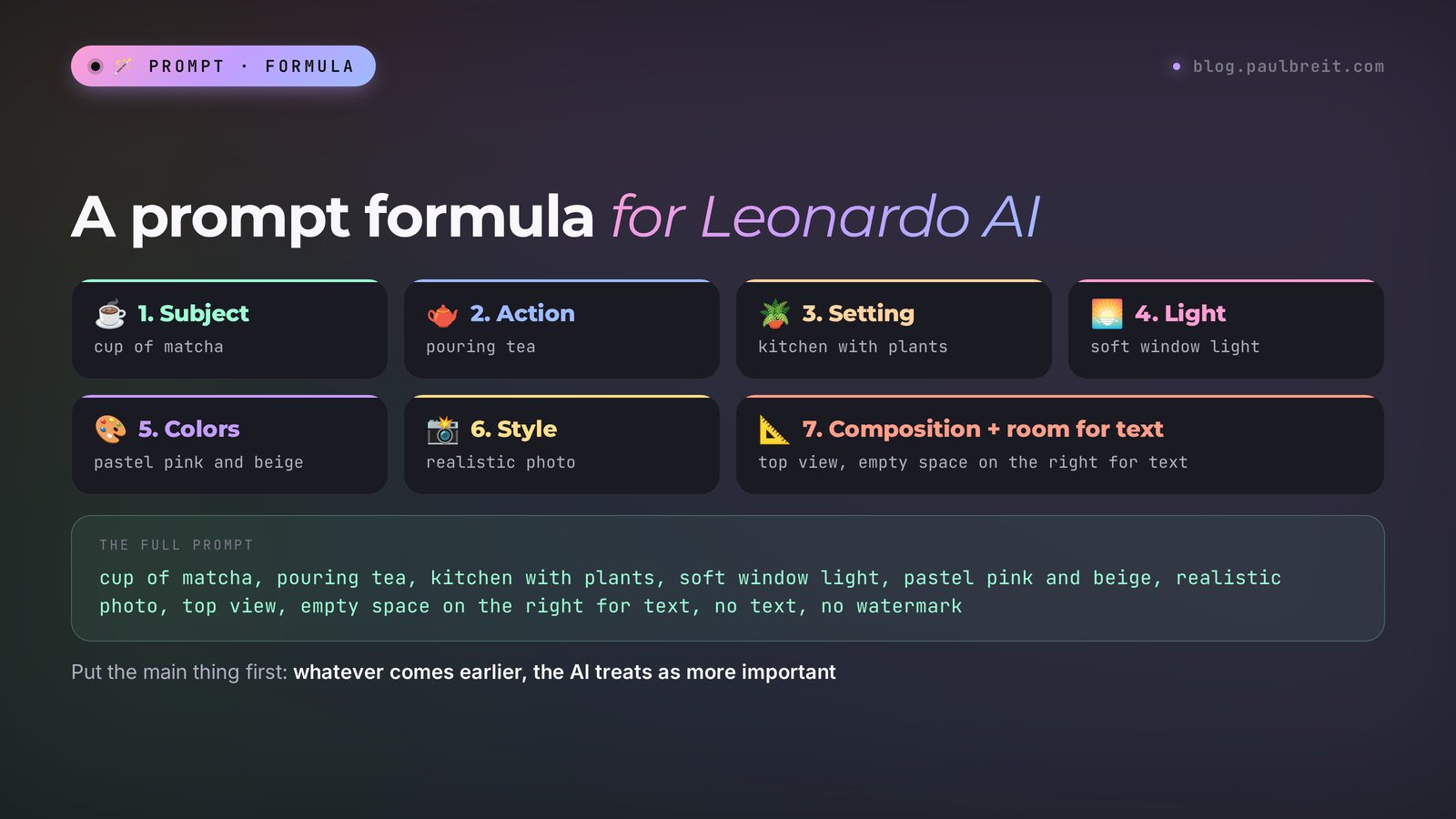
A good Leonardo prompt is built from seven bricks. You don't have to use all of them, but the more you fill in, the less the AI makes up for you.
- Subject. Who or what is in the frame: woman psychologist, cup of matcha, laptop on a desk.
- Action or state. What's happening: smiling, pouring tea, writing in a notebook.
- Setting. Where: bright cozy office, kitchen with plants, seaside cafe.
- Light. What kind: soft window light, golden hour, studio lighting.
- Colors. The palette: pastel pink and beige, deep green, black and gold.
- Style. How it looks: realistic photo, 3D render, flat illustration, watercolor.
- Composition. How things are arranged: close-up, top view, object on the left, empty space on the right for text.
String them into one line separated by commas, and the prompt is done. Order matters: whatever is closer to the start, the AI treats as the main thing. So put the subject first and the small details at the end.
Plain words work best
You don't need to be a "prompt engineer" or know any magic words. Describe the scene the way you'd brief a photographer: concrete objects, concrete light, concrete colors. Leonardo also accepts prompts in other languages, but English gives the most stable results, especially in long prompts. If you'd rather not write the prompt yourself, there are two shortcuts: ask Claude to write and polish it (I'll show this in Section 13), or click Prompt Enhance, which expands your short idea into a full prompt.
What to avoid
Abstract words like "success," "harmony," "motivation." The AI doesn't know what success looks like, so it draws a cliché: a person on a mountaintop with arms raised. Describe a concrete scene that means success to your audience instead: say, a laptop with an open calendar where every slot is booked.
Another trap is contradictions inside one prompt. "Minimalist, a lot of details" or "dark night, bright sunny." The AI tries to satisfy both wishes and gives you a mess. Before you hit Generate, reread the prompt and make sure the words don't argue with each other.
Some models have a separate Negative Prompt field – that's where you write what must not be in the frame: text, watermark, extra fingers, blurry. If there's no such field, add the phrase no text, no watermark to the end of the main prompt.
Section 0820 ready prompts for real tasks
Copy them, swap the objects and colors for your niche. The default model is Lucid Origin, the format is in parentheses.
| Task | Prompt |
|---|---|
| Therapist's post cover (16:9) | Calm therapy room with armchair and soft plaid, potted plant, warm afternoon light, beige and olive tones, realistic photo, empty wall on the right for headline, no people |
| Coach's live session cover (16:9) | Microphone and laptop on a desk in a modern studio, ring light glow, deep blue and warm orange accents, realistic photo, shallow depth of field, empty space on the left for text |
| Food shot for a nutritionist (4:5) | Healthy bowl with quinoa, avocado, salmon and greens, top view, wooden table, natural daylight, fresh and bright colors, food photography |
| Illustration for a tutor's lesson (16:9) | Flat illustration of a student with books and a lamp at night, cozy room, soft purple and yellow palette, simple shapes, friendly style |
| Price list background for a nail artist (9:16) | Soft pink marble background with a few rose petals and a small bottle of nail polish in the bottom corner, minimal, lots of empty space, elegant |
| Marketplace product shot (1:1) | Glass bottle of face serum on a white podium, soft studio light, light beige background, product photography, sharp details, no text |
| Image for a post about burnout (16:9) | Person sitting on a windowsill with a cup of tea looking at the rain, back view, muted blue tones, cinematic photo, quiet mood |
| Webinar banner (16:9) | Abstract smooth gradient waves in violet and coral, soft glow, clean modern style, large empty area in the center for title, no text |
| "Before and after" story (9:16) | Split composition, left side messy desk with papers, right side clean organized desk with laptop and plant, same angle, realistic photo |
| Moodboard for a photographer (1:1) | Moodboard collage of autumn photoshoot ideas, knitted sweaters, golden leaves, warm film photo look, soft grain |
| Guide cover (3:4) | Open notebook with handwritten checklist and a pen, coffee cup, top view, light linen background, soft shadows, empty top area for title |
| Reels background (9:16) | Sunrise over the sea seen from a balcony with a laptop on a small table, warm golden light, cinematic, vertical composition |
| Course hero illustration (1:1) | Friendly woman in her 30s with a laptop, 3D cartoon style, soft lighting, pastel background, smiling, upper body |
| Podcast cover (1:1) | Two microphones facing each other on a dark table, dramatic side light, deep teal and amber, minimal, bold composition |
| Image for a fitness trainer (4:5) | Yoga mat, dumbbells and water bottle on a wooden floor near a big window, morning light, fresh green accents, realistic photo |
| Post about money and pricing (16:9) | Neat stack of coins next to a small growing plant and a calculator, soft daylight, beige and green, realistic photo, empty right side |
| Icon illustration for a landing page (1:1) | Simple 3D icon of a calendar with a check mark, soft clay style, pastel lavender background, centered |
| Travel post photo (16:9) | Narrow old street with cafe tables and flowers, warm evening light, travel photo, people blurred in the background |
| Holiday cover (16:9) | Gift boxes and fairy lights on a table, cozy winter evening, warm bokeh, red and gold tones, empty space on the left for text |
| Testimonial card (1:1) | Soft abstract background with gentle light paper texture, cream and sage colors, large calm empty area, minimal |
Notice that almost every prompt has a phrase about empty space. A social media image almost always carries text, and if you don't leave room for it up front, you'll end up painfully squeezing the headline on top of the details.
For even more photo ideas, see "AI Photo Prompt Ideas: 30 Examples" and the AI prompt library. They're written for different AI tools, but the formula is the same, and they work in Leonardo too.
Section 09Your own style and one character across a series
One pretty image is easy. It's harder to make twenty images that look like one series: the same light, the same palette, the same character. That's exactly what separates a recognizable blog from a feed of random stock photos. Leonardo has several tools for this.
Style reference
Under the prompt field there's a button for adding a sample image, called Image Guidance or just an image icon. You upload a cover you like, choose Style Reference mode, and the new image repeats its colors, light, and look. The strength of the influence is set with a slider: at a low value Leonardo takes only the mood, at a high value it nearly copies.
Character reference
Character Reference mode keeps one face or one character across different images. You upload a portrait of the character, write a new scene, and the same person shows up in it. This is handy for a cartoon mascot for your course or for a series of illustrations with one hero. It works worse with real people: there's a resemblance, but not a perfect one. For your own face in ads, I'd still use a real photo.
Elements and saved styles
Elements are ready-made style add-ons: watercolor, vintage photo, neon poster, and dozens of others. Turn on one or two, and they change the look of the image without rewriting the prompt. If you've found a good combination of model, style, and settings, save it as a template so you don't have to rebuild it next time.
I make one reference cover I like. I save it and its prompt in my notes. Every next cover I generate with that image in Style Reference and with the same prompt "tail" about light and colors. Only the subject at the start changes. A month later the feed looks like the work of one designer.
Section 10Editing, backgrounds, and upscaling
The most frustrating situation: the image is perfect, but there's an extra cup in the corner, the character has a weird hand, or the frame is cropped too tight. Regenerating from scratch means losing your lucky shot. In Leonardo you fix this in the editor.
Open the image in Canvas
Hover over the finished image and choose Edit in Canvas, or open the Canvas section and upload the image there.
Erase or mask the extra bit
With the Erase tool or a mask, paint over the piece you want to change. Only that piece, not the whole frame.
Describe what should be there
For example, green plant in a pot or empty wooden table. Click Generate – Leonardo redraws only the masked area and matches it to the light and style of the rest of the image.
Extend the frame if it's tight
In Canvas you can drag the edge of the image frame, and the AI paints a continuation of the scene. That's how a square image becomes a horizontal cover or a vertical story.
To edit your own photo by description, without painting a mask, it's easier to use models like Nano Banana or FLUX Kontext right in the Image section: upload the photo and write "remove the people in the background, keep everything else the same." I covered these edits in detail in the article on Nano Banana 2.
To remove the background from an object or from you in a photo, use the Remove Background button. You get an image with a transparent background that's easy to drop onto a banner.
Before printing or a large banner, run the image through the Upscaler. It increases the size and fills in fine details. Since spring 2026 there's a Pro Upscaler mode with up to 8x enlargement. Keep in mind that upscaling costs tokens too, and quite a few. Do it once, for the final version.
Section 11Video in Leonardo AI
In the Video section you can make a short clip two ways: from a text description or from a finished image. The second way is more reliable. First you get the image perfect, then you ask to bring it to life: steam rises from the cup, waves roll in, the camera slowly pushes in.
There are several models inside. Motion is Leonardo's own model, good for simple animation. Veo from Google, Kling, and Seedance are heavy models with more lifelike motion and sometimes sound. They give a cinematic result and cost a lot: one eight-second clip on Veo costs roughly as many tokens as hundreds of regular images.
You upload the desk cover from Section 5 and type: Slow camera push in, steam rising from the coffee cup, curtains moving slightly from the breeze, morning light flickering
What you get: a five-second clip where the frame barely changes but comes alive: steam curls, the curtain sways, light flickers on the desk. A perfect background for a Reel with text on top or for an animated post cover.
On 150 free tokens, video is a luxury. Expensive models may not be available on the free plan at all, and even simple animation eats a noticeable chunk of the daily limit. If you need lots of clips, compare Leonardo with tools built for video: I have a separate breakdown of Kling AI, and a comparison of five tools for animating a photo with AI.
Section 12How to stretch 150 tokens
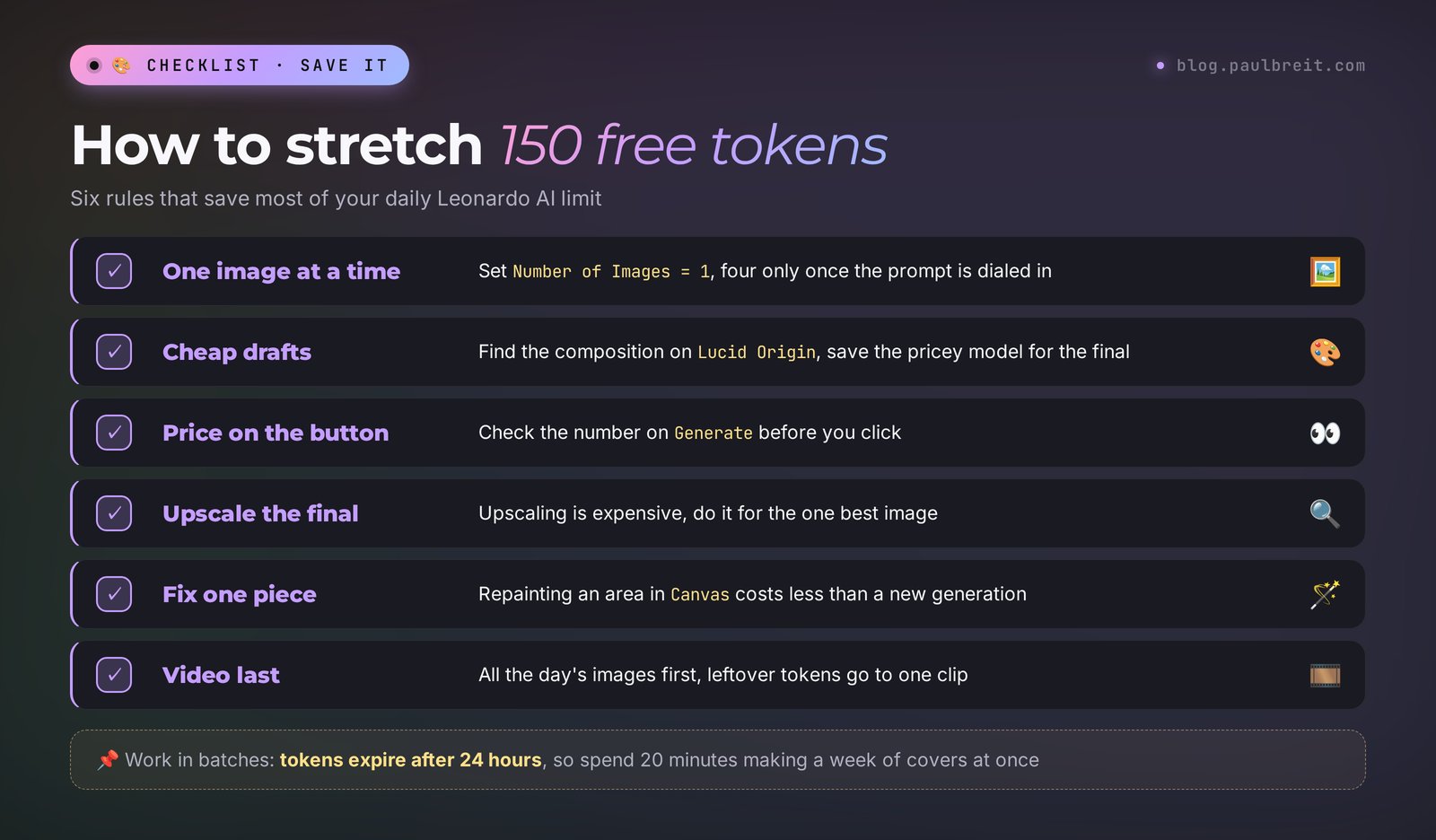
The free limit is enough for real work if you don't burn it for nothing. The rules that save me most of my tokens:
- One image at a time. Set Number of Images = 1. You only need four variations once the prompt is dialed in and you're choosing the best one.
- Cheap model first. Find the composition on Lucid Origin or a fast model, and switch to the expensive one for the final.
- Check the price on the button. If the number is higher than usual, check whether an extra quality mode or a large size is switched on.
- Upscale only the final. Upscaling is expensive, so do it for the one best image.
- Fix a piece, not the whole image. Repainting an area in Canvas is cheaper than a new generation and keeps your lucky shot.
- Prepare the prompt in advance. Polish the wording in Claude, and paste only the final text into Leonardo.
- Do video last. All of the day's images first, the leftover tokens go to one clip.
- Work in batches. Tokens expire after 24 hours, so it's better to sit down for 20 minutes and make covers for the week ahead than to make one a day.
With this approach, 150 tokens a day means five to ten finished covers for the week. For a channel that posts three or four times a week, the free plan is more than enough.
Section 13Let Claude write your Leonardo prompts
The most time-consuming part is coming up with the prompt and phrasing it well. Claude does this job really well. You describe the task in plain words, the way you'd explain it to a designer, and Claude returns a ready Leonardo prompt with the format and model.
Go to claude.ai and sign in with Google or email. The free plan is enough for writing prompts.
You write to Claude: I'm a nutritionist, I run an Instagram account about eating well for busy moms. I need 5 covers for the week: a 5-minute breakfast, office snacks, guilt-free sweets, a dinner for the whole family, water and tea. One style for all: light, warm, realistic food photo, top view, beige and green. Empty space on the right for the headline. Write Leonardo AI prompts, and include the model and the format.
What Claude replies: five ready prompts with the same tail about light, colors, and composition and different dishes at the start. Next to them a note: Lucid Origin model, 16:9 format, one image at a time. Plus a tip to upload the first good cover into Style Reference so the rest come out in the same look.
You write: The third one came out too dark and with text on the plate. Fix the prompt.
What Claude replies: a corrected prompt with bright natural daylight and no text, no letters at the end, plus a short explanation of which word was making it dark.
Then you copy the prompts into Leonardo one at a time. A whole week of covers in a quarter of an hour and roughly a third of the daily limit. How to write requests to Claude so it gets you on the first try, I covered in "Claude Prompts: a Formula and 25 Examples".
Leonardo often garbles longer text on images. Ask for empty space in the prompt, and add the headline later in Canva or any editor. If you make a lot of covers, Claude can build the banner with your font and colors – here's how that works in "AI Banner Maker".
Section 1410 working scenarios for sales and content
Images for the sake of images get old fast. Here's where Leonardo actually helps sell services, courses, and consulting:
- Post covers in one style. One reference, one prompt tail, and your feed looks premium without a designer.
- Ad creatives. Five different images for one offer in ten minutes, to test which one gets cheaper clicks.
- Story background for a live session announcement. A 9:16 vertical with an empty center for the date and time.
- Course lesson illustrations. A tutor or mentor makes an image for every module, and the course looks cohesive.
- Lead magnet cover. A guide or checklist with a good-looking cover gets downloaded more often than a bare PDF.
- Course mascot. A cartoon character made with Character Reference appears in all your materials and becomes the face of the brand.
- Product shots. A maker who sells their own cosmetics or candles does a product shoot without a photo studio.
- Moodboard before a shoot. A photographer or stylist shows the client the mood of the future shoot before they meet.
- Animated Reels cover. An image plus light animation in the Video section gives you a first frame that stops the thumb.
- Landing page visuals. Backgrounds, icons, and illustrations for your consultation booking page.
If you do this every week, it's worth building a simple chain around Leonardo: Claude writes the prompts and the copy, Leonardo draws, an editor adds the headlines. I collected AI tools for every link in that chain in "Best AI Tools 2026".
Section 15If something goes wrong
| Problem | Why | What to do |
|---|---|---|
| The site won't load | A temporary outage or a browser glitch | Refresh the page, try a different browser, come back in a few minutes |
| Tokens gone in five minutes | A heavy model, 4 images per run, a large size, or video | Number of Images = 1, Lucid Origin model, check the price on the Generate button |
| Model unavailable, a lock on the button | Some models and features are paid-only | Pick a similar free model or wait until you decide on a subscription |
| The image misses the point | An abstract prompt or contradictions | Describe a concrete scene using the formula from Section 7, put the main thing first |
| A mess of letters on the image | The model is trying to draw text | Add no text, no letters, no watermark, or use the Negative Prompt field |
| Extra fingers, weird hands | The weak spot of every image generator | Repaint the hand in Canvas or choose a shot where the hands are out of focus |
| A long prompt half ignored | Details at the end get lost | Put the main thing first, cut what's extra, or let Claude tighten the prompt |
| A series comes out inconsistent | Every generation is random | Style Reference with a reference image and the same prompt tail |
| Strangers can see your images | Free plan generations are public | Don't put client materials there, or switch to a paid plan for private generations |
Section 16Leonardo vs other AI image tools
Leonardo isn't the only option, and for some tasks other tools are more convenient. Here's an honest comparison of the ones that come up most often:
| Tool | Free | Strong suit |
|---|---|---|
| Leonardo AI | 150 tokens a day | Dozens of models in one window, an editor, styles, video |
| Midjourney | No free plan | Artistic quality and a recognizable aesthetic |
| ChatGPT (GPT-Image) | A few images a day | Images right in the conversation, good English text on the image |
| Nano Banana | Yes, in Gemini, with limits | Editing photos by description while keeping the face |
| Ideogram | Yes, with limited credits | Accurate text and lettering on the image |
| Adobe Firefly | Yes, with limited credits | Built into Photoshop and other Adobe apps |
| Canva | Yes, with limited uses | Generate an image and lay out the design with text in one place |
My take. If you want an image fast, right inside a chat, with no setup – ChatGPT or Nano Banana in Gemini. If you want control over style, a series in one look, and a choice of models – Leonardo. If beauty and artistry matter most and you're ready to pay – Midjourney. If the image must carry clean text – Ideogram. If you already live in Adobe or Canva, their built-in generators save you a step. More on choosing for your tasks in "AI Image Generators in 2026: Which to Choose", and what else you can use without a subscription in the roundup of free AI tools.
Section 17Pre-publish checklist
Thirty seconds of checking before an image goes into a post or an ad:
- Hands and fingers look right, five on each hand.
- No random letters on signs, mugs, and books.
- Faces look natural, no plastic skin or glassy eyes.
- The format fits the platform: 16:9 for a post cover, 9:16 for stories and Reels, 1:1 or 4:5 for the feed.
- There's room for the headline, and it's readable on a phone.
- The image connects to the point of the post.
- The style matches your previous covers.
- No other brands' logos, recognizable characters, or other people's faces without consent.
- For ads: the image was made on a paid plan and you've checked the terms of use.
- You downloaded the full size or the upscaled version; a screenshot won't do for publishing.
Section 18The whole path in a minute
Go to leonardo.ai, sign in with Google or email, get 150 free tokens for the day. Open Image, choose Lucid Origin, 16:9 format, one image at a time. Build the prompt with the formula: subject, action, setting, light, colors, style, composition with room for text. Write it yourself or ask Claude to draft it. For a series in one style, upload a reference into Style Reference. Fix extras in Canvas, upscale only the final. Make video from a finished image. For ads and private images you need a paid plan from $12.
Start today with one action: take the topic of your next post, copy the prompt from Section 8 that's closest to your niche, swap the objects, and click Generate. A minute later you'll have your first cover. A week of covers like that in one style, and you have a feed people recognize at first glance.
FAQFrequently asked questions
Is Leonardo AI free?
Yes. The free plan gives you 150 fast tokens every day, no card required. Tokens don't roll over: unused ones expire after 24 hours. On light models that's dozens of images a day; on heavy models and video, just a handful. Paid plans start at $12 a month.
Do I need to install anything to use Leonardo AI?
No. Leonardo works in the browser at leonardo.ai. Sign in with Google, Apple, or email, and the free plan needs no card. The 150 daily tokens show up in the token counter right after sign-up.
How many images can I make with 150 tokens?
It depends on the model and settings. One image on Lucid Origin costs a few tokens, so you get several dozen a day. Four images per run, large sizes, upscaling, and heavy partner models drain the limit many times faster. The Generate button shows the exact price.
Which model should I choose in Leonardo AI?
For covers and backgrounds, Lucid Origin; for realistic photos of people, Lucid Realism; for illustrations, Phoenix. For English text on the image, Ideogram or GPT-Image; for editing your own photo by description, Nano Banana or FLUX Kontext.
Can Leonardo AI put text on images?
Short English captions, yes: Lucid Origin and Phoenix handle them without a mess of letters. For longer or exact text, pick Ideogram or GPT-Image inside Leonardo. For headlines on covers it's more reliable to ask for empty space in the prompt and add the text in Canva or any editor.
Can I use Leonardo images in ads?
On the free plan your images are public and visible in the shared gallery. Private generations and commercial use start with paid plans. Before launching ads, check the current terms of service, and don't use other brands' logos or other people's faces without consent.
Can I make video in Leonardo AI for free?
Simple image animation with the Motion model is available, but it eats a noticeable share of the daily limit. Heavy models like Veo and Kling are very expensive in tokens and may be locked on the free plan. For frequent clips, tools built for video are a better deal.
How do I make a series of images in one style?
Make one reference image, upload it to Image Guidance in Style Reference mode, and use the same prompt tail about light, colors, and composition. To keep one character across different images, use Character Reference mode.
How is Leonardo AI different from Midjourney and ChatGPT?
Leonardo puts dozens of models in one window and gives you lots of settings, an editor, and a free daily limit. Midjourney is stronger on artistic quality but has no free plan. ChatGPT makes images right in the conversation and handles English text well, but gives you fewer dials for style and composition.