n8n: no-code automation for your business in 2026
n8n is an automation builder where you connect your apps with boxes on a screen: a lead from your site lands in a spreadsheet on its own, you get a Telegram message, and AI writes the client a first reply. Below: what the service is, what it costs in 2026, how to put it on your own server without touching the command line, how to build your first workflow in one evening, and which 12 automations pay off for everyone who sells services, courses, and consulting.
n8n is a tool for automating your business without programming: on a screen you connect blocks for "when this happens" and "do that," and n8n moves the data between your site, spreadsheets, CRM, email, Telegram, and AI on its own. It has 400+ ready integrations and an AI Agent node for plugging in Claude or ChatGPT. There's a cloud version from €20 a month with 2,500 executions, and a free Community Edition for your own server with no limit on executions. The fastest start is the 14-day cloud trial; the cheapest long-term option is a $5–12 server where Claude Code installs n8n for you. Your first workflow takes one evening.
Anyone with routine that repeats every day. A therapist who copies bookings from a form into a calendar by hand. A nutritionist who sends every new client the same questionnaires and handouts. A tutor who sends reminders about tomorrow's lessons every evening. A coach with a course whose payments arrive in one place, access is granted in another, and the client list lives in a third. If you've ever caught yourself thinking "didn't I do exactly this yesterday?", n8n will take that work off your hands.
What's inside
- What n8n is, in plain words
- How a workflow works: triggers, nodes, connections
- n8n vs Make vs Zapier: which to choose
- What n8n costs in 2026
- Cloud vs self-hosting: what to choose
- How to install n8n on your own server without the command line
- The n8n interface in five minutes
- Your first workflow: a lead into a spreadsheet and Telegram
- Adding AI: the AI Agent node
- Let Claude build your workflows
- 12 automations that pay for themselves
- When something goes wrong
- Security and keeping workflows tidy
- Launch checklist
- The whole path in one minute
- FAQ
Once I counted how much time I spent moving data around. A lead comes in by email – I copy it into a spreadsheet. A client pays – I open the payment service, check, and write to them by hand. A new follower asks a question – I give the same answer for the tenth time that week. It came to almost two hours a day. Ten hours a week on work a robot could do.
Now all of it runs on its own. A lead lands in the spreadsheet in a second, a short card with the name and request pops up in my Telegram, the client gets an email with materials, and AI writes a draft of a personal reply. I just look it over and hit "send." All of this is built in n8n.
Below I'll walk through n8n so you can build your first automation as you read. Inside: what the service is and how it differs from Make and Zapier, what it costs in 2026, whether to pick the cloud or your own server, how to install it without opening the command line, a step-by-step first workflow, plugging in AI, 12 ready workflows for different niches, and the most common breakdowns.
Section 01What n8n is, in plain words
n8n is a program that connects the apps you already use and passes data from one to another by rules you set. The name is pronounced "n-eight-n" – it's short for nodemation, with eight letters between the first n and the last.
The service is made by a company in Berlin, and the first version came out in 2019. In six years n8n grew from a developer tool into one of the most popular automation builders in the world. Version 2.0 shipped in January 2026 and put AI blocks at the center: now you can build a full AI agent into a workflow, one that decides on its own which tool to call.
Picture a courier with a list of rules. "When a new lead shows up on the site, take the name, phone, and request. Write them into the spreadsheet. If the request contains the word 'urgent,' ping me in Telegram. If not, just send the client an email with a set of materials." The courier works around the clock, never gets tired, never mixes up rows, and never forgets. In n8n, that list of rules is drawn on screen with boxes and arrows.
Each box is called a node. One node waits for an event, another pulls data from a spreadsheet, a third sends a message, a fourth asks the AI. The arrows between nodes show where the data goes next. The finished chain is called a workflow.
What n8n can do
Almost anything you do by hand in a browser with repetitive clicks. Here are the most common tasks for people who sell services and education:
- leads from your site, a quiz, or a form land in a spreadsheet or CRM on their own;
- you get a Telegram message about every new lead and payment;
- a new client automatically receives an email, a questionnaire, or a link to materials;
- the client gets a reminder a day and an hour before the meeting;
- AI reads incoming email, files it into folders, and drafts replies to routine questions;
- every morning you get a summary: how many leads, payments, and dollars came in yesterday;
- posts from one place are published to several channels at once;
- client reviews from different platforms are collected into one spreadsheet.
The key word is repetition. If a task is the same every time and it's clear where the data comes from and where it goes, n8n will take it. If a task needs your taste and judgment every time, automation can prepare a draft, and the final word stays with you.
Section 02How a workflow works: triggers, nodes, connections
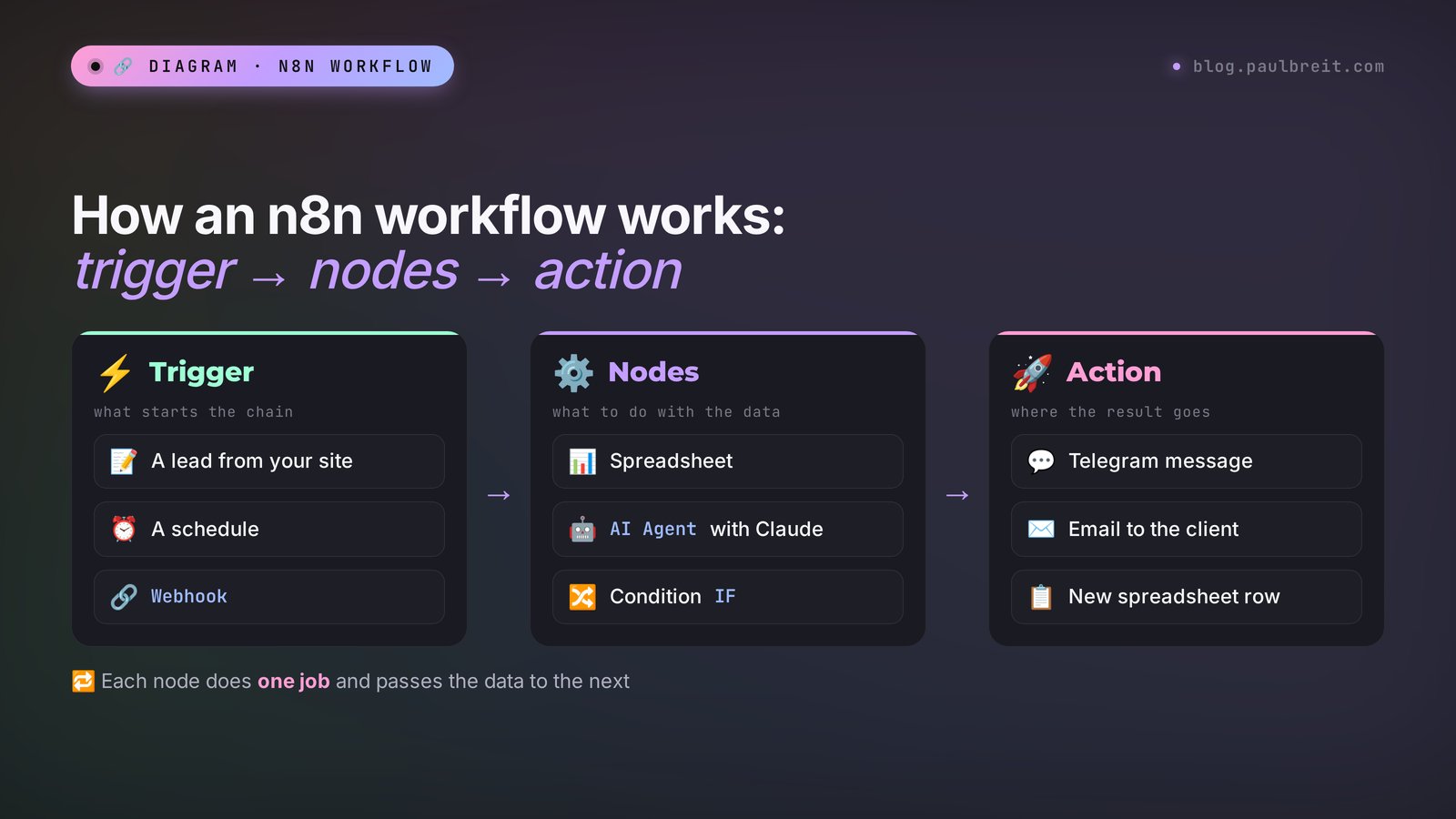
Every n8n workflow follows the same pattern: event → processing → action. I'll go through each part so you can read the n8n screen like a simple diagram.
The trigger: what starts the workflow
The first node in a chain is always a trigger. It answers the question "when do we start." There are only a few options, and they're easy to remember:
- On an event in an app. A message arrives for your Telegram bot, a row appears in Google Sheets, an email lands in Gmail. Many apps have a ready trigger node in n8n.
- On a schedule. Every day at 9:00, every Monday, every 15 minutes. The node is called Schedule Trigger.
- By webhook. A webhook is an address that another service sends data to the moment something happens. Site builders, form tools, payment services, and many CRMs can send a lead to that address. The node is called Webhook.
- Manually. A "run" button – handy for testing and one-off jobs.
- From a chat. The Chat Trigger node opens a chat window where you talk to an AI agent inside n8n.
Nodes: what to do with the data
After the trigger come the working nodes. There are hundreds of them, but in practice a dozen is enough. Here are the ones you'll meet in your first week:
| Node | What it does | Example |
|---|---|---|
| Google Sheets | Reads and writes rows in a spreadsheet | Add a lead to the "Leads" tab |
| Telegram | Sends messages from your bot | Notify you about a new payment |
| Gmail / Send Email | Sends and reads email | Send the client their materials |
| IF | A fork based on a condition | If the amount is over $150, use a separate branch |
| Switch | A fork into several branches | Route leads across three services |
| Edit Fields (Set) | Renames and combines fields | Merge first and last name into one field |
| Wait | Pauses before the next step | Wait a day, then send a reminder |
| HTTP Request | Connects to any service through its API | Reach a service that has no ready node |
| AI Agent | An AI agent with a model, memory, and tools | Answer a client's question about your services |
| Code | A snippet of code for unusual cases | Calculate something tricky – the AI writes the code |
Connections: where the data goes
The arrows between nodes pass data down the chain. Each node sees everything that came from the nodes before it. For example, in the Telegram node you write the message text and drop the "name" field from the trigger into it with a simple drag. When the workflow runs, n8n fills in the client's real name.
Data in n8n moves in batches called items. If five leads arrive at once, the Telegram node sends five messages. That's convenient and also a common source of surprises; I'll come back to it in the troubleshooting section.
Section 03n8n vs Make vs Zapier: which to choose
n8n has two neighbors people usually compare it with. Zapier is the oldest and simplest automation service. Make is a European builder with visual scenarios similar to n8n. Here's a comparison by what actually affects your choice.
| Criterion | n8n | Make | Zapier |
|---|---|---|---|
| How you're billed | Per full workflow execution | Per operation inside a scenario | Per task (each action) |
| Self-hosting | Yes, free | No | No |
| AI agents inside | Strong, with memory and tools | Yes | Yes |
| Learning curve | Medium | Medium | Low |
| App library | 400+ built-in, any API via HTTP Request | Large | The largest |
| Best for | Many workflows, AI, no limits | Visual scenarios at moderate volume | One or two simple connections, fast |
Here's the key thing about money. In Zapier and Make you pay for every step. A ten-node workflow that runs 100 times a day eats a thousand operations a day in Make. In n8n Cloud the same workflow costs 100 executions, because the whole run counts as one, no matter how many steps it has. And on your own server, executions are free.
My pick goes like this. If you need one or two simple connections and don't want to set anything up, take Zapier: it's the fastest to learn and connects to almost everything. If you have lots of automations, they involve AI, and you don't want to think about limits, go with n8n on your own server. Make sits in between: it's visual and cheaper than Zapier, but at high volume its per-operation billing adds up fast.
n8n has a reputation as a "tool for techies." Three years ago that was true. Today AI does half the work for you: Claude builds a workflow from a description, and n8n Cloud has a built-in assistant that assembles a chain from a text request. All that's left for you is to check it and connect your accounts.
Section 04What n8n costs in 2026
n8n has two paths: the cloud, where everything is already set up, and your own server, where you only pay to rent the machine. Cloud prices as of fall 2026, billed annually:
| Plan | Price | Executions per month | Who it's for |
|---|---|---|---|
| Free trial | Free for 14 days | Limited | Get to know it and build your first workflows |
| Starter | €20 a month | 2,500 | One person, a few workflows |
| Pro | €50 a month | 10,000 | A small team, dozens of workflows |
| Business | €667 a month | 40,000 | Companies with departments and security requirements |
| Community Edition | €0 + a server | Unlimited | Anyone willing to rent a server |
With monthly billing, the cloud costs about a fifth more. An execution is one run of a workflow from the trigger to the end. A "lead → spreadsheet → Telegram" workflow with 30 leads a day uses about 900 executions a month, and the Starter plan handles that with room to spare.
Community Edition is the full free version of n8n for your own server. The license lets you use it for your own business as much as you like. One thing is off limits: reselling n8n itself as a service to other people. Building automations for clients on their own servers is fine.
A server with 2 vCPUs and 2–4 GB of RAM from a provider like DigitalOcean, Hetzner, or Vultr costs about $5–12 a month. That's enough for dozens of workflows for one person. Add the cost of AI if you plug it into your workflows: at moderate volume that's a few dollars a month in API usage.
n8n doesn't pay the AI providers for you. The AI Agent node connects to your own Claude, ChatGPT, or other model key, and every request is charged to your balance with the model provider. n8n Cloud plans include a small allowance of free AI credits, but for regular work you need your own key.
Section 05Cloud vs self-hosting: what to choose
This is the first real decision, and it's simpler than it looks. Both versions have the same editor and the same nodes. The difference is who looks after the machine and how you pay.
n8n Cloud
You sign up on n8n.io, start the 14-day trial, and you're in the editor within a couple of minutes. Updates, backups, and the https certificate are handled for you. You pay by card, monthly or annually. The trade-off is the execution limit on each plan and the price, which grows with your volume.
Your own server
Community Edition is a free download and runs on any server. You rent a small machine for $5–12 a month, and executions are unlimited. Your data stays on your server, which matters if you handle client information. The trade-off: updates and backups are on you. In practice, that means one message a month to Claude Code, and I'll show you exactly what to write.
| If you... | Choose |
|---|---|
| Want to try n8n tonight with zero setup | Cloud trial |
| Have one or two workflows and a small volume | Cloud Starter |
| Plan dozens of workflows or high volume | Your own server |
| Use AI in many runs and want to keep costs flat | Your own server |
| Need client data to stay on your own machine | Your own server |
A practical path: start the cloud trial, build your first two workflows, and see how many executions you actually use. If the numbers grow, export the workflows and move them to your own server. The export is a single JSON file, and the import takes a minute.
Sign up at claude.ai with any email. You'll need it twice in this guide: Claude Code installs n8n on your server, and Claude in a regular chat builds workflows for you. If you're outside the US or EU, check that Claude is available in your country before you plan around it.
Section 06How to install n8n on your own server without the command line
It sounds scary: a server, an installation, a domain. In reality you don't type a single command. Claude Code handles all the technical part – it's the version of Claude that can work on a server by itself. Your job is to rent the machine and ask. If you don't have Claude Code set up yet, start with the step-by-step Claude Code guide for beginners; it takes about half an hour.
Rent a server
Sign up with a hosting provider and create a cloud server: Ubuntu 24.04, 2 vCPUs, 2–4 GB of RAM, at least 30 GB of disk. Pick the region closest to you. Once it's created, the provider shows you the IP address, the root login, and a password. Save them in a password manager.
Any mainstream VPS provider works: DigitalOcean, Hetzner, Vultr, Linode, and similar. Look for a plan with 2 vCPUs and 2–4 GB of RAM, which usually costs $5–12 a month. Creating a server takes a couple of minutes, and you can resize it later if your workflows grow.
Buy a domain or use a subdomain
It's easier to open n8n at an address like auto.yoursite.com. If you already have a site, a subdomain is enough. In the panel where you bought the domain, add an A record named auto pointing to your server's IP. If you don't know where that is, tell Claude the name of your registrar and it'll show you where to click.
Ask Claude Code to install n8n
Connect Claude Code to the server and send it one message with the task. It installs Docker, launches n8n, issues a free https certificate, and sets up automatic restart after the server reboots.
You write to Claude Code: Install n8n Community Edition on this server with Docker. The address is auto.yoursite.com, and the A record already points to this server. I need https with a free certificate, auto-start after reboot, data in a separate volume, and the time zone America/New_York. Close any ports that aren't needed. At the end, check that n8n opens at the address and tell me what you did.
What Claude replies: Done. I installed Docker and Docker Compose, launched the latest stable n8n, and set up Caddy as a reverse proxy with an automatic Let's Encrypt certificate. Data lives in the n8n_data volume, and the container restarts on its own. Only ports 22, 80, and 443 are open. Time zone is America/New_York. Open https://auto.yoursite.com and create the owner account.
Create the owner account
Open the address in your browser. n8n asks for a name, email, and password – this is your personal login to the editor, and it isn't sent anywhere. Make the password long: the editor faces the internet, and anyone who guesses it gets access to your workflows.
Ask for backups
The last step, and almost everyone skips it. Tell Claude Code: "Set up a daily backup of the n8n data, keep 7 days, and check that it restores." If the server breaks, you'll have every workflow back in ten minutes.
The whole process takes 30–40 minutes, and most of that is waiting for the provider to create the server and for the DNS record to spread across the internet. Later, ask Claude Code to update n8n once a month too: "Update n8n to the latest stable version, and make a backup first."
Section 07The n8n interface in five minutes
After you sign in, you land on the home screen with your list of workflows. It's empty for now. Here's a quick tour so you don't get lost later.
- Overview. The home screen with all your workflows, saved credentials, and run history.
- Create Workflow. The button for a new workflow. It opens an empty canvas with a plus in the middle.
- The canvas. The workspace where your nodes live. Zoom with the mouse wheel; hold the space bar and drag to move around.
- The plus in the top right. A searchable list of every node. Type "telegram" and you see every Telegram action.
- Credentials. The vault for your access: AI keys, bot tokens, Google sign-in. You connect an account once, then just pick it from the list.
- Executions. Run history. You can open every run and see what data passed through each node. This is your main tool for finding errors.
- The Active toggle. Switches the workflow into production mode. While it's off, the workflow only runs when you press the test button.
Double-click a node to open its settings. On the left you see the incoming data, in the middle the settings, and on the right the result. You can drag fields from the left column straight into the settings, and n8n inserts a reference to the right value. This trick saves half your time.
If a setting is unclear, keep a Claude window open next to n8n and send it screenshots: "what is this field and what should I put here." It explains every setting in plain words.
Section 08Your first workflow: a lead into a spreadsheet and Telegram
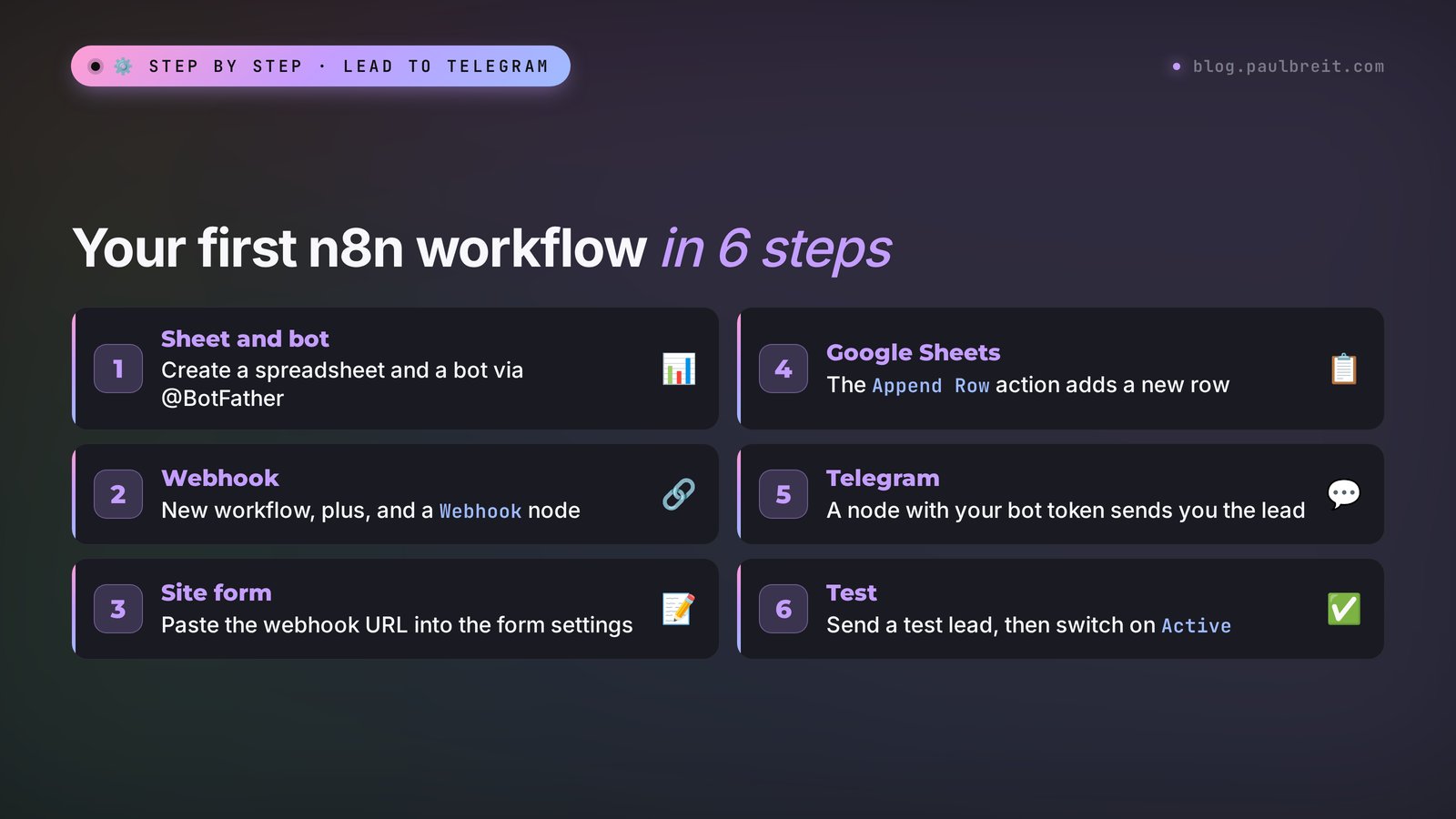
The most useful workflow to start with. Someone fills out a form on your site, a second later the lead is written to Google Sheets, and a card arrives in your Telegram: name, contact, what they want. No more leads lost in your inbox.
Prepare the spreadsheet and the bot
Create a Google Sheet with the columns "Date," "Name," "Contact," "Request," and "Source." In Telegram, open @BotFather, send the /newbot command, and pick a name – you'll get a bot token. Send your bot any message so it can write back to you. More on bots in the article how to build a Telegram bot without a programmer.
Add a Webhook trigger
Create a new workflow, click the plus, and choose Webhook. Method: POST. n8n shows two addresses: a test one and a production one. Copy the production address; your site will need it.
Connect your site form
Most site builders and form tools, such as Typeform, Tally, or Jotform, have a webhook option in their integrations settings. Paste the address from n8n there and select the form on the right page. Send a test lead, and in n8n you'll see which fields came in.
Add a Google Sheets node
After the Webhook, click the plus, choose Google Sheets and the Append Row action. Connect your Google account with the sign-in button, then pick the spreadsheet and the tab. Drag fields from the left column into the matching columns. For "Date," insert the current-time expression; n8n suggests it in the hints.
Add a Telegram node
After the spreadsheet, add a Telegram node with the Send Message action. Paste the bot token into the credentials. The Chat ID is your Telegram user number, and the @userinfobot bot will show it to you. Build the message from the fields: "🔥 New lead: name, contact, request."
Test and switch it on
Click Test Workflow and send another lead from your site. If a row appears in the spreadsheet and the message arrives in Telegram, flip the Active toggle on. From that moment, the workflow runs on its own.
The message you receive: 🔥 New lead. Anna, @anna_coach. Request: I want to review my funnel for a challenge launching in November. Source: consultation page.
What happens in the spreadsheet: a new row with the date and time, name, contact, request, and page name. A month later you have a ready lead database that shows which page brings in the most requests.
Why it's built this way. The spreadsheet comes before Telegram so the lead is saved even if the bot fails to send for some reason. The source goes in its own column: in a couple of weeks you'll see which pages work and which ones to redo. The Telegram card is short so you can read it on your lock screen.
The next step for the same workflow is a Gmail node after Telegram that sends the client an email like "Got your request, here's what happens next" with a useful resource. The client hears back within a minute, even if you're on a plane.
Section 09Adding AI: the AI Agent node
Regular automation moves data. Automation with AI understands it. It reads the free text of a lead and figures out which service it's about. It writes a draft reply in your voice. It pulls the gist of a long email into two lines. In n8n, the AI Agent node does this.
AI Agent has three parts that connect to it from below:
- The model – the agent's brain. Anthropic Chat Model for Claude, OpenAI Chat Model for ChatGPT, and there are nodes for Gemini, Mistral, and local models.
- Memory – so the agent remembers earlier messages in a conversation. To start, simple memory of the last 10 messages is enough.
- Tools – what the agent can do on its own: find a row in a spreadsheet, book a client into your calendar, send an email. Almost any n8n node can become a tool.
I covered how an agent differs from a regular chatbot in the article what an AI agent is. Here, it's all practice.
Add the model key
In Credentials, create access for the model you chose and paste the API key from the provider's developer console. The key is a long string you never show anyone. Once it's saved, the model is ready to use.
Put AI Agent into the workflow
Take the workflow from the previous section. Between Webhook and Google Sheets, add AI Agent. Connect the model to it from below. In the prompt field, insert the lead text from the Webhook.
Write the system instruction
The agent settings have a System Message field. This is where you tell the agent who it is and what to do. The more specific you are, the more consistent the result.
System Message for the agent: You are the assistant to Maria, a therapist. You receive the text of a lead from her website. Pick a category: "consultation," "group," "payment question," or "other." Rate urgency from 1 to 3. Write a 3–4 sentence draft reply to the client: warm, polite, no diagnoses or promised results, and offer to pick a time for a call. Return the answer strictly as JSON with the fields category, urgency, reply.
What the agent returns for the lead "Hi, it's been three months since my divorce and I still can't pull myself together, I'd like to book a session": category: consultation, urgency: 2, reply: "Hi! Thank you for reaching out; that's already an important step. Three months after a divorce is a time when a lot of energy goes into simply holding on. Let's get to know each other on a short call: let me know which days and times work for you this week."
Use the agent's answer downstream
Turn on structured output in the agent, and the category, urgency, and reply fields become regular fields you can drag into the spreadsheet and Telegram. Add an IF node: if urgency is 3, you get a separate loud alert.
Note: the draft reply comes to you, and you're the one who sends it to the client. For topics like mental health, physical health, and money, I always keep a human in the middle of the chain. For routine questions like schedule, price, or a link to materials, the agent can answer on its own once you're sure it doesn't make mistakes.
The lead text goes to the AI provider. Don't pass the model ID numbers, card numbers, or medical details the task doesn't need. In your site's privacy policy, state that requests are processed with automation services.
Section 10Let Claude build your workflows
This is the most underrated trick. A whole n8n workflow is a text file in JSON format. Claude can write those files. You describe the task in words, get a finished workflow, copy it, and paste it straight onto the n8n canvas with a regular Ctrl+V (Cmd+V on a Mac). The nodes appear already connected; all that's left is to connect your accounts.
You write to Claude: Build me an n8n workflow in JSON. Task: every day at 9:00 p.m., take the rows from the "Bookings" Google Sheet where the meeting date is tomorrow. Send each client a Telegram reminder: "Name, a reminder that we're meeting tomorrow at such-and-such time. Call link: …". Send me a summary: how many meetings tomorrow and with whom. Sheet columns: Name, Telegram ID, Date, Time, Link. Time zone: New York. I'll connect the credentials myself.
What Claude replies: a ready JSON with six nodes – a Schedule Trigger at 9:00 p.m., Google Sheets to read the rows, a filter for tomorrow's date, Telegram for the client reminders, a node that assembles the summary, and Telegram for your message. Plus a short note: where to connect the spreadsheet, where to paste the bot token, and how to test the workflow on a sample row.
To help Claude build workflows more accurately, give it three things: what starts the workflow, where the data comes from with the exact column names, and what should come out at the end. If a workflow throws an error, open the run in Executions, copy the error text, and send it to Claude together with the workflow JSON. Nine times out of ten it finds the cause on the first try.
The next level is connecting n8n to Claude itself. n8n has an MCP Server Trigger node: it turns your workflow into a tool Claude can call on its own. For example, you write to Claude in a chat, "book Anna for Thursday at 3 p.m.," and through n8n it adds the meeting to your calendar and sends Anna a confirmation. How MCP works is covered in the article MCP in Claude: connect Telegram, Sheets, and your site.
The n8n site has a library of thousands of free community workflow templates. Find one that's close, paste it into your account, and ask Claude to adapt it to your task. It's faster than building from scratch, and you learn from other people's solutions along the way.
Section 1112 automations that pay for themselves
Below are workflows I've seen working for clients in different niches. Each one takes an evening or two to build, and most can be made from the template above with Claude's help.
| # | Workflow | Chain | Who it's for |
|---|---|---|---|
| 1 | No lost leads | Form → spreadsheet → Telegram → email to the client | Everyone |
| 2 | AI lead triage | Form → AI Agent → category and draft reply → Telegram | Therapists, coaches, lawyers |
| 3 | Meeting reminders | Schedule → bookings sheet → Telegram to the client a day and an hour before | Tutors, service providers |
| 4 | Payment and access | Payment webhook → grant access → email with instructions → spreadsheet row | Course creators |
| 5 | Morning summary | 9:00 → yesterday's leads and payments → Telegram message | Anyone with sales |
| 6 | Intake form before the first session | New booking → email with a questionnaire → answers into the client card | Nutritionists, trainers |
| 7 | Inbox under control | New email → AI Agent sorts it → label and draft reply | Anyone with lots of email |
| 8 | Questions in a bot | Telegram bot → AI Agent with a knowledge base → answer or hand-off to you | Online schools, mentors |
| 9 | One post, many platforms | New row in the content plan → publish to your channel and social media | Bloggers, creators |
| 10 | Review collection | 7 days after the service → review request → answer into a spreadsheet | Service providers, consultants |
| 11 | Win back inactive clients | Weekly → clients inactive for 30 days → personal email | Schools, studios |
| 12 | Call transcripts | Call recording in a folder → transcript → short summary and action items | Consultants, mentors |
Where to start. Almost always with workflows 1 and 5. The first stops you from losing money in the form of forgotten leads, and the fifth shows you the real sales picture every morning without opening three dashboards. After that, pick the one where you do the most manual work.
A word about workflow 8. A bot that answers questions about your services works well when the agent has a knowledge base: a document with prices, formats, schedule, and answers to common questions. Without one, the AI starts making things up. I showed in detail how to build that kind of assistant for direct messages in the article an AI agent in your Telegram DMs.
Workflow 7 is covered in detail in AI for email: an agent that sorts and replies for you, and workflow 5 in the article about a sales report every morning. Same principle, just built with Claude Code. Many of these workflows can be built either way; n8n is handier when you want to see the whole chain with your own eyes and edit it with a mouse.
Section 12When something goes wrong
Workflows break, and that's normal. The good news: in n8n you can almost always see exactly where. Open Executions, find the failed run, and click the node highlighted in red. Here are the common cases.
The workflow runs on the test button but not on its own
Almost always the Active toggle is off. The second possibility: the site form has the test webhook address instead of the production one. The test address only listens when you've clicked Test; the production one listens all the time while the workflow is active.
Five messages arrived instead of one
Five items reached the node, and n8n ran the action for each. Look at the node's left column to see how many records are there. If you need one message with a list, put an Aggregate node before Telegram; it combines everything into one record.
Google keeps asking you to sign in again
On your own server, Google access is set up through your own app in Google Cloud. If that app is in testing mode, the sign-in expires every week. Ask Claude to walk you through the setup and move the app to production mode.
The AI returns an access error
Check three things: whether the key was pasted correctly, whether there's money on your balance with the model provider, and whether you've hit the provider's rate or spending limit. Each one shows up as a different error text, so read it before you change anything.
The agent answers differently every time
Tighten the system instruction: answer format, length, tone, and what it must not do. Turn on structured output with clear fields. Give the agent two or three examples of good answers right in the instruction.
A field came through empty
Most likely the form sent the field under a different name, for example Name instead of name. Open the last run, see what the field is called on input, and drag it in again.
The workflow sometimes fails and you don't know
Create a separate workflow with an Error Trigger and a Telegram node. In the settings of your main workflows, select it as the error workflow. Now you'll hear about every failure right away, with the workflow name and the error text.
The editor won't open
Ask Claude Code: "Check why n8n won't open on the server, and fix it." Most often the disk is full from accumulated run history. Claude will set up automatic cleanup of history older than 14 days, and the problem won't come back.
Section 13Security and keeping workflows tidy
n8n stores the keys to your apps: email, spreadsheets, bot, AI. If someone gets into the editor, they get access to all of it at once. A few rules take ten minutes and save a lot of stress.
- A long password and two-factor authentication. In your n8n profile settings, turn on sign-in with a code from an authenticator app.
- Backups. Daily, kept for a week, with a tested restore. That's step 5 of the installation.
- Monthly updates. New versions close security holes. Back up before every update.
- Clear names. "Site leads → sheet → TG" instead of "My workflow 3." Six months from now you'll thank yourself.
- Notes on the canvas. n8n has sticky notes: put one next to a tricky node explaining why it's there.
- One workflow, one job. Huge 40-node chains are hard to fix. Better five small ones that call each other with the Execute Workflow node.
- Never store keys in node text. Only in Credentials, where they're encrypted.
Once your automations start making money, review the list of active workflows once a quarter. Turn off what you no longer use: every extra active workflow is one more place where something can break.
Section 14Launch checklist
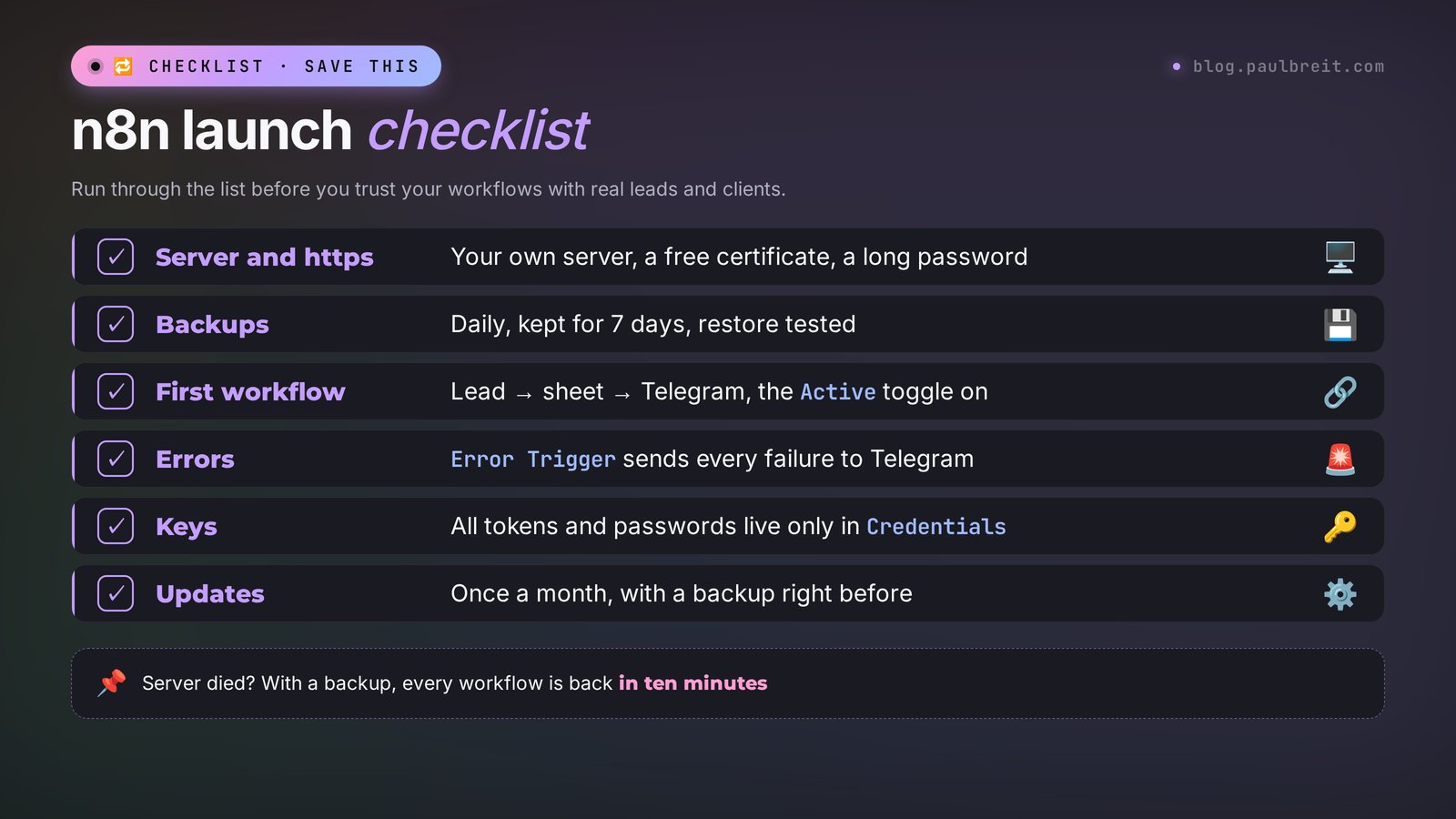
Go through the list before you send real leads through n8n:
- n8n opens at an https address, and sign-in is protected by a long password and an authenticator code;
- a backup runs every day, and the restore has been tested;
- your AI provider account has a monthly spending cap;
- every workflow has a clear name;
- your site forms use the production webhook address, not the test one;
- all the workflows you need are switched to Active;
- a watchdog workflow with Error Trigger and a Telegram alert is set up;
- data is saved to the spreadsheet first, and notifications go out after;
- AI replies on sensitive topics go through you;
- keys are stored only in Credentials;
- old run history is cleaned up automatically;
- once a month, n8n is updated through Claude Code, with a backup first.
Section 15The whole path in one minute
1. Decide where n8n will live: the cloud from €20 a month, or your own server for $5–12. 2. For your own server, rent a machine and point a subdomain at it. 3. Ask Claude Code to install n8n with https, auto-start, and backups. 4. Create the owner account and turn on two-factor authentication. 5. Build your first workflow: site lead → spreadsheet → Telegram. 6. Add AI Agent so AI sorts leads and drafts replies. 7. Ask Claude to build new workflows in JSON and paste them onto the canvas. 8. Set up a watchdog workflow for errors. 9. Add one automation a week, starting with the ones that involve the most manual work.
After a month at that pace, you'll have four or five workflows that give you back several hours every week. My advice: don't try to automate everything on the first weekend. Pick one pain point, solve it, live with it for a week, and only then take on the next. That way you'll learn what you actually need and won't build a complicated machine nobody uses.
FAQFrequently asked questions
What is n8n in plain words?
n8n is an automation builder that needs no programming. On a screen you connect blocks for "when this happens" and "do that," and the service moves data between your site, spreadsheets, email, Telegram, CRM, and AI on its own. For example, a lead from your site lands in a spreadsheet by itself, and you get a notification.
Is n8n free?
Community Edition is free: you can install it on your own server and run workflows with no limit, paying only for the server, usually $5–12 a month. The cloud version starts at €20 a month billed annually, and there's a 14-day free trial.
Should I use n8n Cloud or self-host it?
Start with the cloud trial if you want zero setup and only a few workflows. Choose your own server if you plan dozens of workflows, heavy AI use, or want client data to stay on your machine. Workflows export as JSON, so you can move from the cloud to your own server later in a minute.
Why choose n8n over Make or Zapier?
You can install n8n on your own server for free, and it bills per full workflow execution, while Make and Zapier charge for every step inside. On workflows with many steps, n8n comes out several times cheaper. n8n also has strong AI nodes: an agent with memory and tools is built right on the canvas.
Do I need to know how to code to use n8n?
No. Workflows are assembled with a mouse from ready blocks. Claude Code handles the server installation when you ask it in a chat, and Claude can build complex workflows entirely in JSON that you paste onto the n8n canvas. You'll rarely need code, and when you do, AI writes it too.
How do I connect AI to n8n?
Add an AI Agent node to the workflow and connect a model to it from below: Anthropic Chat Model for Claude or OpenAI Chat Model for ChatGPT. In Credentials, paste the API key from the model provider. In the System Message field, describe what the agent should do and in what format to answer.
What server do I need for n8n?
For one person and dozens of workflows, a cloud server with 2 vCPUs, 2–4 GB of RAM, and at least 30 GB of disk on Ubuntu is enough. Providers like DigitalOcean, Hetzner, or Vultr offer this for about $5–12 a month. Pick the region closest to you.
What is an execution in n8n pricing?
An execution is one run of a workflow from the trigger to the end, no matter how many steps it has. A ten-node workflow that fires once uses one execution. The Starter plan includes 2,500 executions a month, Pro includes 10,000, and the free self-hosted version has no limit.