NotebookLM: How to Use Google's AI for Studying
NotebookLM is Google's AI that works only with your own materials: lectures, textbooks, PDFs, web links, and YouTube videos. It answers questions with a citation pointing to the exact spot in the source, turns your material into a podcast-style audio overview, and builds flashcards, quizzes, and mind maps. Here's how to use NotebookLM in 2026: what changed after the rename to Gemini Notebook, what you get for free, how to set up your first notebook, how to prep for an exam in one evening, and what to use if you'd rather work in Claude.
To use NotebookLM, open notebooklm.google (the service is now called Gemini Notebook), sign in with your Google account, and click "Create notebook." Add sources: PDFs, docs, website links, YouTube videos with captions, or just pasted text. The free plan allows up to 50 sources per notebook. Then ask questions in the chat: the AI answers only from your materials and shows where each point came from. The panel on the right builds an audio overview, flashcards, a quiz, a mind map, and a study guide in one click.
College students before finals, high schoolers, anyone taking a certification course, learning a language, or writing a thesis. And everyone who sells services, courses, and consulting: NotebookLM is a great place to break down your own course, a pile of notes, livestream recordings, and client feedback. Anyone who needs to understand a lot of text fast without losing track of where each idea came from.
What's inside
- What NotebookLM is and why it's now Gemini Notebook
- What NotebookLM can do
- NotebookLM free plan and pricing
- Where it works and what you need
- Your first notebook in 10 minutes
- Study prompts: what to type in the chat
- Audio overview: turn a lecture into a podcast
- Exam prep in one evening
- NotebookLM for work
- Alternative if you need Claude
- If something goes wrong
- The whole path in one minute
- FAQ
Section 01What NotebookLM is and why it's now Gemini Notebook
NotebookLM is a notebook where you drop your materials, and Google's AI reads them and helps you work with them. A regular chatbot like Gemini or ChatGPT answers from its general knowledge and sometimes confidently invents things. NotebookLM works differently: it answers from the files you gave it and puts a small number next to each point. Click the number and you land on the exact spot in the lecture or textbook the answer came from.
For studying, that's the whole point. When you're prepping for an exam, you need answers from your textbook and your professor's lectures. A summary from the internet only muddies things. If the answer isn't in your materials, NotebookLM tells you so. It won't fill in the gaps.
The service launched in 2023 as an experimental Google Labs project. It took off in fall 2024, when Google added audio overviews: two AI hosts discuss your material like a podcast. Video overviews, mind maps, flashcards, quizzes, infographics, and slide decks came later.
What happened in summer 2026
On July 16, 2026, Google announced that NotebookLM is now called Gemini Notebook. It's a rename, and nothing was shut down: notebooks, files, and shared links work as before. Since late July the service has a second address, notebook.google, and the old notebooklm.google redirects there. The mobile app got a new name and icon too; just update it.
Along with the new name, notebooks started syncing with the Gemini app, and Google began adding an environment inside notebooks where the AI can run calculations on your spreadsheets by itself. Ultra subscribers got it first, then Pro. For studying it's a nice extra for now.
People still search for "NotebookLM," so I use the old name in this article. If you see "Gemini Notebook" in the interface, that's the same thing.
Section 02What NotebookLM can do
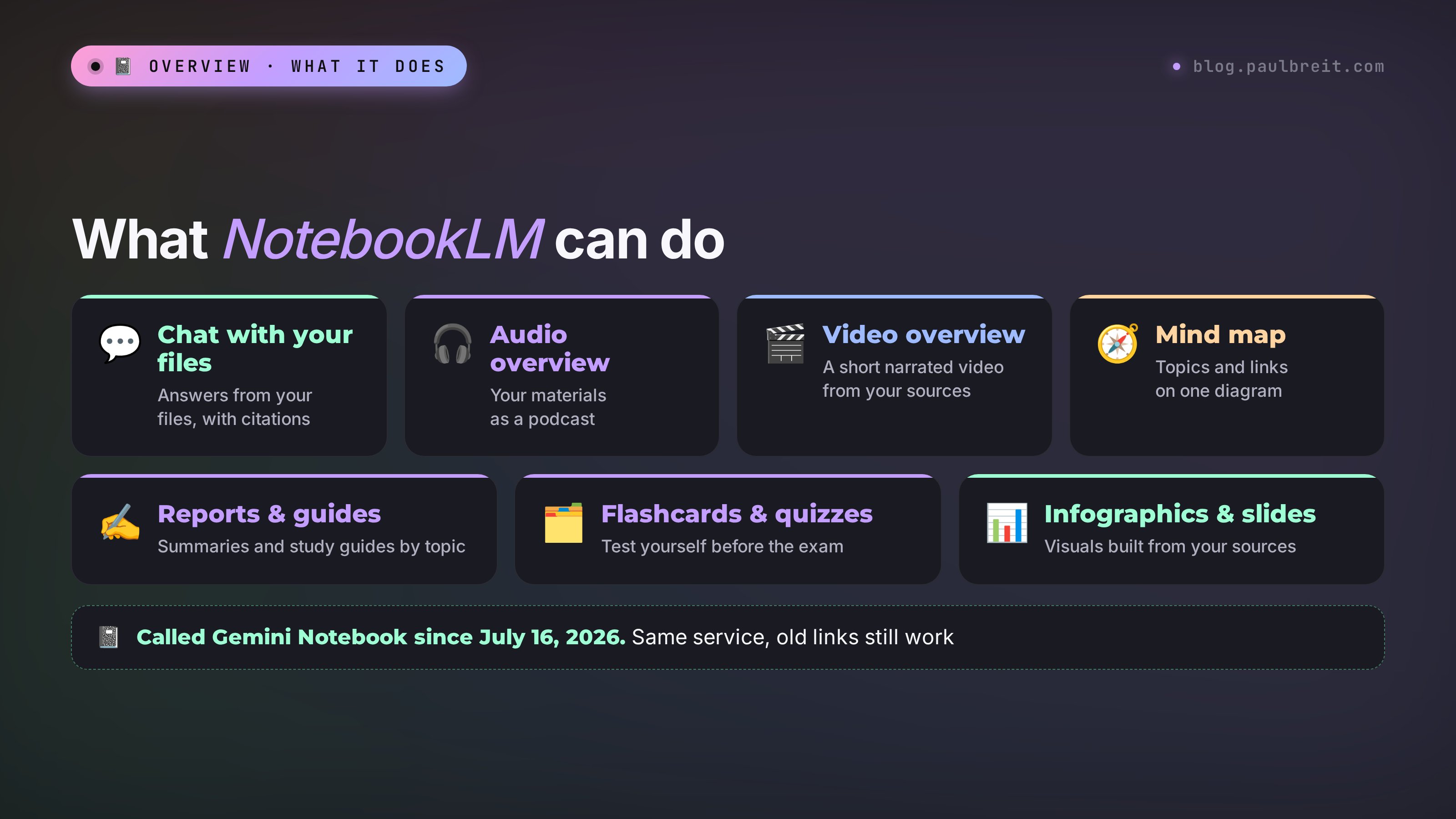
The NotebookLM screen has three parts. On the left are your sources, meaning your materials. In the middle is the chat. On the right is the Studio: buttons that turn your sources into ready-made study materials.
What you can upload
According to Google's help pages, you can add to a notebook:
- Files: PDF, Word and other Microsoft Office files, ePub, CSV, images, MP3 and WAV audio.
- Google Docs, Sheets, and Slides straight from Drive. Slide decks are capped at 100 slides.
- Website links. An article, a textbook page, documentation.
- YouTube videos. Only public videos with speech and captions, even auto-generated ones. A video uploaded less than three days ago may not go through.
- Pasted text. Paste notes from your notes app, and they become a source.
One source can be up to 500,000 words or 200 MB. That's roughly several thick textbooks in one file; in practice almost nobody hits that limit.
If you don't have much material, there's a source search button: you type a topic, and NotebookLM finds articles on the web or documents in your Google Drive and offers to add them to the notebook. Handy when you start a paper from scratch. Still, check what it finds with your own eyes, like any list of search results.
Chat with your materials
In the chat you ask in plain words: "explain chapter two in simple terms," "what's the difference between these two theories," "which dates do I need to remember." The answer comes with numbered citations. You can uncheck some sources on the left, and the AI will answer only from the selected ones. Useful when the notebook holds a whole semester but your question is about one lecture.
A good answer saves to a note with one button. You can later turn a note into a new source and ask questions about it.
Studio: what you get in one click
- Audio overview. Two voices discuss your material like podcast hosts. You can pick a format: deep dive, brief, critique, or a debate between two points of view. Great for commutes and walks.
- Video overview. A video with slides and a voiceover based on your sources. Some styles may not be available in every language yet.
- Mind map. A diagram of the topic with branches. Click a branch, and an explanation appears in the chat.
- Reports. A study guide with key terms and questions, a short summary, a timeline, an FAQ, a briefing doc.
- Flashcards. A question on the front, the answer on the back. The classic for drilling terms and dates.
- Quiz. Multiple-choice questions with an explanation of why the right answer is right.
- Infographics and slides. A cheat-sheet image and a deck based on your material. Useful for a presentation.
Every Studio button has a pencil icon for customization. There you can say what to focus on, the difficulty level, how many cards, and which language. More on that in the exam section.
Section 03NotebookLM free plan and pricing
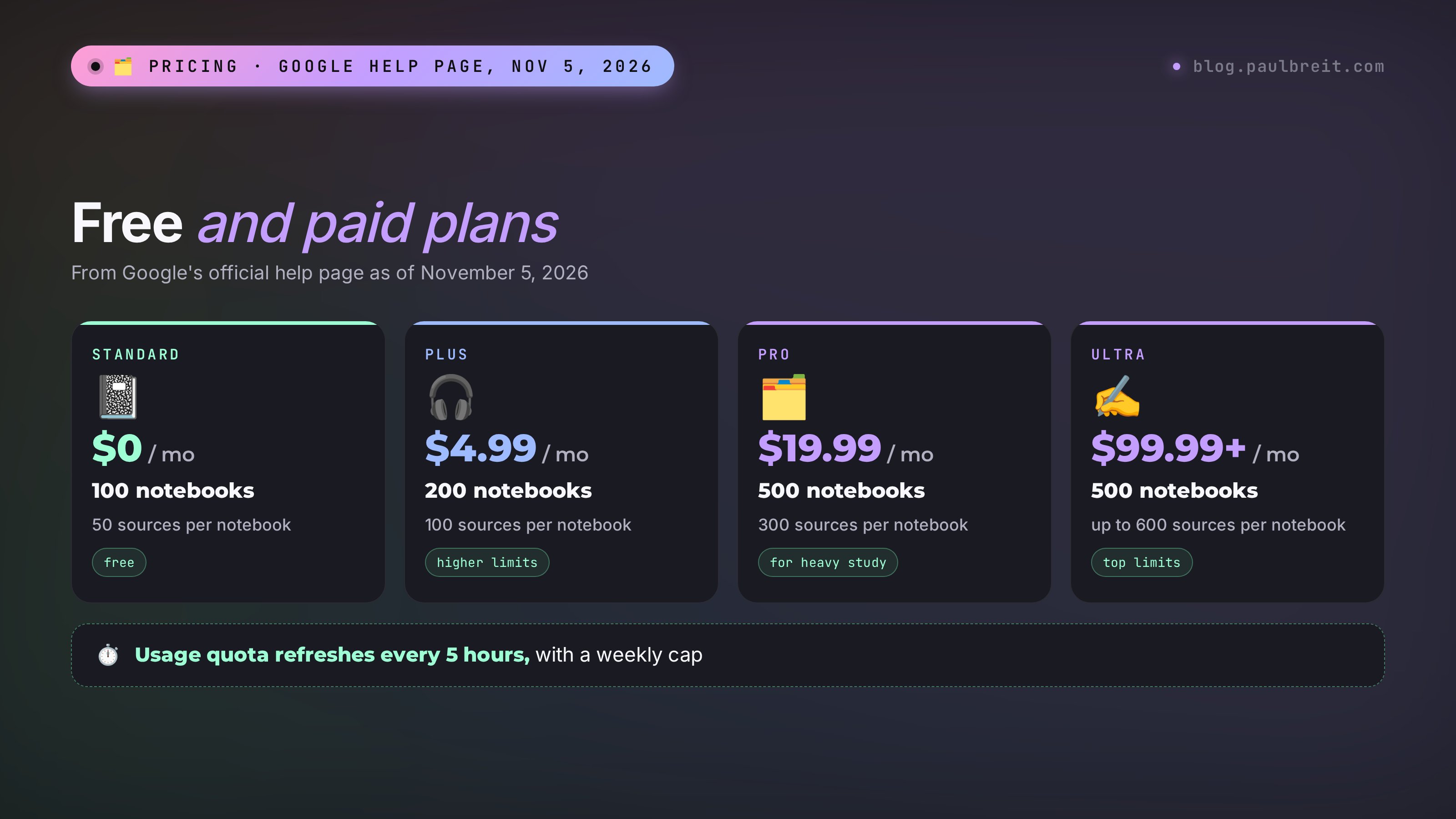
NotebookLM is free. For studying, the free version is enough for almost everyone: a semester notebook with lectures, a textbook, and a study guide fits with room to spare. A paid plan raises the limits, and it's one subscription for all of Google's AI services.

| Plan | Price per month | Notebooks | Sources per notebook | Usage quota |
|---|---|---|---|---|
| Standard (free) | $0 | 100 | 50 | Base |
| Google AI Plus | $4.99 | 200 | 100 | About 2x the base |
| Google AI Pro | $19.99 | 500 | 300 | About 4x the base |
| Google AI Ultra | $99.99 or $199.99 | 500 | 500 or 600 | 5x to 20x the base |
The notebook and source counts were checked against the official Gemini Notebook plans page on November 5, 2026. Prices are US prices; on the Google AI plans page they may differ in your country, and tax can be added. Besides notebooks, a subscription includes Gemini, Drive storage, and other Google services.
How usage is counted now
Before September 2, 2026, it was simple: on the free plan you got 50 chat questions a day and 3 audio overviews a day. Now Google counts total compute. A heavy request across a hundred sources costs more, a short question about one lecture costs less, and a video overview costs more than flashcards. Your quota refreshes every 5 hours until you hit the weekly cap. Paid plans multiply that quota.
What it feels like in practice: if you ask questions on one topic and generate a couple of overviews in an evening, you'll rarely hit the limit. If you run video overviews for the whole semester back to back, the quota runs out faster, and you'll wait a couple of hours.
One more thing: when you first upload sources, NotebookLM sometimes builds a report, flashcards, or an audio overview on its own. According to Google's help page, those automatic materials don't count toward your quota.
Student offers
Google periodically runs student promotions on its AI plans, sometimes with Plus or Pro free for a period. Terms and eligible countries change, so check the Google AI plans page for current student offers.
Section 04Where NotebookLM works: countries, age, and account requirements
According to Google's help page, Gemini Notebook is available in the regions where the Gemini app is available. That list covers the US, Canada, the UK, the EU, and many other countries. If you're in the US, you can open it and start right away.
What you need to get in:
- A Google account. A regular Gmail account is enough for the free plan. No payment card is needed to start.
- Age requirement. Personal accounts must meet Google's minimum age for Gemini in your country. If your age isn't verified, the service may ask you to confirm it.
- School or work accounts. With a Google Workspace account (a university or company address), the administrator decides whether NotebookLM is turned on. If it won't open, ask your IT team or switch to a personal account.
- Keep your originals. Don't make NotebookLM the only place your study materials live. Keep the source files on your computer or Drive, so you lose nothing if access changes.
- If it isn't available where you are, or you'd rather stay in one tool, you can make the same summary, flashcards, and quiz in Claude. Section 10 shows how: I ran the prompt myself and included the full answer.
Section 05Your first NotebookLM notebook in 10 minutes
Grab material you actually need to learn: lectures for one course, a textbook chapter, an exam study guide. You'll figure things out faster on something real than on a demo.
Step 1. Open the site and sign in
Open notebooklm.google in a browser on your computer. Sign in with your Google account. If your age isn't verified, the service will ask you to do that. There's an app for Android and iPhone, but your first notebook is easier to set up on a computer, where adding files is simpler.
Step 2. Create a notebook
Click "Create notebook." The window for adding sources opens right away. One subject, one notebook. When everything sits in one pile, answers get fuzzy: the AI starts mixing history with economics.
Step 3. Add sources
Drag PDFs and documents into the window. For a website or video link, choose "Website" or "YouTube" and paste the address. For your own notes, choose "Copied text." Wait until each source finishes processing: the loading icon next to it stops spinning.
Step 4. Read the summary
Right after upload, NotebookLM writes a short summary of all sources and suggests a few questions. Read it. If the summary is about something else, a file didn't read properly: for example, a PDF made of scans with no recognized text. Replace that file.
Step 5. Ask your first question
Start simple: "What are these materials about? List the main topics in order." Then ask about what you don't understand. Hover over a numbered citation in the answer, and a quote from the source pops up. Click it, and that spot in the file opens.
Step 6. Save useful answers to notes
Under each answer there's a button to save it to a note. Collect explanations you'll need before the exam there. Notes show up in the right panel.
Step 7. Build your first item in the Studio
In the right panel, click "Audio overview" or "Flashcards." In a few minutes it's ready. You can download the audio or listen in the mobile app.
That's it. From now on you have a personal tutor for your lectures that never gets tired of answering the same thing and always shows where it's written.
Section 06Study prompts: what to type in the NotebookLM chat
You can write in plain words, but a few phrasings work noticeably better than others. Here are the ones worth saving. Copy them and replace what's in square brackets.
| Task | What to type |
|---|---|
| Understand a topic from zero | Explain [topic] as if I'm hearing about it for the first time. First in one sentence, then in detail with an example from the sources. |
| Find what matters | Which 10 concepts in these materials come up most often and matter most for the exam? Define each one with a citation. |
| Compare | Compare [concept A] and [concept B] based on the sources: similarities, differences, an example of each. Put it in a table. |
| Test yourself | Ask me 5 questions about [lecture 3]. One at a time. Wait for my answer and grade it, pointing to where the correct answer is in the source. |
| Check a misconception | I think that [your understanding]. Is that correct according to the sources? If not, show me where it says otherwise. |
| Timeline | List all dates and events from the materials in order, one line per event. |
| Outline an exam answer | Outline a 3-minute answer to the exam question [wording]: intro, 3 main points, conclusion. Sources only. |
| Chapter summary | Summarize [chapter 4] on one page: headings, key ideas, formulas or terms. |
| Find gaps | Which topics from [the course syllabus] are missing from the uploaded materials? |
The most useful one here is "test yourself." When the AI asks and you answer in your own words, the material sticks far better than rereading. In this mode NotebookLM acts like a patient tutor: if you get it wrong, it shows you the quote where the right answer is.
How to set up the chat for yourself
Chat settings include a conversation goal and response length. You can pick a preset, like a learning guide, or write your own instruction. Here's mine for exam prep:
I'm preparing for an exam in [subject]. Explain in simple words, without unnecessary jargon. At the end of every answer, ask me one question to check my understanding. If the answer isn't in the sources, say so directly and don't fill in the gaps.
The instruction applies to the whole notebook, so you don't have to type it every time.
Section 07Audio overview: how to turn a lecture into a podcast
The audio overview is the feature people fell in love with NotebookLM for. The AI takes your sources and builds a conversation between two hosts: one explains, the other asks follow-ups, reacts, and gives examples. It's easier to listen to than a straight reading, and more of it stays in your head.
How to make one
- Check the sources you want the overview to cover. One or two lectures work best: the narrower the topic, the deeper the conversation.
- In the Studio, click the pencil next to "Audio overview."
- Pick a format. Deep dive for a new topic. Brief to refresh your memory. Critique and debate when you need to see a theory's strengths and weaknesses.
- Choose the language and length, if offered.
- In the instructions field, say what to focus on.
- Click "Generate" and wait a few minutes. You can close the tab; the finished overview will appear in the Studio.
The listener is a sophomore preparing for an exam. Explain [topic] with everyday examples. Spend extra time on [concept], it's where people make the most mistakes. At the end, briefly recap the 5 main ideas.
There's an interactive mode too: while listening, you can "join" the conversation and ask the hosts a question out loud. They answer from your sources and get back to the topic.
You can download the overview as a file and listen in the car, on the subway, on a run. An hour of commuting a day adds up to several topics a week that used to just slip away.
There's a downside: the hosts sometimes oversimplify and can get a subtle point slightly wrong. So use audio for the big picture and review. Check definitions and formulas in the chat text, where you get citations to the source.
Section 08Exam prep in NotebookLM in one evening
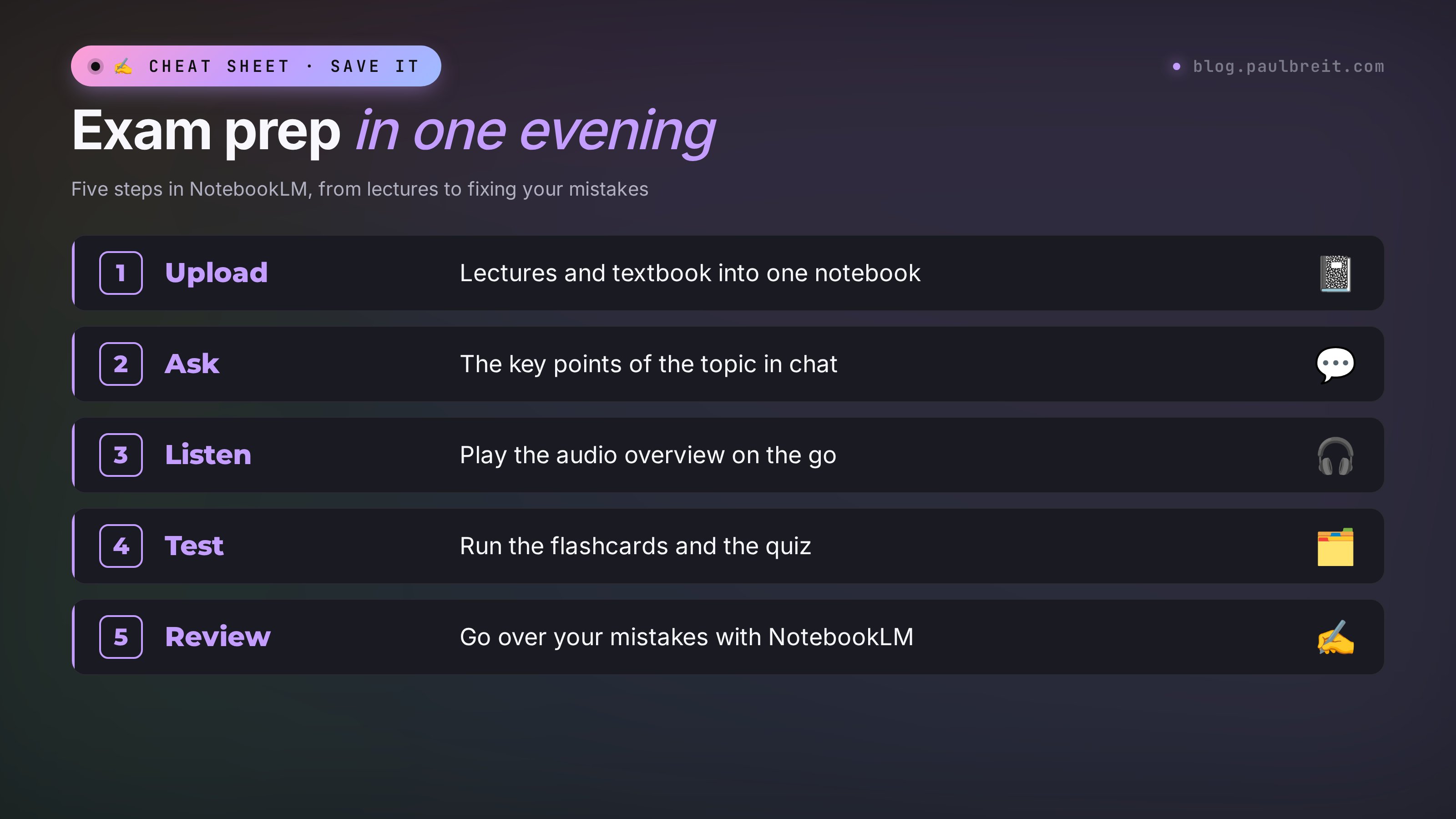
Here's the order that works when the exam is close. Every feature I covered above comes together here.
1. Build a notebook for the course
Lectures, textbook, study guide, the list of exam questions. Add the question list as a separate source; you'll need it next.
2. Match exam questions to your materials
Ask: "Go through the list of exam questions and, for each one, tell me which source has the answer and how complete it is. Flag questions with nothing in the materials." You immediately see the gaps and what to get from classmates.
3. Make a study guide
In the Studio, choose "Report" and the study guide format. You get a list of key terms, short-answer questions, and essay questions. That's your review sheet.
4. Listen to a brief overview
While you're driving or eating dinner, play a brief audio overview of the hardest topics.
5. Drill the flashcards
Click the pencil on "Flashcards" and enter: "30 cards on terms and dates, high difficulty." Go through them until you can answer all of them without hints.
6. Take the quiz
"Quiz" with the setting: "15 questions, only on topics from the exam question list." After the quiz, NotebookLM shows where you went wrong and links to the right spot in the source.
7. Go over mistakes in the chat
Type: "On the quiz I got the questions about [topic] wrong. Explain it again in different words and ask me 3 questions to check." Repeat until you answer with confidence.
If the exam is oral, add one more step: ask for a 3-minute answer outline for each question and say it out loud. AI won't replace your memory, but it will help you gather and organize the material in one evening.
Four more ways to use it for learning
- A video course. Add links to the course's YouTube videos that have captions. Ask "in which video did they explain [topic]" instead of scrubbing through an hour-long recording.
- Thesis and term papers. Upload the articles and books from your reading list. Ask: "Which sources support the claim [your claim], and which argue against it? Give quotes." The citations help you find the page for a footnote fast. Write the paper itself yourself: schools require it, and that's how you'll be able to defend it.
- A foreign language. Upload a text or video in the language you're learning and ask for a list of unfamiliar words with translations and examples from the same text, then turn them into flashcards.
- Professional development. Put manuals and regulations into one notebook. Questions like "what changed in [document] compared with [previous version]" save hours.
If you record lectures on your phone, turn the recording into text first. I covered how to do it fast in the article on AI transcription. And how to make good notes with any AI is in a separate piece on AI for note-taking.
Section 09NotebookLM for work: if you sell services and courses
Students aren't the only ones who have to learn. If you sell courses, consulting, or services, you've probably built up a mountain of material: livestream recordings, lessons, notes, client conversations. NotebookLM helps you sort through it.
- Audit your own course. Upload lesson transcripts and ask: "What questions does a client still have after this course? Where do I repeat myself? Which steps are missing?" The cited answer shows which lesson has the problem.
- Collect frequent questions. Upload an export of questions from your support chat or comments. Ask it to group them by topic and count which ones repeat most. That gives you an FAQ section for your site and post topics.
- Make a lead magnet. Build a study guide or infographic from your own livestream recordings and polish it into a free resource. How to take that to a finished PDF is in my article on a lead magnet with AI in an hour.
- Research your niche. Use source search to collect articles on your niche and ask what people argue about and which questions remain open. Those are ready-made content topics.
One warning. Don't upload clients' personal data to a notebook: phone numbers, medical details, ID numbers. Google says it doesn't use your files for training unless you send feedback. But if you do send feedback, human reviewers may see the whole conversation, including uploaded files. Other people's data doesn't belong there.
Section 10Alternative if you need Claude
If NotebookLM isn't available to you, or you already work in Claude, Claude comes closest in convenience. It handles your files very well: you can upload PDFs and documents, and in Claude Projects you can collect a whole course's materials, much like a notebook. It won't make a podcast, but a summary, flashcards, a quiz, and a review of mistakes are easy. Go to claude.ai and sign in. Where to start is in Claude from scratch.
Here's a prompt that replaces the NotebookLM Studio. Upload a lecture to the chat or paste its text, then add:
Work only from the text I sent. If something isn't in the text, say so. Make: 1) a half-page summary with the main ideas; 2) 5 question-and-answer flashcards; 3) a 3-question multiple-choice quiz, with the correct answers and explanations at the end. For each flashcard answer, add a short quote from the text showing where it came from.
I ran this prompt myself on a short excerpt from a study text about the sales funnel. The excerpt: "A sales funnel is a person's path from first hearing about you to buying. It usually has these stages: attention, interest, desire, action. This model is called AIDA. At each stage some people drop off, which is why the funnel is drawn narrowing. To see where people are lost, you measure conversion, the share of people who moved on to the next stage." Here's the full answer, unedited:
Summary. A sales funnel describes a person's path from first contact to purchase. The classic AIDA model splits it into four stages: attention, interest, desire, action. At each stage some people drop off, so the funnel is drawn narrowing. Conversion, the share of people who moved on to the next stage, shows exactly where people are lost.
Flashcards.
1. What is a sales funnel? – A person's path from first contact to purchase. Quote: "a person's path from first hearing about you to buying."
2. What is the four-stage model called? – AIDA. Quote: "This model is called AIDA."
3. What stages make up AIDA? – Attention, interest, desire, action. Quote: "attention, interest, desire, action."
4. Why is the funnel drawn narrowing? – At each stage some people drop off. Quote: "At each stage some people drop off."
5. What is conversion? – The share of people who moved on to the next stage. Quote: "the share of people who moved on to the next stage."
Quiz.
1. Which stage comes after interest? a) attention; b) desire; c) action.
2. What does conversion show? a) how much ads cost; b) the share who moved on to the next stage; c) the number of followers.
3. Why does the funnel narrow? a) it looks nicer that way; b) at each stage some people drop off; c) prices rise toward the end.
Answers: 1 – b, the text lists the stages in order: attention, interest, desire, action. 2 – b, that's the direct definition from the text. 3 – b, the text explains the narrowing by people dropping off at each stage. The text says nothing about ad costs or prices.
What's good here: every flashcard answer is backed by a quote, so you can see right away that the AI didn't make anything up. In the last line, Claude itself pointed out what isn't in the text. That's the same "sources only" behavior people value NotebookLM for. On a long lecture, ask for 20 to 30 flashcards and a 10-question quiz; the format stays the same.
Which AI to pick for study and work overall, I compared in detail in Claude vs ChatGPT. And if you need web search with sources, look at Perplexity.
Section 11If something goes wrong
| What happened | Why | What to do |
|---|---|---|
| The site won't open or says the service isn't available | Your country isn't on the Gemini list, your account doesn't meet the age requirement, or a Workspace admin turned it off | Check the supported regions on Google's help page, verify your age, or ask your admin. Still stuck: make the summary and flashcards in Claude with the prompt from Section 10 |
| A YouTube video won't add | No captions, the video is private, or it was uploaded less than three days ago | Pick another video, or transcribe it and add the transcript as text |
| The PDF uploaded, but the AI "doesn't see" the text | The PDF is made of page photos with no recognized text | Run text recognition in any PDF app, or upload the page photos as images |
| Answers are fuzzy and mix topics | Several subjects in one notebook | One subject, one notebook. Or uncheck the extra sources |
| It says you've hit the limit | Since September 2, 2026, a shared quota refreshes every 5 hours | Wait a few hours. Fewer video overviews, more short questions on selected sources |
| The audio overview is in the wrong language | The output language isn't set | Pick the language in the overview settings and add "in English" to the instructions |
| The AI answered inaccurately | A tricky spot in the source, or an answer stitched from several places | Click the numbered citation and read the original. Ask: "quote word for word where this is written" |
Section 12The whole path in one minute
- Open notebooklm.google; the service is now called Gemini Notebook. Sign in with a Google account that meets the age requirement.
- Create a notebook for one subject and add sources: PDFs, docs, links, YouTube videos with captions. Up to 50 sources free.
- Ask in the chat, check answers against the numbered citations, save useful answers to notes.
- Turn on a study instruction for the chat: simple explanations and a check question at the end.
- In the Studio, build a study guide, an audio overview, flashcards, and a quiz.
- Go over quiz mistakes in the chat until you answer with confidence.
- Prefer Claude or can't access it: upload the lecture to Claude and use the prompt from Section 10.
FAQFrequently asked questions
Is NotebookLM free?
Yes. As of November 5, 2026, the free plan includes 100 notebooks with up to 50 sources each, plus chat, audio overviews, flashcards, quizzes, and the rest of the Studio. Usage is limited by a shared quota that refreshes every 5 hours. Google AI plans raise the limits: Plus $4.99, Pro $19.99, Ultra from $99.99 a month.
Why is NotebookLM now called Gemini Notebook?
On July 16, 2026, Google renamed the service to tie it to the rest of the Gemini products. It's the same NotebookLM: notebooks, sources, and links were kept, and the old notebooklm.google address redirects to notebook.google. Just update the mobile app.
Where does NotebookLM work?
It's available in the regions where the Gemini app is available, including the US, Canada, the UK, and the EU. You need a Google account that meets the minimum age, and on school or work accounts the administrator has to turn it on. If it isn't available to you, you can make a summary, flashcards, and a quiz from your files in Claude.
Does NotebookLM work in languages other than English?
Yes. You can upload materials in many languages, ask questions, and get answers in the language you choose. Audio overviews, flashcards, quizzes, and reports can also be made in other languages; you pick the output language in settings. Some video overview styles may not be available in every language yet.
What files can I upload to NotebookLM?
PDF, Google Docs, Sheets, and Slides, Word and other Microsoft Office files, ePub, CSV, images, MP3 and WAV audio, website links, public YouTube videos with captions, and pasted text. One source can be up to 500,000 words or 200 MB.
How is NotebookLM different from Gemini and ChatGPT?
Gemini and ChatGPT answer from general knowledge and the internet. NotebookLM answers only from the materials you uploaded and puts a citation to the source next to every claim. If the answer isn't in your materials, it says so. That's why it's more reliable than a regular chatbot for studying specific lectures and textbooks.