Gamma AI: a Presentation in 10 Minutes in 2026
Gamma is an AI tool that builds a presentation, a document, a one-page website, or a social media carousel from a single sentence, your own text, or a file you already have. In this guide: what Gamma can do in 2026, what it costs and where your credits go, how to sign up and pay, your first presentation in 10 minutes step by step, a prompt formula plus five ready-to-use prompts for different niches, the Claude plus Gamma workflow, editing with Gamma Agent, exporting to PowerPoint, PDF, and Google Slides, the main alternatives, and the mistakes that make slides come out empty and generic.
Gamma is an AI tool for presentations, documents, and simple websites. To make a presentation, go to gamma.app, sign in with Google, click Create new, choose Generate, describe your topic in one sentence, set the number of slides and the language, tweak the outline, and click Generate. A minute later you have slides with copy, design, and images. The free plan gives you 400 credits once, which is about 10 presentations. To remove the watermark and generate long decks of up to 60 slides, you need a paid plan: Plus or Pro, starting at about $8 a month.
Everyone who sells services, courses, and consulting and has ever stayed up past midnight fighting with slides. A coach preparing a webinar and a sales deck. A therapist building a lecture and a handout. A tutor making a lesson that looks good enough to show the parents. A nutritionist designing a meal plan guide. A freelancer sending a proposal. An online school that needs a lesson ready for tomorrow's live session. And anyone who has zero design skills: here you don't need any.
What's inside
- What Gamma is and what it does
- Gamma pricing in 2026 and where credits go
- How to sign up and pay for Gamma
- Your first presentation in 10 minutes
- Three ways to start: topic, text, or file
- Gamma prompts: a formula and 5 examples
- Claude plus Gamma: ideas plus design
- Editing in plain words: Gamma Agent and the editor
- Design: themes, your brand, and images
- Export: PowerPoint, PDF, Google Slides, and links
- Beyond slides: website, document, carousel
- 10 use cases for people who sell services
- Gamma alternatives and when to use each
- When something goes wrong
- The whole path in a minute
I'll be honest: I used to hate making presentations. You sit down in the evening "for an hour," nudge blocks around, pick a font, hunt for a stock photo without smiling people in suits, and at 2 a.m. you have five slides that still look like a middle school book report.
Gamma took that pain away. You describe what the presentation is about, and a minute later you're looking at 10–15 slides with headlines, copy, icons, and images. The design is solid, at a level most people never reach by hand. And if you give it solid text to work with, the slides come out so clean that people on your webinar ask which designer you hired.
Below is the full path from zero: what the tool does, what it costs, how to sign up and pay, how to write prompts so your slides don't come out empty, and how I build presentations by pairing Gamma with Claude. If you want a broader overview of every way to make slides with AI, read the guide on making a presentation with AI. This article is all about Gamma, with every button and every catch.
Section 01What Gamma is and what it does
Gamma is a San Francisco company that has been building presentation tools since 2020 and generating them with AI since 2023. According to the company, more than 70 million people use it. For a lot of people, Gamma has become shorthand for the whole category: when someone says "just make the deck with AI," this is usually the tool they mean.
The key idea is that Gamma thinks in cards. Every slide is a card that adjusts its own layout to the amount of content. Add three bullet points and the card rearranges itself. Remove an image and the text stretches to fill the space. You never push boxes around pixel by pixel the way you do in PowerPoint, and that saves more time than the generation itself.
| Tool | What it does | Why you'd use it |
|---|---|---|
| Presentation | Slides from a topic, text, or file | Webinar, lesson, sales deck, client report |
| Document | A long, designed document | Guide, lead magnet, proposal |
| Webpage (Sites) | A one-page website you share by link | Service page, workshop announcement, digital business card |
| Social | Cards in social media formats | Carousel post, covers, stories |
| Agent | Edits a finished presentation on your command | "Make it shorter," "add a pricing slide," "change the style" |
| AI images and diagrams | Generates illustrations, diagrams, and charts | Visuals without stock sites or a designer |
| Themes | Ready-made themes and your own brand kit | Every deck in your colors and fonts |
| Import | Pulls in a PowerPoint, PDF, document, or link | Rebuild an old deck in a couple of minutes |
Gamma 3.0 came out in September 2025, and with it came Agent: an assistant you talk to in plain words, telling it what to change, and it rebuilds the whole presentation at once. Since spring 2026, image, diagram, and infographic generation works right inside the editor. There's also an API for anyone who wants to generate presentations automatically, but you don't need it to get started.
Design stops being a separate job. A presentation used to be two stages: figure out what to say, then make it look good. Gamma takes over almost the entire second stage. What's left is the part nobody can do for you: your ideas, your numbers, your case studies, and your understanding of who will be watching.
Section 02Gamma pricing in 2026 and where credits go
Gamma runs on an internal currency called credits. And here's the first thing almost every beginner trips over: the free 400 credits are given once, for the lifetime of the account. They don't refresh every month. Once they're gone, your options are a paid plan or bonus credits for inviting friends.
| Plan | Price per month | Credits | Slides per prompt | Main point |
|---|---|---|---|---|
| Free | $0 | 400, one time | up to 10 | Made with Gamma badge, basic images |
| Plus | about $8–10 | 1,000 a month | up to 20 | No badge, better images |
| Pro | about $15–20 | 4,000 a month | up to 60 | Your own brand and fonts, custom domains, API |
| Ultra | about $90–100 | 20,000 a month | up to 75 | The most powerful image and text models |
| Team / Business | from $20 per seat | from 6,000 | same as Pro | Shared themes and folders for a team |
The price depends on whether you pay monthly or for a full year: annual billing comes out roughly a quarter cheaper. Gamma adjusts its numbers a couple of times a year, so check gamma.app/pricing before you pay.
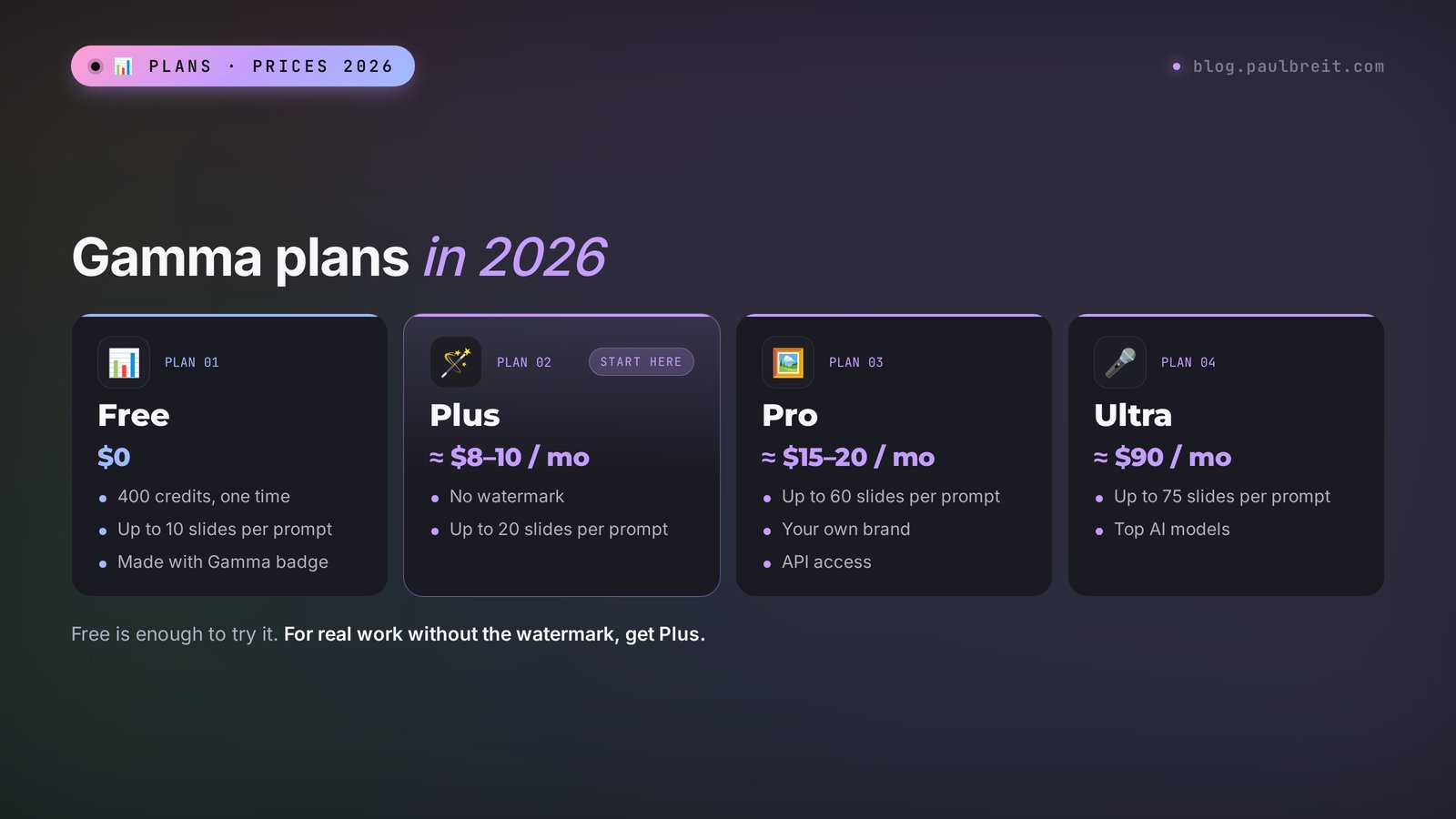
Now, where do the credits actually go? On the free plan, everything costs something: one AI-generated presentation is 40 credits, a new card is 5, an image is 10, and a chat suggestion is 10. That gives you the real number: 400 credits equals 8–10 presentations, as long as you barely regenerate anything. Paid plans work differently. Regular presentations and images on the standard models are included in the subscription, and credits are only spent on Agent edits, top-tier models, and the API.
First: unused credits roll over to the next month, but only up to two months' worth, and anything above that disappears. Second: if you cancel your subscription, you drop to the free plan and keep 400 credits at most. Even credits you bought separately are gone. Third: refunds are only possible in the first three days and only if you've barely used the account. So squeeze the free credits first, figure out whether the tool fits your work, and only then pay.
Which plan should you pick? If you make a couple of presentations a month for webinars and lessons, Plus is enough: no badge, 20 slides at a time, and regular generations don't eat your credits. You need Pro when your presentations are long (a full course module, a 40-slide webinar), when your own brand with your own fonts matters, or when you want to publish websites on your own domain. Ultra is overkill for everyday work.
A quick way to sanity-check the cost: think about what one presentation is worth to you. If a sales webinar deck used to take you a full evening, and that webinar brings in even one client, Plus pays for itself many times over in the first month. If you make one deck a quarter, stay on the free credits and come back when the volume grows.
Section 03How to sign up and pay for Gamma
This part is short, because there's nothing tricky about it. Gamma works in any modern browser on a laptop, and you can view and lightly edit decks from your phone.
Open gamma.app and click Sign up
Go to gamma.app and click Sign up for free in the top right corner.
Sign in with Google or email
The fastest route is your Google account: one click and you're in. You can also use email, and Gamma will send you a sign-in link. If the email doesn't arrive within a couple of minutes, check your spam folder or just sign in with Google instead.
Answer a couple of questions about yourself
Gamma asks what you'll use it for: work, school, or personal projects. It doesn't change anything, so answer however you like. After that you land on the home screen, where your future presentations will live.
Check the output language
The interface is in English, and Gamma writes presentations in dozens of languages. You choose the language of the slides each time you generate, so if you sometimes present in Spanish or French, you can do that without changing any account settings. More on that below.
Upgrade when the free credits run low
Open Settings, then Plans, or click Upgrade in the sidebar. Choose Plus or Pro, pick monthly or annual billing, and pay with a regular credit or debit card. The new plan kicks in immediately, and you can cancel anytime from the same billing page.
If you're a solo business, put the subscription on the same email you use for your other business tools. It sounds minor, but it saves you a headache later when you hand access to an assistant or move invoices into your bookkeeping. If you work with a team, look at the Team plan: shared themes and folders mean everyone's decks look the same without anybody copying settings by hand.
And if a payment is declined, the cause is almost always on the bank's side. Make sure the billing country matches the country of the bank that issued the card, and approve the charge in your banking app if it flags it as unusual. If you're working from outside the US or EU, that check alone fixes most failed payments.
Use the free credits to make three real presentations for your actual work: a lesson, a sales deck, and a report. If all three would need hours of rework, it's too early to pay, so first sharpen your prompts using Section 06. If two out of three are almost ready to go, get Plus and stop overthinking it.
Section 04Your first presentation in 10 minutes
Let's build your first presentation right now, and I'll walk you through it step by step. As an example, take a therapist's webinar called "How to Stop Snapping at Your Kids," 12 slides. Follow along with your own topic.
Click Create new and choose Generate
On the home screen, click Create new (the button with the plus sign). You'll see three ways to start. Generate is for when all you have is a topic. I cover the other two in the next section.
Pick the format, number of slides, and language
At the top there's a switch: Presentation, Webpage, Document, Social. Choose Presentation. Next to it is the number of cards: for an hour-long webinar, go with 12–15; for a lesson, 8–10. Set the language to English. If the language is set to something else, Gamma will write everything in that language, even if your topic is in English.
Describe the topic in detail
Write a proper sentence about who is watching and what they should walk away with. "Webinar about kids" is far too little. Try something like: "Webinar for moms of kids ages 3–10: why we snap at our kids, three reasons it happens, a 10-second pause technique, a walkthrough of three real situations, and an invitation to a consultation at the end." The more specific you are, the less filler ends up on the slides.
Fix the outline before you generate
Gamma shows you an outline: a list of headlines for the future slides. This is the most important moment, and almost everyone skips it. Here you can rewrite a headline, reorder slides, delete one you don't need, or add your own. Editing the outline is free. Reworking finished slides costs credits and time.
Set the amount of text and the images
Below the outline are the settings. Text amount: Brief, Medium, or Detailed. If you're presenting live, choose Brief: the slide supports your talk and doesn't replace it. For a deck people will receive by link and read on their own, choose Medium. Image source: AI-generated, stock photos, or no images. For therapists, coaches, and nutritionists, stock photos often feel warmer. For online schools and technical topics, AI images in one consistent style work better.
Choose a theme and click Generate
A theme is the colors, fonts, and background. Scroll through a dozen options and pick the one closest to your style. Click Generate and watch the slides assemble in real time. In a minute or a minute and a half, it's done.
Flip through and fix three things
Go through every slide and fix three things by hand: numbers (AI loves to invent statistics), headlines (turn vague topics into clear statements), and the last slide (it needs a specific call to action: where to click, who to message). You edit text right on the slide, like in any regular editor.
That's it, your first presentation is done. By the clock it really is 10 minutes, and three of them go into coming up with a decent topic description. Next, I'll show you how to get even fewer edits.
Section 05Three ways to start: topic, text, or file
After you click Create new, Gamma offers three entry points, and your choice decides how much of the presentation will actually sound like you.
Generate: from a one-sentence topic
The fastest way and the weakest in substance. Gamma decides on its own what to say and says it in general terms, because it doesn't know your case studies, your numbers, or your method. It's fine for a draft, when you want to see a possible structure, or for simple topics like "safety rules for a yoga studio."
Paste in text: from your own text
This is my main method. You paste in text you already have: webinar notes, a post, an article, a transcript of a live session, a lesson plan. Gamma asks what to do with it. Generate rewrites and expands it. Condense shrinks it into key points. Preserve keeps your text as is and only spreads it across slides. If the text is already good, choose Preserve, or the AI will dilute your wording with its own.
A trick: to make sure Gamma knows exactly where each new slide starts, separate your text with three hyphens --- on their own line. Every chunk between them becomes its own card.
Import: from a file or link
Upload an old PowerPoint, a PDF, or a Word document, or paste a link to a web page. Gamma pulls in the content and rebuilds it with a new design. It's perfect for that three-year-old deck that's still solid on substance but embarrassing to look at. Two minutes later it looks brand new. Just check tables and diagrams after the import: complex layouts sometimes come across crooked.
No text yet: Generate for a draft. You have text: Paste in text with Preserve. You have an old deck: Import. And the best option of all: write the text in Claude first, then paste it into Gamma. More on that in Section 07.
Section 06Gamma prompts: a formula and 5 examples
Why do some people get strong slides out of Gamma while others get empty images with lines like "The Importance of Communication in Modern Society"? It all comes down to the prompt. The AI does exactly what you ask, and "a presentation about sales" is a request about nothing.
My Gamma prompt formula has six parts:
- Who is watching. Moms of kids ages 3–10, beginner photographers, salon owners.
- What the format is. Webinar, lesson, sales deck, client report.
- The main idea. One sentence the person should leave with.
- A slide-by-slide plan. At least the main blocks, in order.
- Facts. Your numbers, case studies, prices, and client names, if they've agreed.
- The ending. What the person does after the last slide.
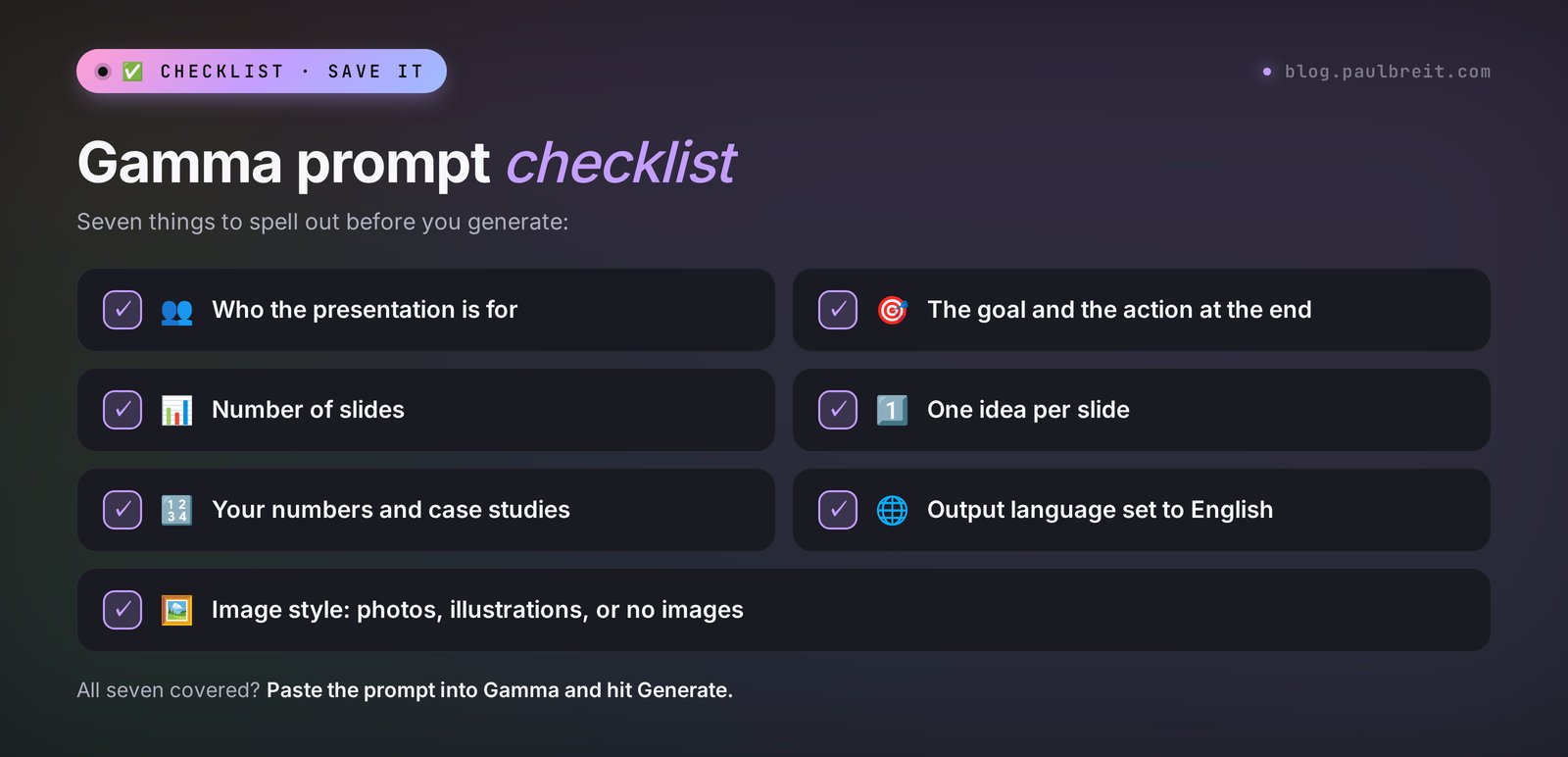
Below are five prompts you can copy and adapt. Paste them into Generate, or into Paste in text with the Generate mode.
1. Sales deck for a webinar (coach)
Sales presentation for a webinar, 14 slides, English.
Audience: women ages 30–45 who want to change careers
but are afraid of losing their income.
Main idea: you can switch careers in 3 months
without quitting your job if you take small steps.
Plan: a story from a past client, 3 fears about switching jobs,
the "small steps" method, 2 client case studies, what's included
in the program, price $600, a bonus until Friday, answers to objections,
ending: book a free discovery call through the link.
Tone: warm, no pressure, short sentences.
2. Lesson for an online course (tutor)
Lesson for an online course, 10 slides, English.
Topic: how to solve percentage problems, 6th grade.
Audience: kids ages 11–12 and their parents.
Structure: why percentages matter in real life (store discounts),
what 1% means, three types of problems with step-by-step solutions,
5 practice problems, answers on the last slide.
Style: bright, large font, one idea per slide, no long paragraphs.
3. Client report (ads manager or social media manager)
Client report on ad results for October, 8 slides, English.
Client: a stretching studio in Austin, Texas.
Numbers: budget $800, 214 leads, cost per lead $3.75,
38 first classes booked, 17 memberships sold.
What worked: videos with the instructor, the "first class free" offer.
What didn't: discount banners.
Plan for November: 3 hypotheses to test.
Tone: businesslike, brief, big numbers, charts instead of tables.
4. Lead magnet mini-lecture (nutritionist)
Mini-lecture, 12 slides, English, for a free live session.
Topic: why you eat late at night and how to stop without willpower.
Audience: working women ages 28–45.
Plan: 3 real reasons for evening overeating,
a 5-question quiz, the plate rule for dinner,
a 3-day menu, common mistakes, an invitation
to a 3-week challenge for $25.
Style: light, food photos, no medical jargon.
5. Proposal (freelancer)
A proposal in presentation format, 9 slides, English.
Service: running Instagram accounts for private dental practices.
Client: a dental practice in Denver with 2 chairs.
Structure: what's wrong with their account right now (3 points),
what I offer, how we work week by week, 2 case studies with numbers,
3 packages with prices ($350, $550, and $800 a month),
guarantees, next step: a 20-minute call.
Tone: confident, specific, no corporate jargon.
Notice what all five have in common. The audience is named with an age range and a pain point, the numbers are real, and the last slide has an action. Swap in your own data for mine, and the result will be far more precise than "a presentation about nutrition." You'll find more templates for different tasks in the AI prompt library.
One more habit that pays off: save every prompt that worked. Keep a simple note with your best prompt for each format, whether that's a webinar, a lesson, a report, or a proposal. Next month you change the topic and the numbers, and the deck is ready before your coffee cools down.
Section 07Claude plus Gamma: ideas plus design
Here's how I actually make presentations. Gamma is excellent at layout, but its writing is average: generic phrases, a flat and faceless tone, invented statistics. Claude writes well, but laying out slides is awkward for it. So I split the work: copy and structure in Claude, design in Gamma.

Here's what that looks like in a chat. You write to Claude:
I'm a nutritionist running a free live session for working women
ages 28–45 called "Why You Eat Late at Night." At the end I sell
a 3-week challenge for $25.
Here are my notes for the session: [paste your notes or the
transcript of a past session].
Write the copy for a 12-slide presentation.
Rules: one idea per slide, the slide headline is a statement,
2–4 short bullet points under it, keep my wording and examples.
Separate slides with a line of three hyphens ---.
The last slide is an invitation to the challenge with a clear action.
Claude replies with finished copy, already split into slides:
You eat at night because you under-eat during the day
– Coffee for breakfast, lunch on the run: by 8 p.m. your body wants its due
– This is hunger, and willpower has nothing to do with it
– The fix starts with a real lunch
---
Three reasons for evening overeating
– Too little protein during the day
– Stress you "eat away" after work
– Dinner without a plan: whatever is in the fridge
---
...
Then you ask for changes to whatever you don't like: "slide 4 is too clever, make it simpler," "add a real-life example to slide 7." When the copy is ready, you copy all of it, go to Gamma, click Create new, then Paste in text, paste it, and choose Preserve so it doesn't rewrite your words. Gamma reads the hyphens as slide breaks. All that's left is choosing a theme and images and clicking Generate.
Why do it this way? Claude knows your context: you gave it your notes, your audience, and your product. Gamma doesn't know any of that and fills the gaps with generic words. When the ideas are ready in advance, Gamma does what it's best at, and you have almost nothing left to fix. In my experience, this workflow cuts the time spent on edits in half.
Go to claude.ai and sign up with Google or your email. The free plan is enough to try this workflow on your first few decks, and a paid plan makes sense once you're using Claude every day. For a step-by-step start, read Claude for beginners, and for ready-made wording, see the collection of Claude prompts.
By the way, Claude can also create PowerPoint files and good-looking slides as a web page on its own. When that's more convenient than Gamma is covered in the article on making a presentation with AI. If you're preparing a webinar, you'll also want the walkthrough on building a sales webinar script and deck with Claude.
Section 08Editing in plain words: Gamma Agent and the editor
The deck is built, and now the fun part begins. Gamma 3.0 added Agent, an assistant you tell what to change, and it applies the change across the whole presentation at once. You open it with the button labeled Agent or the sparkle icon in the editor.
The commands I use most often:
- "Cut the text on every slide in half and keep only what matters."
- "After slide 5, add a slide with three packages: $200, $400, and $800."
- "Make the headlines shorter and more specific, no vague words."
- "Replace all images with warm-toned photos, no people in suits."
- "Turn slide 8 into a four-step diagram."
- "Find recent statistics on the online education market in the US and add a slide with sources."
- "Change the design to purple tones with a larger font."
Agent can search the web and add sources. It sounds great, but check every number it finds: it can bring back outdated data or misread the topic. A deck with made-up statistics kills trust faster than a clumsy design.
Keep credits in mind: on paid plans, generating presentations is included, but every Agent edit costs credits. Small things like a typo or a single word are better fixed by hand right on the slide. It's free and faster.
What the regular editor can do
Click on text and edit it. Drag a card to change the order. On the left you see thumbnails of all slides. Each card has a menu for choosing a layout: text on the left with an image on the right, columns, a grid of cards, a timeline, a quote. You can embed a YouTube video, a form, a table, or a button with a link. The plus icon between cards adds a new slide, blank or generated.
A special gift is smart diagrams. You write a list of steps, pick a type (funnel, staircase, cycle, comparison), and Gamma draws a diagram that rebuilds itself when you add another item. For anyone who sells services, it's the best way to show how you work with a client: stages, timelines, results.
Section 09Design: themes, your brand, and images
A theme in Gamma is a set of colors, fonts, and backgrounds for the whole deck. You can switch it at any moment with the Theme button, and every slide gets repainted at once. There are dozens of ready-made themes: strict, light, dark, bold.
If you have a brand style, on the Pro plan you can save it as your own theme: upload your logo, set your colors and fonts, and every presentation after that comes out on-brand. On the free and Plus plans you can also adjust colors, with some limits.
Images: what to choose
Gamma gives you three sources. AI images: generated for each slide, and you can choose a style (photo, illustration, 3D, watercolor, and so on). Stock photos: pulled from free photo libraries. Web images: found by topic, but be careful with these, because they may be protected by copyright.
My rules for images. One style for the whole deck: if one slide is watercolor and the next is a photo, it looks like a patchwork quilt. No images on slides with numbers and diagrams: there they only distract. And a few key slides (the cover, the slide with your method, the closing slide) are better with your own photos: a real face sells better than any generated image. If you need standalone covers and visuals, see the guide to the AI banner maker.
AI image models still struggle with lettering. If a generated image contains words, they often come out misspelled or as gibberish. Add "no text, no lettering" to the image description, and keep all the words in the slide itself.
Section 10Export: PowerPoint, PDF, Google Slides, and links
There are several ways to use a finished deck, and each has its quirks.
| Option | When to use it | What to watch for |
|---|---|---|
| Link | Send to a client, present on a live session | Animations and layout stay fully intact |
| Handouts, lead magnets, reports | Reliable, but no interactivity or video | |
| PowerPoint | A conference that requires a file, edits by a colleague | Fonts and complex layouts can shift |
| Google Slides | Collaboration in Google Workspace | Same as PowerPoint: check every slide |
| PNG | Individual slides for a post or story | Each slide as a separate image |
Export lives in the three-dot menu or under Share, then Export. The most common question: "I downloaded it as PowerPoint and everything moved around." That's normal. Gamma lays out slides like a web page, PowerPoint works differently, and in the conversion some blocks turn into images or lose their spacing. So if you're presenting from your own laptop, present straight from Gamma in Present mode: everything looks exactly as intended. And if the organizers require a file, download it in advance and flip through the whole thing.
Sharing by link is also handy for sales. You send a proposal as a link, the client opens it on their phone, and the cards neatly rearrange to fit the screen. On top of that, you can see view analytics: whether the person opened the deck and how far they scrolled. How detailed those analytics are depends on your plan.
The Made with Gamma badge in the bottom right corner only appears on the free plan. You can't remove it by hand. The only way is to upgrade to Plus.
Section 11Beyond slides: website, document, carousel
Half of Gamma's users don't know it has long been able to do more than presentations. The format switch on the creation screen gives you three more options.
Webpage: a one-page website
Describe your service, and Gamma builds a page you can share by link. For a workshop announcement, a consultation page, or a digital business card, it's more than enough. On Pro you can connect your own domain. For a serious landing page with a lead form and payments, other tools fit better, for example Lovable. But to test demand for a new service in a single evening, Gamma works great.
Document: a designed document
Same principle, with one long page in place of slides. Guides, checklists, lead magnets, and client handouts fit perfectly here. Paste your text, pick a theme, download a PDF. If you make paid guides and templates, you'll find the walkthrough on how to create a digital product with AI useful.
Social: carousels and posts
Cards in social media formats: square, vertical for the feed, stories. Paste a post, and Gamma slices it into carousel slides. Download as PNG and publish. On Instagram and LinkedIn, a 5–7 slide carousel often collects more saves than a plain text post. For ready-made post ideas, see the collection of social media prompts.
Section 1210 use cases for people who sell services
This is where Gamma really pays for itself for everyone who sells services, courses, and consulting. I've seen each of these use cases in action with clients of my school.
| Who | What they make in Gamma | What it gives them |
|---|---|---|
| Coach | A sales deck for a webinar | The webinar is ready in one evening instead of three |
| Therapist | Lecture slides plus a PDF handout for attendees | Material people forward to their friends |
| Tutor | Lessons with problems and step-by-step solutions | Sessions look more premium, easier to raise prices |
| Nutritionist | A "weekly meal plan" guide as a lead magnet | Subscribers in exchange for a beautiful file |
| Ads or social media manager | A monthly client report | The client sees the key numbers in a minute |
| Freelancer | A proposal sent as a link | You see whether the client opened it and what they read |
| Online school | Old lessons rebuilt with a new design | The course is refreshed without reshooting |
| Fitness trainer | A training program for a client | A clear plan instead of scattered chat messages |
| Beauty professional | Price list and portfolio in one link | An answer to "how much is it?" in a second |
| Consultant | Carousels made from posts | One piece of writing works in three formats |
The most underrated use case on this list is the client report. Ads managers and social media managers spend years sending screenshots of ad dashboards and spreadsheets the client never even opens. A report as five clean slides, with big numbers and conclusions in plain language, gets read, forwarded to a business partner, and followed by a contract renewal. Seriously, it's one of the cheapest ways to keep a client.
And if you're getting ready to speak on a live stream or on stage, slides are only half the job. How to prepare your talking points and rehearse with AI is covered in the guide on how to prepare a talk with AI.
Section 13Gamma alternatives and when to use each
Gamma isn't the only option, and on some tasks other tools beat it. Here's a short list of the ones worth knowing.
| Tool | Strengths | When to use it instead of Gamma |
|---|---|---|
| Claude | Strong writing, creates PowerPoint files and web-page slides | When the ideas matter most and you need a file that won't fall apart |
| Canva | A huge template library and a generous free plan | When you need pixel-precise control over the design |
| PowerPoint with Copilot | The familiar format with AI built in | When your company lives in Microsoft 365 |
| Google Slides with Gemini | Collaboration and image generation | When a team edits the deck in Google Workspace |
| Genspark AI Slides | Finds data on its own and builds slides from it | For analytical market overviews |
My take: for people who sell services and make a couple of presentations a month, Gamma plus Claude covers 90% of the work. Keep Canva handy for the cases when you need one specific cover and you know exactly how it should look. If you want a broader comparison of AI tools for different tasks, see the roundup of the best AI tools of 2026, and if you're not ready to pay yet, check the overview of free AI tools.
Section 14When something goes wrong
The slides are empty and generic
The cause is almost always a three-word prompt. Add the audience, the main idea, your numbers, and the ending, using the formula from Section 06. Even better, write the copy in Claude and paste it through Paste in text with Preserve.
Gamma wrote the slides in the wrong language
The right language wasn't selected during generation. The language switch sits next to the number of slides. You can translate a finished deck through Agent with a command like "translate every slide into English," but that costs credits, so it's simpler to generate it again.
Too much text on each slide
The setting was on Detailed. Regenerate with Brief, or give Agent a command: "keep a headline and no more than three short bullet points on each slide."
Credits ran out halfway through
On the free plan this happens fast. Your options: invite friends with your referral link (you get 200 credits for each one), upgrade to Plus, or finish the deck by hand, since editing text doesn't cost credits.
Everything shifted in PowerPoint
Present straight from Gamma in Present mode, or download a PDF, which keeps the look intact. If you really need an editable file, go through every slide after export and fix the fonts and spacing. It's a good idea to simplify complex diagrams before exporting.
The AI made up numbers
Look for any percentages, dollar amounts, and "according to research" on your slides. Anything you didn't provide yourself, verify or delete. Someone else's invented statistics in your presentation become your reputation.
The site won't load or hangs at sign-in
Try another browser and turn off ad blockers and privacy extensions. If the sign-in email doesn't arrive, check your spam folder or sign in with Google.
The payment is declined
Check that the billing country matches the country of the bank that issued your card, and that your bank isn't blocking the charge as suspicious. A quick approval in your banking app usually solves it.
The images don't fit the meaning
Click the image, hit the replace icon, and describe in your own words what you need: "a cup of coffee on a table by the window, morning, warm light, no people, no text." Or give Agent a single command to replace all the images at once.
Section 15The whole path in a minute
- Go to gamma.app and sign in with Google.
- Make 2–3 presentations with the free 400 credits: a lesson, a sales deck, and a report.
- Write your prompt with the formula: audience, format, main idea, plan, your numbers, ending.
- Best of all: write the copy in Claude first, split into slides with three hyphens, then use Paste in text and Preserve in Gamma.
- Fix the outline before generating, because that's free. For a live talk, choose the Brief text amount.
- Make big changes through Agent and small ones by hand, right on the slide.
- Check the numbers and the last slide with the call to action.
- Present by link or in Present mode. Download PowerPoint and PDF in advance and flip through them.
- Like it? Get Plus. Need long decks and your own brand? Get Pro.
Take that webinar or lesson you've been putting off for a month and build it tonight. Ten minutes for the slides and half an hour to get the ideas right. Beautiful 📊
FAQFrequently asked questions
What is Gamma AI in simple terms?
It's gamma.app, a service that uses AI to create presentations, documents, one-page websites, and social media carousels. You write a topic or paste your own text, and Gamma splits it into slides, designs them, and picks images. You can edit the result right in the browser or with commands in plain words.
Can I use Gamma for free?
Yes. When you sign up you get 400 credits once, and they don't refresh every month. One presentation costs 40 credits, so that's enough for about 8–10 presentations of up to 10 slides. On the free plan, the slides carry a Made with Gamma badge.
How much does Gamma cost in 2026?
Plus is about $8–10 a month, with no watermark and up to 20 slides per prompt. Pro is about $15–20 a month, with up to 60 slides, your own brand, and custom domains. Ultra is about $90–100 for the most powerful models. Annual billing comes out roughly a quarter cheaper. Prices change from time to time, so check gamma.app/pricing.
Do I need a credit card to start using Gamma?
No. You sign up with Google or an email address and get 400 free credits right away, no card required. You only add a card when you upgrade to Plus or Pro, and you pay with a regular credit or debit card. You can cancel anytime from the billing settings.
Can Gamma make presentations in languages other than English?
Yes, in dozens of languages. Choose the output language in the settings each time you generate, otherwise Gamma may write in the wrong one. Its copy is grammatically clean but generic in any language, so the strongest approach is a two-tool workflow: you write the copy in Claude, and Gamma lays it out.
Can I download a Gamma presentation as PowerPoint?
Yes, Gamma exports to PowerPoint, PDF, Google Slides, and PNG. In PowerPoint some of the layout and fonts can shift, because Gamma lays out slides like a web page. For a live talk, it's more reliable to present straight from Gamma in Present mode or to download a PDF.
How do I remove the Made with Gamma badge?
The only way is to upgrade to the Plus plan or higher. On the free plan the badge is added to every presentation, and you can't remove it by hand.
What is Gamma Agent?
It's the assistant inside Gamma that edits a finished presentation from commands in plain words: shorten the text, add a pricing slide, change the style, replace images, find data on the web. Every Agent edit costs credits, even on paid plans.
Which is better for presentations: Gamma or Claude?
They complement each other well. Claude is stronger at ideas and copy and can create a PowerPoint file. Gamma is stronger at design and layout. The best result comes from using both: Claude writes the copy slide by slide, and Gamma designs it in a couple of minutes.