Kandinsky: Sber's AI Image Generator for Pictures and Video in 2026
Kandinsky is the AI from Sber, Russia's largest bank, that draws pictures from a text description, edits your photos, and since October 2026 makes short videos with sound. Inside Russia it's free in the GigaChat assistant. Outside Russia access is patchy, but the models themselves are open source and you can run them yourself. I'll walk you through what Kandinsky is, every way to try it, a 6-part prompt formula with 24 ready prompts, photo edits, video, text on images, usage rights, and an honest comparison with Nano Banana, Midjourney, and ChatGPT.
Kandinsky is Sber's AI for images and video. The simplest way to use it is GigaChat: open giga.chat or the official @gigachat_bot in Telegram, sign in with a phone number, and type "Draw…" followed by a description of the scene. A Kandinsky 6.0 image arrives in 20-40 seconds. To edit your own photo, upload it to the chat and describe the change. Inside Russia it's free with no cap on images; from the US or Europe, GigaChat may not accept your number or IP. In that case you can run the open-source Kandinsky models yourself through ComfyUI or Diffusers, or pick Nano Banana or ChatGPT instead.
Anyone who needs visuals for work without a designer: a therapist who needs post covers, a nutritionist who wants appetizing dishes on a banner, a tutor illustrating lessons, a coach announcing a live session, a beauty pro designing a price list. If you sell services, courses, or consulting and you hunt for a picture for every post, this guide is for you. If you're still choosing between services, start with my overview of AI image generators in 2026.
What's inside
- What Kandinsky is in 2026
- Where to use Kandinsky: 5 ways
- Running the open models yourself
- Is it free, and who owns the images
- Your first image in 2 minutes
- The prompt formula for Kandinsky
- 24 ready prompts for real tasks
- Editing photos: point edits
- One image from three photos, style, and restoration
- Video with sound in Kandinsky 6.0 Video
- Text on images without the pain
- Let Claude write your Kandinsky prompts
- 10 ways to use it for sales and content
- When something goes wrong
- Kandinsky vs Nano Banana, Midjourney, and ChatGPT
- Pre-publish checklist
- The whole path in a minute
- FAQ
Most of the AI image tools you hear about come from the US: Midjourney, ChatGPT, Google's Nano Banana. Kandinsky is one of the biggest you've probably never tried. Sber, the Russian bank behind it, has been building it since 2022, and in 2026 it got two serious upgrades: a faster image model that edits photos precisely, and a video model that adds sound on its own.
I'll be upfront. Kandinsky is built first for a Russian-speaking audience, and the easiest way in, the GigaChat assistant, may not let you in from abroad. I'll flag every spot where that matters. Two things make this guide useful anyway. First, Sber publishes the Kandinsky models openly, so you can run them on your own machine or through a hosting provider. Second, the prompt formula, the 24 prompts, the editing techniques, and the checklist work the same in any image generator you already use.
Section 01What Kandinsky is in 2026
Kandinsky is a family of Sber's AI models that turn text into an image or a video. It's named after the painter Wassily Kandinsky. The first version came out in 2022 and drew the way early AI did: six fingers, melting faces, mush instead of a background. In four years it grew into a tool you can comfortably use for post covers and ad visuals.
If Sber is new to you: it's Russia's largest bank, and over the last few years it has built a whole AI stack around it. GigaChat is its chat assistant, roughly what ChatGPT is for OpenAI, and Kandinsky is the artist living inside it.
Three things matter to you as a user. Kandinsky understands Russian natively, so Russian-speaking users write exactly the way they think. It knows everyday Russian life: an apartment block courtyard, a country dacha, a samovar, a school classroom, and it doesn't confuse them with American equivalents. And it's built right into GigaChat, so Russian users don't need a separate site, an app, or a payment method.
A quick map of versions, so you don't get lost in search results that still talk about Kandinsky 2.2 and 3.0:
| Version | When | What it does |
|---|---|---|
| Kandinsky 2.x and 3.x | 2023-2024 | Images from a description, first attempts at animation. Outdated now; old tutorials still point to them |
| Kandinsky 5.0 | November 2025 | A family of models for images and video up to 10 seconds. Released openly for developers |
| Kandinsky 6.0 Image | April 28, 2026 | Nearly twice as fast, reads long prompts more accurately, makes point edits to photos, restores old pictures, blends one image from several photos |
| Kandinsky 6.0 Video | October 2026 | Clips up to 5 seconds, up to Full HD, with sound: speech, music, ambient noise. From text or from a starting frame |
In GigaChat you don't pick a version. It always runs the latest one: open the chat today and Kandinsky 6.0 Image draws your picture.
One more detail sets Kandinsky apart from many Western competitors. The new model uses a "mixture of experts" design: each request wakes up only the part of the network best suited to it. That's where the speed comes from. An image usually arrives in 20-40 seconds, while free tiers of other services can keep you waiting for minutes at peak hours.
Now what Kandinsky does worse. Its photorealistic people are good, but in my view still short of Google's Nano Banana: skin sometimes comes out too smooth, as if someone applied a heavy filter. Long Russian lettering on images comes out with mistakes. It's reluctant to imitate a specific living artist. For covers, illustrations, and product shots, none of this gets in the way very often.
Section 02Where to use Kandinsky: 5 ways
Sber no longer promotes a separate "Kandinsky website" for regular people: every new feature shows up in GigaChat first. So the right answer to "where is Kandinsky?" is almost always "wherever GigaChat is." Here's every entry point.
| Where | How to open it | When it's handy |
|---|---|---|
| GigaChat website | giga.chat in any browser; sign in with a phone number or Sber ID | The main option: easy to upload photos, download images, and scroll your history |
| Telegram bot | Find the official bot @gigachat_bot | Make a quick image on your phone without leaving the messenger |
| Russian messengers | Search for GigaChat inside VK or Max | Only if you already live in those apps |
| App | GigaChat for Android. On iPhone, open giga.chat in Safari and add it to the Home Screen | Working with photos from your gallery, voice input |
| Open models | Hugging Face and GitHub, license that allows commercial use | When you or your developer run the model yourselves (details in the next section) |
If GigaChat lets you in, start with the giga.chat website on a computer. It's the easiest place to upload photos, compare versions, and download the result at full quality. Keep the Telegram bot on your phone for quick jobs, like "draw a cover for a post about burnout" while you wait for your coffee.
About Fusion Brain. Many older guides send you to fusionbrain.ai, the platform where Kandinsky models used to live and where developers connect to them. For everyday image work you don't need it: GigaChat has the same features and more, without a separate registration.
About Telegram bots with "Kandinsky" in the name. Telegram search turns up dozens of them, and most are unofficial middlemen that show ads, ask you to subscribe to channels, or sell a "premium" plan. The official route to Kandinsky in Telegram is GigaChat's bot, @gigachat_bot. Check that the bot carries the official account mark, and never enter card details into a third-party bot.
GigaChat may refuse to let you in with a foreign phone number or from a foreign IP address. Signing in with a Sber ID sometimes works. If it doesn't, you have two honest options: run the open-source Kandinsky models yourself (next section), or use Nano Banana or ChatGPT, which work in the US and Europe without restrictions. I won't suggest workarounds that break a service's terms.
Section 03Running the open models yourself
This is the part that makes Kandinsky interesting outside Russia. Sber releases its Kandinsky models openly: starting with the Kandinsky 5.0 family in November 2025, the weights and code are published on Hugging Face and GitHub under the MIT license, a permissive license that allows commercial use. Before you download anything, open the model card of the exact version you want and read its license and hardware notes, since each release ships with its own.
Three ways to run them, from easiest to most technical:
- A hosting provider. Some cloud GPU and model-hosting services add popular open models to their catalogs. If you find Kandinsky there, you pay per image or per minute of GPU time and skip the setup entirely.
- ComfyUI. A free visual tool where you connect blocks like "load model," "prompt," and "save image" into a pipeline. It's the usual home for open image and video models, and it's the friendliest option if you have a computer with a strong graphics card.
- Diffusers. Hugging Face's Python library for image and video models. This is the developer route: a few lines of code, a GPU, and you can plug Kandinsky into your own bot or website.
Be realistic about hardware. Image and especially video models need a graphics card with plenty of video memory. A regular office laptop won't do it. If you don't have a gaming-class or workstation GPU, a hosting provider or a rented cloud GPU is the practical path.
Is it worth the effort? If you just need a cover for Tuesday's post, no: Nano Banana or ChatGPT will get you there faster. The open route makes sense in three cases: you want to generate images in bulk without per-image fees, you want to build image generation into your own product, or you want full control over where your data goes. For everyone else, read the rest of this guide for the prompts and techniques, which work in any generator.
Section 04Is it free, and who owns the images
For regular users, images in GigaChat are free. With the release of Kandinsky 6.0 Image, Sber stated plainly that there's no limit on the number of images you create. In practice you can cycle through twenty versions of a cover until one lands, and pay nothing. For comparison, most Western services give you a few free images a day, then ask for a subscription.
What can be limited:
- Video. Clips cost more to produce, so daily limits apply. Sber changes the exact numbers, so go by what GigaChat shows you.
- Speed at peak hours. On weekday evenings an image sometimes takes longer than usual. That's just a queue.
- Filters. Kandinsky won't draw explicit content, violence, politicians, or celebrities. Sometimes the filter fires on a harmless request; more on that in Section 14.
- The developer API. If you connect Kandinsky to your own bot or site through Sber's API, it has its own pricing. That's a separate story from the regular chat.
Now the rights. This is the question I get more often than "how do I draw something": can I put a Kandinsky image in an ad, on a course cover, in a product listing? Short answer: people widely use these images for their own content and to advertise their own services. But the terms are set by GigaChat's user agreement, and Sber updates it from time to time. Before you launch a big paid campaign, open the current version on the site and read the section about generated content. Five minutes of reading is cheaper than a dispute. If you run the open models yourself, the model's license applies instead. For the bigger picture, see my guide on who owns AI-generated content.
Three rules that hold under any agreement:
- Don't depict real people without their consent, especially in ads.
- Don't ask for a copy of someone else's logo, character, or recognizable photo.
- If the image has your face or a client's face, use a photo you have the rights to.
More tools that genuinely work without a subscription are in my roundup of free AI tools.
Section 05Your first image in 2 minutes
Let's make a cover for a post. Almost everyone who runs a channel needs this: a pretty, atmospheric picture with no faces that you can lay a headline over.
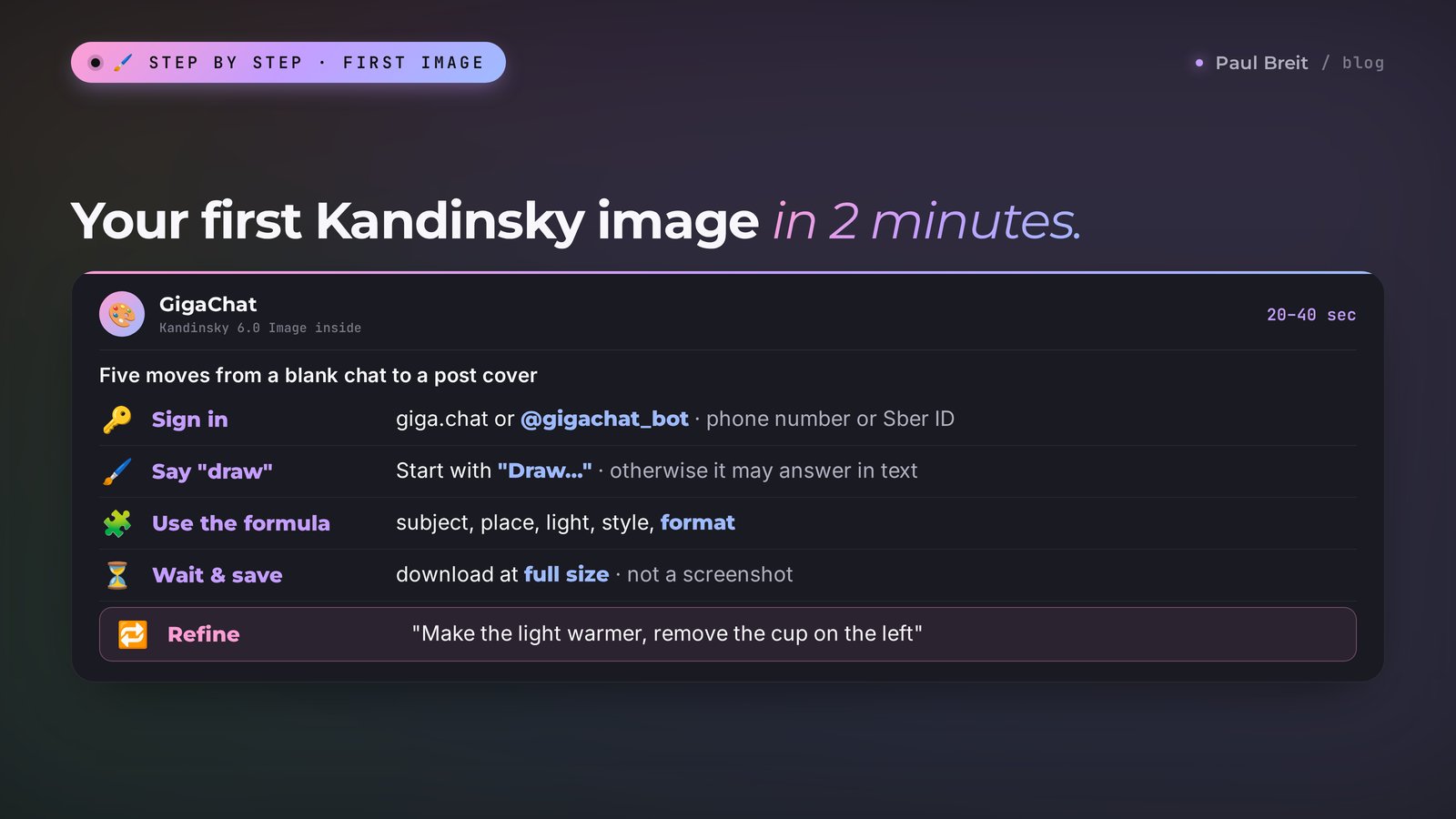
Open GigaChat and sign in
Go to giga.chat. Tap "Sign in," enter your phone number and the code from the text message, or sign in with a Sber ID. Registration is free and no card is needed. On a phone, you can open @gigachat_bot in Telegram and tap Start.
Start your request with "Draw"
GigaChat is both a text AI and an artist. To make it clear you want a picture, start with "draw," "create an image," or "generate a picture." Without that, it may reply in text, for example by describing what the picture would look like.
Describe the scene with the formula
What's in the frame, where it is, what the light is, the style, and the format. Write in plain language, the way you'd brief a photographer. I break the formula down in the next section.
Send it and wait 20-40 seconds
The image appears right in the chat. Tap it to open at full size and download it with the download button. Save it right away: two weeks later, finding the right version in a long chat history is a pain.
Refine it in the same chat
Don't start over if it's almost there. Reply: "Make the light warmer and remove the cup on the left." Kandinsky 6.0 edits precisely and leaves the rest as it was. Two or three tweaks are usually enough.
You type into GigaChat: Draw a cozy desk by a window early in the morning: an open notebook, a cup of steaming coffee, a eucalyptus sprig in a glass vase. Soft warm light from the window, beige and green tones, realistic photo, shallow depth of field. Horizontal 16:9 format, leave empty space on the right for a headline.
What you get: a horizontal picture that looks like a shot from an interiors magazine. The notebook, cup, and vase sit on the left; the right half is a soft blurred background where your headline will go. Steam over the coffee, warm highlights on the desk.
You type: Great. Now the same thing in the evening, lit by a desk lamp.
What you get: the same composition in an evening version: a warm circle of lamplight, blue dusk outside the window. Handy for a "morning and evening" post series or for two versions to test.
Why it worked. The request is short, but it has everything an artist needs: objects, place, time of day, light, colors, style, and format. The line about empty space on the right solves the biggest pain with covers: without it, Kandinsky fills the whole frame and your headline has nowhere to go.
The classic beginner mistake is a one-word request: "draw a therapist." The AI guesses everything else on its own, and you get a stock picture you've seen a thousand times. The more specifics you give, the less Kandinsky has to make up for you.
Section 06The prompt formula for Kandinsky
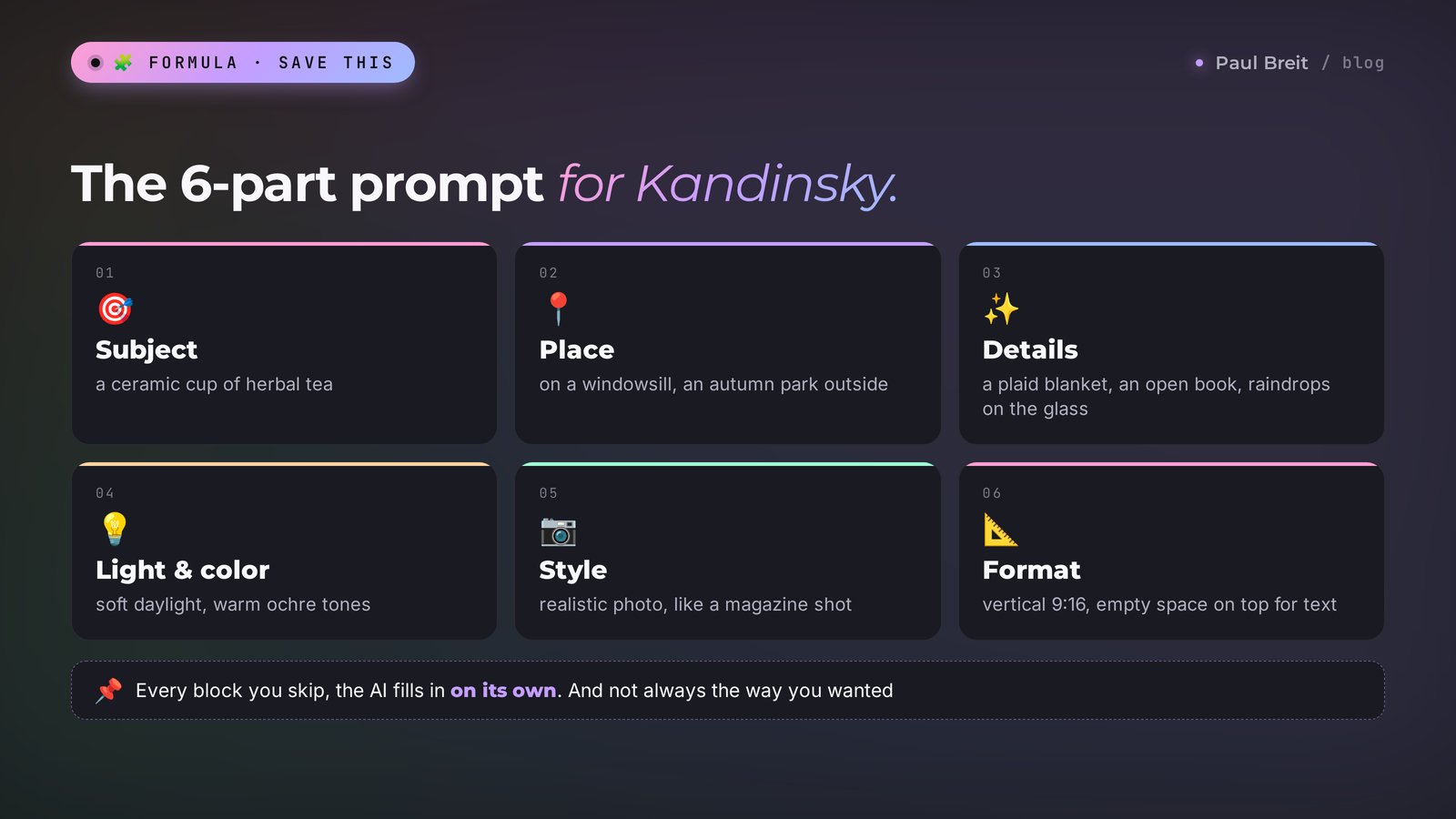
A prompt is the text of your request to the AI. For Kandinsky, a six-part formula works well. You don't have to fill every part, but every part you skip, the AI fills in on its own, and not necessarily the way you wanted.
| Part | What to write | Example |
|---|---|---|
| Subject | The main object or character, short and specific | a ceramic cup of herbal tea |
| Place | Location, background, time of day | on a windowsill, an autumn park outside |
| Details | Two or three small things that make the frame feel alive | a plaid blanket, an open book, raindrops on the glass |
| Light and color | What light and what palette | soft daylight, warm ochre tones |
| Style | Photo, illustration, watercolor, 3D, flat graphics | realistic photo, like a magazine shot |
| Format and composition | Aspect ratio and space for text | vertical 9:16, empty space on top for a caption |
A few observations from practice that save time:
- Language. Russian is the model's native language, and Russian-speaking users write prompts in Russian without translating. The open models also take English prompts. If an English prompt in GigaChat gives you something odd, run it through a translator into Russian and compare the results.
- One main idea per frame. "A therapist in an office, a client next to her, a chart on the wall, the sea outside, a laptop with a slide deck on the desk" turns into a pile-up. Pick the main thing and drop the rest.
- Name the style with words a photographer or illustrator knows. "Shot on film," "watercolor on paper," "flat vector illustration," "3D like an animated movie," "minimalism, lots of air."
- State the format explicitly. GigaChat can pick proportions on its own: vertical for a portrait, horizontal for a landscape. For a cover or a story, say it outright: 16:9 or 9:16.
- You can say what shouldn't be there. "No people," "no text," "no logos." Kandinsky understands that.
If you want to go deeper on prompts, my AI prompt library has 100 ready commands for different tasks, and the text approaches there carry over well to images.
Section 0724 ready prompts for real tasks
Copy them and swap the details for your niche. Each prompt starts with "Draw" so GigaChat hands the request straight to Kandinsky. They work just as well in any other image generator.
| Task | Prompt |
|---|---|
| Therapist's post cover | Draw an armchair with a soft blanket in a bright office, a cup of tea and a box of tissues on the side table, window light through linen curtains, calm pastel tones, realistic photo. 16:9 format, empty space on the right for a headline, no people. |
| Nutritionist, healthy dish | Draw a plate of quinoa, roasted vegetables, and avocado on a wooden table, a glass of lemon water next to it, top-down view, bright daylight, a photo for a food magazine. |
| Coach, live session announcement | Draw a microphone on a stand on a small empty stage, a warm spotlight, blurred silhouettes of seats in the hall, the atmosphere right before a talk, cinematic light, 16:9 format. |
| English tutor | Draw a desk with an open English textbook, colorful sticky notes, and a mug of cocoa, a bookshelf in the background, cozy evening light, an illustration in a soft watercolor style. |
| Fitness trainer | Draw a yoga mat, dumbbells, and a water bottle on the wooden floor of a bright studio, morning rays from a large window, minimalism, realistic photo, vertical 9:16 format. |
| Nail artist, price list | Draw a nail artist's table: bottles of nude polish, brushes, a marble surface, soft pink light, close-up photo, empty space on top for text. |
| Online course cover | Draw a laptop on a desk with a video lesson open, a notebook with notes and a pen next to it, a rainy evening outside, a warm lamp, a cozy study atmosphere, 16:9 format. |
| Lawyer, expert post | Draw a desk with a neat stack of documents, a fountain pen, and glasses, a formal office with books in the background, restrained dark blue tones, realistic photo, no people. |
| Accountant, tax season | Draw a desk with a calculator, folders, and a desk calendar, a mug with no lettering, soft office light, a calm businesslike atmosphere, flat illustration in beige and green tones. |
| "Good morning" story | Draw a view from a window over the rooftops of an old town at sunrise, a cup of coffee on the windowsill, a pink and gold sky, realistic photo, vertical 9:16 format, empty sky on top for a caption. |
| Metaphor illustration | Draw a small sprout breaking through a crack in the asphalt, dew drops on the leaves, morning light, macro shot, an uplifting mood. |
| Post about burnout | Draw a candle burning down on a dark table next to a half-finished cup and a phone with a blank screen, muted light, a gloomy but gentle atmosphere, photo. |
| Travel post | Draw a narrow street in a seaside town with white houses and blue shutters, a cat asleep on a step, bright sun, shadows, a photo in travel magazine style. |
| Holiday promotion | Draw a gift box with a ribbon in front of a Christmas tree with warm lights, tangerines and fir branches nearby, a cozy festive atmosphere, empty space on the left for text, 16:9 format. |
| Product for an online store | Draw an unlabeled jar of cream on a light stone, petals and water drops around it, soft studio light, a clean background, an advertising photo. |
| Child psychologist | Draw a child's room with stuffed toys and building blocks on the rug, patches of sunlight on the floor, warm pastel colors, an illustration like a children's book. |
| "Before and after" card | Draw two halves of the same desk: on the left a chaos of papers and cables, on the right the same desk clean and tidy, top-down view, bright daylight, realistic. |
| Guide cover | Draw an open book with small trees and paths growing out of its pages, soft magical light, an illustration in 3D animated movie style, empty space on top. |
| Post about money | Draw a glass jar full of coins on a wooden table next to a potted plant, warm sunlight, photo, a calm and confident atmosphere. |
| Offline meetup, retreat | Draw a circle of meditation cushions on an open veranda among pine trees, fog at dawn, soft light, realistic photo, 16:9 format. |
| Post about deadlines | Draw an hourglass on a desk next to a laptop, the sand almost run out, backlight, deep shadows, a cinematic shot. |
| Client case illustration | Draw a staircase of books with a paper airplane climbing it toward an open window, flat vector illustration, bright but soft colors. |
| Webinar background | Draw an abstract background of soft waves in purple and blue tones with a light grain, no objects and no text, 16:9 format. |
| Local detail | Draw a country-house table on a veranda: a samovar, jam in small glass dishes, apples in a wicker basket, warm summer evening sun, a nostalgic film photo. |
Look at the last prompt. A samovar, jam in little glass dishes, a dacha veranda: this is exactly where Western AI models stumble and draw something halfway between England and Mexico. Kandinsky makes it recognizable. The lesson carries over to any audience: local details give a picture warmth that stock photos don't. If your clients are in Texas or in Lisbon, name the things they'd recognize, and test which generator draws them most convincingly.
Another 30 ideas for photos, including portraits and AI photo shoots, are in my collection of AI photo prompt ideas.
Section 08Editing photos: point edits
The biggest change in Kandinsky 6.0 is editing finished photos. Earlier versions redrew the whole frame for any request: you asked for a different wall color and got a different person. Now Kandinsky changes only what you asked for. Ask for a new hairstyle or a pair of glasses, and the rest of the frame stays as it was.
Upload the photo to the chat
On giga.chat, click the paperclip next to the input field and pick a photo. In the Telegram bot, just send the photo as a regular message. Use a high-quality shot: the sharper the original, the cleaner the edit.
Describe one edit
One change at a time works better than a list. "Remove the cables in the background" instead of "remove the cables, change the background, make it brighter, and add flowers." Once the first edit is done, ask for the next.
Say what to leave alone
The phrase "don't change my face or clothes" or "keep everything else as in the photo" guards against extra changes. Kandinsky 6.0 already tries not to touch the rest, but the hint doesn't hurt.
If the edit touched too much, select the area
GigaChat now has manual selection: brush over the area you want changed or removed, and the edit applies only there. Handy when there's a random passerby, litter on the pavement, or a stain on the wall.
What people most often do with photos in Kandinsky:
- Clean up the background: cables, litter, someone's bag on a chair, random people.
- Swap the background: "put me against a bright studio backdrop" or "bookshelves behind me instead of a bare wall."
- Change clothes for a cover: "put me in a navy blazer, don't change my face."
- Extend the frame: "extend the photo on both sides to make it 16:9," when you have a vertical photo and need a horizontal cover.
- Light retouching: even out the light, remove glare from glasses, make the photo a bit warmer.
You upload a photo of yourself in a café and type: Remove the cup and the phone from the table and the people in the background. Keep me, my clothes, and the light as they are.
What you get: the same photo, but the table is clean and the café behind you is empty, with blurred lamps. Your face, hair, sweater, and lighting haven't changed. That shot is ready for an avatar or an introduction post.
Kandinsky handles faces more carefully than older versions, but big changes to appearance (age, facial features, body shape) can still make you look unlike yourself. In ads for your services, keep your face real: a client who books a consultation should recognize you. If you need heavy photo editing that keeps a face intact, compare the result with Google's Nano Banana 2: that's one of its biggest strengths.
Section 09One image from three photos, style, and restoration
Three Kandinsky 6.0 features that few people know about, and they cover jobs that used to require a designer.
Blending three photos
You can upload up to three photos in one request, and Kandinsky combines them into one image, taking what it needs from each. For example: your photo, a photo of your book, and a photo of an interior. Ask: "Combine these photos into one image: I'm sitting in this interior holding this book." People use this for announcement covers, virtual outfit try-ons, interior visualizations, and product cards in different settings.
You upload three photos: your portrait, your course packaging (a box with a workbook), and a photo of a bright living room. You type: Make one image: I'm sitting on the sofa in this living room holding this box, looking at the camera and smiling. Don't change my face or the packaging, 16:9 format.
What you get: you in that living room with the box in your hands, and the light on your face and the box matches the interior. It's not always perfect on the first try: sometimes the box comes out a slightly different shape. Then add: "the box's shape and color exactly as in the second photo."
Style transfer
Upload a sample image and ask for a new one in the same style. This fixes the eternal mismatch problem: every cover in your channel looks different, and the feed looks like a patchwork. Make one cover you like, then ask: "Draw a cover about… in the same style as this image." Your feed starts to look like a brand right away.
Restoring old photos
Kandinsky 6.0 restores old pictures: it removes scratches and creases, brings back sharpness, and colorizes black-and-white photos. For a personal blog, that's a ready-made warm post: your parents when they were young, your first day of school, your first office. For a business, it's photo restoration as a service, or as a lead magnet if you're a photographer or work with family history.
The request is simple: "Restore this photo: remove the scratches and spots, make it sharper, colorize it in natural colors. Don't change the faces." If the colors come out too bright, add "muted colors, like old color film."
Reference search
If Kandinsky doesn't know what an object looks like, it finds reference images on its own and leans on them. Sber calls this Image RAG. For you, it means requests about specific places, objects, and things the model hasn't seen before now come out noticeably more accurate.
Section 10Video with sound in Kandinsky 6.0 Video
In October 2026, Sber added Kandinsky 6.0 Video to GigaChat, a model that makes video with sound built in. According to Sber, it's the first Russian AI model that can do this. A clip runs up to 5 seconds, and you pick the quality: SD (faster), HD, or Full HD. The sound covers speech and lines from characters, background music, ambient noise like footsteps and wind, and sound effects.
Five seconds sounds short, but for social media it's exactly what you need for a reel intro, a moving cover, or a transition between pieces of a video. A long video is assembled from short shots in the edit anyway.
Two ways to make a video:
- From text. Describe the scene, the motion, and the sound. "Make a video: a cup of coffee on a windowsill, steam rising, snow falling outside, the camera slowly moves closer. Sound: quiet jazz and street noise."
- From a starting frame. Upload an image (your own or one made in Kandinsky) and describe what in it should start moving. This gives you more control: you see in advance what the frame will look like.
A convenient order for video: first get the picture right in Kandinsky 6.0 Image, then bring it to life as a video. Images are free and fast, so that's where you try out versions. Video has limits, so it gets the finished frame.
You upload the desk-by-the-window image from Section 05 and type: Make a video from this image: steam rises over the cup, the notebook's pages stir slightly in a breeze, the camera slowly moves toward the desk. Sound: birds singing outside and the quiet clink of a spoon against the cup. Full HD.
What you get: a five-second clip where the frame comes alive: steam curls upward, the pages flutter a little, you hear birds and the clink of the spoon. That clip works as the opening of a reel about morning routines or the header of an announcement.
What not to expect. Complex human actions (dancing, sports, hand gestures) come out worse in five seconds than the movement of nature, light, and camera. If a character needs to speak, keep the line short, 5-8 words, or the speech won't fit.
If you need longer clips with complex cuts, see my breakdown of Kling, and for a general overview of video services, read AI video from text. To animate a photo you already have, there's a separate guide on how to animate a photo with AI.
Section 11Text on images without the pain
Kandinsky 6.0 writes text on images better than earlier versions. A short word or two in large letters often comes out clean. But a six- or seven-word post headline is a lottery: one letter disappears, another doubles, and the image is no longer publishable.
The approach that works:
- In the prompt, ask for empty space for text: "empty space on the right for a headline," "clear sky on top with no objects."
- Add "no text or lettering" so Kandinsky doesn't put random letters on a mug or a sign.
- Add the headline afterward in any editor: Canva, your phone's Photos app, Figma, even the built-in story editor in Telegram.
- If you need one short word in the frame (SALE, LIVE, NEW), try asking for it directly: "a sign with the big word LIVE." Write the word in capitals and in quotes. If it doesn't work in two tries, add it by hand.
If you make lots of covers every week, there's a faster way than adding text by hand. Make the picture in an image generator, and have Claude assemble the banner from a template with your fonts and colors. I explain how that works in my guide to the AI banner maker.
Section 12Let Claude write your Kandinsky prompts
The hardest part of working with any image AI is figuring out what exactly to draw. You stare at an empty field, type "cover about burnout," and your imagination runs out. That part is easy to hand off to a text AI. I use Claude: it understands what a post is about and suggests visual metaphors you won't come up with for the tenth time in a week.
The setup is simple. You give Claude your post text or topic, it suggests three to five image ideas and writes ready prompts for Kandinsky. You copy the best one into GigaChat or whatever generator you use.
You type into Claude: I'm a therapist writing a post about why people put off seeing a specialist for years. My audience is women aged 30-45. Suggest 4 cover ideas with no people and no text, and for each, write a prompt for the Kandinsky image model using this formula: subject, place, details, light and color, style, 16:9 format with empty space on the right for a headline.
Claude replies: four ideas with prompts. For example: "Draw an office door left open just a crack, a strip of warm light falling from it into a dark hallway, someone's shoes on the floor by the door, muted blue and warm yellow tones, realistic photo, 16:9 format, empty space on the right for a headline." And for each idea, one line on which thought from the post the image conveys.
In five minutes you have a series of covers tied to the meaning of your post. Even better: ask Claude once to remember your cover style (colors, mood, what should never appear) in a project, and from then on just send topics. I explain how to set up such a project in my guide to Claude prompts. If you're outside the US and want to know how to subscribe, see how to pay for Claude.
No Claude handy? GigaChat can come up with prompts for Kandinsky itself. Type: "Suggest 4 image ideas for a post about… and draw the first one right away." Its ideas are simpler and more literal, but good enough to start.
Section 1310 ways to use it for sales and content
A picture for its own sake does nothing for you. Here's where Kandinsky, or any good image generator, actually saves time and money for everyone who sells services, courses, and consulting.
- Telegram post covers. One cover in a consistent style for every post. Your feed starts to look like a magazine, and posts get forwarded more often.
- Live session and webinar announcements. An atmospheric picture of a stage or a desk, with the headline and date on top. Five minutes instead of an order to a designer.
- Lead magnet and guide covers. "An open book with paths growing out of it" sells a guide signup better than a screenshot of a document.
- Ad creatives for Telegram and Meta. Quickly make five different versions and test which one brings leads cheaper. Free generation is the big plus here: trying options costs nothing.
- Photos for your site and price list. An office interior, a practitioner's workspace, the feel of a studio, when you don't have your own photos yet or they don't fit the style.
- Cleaning up your own photos. Remove clutter from the background of your avatar, channel cover, or About page photo.
- Course lesson illustrations. Metaphors for hard topics: "a wall where one row of bricks sticks out," "scales tipping to one side." Lesson slides come alive.
- Product cards. Your product in different settings via the three-photo blend. More on product cards in my guide to AI for marketplaces.
- Moving reel covers. An image brought to life in Kandinsky 6.0 Video as the first five seconds of a reel.
- Warm personal posts. A restored old photo and the story behind it build reach and trust better than any ad.
The tip that changes the look of your feed the most: create one "style tail" for your prompts and add it to the end of every request. For example: "soft daylight, beige and olive tones, minimalism, realistic photo, 16:9 format, empty space on the right." All your covers instantly become one series, and people start recognizing you in the feed by the picture before they even read the channel name.
Section 14When something goes wrong
| Problem | Why | What to do |
|---|---|---|
| GigaChat replied with text instead of an image | It didn't realize you wanted a picture | Start the request with "Draw" or "Create an image" |
| Refusal: "I can't create that image" | A filter fired: a famous person, politics, violence, explicit content. Sometimes it catches harmless words | Remove names and touchy words, rephrase. "A man in a suit" instead of a name |
| The image is square, but you need a cover | No format given, so the AI picked one | Add "horizontal 16:9" or "vertical 9:16." You can also ask "extend the sides to 16:9" |
| Garbled letters on the image | Long text is a weak spot | Ask for "no text" and add the headline in an editor (Section 11) |
| The face changed during a photo edit | Too many edits at once or a big change to appearance | One edit at a time, add "don't change the face," use area selection |
| Extra fingers, odd hands | Hands are still the hardest part for AI | Ask for "hands hidden" or "hands in pockets," or fix it precisely: "fix the left hand, five fingers" |
| The result looks like generic stock | The request is too vague | Add two or three specific details and the light. Or ask Claude for a metaphor |
| The image takes a long time | A queue at peak hours | Wait a couple of minutes and don't resend, or you'll be in the queue twice |
| It won't let you in from abroad | Restrictions by phone number or IP | Try signing in with a Sber ID. If that fails, run the open models or use Nano Banana or ChatGPT |
| A third-party "Kandinsky" bot asks for payment | An unofficial middleman | Use the official GigaChat: giga.chat or @gigachat_bot, where images are free |
If the result is completely off and edits don't help, open a new chat. In a long conversation GigaChat sometimes clings to early details and drags them into new images. A clean chat is a clean slate.
Section 15Kandinsky vs Nano Banana, Midjourney, and ChatGPT
Kandinsky isn't the only option, and for some tasks another tool is the better pick. For a US or European reader the real question is simple: is Kandinsky worth the extra effort next to tools you can already use? Here's a short comparison of the popular options in 2026. I'm leaving out exact prices since they change often; check the current plan pages before you subscribe.
| Tool | Strong side | Access from the US | Price |
|---|---|---|---|
| Kandinsky (GigaChat) | Russian prompts, Russian everyday detail, photo edits, three-photo blends, video with sound | GigaChat may refuse foreign numbers and IPs; open models run anywhere | Free images in GigaChat; open models cost only your hardware or hosting |
| Nano Banana 2 (Google) | Photo editing that keeps a face intact, photorealism, lettering | Works | Free tier, then paid plans |
| Midjourney | The most artistic, stylish images | Works | Paid only |
| ChatGPT | Understands complex requests, writes text on images well | Works | Free tier, then a subscription |
| Shedevrum (Yandex) | A separate app with a feed of other people's work, handy for ideas | Not officially confirmed | Free with limits |
How to choose without overthinking it. You're in the US or Europe and need work images today: start with Nano Banana or ChatGPT. You need an artistic look for a course or book cover: Midjourney. You do a lot of editing on photos with your face: Nano Banana. You want to generate in bulk on your own hardware, or build images into your own product: the open Kandinsky models are a serious candidate. You work with a Russian-speaking audience, or GigaChat lets you in: Kandinsky is free and fast. A detailed comparison of all the options is in AI image generators in 2026, and a general toolkit for different tasks is in the best AI tools of 2026.
The working pair for most tasks: one image generator for quick covers and photo edits, and Claude for all the text around them, prompts included. That pair covers about 90% of image work for a blog and ads.
Section 16Pre-publish checklist
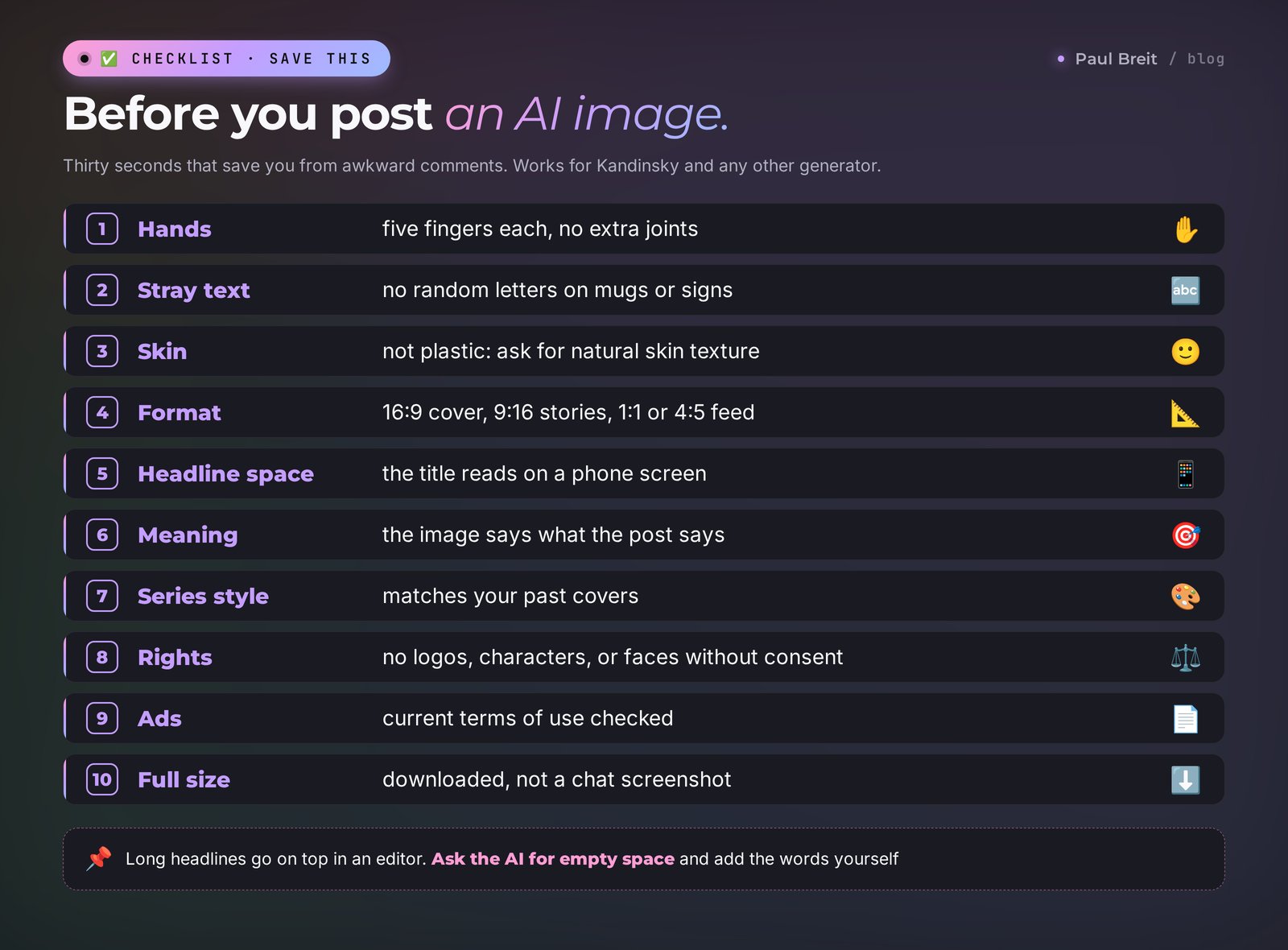
Before you put an image in a post or an ad, run through this list. Thirty seconds that save you from awkward comments.
- Hands and fingers are fine: five each, no extra joints.
- No random letters on mugs, signs, or books.
- Faces don't look plastic: if the skin is too smooth, ask for "natural skin texture."
- The format fits the platform: 16:9 for a post cover, 9:16 for stories and reels, 1:1 or 4:5 for the feed.
- There's room for the headline, and it reads on a phone.
- The image connects to the meaning of the post; pretty alone isn't enough.
- The style matches your channel's previous covers.
- No other brands' logos, recognizable characters, or people's faces without consent.
- If it's an ad, you've checked the current terms of use.
- The image is downloaded at full size, not screenshotted from the chat.
Section 17The whole path in a minute
Open giga.chat or the @gigachat_bot bot and sign in with a phone number or Sber ID. If GigaChat won't let you in from abroad, run the open Kandinsky models through ComfyUI, Diffusers, or a hosting provider, or use Nano Banana or ChatGPT. Start the request with "Draw" and describe the scene with the formula: subject, place, details, light and color, style, format and space for text. To edit a photo, upload it and ask for one change at a time, adding "keep everything else as it is." You can blend up to three photos into one image. A video up to 5 seconds with sound is made from a finished image. Add headlines afterward in an editor. Inside Russia, images are free.
Start today with one action: take the topic of your next post, paste it into the "Therapist's post cover" prompt from Section 07, swap the objects for your niche, and send it to your image generator. In a minute you'll have your first cover. After a week of covers like that, you'll have a recognizable style in the feed.
FAQFrequently asked questions
Is Kandinsky free?
Yes, inside GigaChat. Images from Kandinsky 6.0 are free for regular users, and Sber doesn't cap how many you make. No card is needed; you sign in with a phone number. Video has daily limits. Developers who connect Kandinsky to their own services through Sber's API pay for it, and the open models cost only your hardware or hosting.
Where can I find Kandinsky?
The easiest place is GigaChat: the giga.chat website, the Android app, and the official @gigachat_bot in Telegram. Type "Draw..." and a description, and Kandinsky makes the picture. The open models for developers are on Hugging Face and GitHub.
Can I use Kandinsky from the US or Europe?
Sometimes. GigaChat may refuse a foreign phone number or a foreign IP address; signing in with a Sber ID occasionally helps. If it doesn't, you can run the open-source Kandinsky models yourself through ComfyUI, Diffusers, or a hosting provider, or use Nano Banana or ChatGPT, which work in the US and Europe without restrictions.
Is Kandinsky open source?
Yes. Starting with the Kandinsky 5.0 family in November 2025, Sber publishes Kandinsky models on Hugging Face and GitHub under the MIT license, which allows commercial use. Check the model card of the exact version you download for its license and hardware requirements. Image and video models need a graphics card with plenty of video memory.
What is the latest version of Kandinsky?
As of October 2026, the image model is Kandinsky 6.0 Image, released on April 28, 2026. The video model is Kandinsky 6.0 Video, released in October 2026; it makes clips up to 5 seconds with sound at up to Full HD. GigaChat always runs the latest version, so you don't have to choose.
How do I edit a photo in Kandinsky?
Upload the photo to GigaChat and describe one change, for example "remove the people in the background, keep everything else as it is." Kandinsky 6.0 changes only what you asked for. If the edit touches too much, brush over the area with the selection tool. Make complex edits one at a time.
Can Kandinsky write text on images?
Short words in large letters often come out clean. Long lettering of several words comes out with mistakes. It's more reliable to ask for empty space for text and add "no lettering," then put the headline on top in Canva, Figma, or your phone's editor.
Can I use Kandinsky images in ads?
People widely use Kandinsky images for their own content and to advertise their own services. The terms are set by GigaChat's user agreement, which Sber updates, so read the current version before a big paid campaign. If you run the open models, the model's license applies. Don't depict real people without consent and don't copy other brands' logos or characters.
Kandinsky or Nano Banana, Midjourney, and ChatGPT: which should I use?
In the US or Europe, start with the tool you can reliably access: Nano Banana for photo edits that keep a face intact, ChatGPT for complex requests and text on images, Midjourney for the most artistic look. Kandinsky is a strong choice if GigaChat lets you in, if you work with a Russian-speaking audience, or if you want open models to run on your own hardware.